Page 2 - User Guide; ENGLISH; subject to change without notice.
User Guide ENGLISH • Screen displays and illustrations may differ from those you see on actual phone. • Some of the contents of this guide may not apply to your phone, depending on the software and your service provider. All information in this document is subject to change without notice. • This de...
Page 3 - Table of contents
Table of contents 2 Important notice ................................... 4 Getting to know your phone ................. 9 Phone overview ................................... 9Installing the battery .......................... 11Charging the phone ........................... 13Using the memory card.......
Page 5 - Please read this before you start using your phone!; To uninstall applications:; Optimizing battery life; system resources consume battery power.
4 Important notice Important notice Please read this before you start using your phone! Please check to see whether any problems you encountered with your phone are described in this section before taking the phone in for service or calling a service representative. 1. Phone memory When there is les...
Page 6 - Reduce screen brightness and set a shorter screen timeout.; Before installing an open source application and
5 • Reduce screen brightness and set a shorter screen timeout. • Turn off automatic syncing for Gmail, Calendar, Contacts and other applications. NOTE: Some applications you have downloaded may reduce battery power. 3. Before installing an open source application and operating system (OS) WARNING If...
Page 7 - Important notice; Using a screen lock; forget your screen lock.; Press and hold the
6 Important notice 4. Using a screen lock Set a screen lock to secure your phone and prevent unauthorized use. To set a screen lock, from the Home screen, tap > Apps tab (if necessary) > > Lock screen > Select screen lock > Swipe , Knock Code, Pattern, PIN , or Password . You might be...
Page 8 - Opening and switching applications
7 5 Press the Volume Down Key to scroll to Yes , then press the Power/Lock Key to continue. 6 Press the Volume Down Key to scroll to Yes once more, then press the Power/ Lock Key to confirm. 7 Your phone performs a factory reset. WARNING If you perform a Hard Reset, all user applications and user da...
Page 9 - To clear all apps, tap; If the screen freezes; remove the battery and reinsert it. Then power the phone back on.
8 Important notice • To close an app from the recent apps list, swipe the app preview to the left or right. To clear all apps, tap Clear all . 7. If the screen freezes If the screen freezes or the phone does not respond when you try to operate it, remove the battery and reinsert it. Then power the p...
Page 10 - Phone overview; Return to the Home screen from any screen. Press and hold to; Getting to know your phone
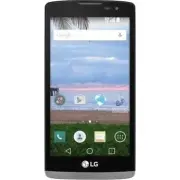
9 Getting to know your phone Phone overview Proximity Sensor Earpiece Front Camera Lens Home Key Back Key Recent Apps Key Home Key Return to the Home screen from any screen. Press and hold to access Google Now. Back Key Return to the previous screen. Also closes pop-up items such as menus, dialog bo...
Page 11 - Used for calls and
10 Getting to know your phone Charger/USB Port 3.5mm Headset Jack Main Microphone: Used for calls and recording audio. Sub Microphone: Used as a speakerphone. Power/Lock Key Flash Volume Keys Power/Lock Key Turn your phone on/off, restart, lock/unlock the screen, and turn airplane mode on or off. Vo...
Page 12 - Installing the battery
11 Back cover Battery microSD Card slot micro SIM Card slot Back Camera Lens Speaker Installing the battery Before you can start exploring your new phone, you'll need to set it up. 1 To remove the back cover, hold the phone firmly in one hand. With your other hand, place your thumbnail in the Charge...
Page 13 - compartment and press it down until it clicks into place .
12 Getting to know your phone 2 Insert the battery into the battery compartment by aligning the gold contacts on the phone and the battery and pressing it down until it clicks into place . 1 2 3 To replace the cover onto the device, align the back cover over the battery compartment and press it down...
Page 14 - Charging the phone; Using the memory card; Remove the back cover.
13 Charging the phone The Charger/USB Port is located at the bottom of the phone. Insert one end of the USB cable into the phone and plug the other end into an electrical outlet. NOTE: Do not open the back cover while your phone is charging. Using the memory card Make sure to unmount the SD card in ...
Page 15 - Unlocking the screen
14 Getting to know your phone Unlocking the screen By default, your screen will lock after a period of inactivity, then turn off. Unlocking the screen 1 Press the Power/Lock Key to wake the screen. 2 Swipe the screen in any direction to unlock it.
Page 16 - Smart Lock; Setting up Smart Lock
15 Smart Lock You can use Smart Lock to make unlocking your phone easier. You can configure it to keep your phone unlocked when you have a trusted Bluetooth device connected to it, when it's in a familiar location, like your home or work, or when it recognizes your face. Setting up Smart Lock Before...
Page 17 - Your Home screen; Touch screen tips; Touch or tap
16 Your Home screen Touch screen tips Here are some tips on how to navigate on your phone. Touch or tap – A single finger tap selects items, links, shortcuts and letters on the on-screen keyboard. Touch and hold – Touch and hold an item on the screen by touching it and not lifting your finger until ...
Page 18 - Home screen; accessible from any menu by tapping .
17 Home screen The Home screen is the starting point for many applications and functions, and it allows you to add items like application shortcuts, or Google widgets to give you instant access to information and applications. This is the default canvas and accessible from any menu by tapping . Stat...
Page 19 - Extended home screen; Adding items on your Home screen; Removing an item from the Home screen
18 Your Home screen Extended home screen The operating system provides multiple Home screen canvases to provide more space for adding icons, widgets, and more. X Slide your finger left or right across the Home screen to access additional canvases. Customizing the Home screen You can customize your H...
Page 20 - Customizing app icons on the Home screen; Returning to recently-used applications; Tap . App previews of recently used applications will be displayed.
19 Removing an app from the Quick Key area X Touch and hold the desired Quick Key, drag it to , and release it. NOTE: The Apps Key cannot be removed. Customizing app icons on the Home screen 1 Touch and hold an application icon until it is unlocked from its current position, then release it. The edi...
Page 21 - Notifications panel; strength are shown on the right.
20 Your Home screen Notifications panel Notifications alert you to the arrival of new messages, calendar events, and alarms, as well as to ongoing events, such as when you are using turn-by-turn navigation.When a notification arrives, its icon appears at the top of the screen. Icons for pending noti...
Page 22 - Opening the Notifications panel; Notifications panel, swipe the screen upwards or tap .
21 Opening the Notifications panel Swipe down from the Status Bar to open the Notifications panel. To close the Notifications panel, swipe the screen upwards or tap . Quick Settings Area Notifications Clear Tap each Quick Setting key to toggle it on/off. Touch and hold the desired key to directly ac...
Page 23 - Indicator icons on the Status Bar; Icon Description
22 Your Home screen Indicator icons on the Status Bar Notification icons appear on the Status Bar at the top of the screen to report missed calls, new messages, calendar events, device status and more. The icons displayed at the top of the screen provide information about the status of the device. T...
Page 25 - on the screen when you tap an available text entry field.; Entering special characters
24 Your Home screen On-screen keyboard You can enter text using the on-screen keyboard. The on-screen keyboard appears on the screen when you tap an available text entry field. Using the keypad & entering text Tap once to capitalize the next letter you type. Tap twice for all caps. Tap to access...
Page 26 - Gesture shot; To take a photo; There are two methods for using the Gesture shot feature.
25 Special Features Special Features Gesture shot The Gesture shot feature allows you to take a picture with a hand gesture using the front camera. To take a photo There are two methods for using the Gesture shot feature. • Raise your hand, with an open palm, until the front camera detects it and a ...
Page 27 - Special Features; Knock Code; feature in the Lock screen settings.; KnockON; the camera viewfinder) or an empty area on the Home screen.
26 Special Features Knock Code The Knock Code feature allows you to wake and unlock the screen with your own Knock Code pattern. When enabled, Knock Code divides the screen into 4 parts and uses your unique combination of taps to secure your device. You can disable this feature in the Lock screen se...
Page 28 - OR
27 QuickMemo+ The QuickMemo+ feature allows you to capture screen shots and use them to create memos. You can use QuickMemo+ to easily create memos during a call, with a saved picture or on the current phone screen and share them with family and friends. OR 1 While screen is switched off, press and ...
Page 29 - Google account setup; Creating your Google account
28 Google account setup The first time you open a Google application on your phone, you will be required to sign in with your existing Google account. If you do not have a Google account, you will be prompted to create one. Creating your Google account 1 From the Home screen, tap to open the applica...
Page 30 - Connecting to Networks and Devices; Connecting to Wi-Fi networks; Apps
29 Connecting to Networks and Devices Wi-Fi You can use high-speed Internet access while within the coverage of the wireless access point (AP). Connecting to Wi-Fi networks 1 From the Home screen, tap > Apps tab (if necessary) > > Wi-Fi . You can also open the Notifications panel and touch ...
Page 31 - Bluetooth; Pairing up your phone with another Bluetooth device
30 Connecting to Networks and Devices Bluetooth You can use Bluetooth to connect with headsets, sound systems, or even to exchange data between nearby devices. NOTE: • LG is not responsible for the loss, interception or misuse of data sent or received via the Bluetooth feature. • Always make sure th...
Page 33 - Transferring data between a PC and your device; You can copy or move data between a PC and the device.; Items
32 Connecting to Networks and Devices Transferring data between a PC and your device You can copy or move data between a PC and the device. Transferring data 1 Connect your device to a PC using the USB cable that came with your phone. 2 Open the Notifications panel, tap the current connection type, ...
Page 34 - Making a call; Calling your contacts
33 Calls Calls Making a call 1 From the Home screen, tap to open the dialer. 2 Enter the number using the dialer. To delete a digit, tap . 3 After entering the desired number, tap to place the call. 4 To end the call, tap . TIP! To enter “+” to make international calls, touch and hold . Calling your...
Page 35 - Calls; Adjusting the in-call volume; Add call
34 Calls Adjusting the in-call volume To adjust the in-call volume during a call, use the Volume Up and Volume Down Keys on the back of the phone. Making a second call 1 During your first call, tap , touch Add call and enter the number. NOTE: You can also go to the recently dialed numbers list by ta...
Page 36 - Viewing your call logs; Call logs; Call settings
35 Viewing your call logs From the Home screen, tap and select the Call logs tab. A list of all dialed, received and missed calls is displayed. TIP! • Tap any call log entry to view the date, time and duration of the call. • Tap , then tap Delete all to delete all of the recorded items or tap Delete...
Page 37 - Searching for a contact
36 Contacts Contacts Add contacts to your phone and synchronize them with the contacts in your Google account or other accounts that support contact syncing. Searching for a contact 1 From the Home screen, tap to open your contact list. 2 Tap the Search contacts box and enter the contacts name. You ...
Page 38 - Creating a group
37 3 Tap the star at the top right of the screen. The star will turn yellow. Removing a contact from your favorites list 1 From the Home screen, tap to open your contact list. 2 Tap the Favorites tab and choose a contact to view its details. 3 Tap the yellow star at the top right of the screen. The ...
Page 39 - Sending a message; To
38 Messaging Messaging Your phone combines text and multimedia messages into one intuitive, easy-to-use menu. Sending a message 1 Tap on the Home screen and tap to create a new message. 2 Enter a contact name or contact number in the To field. As you enter the contact name, matching contacts will ap...
Page 40 - Using smilies; Insert smiley; Conversation view; Open the
39 Using smilies Liven up your messages using smilies and emojis.When writing a new message, tap > Insert smiley . To access emojis, tap on the LG keyboard and choose an emoji category to view the available emojis. Conversation view Text and multimedia messages exchanged with another party are di...
Page 41 - Email; Managing an email account
40 E-mail Email You can use the Email application to read emails from services like Gmail. The Email application supports the following account types: POP3, IMAP and Exchange.Your service provider or system administrator can provide you with the account settings you need. Managing an email account T...
Page 42 - Composing and sending email; Composing and sending a message
41 Composing and sending email Composing and sending a message 1 While in the Email application, tap to create a new email. 2 Enter an address for the message's intended recipient. As you enter text, matching addresses will be proposed from your Contacts. Separate multiple addresses using semicolons...
Page 43 - Camera options on the viewfinder
42 Camera and Video Camera and Video To open the Camera application, from the Home screen, tap > Apps tab (if necessary) > . Camera options on the viewfinder 6 1 7 2 8 3 4 5 1 Hide/Display Options – Tap to hide/display the camera options on the viewfinder. 2 Flash – Allows you to manage the ca...
Page 44 - Using the advanced settings; In the camera viewfinder, tap to access the camera settings below.; Taking a photo
43 Using the advanced settings In the camera viewfinder, tap to access the camera settings below. Selects the photo and video resolution. Allows you to say a voice command to take pictures. You can say Cheese, Smile, Whiskey, Kimchi or LG.Sets a delay after the capture button is pressed. This is ide...
Page 45 - Camera and Video; Once you've taken a photo; Camera
44 Camera and Video Once you've taken a photo Tap the image thumbnail on the screen to view the last photo you took. The following options are available. Tap to edit the photo.Tap to take another photo immediately.Tap to send your photo to others or share it via any available social network services...
Page 46 - After recording a video; following options are available.; Multi-point Auto Focus; automatically and will allow you to see a clear image.
45 After recording a video Tap the video thumbnail on the screen to view the last video you recorded. The following options are available. Tap to record another video immediately.Tap to send your video to others or share it via any available social network services.Tap to delete the video. Tap to ac...
Page 47 - Gallery; Viewing pictures; screen. Scroll left or right to view the next or previous image.; Zooming in and out; Use one of the following methods to zoom in on an image:
46 Camera and Video Gallery The Gallery allows you to view and manage all of your pictures and videos. 1 From the Home screen, tap > Apps tab (if necessary) > . NOTE: • Depending on the software installed, some file formats may not be supported. • Some files may not play properly due to their ...
Page 48 - Video options
47 Video options 1 From the Home screen, tap > Apps tab (if necessary) > . 2 Select the video you want to play. The following options are available. / Touch to pause/resume video playback. Touch to fast-forward 10 seconds. Touch to rewind 10 seconds.Touch to adjust the video volume. Touch to l...
Page 49 - Editing photos; Delete; Setting as wallpaper; Set image as
48 Camera and Video Editing photos When viewing an photo, tap . Deleting photos/videos Use one of the following methods: • While in a folder, tap and select the photos/videos you want to delete. Then tap Delete . • When viewing a photo, tap . Setting as wallpaper When viewing a photo, tap > Set i...
Page 50 - Multimedia; Music; Playing a song; From the Home screen, tap
49 Multimedia Music Your phone has a music player that lets you play all your favorite tracks. To access the music player, from the Home screen, tap > Apps tab (if necessary) > . Playing a song 1 From the Home screen, tap > Apps tab (if necessary) > . 2 Tap the Songs tab. 3 Select the so...
Page 53 - Utilities; Clock; Alarms; Timer
52 Utilities Clock Use the Clock app to access the Alarms, Timer, World clock and Stopwatch functions. Access these functions by tapping the tabs across the top of the screen or swiping horizontally across the screen.To access the Clock app, from the Home screen, tap > Apps tab (if necessary) >...
Page 54 - Calculator
53 World clock The World clock allows you to easily check the current time in other cities around the world. 1 Open the Clock app, then select the World clock tab. 2 Tap and select the desired city. Stopwatch The Stopwatch feature allows you to use your phone as a stopwatch. 1 Open the Clock app, th...
Page 55 - Scientific calculator; Calendar; Save; Voice Recorder; Recording a sound or voice
54 Utilities 4 For more complex calculations, tap > Scientific calculator and select the desired function. NOTE: To check the history of calculations, tap > Calculation history. Calendar The Calendar app allows you to track your schedule of events. 1 From the Home screen, tap > Apps tab (if...
Page 56 - Voice Search; Downloads; FM Radio
55 Voice Search Use this application to search the web using your voice. 1 From the Home screen, tap > Apps tab (if necessary) > Google folder > . 2 Say a keyword or phrase when Speak now appears on the screen. Select one of the suggested keywords that appear. NOTE: This application may not...
Page 57 - Browsing the Web; Browser; Using the Browser toolbar
56 Browsing the Web Browser Use this application to browse the Internet. The Browser gives you a fast, full-color world of games, music, news, sports, entertainment and much more, right on your mobile phone. NOTE: Additional charges apply when connecting to these services and downloading content. Ch...
Page 58 - Chrome
57 Viewing webpages Tap the address field, enter the web address and tap Go on the keyboard. Opening a page To open a new page, tap > .To go to another webpage, tap , scroll up or down, and tap the page to select it. Searching the web by voice In the browser, tap the address field and then tap . ...
Page 59 - Viewing webpages; search criteria and tap; Opening a page; New tab; Syncing with other devices; Recent tabs; Adding and viewing bookmarks; Bookmarks
58 Browsing the Web NOTE: This application may not be available, depending on your region and service provider. Viewing webpages In the Chrome browser, tap the address field, and then enter a web address or search criteria and tap Go on the keyboard. Opening a page To open a new page, tap > New t...
Page 60 - Settings; System settings menus.
59 Settings This section provides an overview of items you can change using your phone's System settings menus. Accessing the Settings menu: From the Home screen, touch and hold > System settings . - or -From the Home screen, tap > Apps tab (if necessary) > Settings . WIRELESS & NETWORK...
Page 62 - DEVICE
61 VPN – From your phone, you can add, set up, and manage virtual private networks (VPNs) that allow you to connect and access resources inside a secured local network, such as your corporate network. NOTE: You must set a screen lock before you can use VPN. DEVICE < Sound > Sound profile – All...
Page 66 - PERSONAL
65 < Battery > The Battery charge information is displayed on a battery graphic along with the percentage of the remaining charge and its status. Battery usage – Displays the battery usage level and battery use details. Tap an app or component to view detailed information relating to battery u...
Page 70 - SYSTEM
69 Automatic restore – Allows you to restore your settings and application data when the applications are reinstalled on your device. Factory data reset – Allows you to reset your settings to the factory default values and delete all your data, including user data such as pictures and videos. SYSTEM...
Page 77 - you use your phone safely and correctly.; About this user guide
76 About this user guide • Before using your device, please carefully read this manual. This will ensure that you use your phone safely and correctly. • Some of the images and screenshots provided in this guide may appear differently on your phone. • Your content may differ from the final product, o...
Page 78 - Trademarks; LG and the LG logo are registered trademarks of LG Electronics.
77 Trademarks • LG and the LG logo are registered trademarks of LG Electronics. • All other trademarks and copyrights are the property of their respective owners.
Page 79 - These accessories are available for use with your phone.
78 Accessories Accessories These accessories are available for use with your phone. (Items described below may be optional and sold separately.) • Travel adapter • User Guide • USB cable • Battery NOTE: • Always use genuine LG accessories. The supplied items are designed only for this device and may...
Page 81 - FAQ
80 FAQ Category Sub- Category Question Answer Google™ Service Gmail Log-In Do I have to log into Gmail whenever I want to access Gmail? Once you have logged into Gmail, there is no need to log into Gmail again. Google™ Service Google Account Is it possible to filter emails? No, email filtering is no...
Page 89 - or dispose of in fire.
88 For your safety For your safety The highest SAR value for this model phone when tested for use at the ear is 1.21 W/kg and when worn on the body, as described in this user guide, is 1.25 W/kg (body-worn measurements differ among phone models, depending upon available accessories and FCC requireme...
Page 90 - Wireless Devices
89 • Use only original manufacturer-approved accessories, or accessories that do not contain any metal. Please only use an approved charging accessory to charge your LG phone. Improper handling of the Accessory/Charger Port, as well as the use of an incompatible charger, may cause damage to your pho...
Page 91 - For your safety; Phones rated M3 or M4 meet FCC requirements and are likely to
90 For your safety interference, you may not be able to use a rated phone successfully. Trying out the phone with your hearing device is the best way to evaluate it for your personal needs. M-Ratings: Phones rated M3 or M4 meet FCC requirements and are likely to generate less interference to hearing...
Page 93 - under the state laws.
92 For your safety 7.11 Warranty Laws The following laws govern warranties that arise in retail sales of consumer goods: • The California Song-Beverly Consumer Warranty Act [CC §§1790 et seq], • The California Uniform Commercial Code, Division Two [Com C §§2101 et seq], and • The federal Magnuson-Mo...
Page 94 - Guía del usuario; ESPAÑOL; de este documento está sujeta a cambios sin previo aviso.
Guía del usuario ESPAÑOL • Las visualizaciones e ilustraciones de la pantalla pueden variar de las que ve en el teléfono. • Es posible que parte del contenido de esta guía no se aplique al teléfono, dependiendo del software y de su proveedor de servicios. Toda la información de este documento está s...
Page 95 - Tabla de contenido
Tabla de contenido 2 Aviso importante .................................. 4 Características del teléfono ................. 9 Descripción general del teléfono .......... 9Instalación de la batería ..................... 11Carga del teléfono ............................. 13Uso de la tarjeta de memoria ....
Page 97 - Por favor, lea esto antes de comenzar a usar su; describe en esta sección.; Memoria del teléfono; contar con más espacio en la memoria.; Optimizar la vida útil de la batería
4 Aviso importante Aviso importante Por favor, lea esto antes de comenzar a usar su teléfono. Antes de llevar el teléfono a reparar o llamar a un representante del servicio técnico, compruebe si alguno de los problemas que presenta el teléfono se describe en esta sección. 1. Memoria del teléfono Cua...
Page 98 - Prolongación de la vida útil de la batería:; una aplicación de código abierto
5 Prolongación de la vida útil de la batería: • Desactive las comunicaciones de radio que no use. Si no usa Wi-Fi, Bluetooth o servicios de ubicación (incluyendo GPS), desactívelos. • Disminuya el brillo de la pantalla y fije un límite de tiempo de apagado de pantalla más corto. • Desactive la sincr...
Page 99 - Aviso importante; Cómo usar el bloqueo de pantalla; toque
6 Aviso importante ADVERTENCIA Para proteger el teléfono y los datos personales, sólo descargue aplicaciones provenientes de fuentes de confianza, como Play Store. Si existen aplicaciones mal instaladas en el teléfono, es posible que este no funcione normalmente o que se produzca un error grave. Deb...
Page 100 - Usar la función de reinicio completo (restablecer
7 5. Usar la función de reinicio completo (restablecer valores de fábrica) Si el teléfono necesita ser restaurado a su configuración y estado original, use un reinicio completo. 1 Apague el teléfono. 2 Mantenga presionado la Tecla Encender/Bloquear + Tecla de Volumen Inferior al mismo tiempo. 3 Suel...
Page 101 - Abrir y alternar aplicaciones; Para detener las aplicaciones:; Si la pantalla se congela; batería y reemplácela. Luego vuelva a encender el teléfono.
8 Aviso importante 6. Abrir y alternar aplicaciones Es fácil realizar varias tareas con Android porque puede mantener más de una aplicación en ejecución al mismo tiempo. No es necesario salir de una aplicación antes de abrir otra. Use y alterne entre varias aplicaciones abiertas. Android administra ...
Page 102 - Descripción general del teléfono; Características del teléfono
9 Características del teléfono Descripción general del teléfono Sensor de proximidad Auricular Lente de la cámara frontal Tecla Inicio Tecla Volver Tecla Aplicaciones Recientes Tecla Inicio Vuelve a la pantalla principal desde cualquier pantalla. Manténgala presionada para acceder a Google Now. Tecl...
Page 103 - Se usa para
10 Características del teléfono Puerto para el cargador/USB Toma de 3.5 mm para auriculares Micrófono principal: Se usa para llamadas y para grabar audio. Submicrófono: Se usa como altavoz. Tecla Encender/Bloquear Flash Teclas de volumen Tecla Encender/ Bloquear Le permite encender y apagar el teléf...
Page 104 - Instalación de la batería
11 Tapa posterior Batería Ranura para la tarjeta microSD Lente de la cámara posterior Ranura de la tarjeta microSIM Altavoz Instalación de la batería Antes de comenzar a explorar su nuevo teléfono, deberá configurarlo. 1 Para retirar la tapa posterior, sostenga el teléfono firmemente en una mano. Co...
Page 106 - Carga del teléfono; Uso de la tarjeta de memoria; Retire la tapa posterior.
13 Carga del teléfono El cargador/puerto USB se encuentra en la parte inferior del teléfono. Inserte un extremo del cable USB en el teléfono y conecte el otro extremo en un tomacorriente. NOTA: No abra la tapa posterior mientras se carga el teléfono. Uso de la tarjeta de memoria Asegúrese de desmont...
Page 107 - Desbloquear la pantalla; inactividad y luego se apaga.
14 Características del teléfono Desbloquear la pantalla De manera predeterminada, la pantalla se bloquea después de un periodo de inactividad y luego se apaga. Desbloquear la pantalla 1 Presione la Tecla Encender/Bloquear para activar la pantalla. 2 Deslice la pantalla en cualquier dirección para de...
Page 108 - Bloqueo inteligente; Configurar el bloqueo inteligente
15 Bloqueo inteligente Puede usar el bloqueo inteligente para hacer que el desbloqueo del teléfono sea más fácil. Puede configurarlo para que el teléfono se mantenga desbloqueado cuando tienen un dispositivo Bluetooth de confianza conectado, cuando está en una ubicación familiar como el hogar o trab...
Page 109 - Pantalla principal; Sugerencias sobre la pantalla táctil
16 Pantalla principal Sugerencias sobre la pantalla táctil A continuación, se incluyen algunos consejos sobre cómo navegar por el teléfono. Tocar : Un solo toque con un dedo selecciona elementos, enlaces, accesos directos y letras en el teclado en pantalla. Tocar y mantener presionado : Toque y mant...
Page 110 - página predeterminada y accesible desde cualquier menú al tocar .
17 NOTA: • No ejerza demasiada presión; la pantalla táctil es lo suficientemente sensible para detectar un toque suave pero firme. • Utilice la punta del dedo para tocar la opción deseada. Tenga cuidado de no tocar otras teclas. Pantalla principal La pantalla principal es el punto de partida para mu...
Page 111 - Pantalla principal ampliada; espacio para agregar iconos, widgets y más.; Personalizar la pantalla principal; cambiando los fondos de pantalla.
18 Pantalla principal Los widgets son las aplicaciones autónomas a las que puede acceder a través de la pantalla de aplicaciones o en la pantalla principal. A diferencia de los accesos directos, el widget puede funcionar como una aplicación en pantalla.Toque un icono (aplicación, carpeta, etc.) para...
Page 112 - superior derecha de la aplicación.; Volver a las aplicaciones usadas recientemente
19 Eliminar un elemento de la pantalla principal X Mientras está en la pantalla principal, mantenga presionado el icono que desea eliminar y luego arrástrelo a y suéltelo. Agregar una aplicación a la área de teclas rápidas X En la pantalla de aplicaciones o en la pantalla principal, mantenga presion...
Page 113 - Panel de notificaciones; sistema que muestran el Wi-Fi o la carga de la batería, a la derecha.
20 Pantalla principal Panel de notificaciones Las notificaciones le avisan sobre la llegada de nuevos mensajes, eventos del calendario y alarmas, así como también sobre eventos en curso, como la navegación de rutas.Cuando llega una notificación, su icono aparece en la parte superior de la pantalla. ...
Page 114 - Cómo abrir el panel de notificaciones; Área de Ajustes
21 Cómo abrir el panel de notificaciones Desplácese la Barra de estado hacia abajo para abrir el Panel de notificaciones. Para cerrar el Panel de notificaciones, deslice la pantalla hacia arriba o toque . Área de Ajustes Rápidos Notificaciones Borrar Toque cada tecla rápida para activarla o desactiv...
Page 115 - Iconos indicadores en la Barra de estado; Icono Descripción
22 Pantalla principal Iconos indicadores en la Barra de estado Los iconos de notificación aparecen en la Barra de estado en la parte superior de la pantalla para reportar llamadas perdidas, mensajes nuevos, eventos del calendario, estado del dispositivo y más. Los iconos que aparecen en la parte sup...
Page 117 - Teclado en pantalla; Usar el teclado e introducir texto; Introducir caracteres especiales
24 Pantalla principal Teclado en pantalla Puede escribir un texto utilizando el teclado en pantalla. El teclado en pantalla aparece en la pantalla cuando toca un campo de texto. Usar el teclado e introducir texto Toque esta tecla una vez para poner la próxima letra que escriba en mayúscula. Toque do...
Page 118 - Disparo mediante gesto; Para tomar una foto; Existen dos métodos para usar la función Disparo mediante gesto.
25 Pantalla principal Funciones especiales Funciones especiales Disparo mediante gesto La función Disparo mediante gesto le permite tomar una foto con un gesto de mano, utilizando la cámara frontal. Para tomar una foto Existen dos métodos para usar la función Disparo mediante gesto. • Levante la man...
Page 119 - Desde la pantalla principal, toque
26 Pantalla principal Funciones especiales Knock Code La función Knock Code le permite activar y desbloquear la pantalla con su propio patrón de Knock Code. Cuando está activado, Knock Código divide la pantalla en 4 partes y utiliza su combinación única de toques para asegurar su dispositivo. Puede ...
Page 120 - vacío de la pantalla principal dos veces.
27 KnockON Puede activar, o apagar, la pantalla simplemente con un doble toque en la pantalla.Mientras la pantalla está apagada, y en espera, toque el centro de la pantalla dos veces rápidamente para activar la pantalla. Para apagar la pantalla, toque la Barra de estado en cualquier pantalla (except...
Page 122 - Crear una cuenta de Google
29 Aviso importante Configuración de la cuenta de Google Configuración de la cuenta de Google La primera vez que abra una aplicación de Google en el teléfono, se le solicitará que inicie sesión con su cuenta de Google. Si no tiene una cuenta de Google, se le pedirá que cree una. Crear una cuenta de ...
Page 123 - Configuración de la cuenta de Google; Iniciar sesión en la cuenta de Google; de correo electrónico y toque
30 Configuración de la cuenta de Google Iniciar sesión en la cuenta de Google 1 En la pantalla de inicio de sesión de la cuenta de Google, ingrese su dirección de correo electrónico y toque Siguiente . 2 Ingrese su contraseña y toque Siguiente . 3 Una vez configurada la cuenta de Google en el teléfo...
Page 124 - Conectarse a redes y dispositivos; Conexión a redes Wi-Fi; Aplicaciones
31 Conectarse a redes y dispositivos Wi-Fi Puede utilizar el acceso a Internet de alta velocidad dentro de la cobertura del punto de acceso inalámbrico. Conexión a redes Wi-Fi 1 Desde la pantalla principal, toque > etiqueta Aplicaciones (si es necesario) > > Wi-Fi . También puede abrir el P...
Page 125 - Vincular el teléfono con otro dispositivo Bluetooth
32 Conectarse a redes y dispositivos Bluetooth Puede usar el Bluetooth para conectar con auriculares, sistemas de sonido o hasta intercambiar datos entre los dispositivos cercanos. NOTA: • LG no se responsabiliza por la pérdida, la intercepción o el uso incorrecto de los datos enviados o recibidos a...
Page 127 - Transferir datos entre una PC y un dispositivo; Transferir datos; Elementos
34 Conectarse a redes y dispositivos NOTA: Cuando está en este menú, su teléfono es visible para otros dispositivos con Wi-Fi Direct visibles y cercanos. Transferir datos entre una PC y un dispositivo Puede copiar o mover datos entre una PC y un dispositivo Transferir datos 1 Conecte el dispositivo ...
Page 128 - Realizar una llamada; Llamar a los contactos
35 Llamadas Llamadas Realizar una llamada 1 Desde la pantalla principal, toque para abrir el teclado de marcación. 2 Ingrese el número con el teclado de marcación. Para borrar un dígito, toque . 3 Después de ingresar el número deseado, toque para realizar la llamada. 4 Para finalizar la llamada, toq...
Page 129 - Llamadas; Ajuste del volumen durante la llamada; Agregar llamada
36 Llamadas ¡SUGERENCIA! Rechazar con mensaje Se puede enviar un mensaje rápidamente usando esta función. Es útil si necesita rechazar una llamada con un mensaje durante una reunión. Ajuste del volumen durante la llamada Para ajustar el volumen durante una llamada entrante, utilice las Teclas de vol...
Page 130 - Ver los registros de llamadas; Desde la pantalla principal, toque y seleccione la etiqueta; Ajustes de llamada; ofrecidas por su proveedor.
37 ¡SUGERENCIA! Toque Administrar conferencia para finalizar o separar llamadas individuales de la llamada en conferencia. Ver los registros de llamadas Desde la pantalla principal, toque y seleccione la etiqueta Registros . Se muestra una lista de todas las llamadas realizadas, recibidas y perdidas...
Page 131 - Buscar un contacto
38 Contactos Contactos Puede agregar contactos al teléfono y sincronizarlos con los contactos de la cuenta de Google u otras cuentas que admitan la sincronización de contactos. Buscar un contacto 1 Desde la pantalla principal, toque para abrir la lista de contactos. 2 Toque el campo Buscar contactos...
Page 133 - Enviar un mensaje; Para
40 Mensajería Mensajería El teléfono combina mensajes de texto y multimedia en un único menú intuitivo y fácil de usar. Enviar un mensaje 1 Toque en la pantalla principal, y toque para crear un mensaje nuevo. 2 Ingrese el nombre de un contacto o un número de contacto en el campo Para . Al introducir...
Page 134 - Usar emoticones; Insertar emoticono; Vista de conversación; Abra la aplicación
41 Usar emoticones Agréguele vida a sus mensajes con emoticones y emojis.Cuando está escribiendo un nuevo mensaje, toque > Insertar emoticono . Para acceder a los emojis, toque en el teclado LG y seleccione una categoría de emoji para ver cuales están disponibles. Vista de conversación Los mensaj...
Page 135 - Administración de una cuenta de correo electrónico
42 Correo electrónico Correo electrónico Puede usar la aplicación E-mail para leer correos electrónicos de servicios como Gmail. La aplicación E-mail admite los siguientes tipos de cuentas: POP3, IMAP y Exchange.El proveedor de servicios o el administrador del sistema pueden proporcionarle los datos...
Page 136 - Redactar y enviar correos electrónicos; Redactar y enviar un mensaje
43 Redactar y enviar correos electrónicos Redactar y enviar un mensaje 1 Dentro de la aplicación E-mail , toque . 2 Ingrese una dirección para el destinatario del mensaje. Al escribir el texto, se sugieren direcciones que coinciden con los contactos. Separe las distintas direcciones con punto y coma...
Page 137 - Opciones de la cámara en el visor
44 Cámara y video Cámara y video Para abrir la cámara, desde la pantalla principal, toque > etiqueta Aplicaciones (si es necesario) > . Opciones de la cámara en el visor 6 1 7 2 8 3 4 5 1 Ocultar/Mostrar Opciones : Toque para ocultar/mostrar las opciones de la cámara en el visor. 2 Flash : Per...
Page 138 - Opciones de ajustes avanzados; Selecciona la resolución de la foto y video.; Tomar una foto rápida
45 NOTA: Por favor asegúrese de que la lente de la cámara esté limpia antes de tomar fotos y grabar videos. Opciones de ajustes avanzados En el visor de la cámara, toque para acceder a los siguientes ajustes. Selecciona la resolución de la foto y video. Permite decir comandos de voz para tomar fotos...
Page 139 - Cámara y video; Después de que haya tomado la foto
46 Cámara y video 3 Cuando los indicadores de enfoque se vuelvan azul significará que la cámara ha enfocado la persona o el objeto que desea fotografiar. 4 Toque para tomar una foto. Después de que haya tomado la foto Toque la imagen en la pantalla para ver la última foto que tomó. Las siguientes op...
Page 140 - Grabar un video; Cámara; Después de grabar un video
47 Grabar un video 1 Abra la aplicación Cámara y apunte la lente hacia el objetivo que desea capturar en el video. 2 Toque una vez para comenzar a grabar. NOTA: El contador se muestra en la pantalla. 3 Toque para detener la grabación. ¡SUGERENCIA! – Toque para capturar una imagen de la pantalla dura...
Page 141 - Toque para acceder a las opciones adicionales.; Enfoque automático multipunto; automáticamente y le permite ver una imagen nítida.; Galería; La Galería le permite ver y administrar todas las fotos y videos.; Ver las fotos; se crea automáticamente la carpeta de capturas de pantalla.
48 Cámara y video Toque para acceder a las opciones adicionales. Enfoque automático multipunto Cuando toma una foto, la función de enfoque automático multipunto (AF) funciona automáticamente y le permite ver una imagen nítida. Galería La Galería le permite ver y administrar todas las fotos y videos....
Page 143 - Editar fotos; Borrar
50 Cámara y video / Toque para pausar o reanudar la reproducción del video. Toque para adelantar 10 segundos. Toque para retroceder 10 segundos. Toque para ajustar el volumen del video. Toque para bloquear o desbloquear la pantalla.Toque para acceder a las opciones adicionales. Para cambiar el volum...
Page 144 - Cómo establecer un fondo de pantalla; Fijar imagen como
51 Cómo establecer un fondo de pantalla Cuando está viendo una foto, toque > Fijar imagen como para establecer la foto como un fondo de pantalla o asignarla a un contacto. NOTA: • Dependiendo en el software instalado, algunos formatos de archivos podrán no ser admitidos. • Si el tamaño del archiv...
Page 145 - Música; Reproducir una canción
52 Multimedia Multimedia Música El teléfono cuenta con un reproductor de música para que pueda reproducir sus temas favoritos. Para acceder al reproductor de música, desde la pantalla principal, toque > etiqueta Aplicaciones (si es necesario) > . Reproducir una canción 1 Desde la pantalla prin...
Page 147 - Superior de Volumen ubicadas en la parte posterior del teléfono.
54 Multimedia Para cambiar el volumen mientras escucha música, presione la Tecla Inferior/ Superior de Volumen ubicadas en la parte posterior del teléfono. NOTA: • Dependiendo en el software instalado, algunos formatos de archivos podrán no ser admitidos. • Si el tamaño del archivo excede el espacio...
Page 148 - Reloj; Alarmas; Temporizador
55 Utilidades Utilidades Reloj Use la aplicación Reloj para acceder a las funciones de alarmas, temporizador, reloj mundial y cronómetro. Acceda a estas funciones tocando las etiquetas en la parte superior de la pantalla o deslizándose horizontalmente por la pantalla.Para acceder la aplicación Reloj...
Page 149 - Utilidades; Reloj mundial; Calculadora
56 Utilidades Reloj mundial El Reloj mundial le permite comprobar la hora actual en otras ciudades alrededor del mundo fácilmente. 1 Abra la aplicación Reloj y seleccione la etiqueta Reloj mundial . 2 Toque y seleccione la ciudad deseada. Cronómetro La función Cronómetro le permite usar el teléfono ...
Page 150 - Calculadora científica; Calendario; Guardar; Grabador de voz; Grabar un sonido o una voz
57 3 Para cálculos simples, toque la función que desee ( , , o ), seguida del signo . 4 Para cálculos más complejos, toque > Calculadora científica y seleccione la función deseada. NOTA: Para revisar el historial de cálculos, toque > Historial de los cálculos . Calendario La aplicación Calenda...
Page 151 - Búsqueda por voz; Descargas
58 Utilidades 4 Toque para escuchar la grabación. NOTA: Toque para acceder las grabaciones. Puede escuchar sus grabaciones guardadas. El tiempo disponible de grabación mostrado puede ser distinto al tiempo real de grabación. Búsqueda por voz Use esta aplicación para buscar en la web usando su voz. 1...
Page 152 - Radio FM; escucharlas mientras viaja.
59 Radio FM El teléfono tiene una radio FM para que pueda sintonizar sus emisoras favoritas y escucharlas mientras viaja. • Desde la pantalla principal, toque > etiqueta Aplicaciones (si es necesario) > . NOTA: Debe enchufar los auriculares para poder utilizarlos como antena.
Page 153 - Explorar la Web; Navegador; Cómo utilizar la barra de herramientas del navegador
60 Explorar la Web Navegador Use esta aplicación para navegar por Internet. El navegador le ofrece un divertido y colorido mundo de juegos, música, noticias, deportes, entretenimiento y mucho más, al que puede acceder directamente desde el teléfono celular. NOTA: Se aplicarán gastos adicionales cuan...
Page 154 - Ver páginas web; Toque el campo de dirección, ingrese la dirección web y toque; Abrir una página; página para seleccionarla.; Búsqueda por voz en la Web; Favoritos; Para guardar en favoritos la página actual, toque >; Historial; para abrir una página web de una lista de
61 Ver páginas web Toque el campo de dirección, ingrese la dirección web y toque Ir en el teclado. Abrir una página Para abrir una página nueva, toque > .Para ir a otra página web, toque , deslícese hacia arriba o abajo y toque la página para seleccionarla. Búsqueda por voz en la Web En el navega...
Page 155 - Use Chrome para buscar información y buscar páginas web.; o un criterio de búsqueda y toque; Luego toque la página deseada para verla.; Sincronización con otros dispositivos
62 Explorar la Web Chrome Use Chrome para buscar información y buscar páginas web. 1 Desde la pantalla principal, toque > etiqueta Aplicaciones (si es necesario) > . NOTA: Esta aplicación puede no estar disponible, según la región y el proveedor de servicio. Ver páginas web En el navegador Chr...
Page 156 - Cómo agregar y ver favoritos; Marcadores
63 Cómo agregar y ver favoritos Para agregar a favoritos, toque > .Para abrir una página marcada como favorita, toque > Marcadores y seleccione la página deseada.
Page 157 - menús de configuración del sistema del teléfono.; REDES INALÁMBRICAS; Le permite administrar las conexiones la función Bluetooth.
64 Ajustes Ajustes Esta sección proporciona un resumen de los elementos que puede cambiar con los menús de configuración del sistema del teléfono. Acceso al menú de configuración: Desde la pantalla principal, mantenga presionada > Ajustes de sistema . - o -Desde la pantalla principal, toque > ...
Page 159 - Ajustes; DISPOSITIVO
66 Ajustes < Más... >Redes móviles : Este menú le permite configurar varios ajustes de redes móviles. VPN : Desde su teléfono, puede agregar, configurar y administrar las redes privadas virtuales (VPNs) que permiten conectar y acceder recursos dentro de una red local segura, como su red empres...
Page 164 - Modo
71 Ahorro de energía : Toque para encender y apagar la función. También puede elegir cuándo encender la función Ahorro de energía automáticamente. Ayuda : Muestra información de auida para la función Ahorro de energía. < Aplicaciones > Permite ver y administrar sus aplicaciones. < Aplicació...
Page 168 - SISTEMA
75 Salida de síntesis de voz : Establece el motor preferido de síntesis de voz y el ajuste de la tasa de voz. Además, reproduce una breve demostración de síntesis de voz. Velocidad del puntero : Permite establecer la velocidad del cursor usando una barra delizante. < Copia de respaldo y restaurac...
Page 175 - Actualización del software del teléfono
82 Actualización del software del teléfono Software de código abierto Para obtener el código fuente bajo GPL, LGPL, MPL y otras licencias de código abierto que contiene este producto, visite http://opensource.lge.com.Además del código fuente, se pueden descargar los términos de la licencia, las anul...
Page 176 - Accesorios; asegurará que utilice el teléfono de manera segura y correcta.; Sobre esta guía para el usuario
83 Accesorios Sobre esta guía para el usuario • Antes de usar el dispositivo, por favor lea atentamente este manual. Esto asegurará que utilice el teléfono de manera segura y correcta. • Algunas de las imágenes y capturas de pantalla proporcionadas en esta guía pueden ser distintas de las de su telé...
Page 177 - obtener más detalles.; Marcas registradas; LG y el logotipo de LG son marcas registradas de LG Electronics.
84 Sobre esta guía para el usuario • Pueden aplicarse cargos adicionales por el servicio de datos, como la mensajería, la carga y descarga, la sincronización automática o el uso de servicios de localización. Para evitar cargos adicionales, seleccione un plan de datos adecuado a sus necesidades. Cont...
Page 178 - Estos accesorios están disponibles para usarlos con su teléfono.
85 Accesorios Estos accesorios están disponibles para usarlos con su teléfono. (los elementos descritos podrían ser opcionales y venderse por separado). • Adaptador de viaje • Guía del usuario • Cable USB • Batería NOTA: • Utilice siempre accesorios LG originales. Los elementos proporcionados están ...
Page 179 - Preguntas frecuentes
86 Preguntas frecuentes Categoría Subcategoría Pregunta Respuesta Bluetooth Bluetooth Dispositivos ¿Cuáles son las funciones disponibles mediante Bluetooth? Puede conectar un dispositivo de audio Bluetooth como unos auriculares Estéreo/Mono o kit para el automóvil. Bluetooth Bluetooth Auricular Si m...
Page 189 - una temperatura mayor que 45°C / 113°F ni deseche en fuego o agua.
96 Para su seguridad Por su seguridad El valor más elevado de la SAR para este modelo de teléfono cuando se lo probó para usarse en el oído es de 1,21 W/kg y cuando se lo usa sobre el cuerpo, según lo descrito en esta guía del usuario, es de 1,25 W/kg (las mediciones del uso en el cuerpo varían en f...
Page 190 - daño grave en su teléfono.; Reglamentaciones de compatibilidad con audífonos; El 10 de julio de 2003, el informe y orden de la Comisión Federal de
97 • Evite usar el teléfono cerca de fuentes electromagnéticas intensas como hornos microondas, altoparlantes, televisores y radios. • Use solo accesorios originales aprobados por el fabricante o accesorios que no contengan metales. Utilice solamente accesorios de carga aprobados para cargar el telé...
Page 191 - Por su seguridad; los teléfonos con clasificación M3 o M4 cumplen los requisitos
98 Por su seguridad La industria de los teléfonos inalámbricos ha desarrollado un sistema de clasificación de teléfonos inalámbricos con el fin de ayudar a los usuarios de dispositivos auditivos a encontrar teléfonos que puedan ser compatibles con sus dispositivos auditivos. No se han clasificado to...
Page 193 - Legislación sobre la garantía
100 Por su seguridad 7.11 Legislación sobre la garantía Las leyes siguientes rigen las garantías que surgen en virtud de las ventas minorista de productos para el consumidor: • Ley Song-Beverly de Garantía del Consumidor de California [CC, Sección 1790 y siguientes] • El Código Uniforme de Comercio ...


 LG A7110
User Manual
LG A7110
User Manual
 LG AX5000
User Manual
LG AX5000
User Manual
 LG C1300
User Manual
LG C1300
User Manual
 LG C1300A
User Manual
LG C1300A
User Manual
 LG C1300I
User Manual
LG C1300I
User Manual
 LG C1500
User Manual
LG C1500
User Manual
 LG C2000
User Manual
LG C2000
User Manual
 LG CB630
User Manual
LG CB630
User Manual
 LG CE500
User Manual
LG CE500
User Manual
 LG CF360
User Manual
LG CF360
User Manual
 LG CF360A
User Manual
LG CF360A
User Manual
 LG CG180
User Manual
LG CG180
User Manual
 LG CG225
User Manual
LG CG225
User Manual
 LG CG300
User Manual
LG CG300
User Manual
 LG CP150
User Manual
LG CP150
User Manual
 LG CU320
User Manual
LG CU320
User Manual
 LG CU400
User Manual
LG CU400
User Manual
 LG CU405
User Manual
LG CU405
User Manual
 LG CU500
User Manual
LG CU500
User Manual