Page 2 - User Guide; ENGLISH
User Guide ENGLISH • Screen displays and illustrations may differ from those you see on actual phone. • Some of the contents of this guide may not apply to your phone, depending on the software and your service provider. All information in this document is subject to change without notice. • Due to ...
Page 3 - Table of contents
Table of contents 2 Important notice ................................... 5 Getting to know your phone ............... 10 Phone overview ................................. 10Installing the battery .......................... 12Charging the phone ........................... 14Using the memory card.........
Page 6 - Important notice; Please read this before you start using your phone!; From the Home screen, tap; Optimizing battery life; system resources consume battery power.
5 Important notice Please read this before you start using your phone! Please check to see whether any problems you encountered with your phone are described in this section before taking the phone in for service or calling a service representative. 1. Phone memory When there is less than 10MB of sp...
Page 7 - Reduce screen brightness and set a shorter screen timeout.
6 Important notice • Reduce screen brightness and set a shorter screen timeout. • Turn off automatic syncing for Gmail, Calendar, Contacts and other applications. • Some applications you have downloaded may reduce battery power. To check the battery power level: • From the Home screen, tap > Apps...
Page 8 - Before installing an open source application and; Using a screen lock; Apps
7 3. Before installing an open source application and operating system (OS) WARNING If you install and use an OS other than the one provided by the manufacturer it may cause your phone to malfunction. In addition, your phone will no longer be covered by the warranty. WARNING To protect your phone an...
Page 9 - Opening and switching applications; applications don't consume resources unnecessarily.
8 Important notice WARNING Precautions to take when using a pattern lock. It is very important to remember the screen lock you set. You will not be able to access your phone if you use an incorrect screen lock 5 times. If you have used all 5 opportunities, you can try again after 30 seconds. 5. Open...
Page 10 - Transferring music, photos and videos using Media; Media sync; Hold your phone upright
9 6. Transferring music, photos and videos using Media sync (MTP) 1 Connect the phone to your PC using the USB cable provided with your phone. 2 A USB connection type list will appear on your phone screen. Tap the Media sync (MTP) option. 3 Select the Open device to view files option on your PC. You...
Page 11 - Phone overview; Getting to know your phone
10 Phone overview Proximity Sensor Earpiece Front Camera Lens Use to take a picture of yourself or to video chat on supported applications. Home Key Return to the Home screen from any screen. Volume Keys Allow you to adjust the ringer, media volume, or the volume during a call. Back Key Return to th...
Page 12 - Speakerphone
11 WARNING Placing a heavy object on the phone or sitting on it can damage the LCD and touch screen functions. Do not cover the LCD proximity sensor with protective film. This could cause the sensor to malfunction. Charger/USB Port 3.5mm Headset Jack IR (Infrared) LED Main Microphone: Call, Recordin...
Page 13 - Installing the battery
12 Getting to know your phone Back cover Battery microSD Card slot micro SIM Card slot Camera Lens Speaker Installing the battery Before you can start exploring your new phone, you'll need to set it up. 1 To remove the back cover, hold the phone firmly in one hand. With your other hand, lift off the...
Page 15 - Charging the phone; into the phone and plug the other end into an electrical outlet.
14 Getting to know your phone Charging the phone The Charger/USB Port is at the bottom of the phone. Insert one end of the USB cable into the phone and plug the other end into an electrical outlet. NOTE: • The battery must be fully charged initially to improve battery lifetime. • Do not open the bac...
Page 16 - Using the memory card; Remove the back cover.; Locking and unlocking the screen; to lock your
15 Using the memory card Make sure to unmount the SD card in the Storage menu before removing it. 1 Remove the back cover. 2 Insert the memory card into the upper slot (the lower slot is for the SIM card). Make sure the gold contact area is facing downwards. Locking and unlocking the screen If you d...
Page 17 - Home Key
16 Getting to know your phone If there are any programs running when you lock your screen, they may be still running in Lock mode. It is recommended that you exit all programs before entering Lock mode to avoid unnecessary charges (e.g. phone calls, web access and data communications).To wake up you...
Page 18 - Touch screen tips; Touch or tap
17 Important notice Your Home screen Your Home screen Touch screen tips Here are some tips on how to navigate on your phone. Touch or tap – A single finger tap selects items, links, shortcuts and letters on the on-screen keyboard. Touch and hold – Touch and hold an item on the screen by touching it ...
Page 19 - Your Home screen; Home screen; easy and one-tap access to the functions you use the most.
18 Your Home screen NOTE: • To select an item, tap the center of the icon. • Do not press too hard; the touch screen is sensitive enough to pick up a light, yet firm tap. • Use the tip of your finger to tap the option you want. Be careful not to tap any other keys. Home screen Simply swipe your fing...
Page 20 - Customizing the Home screen; widgets to the Home screen.
19 Customizing the Home screen You can customize your Home screen by adding apps, downloads, widgets or wallpapers. For more convenience using your phone, add your favorite apps and widgets to the Home screen. To add items on your Home screen: 1 Touch and hold the empty part of the Home screen. 2 Ta...
Page 21 - Unlocking the Screen; KnockON
20 Your Home screen Unlocking the Screen 1 Press the Power/Lock Key to turn on your screen. Your Lock Screen will appear. 2 From the center of the screen, swipe in any direction to unlock it. • To use a shortcut, swipe the shortcut icon at the bottom of the screen in any direction. The screen will u...
Page 22 - Customizing application icons on the Home screen
21 Using KnockON Double-tap the center of the screen quickly while it's off to turn it on. To turn the screen off, double-tap the Status Bar in any screen (except on the camera viewfinder) or an empty area on the Home screen. Customizing application icons on the Home screen You can customize each ap...
Page 23 - Creating Folders on the Home screen; On the Home screen
22 Your Home screen NOTE: • Your customized application icon(s) are only applied to icons on your Home screen. The Applications screen is not affected. • Your custom photo icons are saved so you can easily select them for any of your icon images. Creating Folders on the Home screen You can create ap...
Page 24 - Customizing the Apps screen
23 Customizing the Apps screen 1 From the Home screen, tap . 2 Tap the Apps tab at the top of the screen to go to the Apps screen, if it is not already selected. 3 Touch the Menu Key to access the following options: • View apps by: Tap to sort your applications either in alphabetical order, by downl...
Page 25 - Quick access; The following options are available: Google Now and QuickMemo.; Notifications
24 Your Home screen Quick access To view the quick access items, touch anywhere in the front key area and drag up. The following options are available: Google Now and QuickMemo. Notifications Notifications alert you to the arrival of new messages, calendar events, and alarms, as well as to ongoing e...
Page 26 - Accessing notifications; To rearrange Quick Setting items on the Notification Panel
25 Pending notifications System notifications Accessing notifications Swipe the Status Bar downwards to open the Notifications Panel. To close the Notifications Panel, swipe the bar that is at the bottom of the screen upwards. Quick Settings Use the Quick Settings to easily toggle function settings ...
Page 27 - QSlide apps; and
26 Your Home screen QSlide apps To access the QSlide apps, open the Notifications Panel. The QSlide apps bar is located at the top of the Notifications Panel.The following items are available on the QSlide apps bar: Videos, Browser, Phone, Messaging, Calendar, Email, Memo, File Manager, and Calculat...
Page 28 - Notification icons on the Status Bar; Icon Description
27 Notification icons on the Status Bar Notification icons appear on the Status Bar at the top of the screen to report missed calls, new messages, calendar events, device status and more. The icons listed in the table below are some of the most common ones. Icon Description Icon Description No Micro...
Page 30 - Using the keypad & entering text; Entering special characters
29 On-screen keyboard You can enter text using the on-screen keyboard. The on-screen keyboard appears automatically on the screen when you need to enter text. To manually display the keyboard, simply tap a text field where you want to enter text. Using the keypad & entering text Tap once to capi...
Page 32 - Creating your Google account; Settings
31 Important notice Google account setup Google account setup The first time you open a Google application on your phone, you will be required to sign in with your existing Google account. If you do not have a Google account, you will be prompted to create one. Creating your Google account 1 From th...
Page 33 - Google account setup; Signing in to your Google account; On the Google Account setup screen, tap
32 Google account setup Signing in to your Google account 1 On the Google Account setup screen, tap Existing , enter your e-mail address and password, then tap . 2 After signing in, you can use Gmail and take advantage of Google services. 3 Once you have set up your Google account on your phone, it ...
Page 34 - Connecting to Networks and Devices; Connecting to Wi-Fi networks; Turning Wi-Fi on and connecting to a Wi-Fi network
33 Connecting to Networks and Devices Wi-Fi With Wi-Fi, you can use high-speed Internet access within the coverage of the wireless access point (AP). Enjoy wireless Internet using Wi-Fi, without extra charges. Connecting to Wi-Fi networks To use Wi-Fi on your phone, you need to access a wireless acc...
Page 35 - Bluetooth; to Bluetooth headsets.
34 Connecting to Networks and Devices Bluetooth Bluetooth allows you to share data with other Bluetooth-enabled devices and connect to Bluetooth headsets. NOTE: • LG is not responsible for the loss, interception or misuse of data sent or received via the Bluetooth wireless feature. • Always ensure t...
Page 36 - Send data using the Bluetooth feature; Receive data using the Bluetooth feature
35 5 Depending on the type of device, you may have to enter matching codes, confirm matching codes, or the devices will automatically pair. Once the paring is successful, your device will connect to the other device. NOTE: Some devices, especially headsets or hands-free car kits, may have a fixed Bl...
Page 37 - Connecting to Virtual Private Networks; PC connections with a USB cable
36 Connecting to Networks and Devices Connecting to Virtual Private Networks Virtual private networks (VPNs) allows you to connect to resources inside a secure local network, from outside that network. To add a VPN 1 From the Home screen, tap the Menu Key > System settings > More ... > VPN ...
Page 39 - Calls; Making a call; Calling your contacts; Search contacts; Answering and rejecting a call
38 Calls Making a call 1 From the Home screen, tap to open the dial pad. 2 Enter the number using the dial pad. To delete a digit, tap . 3 Tap to make a call. 4 To end a call, tap . TIP! To enter “+” to make international calls, touch and hold . Calling your contacts 1 From the Home screen, tap to o...
Page 40 - Adjusting the in-call volume
39 TIP! Decline with message You can send a message quickly using this function. This is useful if you need to reject a call with message during a meeting. Adjusting the in-call volume To adjust the in-call volume during a call, use the Volume Up and Volume Down Keys on the left-hand side of the pho...
Page 41 - Viewing your call logs; Call logs; Call settings
40 Calls Viewing your call logs From the Home screen, tap and choose the Call logs tab . A complete list of all dialed, received and missed calls is displayed. TIP! • Tap any call log entry to view the date, time and duration of the call. • Tap the Menu Key , then tap Delete all to delete all the re...
Page 42 - Contacts; Searching for a contact
41 Contacts Add contacts to your phone and synchronize them with the contacts in your Google account or other accounts that support contact syncing. Searching for a contact 1 From the Home screen, tap to open your contact list. 2 Tap the Search contacts box and enter the contacts name. You can also ...
Page 43 - Creating a group
42 Contacts 3 Tap the star to the right of the contact's name. The star will turn yellow color. Removing a contact from your favorites list 1 From the Home screen, tap to open your contact list. 2 Tap the tab and choose a contact to view its details. 3 Tap the yellow color star to the right of the c...
Page 44 - Messaging; Sending a message; To; Send
43 Messaging Your phone combines text and multimedia messages into one intuitive, easy-to-use menu. Sending a message 1 Tap on the Home screen and tap to compose a new message. 2 Enter a contact name or contact number in the To field. As you enter the contact name, matching contacts will appear. You...
Page 45 - Using smilies
44 Messaging WARNING • The 160-character limit may vary from country to country, depending on the language and how the text message is coded. • If an image, video or audio file is added to a text message, it is automatically converted into a multimedia message and you may be charged accordingly. Usi...
Page 46 - View mode; see an overview of your conversation.; Changing your message settings; Open the
45 View mode Unread messages are located at the top. Other messages exchanged with another party are displayed in threads and in chronological order so that you can conveniently see an overview of your conversation. Changing your message settings Your phone message settings are pre-defined, so you c...
Page 47 - Managing an email account
46 E-mail E-mail You can use the Email application to read emails from services other than Gmail (also supported). The Email application supports the following account types: POP3, IMAP and Exchange.Your service provider or system administrator can provide you with the account settings you need. Man...
Page 48 - Working with account folders; Email; Composing and sending email; To compose and send a message
47 Working with account folders Open the Email application and tap the Menu Key > Folders . Each account has an Inbox, Outbox, Sent and Drafts folder. Depending on the features supported by your account's service provider, you may have additional folders. Composing and sending email To compose an...
Page 49 - Getting to know the viewfinder
48 Camera Camera To open the Camera application, tap Camera on the Home screen. Getting to know the viewfinder a Flash – Tap to turn the flash On, Off or set it to Auto. b Swap camera – Switch between the rear-facing camera lens and the front- facing camera lens. c Shot mode – Allows you select the ...
Page 50 - Using the advanced settings
49 Using the advanced settings In the viewfinder, tap to open the advanced options. You can change the camera settings by scrolling through the list. After selecting the option, tap the Back Key . This enables you to take a picture by saying a voice command.Say Cheese , Smile , Whiskey , Kimchi or L...
Page 51 - Camera; from
50 Camera Sets a delay after the Capture button is pressed. This is ideal if you want to be in the photo.Set the time to automatically show a picture just taken. You can select from Off, On, 2 sec and 5 sec . Activate this to use your phone's location-based services. Take pictures wherever you are a...
Page 53 - Viewing your saved photos
52 Camera Rename – Tap to edit the name of the selected photo. Rotate left/right – Tap to rotate the picture to the left or right. Crop – Tap to crop your photo. Edit – Tap to edit the photo. Rotates the image clockwise each time you tap it. Crops the photo using the freeform, original, or square cr...
Page 55 - Video camera; Back Key
54 Video camera Using the advanced settings Using the viewfinder, tap to open the advanced options. After selecting the option, tap the Back Key . Allows you to change the video resolution to FHD 1920x1080(30fps), HD 1280x720, QVGA 320x240 and QCIF 176x144(MMS) . This defines and controls the amount...
Page 56 - Recording a quick video; After recording a video
55 Recording a quick video 1 Open the Camera application and tap the Video mode button . 2 The video camera viewfinder appears on the screen. 3 Hold your phone, point the lens towards the subject you wish to capture in your video. 4 Tap once to start recording. 5 A timer showing the length of the vi...
Page 57 - Watching your saved videos
56 Video camera While playing a video, the following options are available. Increases the volume in the selected area during video playback.Access QSlide and enable an overlay on your phone's display for easy multi-tasking.Locks the touch keys to prevent unintentional touches. Allows you to adjust t...
Page 58 - QuickMemo
57 LG Unique Function LG Unique Features QuickMemo The QuickMemo feature allows you to create memos and capture screen shots. You can use QuickMemo to easily and efficiently create memos during a call, with a saved picture or on the current phone screen. 1 Access the QuickMemo feature by pressing bo...
Page 59 - LG Unique Features; Using the QuickMemo options
58 LG Unique Features 2 Create a memo using the toolbar options. 3 Tap in the toolbar to save the memo to the QuickMemo album in your Gallery. NOTE: Please use a fingertip while using the QuickMemo function. Do not use your fingernail. Using the QuickMemo options The following options are available ...
Page 60 - Viewing the saved QuickMemo; Gallery; QSlide; OR
59 Tap to send your memo to others or share it via social network services. Saves the memo in the Gallery . Viewing the saved QuickMemo Open the Gallery and select the QuickMemo album. QSlide The QSlide function enables an overlay on your phone's display for easy multitasking. 1 While using an app t...
Page 61 - View the Saved Memo; QuickRemote; View the Saved Memo; Utilities; QuickRemote; Utilities; ADD REMOTE
60 LG Unique Features NOTE: The QSlide function can support up to two windows at the same time. QuickRemote QuickRemote turns your phone into a Universal Remote for your home tv and cable box. 1 From the Home screen, tap > QuickRemote 92 Discard QuickMemos: • Tap the Back Key . View the Saved Mem...
Page 63 - Viewing pictures; screen. Scroll left or right to view the next or previous image.
62 Multimedia Multimedia Gallery You can store multimedia files in the internal and external memory for easy access to all your multimedia files. Use this application to view multimedia files like pictures and videos. • From the Home screen, tap > Apps tab (if necessary) > Gallery . NOTE: • So...
Page 64 - Playing videos; Editing photos/videos
63 Playing videos Video files show the icon in the preview. Select a video to watch it and tap . NOTE: If the file size exceeds the available memory, an error can occur when you open files. Editing photos/videos When viewing an photo/video, tap the Menu Key and use the advanced editing options. Dele...
Page 65 - Multimedia; Videos; Playing a video; Music; How to save music/video files to the phone
64 Multimedia Videos Your phone has a video player that lets you play all of your favorite videos. Playing a video 1 From the Home screen, tap > Apps tab (if necessary) > Videos . 2 Select the video you want to play. NOTE: While watching a video, slide the left side of the screen up and down t...
Page 66 - Playing a song
65 - If there is a video file with a subtitle file (.smi file with the same name as the video file), place them in the same folder to display the subtitle automatically when playing the video file. - When downloading music or video files, copyright must be secured. Please note that a corrupted file ...
Page 67 - Tap to go back to the beginning of the song. Tap twice to return to the
66 Multimedia Tap to go back to the beginning of the song. Tap twice to return to the previous song. Touch and hold to rewind in 3 second increments.Tap to see the current playlist.Tap to change the audio effects (a headset or earphones must be connected). To change the volume while listening to mus...
Page 69 - Setting your alarm
68 Utilities Setting your alarm 1 From the Home screen, tap > Apps tab (if necessary) > Alarm/Clock > . 2 Set the time and select AM or PM . 3 Set Repeat , Snooze duration , Vibration , Alarm sound , Alarm volume , Auto app starter , Puzzle lock and Memo . 4 Tap Save to save the alarm. NOTE...
Page 71 - Voice Recorder; Recording a sound or voice
70 Utilities To Synchronize MS Exchange 1 From the Home screen, tap > Settings > Accounts & sync > Add account . 2 Tap Microsoft Exchange to add your MS Exchange account. 3 Make sure you checkmark Sync Tasks . Voice Recorder Use the voice recorder to record voice memos or other audio fi...
Page 72 - ThinkFree Viewer; anywhere or anytime, using their mobile devices.
71 ThinkFree Viewer ThinkFree Viewer is a professional mobile office solution that lets users conveniently view various types of office documents, including Word, Excel and PowerPoint files, anywhere or anytime, using their mobile devices. • From the Home screen, tap > Apps tab > ThinkFree Vie...
Page 73 - Voice Search; Downloads
72 Utilities Voice Search Use this application to search webpages using voice. 1 From the Home screen, tap > Apps tab (if necessary) > Voice Search . 2 Say a keyword or phrase when Speak now appears on the screen. Select one of the suggested keywords that appear. NOTE: This application may not...
Page 74 - Browser; Using the Browser toolbar; Back; Viewing webpages
73 The Web The Web Browser Use this application to browse the Internet. The Browser gives you a fast, full-color world of games, music, news, sports, entertainment and much more, right on your mobile phone wherever you are and whatever you enjoy. NOTE: Additional charges may apply when connecting to...
Page 75 - The Web; Opening a page; Chrome
74 The Web Opening a page To open a new page, tap > . To go to an open page, tap , scroll up or down, and tap the page to select it. Searching the web by voice Tap the address field, tap , speak a keyword, and then select one of the suggested keywords that appear. NOTE: This feature may not be av...
Page 76 - Access bookmarks
75 Viewing webpages Tap the address field, enter a web address or search criteria, and tap on the keyboard. Opening a page To open a new page, tab > + New tab . To go to an open page, tap , scroll up or down and tap the page to select it. Searching the web by voice Tap the address field, tap , sp...
Page 77 - Access the Settings menu; Turn the Bluetooth wireless feature on or off.
76 Settings Settings Access the Settings menu 1 From the Home screen, tap > Apps tab (if necessary) > Settings . OR From the Home screen, tap the Menu Key > System settings . 2 Select a setting category and configure the desired settings. WIRELESS & NETWORKS < Airplane mode >Airpl...
Page 79 - DEVICE
78 Settings END CALL Power button ends call – Checkmark to allow you to end voice calls by pressing the Power/Lock Key. OTHERS Call duration – Allows you to view the call duration for the last call, outgoing calls, incoming calls, and all calls. Sound settings – Set the sound settings. Additional se...
Page 85 - PERSONAL
84 Settings < Apps > Use the Apps menu to view details about the applications installed on your phone, manage their data, and force them to stop.Swipe left and right to select one of the three tabs across the top of the screen to view detailed information for DOWNLOADED, RUNNING , and ALL appl...
Page 89 - SYSTEM
88 Settings Automatic restore – When reinstalling an app, restore backed up settings and data. PERSONAL DATA Factory data reset – Reset your settings to the factory default values and delete all your data. SYSTEM < Date & time >Automatic date & time – Checkmark to use network-provided ...
Page 93 - – Allows you to view the model number, up time, warranty
92 Settings Status – Allow you to view your phone number, MIN, PRL version, ESN, MEID HEX, MEID DEC. Battery – Allows you to view the battery status, battery level, and battery use information. Hardware information – Allows you to view the model number, up time, warranty date code, Wi-Fi MAC address...
Page 94 - Phone software update
93 Phone software update Update your smart phone without a PC (FOTA) This feature allows you to conveniently update your phone's software to a newer version via Firmware Over-the-Air (FOTA), without connecting with to a USB cable. 1 From the Home screen, tap the Menu Key > System settings > Ab...
Page 95 - Accessories; These accessories are available for use with your phone.
94 Accessories These accessories are available for use with your phone. (Items described below may be optional and sold separately.) Charger adapter USB cable Connect your phone and PC. User Guide Learn more about your phone. NOTE: • Always use genuine LG accessories. Failure to do this may void you...
Page 96 - you use your phone safely and correctly.; About this user guide
95 Accessories • Before using your device, please carefully read this manual. This will ensure that you use your phone safely and correctly. • Some of the images and screenshots provided in this guide may appear differently on your phone. • Your content may differ from the final product, or from sof...
Page 97 - Trademarks; DivX Certified
96 Accessories About this user guide Trademarks • Copyright 2014 LG Electronics, Inc. All rights reserved. LG and the LG logo are registered trademarks of LG Group and its related entities. • Bluetooth ® is a registered trademark of the Bluetooth SIG, Inc. worldwide. • Wi-Fi ® , the Wi-Fi CERTIFIED ...
Page 99 - FAQ
98 FAQ Please check to see if any problems you have encountered with your phone are described in this section before taking the phone in for service or calling a service representative. Category Sub-Category Question Answer Bluetooth Bluetooth Devices What are the functions available via Bluetooth? ...
Page 104 - For your safety; or dispose of in fire.
103 For your safety The highest SAR value for this model phone when tested for use at the ear is 0.50 W/kg and when worn on the body, as described in this user guide, is 0.77 W/kg (body-worn measurements differ among phone models, depending upon available accessories and FCC requirements). While the...
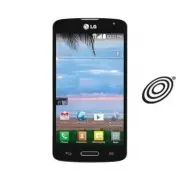


 LG A7110
User Manual
LG A7110
User Manual
 LG AX5000
User Manual
LG AX5000
User Manual
 LG C1300
User Manual
LG C1300
User Manual
 LG C1300A
User Manual
LG C1300A
User Manual
 LG C1300I
User Manual
LG C1300I
User Manual
 LG C1500
User Manual
LG C1500
User Manual
 LG C2000
User Manual
LG C2000
User Manual
 LG CB630
User Manual
LG CB630
User Manual
 LG CE500
User Manual
LG CE500
User Manual
 LG CF360
User Manual
LG CF360
User Manual
 LG CF360A
User Manual
LG CF360A
User Manual
 LG CG180
User Manual
LG CG180
User Manual
 LG CG225
User Manual
LG CG225
User Manual
 LG CG300
User Manual
LG CG300
User Manual
 LG CP150
User Manual
LG CP150
User Manual
 LG CU320
User Manual
LG CU320
User Manual
 LG CU400
User Manual
LG CU400
User Manual
 LG CU405
User Manual
LG CU405
User Manual
 LG CU500
User Manual
LG CU500
User Manual