Page 2 - About this user guide; Instructional notices
About this user guide Thank you for choosing LG. Please carefully read this user guide before using the device for the first time to ensure safe and proper use. Ţ Always use genuine LG accessories. The supplied items are designed only for this device and may not be compatible with other devices. Ţ T...
Page 3 - LIMITED WARRANTY STATEMENT; Warranty Laws
2 LIMITED WARRANTY STATEMENT ARBITRATION NOTICE: THIS LIMITED WARRANTY CONTAINS AN ARBITRATION PROVISION THAT REQUIRES YOU AND LG TO RESOLVE DISPUTES BY BINDING ARBITRATION INSTEAD OF IN COURT, UNLESS YOU CHOOSE TO OPT OUT. IN ARBITRATION, CLASS ACTIONS AND JURY TRIALS ARE NOT PERMITTED. PLEASE SEE ...
Page 10 - Table of contents
9 Basics .......................................... 11 Accessories .............................................. 12 Phone layout ............................................ 13 Turning Your Phone On and Off ............... 15 Installing the battery ............................... 15 Charging the ba...
Page 13 - Accessories
Basics 12 Accessories These accessories are available for use with the your phone. Ţ Travel Adaptor Ţ Quick Start Guide Ţ USB Cable Ţ Battery NOTE Ţ Items described above may be optional. Ţ Always use genuine LG accessories. The supplied items are designed only for this device and may not be compati...
Page 14 - Phone layout
Basics 13 Phone layout Headset Jack Microphone Earpiece Front Camera Lens Flash Speaker Power/Lock Key Charger/USB port Microphone Volume Keys Rear Camera Lens
Page 16 - Turning Your Phone On and Off; Turning your phone on; Installing the battery
Basics 15 Turning Your Phone On and Off Turning your phone on Press and hold the Power/Lock Key on the back of the phone for a couple of seconds until the screen turns on. Turning your phone off 1 Press and hold the Power/Lock Key on the back of the phone until the Phone options menu appears. 2 Tap ...
Page 18 - Charging the battery; Optimizing battery life
Basics 17 Charging the battery Charge the battery before using it for first time. Use the charger to charge the battery. A computer can also be used to charge the battery by connecting the phone to it using the USB cable. WARNING Ţ Use only LG-approved chargers, batteries and cables. The use of unap...
Page 19 - Inserting the memory card
Basics 18 Ţ Turn off automatic syncing for Gmail, Calendar, Contacts and other applications. Ţ Some applications you download may consume battery power. Ţ Check the battery usage details and close any downloaded apps that are draining the battery. Inserting the memory card Your device supports up to...
Page 20 - Removing the memory card; Touch screen tips; Tap or touch
Basics 19 Removing the memory card Before removing the memory card, first unmount it for safe removal. 1 Tap > > > General tab > Storage > Unmount SD card . 2 Remove the back cover and pull out the memory card. WARNING Ţ Do not remove the memory card while the device is transferring o...
Page 21 - Touch and hold
Basics 20 Touch and hold Touch and hold an item on the screen by touching it and not lifting your finger until an action occurs. Drag Touch and hold an item for a moment and then, without lifting your finger, move your finger on the screen until you reach the target position. You can drag items on t...
Page 23 - Google account setup; Creating your Google account
Basics 22 Google account setup The first time you open a Google application on your phone, you will be required to sign in with your existing Google account. If you do not have a Google account, you will be prompted to create one. Creating your Google account 1 Tap > > > General tab > Ac...
Page 24 - Locking and unlocking the device; KnockON; Turning the screen on; Turning the screen off; Knock Code
Basics 23 Locking and unlocking the device Pressing the Power/Lock Key turns off the screen and puts the device into lock mode. The device automatically gets locked if it is not used for a specified period. This helps to prevent accidental taps and saves battery power. To unlock the device, press th...
Page 25 - Setting up the Knock Code feature; Unlocking the screen using the Knock Code; Changing the screen lock method; Smart Lock; Setting up Smart Lock feature
Basics 24 Setting up the Knock Code feature 1 Tap > > > Display tab > Lock screen > Select screen lock > Knock Code . 2 Tap the squares in a pattern to set your Knock Code. Your Knock Code pattern can be 3 to 8 taps. Unlocking the screen using the Knock Code When the screen turns o...
Page 26 - Home screen; Getting to Know the Home Screen
Basics 25 Home screen The Home screen is the starting point for many applications and functions. It allows you to add items like app shortcuts and Google widgets to give you instant access to information and applications. This is the default canvas and accessible from any menu by tapping . Getting t...
Page 27 - To view other Home screen panels; Returning to recently-used applications; Customizing the Home screen; Adding items on your Home screen
Basics 26 To view other Home screen panels The operating system provides multiple Home screen canvases to provide more space for adding icons, widgets and more. Ţ Slide your finger left or right across the Home screen to access additional canvases. Returning to recently-used applications Multitaskin...
Page 28 - Removing an item from the Home screen; Customizing app icons on the Home screen
Basics 27 Removing an item from the Home screen While on the Home screen, touch and hold the icon you want to remove, then drag it to . Adding an app to the Quick Button Area From the Apps screen or on the Home screen, touch and hold an application icon and drag it to the Quick Button Area. Then rel...
Page 29 - Notifications panel; Opening the notifications panel
Basics 28 Notifications panel Notifications alert you to the arrival of new messages, calendar events and alarms, as well as ongoing events, such as when you are on a call. Opening the notifications panel Swipe down from the status bar to open the notifications panel. To close the notifications pane...
Page 30 - Indicator icons on the Status Bar
Basics 29 Indicator icons on the Status Bar Indicator icons appear on the status bar at the top of the screen to report missed calls, new messages, calendar events, device status and more. The icons displayed at the top of the screen provide information about the status of the device. The icons list...
Page 31 - Capturing a screenshot
Basics 30 NOTE Ţ The icon's location in the status bar may differ depending on the function or service. Ţ The available options may vary depending on the region or service provider. Capturing a screenshot Press and hold the Volume Down Key and the Power/Lock Key at the same time for 2 seconds to cap...
Page 32 - Using the keypad and entering text; Entering special characters
Basics 31 On-screen keyboard You can enter text using the on-screen keyboard. The on-screen keyboard appears on the screen when you tap an available text entry field. Using the keypad and entering text Icon Description Tap once to capitalize the next letter you type. Double-tap for all caps. Touch a...
Page 33 - Transferring data using USB connection
Basics 32 Transferring data between a PC and the device You can copy or move data between a PC and the device. Transferring data using USB connection 1 Connect your device to a PC using the USB cable that came with your phone. 2 Open the Notifications panel, tap the current connection type, and sele...
Page 35 - Installing or uninstalling apps; To open the Play Store app; To open a screen with details about an app
Apps 34 Installing or uninstalling apps Play Store allows you to browse and search for free and paid applications. To open the Play Store app Tap > > . To open a screen with details about an app At any time while browsing in Play Store, tap an app to open its details screen.The App details scr...
Page 36 - Calls; Making a call; Calling your contacts
Apps 35 Calls You can enjoy clear calling across the region. Making a call 1 Tap > . 2 Enter the number using the dialer. To delete a digit, tap . 3 After entering the desired number, tap to place the call. 4 To end the call, swipe or swipe > tap . NOTE Ţ To enter "+" to make internati...
Page 37 - Making a second call; Viewing your call logs; Change your call settings
Apps 36 Making a second call 1 During your first call, unlock the screen, tap > Add call and enter the number. 2 Tap . 3 Both calls are displayed on the call screen. Your initial call is locked and put on hold. 4 To toggle between calls, unlock the screen and tap the displayed number. Tap to star...
Page 38 - Contacts; Searching for a contact
Apps 37 Contacts You can add contacts on your phone and synchronize them with the contacts in your Google Account or other accounts that support syncing contacts. Searching for a contact 1 Tap > . 2 Tap Search contacts and enter the contact name using the keyboard. Matches are displayed as you be...
Page 39 - Favorites contacts; Adding a contact to your favorites; Creating a group
Apps 38 Favorites contacts You can classify frequently called contacts as favorites. Adding a contact to your favorites 1 Tap > . 2 Tap a contact to view its details. 3 Tap the star at the top right of the screen. The star becomes highlighted. Removing a contact from your favorites list 1 Tap >...
Page 40 - Messaging; Sending a message; Conversation view
Apps 39 Messaging Your phone combines text and multimedia messaging into one intuitive, easy to use menu. NOTE Ţ You may be charged for each message you send. Please consult with your service provider. Sending a message 1 Tap > > . 2 Tap , then select one or more entries from your Contacts lis...
Page 41 - Camera; Taking a photo
Apps 40 Camera You can use the camera or camcorder to take and share pictures and videos. Ţ Tap > > . Taking a photo 1 Frame your subject on the screen. 2 Tap to take a photo. Your picture will be automatically saved to the Gallery. Camera options on the viewfinder 1 Tap to hide/display the ca...
Page 42 - Using the advanced settings
Apps 41 7 Tap to take a photo. 8 Tap to exit the camera. NOTE Ţ Be sure to clean the protective lens cover with a microfiber cloth before taking pictures. A lens cover with smudges from fingers can cause blurry pictures with a "halo" effect. Using the advanced settings In the camera viewfind...
Page 43 - Gesture shot; Taking the photos with a gesture; Once you have taken a photo
Apps 42 Gesture shot The Gesture shot feature allows you to take a picture with a hand gesture using the front camera. Taking the photos with a gesture There are two methods for using the Gesture shot feature. Ţ Raise your hand, with an open palm, until the front camera detects it and a box appears ...
Page 44 - Recording a video; After recording a video
Apps 43 Recording a video 1 Tap > > . 2 Frame your subject on the screen. 3 Tap to start recording the video. 4 The length of the recording is displayed on the top of the screen. NOTE Ţ Tap to take pictures while recording video. 5 Tap to pause the recording. You can resume recording again by ...
Page 45 - Gallery; Viewing pictures; Setting wallpaper
Apps 44 Gallery The Gallery application presents the pictures and videos in your storage, including those you've taken with the Camera application and those you downloaded from the web or other locations. 1 Tap > > . 2 Tap an album to open it and view its contents. (The pictures and videos in ...
Page 46 - Zooming in and out; Playing a video; Video options
Apps 45 Zooming in and out Use one of the following methods to zoom in on an image: Ţ Double-tap anywhere to zoom in and out. Ţ Spread two fingers apart on any place in the picture zoom in. Pinch in to zoom out. Playing a video 1 Tap > > . 2 Select the video you want to watch. Video options 1 ...
Page 47 - Deleting photos/videos
Apps 46 NOTE Ţ While playing a video, slide the right side of the screen up or down to adjust the sound. Ţ While playing a video, slide the left side of the screen up or down to adjust the brightness. Ţ While playing a video, slide your finger from left to right (or vice versa) to fast-forward and r...
Page 48 - Email; Adding an account; Working with account folders; Composing and sending email
Apps 47 Email You can use the Email application to read email from providers other than (NBJM5IF`&NBJMBQQMJDBUJPOTVQQPSUTUIFGPMMPXJOHBDDPVOUUZQFT101 IMAP, Microsoft Exchange (for Enterprise users) and other accounts. Ţ Tap > > . Adding an account The first time you open the Email applicati...
Page 49 - Changing the Email app general settings
Apps 48 Changing the Email app general settings Ţ Tap > Settings > General settings . Deleting an email account Ţ Tap > Settings > > Remove account > Select the account(s) you want to delete > REMOVE > YES .
Page 50 - Music; Playing a song; Music player options
Apps 49 Music Your phone has a music player that lets you play all your favorite tracks. NOTE Ţ Depending on the software installed, some file formats may not be supported. Ţ If the file size exceeds the available memory, an error can occur when you open files. Ţ Music file copyrights may be protect...
Page 52 - Clock; Alarms; Timer
Apps 51 Clock The Clock app gives you access to the Alarms, Timer, World clock and Stopwatch functions. Access these functions by tapping the tabs across the top of the screen or swiping horizontally across the screen. Ţ Tap > > . Alarms The Alarms tab allows you to set alarms. 1 Tap the Alarm...
Page 53 - Calculator; Calendar
Apps 52 Stopwatch The Stopwatch tab allows you to use your phone as a stopwatch. 1 Tap the Stopwatch tab. 2 Tap Start to initiate the stopwatch. Ţ Tap Lap to record lap times. 3 Tap Stop to stop stopwatch. Calculator The Calculator app allows you to perform mathematical calculations using a standard...
Page 54 - Voice Recorder; Recording a sound or voice; Downloads
Apps 53 Voice Recorder The Voice Recorder app records audible files for you to use in a variety of ways. Recording a sound or voice 1 Tap > > . 2 Tap to begin recording. 3 Tap to end the recording. 4 Tap to listen to the recording. NOTE Ţ Tap to access your recordings. You can listen to your s...
Page 55 - Google apps
Apps 54 Google apps Google provides entertainment, social network, and business apps. You may require a Google account to access some apps.To view more app information, access each app’s help menu. NOTE Ţ Some apps may not be available depending on the region or service provider. Google Search quick...
Page 58 - Access the Settings menu; Opening the settings app; Viewing settings
Settings 57 Access the Settings menu The Settings app allows you to customize and personalize your phone. Opening the settings app Ţ Tap > touch and hold > System settings . OR Ţ Tap > > . Viewing settings Tap to switch the view mode. Ţ List view – Scroll up and down through the list. Ţ ...
Page 59 - Networks Settings; Airplane mode
Settings 58 Networks Settings Airplane mode Allows you to use many of your phone's features, such as games, and music, when you are in an area where making or receiving calls or data use is prohibited. When you set your phone to Airplane Mode, it cannot send or receive any calls or access online dat...
Page 60 - Bluetooth; Pairing your phone with another Bluetooth device
Settings 59 Bluetooth Bluetooth is a short-range communications technology that allows you to connect wirelessly to a number of Bluetooth devices, such as headsets and hands-free car kits, and Bluetooth-enabled handhelds, computers, printers, and wireless devices. NOTE Ţ LG is not responsible for th...
Page 61 - Sending data via Bluetooth; Receiving data via Bluetooth; Mobile data
Settings 60 Sending data via Bluetooth 1 Select a file or item, such as a contact or media file. 2 Select the option for sending data via Bluetooth. 3 Search for and pair with a Bluetooth-enabled device. NOTE Ţ Due to different specifications and features of other Bluetooth-compatible devices, displ...
Page 62 - Printing; Printing via wireless printer
Settings 61 Ţ Decline with message – When you want to decline a call, you can send a quick message using this function. This is useful if you need to decline a call during a meeting. Ţ Auto answer – Allows you to configure the time before a connected hands-free device automatically answers an incomi...
Page 63 - USB tethering
Settings 62 USB tethering Allows you to share the internet connection with your computer via a USB cable. 1 Connect your phone to your PC with a USB cable. 2 On the Settings screen, tap the Networks tab > Tethering . 3 Tap next to USB tethering to turn the feature on. Help Displays help informati...
Page 65 - Display settings
Settings 64 Display settings Allows you to set other display settings. On the Settings screen, tap the Display tab. Ţ Font type – Select the desired font type. Ţ Font size – Select the desired font size. Ţ Brightness – Adjust the screen brightness by using the slider. Ţ Auto-rotate screen – Set to s...
Page 66 - General settings
Settings 65 Ţ Smart Lock – Sets to keep your phone unlocked with trusted device or a place. If you need more information, please refer to the Smart Lock section in Basics . Ţ Screen swipe effect – Sets the effect used when swiping the lock screen. Ţ Wallpaper – Select the wallpaper to display for yo...
Page 67 - Location
Settings 66 Ţ Reverse buttons – Reverse the mouse buttons to use the primary button on the right side. Location Turn on location service, your phone determines your approximate location using Wi-Fi and mobile networks. When you select this option, you're asked whether you consent to allowing Google ...
Page 68 - Accessibility
Settings 67 Accessibility Use the Accessibility settings to configure accessibility plug-ins you have installed on your phone.On the Settings screen, tap the General tab > Accessibility . Ţ Vision – Sets options for people with impaired sight. - TalkBack – Allows you to set up the TalkBack functi...
Page 69 - Shortcut key
Settings 68 - Screen timeout – Sets the amount of time before the backlight turns off automatically. - Touch control areas – Allows you to select an area of the screen to limit touch activation to just that area of the screen. Ţ Accessibility features shortcut – Allow you to access selected features...
Page 70 - Storage; INTERNAL STORAGE
Settings 69 Ţ Storage type – Displays the current storage type. Ţ Certificate management – Allows you to manage your security certificates. Ţ Trust agents – Select apps to use without unlocking screen. Ţ Screen pin – You can enable your device to only show a certain app's screen using screen pin. Ţ ...
Page 71 - Battery & power saving
Settings 70 Battery & power saving Displays the current battery status including the percentage of remaining charge and charging state.On the Settings screen, tap the General tab > Battery & power saving . Ţ Battery usage – Displays the battery usage level and battery use details. Tap one...
Page 72 - About phone
Settings 71 Ţ Factory data reset – Reset your settings to the factory default values and delete all your data. If you reset the phone this way, you are prompted to re-enter the same information as when you first started Android. About phone View legal information, check phone status and software ver...
Page 74 - Phone software update; LG Mobile phone software update from the Internet
Appendix 73 Phone software update LG Mobile phone software update from the Internet For more information about using this function, please visit http://www.lg.com/common/index.jsp select your country and language. This feature allows you to conveniently update the firmware on your phone to a newer v...
Page 75 - FAQ
Appendix 74 NOTE Ţ Your personal data from internal phone storage—including information about your Google account and any other accounts, your system/application data and settings, any downloaded applications and your DRM licence—might be lost in the process of updating your phone's software. Theref...
Page 79 - More information; Open Source Software Notice Information
Appendix 78 More information Open Source Software Notice Information To obtain the source code under GPL, LGPL, MPL, and other open source licenses, that is contained in this product, please visit http://opensource. lge.com.In addition to the source code, all referred license terms, warranty disclai...
Page 81 - Important Information
For Your Safety 80 Important Information This user guide contains important information on the use and operation of this phone. Please read all the information carefully for optimal performance and to prevent any damage to or misuse of the phone. Any changes or modifications not expressly approved i...
Page 83 - HAC statement
For Your Safety 82 Ţ Your phone is an electronic device that generates heat during normal operation. Extremely prolonged, direct skin contact in the absence of adequate ventilation may result in discomfort or minor burns. Therefore, use care when handling your phone during or immediately after opera...
Page 88 - Consumer Information on SAR
For Your Safety 87 American National Standards Institute 1819 L Street, N.W., 6th Floor Washington, D.C. 20036 Telephone: (202) 293-8020 http://www.ansi.org National Council on Radiation Protection and Measurements 7910 Woodmont Avenue, Suite 800 Bethesda, MD 20814-3095 Telephone: (301) 657-2652 htt...
Page 93 - TIA Safety Information
For Your Safety 92 any temporary hearing difficulty after listening to your portable audio device, discontinue use and consult your doctor. TIA Safety Information The following is the complete TIA Safety Information for wireless handheld phones. Exposure to Radio Frequency Signal Your wireless handh...
Page 94 - Electronic Devices; Hearing Aids
For Your Safety 93 Electronic Devices Most modern electronic equipment is shielded from RF signals. However, certain electronic equipment may not be shielded against the RF signals from your wireless phone. Pacemakers The Health Industry Manufacturers Association recommends that a minimum separation...
Page 96 - For Vehicles Equipped with an Air Bag
For Your Safety 95 For Vehicles Equipped with an Air Bag An air bag inflates with great force. DO NOT place objects, including either installed or portable wireless equipment, in the area over the air bag or in the air bag deployment area. If in-vehicle wireless equipment is improperly installed and...
Page 97 - Safety Information; Caution
For Your Safety 96 Ţ Consult the dealer or an experienced radio/TV technician for help. Safety Information Please read and observe the following information for safe and proper use of your phone and to prevent damage. Caution Violation of the instructions may cause minor or serious damage to the pro...
Page 98 - Charger and Adapter Safety
For Your Safety 97 Ţ Improper battery use may result in a fire, explosion or other hazard. Ţ At least, one of the Authentication methods may be implemented. (e.g. H/W, S/W, Mechanical, Hologram, etc.) Charger and Adapter Safety Ţ The charger and adapter are intended for indoor use only. Ţ Insert the...
Page 100 - General Notice
For Your Safety 99 Ţ If you put your phone in a pocket or bag without covering the receptacle of the phone (power plug pin), metallic articles (such as a coin, paperclip or pen) may short-circuit the phone and may cause an explosion. Always cover the receptacle when not in use. General Notice Ţ Do n...
Page 101 - FDA Consumer Update
For Your Safety 100 FDA Consumer Update The U.S. Food and Drug Administration’s Center for Devices and Radiological Health Consumer Update on Mobile Phones: 1. Do wireless phones pose a health hazard? The available scientific evidence does not show that any health problems are associated with using ...
Page 108 - Driving; 0 Driver Safety Tips
For Your Safety 107 Driving Check the laws and regulations on the use of wireless phones in the areas where you drive and always obey them. Also, if using your phone while driving, please observe the following: Ţ Give full attention to driving -- driving safely is your first responsibility; Ţ Use ha...
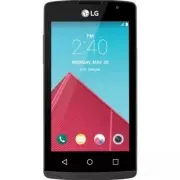


 LG A7110
User Manual
LG A7110
User Manual
 LG AX5000
User Manual
LG AX5000
User Manual
 LG C1300
User Manual
LG C1300
User Manual
 LG C1300A
User Manual
LG C1300A
User Manual
 LG C1300I
User Manual
LG C1300I
User Manual
 LG C1500
User Manual
LG C1500
User Manual
 LG C2000
User Manual
LG C2000
User Manual
 LG CB630
User Manual
LG CB630
User Manual
 LG CE500
User Manual
LG CE500
User Manual
 LG CF360
User Manual
LG CF360
User Manual
 LG CF360A
User Manual
LG CF360A
User Manual
 LG CG180
User Manual
LG CG180
User Manual
 LG CG225
User Manual
LG CG225
User Manual
 LG CG300
User Manual
LG CG300
User Manual
 LG CP150
User Manual
LG CP150
User Manual
 LG CU320
User Manual
LG CU320
User Manual
 LG CU400
User Manual
LG CU400
User Manual
 LG CU405
User Manual
LG CU405
User Manual
 LG CU500
User Manual
LG CU500
User Manual