Page 2 - About this user guide; Instructional notices
About this user guide Thank you for choosing LG. Please carefully read this user guide before using the device for the first time to ensure safe and proper use. Ţ Always use genuine LG accessories. The supplied items are designed only for this device and may not be compatible with other devices. Ţ T...
Page 3 - LIMITED WARRANTY STATEMENT; Warranty Laws
2 LIMITED WARRANTY STATEMENT ARBITRATION NOTICE: THIS LIMITED WARRANTY CONTAINS AN ARBITRATION PROVISION THAT REQUIRES YOU AND LG TO RESOLVE DISPUTES BY BINDING ARBITRATION INSTEAD OF IN COURT, UNLESS YOU CHOOSE TO OPT OUT. IN ARBITRATION, CLASS ACTIONS AND JURY TRIALS ARE NOT PERMITTED. PLEASE SEE ...
Page 10 - Table of contents
9 Features you will love ................. 12 Dual window ............................................. 13 Activating the Dual window ................................. 13Using the Dual window ........................................... 13 Fingerprints .............................................. 1...
Page 14 - Activating the Dual window; Using the Dual window
Features you will love 13 Dual window The Dual window function splits the screen to enable multi-tasking, drag and drop interaction, auto-linking, and recently used apps. Activating the Dual window 1 Tap > > > General tab > Dual window . 2 Tap to toggle it On. Ţ Checkmark the Auto-open c...
Page 15 - Fingerprints; Registering your fingerprint
Features you will love 14 Fingerprints The Fingerprint feature allows you to place a finger on the Power/Lock Key to unlock the screen or see locked content. Registering your fingerprint 1 Tap > > > General tab > Fingerprints & security > Fingerprints . 2 You need to set a secure ...
Page 16 - LG Health
Features you will love 15 NOTE Ţ Make sure that your fingers and the Power/Lock Key are clean and dry. Ţ Moisture, lotions, sweat, oils, cut or dry skin might affect fingerprint recognition. Certain activities can also temporarily affect fingerprint recognition, including exercising, showering, swim...
Page 17 - Mini view
Features you will love 16 Mini view To shrink the screen for use with one hand, swipe left or right across the Home touch buttons.To close the Mini view, tap . To turn this feature on or off, tap > > > General tab > Mini view .
Page 18 - Second screen features
Features you will love 17 Second screen The Second screen function can display app icons, notifications, contacts, useful information, and more. Set when it's enabled and what it displays. It can be enabled when the screen is on and also when the backlight is off. Second screen features Ţ You can se...
Page 19 - Turning the Second screen feature on and off; Smart Notice; Snap movie
Features you will love 18 Turning the Second screen feature on and off You can turn the Second screen feature on and off and select what to display. 1 Tap > > > Display tab > Second screen . 2 Tap each menu title to select what content to display in the Second screen. Show when main scre...
Page 20 - Using QSlide
Features you will love 19 4 After you are done recording the video clips, tap SAVE . NOTE Ţ You can edit for various video effects and background music in the Gallery. QSlide From any screen, use the Notification panel to easily access and use the Calendar, Calculator, and more with QSlide. Using QS...
Page 21 - Viewing the saved memo
Features you will love 20 Capture+ The Capture+ feature allows you to create memos. Using Capture+ You can use Capture+ function to easily and efficiently create memos during a call, with a saved picture or on the current phone screen. 1 Touch and slide the status bar downward and tap . 2 Create a m...
Page 22 - QuickRemote; Set up QuickRemote; Using QuickRemote
Features you will love 21 QuickRemote QuickRemote turns your phone into a Universal Remote for your home TV, set-top box and audio system, and more. Set up QuickRemote 1 Touch and slide the status bar downward and tap > ADD REMOTE . If you can not see , tap > checkmark QuickRemote to enable it...
Page 23 - Quick Share
Features you will love 22 Quick Share Share photos and videos immediately after you take them. 1 Tap > > > AUTO mode . 2 Take a picture or record a video. 3 An app icon will appear on the screen. Swipe the icon towards the opposite direction to see what other apps you can use to share your ...
Page 25 - Accessories
Basics 24 Accessories These accessories are available for use with the your phone. Ţ Travel Adaptor Ţ Quick Start Guide Ţ Stereo Headset Ţ USB Cable Ţ Battery NOTE Ţ Items described above may be optional. Ţ Always use genuine LG accessories. The supplied items are designed only for this device and m...
Page 26 - Phone layout
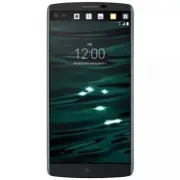
Basics 25 Phone layout Front Camera Lens Proximity/Ambient Light Sensor Earpiece Charger/USB Port Headset Jack Flash Power/Lock Key, Fingerprint ID Speaker Rear Camera Lens Volume Keys NFC Touch Point Laser Detection Auto-Focus
Page 28 - Turning Your Phone On and Off; Turning your phone on; Installing the Nano SIM card and battery
Basics 27 Turning Your Phone On and Off Turning your phone on Press and hold the Power/Lock Key on the back of the phone for a couple of seconds until the screen turns on. Turning your phone off 1 Press and hold the Power/Lock Key on the back of the phone until the Phone options menu appears. 2 Tap ...
Page 30 - Charging the battery; Extending the battery life
Basics 29 Charging the battery Charge the battery before using it for first time. Use the charger that came with your phone to charge the battery. A computer can also be used to charge the battery by connecting the phone to it using the USB cable. WARNING Ţ Use only LG-approved chargers, batteries a...
Page 31 - Inserting the memory card
Basics 30 Ţ Turn off automatic syncing for Gmail, Calendar, Contacts and other applications. Ţ Some applications you download may consume battery power. Ţ While using downloaded applications, check the battery charge level. Inserting the memory card Your device supports up to a 2TB microSD card. WAR...
Page 32 - Removing the memory card; Touch screen tips; Tap or touch
Basics 31 Removing the memory card Before removing the memory card, first unmount it for safe removal. 1 Tap > > > General tab > Storage & USB > . 2 Remove the back cover and pull out the memory card. WARNING Ţ Do not remove the memory card while the device is transferring or acce...
Page 33 - Touch and hold
Basics 32 Touch and hold Touch and hold an item on the screen by tapping it and not lifting your finger until an action occurs. Drag Touch and hold an item for a moment and then, without lifting your finger, move your finger on the screen until you reach the target position. You can drag items on th...
Page 35 - Google account setup; Creating your Google account
Basics 34 Google account setup The first time you open a Google application on your phone, you will be required to sign in with your existing Google account. If you do not have a Google account, you will be prompted to create one. Creating your Google account 1 Tap > > > General tab > Ac...
Page 36 - Locking and unlocking the device; KnockON; Turning the screen on
Basics 35 Locking and unlocking the device Pressing the Power/Lock Key turns off the screen and puts the device into lock mode. The device automatically gets locked if it is not used for a specified period. This helps to prevent accidental taps and saves battery power. To unlock the device, press th...
Page 37 - Knock Code; Setting up the Knock Code feature; Unlocking the screen using the Knock Code; Changing the screen lock method
Basics 36 Knock Code The Knock Code feature allows you to create your own unlock code using a combination of knocks on the screen. You can access the Home screen directly when the screen is off by tapping the same sequence on the screen. NOTE Ţ If you enter the wrong Knock Code 6 times, you will be ...
Page 38 - Smart Lock; Setting up Smart Lock feature; Home screen
Basics 37 Smart Lock You can use Smart Lock to make unlocking your phone easier. You can set it to keep your phone unlocked when you have a trusted Bluetooth device connected to it, when it's in a familiar location like your home or work, when it recognizes your face or voice, or when it detects you...
Page 39 - Getting to Know the Home Screen
Basics 38 Getting to Know the Home Screen Status Bar Second Screen Application Icons Widget Location Indicator Quick Button AreaHome Touch Buttons 2 1 7 3 4 5 6 NOTE Ţ The Home screen may differ from your device depending on your settings, region, service provider, software version or OS version. 1 ...
Page 40 - To view other Home screen panels; Returning to recently-used applications
Basics 39 7 Home Touch Buttons Back Button Returns to the previous screen. Also closes pop-up items, such as menus, dialog boxes and the on-screen keyboard. Home Button Return to the Home screen from any screen. Overview Button Displays recently used applications. If you touch and hold this button, ...
Page 41 - Customizing the Home screen; Adding items on your Home screen; Removing an item from the Home screen; Customizing app icons on the Home screen
Basics 40 Customizing the Home screen You can customize your Home screen by adding apps and widgets and changing wallpapers. Adding items on your Home screen 1 Touch and hold the empty part of the Home screen. 2 In the Add Mode menu, select the item you want to add. You then see this added item on t...
Page 42 - Notifications panel; Opening the notifications panel
Basics 41 Notifications panel Notifications alert you to the arrival of new messages, calendar events and alarms, as well as ongoing events, such as when you are on a call. Opening the notifications panel Swipe down from the status bar to open the notifications panel. To close the notifications pane...
Page 43 - Indicator icons on the Status Bar
Basics 42 Indicator icons on the Status Bar Indicator icons appear on the status bar at the top of the screen to report missed calls, new messages, calendar events, device status and more. The icons displayed at the top of the screen provide information about the status of the device. The icons list...
Page 44 - Capturing a screenshot; Using the keypad and entering text
Basics 43 Mobile HotSpot is active NFC is on LG AirDrive connected Miracast connected NOTE Ţ The icon's location in the status bar may differ depending on the function or service. Ţ The available options may vary depending on the region or service provider. Capturing a screenshot Press and hold the ...
Page 45 - Entering special characters; To split or merge the keyboard; Transferring data using USB connection
Basics 44 Entering special characters The on-screen keyboard allows you to enter special characters.For example, to input "á", touch and hold the "a" button until the pop-up appears and displays related special characters. Without lifting the finger, drag your finger to the desired s...
Page 46 - Transferring data using wireless connection; LG Bridge
Basics 45 NOTE Ţ The LG Android Platform Driver is required to be installed on your PC to be able to detect the phone. Ţ Check the requirements for using Media device MTP . Items Requirement OS Microsoft Windows XP SP3, Vista or higher Window Media Player version Windows Media Player 10 or higher Tr...
Page 47 - LG Bridge Features; SmartShare; Enjoying content from nearby devices on your phone
Basics 46 LG Bridge Features Ţ Manage contents from your phone on PC via Wi-Fi or mobile data. Ţ Update software of a mobile device on your PC via USB. Ţ Back up and restore the data of your mobile device via USB. To download the LG Bridge software 1 Go to www.lg.com. 2 Click on Support > Softwar...
Page 49 - Installing or uninstalling apps; To open the Play Store app; To open a screen with details about an app
Apps 48 Installing or uninstalling apps Play Store allows you to browse and search for free and paid applications. To open the Play Store app Tap > > . To open a screen with details about an app At any time while browsing in Play Store, tap an app to open its details screen.The App details scr...
Page 50 - Calls; Making a call; Calling your contacts
Apps 49 Calls You can enjoy clear calling across the region. Making a call 1 Tap > . 2 Enter the number using the dialer. To delete a digit, tap . 3 After entering the desired number, tap to place the call. 4 To end the call, tap . NOTE Ţ To enter "+" to make international calls, touch an...
Page 51 - Making a second call; Viewing your call logs; Change your call settings
Apps 50 Making a second call 1 During your first call, tap > Add call and enter the number. 2 Tap . 3 Both calls are displayed on the call screen. Your initial call is locked and put on hold. 4 To toggle between the active calls, tap the desired number. You can also tap to start a conference call...
Page 52 - Contacts; Searching for a contact
Apps 51 Contacts You can add contacts on your phone and synchronize them with the contacts in your Google Account or other accounts that support syncing contacts. Searching for a contact 1 Tap > . 2 Tap Search contacts and enter the contact name using the keyboard. Matches are displayed as you be...
Page 53 - Favorites contacts; Adding a contact to your favorites; Creating a group
Apps 52 Favorites contacts You can classify frequently called contacts as favorites. Adding a contact to your favorites 1 Tap > . 2 Tap a contact to view its details. 3 Tap the star at the top right of the screen. The star will be highlighted. Removing a contact from your favorites list 1 Tap >...
Page 54 - Messaging; Sending a message; Conversation view
Apps 53 Messaging Your phone combines text and multimedia messaging into one intuitive, easy to use menu. NOTE Ţ You may be charged for each message you send. Please consult with your service provider. Sending a message 1 Tap > > . 2 Tap , then select one or more entries from your Contacts lis...
Page 55 - Camera; Taking a photo
Apps 54 Camera You can use the camera or camcorder to take and share pictures and videos. Ţ Tap > > . Taking a photo 1 Frame your subject on the screen. 2 Green squares around the subject indicates that the camera has focused. 3 Tap to take a photo. Your picture will be automatically saved to ...
Page 56 - Auto Mode
Apps 55 Auto Mode 1 5 8 2 6 7 3 4 1 Allows you to manage the camera's flash. 2 Tap to swap between the rear camera lens and the front camera lens. 3 Allows you to select the shot mode for the picture. 4 Tap this icon to open the camera settings menu. 5 Tap to view the last photo or video you recorde...
Page 57 - Using the mode settings
Apps 56 Using the mode settings In the camera viewfinder, tap to show the mode options. Tap each icon to use the following mode settings. Allows you to take photos or videos in different views with the front and rear cameras. Allows you to take a panoramic picture. Allows you to record a video in sl...
Page 58 - Manual Camera Mode
Apps 57 Allows you to learn how a function works. Manual Camera Mode 2 1 3 4 5 6 7 8 1 Tap to select a file format between JPEG and DNG. 2 Tap to improve color quality in various lighting conditions. 3 Tap to use the manual focus mode. 4 Tap to adjust the brightness. 5 Tap to adjust the ISO. 6 Tap t...
Page 59 - Manual Video Mode
Apps 58 Manual Video Mode 2 1 1 / Tap to reduce motion blur especially when you are walking or moving a lot. 2 Tap to adjust the microphone volume, directivity and Wind Noise Filter. Snap Video Mode 1 2 1 Tap to change the Multi-View mode. 2 Photos and videos are assembled into the layout you choose...
Page 60 - Interval shot; Gesture shot; Taking the photos with a gesture
Apps 59 Interval shot You can take Interval shots from the Auto mode using the front camera lens. Touch and hold to automatically take 4 selfies in a row. Burst shot You can take Burst shots from the Auto camera mode using the rear camera lens. Touch and hold to take a barrage of photos in a row unt...
Page 61 - Gesture View; X Zooming; Once you have taken a photo
Apps 60 Gesture View With Gesture View, you can check your selfies quickly after taking them. 1 Tap > > . 2 Take a picture with the front camera. 3 After taking the picture, bring the phone close to your face. The captured photo will be displayed. NOTE Ţ Depending on the speed and angle of the...
Page 62 - Recording a video; After recording a video
Apps 61 Tap to add the photo to your favorites. Recording a video 1 Tap > > . 2 Frame your subject on the screen. 3 Tap to start recording the video. 4 The length of the recording is displayed at the top of the screen. NOTE Ţ Tap to take pictures while recording video. 5 Tap to pause recording...
Page 63 - Viewing pictures; Setting wallpaper
Apps 62 Gallery The Gallery application presents the pictures and videos in your storage, including those you've taken with the Camera application and those you downloaded from the web or other locations. 1 Tap > > . 2 Tap an album to open it and view its contents. (The pictures and videos in ...
Page 64 - Zooming in and out; Video options
Apps 63 Zooming in and out Use one of the following methods to zoom in on an image: Ţ Double-tap anywhere to zoom in and out. Ţ Spread two fingers apart on any place in the picture zoom in. Pinch in to zoom out. Playing a video 1 Tap > > . 2 Select the video you want to watch. Video options 1 ...
Page 65 - Deleting photos/videos
Apps 64 NOTE Ţ While playing a video, slide the right side of the screen up or down to adjust the sound. Ţ While playing a video, slide the left side of the screen up or down to adjust the brightness. Ţ While playing a video, slide your finger from left to right (or vice versa) to fast-forward and r...
Page 66 - Email; Adding an account; Working with account folders; Composing and sending email
Apps 65 Email You can use the Email application to read email from providers other than Gmail. The ` Email application supports the following account types: POP3, IMAP, Microsoft Exchange (for Enterprise users) and other accounts. Ţ Tap > > . Adding an account The first time you open the Email...
Page 67 - Changing the Email app general settings
Apps 66 Changing the Email app general settings Ţ Tap > Settings > General settings . Deleting an email account Ţ Tap > Settings > > Remove account > Select the account to delete (if necessary) > REMOVE (if necessary) > YES .
Page 68 - Music; Playing a song; Music player options
Apps 67 Music Your phone has a music player that lets you play all your favorite tracks. NOTE Ţ Depending on the software installed, some file formats may not be supported. Ţ If the file size exceeds the available memory, an error can occur when you open files. Ţ Music file copyrights may be protect...
Page 70 - Clock; Alarms; Timer
Apps 69 Clock The Clock app gives you access to the Alarms, Timer, World clock and Stopwatch functions. Access these functions by tapping the tabs across the top of the screen or swiping horizontally across the screen. Ţ Tap > > . Alarms The Alarms tab allows you to set alarms. 1 Tap the Alarm...
Page 71 - Calculator; Calendar
Apps 70 Stopwatch The Stopwatch tab allows you to use your phone as a stopwatch. 1 Tap the Stopwatch tab. 2 Tap Start to initiate the stopwatch. Ţ Tap Lap to record lap times. 3 Tap Stop to stop stopwatch. Calculator The Calculator app allows you to perform mathematical calculations using a standard...
Page 72 - Voice Recorder; Recording a sound or voice; Downloads; About backing up and restoring device data
Apps 71 Voice Recorder The Voice Recorder app records audible files for you to use in a variety of ways. Recording a sound or voice 1 Tap > > . 2 Tap to begin recording. 3 Tap to end the recording. 4 Tap to listen to the recording. NOTE Ţ Tap to access your recordings. You can listen to your s...
Page 73 - To backup your device data; Google apps; Google
Apps 72 downloaded and pre-installed applications, bookmarks, calendar entries, contacts, home screen settings, and system settings. WARNING Ţ To protect against an unexpected power off during backup or restore operations, due to insufficient battery power, you should always keep your battery fully ...
Page 75 - Voice Search; Android Pay
Apps 74 Voice Search Search quickly for items by saying a keyword or phrase. Android Pay Allows you to add credit or debit cards and use Android Pay to make payments.
Page 77 - Access the Settings menu; Opening the settings app; Viewing settings; Networks Settings; Airplane mode
Settings 76 Access the Settings menu The Settings app allows you to customize and personalize your phone. Opening the settings app Ţ Tap > touch and hold > All settings . OR Ţ Tap > > . Viewing settings Tap to switch the view mode. Ţ List view – Scroll up and down through the list. Ţ Tab...
Page 78 - Bluetooth
Settings 77 2 Tap a network to connect to it. Ţ If the network is secured with a lock icon, you will need to enter a security key or password. 3 The status bar displays icons that indicate Wi-Fi status. NOTE Ţ If you are out of the Wi-Fi zone or have set Wi-Fi to Off, the device may automatically co...
Page 79 - Pairing your phone with another Bluetooth device; Sending data via Bluetooth; Receiving data via Bluetooth
Settings 78 Pairing your phone with another Bluetooth device 1 On the Settings screen, tap the Networks tab > Bluetooth . 2 Tap to turn Bluetooth on and start scanning for available Bluetooth devices. Ţ If you want to detect the visible devices in range additionally, tap SEARCH . 3 Choose the dev...
Page 80 - Mobile data
Settings 79 Mobile data Displays the data usage and mobile data usage limit. 1 On the Settings screen, tap the Networks tab > Mobile data . 2 Tap to toggle your mobile data connection On or Off. This allows you to manage your mobile data usage. You can use a Wi-Fi network connection for data inst...
Page 81 - NFC
Settings 80 Ţ Auto answer – Set the time before a connected hands-free device automatically answers an incoming call. Ţ Connection vibration – Vibrates your phone when the other party answers the call. Ţ TTY mode – Allows you to activate TTY mode. Ţ Hearing aids – Allows you to turn on hearing aid c...
Page 82 - Android Beam; Receiving data via SmartShare Beam
Settings 81 3 The following options are available. Ţ Tap & pay – When NFC is turned on, you can use the Tap & pay feature to pay for items just by touching your phone to a reader at a register. If your phone doesn’t have a default app, you can browse the Google Play Store for other payment a...
Page 83 - Sending data via SmartShare Beam; Media server
Settings 82 Sending data via SmartShare Beam 1 Select a file or item, such as a media file. 2 Select the option for sending data via SmartShare Beam. 3 Choose the device you want to pair with from the list. Media server Allows you to share the phone's multimedia content with nearby DLNA-compatible d...
Page 84 - Printing; Printing via wireless printer; USB tethering
Settings 83 3 Run the LG Bridge application on your PC and select LG AirDrive . NOTE Ţ If you need to set up LG Bridge , please refer to the LG Bridge section in Basics . Printing Allows you to print the content of certain screens (such as web pages displayed in Chrome) to a printer connected to the...
Page 85 - Mobile HotSpot; Help; VPN
Settings 84 Mobile HotSpot You can also use your phone to provide a mobile data connection. Create a hotspot and share your connection. 1 On the Settings screen, tap the Networks tab > Tethering > Mobile HotSpot . 2 Tap to turn Mobile HotSpot on. 3 Tap Configure Mobile HotSpot to change the SS...
Page 86 - cation settings; More Sound settings
Settings 85 Sound & noti Ż cation settings Allows you to change settings for various sounds on the device. On the Settings screen, tap the Sounds & notification tab. Ţ Sound profile – Allows you to set your phone's sound profile. Ţ Volume – Adjust the phone's volume settings to suit your nee...
Page 87 - Display settings
Settings 86 Ţ Sound effects – This menu lets you select whether you hear tones when tapping numbers on the dial pad, selecting on-screen options, or when locking and unlocking the screen. Ţ Message/call voice notifications – Allows your device to read out incoming calls and message events automatica...
Page 88 - Lock screen
Settings 87 Lock screen Allows you to set your lock screen settings.On the Settings screen, tap the Display tab > Lock screen . Ţ Select screen lock – Allows you to set a screen lock to secure your phone. Ţ Smart Lock – Set to keep your phone unlocked when you have a trusted Bluetooth device conn...
Page 89 - Font type
Settings 88 Font type Select the desired font type.On the Settings screen, tap the Display tab > Font type . Font size Select the desired font size.On the Settings screen, tap the Display tab > Font size . Brightness Adjust the screen brightness by using the slider. You can also select Auto so...
Page 90 - General settings; Location
Settings 89 General settings Language & keyboard Allows you to change the text input settings.On the Settings screen, tap the General tab > Language & keyboard . Select the language for the text on your phone and the on-screen keyboard. Ţ Language – Choose a language to use on your phone....
Page 91 - Cloud
Settings 90 Ţ Google Location History – Allows you to choose your location information settings as accessed by Google and its products. Accounts & sync Use this menu to add, remove, and manage your Google and other supported accounts. You also use these settings to control how and whether all ap...
Page 94 - Smart settings
Settings 93 Ţ Encrypt SD card storage – Encrypt SD card storage and keep data unavailable for other devices. Ţ Set up SIM card lock – Sets the PIN to lock your SIM card and allows you to change the PIN. Ţ Password typing visible – Enable to briefly show each character of passwords as you enter them ...
Page 96 - Memory
Settings 95 Ţ Battery saver – Tap the Battery Saver switch to toggle it on or off. Sets the battery charge percent level that automatically turns on Battery Saver. Ţ Game optimizer – Adjusts the video quality in games to save battery. Memory You can monitor the memory used on average and the memory ...
Page 99 - Phone software update; LG Mobile phone software update from the Internet
Appendix 98 Phone software update LG Mobile phone software update from the Internet For more information about using this function, please visit http://www.lg.com/common/index.jsp select your country and language. This feature allows you to conveniently update the firmware on your phone to a newer v...
Page 100 - FAQ
Appendix 99 NOTE Ţ Your personal data from internal phone storage—including information about your Google account and any other accounts, your system/application data and settings, any downloaded applications and your DRM licence—might be lost in the process of updating your phone's software. Theref...
Page 104 - More information; Open Source Software Notice Information
Appendix 103 More information Open Source Software Notice Information To obtain the source code under GPL, LGPL, MPL, and other open source licenses, that is contained in this product, please visit http://opensource. lge.com.In addition to the source code, all referred license terms, warranty discla...
Page 105 - DivX HD; Dolby Digital Plus
Appendix 104 DivX HD This DivX Certified ® device has passed rigorous testing to ensure it plays DivX ® video. To play purchased DivX movies, first register your device at vod.divx.com. Find your registration code in the DivX VOD section of your device setup menu. DivX Certified ® to play DivX ® vid...
Page 106 - Laser safety statement
Appendix 105 Laser safety statement CDRH Compliance THIS PRODUCT COMPLIES WITH APPLICABLE REQUIREMENT OF THE DHHS PERFORMANCE STANDARD FOR LASER PRODUCT, 21 CFR SUBCHAPTER J. Caution! This product employs a Laser system. To ensure proper use of this product, please read this owner's manual carefully...
Page 108 - Important Information
For Your Safety 107 Important Information This user guide contains important information on the use and operation of this phone. Please read all the information carefully for optimal performance and to prevent any damage to or misuse of the phone. Any changes or modifications not expressly approved ...
Page 110 - HAC statement
For Your Safety 109 Ţ Your phone is an electronic device that generates heat during normal operation. Extremely prolonged, direct skin contact in the absence of adequate ventilation may result in discomfort or minor burns. Therefore, use care when handling your phone during or immediately after oper...
Page 111 - Caution
For Your Safety 110 Any belt-clips, holsters, and similar accessories containing metallic components may not be used. Avoid the use of accessories that cannot maintain 0.39 inches (1.0 cm) distance between the user’s body and the back of the phone and have not been tested for compliance with FCC RF ...
Page 115 - Consumer Information on SAR
For Your Safety 114 Telephone: 011 49 1888 333 2156 http://www.icnirp.de American National Standards Institute 1819 L Street, N.W., 6th Floor Washington, D.C. 20036 Telephone: (202) 293-8020 http://www.ansi.org National Council on Radiation Protection and Measurements 7910 Woodmont Avenue, Suite 800...
Page 120 - TIA Safety Information
For Your Safety 119 Ţ Do not listen at any volume that causes you discomfort. If you experience ringing in your ears, hear muffled speech or experience any temporary hearing difficulty after listening to your portable audio device, discontinue use and consult your doctor. TIA Safety Information The ...
Page 121 - Antenna Care
For Your Safety 120 Antenna Care Use only the supplied or an approved replacement antenna. Unauthorized antennas, modifications, or attachments could damage the phone and may violate FCC regulations. Tips on Efficient Operation For your phone to operate most efficiently:Don’t touch the antenna unnec...
Page 123 - Potentially Explosive Atmosphere
For Your Safety 122 Potentially Explosive Atmosphere Turn your phone OFF when in any area with a potentially explosive atmosphere and obey all signs and instructions. Sparks in such areas could cause an explosion or fire resulting in bodily injury or even death.Areas with a potentially explosive atm...
Page 124 - Safety Information
For Your Safety 123 interference in a residential installation. This equipment generates, uses, and can radiate radio frequency energy and, if not installed and used in accordance with the instructions, may cause harmful interference to radio communications. However, there is no guarantee that inter...
Page 125 - Charger and Adapter Safety
For Your Safety 124 Ţ Replace the battery only with another battery that has been LGapproved and qualified with the system per this standard, IEEE-Std-1725. Use of an unqualified and non-LG-approved battery may present a risk of fire, explosion, leakage or other hazard. Only authorized service provi...
Page 127 - General Notice
For Your Safety 126 short-circuit the phone and/or cause electric shock or fire. Ţ The charger and adapter are intended for indoor use only. Ţ Talking on your phone for a long period of time may reduce call quality due to heat generated during use. Explosion, Shock, and Fire Hazards Ţ Do not put you...
Page 128 - FDA Consumer Update
For Your Safety 127 Ţ Do not immerse your phone in water, liquid, or expose to high humidity. Immediately, take it to an LG Authorized Service Center. Ţ Do not paint your phone. Ţ The data saved in your phone might be deleted due to careless use, repair of the phone, or upgrade of the software. Plea...
Page 135 - Driving; 0 Driver Safety Tips
For Your Safety 134 12. Where can I find additional information? For additional information, please refer to the following resources:FDA web page on wireless phones(http://www.fda.gov/cellphones/)Federal Communications Commission (FCC) RF Safety Program(http://www.fcc.gov/oet/rfsafety)International ...


 LG A7110
User Manual
LG A7110
User Manual
 LG AX5000
User Manual
LG AX5000
User Manual
 LG C1300
User Manual
LG C1300
User Manual
 LG C1300A
User Manual
LG C1300A
User Manual
 LG C1300I
User Manual
LG C1300I
User Manual
 LG C1500
User Manual
LG C1500
User Manual
 LG C2000
User Manual
LG C2000
User Manual
 LG CB630
User Manual
LG CB630
User Manual
 LG CE500
User Manual
LG CE500
User Manual
 LG CF360
User Manual
LG CF360
User Manual
 LG CF360A
User Manual
LG CF360A
User Manual
 LG CG180
User Manual
LG CG180
User Manual
 LG CG225
User Manual
LG CG225
User Manual
 LG CG300
User Manual
LG CG300
User Manual
 LG CP150
User Manual
LG CP150
User Manual
 LG CU320
User Manual
LG CU320
User Manual
 LG CU400
User Manual
LG CU400
User Manual
 LG CU405
User Manual
LG CU405
User Manual
 LG CU500
User Manual
LG CU500
User Manual