Page 2 - LIMITED WARRANTY STATEMENT
1. WHAT THIS WARRANTY COVERS : LG offers you a limited warranty that the enclosed subscriber unit and its enclosed accessories will be free from defects in material and workmanship, according to the following terms and conditions: 1. The limited warranty for the product extends for TWELVE (12) MONTH...
Page 4 - Table of Contents
Table of Contents Important Notice ..............................8 Your Phone ......................................13 Getting Started ...............................15 Installing the micro SIM card............15Charging your phone .........................15Switching between and exiting application...
Page 8 - Optimizing Battery Life; Important Notice
8 Please check to see if any problems you have encountered with your phone are described in this section before taking the phone in for service or calling a service representative. 1. Phone Memory In order to make more memory available, you will have to manage your applications and delete some data,...
Page 9 - Using a Screen Lock; Warning
9 2 Tap the battery icon. 3 A list all of the applications or services using battery power from the greatest amount of energy used to the least amount. You can also use it to turn off applications or services if they are consuming too much power. Tap any of the listed items for more options. 3. Inst...
Page 10 - Caution; Important notice
10 When you can’t recall your Unlock Pattern, PIN, or Password : If you logged into a Google account on the phone and failed to use the correct pattern 5 times, tap Forgot pattern? You will be required to sign in with your Google account and prompted to create a new unlock pattern.If you have set a ...
Page 11 - TIP; Unlock screen when using
11 options menu is displayed. Then touch and hold Power off and tap OK . Your Home screen will then be displayed with the words "Safe mode" in lower left corner. 2 From the Home screen, tap the Menu Key and tap All settings > General tab > Apps . 3 Tap one of the available tabs at the ...
Page 12 - NOTE
12 9. When the screen freezes If the phone does not respond to user input or the screen freezes : Press and hold the Power/Lock Key for 10 seconds to reboot it. 10. Do not connect your phone when you power on/off your PC Make sure to disconnect your phone from the PC when powering your PC on or off ...
Page 13 - Your Phone; Front view
13 Your Phone To turn on the phone, press and hold the Power/Lock Key on the back side of the phone for 1.5 seconds. To turn off the phone, press the Power/Lock Key on the back side of the phone for 1.5 seconds and tap Power off and OK to confirm. Front view % Warning • Placing a heavy object on the...
Page 14 - Rear view
14 Your Phone Rear view Side view Charger/USB Port Microphone Micro SIM Card Tray Eject Button Aperture Volume Keys 3.5mm Headset Jack % TIP • Tap the Menu Key whenever you open an application to check what options are available. IR(Infrared) Sensor Flash Back Camera Lens Speaker % NOTE • The NFC an...
Page 15 - Installing the micro SIM card; Charging your phone; Getting Started
15 Installing the micro SIM card Before you can start exploring your new phone, you’ll need to set it up. The micro SIM card tray eject button is a small round aperture on the tray door. To install a new micro SIM card: 1 Insert the micro SIM ejection tool that comes with the phone (or a thin pin) i...
Page 18 - Touch screen tips; Proximity sensor; Your Home screen
18 Touch screen tips With the touch of your finger, you can access available applications, make menu selections, and access data saved to your phone. The following terms are used for describing the different available actions using the touchscreen: Tap - A single finger tap selects items, links, sho...
Page 19 - Lock your phone; KnockON
19 Lock your phone When you are not using the phone, press the Power/Lock Key to lock your phone. This helps prevent accidental presses and saves battery power. Also, if you do not use the phone for a while, the Home screen, or other screen you are viewing, is automatically replaced with the lock sc...
Page 20 - Home Screen Overview
20 Quick Switch to Silent/Vibrate Mode To quickly set your phone to silent or vibrate mode, slide the Status Bar down and tap until or appears. Home Screen Overview The main Home screen is the starting point for many applications and functions, and it allows you to add items like application icons, ...
Page 23 - Customizing the Apps screen
23 2 A folder will be created. 3 To rename the folder or change its color, open it and tap the folder name. On the Apps screen 1 From the Home screen, tap the Apps Key to open the Apps screen. 2 Tap the Menu Key > View apps by > User customized . % NOTE • A folder cannot be created when the ap...
Page 24 - Quick access; Accessing notifications
24 Your Home screen Quick access To view the quick access items, touch anywhere in the front key area and drag up. The following options are available: Voice Mate, Google Search, and QuickMemo. Notifications Notifications alert you to the arrival of new messages, calendar events, and alarms, as well...
Page 25 - Opening the notifications panel
25 Your Home screen % NOTE • Touch and hold an icon on the Quick Settings menu to go directly to that setting's menu screen. Opening the notifications panel Swipe down from the status bar to open the notifications panel. Tap to quickly access the Date & time settings. Settings Tap to open the Se...
Page 30 - Entering Special Characters; Using Clip Tray; Text Link
30 123 Mode This mode allows you to enter numbers in a text message (a telephone number, for example) more quickly. Tap the keys corresponding to the required digits before manually switching back to the appropriate text entry mode by tapping on the LG Keyboard or on the Android keyboard. Entering S...
Page 32 - Creating your Google account; Google Account Setup
32 The first time you open a Google application on your phone, you will be required to sign in with your existing Google account. If you do not have a Google account, you will be prompted to create one. Creating your Google account 1 From the Home screen, tap the Apps Key . 2 Tap Settings > Gener...
Page 33 - IMPORTANT
33 IMPORTANT • Some applications, such as Calendar, work only with the first Google Account you add. If you plan to use more than one Google Account with your phone, be sure to sign into the one you want to use with such applications first. When you sign in, your contacts, Gmail messages, Calendar e...
Page 34 - Making a call; Calling your contacts; When the screen is locked; Adjusting the in-call volume; Calls
34 Making a call 1 From the Home screen, tap the Phone Key to open the keypad. 2 Enter the number on the keypad. To delete a digit, tap the Clear Key . 3 Tap the Call Key to make a call. 4 To end a call, tap the End Key . % TIP • To enter “+” to make international calls, touch and hold . Calling you...
Page 35 - Making a second call; Viewing your call logs; Call settings
35 Making a second call 1 During your initial call, tap the Menu Key and select Add call . 2 Dial the number or search your contacts. 3 Tap the Call Key to connect the call. 4 Both calls will be displayed on the call screen. Your initial call will be put on hold. 5 Tap the Call entry on the screen t...
Page 36 - Searching for a contact; Adding a new contact; Favorite Contacts; Contacts
36 You can add contacts on your phone and synchronize them with the contacts in your Google Account or other accounts that support syncing contacts. Searching for a contact 1 From the Home screen, tap the Apps Key and tap Contacts to open your contacts. OR From the Home screen, tap the Phone Key >...
Page 38 - Messaging; Conversation view; Using smilies
38 Messaging Your phone combines text and multimedia messaging into one intuitive, easy-to-use menu. Conversation view Messages exchanged with another party are displayed in chronological order so that you can conveniently see an overview of your conversation. Sending a message 1 Tap Messaging on th...
Page 39 - Email; To open the Email application
39 Changing the conversation theme Sets how your conversations are displayed. 1 Open the Messaging app and tap the Menu Key > Settings > Conversation theme . 2 Tap the Wallpaper tab to choose the conversation background. Choose from the 6 options provided, a photo from your Gallery, or take a ...
Page 41 - Working with Account Folders; Remove account; Yes
41 Messaging/Email % NOTE • The messages sent using an Exchange account will not be stored on the phone; they will be stored on the Exchange server itself. If you want to see your sent messages in the Sent folder, you may need to open the Sent folder and select Refresh from the options menu. Working...
Page 42 - Social Networking
42 With your phone, you can enjoy social networking and manage your micro-blog in on-line communities. You can update your current status, upload photos, and view your friends’ status updates in real-time. You can add your Facebook, Google+, and Twitter accounts to your phone. If you don’t have an a...
Page 43 - Life Square
43 Viewing and updating your status 1 Go to the Home screen panel where the social networking widget is located. You can see the current status of social applications you set. 2 Tap the Status update icon or field to update your status with comments or upload pictures. 3 After entering comments and a...
Page 44 - Camera; Getting to know the viewfinder
44 Camera Getting to know the viewfinder The Multi Point AF (Autofocus) feature enables you to get a clearer and natural picture even if the objects are not in the center. To open the Camera application, tap Camera on the Home screen. Flash – Tap to turn the flash On , Off or set it to Auto . Number...
Page 45 - Taking a photo; Once you’ve taken the photo
45 Camera Taking a photo 1 From the Home screen, tap Camera . 2 Holding the phone firmly, point the lens towards the subject you want to photograph. % NOTE • To zoom in use the pinch-to-zoom method. 3 A focus box will appear in the center of the viewfinder screen. You can also tap anywhere on the sc...
Page 46 - Viewing your saved photos
46 Camera Color effect - Allows you to set a color effect for the photo. Choose from None, Mono, Sepia, and Negative . Timer - The self-timer allows you to set a delay after the shutter is pressed. Select Off , 3 sec , 5 sec , or 10 sec . This is ideal if you want to be included in a photo. Auto rev...
Page 47 - Setting a photo as the wallpaper; Multi-point Auto Focus
47 Menu Key - Tap to access Set image as, Move, Copy, Copy to Clip Tray, Rename, Rotate left, Rotate right, Crop, Slideshow, Add location, Print and Details. % TIP • If you have a social networking account and set it up on your phone, you can share your photo with your social networking community. %...
Page 48 - Super zooming
48 Shot & Clear The Shot & Clear feature allows you to remove interfering objects from pictures. 1 Open the Camera application. 2 Tap > Shot & Clear . 3 Tap to take the picture. 4 Tap the outlined objects you want to remove. 5 Tap to save the picture. % NOTE • Please take a picture wi...
Page 49 - Video Camera
49 Video Camera Getting to know the viewfinder To open the Video Camera application, tap Camera on the Home screen and slide down. Recording mode - Allows you to change the recording mode to Normal , Live effect , Dual recording or Tracking zoom . Settings – Tap to open the settings menu. See Using ...
Page 50 - Recording a video; Using the advanced settings
50 Video Camera Recording a video 1 From the Home screen, tap Camera and slide the Mode Switch button down to change to Video mode. The Record icon will change to . 2 The video camera’s viewfinder will appear on the screen. 3 Holding the phone horizontally, point the lens towards the subject of the ...
Page 51 - After recording a video
51 you are and tag them with the location. If you upload tagged videos to a blog that supports geotagging, you can see the videos displayed on a map. Volume key - Set how to use the volume key. Choose from Record or Zoom . Help - Touch this if you want to know how this function works. This icon will...
Page 52 - Dual Recording; Tracking zoom
52 Dual Recording The Dual Recording feature allows you to record videos with the front and rear cameras at the same time. 1 Open the Camera application. 2 Change to video mode and tap > Dual recording . 3 Tap Record to start dual recording. % NOTE • Drag the small screen to move it to your desir...
Page 53 - Audio zoom
53 3 Set the magnifying glass image to the area you want to zoom in on and track. 4 Tap Record to start recording. 5 Tap to stop recording. % NOTE • Drag the small screen to move it to your desired location. • Touch and hold the small screen to resize it. • Tracking zoom is only available when using...
Page 54 - Tracking focus; Live Zooming
54 Tracking focus 1 Open the Camera application. 2 Change to video mode and tap Record to start recording. 3 Tap on the subject in the preview screen to track it. 4 Tap to refine the focus. % NOTE • Depending on the selected object and settings, this function may not work. Live Zooming Live Zooming ...
Page 55 - Dual Play
55 % NOTE • While a video is playing, slide the screen up or down to adjust the screen brightness. • While playing a video, slide the screen left or right to rewind or fast-forward. • Do not press too hard; the touch screen is sensitive enough to pick up a light, but firm touch. Dual Play Dual Play ...
Page 56 - Multimedia; Gallery; Playing a song
56 Multimedia You can store multimedia files to a internal memory to have easy access to all your image and video files. Gallery The Gallery is where you can access the Gallery of stored video images. You can view them, share them with your friends, and delete and edit them. 1 From the Home screen, ...
Page 57 - Working with Playlists; To create a playlist; To add a song to a playlist
57 4 Tap to pause the song. 5 Tap to skip to the next song. 6 Tap to go back to the beginning of the song. Tap twice to go back to the previous song. To change the volume while listening to music, press the Volume Keys on the back side of the phone. Touch and hold a song to access the following opti...
Page 59 - Google Applications
59 About Google applications Google applications, including mobile versions of Gmail, Hangouts, Google Calendar, and Google Maps, are loaded on your phone. 1 To set up a Google account, tap any Google application, enter your user name and password and sign in. 2 After signing in, your contacts, emai...
Page 60 - To utilize Google Maps:; To search for a location:
60 Tap to access various features on Google Maps. My Location To get an address and additional information for a location: 1 Touch and hold a location on the map. A bar with the address and a thumbnail from Street View (if available) opens at the bottom of the screen. 2 Drag the bar upwards to acces...
Page 61 - Play Store
61 To get directions: 1 While viewing a map, tap . 2 Enter a starting point in the Start point field, or leave as is to allow GPS to find your location, and your destination in the End point field. • To reverse directions, tap . 3 Tap the icon for car, public transit, biking, or walking directions. ...
Page 62 - Gmail; Hangouts; To Open the Hangouts application
62 Google Applications game/application). Ending applications that continue to run in the background (after going back to the Home screen) will help conserve battery life and reduce unwanted data usage. Gmail Gmail can be configured when you first set up your phone. Depending on your synchronization...
Page 64 - QuickTheater; QSlide; Utilities
64 QuickTheater The QuickTheater feature allows you to directly play movies and view photos. 1 Hold the phone horizontally while on the lock screen. 2 Touch the center of the screen with both thumbs and slide in opposite directions. 3 You can choose to view photos, videos, or access YouTube using Qu...
Page 65 - QuickMemo
65 3 You can make a call, or choose other phone options. 4 Tap to exit the QSlide function. % NOTE • The QSlide function can support up to two windows at the same time. QuickMemo The QuickMemo feature allows you to create memos and capture screen shots. You can use QuickMemo to easily and efficientl...
Page 66 - View the Saved Memo; QuickRemote
66 - Tap to share the memo with others via any of the available applications. - Tap to save the memo you’ve created. - Tap to hide or display the toolbar. % NOTE • Please use a fingertip while using the QuickMemo feature. Do not use your fingernail. 3 Tap to save the current memo to the Notebook or ...
Page 67 - Universal remote
67 activate it. Touch the Menu Key to access additional options. % NOTE • QuickRemote features an ordinary remote control and infrared (IR) signals to operate the same way. Therefore, be careful not to cover the infrared sensor when you use the QuickRemote feature. This function may not be supported...
Page 68 - QuickTranslator; VuTalk
68 4 Select the device and enter the certificate number in your phone. • Touchpad: Move the TV pointer with the touchpad. • Smart Text: Provides keypad when typing text. QuickTranslator Simply aim the camera of your smart phone at the foreign sentence you want to understand. You can get the real-tim...
Page 69 - Register VuTalk Before Use; VuTalk Settings; Communicate Visually with VuTalk
69 apply to both phones. Register VuTalk Before Use 1 From the Home screen, tap the Apps Key > Contacts . 2 Tap to register for VuTalk. % NOTE • You can also register VuTalk service while you are in a call by tapping . 3 Read the LG apps terms and conditions and privacy policy. If you agree, tap ...
Page 70 - Voice Mate
70 4 In the contact's details screen, tap . After the other party accepts your VuTalk request, you can start VuTalk with him/her. 5 Use the VuTalk screen to chat and visually communicate with your friend. • Tap to attach a photo, take a new photo, map view, or a sticker. • Tap the Pen icon and Erase...
Page 71 - Notebook
71 Use Voice Mate 1 From the Home screen, tap the Apps Key > Voice Mate . 2 Tap the Speak icon to turn it on. Say what you want it to do for you. % TIP • Use Voice Mate in a quiet environment so it can accurately recognize your commands Voice Mate Settings 1 From the Home screen, tap the Apps Key...
Page 72 - Creating a note; SmartShare
72 Creating a note 1 From the Home screen, tap the Apps Key > Notebook . 2 Tap New note to create note. 3 Create a note using the available tools. • / Read only/Edit mode: Tap to view the note in read-only mode and prevent any unintentional drawings. To go back to the Edit mode, tap . • / Undo/Re...
Page 73 - Setting the alarm
73 1 On the content you want to play or beam, tap . 2 Tap Play or Beam in the dialog box. • Play : You can stream your content via TV, Bluetooth speaker, etc. • Beam : You can send your content to Bluetooth devices or SmartShare Beam*- supported LG phones or tablets. *SmartShare Beam quickly transfe...
Page 75 - Tasks; To Synchronize MS Exchange; Polaris Viewer 5
75 Tasks The Tasks application can be synchronized with your MS Exchange account. You can create a task, revise it, and delete it using your phone, or from MS Outlook or MS Office Outlook Web Access. To Synchronize MS Exchange 1 From the Home screen, tap the Apps Key > Settings > General tab. ...
Page 77 - The Web; Browser; Using options; Adding bookmarks
77 The Web Browser The Browser gives you a fast, full-color world of games, music, news, sports, entertainment, and much more, right on your mobile phone. % NOTE Additional charges apply when connecting to these services and downloading content. Check data charges with your network provider. Using o...
Page 78 - The web
78 bookmark) and tap OK . OR 1 Tap at the top right corner of the browser, then tap . 2 Tap , select in which account to bookmark the web page, then tap . 3 Enter the desired information for Label , Address , and Add to (location to save bookmark) and tap OK . Changing the Browser settings 1 Open th...
Page 79 - Networks tab; Airplane mode
79 The Settings application contains most of the tools for customizing and configuring your phone. All of the settings in the Settings application are described in this section. To open the Settings application • From the Home screen, tap the Apps Key > Settings . • From the Home screen, tap the ...
Page 80 - Bluetooth
80 To connect to a Wi-Fi Network 1 From the Home screen, tap the Menu Key and tap All settings > Networks tab > Wi-Fi . 2 Tap the Wi-Fi switch to turn it on and begin scanning for available Wi-Fi networks. • A list of available Wi-Fi networks will be displayed. Secured networks are indicated b...
Page 82 - Data Manager
82 pairing mode and passcode (typically 0 0 0 0 – four zeroes). How to send data from your phone via Bluetooth You can send data via Bluetooth by running a corresponding application, not from the Bluetooth menu. • Sending pictures : Open the Gallery application and tap a picture. Then tap > Bluet...
Page 83 - Call
83 Settings disable mobile data, or set the mobile data limit. Your mobile data connection will be disabled when the specified limit is reached. Mobile data - Tap the switch to enable mobile data. Limit mobile data usage - Checkmark to set the mobile data usage limit. Data usage cycle - Allows you t...
Page 84 - NFC; To turn on NFC
84 Noise suppression - Suppress background noise in call. Voice Enhancement – You can set the phone to enhance voice clarity in noisy environments so you can hear more clearly. Power button ends call – Allows you to end the call by pressing the Power/Lock Key. Call duration – View the duration of ca...
Page 85 - SmartShare Beam; Miracast; Wireless storage
85 To activate Direct/Android Beam : From the Home screen, tap the Menu Key > All settings > Share & connect > Direct/Android Beam . % NOTE • You must enable NFC to activate Direct/Android Beam. SmartShare Beam Allows you to receive multimedia content from LG phones or tablets. To activ...
Page 86 - Bluetooth tethering; Help; International data roaming
86 for up to 8 other devices. Create a hotspot and share your connection. To create a portable hotspot, from the Home screen, tap the Menu Key > All settings > Networks tab > Tethering & networks > Mobile Hotspot . Then tap the Mobile Hotspot switch to activate the feature. Tap Set u...
Page 87 - VPN; Add a Basic VPN Connection
87 Search for AT&T MicroCell - You can search and register an AT&T MicroCell in order to use it. VPN From your phone, you can add, set up, and manage virtual private networks (VPNs) that allow you to connect and access resources inside a secured local network, such as your corporate network....
Page 88 - Sound tab
88 4 Enter the VPN network according to the security details you have obtained from your network administrator. 5 When finished, tap Save . Sound tab Sound profile Allows you to set the sound profile to Sound, Vibrate only, or Silent. Volumes Adjust the phone's volume settings to suit your needs and...
Page 89 - Touch feedback & system; Display tab; Home screen
89 Touch feedback & system Allows you to set dial pad touch tones, touch sounds, screen lock sound, and vibrate on touch. Dial pad touch tones Allows you to play tones when using the dial pad. Touch sounds Allows you to play a sound when making a screen selection. Screen lock sound Allows you to...
Page 90 - Front touch buttons
90 Pattern - Allows you to set a pattern as your screen lock. It's recommended that you enter a backup PIN as well in case you forget the pattern. PIN - Enter a numeric PIN to unlock the screen. Password - Enter a password to unlock the screen. Swing Lock screen - If this option is checked, you can ...
Page 92 - Screen capture area; Aspect ratio correction; General tab; Gestures
92 Settings Screen capture area Allows you to adjust the area captured by a screen shot. Choose between Capture full screen and Capture part of screen . % TIP • Press and hold the Volume Down Key and the Power Key at the same time to capture the screen. Aspect ratio correction Change the resolution ...
Page 93 - Battery saver
93 the video. Move Home screen items - Touch and hold an item and tilt the device to move it to other Home screen panels. Help - Touch to get information on using the Gesture functions of your device. Motion sensor calibration - Improve the accuracy of the tilt and speed of the sensor. One-handed op...
Page 94 - Guest mode
94 feedback. Brightness : Adjusts the brightness. Auto-adjust screen tone : Turns on auto-adjust screen tone. Screen timeout : Adjusts the screen timeout. Notification LED : Turns off the notification LED. Help - Touch to access some tips for the Battery saver function. Apps You use the Apps setting...
Page 97 - Browser Bar; Accessibility
97 status information. This information is stored on your phone, and can only be accessed by LG if the phone is physically returned to LG for repair and service The error log information is used by LG only to diagnose, repair, and improve LG’s products and services. Browser Bar The Browser Bar at th...
Page 98 - PC connection
98 Shades - Set the screen to be shade of black. Mono audio - Checkmark to allow headset sound to be routed to both the right and left channel. To manually set the audio route, move the slider on the mono audio slide bar. Touch & hold delay - Sets the touch and hold delay (short, medium, or long...
Page 99 - Accessory
99 Tethering You can use your phone to provide a data connection to a computer by activating data tethering and connecting them with a USB cable. To tether your phone with your computer using the USB 1 Connect your phone to your computer with a USB cable. 2 The USB connection type prompt is displaye...
Page 100 - About phone
100 app panel when connecting an earphone. Checkmark the applications you want to make available. About phone View legal information, check phone status and software versions, and perform a software update. Regulatory and Safety Information To view regulatory and safety information, tap the Menu Key...
Page 103 - LG PC Suite
103 LG PC Suite helps you manage media contents and applications in your phone by allowing you to connect to your phone to your PC. With the LG PC Suite software, you can... • Manage and play your media contents (music, movie, picture) on your PC. • Send multimedia contents to your device. • Backup ...
Page 105 - Phone Software Update; Software Update
105 Phone Software Update This feature allows you to update the firmware of your phone to the latest version conveniently from the internet without the need to visit a service center. For more information on how to use this function, please visit: http://update.lgmobile.com or http://www.lg.com/comm...
Page 106 - Trademarks; NOTICE; Dolby Digital Plus
106 Trademarks Trademarks • Copyright 2014 LG Electronics, Inc. All rights reserved. LG and the LG logo are registered trademarks of LG Group and its related entities. • Bluetooth ® is a registered trademark of the Bluetooth SIG, Inc. worldwide. • Wi-Fi ® , the Wi-Fi CERTIFIED logo, and the Wi-Fi lo...
Page 108 - Accessories
108 There are a variety of accessories available for your mobile phone, some of which may be sold separately. You can select these options according to your personal communication requirements. Visit your local AT&T store or www.att.com/wirelessaccessories for specific offerings. % NOTE • Always...
Page 109 - For Your Safety; Important Information; Safety Instructions; Safety Information
109 For Your Safety Important Information This user guide contains important information on the use and operation of this phone. Please read all the information carefully for optimal performance and to prevent any damage to or misuse of the phone. Any changes or modifications not expressly approved ...
Page 114 - TIA Safety Information; Antenna Care; Safety Guidelines
114 TIA Safety Information Provided herein is the complete TIA Safety Information for Wireless Handheld phones. Inclusion of the text covering Pacemakers, Hearing Aids, and Other Medical Devices is required in the owner’s manual for CTIA Certification. Use of the remaining TIA language is encouraged...
Page 119 - General Notice
119 Safety Guidelines Please take your phone to an authorized service center immediately if this occurs. Do not handle the phone with wet hands while it is being charged. It may cause an electric shock or seriously damage your phone. Do not place or answer calls while charging the phone as it may sh...
Page 122 - FDA Consumer Update; Do wireless phones pose a
122 Safety Guidelines Email: [email protected] Internet: www.audiology.org National Institute on Deafness and Other Communication Disorders National Institutes of Health 31 Center Drive, MSC 2320 Bethesda, MD USA 20892-2320 Voice: (301) 496-7243 Email: [email protected] Internet: http://www.nidcd.ni...
Page 123 - What is the FDA’s role
123 Safety Guidelines 2. What is the FDA’s role concerning the safety of wireless phones? Under the law, the FDA does not review the safety of radiation-emitting consumer products such as wireless phones before they can be sold, as it does with new drugs or medical devices. However, the agency has a...
Page 124 - What kinds of phones are the; What are the results of the
124 Safety Guidelines The FDA shares regulatory responsibilities for wireless phones with the Federal Communications Commission (FCC). All phones that are sold in the United States must comply with FCC safety guidelines that limit RF exposure. The FCC relies on the FDA and other health agencies for ...
Page 125 - What research is needed to
125 Safety Guidelines phones have yielded conflicting results that often cannot be repeated in other laboratories. A few animal studies, however, have suggested that low levels of RF could accelerate the development of cancer in laboratory animals. However, many of the studies that showed increased ...
Page 126 - What is the FDA doing to find
126 Safety Guidelines of exposure to a cancer-causing agent and the time tumors develop - if they do- may be many, many years. The interpretation of epidemiological studies is hampered by difficulties in measuring actual RF exposure during day-to-day use of wireless phones. Many factors affect this ...
Page 127 - What has the FDA done to
127 Safety Guidelines States must comply with Federal Communications Commission (FCC) guidelines that limit radio frequency energy (RF) exposures. The FCC established these guidelines in consultation with the FDA and the other federal health and safety agencies. The FCC limit for RF exposure from wi...
Page 128 - What steps can I take to; What about children using
128 Safety Guidelines laboratories on the same phone. SAR is the measurement of the amount of energy absorbed in tissue, either by the whole body or a small part of the body. It is measured in watts/kg (or milliwatts/g) of matter. This measurement is used to determine whether a wireless phone compli...
Page 129 - What about wireless phone
129 Safety Guidelines RF exposure. Some groups sponsored by other national governments have advised that children be discouraged from using wireless phones at all. For example, the government in the United Kingdom distributed leaflets containing such a recommendation in December 2000. They noted tha...
Page 130 - Where can I find additional; 0 Driver Safety Tips
130 Safety Guidelines interference and work to resolve the problem. 12. Where can I find additional information? For additional information, please refer to the following resources: FDA web page on wireless phones (http://www.fda.gov, click on "C" in the index and "Cell Phones") Fede...
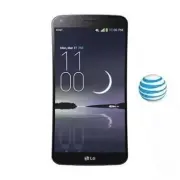


 LG A7110
User Manual
LG A7110
User Manual
 LG AX5000
User Manual
LG AX5000
User Manual
 LG C1300
User Manual
LG C1300
User Manual
 LG C1300A
User Manual
LG C1300A
User Manual
 LG C1300I
User Manual
LG C1300I
User Manual
 LG C1500
User Manual
LG C1500
User Manual
 LG C2000
User Manual
LG C2000
User Manual
 LG CB630
User Manual
LG CB630
User Manual
 LG CE500
User Manual
LG CE500
User Manual
 LG CF360
User Manual
LG CF360
User Manual
 LG CF360A
User Manual
LG CF360A
User Manual
 LG CG180
User Manual
LG CG180
User Manual
 LG CG225
User Manual
LG CG225
User Manual
 LG CG300
User Manual
LG CG300
User Manual
 LG CP150
User Manual
LG CP150
User Manual
 LG CU320
User Manual
LG CU320
User Manual
 LG CU400
User Manual
LG CU400
User Manual
 LG CU405
User Manual
LG CU405
User Manual
 LG CU500
User Manual
LG CU500
User Manual