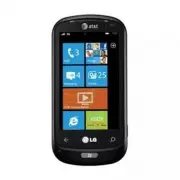
LG LGC900 - Manuals
User Manual LG LGC900
Summary
LIMITED WARRANTY STATEMENT 1. WHAT THIS WARRANTY COVERS : LG offers you a limited warranty that the enclosed subscriber unit and its enclosed accessories will be free from defects in material and workmanship, according to the following terms and conditions: 1. The limited warranty for the product ex...
9. Products operated outside published maximum ratings. 10. Products used or obtained in a rental program. 11. Consumables (such as fuses). 3. WHAT LG WILL DO: LG will, at its sole option, either repair, replace or refund the purchase price of any unit that does not conform to this limited warranty....
2 Table of Contents The Basics . . . . . . . . . . . . . . . . . . . . . . . . . . . . . 4 Getting to know your phone . . . . . . . . . . . . . . . . . . . . . . . . 4Open view . . . . . . . . . . . . . . . . . . . . . . . . . . . . . . . . . . . . . . 5QWERTY Keyboard . . . . . . . . . . . . . . . ...
4 Assembling Getting to know your phone WARNING: Putting a heavy object on the phone or sitting on it can damage its LCD and touch screen functionality. Do not cover with protective films as this may cause the sensor to malfunction. Headset Jack Power/Lock button• Long press (5 secs) for Power ON / ...
The Basics 5 Volume keys • When the screen is idle: adjusts the system tone & ring tone volume. • During a call: adjusts the earpiece volume. • When playing a track: controls track volume. Camera key • Press and hold to launch the camera Open view SIM Card Slot Battery cover Battery External cam...
The Basics 6 1. Caps Button lets you enter capital letters. 2. fn (Function) Button lets you enter alternate characters such as @ (using the A button). To lock the fn button, press the fn button. To unlock the button, press it again. 3. Language/Symbol Button let you change the language, or enter sy...
The Basics 7 Installing the SIM card and battery 1 Remove the battery cover Place your thumbnail in the cover opening. Open the cover as pictured below. 2 Remove the battery Using the cut-out at the bottom, lift it from the battery compartment. n WARNING Do not remove the battery when the phone is s...
The Basics 8 5 Close the battery cover Align the cover hook to the latch as pictured below. Close the cover in the direction of the arrow. Charging your phone Open the charger port cover on the side of your LG-Quantum. Insert the charger and plug it into a power outlet. When the battery is fully dis...
10 When you turn on your phone for the first time, you will be guided through essential settings. Please follow the instructions on the screen to activate your device.Please note that during the “WINDOWS PHONE SETTINGS” step, recommended settings includes activating sending feedback to Microsoft. Th...
Getting started 11 Step 2. Import your contacts When you set up your email or Facebook account, your contacts are imported automatically into your People hub. And when you add Facebook, your friends’ feeds appear in your People hub, their photos show up in your Pictures hub, and your own feeds pop u...
12 Navigating Windows Phone Using your Touch screen Touch screen tips Your device’s touch screen lets you easily select items or perform functions. Learn basic actions to use the touch screen. n NOTES • To avoid scratching the touch screen, do not use sharp tools. • Do not allow the touch screen to ...
Navigating Windows Phone 13 Pinch and Stretch Pinch and stretch are opposites of each other. These gestures are used often with maps when zooming in and out. Pinching is achieved by bringing two fingers together. For stretching, the fingers are moved away from each other to zoom out on an image. Get...
Navigating Windows Phone 14 Knowing and navigating the Start screen The Start screen is the beginning of the Windows Phone 7 experience for users after they power on their phone. The Start screen displays application tiles that users have pinned and placed in a position of their choosing for quick l...
Navigating Windows Phone 15 Tiles on Start screen A tile is an easily recognizable visual shortcut for an application or its content that users can set in an arbitrary location on the phone’s Start screen.Tiles that use the tile notification feature can update the tile graphic or title text, or incr...
Navigating Windows Phone 16 Icon Description Access to Xbox Live to play a game and invite a friend to play it with you. You can also download new games to your phone.View photos and videos you’ve taken with your new Windows Phone, received in Email or MMS messages, or synced from your computer’s Zu...
Navigating Windows Phone 17 Customizing Start Screen You can customize the layout of Tiles on the Start screen. You can pin all sorts of things to the Start screen, including apps, websites, map locations, and even contacts. When you pin a contact to the Start screen, you’ll get all of that person’s...
Navigating Windows Phone 18 Viewing the status bar The status bar uses different icons to display phone information, such as signal strength, new messages, battery life, and active Bluetooth and data connections.Below is a table explaining the meaning of icons you’re likely to see in the status bar....
Navigating Windows Phone 19 1. Cellular signal strength Very high signal strengthHigh signal strengthMedium signal strength Low signal strengthVery low signal strength No signal because your phone isn't connected to a cellular network.Your phone is in Airplane mode. Cellular, Wi-Fi, and Bluetooth co...
Navigating Windows Phone 20 4. Wi-Fi connection Connected to a Wi-Fi network with a very high signal strength.Connected to a Wi-Fi network with a high signal strength.Connected to a Wi-Fi network with a medium signal strength.Connected to a Wi-Fi network with a low signal strength.Wi-Fi is turned on...
Navigating Windows Phone 21 7. Input language and method DE EN ES FR IT Shift is on.Shift Lock is on. Fn is on.Fn Lock is on. German (DE) is the current input language.English (EN) is the current input language.Spanish (ES) is the current input language.French (FR) is the current input language.Ital...
Navigating Windows Phone 22 Navigating and Setting Applications Access applications To access your Windows Phone’s applications, 1 On the Start screen, tap the arrow or swipe from right to left to access the application list. 2 Pan down to the tile if it isn’t already visible. 3 Select an applicatio...
Navigating Windows Phone 23 Application Bar and Menu The Application Bar provides a view that displays icon buttons with text hints and an optional context menu when a user taps the visual indicator of sequential dots or flicks up the Application Bar. This view can be dismissed by tapping outside of...
Navigating Windows Phone 24 Application Bar icons The following are some of the icons for the application setting that are frequently used. VIDEO FAVORITES SHARE PLAY CAMERA ADD TO FAVORITES EDIT PAUSE E-MAIL DOWNLOAD EXPAND MENU PREVIOUS/REWIND SETTINGS UPLOAD NEXT/FASTFORWARD NEW ADD REMOVE/MINUS ...
Navigating Windows Phone 25 Customizing your Windows Phone Get more from your device by customizing it to match your preferences. Set the current time and date 1 In Idle mode, open the application list and select Settings " Date and time . 2 Tap the Set automatically bar and change the date and ...
Navigating Windows Phone 26 Adjust display brightness To adjust the brightness in the setting menu, 1 On Start screen, tap the arrow or swipe from right to left to go to application. 2 Tap Settings > System > brightness . 3 Drag the Automatically Adjust slider to get the desired brightness lev...
Navigating Windows Phone 27 Enter text This section outlines how to select the desired text input mode when entering characters into your phone. This section also describes how to use the on-screen keyboard to ease the text entry method.Here are some tips for using the on-screen keyboard and text su...
Navigating Windows Phone 29 To change the settings for text suggestions You can choose whether to allow text suggestions, correct misspelled words, insert a space after selecting a suggestion, reset text suggestions, and more. 1 On the Start screen, tap the arrow and flick to go to the Apps list. 2 ...
30 Phone Making phone calls 1 Touch . 2 Tap . 3 Enter the number on the keypad. To delete a digit, touch . 4 Touch call to make a call. 5 To end a call, touch end call . You can also place calls using the Phone Tile on the Start screen. n TIP To enter “+” to make international calls, touch and hold ...
Communicating 31 Making a second call 1 During your initial call, touch the then tap . 2 Call the number, or search your contacts using the or . 3 Touch the call icon to connect the call. 4 Both calls will be displayed on the call screen. Your initial call will be locked and put on hold. 5 Touch PRE...
Communicating 32 Searching for a contact There are two ways to search for a contact: On the Start screen 1 On the home screen, touch the People Hub Tile to open your contacts. 2 Touch and enter the contact name using the keypad. n TIP To search by contact first initial, tap any of the letters. e.g. ...
Communicating 33 To reply to a text message 1 On the Start screen, tap Messaging , and then tap the conversation that has the text message you received. 2 Tap the message box, type your response, and then tap Send . To forward a text message 1 On the Start screen, tap Messaging , and then tap the co...
Communicating 34 Email Setting up an email account Whether it's personal or work-related email, you can get to it from your Windows Phone by setting up different types of email accounts. Depending on the email account you set up on your phone, other items from your account (such as contacts, calenda...
Communicating 35 Setting up a Microsoft Exchange email account You can use the following steps to set up an email account that is on a Microsoft Exchange Server. (For example, your email account at work might be on a Microsoft Exchange Server.) You can also use the steps in the following procedure t...
Communicating 36 Sending an email message After you set up an email account on your phone, you can send or delete emails from that account. 1 On the Start screen, tap the email account that you want to access (for example, Outlook, Google, or Windows Live). 2 Tap New . 3 Do one of the following: • I...
Communicating 37 Retrieving your email You can automatically or manually check your account for new email. To check manually: 1 Tap on the Start screen to go to your App list and tap the desired Account Name. Or, you can also tap the Email tile on Start screen, and which is the account you want to u...
Communicating 38 You can change settings based on your own preferences. 1 Touch the Application bar at the bottom of the screen to open the options menu, and tap settings. 2 You can change detail sync options by tapping "sync settings" or checking/ dischecking "Always bcc myself" and...
39 Camera Before using the camera, you will be asked whether you want to allow the camera to use your location. Allowing this option will add location info to your pictures so you can see where your pictures were taken. To take a picture 1 On the Start screen, flick left to the Apps list. 2 Tap the ...
Entertainment 40 3 Make sure the video mode is selected. Hold the phone steady, either vertically or horizontally. 4 Press the Camera button to start or stop recording. The video is automatically saved in the Camera Roll album on your phone. After shooting a video 1 After you record a video, flick r...
Entertainment 41 Getting to know the Camera mode Camera/Video Record mode - Tap this icon to switch to Camera/Video Record mode Zoom - Zoom in or zoom out. Settings - Touch this icon to open the settings menu. See Using the advanced settings. Allows you to set up Intelligent Shot, Beauty shot, ScanS...
Entertainment 42 Setting Options Function Color effect Select the desired setting options on the menu: off , sepia , mono , negative , solarize TIP! You can change a picture taken in color to black and white or sepia after it is taken, but you cannot change a picture taken in mono or sepia back to c...
Entertainment 43 Pictures Learn to view photos and play videos saved in your device's memory. Pictures hub The Pictures hub is Windows Phone's digital version of those pictures in your wallet. Show off all the pictures you took with the camera on your phone, saved from an email, text message, or off...
Entertainment 44 • If the file size exceeds the available memory, an error can occur when you open files. Picture Albums Picture albums are a big part of how you organize your pictures and videos—on your phone, on your computer, and on the web. Knowing where albums can be added to and deleted from w...
Entertainment 45 n NOTE Only recorded videos with your Windows Phone can be played. Share pictures 1 On the Start screen, tap Pictures . 2 Find a picture you want to share. Pictures from online albums can't be uploaded. 3 Touch and hold the picture, then tap Share . 4 Choose a method to share your p...
Entertainment 46 Add or delete a caption from a picture To add a caption You can add captions to pictures that you upload to Facebook or Windows Live. 1 Tap and hold the picture, and then tap Share . 2 Choose an account to upload your picture. 3 Tap the text box to type a caption. You have 4 seconds...
Entertainment 48 4 Drag the item to the phone icon in the lower-left corner of the Zune software. n NOTE Not all items are available for purchase, rental, download, or streaming. Zune Marketplace is not available in all locations or languages. Zune Marketplace content varies by market. To learn more...
Entertainment 49 n TIP • There's a quick way to play all your music in random order. Flick to Zune, and then tap Play . This icon is next to Music. • If you have a lot of items in a category (such as Songs or Albums), there's a quick way to jump to a particular point in the list without a lot of scr...
Entertainment 50 Games Games hub From the Games hub, you can play games not just on the phone, you can also connect to and extend your gaming experience to your computer and your Xbox console. • Spotlight. Read up on Xbox LIVE game news, tips, and trends from the Xbox LIVE team. • Xbox LIVE Gamer Pr...
Entertainment 51 FM Radio Learn to listen to music and news on the FM radio. To listen to the FM radio, you must connect the supplied headset, which serves as the radio antenna. To listen to a station 1 Plug the supplied headset into the device. The headset is used by the FM Radio as the antenna. 2 ...
Entertainment 52 To switch between speaker and headset modes 1 While playing a station, touch and hold the station number. 2 Tap Radio mode: headset or Radio mode: speaker to switch between the two options. To switch radio regions If you travel internationally, you might need to switch the radio reg...
53 Facebook Set up a Facebook account When you set up your Facebook account on your phone, Facebook info is available throughout your phone. You can then access Facebook info in the People hub, Pictures hub, and the Me card. 1 On the Start screen, flick left to the Apps list, tap Settings > Email...
Personal Information 54 Importing contacts One of the first things you’ll do with your new phone is to create contacts. You start by importing your existing contacts. Contacts can be imported by your SIM card and through email. They are automatically brought into the People Hub. 1 On the Start scree...
Personal Information 55 To delete a contact While you can't delete a Facebook contact on your phone, you can delete contacts from other services. When you do this, the contact will be deleted both from your phone and from the online service where it is stored. Find a contact Contacts on your phone c...
Personal Information 56 • Update your profile picture on your social networks. You can update your profile picture on your phone, Windows Live, and Facebook all at once. Post to Facebook and Windows Live You can post messages and pictures to Facebook and Windows Live from your phone, or comment on o...
Personal Information 57 2 Tap the month icon to select a date on the calendar. 3 Tap an event to view its details. Office Get started with Microsoft Office Mobile Microsoft Office Mobile 2010 includes mobile versions of Microsoft Office applications that are made for your Windows Phone 7. You don't ...
Personal Information 58 To edit a document 1 On the Start screen, press the arrow button to the Apps list, and then tap Office . 2 Flick to Documents , and then tap the Word document you’d like to edit. 3 Tap Edit . 4 To format the text, tap Format 64페이지에 Get started with Microsoft Office Mobile 와 동...
Personal Information 59 n NOTE PowerPoint Mobile doesn’t support all the features that are found in Microsoft PowerPoint 2010. If a presentation has content that’s not supported, you can still open the presentation on your phone, but the unsupported content won’t be displayed or will be displayed di...
Personal Information 60 4 Tap below the title, and then type your notes. 5 To undo the last change you made, tap More 3. If you want to include a title, tap Enter title, and then type a title. 4. Tap below the title, and then type your notes. 5. To undo the last change you made, tap More > Undo. ...
62 Internet Open webpages Internet Explorer Mobile makes it easier to surf the web on the go. It includes handy features such as tabs, which let you open multiple webpages at once. 3 1 4 2 5 6 1. refresh page 2. address bar3. add a favorite website 4. see favorites or browsing history 5. show tabs6....
The Web 64 2 Flick to Applications, then tap Internet Explorer . To delete cookies, history, and saved passwords 1 Tap Delete history to erase browser history, saved cookies and passwords, and temporary Internet files from your phone. To turn cookies on or off Cookies are small files on your phone t...
The Web 65 1 2 3 4 1. get directions2. show your location3. find address of place 4. more menu options To move around the map 1 On the Start screen, flick left to go to the Apps list, then tap Maps . n TIPS If this is your first time accessing Maps, when you see Allow Maps to access and use your loc...
The Web 66 n TIPS • To get directions to a spot and see what's nearby, tap a pushpin. Pushpins for a store or restaurant also might include a street address, phone number, web address, and customer reviews. • To see all the pushpins as a list, tap More > Results list. To remove pins from the map,...
67 Bluetooth Bluetooth is a short-range wireless communications technology capable of exchanging information over a distance of about 10 meters without requiring a physical connection.You do not need to line up the devices to beam information with Bluetooth. If the devices are within range of one an...
Connectivity 68 To connect to a Bluetooth headset Once paired, you can connect to a Bluetooth device as needed. • If Bluetooth is off, touch Bluetooth to turn it on. In the list of Bluetooth devices, touch the name for the paired device on the list. n NOTES • Later, when you want to turn off your Bl...
Connectivity 69 Connect to a Wi-Fi network You can use your Windows Phone to connect to an available Wi-Fi network in your location, in addition to connecting to a mobile network. Wi-Fi connections are typically faster than your mobile data connection. This can save on costs if you're not on an unli...
Connectivity 70 Play To Learn to use Play To compatible with the Digital Living Network Alliance(DLNA) service that enables you to have contents in your phone play with DLNA DMR-enabled devices in your home over a Wi-Fi network. Before you start!: You must first activate the Wi-Fi feature and add a ...
71 Setting your alarm 1 Tap on the Start screen to go to your App list and tap Alarms application. 2 If you want to add a new alarm, tap on the bottom option menu bar. 3 Touch Time to set the time you want the alarm to sound. 4 Set the repeat. The icons indicate the weekday you select. 5 Choose the ...
73 AT&T FamilyMap Locate your family members with AT&T FamilyMap! Get peace of mind by being able to conveniently locate a family member’s wireless phone on a map from your mobile phone or PC. Want to verify that your child arrives home from school each day? Set up a Schedule Check to automa...
75 In this menu, you can personalise the setting of your phone. Touch on the Start screen to go to app list and tap settings. System Settings ringtones & sounds You can adjust the sounds for Ringtone, New text message, New voicemail, New email and other options.Set to play a sound for Appointmen...
Settings 77 Applications Settings games Connect to Xbox LIVE On/Off. Internet Explorer Check whether you allow cookies on your phone or not. Also you can set if you let Bing suggest sites as you type.Choose website preference.Mobile version or Desktop version delete history Delete all temporary file...
Settings 78 OneNote Toggle Automatic synchronization On/Off.Turn on to automatically synchronise notes when you open a page, save a page or open a section. people Import SIM contacts will be synced with your online Windows Live contact list.- Sort list by First name / Last name.- Display names by Fi...
79 Phone Software update Windows Phone Update enables you to update the firmware of your phone to the latest version. Your phone are alerted to Windows Phone Updates automatically by the Windows Phone Update service, and the updates are installed on the phone by using the Zune software running on th...
80 FAQ Please check to see if any problems you have encountered with the phone are described in this section before taking the phone in for a service or calling a service engineer. Category Sub-Category Question Answer Bluetooth Bluetooth Headset You cannot listen to music on a remote Bluetooth head...
88 Accessories There are a variety of accessories available for your mobile phone, some of which may be sold separately. You can select these options according to your personal communication requirements. Consult your local dealer for availability. Travel Adapter This adapter allows you to charge th...
89 For Your Safety Important Information This user guide contains important information on the use and operation of this phone. Please read all the information carefully for optimal performance and to prevent any damage to or misuse of the phone. Any changes or modifications not expressly approved i...
For Your Safety 90 ] The unit should be kept away from heat sources such as radiators or cookers. ] Do not drop. ] Do not subject this unit to mechanical vibration or shock. ] The coating of the phone may be damaged if covered with wrap or vinyl wrapper. ] Use dry cloth to clean the exterior of the ...
For Your Safety 91 The design of this phone complies with the FCC guidelines and these international standards. CAUTION Use only the supplied and approved antenna. Use of unauthorized antennas or modifications could impair call quality, damage the phone, void your warranty and/or result in violation...
For Your Safety 92 If this equipment does cause harmful interference or television reception, which can be determined by turning the equipment off and on, the user is encouraged to try to correct the interference by one or more of the following measures: ] Reorient or relocate the receiving antenna....
For Your Safety 93 ] Avoid dropping the phone or battery. If the phone or battery is dropped, especially on a hard surface, and the user suspects damage, take it to a service center for inspection. ] Improper battery use may result in a fire, explosion or other hazard. ] For those host devices that ...
94 Safety Guidelines TIA Safety Information Provided herein is the complete TIA Safety Information for Wireless Handheld phones. Inclusion of the text covering Pacemakers, Hearing Aids, and Other Medical Devices is required in the owner’s manual for CTIA Certification. Use of the remaining TIA langu...
Safety Guidelines 95 Tips on Efficient Operation For your phone to operate most efficiently: ] Do not touch the antenna unnecessarily when the phone is in use. Contact with the antenna affects call quality and may cause the phone to operate at a higher power level than otherwise needed. Driving Chec...
Safety Guidelines 97 Areas with a potentially explosive atmosphere are often, but not always, marked clearly. Potential areas may include: fueling areas (such as gasoline stations); below deck on boats; fuel or chemical transfer or storage facilities; vehicles using liquefied petroleum gas (such as ...
Safety Guidelines 98 ] The self-protection function of the battery cuts the power of the phone when its operation is in an abnormal state. In this case, remove the battery from the phone, reinstall it, and turn the phone on. ] Actual battery life will depend on network configuration, product setting...
Safety Guidelines 100 FDA Consumer Update The U.S. Food and Drug Administration Center for Devices and Radiological Health Consumer Update on Mobile Phones. 1. Do wireless phones pose a health hazard? The available scientific evidence does not show that any health problems are associated with using ...
Safety Guidelines 102 3. What kinds of phones are the subject of this update? The term ‘wireless phone’ refers here to handheld wireless phones with built-in antennas, often called ‘cell’, ‘mobile’, or ‘PCS’ phones. These types of wireless phones can expose the user to measurable radiofrequency ener...
Safety Guidelines 103 investigated any possible association between the use of wireless phones and primary brain cancer, glioma, meningioma, or acoustic neuroma, tumors of the brain or salivary gland, leukemia, or other cancers. None of the studies demonstrated the existence of any harmful health ef...
Safety Guidelines 104 detailed agenda of research needs that has driven the establishment of new research programs around the world. The project has also helped develop a series of public information documents on EMF issues. The FDA and the Cellular Telecommunications & Internet Association (CTI...
Safety Guidelines 105 phone’s RF exposure level in the online listing. 8. What has the FDA done to measure the radio frequency energy coming from wireless phones? The Institute of Electrical and Electronic Engineers (IEEE) is developing a technical standard for measuring the radio frequency energy (...
Safety Guidelines 106 do not demonstrate that wireless phones are harmful. But if you are concerned about the RF exposure from these products, you can use measures like those described above to reduce your RF exposure from wireless phone use. 10. What about children using wireless phones? The scient...
Safety Guidelines 107 sponsored by the Institute of Electrical and Electronic Engineers (IEEE). This standard specifies test methods and performance requirements for hearing aids and wireless phones so that no interference occurs when a person uses a ‘compatible’ phone and a ‘compatible’ hearing aid...
Safety Guidelines 110 Consumer Information on SAR (Specific Absorption Rate) This Model Phone Meets the Government’s Requirements for Exposure to Radio Waves.Your wireless phone is a radio transmitter and receiver. It is designed and manufactured not to exceed the emission limits for exposure to rad...
Safety Guidelines 111 is 0,30 W/kg. (Body-worn measurements differ among phones models, depending upon available accessories and FCC requirements.) While there may be differences between SAR levels of various phones and at various positions, they all meet the government requirement for safe exposure...
DECLARACIÓN DE GARANTÍA LIMITADA 1. ESTA GARANTÍA CUBRE: LG le ofrece una garantía limitada de que la unidad adjunta para el suscriptor y sus accesorios adjuntos estarán libres de defectos de materiales o mano de obra, según los siguientes términos y condiciones: 1. La garantía limitada del producto...
7. Daño proveniente del uso de accesorios que no fueron aprobados por LG. 8. Todas las superficies de plástico y todas las demás piezas expuestas externamente que tengan arañazos o daños causados por el uso normal por parte del cliente. 9. Productos que se hayan hecho funcionar fuera de los límites ...
2 Contenido Partes del teléfono . . . . . . . . . . . . . . . . . . . . . . 4 Características del teléfono . . . . . . . . . . . . . . . . . . . . . . . . 4Vista abierta . . . . . . . . . . . . . . . . . . . . . . . . . . . . . . . . . . . . 5Teclado QWERTY . . . . . . . . . . . . . . . . . . . . . ...
4 Partes del teléfono Características del teléfono ADVERTENCIA: Si coloca un objeto pesado sobre el teléfono o se sienta sobre él, se pueden dañar la pantalla LCD y la función de pantalla táctil. No tape la pantalla con un protector porque podrá causar mal función del sensor. Toma para auriculares B...
Aspectos básicos 5 Teclas de volumen • Cuando la pantalla está inactiva: permiten ajustar el volumen del sistema y del tono de timbre. • Durante una llamada: permiten ajustar el volumen del auricular. • Durante la reproducción de una pista: permiten controlar el volumen de la pista. Tecla Cámara • M...
Aspectos básicos 6 1. Botón Mayúsculas le permite introducir letras en mayúscula. 2. Botón fn (función) le permite introducir caracteres alternativos como @ (con el botón A). Para bloquear el botón fn, presiónelo. Para desbloquearlo, vuelva a presionarlo. 3. Botón Idioma/Símbolo le permite cambiar e...
Aspectos básicos 7 Instalación de la tarjeta SIM y la batería 1 Retire la tapa de la batería Coloque el pulgar en la apertura de la tapa. Abra la tapa como se muestra a continuación. 2 Retire la batería Use la abertura en la parte inferior para levantar la batería del compartimiento. n ADVERTENCIA N...
Aspectos básicos 8 5 Cierre la tapa de la batería Alinee el gancho de la tapa con el pestillo como se muestra a continuación. Cierre la tapa en la dirección de la flecha. Cargue el teléfono Abra la tapa del puerto de cargador que se encuentra en el lado del teléfono LG-Quantum. Inserte el cargador y...
Aspectos básicos 9 n NOTA La batería debe cargarse por completo antes de usar el teléfono por primera vez para mejorar su vida útil. n ADVERTENCIA • No conecte el cargador al teléfono sin la batería. Debe comprobar que la batería esté insertada en el teléfono antes de cargar. • No quite la batería n...
10 Cuando encienda el teléfono por primera vez, será guiado por configuraciones esenciales. Siga las instrucciones en la pantalla para activar el teléfono. Observe que durante el paso “CONFIGURACIÓN DE WINDOWS PHONE”, algunos de los valores de configuración que se recomiendan es enviar comentarios a...
Introducción 11 Paso 2. Importar los contactos Cuando se configura la cuenta de correo electrónico o de Facebook, se importan automáticamente los contactos al centro Contactos. Y si agrega Facebook, aparecerán los canales de sus amigos en el centro Contactos, se mostrarán sus fotos en el centro Imág...
12 Cómo navegar por Windows Phone Usar la pantalla táctil Sugerencias sobre la pantalla táctil • La pantalla táctil del teléfono le permite seleccionar elementos o ejecutar funciones con facilidad. Conozca los pasos básicos para usar la pantalla táctil. n NOTAS • Para no rayar la pantalla táctil, ev...
Cómo navegar por Windows Phone 14 Características de la pantalla de inicio Desde esta pantalla, puede acceder a las opciones de menú, hacer una llamada, ver el estado del teléfono y mucho más. Conociendo y navegando la pantalla de inicio Una vez encendido el teléfono, aparece la pantalla de inicio, ...
Cómo navegar por Windows Phone 15 Mosaicos en la pantalla de inicio Un mosaico es un acceso directo visual de fácil reconocimiento a una aplicación o su contenido. Los usuarios pueden colocarlos en cualquier lugar de la pantalla de inicio.Los mosaicos que usan la función de notificación de mosaicos ...
Cómo navegar por Windows Phone 16 Icono Descripción Acceda a Xbox Live para jugar un juego e invitar a un amigo a jugar contigo. También puede descargar nuevos juegos en el teléfono.Vea las fotos que haya tomado y los videos que haya grabado con su teléfono nuevo de Windows Phone, las fotos y los vi...
Cómo navegar por Windows Phone 17 Personalizar la página de inicio Puede personalizar el diseño de los mosaicos en la pantalla de inicio. Puede colocar todo tipo de elementos en la pantalla de inicio, como aplicaciones, sitios web, ubicaciones del mapa e incluso contactos. Al anclar un contacto, se ...
Cómo navegar por Windows Phone 18 Vista de la barra de estado La barra de estado usa diferentes iconos para mostrar la información del teléfono, como la potencia de la señal, los nuevos mensajes, el nivel de carga de la batería, la activación de Bluetooth y las conexiones de datos.A continuación se ...
Cómo navegar por Windows Phone 19 1. Potencia de la señal móvil Potencia de señal muy alta.Potencia de señal alta.Potencia de señal media. Potencia de señal baja.Potencia de señal muy baja. Sin señal, dado que el teléfono no está conectado a una red móvil.El teléfono está en modo de avión. Las conex...
Cómo navegar por Windows Phone 20 4. Conexión Wi-Fi Conexión a una red Wi-Fi con una potencia de señal muy alta.Conexión a una red Wi-Fi con una potencia de señal alta.Conexión a una red Wi-Fi con una potencia de señal media.Conexión a una red Wi-Fi con una potencia de señal baja.Wi-Fi está activado...
Cómo navegar por Windows Phone 21 7. Idioma y método de entrada DE EN ES FR IT El Botón Mayúsculas está activado.El Botón Mayúsculas está bloqueado. El Botón fn está activado.El Botón fn está bloqueado. Alemán (DE) es el idioma de entrada actual. Inglés (EN) es el idioma de entrada actual. Español (...
Cómo navegar por Windows Phone 22 Navegar y configurar aplicaciones Cómo acceder a las aplicaciones Para acceder a las aplicaciones de Windows Phone: 1 En la pantalla de inicio, toque la flecha o deslice de derecha a izquierda para acceder a la lista de aplicaciones. 2 Si todavía no aparece en panta...
Cómo navegar por Windows Phone 23 Barra de aplicaciones y el menú Si el usuario toca el indicador visual de puntos o da un toquecito hacia arriba a la Barra de aplicaciones, se le proporcionará una vista que muestra los botones de los iconos con sugerencias de texto y un menú contextual opcional. Si...
Cómo navegar por Windows Phone 24 Iconos de la Barra de aplicaciones A continuación, le proporcionamos algunos de los iconos más usados para la configuración de aplicaciones. VIDEO FAVORITOS COMPARTIR REPRODUCIR CÁMARA AGREGAR A FAVORITOS EDITAR PAUSAR CORREO ELECTRÓNICO DESCARGAR EXPANDIR MENÚ ANTE...
Cómo navegar por Windows Phone 25 Personalizar su Windows Phone Personalice el teléfono a su modo para aprovecharlo mejor. Configurar la hora y fecha actuales 1 En el modo de espera, abra la lista de aplicaciones y seleccione Configuración > fecha y hora . 2 Toque la barra Configurar automáticame...
Cómo navegar por Windows Phone 26 Ajustar el brillo de la pantalla Para ajustar el brillo en el menú de configuración: 1 En la pantalla de inicio, toque la flecha o deslice de derecha a izquierda para acceder la lista de aplicaciones. 2 Toque Configuración > sistema > brillo . 3 Toque la barra...
Cómo navegar por Windows Phone 27 Descripción general del teclado 1 5 2 3 4 espacio 1 bloqueo de tecla mayúscula 2 números y símbolos 3 emoticones 4 intro 5 borrar Para encontrar números y símbolos Cuando toca la tecla de números y símbolos , verá: 0-9 , símbolos de puntuación comunes y símbolos com...
Cómo navegar por Windows Phone 28 Para agregar tildes a las letras • Automáticamente: Para muchas palabras, el teléfono reconocerá cuando la palabra lleva tilde y lo agregará. • Toque y mantenga presionada: Toque y mantenga presionada cualquier letra que lleve tilde, y aparecerán todas las tildes po...
Cómo navegar por Windows Phone 29 3 Realice una de las siguientes acciones: • Seleccione o desactive la selección de las casillas de verificación de los valores de configuración que desea cambiar. • Para quitar todas las palabras que agregó a la lista de sugerencias, dé un simple toque hacia arriba ...
30 Teléfono Hacer llamadas telefónicas 1 Toque . 2 Toque . 3 Introduzca el número en el teclado. Para borrar un dígito, toque . 4 Toque llamar para realizar una llamada. 5 Para finalizar una llamada, toque Finalizar . También puede realizar llamadas con el mosaico de teléfono en la pantalla de inici...
Comunicarse 31 teléfono en forma simultánea. Ajustar el volumen de la llamada Para ajustar el volumen durante una llamada, utilice las teclas de volumen inferior y superior ubicadas en el lateral derecho del teléfono. Hacer una segunda llamada 1 Durante su llamada inicial, toque y luego . 2 Llame al...
Comunicarse 32 2 Toque el botón 3. If you want to include a title, tap Enter title, and then type a title. 4. Tap below the title, and then type your notes. 5. To undo the last change you made, tap More > Undo. 6. To redo the last change you undid, tap More > Redo. Notes • These notes are stor...
Comunicarse 33 Mensajería Para enviar un mensaje de texto 1 En la pantalla de inicio, toque Mensajes > nuevo . 2 Realice una de las siguientes acciones: • Escriba el nombre de una persona en el cuadro Para: y toque un nombre de contacto de la lista que coincida. Repita el mismo paso para añadir m...
Comunicarse 34 Guardar una imagen desde un mensaje de texto 1 En la pantalla de inicio, toque Mensajes . 2 Toque una conversación que tenga una imagen y toque la imagen. 3 Toque y mantenga presionada la imagen abierta y luego toque guardar en el teléfono. La imagen se guarda en el álbum Imágenes gua...
Comunicarse 35 Configurar una cuenta de Windows Live Cuando configure el teléfono por primera vez, se le pedirá que inicie sesión con su Windows Live ID. Si no inició sesión con ella en ese momento o si tiene más de una Windows Live ID, puede realizar los siguientes pasos para configurar su Windows ...
Comunicarse 37 4 Toque el cuadro de texto Asunto: y escriba un asunto. 5 Toque debajo del cuadro de texto Asunto:, escriba su mensaje y toque enviar . n NOTAS • Se pueden adjuntar archivos almacenados en el teléfono (como fotos y documentos) a un correo electrónico antes de enviarlo. Ver mensajes de...
Comunicarse 38 Cambiar la configuración de la cuenta de correo electrónico Puede configurar cuentas adicionales en función de sus preferencias. 1 Tocar en la pantalla de inicio para acceder la lista de aplicaciones y toque el nombre de cuenta deseado. O bien, toque el mosaico de correo electrónico e...
Comunicarse 39 Borrar la cuenta de correo electrónico 1 Toque en la pantalla de inicio para acceder la lista de aplicaciones. 2 Toque Configuración y vaya a correo y cuentas. 3 Toque y mantenga presionada la cuenta que desea borrar y luego toque eliminar. Facebook Configurar una cuenta de Facebook A...
Cámara Antes de usar la cámara, se le solicitará que especifique si desea permitir que esta use su ubicación. Si habilita esta opción, se agregará información de ubicación en sus fotos para mostrar dónde fueron tomadas. Para tomar una foto 1 En la pantalla de inicio, dé un toquecito hacia la izquier...
Entretenimiento 41 2 Toque y mantenga presionada la foto para ver sus opciones, por ejemplo, agregarla como favorita, borrarla, usarla como fondo de pantalla o cargarla a SkyDrive o Facebook . Para grabar un video 1 En la pantalla de inicio, dé un toquecito hacia la izquierda para acceder la lista d...
Entretenimiento 42 Agregar información de ubicación a mis fotos Si incluye información de la ubicación (GPS) en las fotos que toma, otras personas podrán verla una vez que cargue y comparta esas fotos. Una vez que lo haga, podrá divertirse con sus amigos al ver estas fotos en un mapa usando Bing y l...
Entretenimiento 43 Usar opciones de configuración avanzada de cámara En el visor, toque para ver todas las opciones de configuración avanzada.Una vez seleccionada la opción adecuada, toque y establezca la configuración relacionada. Opciones de configuración Función Disparo inteligente Su nuevo teléf...
Entretenimiento 45 Imágenes Descubra cómo ver fotos y reproducir videos guardados en la memoria del teléfono. Centro Imágenes El centro Imágenes es la versión digital de Windows Phone de esas fotos que guarda en su cartera. Muestre todas las fotos que tomó con la cámara del teléfono, las que guardó ...
Entretenimiento 46 • No se admiten algunos formatos de archivo según el software del teléfono. • Si el tamaño del archivo excede el espacio de memoria disponible, es posible que ocurra un error al abrir los archivos. Álbumes de fotos Los álbumes de fotos ayudan en la organización de las fotos y vide...
Entretenimiento 47 Reproducir un video 1 En Imágenes, vaya a los álbumes de fotos (todas, fecha, favoritas) y toque el mosaico de un video para abrirlo y verlo. 2 Toque un mosaico de video para ver. 3 Gire el teléfono a la vista de paisaje. 4 Controle la reproducción con las teclas virtuales. n NOTA...
Entretenimiento 48 Favoritos en la galería de fotos Usando el álbum Favorites de su centro Imágenes es beneficioso, ya que coloca las fotos más interesantes en un lugar para poder verlas fácilmente. Las fotos de este álbum también son las únicas que pueden colocarse en la pantalla de inicio (en caso...
Entretenimiento 49 Agregar información de ubicación a mis fotos Si incluye información de la ubicación (GPS) en las fotos que toma, otras personas podrán verla una vez que cargue y comparta esas fotos. Una vez que lo haga, podrá divertirse con sus amigos al ver estas fotos en un mapa usando Bing y l...
Entretenimiento 51 n NOTA No todos los elementos están disponibles para comprar, alquilar, descargar o reproducir. Zune Marketplace no está disponible en todas las ubicaciones o idiomas. El contenido de Zune Marketplace varía según el mercado. Para obtener información acerca de Zune Marketplace, vay...
Entretenimiento 52 La tabla a continuación muestra una lista de los archivos que soporta el teléfono. Tipo Formato Sincronizar desde el software Zune Audio Extensión: mp3, mp4, m4a, wmaCódec: MP3, AAC, WMA Extensión: mp3, mp4, m4a, wmaCódec: MP3, AAC, WMA Video Extensión: 3gp, 3g2, mp4, m4v, wmvCóde...
Entretenimiento 53 n SUGERENCIA Para reproducir una canción diferente en la lista de reproducción, dé un toquecito hacia arriba o hacia abajo, según sea necesario, y luego toque el nombre del elemento que desea reproducir. Para ver la reproducción actual 1 Realice una de las siguientes acciones: • P...
Entretenimiento 54 Para jugar un juego Es posible que Xbox LIVE no esté disponible en su área. Si está disponible y desea jugar juegos, use una cuenta existente de Xbox LIVE o configure una cuenta de Xbox LIVE. Necesitará instalar el juego en el teléfono para poder reproducirlo. 1 En la pantalla de ...
Entretenimiento 55 los mini controles de reproducción. Puede usar los controles para pausar o reanudar la radio, o para pasar a la estación siguiente o anterior. n NOTA Al cambiar canales, es posible que vea información sobre cada estación, como su género y qué canción o programa se está reproducien...
56 Facebook Configurar una cuenta de Facebook Al configurar una cuenta de Facebook en el teléfono, puede disponer de la información de Facebook en el teléfono. A continuación, puede acceder a la información de Facebook en el centro Contactos, centro Imágenes y en la tarjeta Yo. 1 En la pantalla de i...
Información personal 57 • Dé un toquecito a la izquierda o derecha en todos para ver todos sus contactos de Facebook y otras redes sociales y cuentas de correo electrónico. Acerca de los contactos Cada contacto tiene el nombre de la persona en la parte superior de la pantalla. Debajo de eso están lo...
Información personal 59 Tarjeta Yo La tarjeta Yo es su perfil en el teléfono. También puede consultarla para ver las publicaciones más recientes de Facebook y Windows, y realizar publicaciones nuevas. • En la pantalla de inicio, toque Contactos , dé un toquecito a todos y luego toque la foto de su p...
Información personal 60 Calendario Aprenda a crear y administrar eventos diarios, semanales o mensuales, y establecer alarmas para recordarle eventos importantes. Crear un evento 1 En la pantalla de inicio, toque la flecha o deslice de derecha a izquierda para acceder la lista de aplicaciones y toqu...
Información personal 61 • Microsoft Word Mobile 2010 • Microsoft Excel Mobile 2010 • Microsoft PowerPoint Mobile 2010 • Microsoft OneNote Mobile 2010 • Microsoft SharePoint Workspace Mobile 2010 Para obtener el centro Office, en la pantalla de inicio, dé un toquecito a la izquierda para ir a la list...
Información personal 62 n SUGERENCIAS • Puede usar más de una opción de formato al mismo tiempo. Para hacerlo, toque Format y luego elija la primera opción de formato. Después de eso, vuelva a tocar Format y elija la siguiente opción de formato que desea usar y luego escriba el texto. • También pued...
Información personal 63 Para abrir una presentación de PowerPoint existente 1 En la pantalla de inicio, dé un toquecito hacia la izquierda para acceder la lista de aplicaciones y luego toque Office . 2 Dé un toquecito en Documentos y luego toque una presentación de PowerPoint. Usar Microsoft OneNote...
Información personal 64 n NOTAS • Estas notas se almacenan en el teléfono. Como Microsoft OneNote en la computadora, sus cambios se guardan automáticamente cuando abandona OneNote Mobile, como cuando presiona el botón atrás o de inicio del teléfono. • Si no escribe un título, la primera línea del te...
Información personal 66 4 Para abrir el sitio de SharePoint en el navegador web del teléfono, toque Más 3. If you want to include a title, tap Enter title, and then type a title. 4. Tap below the title, and then type your notes. 5. To undo the last change you made, tap More > Undo. 6. To redo the...
67 Internet Abrir páginas web Con Internet Explorer Mobile es más fácil navegar por la Web mientras viaja. Incluye características prácticas, como fichas, que le permiten abrir varias páginas web a la vez. 3 1 4 2 5 6 1. actualizar página 2. barra de direcciones3. agregar un sitio web favorito 4. ve...
La Web 68 Para abrir una nueva ficha Puede abrir seis ventanas de navegadores separados (denominadas “fichas” en Internet Explorer Mobile) en forma simultánea. Las fichas brindan una manera práctica de saltar a varios sitios web. 1 En la pantalla de inicio, toque Internet Explorer y fichas . 2 Toque...
La Web 70 Para activar o desactivar la sugerencia automática de direcciones Bing Search puede sugerir sitios web a medida que escribe en la barra de direcciones, posiblemente será un gran ahorro de tiempo. 1 Seleccione o anule la selección de la opción Permitir que Bing sugiera sitios mientras escri...
La Web 71 n SUGERENCIAS Si esta es la primera vez que accede a Mapas, cuando vea la pregunta ¿Permitir que Mapas obtenga acceso a tu ubicación y pueda usarla? toque permitir.. 2 Realice una de las siguientes acciones: • Dé un toquecito con el dedo por la pantalla en cualquier dirección para mover el...
73 Bluetooth Bluetooth es una tecnología de comunicación inalámbrica de corto alcance capaz de intercambiar información a una distancia de aproximadamente 10 metros, sin necesitar una conexión física.No necesita vincular los dispositivos para transferir información por Bluetooth. Si los dispositivos...
Conectividad 74 Para conectarse a auriculares Bluetooth Una vez emparejado, puede conectarse a un aparato Bluetooth según sea necesario. • Si Bluetooth está desactivado, toque Bluetooth para activarlo. En la lista de aparatos Bluetooth, toque el nombre del aparato emparejado de la lista. n NOTAS • P...
Conectividad 75 Conectarse a una red Wi-Fi Puede usar Windows Phone para conectarse a una red Wi-Fi disponible en su ubicación, además de conectarse a una red móvil. Las conexiones Wi-Fi son generalmente más rápidas que las conexiones de datos móviles. Esto puede ahorrar costos si no tiene un plan i...
Conectividad 76 Reproducir En Aprenda a usar Reproducir En, compatible con el servicio Alianza para el estilo de vida digital en red (DLNA) que habilita reproducir el contenido en su teléfono con aparatos habilitados con DLNA DMR en su casa sobre una red Wi-Fi.Antes de comenzar: primero debe activar...
Conectividad 77 Reproducir archivos en otro aparato habilitado para DLNA DMR. 1 En la pantalla de inicio, ttoque la flecha o deslice de derecha a izquierda para acceder la lista de aplicaciones y seleccione Reproducir En. 2 Toque el icono dispositivos en la Barra de notificaciones y elija el element...
78 Configurar una alarma 1 Tocar en la pantalla de inicio para acceder la lista de aplicaciones y toque la aplicación Alarmas . 2 Si desea agregar una nueva alarma, toque en la Barra del menú de opciones inferior. 3 Toque Hora para establecer la hora en que desea que suene la alarma. 4 Establezca la...
Utilidades 79 Buscar Buscar cosas El Botón Búsqueda es la vía que se activa con sólo tocarla para obtener respuestas rápidas, en el teléfono y fuera de él. Además de las búsquedas web, también puede presionar Buscar para buscar correos electrónicos, llamadas, contactos o nuevas aplicaciones que dese...
80 AT&T FamilyMap ¡Localice los miembros de su familia con AT&T FamilyMap! Consigue la tranquilidad de poder encontrar el teléfono móvil de un miembro de la familia en un mapa de su teléfono móvil o PC. ¿Quieres comprobar que su hijo llega a casa de la escuela cada día? Establezca un Calenda...
82 En este menú, puede personalizar la configuración del teléfono. Toque en la pantalla de inicio, vaya a la lista de aplicaciones y toque Configuración. Configuración del sistema tonos y sonidos Puede ajustar los sonidos de los tonos de timbre, los mensajes de texto nuevos, el correo de voz nuevo, ...
Configuración 84 Configuración de aplicaciones juegos Conéctese a Xbox LIVE mediante la opción Activado/Desactivado. Internet Explorer Compruebe si permite cookies en el teléfono. Además, puede establecer si desea permitir que Bing sugiera sitios a medida que escribe.Elija la preferencia de los siti...
Configuración 85 - Notificarme y los resolveré manualmente. - Reemplazar el elemento en el teléfono automáticamente. • opción de inicio: Seleccione si desea abrir siempre los vínculos de SharePoint. • restablecer: Restaura la configuración predeterminada. OneNote Alterne entre la opción Sincronizaci...
Configuración 86 búsqueda Alterne entre la opción Usar mi ubicación Activado/Desactivado.Configure la opción Usar la ubicación para obtener mejores resultados de búsqueda local.Seleccione si desea obtener sugerencias de Bing a medida que escribe. Borrar historial Borra los términos de búsqueda intro...
87 Actualización del software del teléfono La actualización de Windows Phone le permite actualizar el firmware del teléfono a la versión más reciente disponible. El teléfono recibe automáticamente una alerta sobre las actualizaciones de Windows Phone mediante el servicio de actualización de Windows ...
88 Preguntas frecuentes Antes de llevar el teléfono a reparar o llamar al servicio técnico, revise si alguno de los problemas que presenta el teléfono está descrito en esta sección. Categoría Subcategoría Pregunta Respuesta Bluetooth Auriculares Bluetooth No puede escuchar música en auriculares Blue...
97 Accesorios Hay diversos accesorios disponibles para su teléfono celular, y es posible que algunos se vendan por separado. Puede seleccionar esas opciones según sus requisitos de comunicación en particular. Consulte con su distribuidor local para conocer la disponibilidad. Adaptador de viaje Este ...
98 Por su seguridad Información importante Esta guía del usuario contiene información importante acerca del uso y funcionamiento de este teléfono. Lea toda la información con cuidado para obtener un desempeño óptimo y para evitar cualquier daño o mal uso del teléfono. Cualquier cambio o modificación...
Por su seguridad 99 Información de seguridad Lea estas sencillas instrucciones. Romper las reglas puede ser peligroso o ilegal. Se ofrece más información detallada en esta guía del usuario. ] No desarme la unidad. Llévela a un técnico de servicio calificado cuando se requiera trabajo de reparación. ...
Por su seguridad 100 Información sobre la exposición a radiofrecuencias de la FCC ¡ADVERTENCIA! Lea esta información antes de hacer funcionar el teléfono.En agosto de 1996, la Comisión federal de comunicaciones (FCC) de los Estados Unidos, con su acción en el informe y orden FCC 96-326, adoptó una n...
Por su seguridad 101 la parte posterior del teléfono, y que no han sido probados para operaciones típicas de uso en el cuerpo, tal vez no cumplan con los límites de exposición a RF de la FCC y deben evitarse. Cumplimiento de clase B según el artículo 15 de la FCC Este dispositivo y sus accesorios cu...
Por su seguridad 102 ] Reorientar o reubicar la antena receptora. ] Aumentar la distancia entre el equipo y el receptor. ] Conectar el equipo en una toma de un circuito diferente de aquél al que está conectado el receptor. ] Consultar con el distribuidor o un técnico de radio/TV experimentado para o...
Por su seguridad 103 ] El manual del usuario de los dispositivos host que utilizan un puerto USB como fuente de carga debe incluir una declaración en la que se mencione que el teléfono sólo debe conectarse a productos que tienen el logotipo USB-IF o que completaron el programa de conformidad USB-IF....
104 Indicaciones de seguridad Información de seguridad de TIA Aquí se incluye la información completa de seguridad de la TIA (Asociación de la industria de las telecomunicaciones) sobre teléfonos inalámbricos de mano. La inclusión en el manual del usuario del texto referente a Marcapasos, audífonos ...
Indicaciones de seguridad 106 ] No deben llevar el teléfono en un bolsillo del pecho. ] Deben usar el oído opuesto al marcapasos para reducir la posibilidad de interferencia. ] Si tiene cualquier motivo para sospechar que está ocurriendo una interferencia, apague el teléfono inmediatamente. Audífono...
Indicaciones de seguridad 108 Seguridad del cargador y del adaptador ] El cargador y el adaptador están diseñados solo para ser usados bajo techo. Información y cuidado de la batería ] Deshágase de la batería correctamente o llévela a su proveedor de servicios inalámbricos para que sea reciclada. ] ...
Indicaciones de seguridad 109 Peligros de explosión, descargas eléctricas e incendio ] No coloque el teléfono en sitios expuestos a exceso de polvo y mantenga la distancia mínima requerida entre el cable de alimentación y las fuentes de calor. ] Desconecte el cable de alimentación antes de limpiar e...
Indicaciones de seguridad 110 ] El uso del teléfono cerca de equipo receptor (como un televisor o radio) puede causar interferencia el teléfono. ] No use el teléfono si la antena está dañada. Si una antena dañada toca la piel, puede causar una ligera quemadura. Comuníquese con un Centro de servicio ...
Indicaciones de seguridad 111 calentamiento y no causa efectos conocidos adversos para la salud. Muchos estudios sobre la exposición a RF de bajo nivel no han encontrado ningún efecto biológico. Algunos estudios han sugerido que puede haber algunos efectos biológicos, pero tales conclusiones no se h...
Indicaciones de seguridad 113 3. ¿Qué tipos de teléfonos son sujetos de esta actualización? El término “teléfonos inalámbricos” se refiere a los teléfonos inalámbricos de mano con antenas interconstruidas que a menudo se denominan teléfonos “celulares”, “móviles” o “PCS”. Estos tipos de teléfonos in...
Indicaciones de seguridad 114 usa los teléfonos inalámbricos, de modo que no sabemos con certeza qué significan los resultados de dichos estudios para la salud humana. Se han publicado tres grandes estudios epidemiológicos desde diciembre de 2000. Juntos, estos estudios investigaron cualquier posibl...
Indicaciones de seguridad 115 6. ¿Qué está haciendo la FDA para averiguar más acerca de los posibles efectos en la salud de la RF de los teléfonos inalámbricos? La FDA está trabajando con el Programa nacional de toxicología de los Estados Unidos y con grupos de investigadores de todo el mundo para g...
Indicaciones de seguridad 116 7. ¿Cómo puedo averiguar cuánta exposición a energía de radiofrecuencia puedo recibir al usar mi teléfono inalámbrico? Todos los teléfonos vendidos en los Estados Unidos deben cumplir con las pautas de la Comisión Federal de Comunicaciones (FCC) que limitan las exposici...
Indicaciones de seguridad 117 de comunicación inalámbrica: técnicas experimentales” establece la primera metodología coherente de pruebas para medir la tasa a la cual se depositan las RF en la cabeza de los usuarios de teléfonos inalámbricos. El método de prueba usa un modelo de simulación de tejido...
Indicaciones de seguridad 118 10. ¿Qué hay del uso de teléfonos inalámbricos por parte de los niños? La evidencia científica no muestra ningún peligro para los usuarios de teléfonos inalámbricos, incluidos los niños y adolescentes. Si desea tomar medidas para reducir la exposición a la energía de ra...
Indicaciones de seguridad 119 para determinar si reciben interferencia de los teléfonos inalámbricos de mano y ayudó a desarrollar un estándar voluntario patrocinado por el Instituto de ingenieros eléctricos y electrónicos (IEEE). Este estándar especifica los métodos de prueba y los requisitos de de...
Indicaciones de seguridad 123 Información al consumidor sobre la SAR (Tasa de absorción específica, Specific Absorption Rate) Este modelo de teléfono cumple con los requisitos gubernamentales de exposición a las ondas de radio.Su teléfono inalámbrico es un transmisor y receptor de radio. Está diseña...
Indicaciones de seguridad 125 Compatibilidad de dispositivos de ayuda auditiva con teléfonos móviles Cuando algunos teléfonos móviles se usan cerca de algunos dispositivos para la audición, (aparatos para la ayuda auditiva e implantes cocleares), los usuarios pueden detectar un ruido de zumbido, mur...
LG Cell Phones Manuals
-
LG A7110
User Manual
-
LG AX5000
User Manual
-
LG C1300
User Manual
-
LG C1300A
User Manual
-
LG C1300I
User Manual
-
LG C1500
User Manual
-
LG C2000
User Manual
-
LG CB630
User Manual
-
LG CE500
User Manual
-
LG CF360
User Manual
-
LG CF360A
User Manual
-
LG CG180
User Manual
-
LG CG225
User Manual
-
LG CG300
User Manual
-
LG CP150
User Manual
-
LG CU320
User Manual
-
LG CU400
User Manual
-
LG CU405
User Manual
-
LG CU500
User Manual
-
LG CU500
Manual














