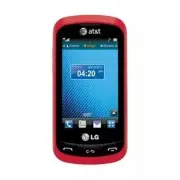
LG LGC395 - Manuals
User Manual LG LGC395
Summary
LIMITED WARRANTY STATEMENT 1. WHAT THIS WARRANTY COVERS : LG offers you a limited warranty that the enclosed subscriber unit and its enclosed accessories will be free from defects in material and workmanship, according to the following terms and conditions: 1. The limited warranty for the product ex...
4 Your Phone ............................................... 8 Phone Components ........................................... 8 Rear View ......................................................... 10 QWERTY Keys .................................................. 11 Getting Started ........................
10 Your Phone Rear View Back cover Camera lens Camera Key microSD™ memory card slot Battery SIM card slot
11 Your Phone QWERTY Keys Mobile Email KeyAT&T Social Net Key Mobile Web Key Alt Key Press to enter alternate characters, such as 1 for . To lock this function, press twice; press it again to switch back to normal entry mode. New Message Key Caps Key Press to change between Upper Case and Lower ...
12 Installing the SIM Card and Battery 1. Remove the back cover Hold the phone on your hand firmly. With the other hand, lift the back cover using the fingertip cutout located on the bottom of the cover and remove it. 2. Remove the battery Use the fingertip cutout at the bottom of the battery compar...
13 Getting Started 3. Install the SIM card Slide the SIM card into the SIM card slot. Make sure that the gold contact area on the card is facing downward. To remove the SIM card, pull it gently in the opposite direction. 4. Install the battery Insert the top of the battery first into the top edge of...
14 Getting Started Charging your phone Lift the Charger/USB Port cover on the bottom left side of your LG Xpression™. Insert the charger connector to the phone (ensure that side ‘B’ of the connector is facing up) and then plug the other end into the wall socket. Your LG Xpression™ will need to be ch...
16 Getting Started ICON/ INDICATOR DESCRIPTION Network signal strength (number of bars will vary) No network signal Battery empty New text message New email An alarm is set Ring profile in use Silent profile in use Call Forward Calendar event with Alarm is set ICON/ INDICATOR DESCRIPTION Bluetooth i...
17 Making a Call 1. Make sure your phone is powered on. 2. Touch and enter a phone number using the dial pad or open the slide and enter a phone number using the QWERTY keys. To edit a number on the display screen, simply touch to erase one digit at a time. Ź Touch and hold to erase the entire numbe...
18 General Functions Answering a Call When you receive a call, the phone rings and the phone icon appears on the screen. If the caller can be identified, the caller’s phone number (or name if stored in your Address Book) is displayed. 1. Press the Send Key or unlock the screen and touch . If Any Key...
19 General Functions Setting Profiles Press either of the Volume Keys. You can adjust the ringtone volume from the Ringtone menu and you can also set your ringtone profile to Ring, Vibrate All, Silent All. Profiles Vibrating Mode (Quick) Vibrating Mode can be activated by touching and holding from th...
20 General Functions Entering Text You can enter alphanumeric characters by using the phone’s touch pad. For example, storing names in the Address Book, writing a message or scheduling events in the calendar all require text to be entered. The following text input modes are available on the phone. C...
21 General Functions 1. When you are in the T9 predictive text input mode, begin entering a word by pressing the touch screen keys. Touch one key per letter. Ź The word changes as letters are typed - ignore what is displayed on the screen until the word is typed completely. Ź If the word is still in...
22 General Functions Note Refer to the table below for more information on the characters available using the keys. Touch to input an Upper Case letter. To change text entry mode from Lower Case to Upper Case, touch twice and the icon will switch to - indicating that Caps Lock has been activated. Ke...
23 General Functions QWERTY Keyboard Text input using the QWERTY Keyboard When you are entering text, the QWERTY keyboard will default to ABC mode. If you are entering a number, for example when making a call, the keyboard number keys will default to numbers. However, while in ABC mode you can still...
24 General Functions When you use Qwerty Keypad Open the slide and touch Options . Choose Text Entry Settings and Show Key Guide . You can see the Korean key guide on the monitor. To input numbers, touch . Press and you can see the Korean key guide as below. To lock to this mode, press it twice; pre...
25 From the standby screen, touch and touch to access your Address Book. AT&T Address Book Native Sync (AAB) AT&T Address Book Native Sync (AAB) is a service application for the synchronization of phone contact list information with the AAB server. When you turn on the phone or change your S...
27 Address Book 1. From the standby screen, touch . 2. Touch a contact. 3. Touch > Set Speed Dial . 4. Touch the Speed Dial location from 2 through 9. Ź Your Voicemail is already set to speed dial 1. This is a default setting and can not be changed. Ź To call an assigned speed dial number, touch ...
28 Address Book From this menu, you are also able to delete entries in the SIM card and the Handset. 1. From the standby screen, touch and touch Options . 2. A drop-down menu will appear. Touch SIM Management . Service Dial Numbers You can view the list of Service Dial Numbers (SDN) assigned by your...
29 Your phone provides a number of control functions that you can use during a call. To access these functions during a call, touch Options . During a Call Making a Second Call You can select a number you wish to dial, to make a second call. 1. Touch , enter the second phone number and touch . or To...
30 In-Call Menu Muting the Microphone You can mute the microphone during a call by touching . The handset can be unmuted by touching again. When the handset is muted, the caller cannot hear you, but you can still hear the caller. Using the Speakerphone You can use the integrated Speakerphone during ...
31 In-Call Menu Making a Second Call You can make a second call while currently on a call simply by pressing , entering the second number and pressing the . When the second call is connected, the first call is automatically placed on hold. You can swap between calls by pressing the Send Key . Settin...
32 From the standby screen, you can access all menu options, make a quick call and view the status of your phone - as well as many other things. Touchscreen Tips Ź The standby screen is also a great place to get accustomed to the touchscreen. Ź To select an item, touch the icon accurately. Ź To scro...
33 The Quick Keys The Quick Keys on your standby screen provide easy, one-touch access to your most used functions. Touch to bring up the touch dial pad, to make a call. Input the number as you would using a normal key pad and touch or press the Send Key . Quick Keys AT&T Touch to open your cont...
34 Your Standby Screen Home Screen LG Xpression™ provides three types of Home Screens. To swap between the Home Screens, just swipe quickly over the display from left to right or right to left. Widget Allows you to use Widgets and even add them to your Home screen. Ź The Widget Home screen is your d...
35 Your Standby Screen Contacts Allows you to easily contact your friends and family by displaying your favorite contacts on the standby screen. Ź First, touch from the standby screen. Then touch . Contacts Ź Touch Add to register your favorite contacts. You can add up to 30 contacts on the screen. ...
36 Your Standby Screen Ź To access your Contacts, simply touch on their corresponding icon. Touch to call, to send a message and to check messages received from that person. And touch to check call history. Ź If you want to view one of the Contacts, touch the picture. The detail view screen will be ...
37 Your Standby Screen Annunciator Bar With your phone's Annunciator bar, you can quickly connect to the Music Player, Bluetooth service and more. Touch the top side of the standby screen. Ź You can use the Music Player or turn on Bluetooth. Ź You can set your profile by touching and choosing from R...
38 Touch in the standby screen to open the Main Menu . From here you can access the following menus: Phone , Multimedia , My Stuff and Settings Menu Tree Phone Dialing Address Book Recent Calls Messaging Mobile Email YPmobile AT&T GPS myAT&T Settings Call Sound Display Phone Bluetooth Connec...
39 This section includes functions related to SMS (Short Message Service), MMS (Multimedia Message Service), Voicemail as well as the network’s service messages. New Message 1. From the standby screen, touch . 2. Touch Create New Message . Editing a message The following options are available when e...
40 Ź Record New Audio: You can record a new audio clip by touching . s Recording mode: MMS mode will limit the recording length so that it can be sent by MMS. General mode will record as long as memory is available. s Quality: Choose from Normal, Economy, or Fine. The higher the quality, the larger ...
41 Messaging s Slide Settings - Duration: Allows you to set the duration of the slide presentation. s Writing Font Size: Set the writing Font size to Small, Medium and Large. s Cancel Message: Allows you to exit the Message without saving your input message. Sending a Message After completing a mess...
42 Messaging Ź Note If you see the message “Message box full. Delete old messages.”, then you should delete some messages from your Inbox. Inbox You will be notified when you receive a message. They will be stored in the Inbox. In the Inbox, you can identify each message by icons. To reach the Inbox...
43 Messaging Ź Extract Data: You can make a voice call or send a message. You can save the number As New contact or Updating Existing. Ź View Attachment: Allows you to view the message’s attachments. Ź Copy to SIM/Phone: Allows you to copy the message to the SIM card or the phone. Ź Move to SIM/Phon...
44 Messaging Ź Message Settings: Allows you to set messaging settings. Ź Delete All: Delete all messages. The following options are available when you select a message in Outbox and touch Options . Ź View Status: Shows the message status. Ź Select Slide: If the multimedia message has more than one s...
45 Messaging Save To Choose a default save location between Phone and SIM Card. Signature This feature allows you to create your signature. Text Message Ź Text Templates There are 6 predefined messages in the list. You can view and edit the template messages or create new ones. The following options...
46 Messaging Voicemail Number This menu allows you to set the voicemail center number if this feature is supported by AT&T. Please check with AT&T for details of their service in order to configure the handset correctly. Service Message You can set the Service option to determine whether or ...
48 Ź The ability to personalize your application preferences by selecting U.S. customary or metric distance units, the language for audible guidance, and so on. You can also use many of AT&T Navigator’s features on the TeleNav website, such as getting driving directions (Route Planning) and usin...
49 From the standby screen, touch , then touch to access YellowPages.com. Unleash the power of YellowPages.com local search on your mobile phone. Find a business, get maps and directions, and save your favorites: our mobile app gives you what you need, whenever and wherever you need it. Ź Search for...
50 This application connects you to the Internet. By default, the account connects you to AT&T’s homepage. Mobile Web is one of the services provided by AT&T and it gives you access to all the cool things you can do with your wireless phone. Note Check the availability of WAP services, prici...
52 To launch AppCenter while in the standby screen, touch , , and then touch . Home Displays the AppCenter home page. Search Allows you to search for applications, games, music, and much more. Categories Allows you to easily browse for media through categories. Account Allows you to view your curren...
53 Music Player To launch Music Player while in the standby screen, touch , , , and select Music Player . Ź All Songs: You can view all the songs in your music library. Ź Playlists: You can make your own playlists. Ź Artist: Shows the list of artists of all the songs in your music library, and shows...
54 Music Player Playlist Repeat Shuffle Minimize Favorite Volume Ź Touch the song you wish to play. Ź Touch to pause the selected song. While playing, touch to adjust the volume. Touch and to skip to the next song or previous song. Ź Touch to Minimize the music player and access other phone function...
55 Music Player Ź From your PC using other music subscription services, such as Napster or Rhapsody. Note In order to effectively store all your music files on your SD card, it’s important to ensure that there is enough free space available remaining on the SD card to support file transfer. If there...
56 Music Player Transferring Music using your PC Before You Get Started To transfer music from your PC to your device, you will need the following: Ź Windows Media ® Player 10 (or above) or other digital music management software such as Napster or Rhapsody. Ź A microSD™ card* (supports up to 32 GB ...
58 Music Player Drag and Drop Music Using LG Xpression™ As A Mass Storage Device 1. Make sure the microSD™ card is inserted properly into the headset. 2. Connect the device to a PC using a LG Xpression™ USB data cable. 3. A bubble may appear on the PC, “Found New Hardware LG USB Modem”. 4. Access My...
59 Music Player Deleting Music Files The following are the three options available to delete music from your phone: 1. Delete a file using Mass Storage, but not using the Music Sync function. 2. Delete a file by directly inserting the microSD™ card into the PC. 3. Delete a file using delete function...
60 App Manager Allows you to download and use useful and entertaining applications. To access the App Manager from the standby screen, touch , , and then . Games & Apps Allows you to download and play games and use applications to your enjoyment. To access Games & Apps from the standby scree...
61 Multimedia Getting to know the viewfinder Camera mode: Indicates that camera mode is selected. Image Size: Displays the current image size. Back: Touch here to exit camera mode or return to the previous screen. Camcorder: Toggle between camera to camcorder mode. Album: Allows you to view your pic...
62 Multimedia Settings Menu Ź White Balance: Allows you to set the white balance to Auto, Daylight, Cloudy, Illuminate, or Indoors. Ź Night mode: Choose to turn Night mode On or Off. Ź Shot Mode: Choose from Normal and Continuous Shot. Ź Color Effects: Set the Color Effects to Off (Color), Mono, Sep...
63 Multimedia Record Video When recording video, you have many of the same Settings options as with taking a photo. Getting to know the viewfinder Video mode: Indicates that camcorder mode is selected. Video Size: Displays the current video size. Back: Touch here to return to the standby screen. Rec...
64 Multimedia Settings Menu Ź White Balance: Allows you to set the white balance to Auto, Daylight, Cloudy, Illuminate, or Indoors. Ź Color Effects: Set the Color Effects to Off (Color), Mono, Sepia, Negative, or Blue. Ź Video Size: Sets the size of video to QVGA (320x240) or QCIF (176x144). The sel...
65 AT&T Social Net Allows you to stay connected to friends, family, and coworkers via Facebook, MySpace, and Twitter. It also keeps you up-to-date on the latest news, sports, and entertainment. To access AT&T Social Net from the standby screen, touch , , and then . Audio From the standby scr...
66 My Stuff Tools From the standby screen, touch , , and then to access the Tools menu. Voice Recorder Use the Voice Recorder to record voice memos or other sounds. Ź Settings s Recording Mode: MMS record mode shortens the time so that the recording can fit in an MMS message and General mode provide...
67 My Stuff Voice Command Voice Command is the function whereby your phone’s voice recognition engine identifies the voice of the user and carries out the requested commands. When the user operates the Voice Command function, there are five possible commands, Call <Name or No.>, Listen Voicema...
69 My Stuff s 3PEAKERPHONE-ODE - Automatic On: When this option is selected, sound is heard through the speakerphone and is loud enough so you can hear the output when the phone is away from the ear, at a distance. - Off: When this option is selected, sound is quieter and can only be heard through t...
70 My Stuff Ź Go to Date: Allows you to jump to a specific date. Ź Selective Delete: Allows you to delete Old Schedules or All Schedules selectively. Ź Settings: Allows you set Default View and Weekly Begin day. Notepad You can create up to a maximum of 30 memos. 1. From the standby screen, touch , ...
71 My Stuff The following options are available by touching Options in the main Tasks menu: Ź New Task: Allows you to create a new task. Ź Delete: Allows you to delete any tasks created. Ź Delete All: Allows you to delete all tasks. Ź Send Task Via: Allows you to send tasks via Text Message, Multime...
72 My Stuff Calculator The calculator function allows you to calculate simple mathematical equations. To access the Calculator 1. From the standby screen, touch , , and select Calculator . Tip Calculator This feature allows you to quickly and easily calculate the tip amount based on the total bill a...
73 My Stuff Ź Alarm Tone: Select the desired alarm tone to use for the set alarm. Ź Alarm Volume: Allows you to adjust the alarm volume. Ź Alert Type: Select the desired Ring Alert Type. Ź Memo: Input alarm name. Ź Snooze Interval: You can set the snooze interval at 5 Minutes, 15 Minutes, 30 Minutes...
74 My Stuff Ź Delete All: You can delete all files and folders. Ź Rename: You can edit the name of the selected file. Note Limits: System files/folders cannot be listed. Other Files When you receive files of an undefined format (such as .vcs, .vcf, etc.) via email, the files are saved in this folder...
75 Call From the standby screen, touch , , and then to access the Call settings menu. Call Forwarding When this network service is activated, you can direct your incoming calls to another number, for example, to your voice mailbox number. For details, contact AT&T. Select one of the forwarding o...
76 Settings Answer Mode This allows you to determine how to answer the phone. Ź Any Key: You can answer an incoming call by touching any key. Ź Send Key Only: You can only answer an incoming call by pressing the Send Key . Minute Minder This option allows you to specify whether the phone will beep e...
77 Settings Send DTMF Tones Allows you to manage DTMF tones. Select from / . TTY Allows you to turn TTY on and off. Choose from TTY Full, TTY Talk, TTY Hear, and TTY Off. Hearing Aid Allows you to manage the Hearing Aid mode. Select from / . Time & Cost You can check Call Duration and Data Count...
79 Settings Display From the standby screen, touch , , and then to access the Display settings menu. Wallpapers This menu allows you to set a picture or color as your background. You may also choose to have no background wallpaper. Fonts You can configure the font size and color of the numbers which...
80 Settings Auto Screen Lock This allows you to set the amount of time before your screen locks automatically. Set Flight Mode This allows you to use only the phone’s features that do not require the use of the wireless network when you are in an airplane or in places where the wireless network is p...
81 Settings Touch You can customize the Touch settings and change Touchscreen Feedback. When you set Sound as Touchscreen Feedback type, you can choose your desired sound type and adjust its volume. Security Various codes and passwords are used to protect the features and settings of your phone. The...
82 Settings Ź Change Codes: The Change codes feature allows you to change your current password to a new one. You must enter the current password before you can specify a new one. You can change the access codes for: Security Code , PIN1 , PIN2 Note Not all SIM Cards have a PIN2. If your SIM Card do...
83 Settings Bluetooth From the standby screen, touch , , and then to access the Bluetooth function settings menu. Your phone has built-in Bluetooth ® wireless technology, which makes it possible for you to connect your phone wirelessly to other Bluetooth ® devices such as a hands-free device, PC, PD...
84 Settings When using each device, see the manual that comes with the device. Note We recommend that your phone and the Bluetooth ® device you are communicating with should be no more than 10 meters apart. The connection may be improved if there are no solid objects between your phone and the other...
85 Settings 3. If you want to stop searching, touch Cancel . 4. All of the devices found are displayed. 5. Touch the desired device and enter the password. If you would like to search again, touch Refresh . Connection From the standby screen, touch , , and then to access the Connection menu. USB Con...
86 Settings Application From the standby screen, touch , , and then to access the Applications menu. This menu allows you to adjust the settings to the following features on the phone: Browser This menu allows you to customize your Browsing experience by giving you the option of changing the followi...
88 Settings Voice Command This menu allows you to set various Voice Command settings. Refer to page 68 for details. More From the standby screen, touch , , and then to access the More settings menu. Start Up Guide This menu will start the animated guide. This guide will help you, using animated visu...
89 Settings Software Update The AT&T server notifies devices using a WAP push message when new software exists. Also the user can check for the software update using the menu “Check for Update”. If the new software does not exist the user can not use this feature in 24 hours. Before updating new...
91 There are a variety of accessories available for your mobile phone, some of which may be sold separately. You can select these options according to your personal communication requirements. Consult your local dealer for availability. Travel Adapter This adapter allows you to charge the battery. I...
92 WARNING: This product contains chemicals known to the State of California to cause cancer and birth defects or reproductive harm. Wash hands after handling. Important Information This user guide contains important information on the use and operation of this phone. Please read all the information...
93 For Your Safety Safety Information Read these simple guidelines. Breaking the rules may be dangerous or illegal. Further detailed information is given in this user guide. Ź Do not disassemble this unit. Take it to a qualified service technician when repair work is required. Ź Keep away from elect...
94 For Your Safety human exposure to radio frequency (RF) electromagnetic energy emitted by FCC regulated transmitters. Those guidelines are consistent with the safety standard previously set by both U.S. and international standards bodies. The design of this phone complies with the FCC guidelines a...
95 For Your Safety radiate radio frequency energy and, if not installed and used in accordance with the instructions, may cause harmful interference to radio communications. However, there is no guarantee that interference will not occur in a particular installation. If this equipment does cause har...
96 For Your Safety Ź For those host devices that utilize a USB port as a charging source, the host device’s user manual shall include a statement that the phone shall only be connected to products that bear the USB-IF logo or have completed the USB-IF compliance program. Adapter (Charger) Cautions Ź...
97 TIA Safety Information Provided herein is the complete TIA Safety Information for Wireless Handheld phones. Inclusion of the text covering Pacemakers, Hearing Aids, and Other Medical Devices is required in the owner’s manual for CTIA Certification. Use of the remaining TIA language is encouraged ...
Safety Guidelines 98 Tips on Efficient Operation For your phone to operate most efficiently: Ź Do not touch the antenna unnecessarily when the phone is in use. Contact with the antenna affects call quality and may cause the phone to operate at a higher power level than otherwise needed. Driving Chec...
Safety Guidelines 101 system per IEEE-Std-1725-2006. Use of an unqualified battery may present a risk of fire, explosion, leakage or other hazard. Ź Promptly dispose of used batteries in accordance with local regulations. Ź Battery usage by children should be supervised. Ź Avoid dropping the phone o...
Safety Guidelines 102 Ź Actual battery life will depend on network configuration, product settings, usage patterns, battery and environmental conditions. Ź Always unplug the charger from the wall socket after the phone is fully charged to save unnecessary power consumption of the charger. Explosion,...
Safety Guidelines 103 Ź Do not use the phone if the antenna is damaged. If a damaged antenna contacts skin, it may cause a slight burn. Please contact an LG Authorized Service Centre to replace the damaged antenna. Ź Do not immerse your phone in water. If this happens, turn it off immediately and re...
Safety Guidelines 104 in determining the reasons for inconsistent results. 2. What is the FDA’s role concerning the safety of wireless phones? Under the law, the FDA does not review the safety of radiation-emitting consumer products such as wireless phones before they can be sold, as it does with ne...
Safety Guidelines 105 The FDA shares regulatory responsibilities for wireless phones with the Federal Communications Commission (FCC). All phones that are sold in the United States must comply with FCC safety guidelines that limit RF exposure. The FCC relies on the FDA and other health agencies for ...
Safety Guidelines 106 accelerate the development of cancer in laboratory animals. However, many of the studies that showed increased tumor development used animals that had been genetically engineered or treated with cancer causing chemicals so as to be pre-disposed to develop cancer in the absence ...
Safety Guidelines 107 6. What is the FDA doing to find out more about the possible health effects of wireless phone RF? The FDA is working with the U.S. National Toxicology Program and with groups of investigators around the world to ensure that high priority animal studies are conducted to address ...
Safety Guidelines 108 into consideration the body’s ability to remove heat from the tissues that absorb energy from the wireless phone and is set well below levels known to have effects. Manufacturers of wireless phones must report the RF exposure level for each model of phone to the FCC. The FCC we...
Safety Guidelines 109 wireless phone will reduce RF exposure. If you must conduct extended conversations by wireless phone every day, you could place more distance between your body and the source of the RF, since the exposure level drops off dramatically with distance. For example, you could use a ...
Safety Guidelines 110 (AAMI). The final draft, a joint effort by the FDA, medical device manufacturers, and many other groups, was completed in late 2000. This standard will allow manufacturers to ensure that cardiac pacemakers and defibrillators are safe from wireless phone EMI. The FDA has tested ...
Safety Guidelines 111 10 Driver Safety Tips Your wireless phone gives you the powerful ability to communicate by voice almost anywhere, anytime. An important responsibility accompanies the benefits of wireless phones, one that every user must uphold. When operating a car, driving is your first respo...
116 To help you understand the main technical terms and abbreviations used in this booklet and to take full advantage of the features on your mobile phone, here are a few definitions. Call Reject The ability to restrict incoming calls. Call Forwarding The ability to reroute calls to another number. ...
118 A Additional Music Services .......................................59 Address Book ............................................................25 Annunciator Bar ........................................................37 Answering a Call ......................................................18 A...
LG Cell Phones Manuals
-
LG A7110
User Manual
-
LG AX5000
User Manual
-
LG C1300
User Manual
-
LG C1300A
User Manual
-
LG C1300I
User Manual
-
LG C1500
User Manual
-
LG C2000
User Manual
-
LG CB630
User Manual
-
LG CE500
User Manual
-
LG CF360
User Manual
-
LG CF360A
User Manual
-
LG CG180
User Manual
-
LG CG225
User Manual
-
LG CG300
User Manual
-
LG CP150
User Manual
-
LG CU320
User Manual
-
LG CU400
User Manual
-
LG CU405
User Manual
-
LG CU500
User Manual
-
LG CU500
Manual














