Page 2 - LIMITED WARRANTY STATEMENT; Warranty Laws
LIMITED WARRANTY STATEMENT ARBITRATION NOTICE: THIS LIMITED WARRANTY CONTAINS AN ARBITRATION PROVISION THAT REQUIRES YOU AND LG TO RESOLVE DISPUTES BY BINDING ARBITRATION INSTEAD OF IN COURT, UNLESS YOU CHOOSE TO OPT OUT. IN ARBITRATION, CLASS ACTIONS AND JURY TRIALS ARE NOT PERMITTED. PLEASE SEE TH...
Page 9 - Table of contents
8 Basics .......................................... 10 Accessories .............................................. 11 Phone layout ............................................ 12 Phone Components................................................... 12Rear view .............................................
Page 12 - Accessories
Basics 11 Accessories There are a variety of accessories available for your mobile phone, some of which may be sold separately. You can select these options according to your personal communication requirements. Visit your local AT&T store or www.att.com/wirelessaccessories for specific offering...
Page 13 - Phone layout; Phone Components
Basics 12 Phone layout Phone Components Press and hold to activate/deactivate Vibrating Mode. Earpiece Left Soft Key/ Right Soft Key Navigation Keys Clear/Back KeyTTS Mode KeyOK Key End/Power Key Main LCD Message Key Camera Key Send Key
Page 15 - Rear view
Basics 14 Send Key Press this key in standby mode to quickly access the most recent missed, dialed, and received calls. Also dials a call when you enter a number. Clear/Back Key Allows you to return to the previous screen. Press and hold to activate the Voice Command function. TTS Mode Key Lets you ...
Page 16 - Installing the SIM card and battery
Basics 15 Installing the SIM card and battery 1 Remove the back cover Place your thumb at the top part of the back cover and slide it downwards to remove it. 2 Remove the battery Hold the top edge of the phone and use the fingernail cutout near the bottom of the battery to lift the battery from the ...
Page 18 - Charging your phone
Basics 17 Charging your phone Locate the Charger/USB Port on the left side of your phone. Insert the charger connector to the phone (the ‘B’ side of the connector has to be facing up when connecting to the phone) and then plug the other end into the wall socket. Your phone will need to be charged un...
Page 21 - Before you begin; Making a Call; Making a Call with the Send Key
General Functions 20 Before you begin Remember that you can select the menu icons from the Menu screen using the Navigation Keys if you set the option to Icon . If you set the Menu Styles option to List , you can use the number keys to select the menu icons. Making a Call 1 Make sure your phone is p...
Page 22 - Making a Call from the Contacts; Answering a Call; Adjusting the Volume
General Functions 21 Making a Call from the Contacts You can store frequently called names and phone numbers in the SIM card as well as in your Contacts List.You can dial a number by simply highlighting a name in the Contacts List and pressing the Send Key . 1 Press the Down Navigation Key to access...
Page 23 - Signal Strength; Entering Text; Changing the Text Input Mode; Symbol Mode; ABC Mode
General Functions 22 Signal Strength If you are inside a building, being near a window may give you better reception. You can see the strength of your signal by the signal indicator on your phone’s display screen. Entering Text You can enter alphanumeric characters by using the phone’s keypad. For e...
Page 24 - Using the ABC Mode
General Functions 23 Using the ABC Mode Use the alphanumeric keypad to enter your text. 1 Press the key labeled with the required letter. 2 To insert a space, press the key once. To delete letters, press the Clear/Back Key . Press and hold down the Clear/Back Key to erase all of the entered text. NO...
Page 25 - During a Call; Making a Second Call
General Functions 24 In-Call Menu During a Call Your phone provides a number of control functions that you can use during a call. To access these functions during a call, press the Left Soft Key Options . Making a Second Call You can select a number you wish to dial from the Contacts to make a secon...
Page 26 - Muting the Microphone; Using the Speakerphone; Recent Calls
General Functions 25 Muting the Microphone You can mute the microphone during a call by pressing the Right Soft Key Mute . The phone can be unmuted by pressing the Right Soft Key Unmute . When the phone is muted, the caller cannot hear you, but you can still hear the caller. Using the Speakerphone Y...
Page 27 - Contacts; Contact List
General Functions 26 Contacts Contact List This menu allows you to save and manage contact address information. The Contact List allows you to add a new address or search saved contact addresses by name.To access Contact List, from the standby screen, press the Left Soft Key Menu , Contacts and Cont...
Page 28 - New Contact; Groups; Speed Dial; SIM Management
General Functions 27 New Contact This menu allows you to add a new contact to the Contact List. You can enter contact address information including name, phone numbers, email addresses, group information items, memos, ring tones, and a contact Picture ID.To access New Contact, from the standby scree...
Page 29 - Own Number; Messages; Create Message
General Functions 28 Own Number This displays your personal phone number.To access Own Number, from the standby screen, press the Left Soft Key Menu , Contacts and Own Number . My Business Card This displays your business card stored in the phone. You can also edit it.To access My Business Card, fro...
Page 30 - Adding recipients
General Functions 29 Adding recipients The following options are available when adding the recipient(s). For more options, press the Left Soft Key Options in the Recipients screen. In this menu, you can choose from the following options: Ţ Enter Number : Allows you to enter the phone number using th...
Page 31 - Using Options
General Functions 30 Ţ Record New Video : You can record a new video by pressing the OK Key Rec. When finished recording, press the OK Key Insert . Ţ Template - Text : Allows you to easily insert frequently used sentences in the text message. - Multimedia : Preset multimedia templates can be created...
Page 32 - Inbox
General Functions 31 Inbox You will be alerted when you receive a message. New messages are stored in the Inbox. In the Inbox, you can identify each message by icons. If you are notified that you have received a multimedia message, you can download the whole multimedia message by selecting it in the...
Page 33 - Drafts
General Functions 32 Drafts Allows you to view and edit the messages saved as drafts. To access drafts, from the standby screen, press the Left Soft Key Menu , Messages , and Drafts . When you press the Right Soft Key Delete , it allows you to delete the message. While viewing the Drafts, press the ...
Page 34 - Message Settings; Message Alert
General Functions 33 Message Settings To access and configure your Message Settings, from the standby screen, press the Left Soft Key Menu , Messages , and Message Settings . Message Alert Allows you to set the Sounds, Volume, Alert Type, and Alert Interval. Save To Allows you to choose whether to s...
Page 35 - Group Messaging
General Functions 34 to Entering Text (page 22). - Text Entry Settings - Text Entry Language : Allows you to set the text entry language to English or Spanish. - T9 Word Candidate List : Displays the word candidates as you type. - T9 Next Word Prediction : Allows the phone to predict the next word w...
Page 36 - Email; Sending an email
General Functions 35 Email Sending an email To send/receive an email, you should first set up an email account. 1 From the standby screen, press the Left Soft Key Menu , select Email and choose the account you want to use (if necessary). 2 Press the Left Soft Key Options and choose or Write Email to...
Page 37 - Message folders
General Functions 36 Message folders Open Email, press the Left Soft Key Options , and select Mailbox . The list of folders will be displayed. Ţ Write Email : Create your new message. Ţ Inbox : All the e-mails you receive are placed into your Inbox. From here you can reply, forward and more. Ţ Draft...
Page 38 - Alarm Clock; Edit Alarm
General Functions 37 Alarm Clock The alarm function allows you to set up multiple separate alarms. You can also set the time, repetition interval, and alarm tone. If there is no alarm setting, press the Left Soft Key New to add a new alarm. To access Alarm Clock, from the standby screen, press the L...
Page 39 - Browser; Launch the Browser
General Functions 38 Browser The Browser is one of the services provided by your network operator and it gives you access to all the cool things you can do with your wireless phone. NOTE Ţ Check the availability of services, pricing, and tariffs with your network operator and/or the service provider...
Page 40 - Menus for the Browser
General Functions 39 Ţ Recent Pages : Allows you to view your history of recently viewed web sites. Ţ Settings : Allows you to set options for web pages and appearance. Menus for the Browser You can surf the Internet using either the phone keys or the Browser menu. Using the Navigation Keys When sur...
Page 41 - Notepad
General Functions 40 myAT&T myAT&T allows you to manage all of your AT&T accounts, including wireless, internet and home phone, and AT&T U-verse. Ţ View and pay your bill Ţ Access to billing and account support Ţ Check your order status Ţ View wireless voice and data usage Ţ Upgrade ...
Page 42 - Calendar
General Functions 41 Calendar When you enter this menu, a calendar will be displayed. The red square cursor is used to locate a particular day. The bottom bar on the calendar indicates saved schedules (if any) for that day. This function helps you keep track of your schedule. The phone can sound an ...
Page 43 - My Folder; Audio; Playing Music
General Functions 42 My Folder Audio To access Audio, from the standby screen, press the Left Soft Key Menu , My Folder , and Audio . Ţ Record Voice : Allows you to record voice notes. Ţ Saved audio files are displayed in the list. Music Player You can access Music by pressing the Left Soft Key Menu...
Page 44 - Adding Music To Your Phone; Pictures
General Functions 43 1 Press the Left Soft Key Menu and My Folder . 2 Select Music and then choose from Now Playing, All Songs, Playlists, Artists, Albums and Genres or Shuffle Songs to shuffle your collection. Ţ Press the OK Key Play/Pause to play and pause a selected song. While playing, press the...
Page 45 - Other Files
General Functions 44 NOTE Ţ Please note that DRM can restrict some functions, such as sending and editing. Other Files When you receive files of an undefined format (such as .vcs, .vcf, etc.) via email, the files are saved in this folder.To access Other Files, from the standby screen, press the Left...
Page 46 - Tools; Camera; Take Photo
General Functions 45 Tools Camera To access Camera from the standby screen, press the Left Soft Key Menu , Tools and Camera . Take Photo Using the camera you can take pictures of people or events while on the move. Additionally, you can send photos to other people in a picture message.The following ...
Page 47 - Record Video
General Functions 46 Others Tab Ţ Shutter Tones : You can choose from Tone 1, Tone 2, Tone 3, or Off. Ţ Reset settings : Allows you to set the Camera to the default settings. Using Zoom In Camera mode, you can zoom in and out by using the up and down Volume Keys . The maximum zoom scale depends on t...
Page 48 - Camera Album; Voice Command
General Functions 47 Others Tab Ţ Recording Tones : Allows you set Recording Tones to On or Off. Ţ Reset settings : Allows you to set the Camcorder to the default settings. NOTE Ţ In Video mode, you can adjust the zoom scale by using the up and down Volume Keys . The zoom scale ranges from Level 1 t...
Page 49 - Voice Command Options
General Functions 48 cause a problem displaying candidates. Additionally, the user has the option to select a number type at the end, such as “mobile”, “home”, or “work”. 2 Listen Voicemail : This command is activated when the user says “Listen Voicemail”. The user will then be automatically connect...
Page 51 - Calculator
General Functions 50 Calculator The Calculator function allows you to calculate simple mathematical equations.To access Calculator, from the standby screen, press the Left Soft Key Menu , Tools , and Calculator . Tasks This feature allows you to save and manage a task.To access Tasks, from the stand...
Page 52 - Tip Calculator
General Functions 51 Ţ Show Last : Displays the last time recorded (only available if previous time was not reset). Ţ New Time 1 To start timing, press the OK Key Start . The running time is displayed as HH.MM.SS.hh (hours, minutes, seconds, hundredths of a second). 2 During the timing, you can reco...
Page 53 - Voice Recorder
General Functions 52 Voice Recorder Allows you to record an audio clip to your phone. The recorded audio file is saved automatically in the Audio menu.To access Record Voice, from the standby screen, press the Left Soft Key Menu , Tools , and Voice Recorder . The following options are available when...
Page 55 - Ringtone; Message Tone
Settings 54 Audio & Ringtones This menu allows you to configure the audio and ringtone settings for your phone. To access Audio & Ringtones, from the standby screen, press the Left Soft Key Menu , Settings , and Audio & Ringtones . Ringtone Ţ Sounds : Allows you to set a sound as the rin...
Page 56 - Keypad Tone; Phone Settings
Settings 55 Keypad Tone Ţ Sounds : Allows you to select a tone that the phone sounds when a key is pressed on the dialpad. You can select an option from Beep and Voice. Ţ Volume : Allows you to control your Keypad Tone volume. Multimedia This menu allows you to control your Multimedia volume. Call T...
Page 57 - Languages; Security
Settings 56 Languages Allows you to change the language for the display text on your phone. This change will also affect the Language Input mode. Set Hotkeys Allows you to change the preferences on the Hotkeys that are currently assigned for your Navigation Keys (when in standby mode). Flight Mode T...
Page 58 - Reset Settings
Settings 57 NOTE Ţ Before setting the PIN Request feature off, you must enter your PIN. Ţ Fixed Dial Number : This feature allows you to restrict your outgoing calls to selected phone numbers, if supported by your SIM Card. The PIN2 code is required. - FDN On/Off - On : You can only call phone numbe...
Page 59 - Display; Wallpapers; Fonts; Backlight Timer; Menu Styles
Settings 58 Display This menu allows you to configure your Display settings. To access Display, from the standby screen, press the Left Soft Key Menu , Settings , and Display . Wallpapers This menu allows you to set a picture or color as your background. Fonts You can configure the font size and col...
Page 60 - Call; Call Forwarding; Answer Mode
Settings 59 Call This menu allows you to configure your Call settings. To access Call, from the standby screen, press the Left Soft Key Menu , Settings , and Call . Call Forwarding This menu allows you to select when to forward calls to another number. Send My Number This network service allows you ...
Page 62 - Accessibility
Settings 61 Accessibility This menu allows you to easily control various accessibility options.To access Accessibility, from the standby screen, press the Left Soft Key Menu , Settings , and Accessibility . Menu Readout This option allows the phone to read out menus that are accessed. Keypad Tone Ţ ...
Page 63 - Hearing Aid; Connection; Bluetooth
Settings 62 Hearing Aid Allows you to enable or disable the Hearing Aid function. Voice Command Allows you to set the Voice Command options. Refer to page 47. Connection This menu allows you to configure your Connection settings.To access Connection, from the standby screen, press Left Soft Key Menu...
Page 64 - Search New Device
Settings 63 used between the compatible device and the phone. This allows you to call and listen to an audio clip using a Bluetooth connection.When using each device, see the manual that comes with the device. NOTE Ţ We recommend that your phone and the Bluetooth device you are communicating with sh...
Page 65 - USB Connection; Internet Profiles; Memory; Used Space
Settings 64 USB Connection This menu shows the USB Connection. Allows you to select the USB connection from Data Service or Disable . Internet Profiles This menu shows the Internet Profiles. You can add, delete, and edit Internet Profiles by pressing the Left Soft Key Options . Access Points This me...
Page 66 - Applications; Accounts
Settings 65 Applications This menu allows you to configure application settings To access Applications, from the standby screen, press the Left Soft Key Menu , Settings , and Applications . Messages This option allows you to configure the Messaging option.For more details, refer to Message Settings ...
Page 67 - Appearance; Cookies
Settings 66 NOTE Ţ You cannot edit and delete pre-installed accounts. Ţ In order to create a new account, please fill in the network information. 1 Account Name: Name associated with new account. 2 Homepage: Homepage URL. 3 Internet Profile: You can choose one from the Internet profiles. Ţ Creating ...
Page 68 - Screen settings; Navigation Mode; Secure Popup
Settings 67 Screen settings You can chage the settings of the browser screen (Rendering mode). Security A list of the available certificates is shown. Ţ Certificates : You can see the list of certificates and view them in detail. Ţ Clear Session : Removes the secure session. Navigation Mode You can ...
Page 69 - Software Update
Settings 68 Software Update The user can check for the software update using the menu “Check for Update”. If the new software does not exist the user can not use this feature in 24 hours. Before updating new software after downloading it from the network server, users can decide whether they would l...
Page 72 - More information; Open Source Software Notice Information
Appendix 71 More information Open Source Software Notice Information To obtain the source code under GPL, LGPL, MPL, and other open source licenses, that is contained in this product, please visit http://opensource. lge.com.In addition to the source code, all referred license terms, warranty disclai...
Page 73 - DivX HD; Dolby Digital Plus
Appendix 72 DivX HD This DivX Certified ® device has passed rigorous testing to ensure it plays DivX ® video. To play purchased DivX movies, first register your device at vod.divx.com. Find your registration code in the DivX VOD section of your device setup menu. DivX Certified ® to play DivX ® vide...
Page 75 - Important Information
For Your Safety 74 Important Information This user guide contains important information on the use and operation of this phone. Please read all the information carefully for optimal performance and to prevent any damage to or misuse of the phone. Any changes or modifications not expressly approved i...
Page 77 - HAC statement
For Your Safety 76 Ţ Your phone is an electronic device that generates heat during normal operation. Extremely prolonged, direct skin contact in the absence of adequate ventilation may result in discomfort or minor burns. Therefore, use care when handling your phone during or immediately after opera...
Page 78 - Caution
For Your Safety 77 between the user’s body and the back of the phone. Any beltclips, holsters, and similar accessories containing metallic components may not be used. Body-worn accessories that cannot maintain 0.59 inches (1.5 cm) separation distance between the user’s body and the back of the phone...
Page 82 - Consumer Information on SAR
For Your Safety 81 Telephone: 011 49 1888 333 2156 http://www.icnirp.de American National Standards Institute 1819 L Street, N.W., 6th Floor Washington, D.C. 20036 Telephone: (202) 293-8020 http://www.ansi.org National Council on Radiation Protection and Measurements 7910 Woodmont Avenue, Suite 800 ...
Page 87 - TIA Safety Information
For Your Safety 86 Ţ Do not listen at any volume that causes you discomfort. If you experience ringing in your ears, hear muffled speech or experience any temporary hearing difficulty after listening to your portable audio device, discontinue use and consult your doctor. TIA Safety Information The f...
Page 88 - Antenna Care
For Your Safety 87 Antenna Care Use only the supplied or an approved replacement antenna. Unauthorized antennas, modifications, or attachments could damage the phone and may violate FCC regulations. Tips on Efficient Operation For your phone to operate most efficiently: Don’t touch the antenna unnec...
Page 90 - Potentially Explosive Atmosphere
For Your Safety 89 Potentially Explosive Atmosphere Turn your phone OFF when in any area with a potentially explosive atmosphere and obey all signs and instructions. Sparks in such areas could cause an explosion or fire resulting in bodily injury or even death.Areas with a potentially explosive atmo...
Page 91 - Safety Information
For Your Safety 90 interference in a residential installation. This equipment generates, uses, and can radiate radio frequency energy and, if not installed and used in accordance with the instructions, may cause harmful interference to radio communications. However, there is no guarantee that interf...
Page 92 - Charger and Adapter Safety
For Your Safety 91 Ţ Replace the battery only with another battery that has been qualified with the system per this standard, IEEE-Std-1725. Use of an unqualified battery may present a risk of fire, explosion, leakage or other hazard. Only authorized service providers shall replace battery (If the b...
Page 94 - General Notice
For Your Safety 93 Explosion, Shock, and Fire Hazards Ţ Do not put your phone in a place subject to excessive dust and keep the minimum required distance between the power cord and heat sources. Ţ Unplug the power cord prior to cleaning your phone, and clean the power plug pin when it’s dirty. Ţ Whe...
Page 95 - FDA Consumer Update
For Your Safety 94 and videos could also be deleted.) The manufacturer is not liable for damage due to the loss of data. Ţ When you use the phone in public places, set the ringtone to vibration so you don't disturb others. Ţ Do not turn your phone on or off when putting it to your ear. Ţ Use accesso...
Page 102 - Driving; 0 Driver Safety Tips
For Your Safety 101 International Commission on Non-lonizing Radiation Protection(http://www.icnirp.de)World Health Organization (WHO) International EMF Project(http://www.who.int/emf)National Radiological Protection Board (UK)(http://www.hpa.org.uk/radiation/) Driving Check the laws and regulations...
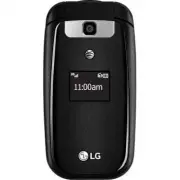


 LG A7110
User Manual
LG A7110
User Manual
 LG AX5000
User Manual
LG AX5000
User Manual
 LG C1300
User Manual
LG C1300
User Manual
 LG C1300A
User Manual
LG C1300A
User Manual
 LG C1300I
User Manual
LG C1300I
User Manual
 LG C1500
User Manual
LG C1500
User Manual
 LG C2000
User Manual
LG C2000
User Manual
 LG CB630
User Manual
LG CB630
User Manual
 LG CE500
User Manual
LG CE500
User Manual
 LG CF360
User Manual
LG CF360
User Manual
 LG CF360A
User Manual
LG CF360A
User Manual
 LG CG180
User Manual
LG CG180
User Manual
 LG CG225
User Manual
LG CG225
User Manual
 LG CG300
User Manual
LG CG300
User Manual
 LG CP150
User Manual
LG CP150
User Manual
 LG CU320
User Manual
LG CU320
User Manual
 LG CU400
User Manual
LG CU400
User Manual
 LG CU405
User Manual
LG CU405
User Manual
 LG CU500
User Manual
LG CU500
User Manual