Page 2 - Important Safety Precautions
Important Safety Precautions 2 Impor tant Safe ty Precautions 1. Do not expose the battery charger or adapter to direct sunlight or use it in places with high humidity, such asa bathroom. 2. Do not use harsh chemicals (such as alcohol, benzene, thinners, etc.) or detergents to clean your phone. This...
Page 4 - Ta b l e o f C o n te n ts; Table of Contents; Phone Overview
Ta b l e o f C o n te n ts 4 T able of Cont ent s Important Safety|Precautions 1 Table of Contents 4 Welcome 9 Technical Details 10 Technical Details 10 FCC RF Exposure Information 12 Bodily Contact During Operation 12 Vehicle-Mounted the ExternalAntenna 13 FCC Notice and Cautions 13 Phone Overview ...
Page 5 - Messaging; Alltel Shop
5 T able of Cont ent s Contacts in Your Phone’sMemory 27 The Basics of Storing ContactsEntries 27 Phone Numbers With Pauses 27 Storing a Number with Pauses 28 Adding a Pause to an ExistingNumber 28 Searching Your Phone’s Memory 29 Scrolling Through Your Contacts 29 Making a Call From Your Phone’sMem...
Page 6 - Contacts
Table of Contents 6 T able of Cont ent s 7. Shuffle 53 Contacts 54 1. New Contact 54 2. Contact List 54 3. Groups 55 4. Speed Dials 56 5. My Name Card 56 Recent Calls 57 1. Missed Calls 57 2. Received Calls 57 3. Dialed Calls 57 4. All Calls 57 5. Call Timer 58 6. Data 58 7. Data Counter 58 Music 59...
Page 7 - XM Radio
7 T able of Cont ent s 1.6 Power On/Off Tone 68 1.7 Slide Tone 68 2. Display 69 2.1 Wallpaper 69 2.2 Banner 69 2.3 Backlight 70 2.4 Wheel Board 70 2.5 Menu Style 70 2.6 Languages 71 2.7 Clocks & Calendar 71 2.8 Font Settings 71 2.9 Color Schemes 72 2.0 Name Match for Dialing 72 3. Security 72 3....
Page 8 - ZUMA; Safety; Accessories
Table of Contents 8 T able of Cont ent s ZUMA 82 Ringtones 82 Safety 83 TIA Safety Information 83 Exposure to Radio Frequency Signal 83 Antenna Care 83 Phone Operation 84 Tips on Efficient Operation 84 Driving 84 Electronic Devices 84 Pacemakers 84 Persons with pacemakers: 85 Hearing Aids 85 Other M...
Page 9 - We l c o m e; Thank you for choosing the; Important Information
We l c o m e 9 W elcome Thank you for choosing the cellular phone designed to operate with thelatest digital mobilecommunication technology,Code Division Multiple Access(CDMA). Along with the manyadvanced features of the CDMAsystem, such as greatly enhancedvoice clarity, this compact phoneoffers: Ce...
Page 10 - Te c h n i c a l D eta i l s; The is
Te c h n i c a l D eta i l s 10 T echnical De tails FCC Part 15 Class BCompliance This device and its accessoriescomply with part 15 of FCC rules.Operation is subject to thefollowing two conditions: (1) Thisdevice and its accessories may notcause harmful interference, and(2) this device and its acce...
Page 12 - FCC RF Exposure Information
Technical Details 12 T echnical De tails FCC RF Exposure Information WARNING! Read thisinformation before operatingthe phone. In August 1996, the FederalCommunications Commission(FCC) of the United States, withits action in Report and OrderFCC 96-326, adopted anupdated safety standard forhuman expos...
Page 13 - FCC Notice and Cautions
13 T echnical De tails Vehicle-Mounted the ExternalAntenna (Optional, if available.) To satisfy FCC RF exposurerequirements, keep 8 inches (20cm) between the user /bystander and vehicle-mountedthe external antenna. For moreinformation about RF exposure,visit the FCC website atwww.fcc.gov. FCC Notice...
Page 14 - P h o n e O ve r v i ew
P h o n e O ve r v i ew 14 Phone Ov ervie w 3. Slide 6. Side Volume Keys 14. Message Key 15. Music Shortcut Key 4. LCD Screen 5. Celltop Key 9. Music Key 11. Accessory Charger Port 2. Earpiece 1. Headset Jack 10. TALK Key 13. microSD ™ Slot 12. Lock Mode Key 18. Speakerphone Key 17. BACK Key 19. PWR...
Page 16 - Rear view
Phone Overview 16 Phone Ov ervie w Rear view Tip If you hold the phone enclosing the upper edge,you may interfere with theantenna's ability to receivea clear signal which affectscall quality for voice ordata transfer. NOTE Antenna equipped insideyour phone. Camera Lens microSD ™ Slot MusicShotcut Ke...
Page 17 - M e nu s O ve r v i ew; You can launch the menu display screen by touching
M e nu s O ve r v i ew 17 Men us Ov ervie w Messaging 1. New Text Message2. New Picture Message 3. Inbox4. Sent5. Drafts6. Voicemail7. Templates8. Settings 1. All Messages2. Text Message3. Picture Message 4. Edit Voicemail# 9. Delete All 1. Delete Inbox2. Delete Sent3. Delete Drafts 4. Delete All Me...
Page 18 - Music
M e nu s O ve r v i ew 18 Men us Ov ervie w 5. Call Timer6. Data7. Data Counter Music 1. All Songs2. My playlists3. Artist4. Albums5. Genres6. Settings 1. Shuffle2. Repeat3. Equalizer4. Play Mode5. Visualization6. Music Highlight7. Background Music Tools 1. Voice Command 1. Start Command2. Command M...
Page 19 - Press
19 Men us Ov ervie w 1. Answer Options2. End Call Options 3. Auto Retry4. One-Touch Dial5. Voice Privacy6. Airplane Mode7. TTY Mode 5. Touch Pad6. Bluetooth 1. Paired Devices2. Power3. My Visibility4. My Bluetooth Name 5. My Bluetooth Info 7. PC Connection 1. USB Modem2. USB Mass Storage 3. Bluetoot...
Page 20 - The Battery; Installing the Battery; Charging the Battery; may; G ett i n g S ta r te d w i t h Yo u r P h o n e
Notice Please make sure that the LG logo faces down before inserting a charger, data cable, etc into the charger port of yourphone. The Battery The phone comes with arechargeable battery. Keep thebattery charged while not in usein order to maximize talk andstandby time. The battery chargelevel is sh...
Page 21 - Plug the end of the adapter; B attery Charge Level; Turning the Phone On; Install a charged battery or; Turning the Phone Off; until the; Signal Strength
21 Getting St ar ted with Y our Phone 1. Plug the end of the adapter into the phone’s charger portand the other end into anelectrical outlet. 2. The charge time varies depending upon the batterylevel. B attery Charge Level The battery charge level is shownat the top right of the LCDscreen. When the ...
Page 22 - Getting Started with Your Phone; Screen Icons; To see the icon glossary, go to; Making Calls; Make sure the phone is; Correcting Dialing Mistakes; for
Getting Started with Your Phone 22 Getting St ar ted with Y our Phone area. If you are in a building, thereception may be better near awindow. Screen Icons To see the icon glossary, go to Menu -> Settings -> Phone Info -> Icon Glossary on your phone. Making Calls 1. Make sure the phone is t...
Page 23 - Redialing Calls; twice to redial the; Receiving Calls; When the phone rings or
23 Getting St ar ted with Y our Phone at least 2 seconds to go to thestandby mode. Redialing Calls 1. Press twice to redial the last number you dialed. Thelast 120 numbers (missed,received, dialed) are stored inthe call history list and youcan also select any of these toredial. Receiving Calls 1. Wh...
Page 24 - Q u i c k Ac c es s to C o nve n i e n t Fe at u res; Lock Mode; To quickly lock your phone press; Mute Function; Mute; Volume Quick Adjustment
Q u i c k Ac c es s to C o nve n i e n t Fe at u res 24 Quick A cce ss t o Con venient F e a ture s Lock Mode Sets your phone to require a 4-digit password in order to usethe phone. To quickly lock your phone press for three seconds. To cancel, press Left Soft Key Unlock, enter the password and pres...
Page 25 - to receive a waiting; Caller ID; OR
25 Quick A cce ss t o Con venient F e a ture s 1. Press to receive a waiting call. 2. Press again to switch between calls. Caller ID Caller ID displays the phonenumber or name of the incomingcall. If the caller’s identity is storedin Contacts, the name will appearalong with the phone number.Check wi...
Page 26 - E n te r i n g a n d E d i t i n g I n f o r m at i o n; Text Input; a word and insert a space.
E n te r i n g a n d E d i t i n g I n f o r m at i o n 26 Ent ering and Editing Informa tion Text Input You can input and edit yourBanner, Calendar, Contacts,Alarm Clock, Notepad, andMessages. Key Functions Left Soft Key : Press to scroll through thefollowing text inputmodes: T9Word (T9WORD/T9Word/...
Page 27 - C o n ta c ts i n Yo u r P h o n e ’s M e m o r y
C o n ta c ts i n Yo u r P h o n e ’s M e m o r y 27 Cont acts in Y our Phone’ s Memory The Basics of StoringContacts Entries 1. From standby mode enter the phone number you want tosave (up to 48 digits). 2. Press Left Soft Key Save . 3. Select either Save New or Update Existing . 4. Use to highligh...
Page 28 - Contacts in Your Phone’s Memory
Contacts in Your Phone’s Memory 28 Cont acts in Y our Phone’ s Memory Storing a Number with Pauses 1. Press Menu . 2. Press Contacts . 3. Press New Contact . 4. Enter a name (up to 22 characters) and enter anumber. 5. Press Right Soft Key Options. 6. Press Wait or Pause . 7. Enter additional number(...
Page 31 - From Recent Calls
31 Cont acts in Y our Phone’ s Memory From Recent Calls 1. Press Menu . 2. Press Recent Calls . 3. Use to highlight the type of recent call, then press . Missed Calls/ReceivedCalls/Dialed Calls/ All Calls 4. Use to highlight the phone number. 5. Press to place the call. Speed Dialing For a single-di...
Page 32 - U s i n g P h o n e M e nu s; Send
U s i n g P h o n e M e nu s Messaging 32 Messaging Messaging The phone can store up to 435messages. The supports up to 1000 characters.The information stored in themessage is determined by phonemode and service capability.Other limits such as availablecharacters per message mayexist, please check w...
Page 34 - Message Icon Reference
Messaging 34 Messaging Message Icon Reference Inbox New/Unread Text/Picture Message Opened/Read Text/Picture Message New/Unread Notification Message Opened/Read Notification Message Priority High MMS New/Read Priority High Sent Failed Text/Picture Message Failed Multiple Text/Picture Messages Sent M...
Page 36 - Displaying the message icon
Messaging 36 Messaging * Editing Subject Preview / Add / Go to / Save As / Priority Level / Delivery Notice / Remove / Cancel 11. Press to send. 3. Inbox The phone alerts you in 2 wayswhen you receive a new messageby: Displaying a notificationmessage on the screen. Displaying the message icon (It bl...
Page 38 - Resend
Messaging 38 Messaging 4. Sent Up to 100 sent text messages orpicture messages can be storedin the Sent. Access the Sentmessage list to view contents ofsent messages and verifywhether the transmission wassuccessful or not. 1. Press , , . 2. Use to highlight a sent message. Press Left Soft Key Resend...
Page 42 - to highlight an
Messaging 42 Messaging 3. Callback # (On/ Off/ Edit) With this feature on, you caninput the callback numberthat will be automaticallyincluded when you send amessage. 8.3 Picture Message 1. Auto Receive (On/ Off) With this set to On, attachedcontent will automaticallydownload when a new picturemessag...
Page 43 - Downloading Applications
Alltel Shop 43 Allt el Shop Alltel Shop Alltel Shop allows you to domore than just talk on yourphone. Alltel Shop is atechnology and service thatallows you to download and useapplications on your phone. WithAlltel Shop, it is quick and easyto personalize your phone to suityour lifestyle and tastes. ...
Page 44 - Shop
Alltel Shop 44 Allt el Shop 1. Alltel Shop Allows you to download selectedapplications while displaying theAlltel Shop application listrelayed from the Alltel Shopserver connection. 1. Press , , . 2. Use to highlight Shop Now and press . - or - Press , use to highlight Catalog or Search , and press ...
Page 45 - Alltel Shop/ Alltel Web; Alltel Web
Alltel Shop/ Alltel Web 45 Allt el Shop/ Allt el W e b 2. Use to highlight Alltel Info and press . Managing Your Alltel ShopApplications Download new applications anddelete old ones at anytime. Deleting Applications Only removing an applicationdeletes it completely from thememory of the phone. To re...
Page 47 - Soft Keys
47 Allt el W e b Soft Keys To navigate to different screensor select special functions, usethe Soft Keys. The functionassociated with the Soft Keyscan change for each page anddepends on each highlighteditem. Left Soft Key Left Soft Key is used primarily for first options orselecting an item, but its...
Page 48 - Alltel Web/ Multimedia; Multimedia
Alltel Web/ Multimedia 48 Allt el W eb/ Multimedia 2. Web Settings Allows you to select a browseralert sound. 1. To access to this option, scroll to Alltel Web by coming from another menu and pressingLeft/Right Navigation Wheel. 2. Use to highlight Web Settings and press . Message Notification (Auto...
Page 49 - Zoom
49 Multimedia * Press Left Naviagtion Wheel to select other options: Resolution/ Video/ Take/Multishot/ Templates 3. Take a picture by pressing . 4. Press Right Soft Key Delete , Send , or Left Soft Key Save . Choose from the followingsave options: Save to Phone Save to Card memory Set As 1. Main Sc...
Page 50 - AlltelMyPics Reminder
Multimedia 50 Multimedia AlltelMyPics Reminder Enable/ Disable 5. Press to begin recording. 6. Press to stop recording. 7. Press Right Soft Key Delete, Send/Set As , or Left Soft Key Save. Choose from the following save options: Save Set As Save to AlltelMyPics.netOnly 3. Record Voice Allows you to ...
Page 53 - Options
53 Multimedia Press Right Soft Key Options to access additional options. Use to highlight an option and press . For File Filter/ Record Voice/ Delete/ Rename/Lock/ Information/ DeleteMultiple/ Send viaBluetooth 7. Shuffle Allows you to set your wallpaperand ringtone to changerandomly. If you turn of...
Page 54 - Save
Contacts 54 Cont acts Contacts The Contacts Menu allows youto store names, phone numbersand other information in yourphone’s memory. When youaccess your Contacts, thenumber in parenthesesrepresents the number of entriesyou have stored (up to 1000). 1. New Contact Allows you to add a new contactto yo...
Page 56 - Assign
Contacts 56 Cont acts 4. Speed Dials Allows you to view your SpeedDials list, designate new SpeedDials, or remove Speed Dialdesignations entered in yourContacts. 1. Press , , . 2. Use to highlight the desired Speed Dial location(or enter the Speed Dialdigit), and press Assign . 3. Use to highlight t...
Page 57 - Recent Calls; to highlight an entry.; Talk Key
Recent Calls 57 R ecent Calls Recent Calls The Recent Calls Menu is a listof the last phone numbers orContacts entries for calls youplaced, accepted, or missed. It iscontinually updated as newnumbers are added to thebeginning of the list and theoldest entries are removed fromthe bottom of the list. ...
Page 58 - to highlight a call list,
Recent Calls 58 R ecent Calls 5. Call Timer Allows you to view the durationof selected calls. 1. Press , , . 2. Use to highlight a call list, then press . Last Call / Home Calls / Roam Calls / All Calls 6. Data Allows you to view the list ofdata calls; up to 40 entries. 1. Press , , . 2. Use to high...
Page 59 - Select the song with the
Music 59 Music Music Allows you to transfer songsstored in your memory card. Forthe availability of this feature,there should be stored music inyour memory card. 1. All Songs 1. Press , , . 2. Select the song with the navigation wheel to play. 3. Press Left Soft Key Mute or Right Soft Key Options . ...
Page 60 - Recently Played
Music 60 Music 2. My Playlists Allows you to check the recentlyplayed lists or rated songs. 1. Press , , . 2. Select Recently Played or Rated . 3. Artists Allows you to check the artist ofthe songs stored on the phone. 1. Press , , . 2. With the navigation wheel, select the artist to view andpress ....
Page 61 - Player; Tools
Music/ Tools 61 Music/ T ools Shuffle On/ Off Repeat Repeat Off/ Repeat One/ Repeat All Equalizer Natural Sound/ Flat/ Live/ Virtual Bass/Comfort/ Clear Play Mode List Player/ Full Player Visualization Album View/ Spectrum View Music Highlight Cursor 1/ Cursor 2/ Cursor 3/ Cursor4/ Off Background Mu...
Page 66 - Settings
Tools/ Settings 66 T ools/ Se ttings 0. Unit Converter Allows you to measure Area,Length, Temperature, Mass,Volume and Velocity. 1. Press , , . 2. Use to highlight a desired unit and press . 3. Enter the value and the conversion is displayed automatically. Press Left Soft Key Reset to reset or Right...
Page 72 - Allows you to choose the color; Dialing
Settings 72 Settings 2.9 Color Schemes Allows you to choose the color of the background screen. 1. Press , , , . 2. Choose a sub-menu and press . Black/ White 2.0 Name Match for Dialing Allows you to set name matchfor dialing. 1. Press , , , . 3. Use to highlight an option and press . On/ Off 3. Sec...
Page 79 - My Bluetooth Name; Cancel; My Bluetooth Info
79 6.4 My Bluetooth Name Allows you to edit the name ofthe Bluetooth device. 1. Press , , , . 2. Hold down to clear the existing name. 3. Use the alphanumeric keypad to enter a new alias. 4. Press to save and exit, or Right Soft Key Cancel to cancel editing. 6.5 My Bluetooth Info Allows you to view ...
Page 80 - Home
Settings 80 Settings instructed by your serviceprovider. 1. Press , , , , . 2. Use to highlight Home Only / Automatic then press . 8.1.2 Set NAM Allows you to select the phone’sNAM (Number AssignmentModule) if the phone isregistered with multiple serviceproviders. 1. Press , , , , . 2. Use to highli...
Page 82 - Check for
Settings 82 Settings *. Software Update Allows you to check the currentsoftware version and update ifneeded. Refer to supplied serviceprovider’s brochure. 1. Press , , . 2. Select Check for Update . 3. Press . #. Phone Info The Phone Info menu providesyou with specific informationpertaining to your ...
Page 83 - S a f ety; Antenna Care
S a f ety 83 Safe ty TIA Safety Information The following is the completeTIA Safety Information forwireless handheld phones. Exposure to Radio FrequencySignal Your wireless handheld portablephone is a low power radiotransmitter and receiver. WhenON, it receives and sends outRadio Frequency (RF) sign...
Page 84 - Phone Operation
Safety 84 Safe ty could damage the phone andmay violate FCC regulations. Phone Operation NORMAL POSITION: Hold thephone as you would any othertelephone with the antennapointed up and over yourshoulder. Tips on Efficient Operation For your phone to operatemost efficiently: Don’t touch the antennaunne...
Page 85 - Persons with pacemakers:; interference is taking place.; Hearing Aids
85 Safe ty recommends that a minimumseparation of six (6) inches bemaintained between a handheldwireless phone and a pacemakerto avoid potential interferencewith the pacemaker. Theserecommendations are consistentwith the independent researchby and recommendations ofWireless Technology Research. Pers...
Page 86 - Vehicles
Safety 86 Safe ty instruct you to do so. Hospitalsor health care facilities may useequipment that could besensitive to external RF energy. Vehicles RF signals may affect improperlyinstalled or inadequatelyshielded electronic systems inmotor vehicles. Check with themanufacturer or itsrepresentative r...
Page 87 - Safety Information; Violation of the; Charger and Adapter Safety
87 Safe ty below deck on boats; fuel orchemical transfer or storagefacilities; vehicles using liquefiedpetroleum gas (such as propaneor butane); areas where the aircontains chemicals or particles(such as grain, dust, or metalpowders); and any other areawhere you would normally beadvised to turn off ...
Page 88 - Battery Information and Care; Battery life will vary due to
Safety 88 Safe ty Battery Information and Care Please dispose of your batteryproperly or take it to yourlocal wireless carrier forrecycling. The battery doesn't need tobe empty before recharging. Use only LG-approvedchargers specific to yourphone model since they aredesigned to maximize batterylife....
Page 89 - General Notice
89 Safe ty ensure that it’s firmlyconnected. If not, it may causeexcessive heat or fire. If you put your phone in apocket or bag withoutcovering the receptacle of thephone (power plug pin),metallic articles (such as acoin, paperclip or pen) mayshort-circuit the phone.Always cover the receptaclewhen ...
Page 90 - Do not paint your phone.; Avoiding hearing damage
Safety 90 Safe ty Do not use the phone if theantenna is damaged. If adamaged antenna contactsskin, it may cause a slightburn. Please contact an LGAuthorized Service Center toreplace the damaged antenna. Do not immerse your phonein water. If this happens, turnit off immediately and removethe battery....
Page 91 - Using your phone safely; Use of your phone while
91 Safe ty experience ringing in your ears ormuffled speech, stop listeningand have your hearing checked.The louder the volume, the lesstime is required before yourhearing could be affected.Hearing experts suggest that toprotect your hearing: Limit the amount of time youuse your phone and/orheadset ...
Page 100 - Some groups sponsored by
Safety 100 Safe ty demonstrate that wirelessphones are harmful. But if youare concerned about the RFexposure from these products,you can use measures like thosedescribed above to reduce yourRF exposure from wireless phoneuse. 10. What about children usingwireless phones? The scientific evidence does...
Page 101 - For additional information, please
101 Safe ty to measure Electro MagneticInterference (EMI) of implantedcardiac pacemakers anddefibrillators from wirelesstelephones. This test method isnow part of a standardsponsored by the Association forthe Advancement of MedicalInstrumentation (AAMI). Thefinal draft, a joint effort by theFDA, med...
Page 102 - 0 Driver Safety Tips
Safety 102 Safe ty Commission (FCC) RF SafetyProgram(http://www.fcc.gov/oet/rfsafety) International Commission onNon-lonizing RadiationProtection(http://www.icnirp.de) World Health Organization(WHO) International EMFProject(http://www.who.int/emf) National Radiological ProtectionBoard (UK)(http://ww...
Page 104 - Do not engage in stressful or
Safety 104 Safe ty 7. Do not engage in stressful or emotional conversations thatmay be distracting. Stressfulor emotional conversationsand driving do not mix; theyare distracting and evendangerous when you arebehind the wheel of a car.Make people you are talkingwith aware you are driving andif neces...
Page 105 - Your
105 Safe ty hand. If you see a broken-down vehicle posing noserious hazard, a brokentraffic signal, a minor trafficaccident where no oneappears injured or a vehicleyou know to be stolen, callroadside assistance or otherspecial non-emergencywireless number. The above tips are meant asgeneral guidelin...
Page 110 - considered for best use.
Safety 110 Safe ty considered for best use. In the above example, if a hearingaid meets the M2 level ratingand the wireless phone meetsthe M3 level rating, the sum ofthe two values equal M5. This issynonymous for T ratings. Thisshould provide the hearing aiduser with “normal usage” whileusing their ...
Page 111 - FCC Hearing Aid Compatibility and Volume Control
111 Safe ty For information about hearing aids and digital wirelessphones FCC Hearing Aid Compatibility and Volume Control http://www.fcc.gov/cgb/dro/hearing.html Gallaudet University, RERC http://tap.Gallaudet.edu/DigWireless.KS/DigWireless.htm Hearing Loss Association of America [HLAA] http://www....
Page 112 - Ac c es s o r i es; Charger; Standard battery is available.; Vehicle Power Charger
Ac c es s o r i es 112 A cce ssorie s There are a variety of accessories available for your mobile phone.Consult your local dealer for availability. Optional items are soldseparately. Charger The battery charger allows you to charge your phone. USB Cable B attery Standard battery is available. Vehic...
Page 113 - L i m i te d Wa r ra n ty S tate m e n t
L i m i te d Wa r ra n ty S tate m e n t 113 Limit ed W arranty St a tement 1. WHAT THIS WARRANTYCOVERS: LG offers you a limited warrantythat the enclosed subscriber unitand its enclosed accessories willbe free from defects in materialand workmanship, according tothe following terms andconditions: (...
Page 114 - Limited Warranty Statement
Department of LG. LG shallbear the cost of shippingthe product back to theconsumer after thecompletion of service underthis limited warranty. 2. WHAT THIS WARRANTYDOES NOT COVER: (1) Defects or damages resulting from use of theproduct in other than itsnormal and customarymanner. (2) Defects or damag...
Page 115 - published maximum ratings.
115 Limit ed W arranty St a tement including, but not limited toany implied warranty ofmarketability or fitness for aparticular use. (7) Damage resulting from use of non-LG approvedaccessories. (8) All plastic surfaces and all other externally exposedparts that are scratched ordamaged due to normalc...
Page 116 - . Please call or write
LG SHALL NOT BE LIABLE FORTHE LOSS OF THE USE OF THEPRODUCT, INCONVENIENCE,LOSS OR ANY OTHERDAMAGES, DIRECT ORCONSEQUENTIAL, ARISINGOUT OF THE USE OF, ORINABILITY TO USE, THISPRODUCT OR FOR ANYBREACH OF ANY EXPRESS ORIMPLIED WARRANTY,INCLUDING THE IMPLIEDWARRANTY OF MARKETABILITYAPPLICABLE TO THISPR...
Page 117 - I n d ex
1 10 Driver Safety Tips 102 A Accessories 112Airplane Mode 76Alarm Clock 62Albums 60Alert Type 67All Calls 57All Messages 40All Songs 59Alltel Shop & Web 81Answer Options 75Artists 60Audios 52Auto NAM 80Auto Retry 75Axcess Apps 44Axcess Info 44Axcess Shop 43Axcess Web 45 B Backlight 70 Banner 69...
Page 118 - Index
G Genres 60Getting Started withYour Phone 20Groups 55 I Images 51Important SafetyPrecautions 1Inbox 36Index 117 L Languages 71Limited WarrantyStatement 113Location 81Lock Mode 24Lock Phone 72 M Making a Call FromYour Phone’s Memory 30 Making Calls 22Memory 81Menu Style 70Menus Overview 17Message Ale...
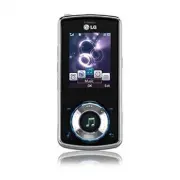


 LG A7110
User Manual
LG A7110
User Manual
 LG AX5000
User Manual
LG AX5000
User Manual
 LG C1300
User Manual
LG C1300
User Manual
 LG C1300A
User Manual
LG C1300A
User Manual
 LG C1300I
User Manual
LG C1300I
User Manual
 LG C1500
User Manual
LG C1500
User Manual
 LG C2000
User Manual
LG C2000
User Manual
 LG CB630
User Manual
LG CB630
User Manual
 LG CE500
User Manual
LG CE500
User Manual
 LG CF360
User Manual
LG CF360
User Manual
 LG CF360A
User Manual
LG CF360A
User Manual
 LG CG180
User Manual
LG CG180
User Manual
 LG CG225
User Manual
LG CG225
User Manual
 LG CG300
User Manual
LG CG300
User Manual
 LG CP150
User Manual
LG CP150
User Manual
 LG CU320
User Manual
LG CU320
User Manual
 LG CU400
User Manual
LG CU400
User Manual
 LG CU405
User Manual
LG CU405
User Manual
 LG CU500
User Manual
LG CU500
User Manual