Page 2 - All rights reserved
Copyright ©2008 LG Electronics, Inc. All rights reserved . LG and the LG logo are registered trademarks of LGGroup and its related entities. All other trademarks are theproperty of their respective owners. AX300_cover_0318G.qxd 2008.4.18 2:48 PM Page 2
Page 3 - I m p o r ta n t S a f ety P re c a u t i o n s
I m p o r ta n t S a f ety P re c a u t i o n s 1 Impor tant Safe ty Precautions Read these instructions. Breaking the rules may be dangerous orillegal. Further detailed information is given in this user guide. WARNING! Violation of the instructions may cause serious injury or death. 1. Never use an...
Page 4 - Important Safety Precautions
Important Safety Precautions 2 Impor tant Safe ty Precautions 1. Do not expose the battery charger or adapter to direct sunlight or use it in places with high humidity, such asa bathroom. 2. Do not use harsh chemicals (such as alcohol, benzene, thinners, etc.) or detergents to clean your phone. This...
Page 6 - Ta b l e o f C o n te n ts
Ta b l e o f C o n te n ts 4 T able of Cont ent s Important Safety Precautions 1 Table of Contents 4 Welcome 9 Technical Details 10 Technical Details 10 FCC RF Exposure Information 12 Bodily Contact During Operation 12 Vehicle-Mounted the ExternalAntenna 13 FCC Notice and Cautions 13 Phone Overview ...
Page 7 - Using Phone Menus 30; Messaging; Axcess Shop
5 T able of Cont ent s Text Input 24 Key Functions 24 Contacts in Your Phone’sMemory 25 The Basics of Storing Contact Entries 25 Phone Numbers With Pauses 25 Storing a Number with Pauses 26 Adding a Pause to an ExistingNumber 26 Searching Your Phone’s Memory 27 Scrolling Through Your Contacts 27 Mak...
Page 8 - Table of Contents; Recent Calls
Table of Contents 6 T able of Cont ent s 1. New Contact 51 2. Contact List 51 3. My Circle 52 4. Groups 53 5. Speed Dials 53 6. My Name Card 54 Recent Calls 54 1. All Calls 54 2. Missed Calls 55 3. Received Calls 55 4. Dialed Calls 55 5. Call Timer 55 6. Data 56 7. Data Counter 56 Bluetooth ® 57 1. ...
Page 9 - Safety
7 T able of Cont ent s 2. Display 67 2.1 Wallpaper 67 2.2 Banner 67 2.3 Backlight 68 2.4 Menu Style 68 2.5 Languages 68 2.6 Clocks & Calendar 68 2.7 Font Settings 69 3. Security 69 3.1 Lock Phone 69 3.2 Restrictions 70 3.3 Emergency #s 70 3.4 Change Lock Code 71 3.5 Reset Default 71 4. Call Sett...
Page 10 - Accessories
Table of Contents 8 T able of Cont ent s Health Care Facilities 79 Vehicles 80 Posted Facilities 80 Aircraft 80 Blasting Areas 80 Potentially Explosive Atmosphere 80 For Vehicles Equipped with an Air Bag 81 Safety Information 81 Charger and Adapter Safety 81 Battery Information and Care 82 Explosion...
Page 11 - We l c o m e; Important Information
We l c o m e 9 W e lcome Thank you for choosing theAX300 cellular phone designedto operate with the latest digitalmobile communicationtechnology, Code DivisionMultiple Access (CDMA). Alongwith the many advanced featuresof the CDMA system, thiscompact phone offers: Celltop capability. Slim and sleek ...
Page 12 - Te c h n i c a l D eta i l s; Technical Details
Te c h n i c a l D eta i l s 10 T echnical De tails FCC Part 15 Class BCompliance This device and its accessoriescomply with part 15 of FCC rules.Operation is subject to thefollowing two conditions: (1) Thisdevice and its accessories may notcause harmful interference, and(2) this device and its acce...
Page 14 - FCC RF Exposure Information
Technical Details 12 T echnical De tails The following table lists somemajor CDMA standards. FCC RF Exposure Information WARNING! Read thisinformation before operatingthe phone. In August 1996, the FederalCommunications Commission(FCC) of the United States, withits action in Report and OrderFCC 96-3...
Page 15 - FCC Notice and Cautions
13 T echnical De tails Vehicle-Mounted the ExternalAntenna (Optional, if available.) To satisfy FCC RF exposurerequirements, keep 8 inches (20cm) between the user /bystander and vehicle-mountedthe external antenna. For moreinformation about RF exposure,visit the FCC website atwww.fcc.gov. FCC Notice...
Page 16 - P h o n e O ve r v i ew
P h o n e O ve r v i ew 14 Phone Ov ervie w 1. Earpiece Lets you hear the caller. 2. LCD Screen Displays messages and indicator icons. When the phone is turned on, Power Save modeautomatically dims the screen and then darkens it ifno keys are pressed. 3. Left Soft Key Use to access Celltop from stan...
Page 18 - M e nu s O ve r v i ew
Messaging 1. New Text Message2. New Picture Message 3. Inbox4. Sent5. Drafts6. Voicemail7. Templates8. Settings 1. All Messages2. Text Message3. Picture Message 4. Edit Voicemail# 9. Delete All 1. Delete Inbox2. Delete Sent3. Delete Drafts4. Delete All Messages Axcess Shop 1. Axcess Shop2. Axcess In...
Page 19 - Settings; Menu Access; Press
17 Men us Ov ervie w 3. Alarm Clock4. Calendar5. Ez Tip Calc6. Notepad7. Calculator8. World Clock9. Stopwatch0. Unit Converter Settings 1. Sound 1. Ringers2. Volume3. Message Alerts4. Alert Type5. Service Alerts6. Power On/Off Tone 7. Flip Tone 2. Display 1. Wallpaper2. Banner3. Backlight 4. Menu St...
Page 20 - The Battery; Installing the Battery; Charging the Battery; G ett i n g S ta r te d w i t h Yo u r P h o n e
The Battery The phone comes with arechargeable battery. Keep thebattery charged while not in usein order to maximize talk andstandby time. The battery chargelevel is shown at the top of theLCD screen. Installing the Battery Remove the battery cover bysliding it downward followed bythe arrow indicato...
Page 21 - Plug the end of the adapter; B attery Charge Level; Turning the Phone On; Install a charged battery or; Turning the Phone Off; until the; Signal Strength
Notice Please make surethat the LG logofaces down beforeinserting a charger, data cable, etc intothe charger port of your phone. 19 Getting St ar ted with Y our Phone 1. Plug the end of the adapter into the phone’s charger portand the other end into anelectrical outlet. 2. The charge time varies dep...
Page 22 - Getting Started with Your Phone; Screen Icons; To see the icon glossary, go to; Making Calls; Make sure the phone is
Getting Started with Your Phone 20 Getting St ar ted with Y our Phone signal strength is indicated onthe screen as the number of barsnext to the signal strength icon -- the more bars, the better the signal strength. If the signalquality is poor, move to an openarea. If you are in a building, therece...
Page 23 - Correcting Dialing Mistakes; for; Redialing Calls; twice to redial the; Receiving Calls; When the phone rings or
21 Getting St ar ted with Y our Phone Correcting Dialing Mistakes If you make a mistake whiledialing a number, press once to erase the last digitentered, or hold down for at least 2 seconds to return tostandby mode. Redialing Calls 1. Press twice to redial the last number you dialed. Thelast 120 num...
Page 24 - Q u i c k Ac c es s to C o nve n i e n t Fe at u res; Lock Mode; To quickly lock your phone press; Mute Function; Mute; Volume Quick Adjustment
Q u i c k Ac c es s to C o nve n i e n t Fe at u res 22 Quick A cce ss t o Con venient F e a tur e s Lock Mode Sets your phone to require a 4-digit password in order to usethe phone. To quickly lock your phone press for three seconds. To cancel, press Left Soft Key Unlock, enter the password and pre...
Page 25 - Caller ID
23 Quick A cce ss t o Con venient F e a ture s this function. 1. Press to receive a waiting call. 2. Press again to switch between calls. Caller ID Caller ID displays the phonenumber or name of the incomingcall. If the caller’s identity is storedin Contacts, the name will appearalong with the phone ...
Page 26 - E n te r i n g a n d E d i t i n g I n f o r m at i o n; digits and press; a word and insert a space.
E n te r i n g a n d E d i t i n g I n f o r m at i o n 24 Ent ering and Editing Informa tion digits and press . Text Input You can enter text into and edityour Banner, Calendar, Contacts,Alarm Clock, Notepad, andMessages. Key Functions Left Soft Key : Press to scroll through thefollowing text input...
Page 27 - C o n ta c ts i n Yo u r P h o n e ’s M e m o r y
C o n ta c ts i n Yo u r P h o n e ’s M e m o r y 25 Cont acts in Y our Phone’ s Memory The Basics of StoringContact Entries 1. From standby mode enter the phone number you want tosave (up to 32 digits). 2. Press Left Soft Key Save . 3. Select either Save New or Update Existing . 4. Use to highlight...
Page 28 - Contacts in Your Phone’s Memory
Contacts in Your Phone’s Memory 26 Cont acts in Y our Phone’ s Memory Storing a Number with Pauses 1. Press Menu . 2. Press Contacts . 3. Press New Contact . 4. Enter a name (up to 22 characters) and enter anumber. 5. Press Right Soft Key Options. 6. Press Wait or Pause . 7. Enter additional number(...
Page 29 - Accessing Options
27 Cont acts in Y our Phone’ s Memory Searching Your Phone’sMemory The AX300 phone is able toperform a dynamic search of thecontents in your phone’smemory. A dynamic searchcompares entered letters ornumbers against the entries inyour Contacts. A matching list isdisplayed in descending order.You can ...
Page 31 - From Recent Calls
29 Cont acts in Y our Phone’ s Memory From Recent Calls 1. Press Menu . 2. Press Recent Calls . 3. Use to highlight the type of recent call, then press . All Calls/Missed Calls/Received Calls/ Dialed Calls 4. Use to highlight the phone number. 5. Press to place the call. Speed Dialing For a single-d...
Page 32 - U s i n g P h o n e M e nu s; Send
U s i n g P h o n e M e nu s Messaging 30 Messaging Messaging The phone can store up to 435messages. The AX300 supportsup to 1000 characters. Theinformation stored in themessage is determined by phonemodel and service capabilities.Other limits such as availablecharacters per message mayexist; please...
Page 34 - Message Icon Reference
Messaging 32 Messaging Message Icon Reference Inbox New/Unread Text/Picture Message Opened/Read Text/Picture Message New/Unread Notification Message Opened/Read Notification Message Priority High MMS New/Read Priority High Sent Failed Text/Picture Message Failed Multiple Text/Picture Messages Sent M...
Page 36 - Displaying the message icon
Messaging 34 Messaging * Editing Audio Preview / Add Slide / Go to / Save As Draft / Priority Level / Delivery Notice / Remove / Cancel * Editing Subject Preview / Add / Go to / Save As / Priority Level / Delivery Notice / Remove / Cancel 12. Press to send. 3. Inbox The phone alerts you in 3 wayswhe...
Page 38 - Resend
Messaging 36 Messaging 4. Sent Up to 100 sent text messages orpicture messages can be storedin the Sent folder. Access theSent message list to viewcontents of sent messages andverify whether the transmissionwas successful or not. 1. Press , , from standby mode. 2. Use to highlight a sent message. Pr...
Page 40 - Checking Your Voicemail Box
Messaging 38 Messaging 6. Voicemail Allows you to check how manynew voice messages you have inyour Voicemail box. You canaccess your Voicemail box fromthis menu to listen to your voicemessages. Your phone will alertyou when you receive a newvoice message. Checking Your Voicemail Box 1. Press , , fro...
Page 41 - All Messages; Sent folder when transmitted.
39 Messaging 8. Settings Allows you to configure 9 settingsfor messages. 1. Press , , from standby mode. 2. Use to highlight All Messages / Text Message / Picture Message/ EditVoicemail # then press . 3. Use to highlight one of the settings and press to select it. Message Settings Sub-MenuDescriptio...
Page 42 - Compose a new text or
Messaging 40 Messaging Contacts. 2. Compose a new text or picture message. In thedestination address window,hold down the number 2 keyinstead of entering theaddress, and the message willbe automatically sent to thatContact. Text Message 1. Auto View (On/ Off) When set to On, newmessages will automat...
Page 43 - Messaging/ Axcess Shop
Messaging/ Axcess Shop 41 Messaging/ Ax cess Shop 9. Delete All Allows you to erase the messagesstored in your Inbox, Sent, orSaved message folders. You canalso erase all messages at thesame time. 1. Press , , from standby mode. 2. Use to highlight an option: Delete Inbox / Delete Sent / Delete Draf...
Page 44 - Incoming Calls
Axcess Shop 42 Axcess Shop available. Most applications donot use a network connectionwhile in use. Incoming Calls While downloading anapplication, incoming calls willautomatically be sent to yourVoicemail, if available. If you donot have Voicemail, downloadingwill not be interrupted by anincoming c...
Page 46 - Axcess Web; from
Axcess Web 44 Axcess W e b Axcess Web The Axcess Web feature allowsyou to view Internet content.Accessibility and selectionswithin this feature are dependentupon your service provider. Forspecific information on AxcessWeb access through your phone,contact your service provider. 1. Start Browser Allo...
Page 49 - Multimedia; Options
Multimedia 47 Multimedia Multimedia View, take, and trade your digitalpictures right from your wirelessphone. 1. Take Photo 1. Press , , from standby mode. 2. Set the brightness , zoom and press Right Soft Key Options to change other settings. Use to highlight an option and press . View Mode Fit to ...
Page 53 - Contacts; Save
Contacts 51 Cont acts Contacts The Contacts Menu allows youto store names, phone numbersand other information in yourphone’s memory. When youaccess your Contact List, thenumber in parenthesesrepresents the number of entriesyou have stored (up to 1000). 1. New Contact Allows you to add a new contactt...
Page 56 - Contacts/ Recent Calls; to highlight the; Send Key
Contacts/ Recent Calls 54 Cont acts/ R ecent Calls number, then press . A confirmation message isdisplayed. 6. My Name Card Allows you to view all of yourpersonal Contact informationincluding name and phonenumbers. 1. Press , , from standby mode. 2. Use to highlight the feature you wish to edit, and...
Page 59 - Bluetooth; Bluetooth; Bluetooth; To pair a new Bluetooth; Press Left Soft Key
Bluetooth ® 57 Blue to o th ® Bluetooth ® The AX300 is compatible withdevices that support theBluetooth ® headset and hands- free profile(s). You may createand store 20 pairings within theAX300 and connect to onedevice at a time. Theapproximate communicationrange for Bluetooth ® wireless technology ...
Page 60 - Search
Bluetooth ® 58 Blue to o th ® Search . 4. Follow the Bluetooth ® accessory instructions to setthe device to pairing mode. 5. If Bluetooth ® power is set to off, you will be prompted toturn power on. Highlight Yes and press . 6. The device will appear in the Add New Device menu once ithas been locate...
Page 61 - Visible
59 Blue to o th ® 1. Press , , from standby mode. 2. Use to select a setting, then press . Visible / Hidden 4. My Bluetooth Name Allows you to edit the name ofthe Bluetooth ® device. 1. Press , , from standby mode. 2. Hold down to clear the existing name. 3. Use the alphanumeric keypad to enter a ne...
Page 62 - Tools; Missed Calls
Tools 60 T ools Tools Your phone tools include: VoiceCommand, My Menu, AlarmClock, Calendar, Ez Tip Calc,Notepad, Calculator, WorldClock, Stopwatch, and UnitConverter. 1. Voice Command Allows you to make phone callsquickly and easily by voice. Yourphone recalls the number fromyour Contacts, displays...
Page 65 - Clear
63 T ools 7. Calculator Allows you to perform simplemathematical calculations. Youcan enter numbers up to thesixth decimal place. 1. Press , , from standby mode. 2. Enter data. Use keypad to enternumbers. Use to enter decimals. Press Left Soft Key Clear to clear the entry. Press Right Soft Key Opera...
Page 71 - Main Screen
69 Sett ings Allows you to select the type ofclocks displayed on the mainLCD or sub LCD. 1. Press , , , from standby mode. 2. Choose a sub-menu and press . Main Screen / Front Screen 3. Use to highlight an option and press . 2.7 Font Settings Allows you to select the type offont displayed on the LCD...
Page 72 - Lock Phone
Settings 70 Settings 1. Press , , from standby mode. 2. Enter the four-digit lock code and press . The default lock code iscommonly the last 4 digits ofyour phone number. 3. Press Lock Phone . 4. Use to select an option, then press . Unlock The phone is never locked (Lock mode can still beused.). Lo...
Page 74 - to highlight an
Settings 72 Settings Press <OK> to continue." Press . 5. Use to highlight an option and press . Revert / Cancel . 4. Call Settings The Call Settings menu allowsyou to designate how the phonehandles both incoming andoutgoing calls. 4.1 Answer Options Allows you to determine how tohandle an ...
Page 76 - Read the displayed message
Settings 74 Settings 4.7 TTY Mode Allows you to attach a TTY(Teletype writer) device, enablingyou to communicate with partiesalso using a TTY device. A phonewith TTY support is able totranslate typed characters tovoice. Voice can also betranslated into characters andthen displayed on the TTY. 1. Pre...
Page 77 - Home
75 Sett ings 1. Press , , , , from standby mode. 2. Use to highlight Home Only/ Automatic A/Automatic B then press . 6.1.2 Set NAM Allows you to select the phone’sNAM (Number AssignmentModule) if the phone isregistered with multiple serviceproviders. 1. Press , , , , from standby mode. 2. Use to hig...
Page 78 - highlight
Settings 76 Settings 2. Use to highlight a setting, then press . Location On / E911 Only 7. Memory Allows you to view the memorystatus of your phone. 1. Press , , from standby mode. 2. Use to highlight Reserved Memory/Multimedia , and press . 8. Software Update Allows you to check the currentsoftwar...
Page 79 - S a f ety; Antenna Care
S a f ety 77 Safe ty TIA Safety Information The following is the completeTIA Safety Information forwireless handheld phones. Exposure to Radio FrequencySignal Your wireless handheld portablephone is a low power radiotransmitter and receiver. WhenON, it receives and sends outRadio Frequency (RF) sign...
Page 80 - Phone Operation
Safety 78 Safe ty could damage the phone andmay violate FCC regulations. Phone Operation NORMAL POSITION: Hold thephone as you would any othertelephone with the antennapointed up and over yourshoulder. Tips on Efficient Operation For your phone to operatemost efficiently: Don’t touch the antennaunne...
Page 81 - Persons with pacemakers:; interference is taking place.; Hearing Aids
79 Safe ty recommends that a minimumseparation of six (6) inches bemaintained between a handheldwireless phone and a pacemakerto avoid potential interferencewith the pacemaker. Theserecommendations are consistentwith the independent researchby and recommendations ofWireless Technology Research. Pers...
Page 82 - Vehicles
Safety 80 Safe ty instruct you to do so. Hospitalsor health care facilities may useequipment that could besensitive to external RF energy. Vehicles RF signals may affect improperlyinstalled or inadequatelyshielded electronic systems inmotor vehicles. Check with themanufacturer or itsrepresentative r...
Page 83 - Safety Information; Violation of the; Charger and Adapter Safety
81 Safe ty below deck on boats; fuel orchemical transfer or storagefacilities; vehicles using liquefiedpetroleum gas (such as propaneor butane); areas where the aircontains chemicals or particles(such as grain, dust, or metalpowders); and any other areawhere you would normally beadvised to turn off ...
Page 84 - Battery Information and Care
Safety 82 Safe ty phone. Battery Information and Care Please dispose of your batteryproperly or take it to yourlocal wireless carrier forrecycling. The battery doesn't need tobe empty before recharging. Use only LG-approvedchargers specific to yourphone model since they aredesigned to maximize batte...
Page 85 - General Notice; Do not use the phone if the
83 Safe ty When using the power plug,ensure that it’s firmlyconnected. If not, it may causeexcessive heat or fire. If you put your phone in apocket or bag withoutcovering the receptacle of thephone (power plug pin),metallic articles (such as acoin, paperclip or pen) mayshort-circuit the phone.Always...
Page 86 - Do not paint your phone.; Avoiding hearing damage
Safety 84 Safe ty antenna is damaged. If adamaged antenna contactsskin, it may cause a slightburn. Please contact an LGAuthorized Service Center toreplace the damaged antenna. Do not immerse your phonein water. If this happens, turnit off immediately and removethe battery. If the phone doesnot work,...
Page 87 - Using your phone safely
85 Safe ty muffled speech, stop listeningand have your hearing checked.The louder the volume, the lesstime is required before yourhearing could be affected.Hearing experts suggest that toprotect your hearing: Limit the amount of time youuse your phone and/orheadset at high volume. Avoid turning up t...
Page 88 - Using headsets safely
Safety 86 Safe ty Limit the amount of time youuse headset at high volume. Avoid turning up the volumeto block out noisysurroundings. Turn the volume down if youcan’t hear people speakingnear you. For information about how to seta maximum volume limit on yourhandset, please refer to thefeatures guide...
Page 95 - If there is a risk from these
93 Safe ty ( http://www.fcc.gov/oet/rfsafety ) gives directions for locating theFCC identification number onyour phone so you can find yourphone’s RF exposure level in theonline listing. 8. What has the FDA done tomeasure the Radio Frequencyenergy coming from wirelessphones? The Institute of Electri...
Page 96 - Some groups sponsored by
Safety 94 Safe ty products — and at this point wedo not know that there is — it isprobably very small. But if youare concerned about avoidingeven potential risks, you can takea few simple steps to minimizeyour exposure to RadioFrequency (RF) energy. Sincetime is a key factor in how muchexposure a pe...
Page 98 - For additional information, please; 0 Driver Safety Tips
Safety 96 Safe ty performance requirements forhearing aids and wireless phonesso that no interference occurswhen a person uses a“compatible” phone and a“compatible” hearing aid at thesame time. This standard wasapproved by the IEEE in 2000. The FDA continues to monitorthe use of wireless phones forp...
Page 99 - Make sure you place your
97 Safe ty using your wireless phone behindthe wheel of a car, practice goodcommon sense and rememberthe following tips:1. Get to know your wireless phone and its features such asspeed dial and redial. Carefullyread your instruction manualand learn to take advantage ofvaluable features most phonesof...
Page 100 - Dial sensibly and assess the
Safety 98 Safe ty phone numbers while driving.If you are reading an addressbook or business card, orwriting a “to-do” list whiledriving a car, you are notwatching where you are going.It is common sense. Do notget caught in a dangeroussituation because you arereading or writing and notpaying attentio...
Page 101 - Use your wireless phone to
99 Safe ty medical emergency. Remember,it’s a free call on your wirelessphone! 9. Use your wireless phone to help others in emergencies.Your wireless phone providesyou a perfect opportunity tobe a “Good Samaritan” inyour community. If you see anauto accident, crime inprogress or other seriousemergen...
Page 102 - Your
Safety 100 Safe ty Consumer Informationon SAR (Specific Absorption Rate) This Model Phone Meets theGovernment’s Requirements forExposure to Radio Waves. Your wireless phone is a radiotransmitter and receiver. It isdesigned and manufactured notto exceed the emission limits forexposure to radiofrequen...
Page 107 - FCC Hearing Aid Compatibility and Volume Control
105 Safe ty The M mark is intended to besynonymous with the U mark.The T mark is intended to besynonymous with the UT mark.The M and T marks arerecommended by the Alliance forTelecommunications IndustriesSolutions (ATIS). The U and UT marks are referenced in Section20.19 of the FCC Rules. TheHAC rat...
Page 108 - Ac c es s o r i es; attery Charger; Standard battery is available.; Vehicle Power Charger
Ac c es s o r i es 106 A cce ssorie s There are a variety of accessories available for your mobile phone.Consult your local dealer for availability. Optional items are soldseparately. B attery Charger The battery charger allows you to charge yourphone. B attery Standard battery is available. Vehicle...
Page 109 - L i m i te d Wa r ra n ty S tate m e n t
L i m i te d Wa r ra n ty S tate m e n t 107 Limit ed W a rr anty St a tement 1. WHAT THIS WARRANTYCOVERS: LG offers you a limited warrantythat the enclosed subscriber unitand its enclosed accessories willbe free from defects in materialand workmanship, according tothe following terms andconditions:...
Page 110 - Limited Warranty Statement
Department of LG. LG shallbear the cost of shippingthe product back to theconsumer after thecompletion of service underthis limited warranty. 2. WHAT THIS WARRANTYDOES NOT COVER: (1) Defects or damages resulting from use of theproduct in other than itsnormal and customarymanner. (2) Defects or damag...
Page 111 - published maximum ratings.
109 Limit ed W a rr anty St a tement including, but not limited toany implied warranty ofmarketability or fitness for aparticular use. (7) Damage resulting from use of non-LG approvedaccessories. (8) All plastic surfaces and all other externally exposedparts that are scratched ordamaged due to norma...
Page 112 - . Please call or write
LG SHALL NOT BE LIABLE FORTHE LOSS OF THE USE OF THEPRODUCT, INCONVENIENCE,LOSS OR ANY OTHERDAMAGES, DIRECT ORCONSEQUENTIAL, ARISINGOUT OF THE USE OF, ORINABILITY TO USE, THISPRODUCT OR FOR ANYBREACH OF ANY EXPRESS ORIMPLIED WARRANTY,INCLUDING THE IMPLIEDWARRANTY OF MARKETABILITYAPPLICABLE TO THISPR...
Page 113 - I n d ex
A Accessories 106Airplane Mode 73 Alarm Clock 61 Alert Type 65 All Calls 54 Answer Options 72 Audios 49Auto Retry 72 Auto Volume 73 Axcess Info 43 Axcess Shop 41 Axcess Shops 42 Axcess Web 44 B Backlight 68Banner 67Battery Charge Level 19 Bluetooth ® 57 C Calculator 63Calendar 61Call Settings 72 Cal...
Page 114 - Index
G Getting Started withYour Phone 18 Groups 53 I Images 48Important SafetyPrecautions 1Inbox 34 L Languages 68Limited WarrantyStatement 107Location 75Lock Mode 22 Lock Phone 69 M Making a Call FromYour Phone’s Memory 28 Making Calls 20 Memory 76Menu Style 68 Menus Overview 16 Message Alerts 65 Messag...
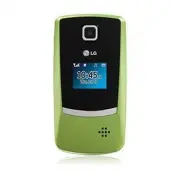


 LG A7110
User Manual
LG A7110
User Manual
 LG AX5000
User Manual
LG AX5000
User Manual
 LG C1300
User Manual
LG C1300
User Manual
 LG C1300A
User Manual
LG C1300A
User Manual
 LG C1300I
User Manual
LG C1300I
User Manual
 LG C1500
User Manual
LG C1500
User Manual
 LG C2000
User Manual
LG C2000
User Manual
 LG CB630
User Manual
LG CB630
User Manual
 LG CE500
User Manual
LG CE500
User Manual
 LG CF360
User Manual
LG CF360
User Manual
 LG CF360A
User Manual
LG CF360A
User Manual
 LG CG180
User Manual
LG CG180
User Manual
 LG CG225
User Manual
LG CG225
User Manual
 LG CG300
User Manual
LG CG300
User Manual
 LG CP150
User Manual
LG CP150
User Manual
 LG CU320
User Manual
LG CU320
User Manual
 LG CU400
User Manual
LG CU400
User Manual
 LG CU405
User Manual
LG CU405
User Manual
 LG CU500
User Manual
LG CU500
User Manual