Page 3 - Important Customer Information; ELECTRICAL SAFETY; SAFETY PRECAUTIONS FOR POWER SUPPLY UNIT; Use the correct external power source
3 Important Customer Information When using this product, the safety precautions below must be taken to avoid possible legal liabilities and damages. Retain and follow all product safety and operating instructions. Observe all warnings in the product operating instructions. To reduce the risk of bod...
Page 4 - Handle battery packs carefully; may cause a short circuit.
4 Important Customer Information Handle battery packs carefully This product contains a Li-ion battery. There is a risk of fire and burns if the battery pack is handled improperly. Do not attempt to open or service the battery pack. Do not disassemble, crush, puncture, short external contacts or cir...
Page 5 - If the battery leaks:; SAFETY PRECAUTIONS FOR DIRECT SUNLIGHT
5 Important Customer Information l Avoid dropping the phone or battery. If the phone or battery is dropped, especially on a hard surface, and the user suspects damage, take it to a service center for inspection. l If the battery leaks: Do not allow the leaking fluid to come in contact with skin or c...
Page 6 - ROAD SAFETY
6 Important Customer Information ENVIRONMENT RESTRICTIONS Do not use this product in gas stations, fuel depots, chemical plants or where blasting operations are in progress, or in potentially explosive atmospheres such as fueling areas, fuel storehouses, below deck on boats, chemical plants, fuel or...
Page 7 - do not contain any metal.; INTERFERENCE WITH MEDICAL EQUIPMENT FUNCTIONS
7 Important Customer Information SAFETY PRECAUTIONS FOR RF EXPOSURE l Avoid using your phone near metal structures (for example, the steel frame of a building). l Avoid using your phone near strong electromagnetic sources, such as microwave ovens, sound speakers, TV and radio. l Use only original ma...
Page 9 - Table of Contents
9 Important Customer Information.......................................................... 3Table of Contents ................................................................................... 9Technical Details ................................................................................... 10T...
Page 10 - Cautions; Locations are inaccurate when GPS and Wi-Fi are not set to On.; Technical Details
10 Cautions 4 The user interface of Google applications (Google Search, Google Maps, Navigation, etc.) can vary depending on its software version. 4 Locations are inaccurate when GPS and Wi-Fi are not set to On. 4 With the Android operating system, some available Play Store applications only operate...
Page 12 - FCC RF Exposure Information
12 Technical Details Conformance Test TS 36.521-1 TS 36.521-2 TS 36.521-3 Evolved Universal Terrestrial Radio Access (E-UTRA); User Equipment (UE) conformance specification; Radio transmission and reception; Part 1: Conformance testing Evolved Universal Terrestrial Radio Access (E-UTRA); User Equipm...
Page 13 - which the receiver is connected.
13 Technical Details Part 15.19 statement This device complies with part15 of the FCC rules. Operation is subject to the following two conditions:(1) This device may not cause harmful interference, and (2) This device must accept any interference received, including interference that may cause undes...
Page 15 - The Basics; Phone Overview; Front View; Proximity Sensor; Notification LED
15 The Basics Phone Overview Front View Proximity Sensor QuickTap Bar Back Key Home Key Recent Apps Key Home Screen Earpiece Front Camera Notification LED NOTES • All screen shots in this guide are simulated. Actual displays may vary. • Instructions to perform tasks in this guide are based on the de...
Page 16 - Rear View
16 and the on-screen keyboard). Touch and hold it to access the Dual window function which allows you to use two apps at the same time. 6. Home Key Tap this Touch Key (in the Touch Keys bar) to return to the Home screen (or your default Home screen panel from any of the Home screen extension panels)...
Page 17 - NFC Touch Point; LED Flash; Top and Bottom View; Microphone
17 The Basics helps the camera to focus quickly and accurately at short or long distances. NOTE Don't cover the Proximity Sensor and Laser Detection Auto-focus with a protection film, pouch, or protection case not authorized by LG as they may cause the device to malfunction. 12. Power/Lock Button Pr...
Page 18 - Allows you to plug in an optional headset for; Setting Up Your Phone; Step 1. Remove the Back Cover
18 The Basics 19. 3.5mm Headset Jack Allows you to plug in an optional headset for convenient, hands-free conversations. You can also plug in headphones to listen to music. 20. Microphone Transmits your voice to the other caller. It's also used for voice-activated functions. 21. USB/Charger Port All...
Page 19 - Step 2. Insert the Battery; Charging the Phone
19 The Basics Step 2. Insert the Battery Insert the battery in its compartment, making sure to align the gold contacts. Press down gently to secure the battery. Step 3. Replace the Back Cover Place the cover over the back of the phone, then press down along the edges to secure the cover. Step 4. Cha...
Page 20 - Removing the Battery; Removing the battery; and lift the cover up gently.
20 The Basics NOTE It’s important to fully charge the battery before initial use of the phone to maximize the battery's lifetime. Removing the Battery Removing the battery 1. Insert your fingernail into the slot located on the lower left of the back cover and lift the cover up gently. 2. Use the fin...
Page 21 - Inserting and Removing the SIM card and microSD card; Inserting the SIM card; demonstrated in the previous instructions).
21 The Basics Inserting and Removing the SIM card and microSD card SIM/SD slot location SIM Slot MicroSD Slot Inserting the SIM card Before you can start exploring your new phone, you’ll need to set it up. To insert the SIM card:1. Remove the back cover and the battery.2. Locate the slot for the SIM...
Page 22 - Inserting the microSD card; To unmount the microSD card; Recent Apps Key
22 The Basics CAUTION If a microSD card is inserted in your phone, please remove it from the upper slot before trying to remove the SIM card. Inserting the microSD card 1. Remove the back cover (as demonstrated in the previous instructions) and locate the dual slot just above the upper-right corner ...
Page 24 - Turning the Phone On and Off; Turning the phone on; Power off; Turning the screen on using the Knock Code feature
24 The Basics Charging with the USB Cable NOTE Make sure to correctly orient the cable's plug with the port before plugging it in. When the phone is facing upward, the USB logo on the cable will also face upward. USB Cable You can use your computer to charge your phone. To be able to charge with the...
Page 25 - Setting up the Knock Code feature; To unlock the phone
25 The Basics Button (on the back of the phone) displays the Lock screen (e.g., to check the time). You can tap your Knock Code to unlock the screen or turn the screen back off by pressing the Power/Lock Button again (or double-tap the Status Bar). NOTES • If you enter incorrect Knock Code 5 times c...
Page 26 - OR; Phone’s Status Icons; Call icons
26 The Basics OR 4 Quickly double-tap the center of the screen (KnockON). NOTE If you set up a Knock Code in the Screen lock setting, you can tap your sequence to turn the screen on and unlock the screen at the same time. 2. From the center of the screen, swipe in any direction to unlock it. 4 To us...
Page 29 - Getting to Know the Home Screen; QuickTap bar icons; Phone
29 The Basics Getting to Know the Home Screen The Home screen is your starting point to access all of the features on your phone using simple motions on the touchscreen. It’s comprised of multiple panels (swipe horizontally to switch). You can customize all of your Home screen panels with app shortc...
Page 30 - Browser; Touch Keys; Back Key; Touchscreen; Touch or tap; Touch and hold
30 The Basics : Opens the Browser app to access the web browser. : Opens the Messaging app so you can send and view text and multimedia messages. Touch Keys The Touch Keys are displayed in a bar at the bottom of all of the screens to provide easy navigation within the device software. NOTE The Touch...
Page 31 - Drag; Touch and hold an item for a moment and then, without lifting your; Use your index finger and thumb in a pinch motion (to; Rotate the screen; From many apps and menus, the orientation of the
31 The Basics Context menu for editing a contact, touch and hold a contact entry until the menu pops up. Drag Touch and hold an item for a moment and then, without lifting your finger, move your finger on the screen until you reach the target position. For example, you can drag items on the Home scr...
Page 32 - Capturing the screen; The Smart screen feature; Hardware button control mode; To activate Hardware key control mode
32 The Basics Capturing the screen Press and hold the Volume Down Button and the Power/Lock Button on the back of the phone at the same time to capture the current image on the screen. The captured image is saved in the Screenshots folder of the Gallery. NOTE You cannot capture an image from some vi...
Page 33 - (on the back of the phone) at the same time for more than 6; Working with Menus; Options menus; icon (at the upper-right corner of the; Context menus; Managing Notifications; To open the Notifications panel; Touch and drag the Status Bar to the bottom of the screen.
33 The Basics Buttons (on the back of the phone) at the same time for more than 6 seconds to enter Hardware key control mode. 3. Press the Volume Buttons to scroll to Mode ON , Mode OFF , or Cancel , then press the Power/Lock Button to confirm. NOTE If you use your phone with a broken display glass,...
Page 34 - To respond to a notification; Clear
34 The Basics The Notifications panel displays a list of your current notifications, organized into ongoing and event-based notifications. It also includes a Quick Settings icon bar (at the top of the panel) to allow you to quickly and easily change commonly used settings. NOTE You can also access t...
Page 35 - Setting your Lock screen; Setting a Screen Lock for the First Time
35 The Basics To close the Notifications panel Touch and drag the handle at the bottom of the Notifications panel to the top of the screen, flick the Notifications panel handle upward, or just tap the Back Key (in the Touch Keys bar). The panel will also close when you touch a notification. NOTE Whe...
Page 36 - Factory Data Reset
36 The Basics The first time you set an unlock pattern, you’ll see a tutorial with instructions on how to create it. Read the tutorial, then tap Next . Draw your pattern (connect at least 4 dots) and tap Continue . Then redraw your pattern and tap Confirm . NOTE You're prompted to create a Backup PI...
Page 37 - Guest Mode; Setting up Guest mode
37 The Basics 4. Release all keys when the Factory data reset is displayed.5. Press the Volume Buttons to highlight Yes in gray, then press the Power/Lock Button to continue. 6. Press the Volume Buttons to highlight Yes in gray, then press the Power/Lock Button once more to confirm. 7. Your device w...
Page 38 - on the back of the; Your Google Account
38 The Basics Using Guest mode After you’ve set up and enabled Guest mode, lock the screen, then access the Lock screen (press the Power/Lock Button on the back of the phone or use the KnockON feature). Enter your Guest mode screen lock. The Guest mode Home screen is displayed with only the apps you...
Page 39 - Connecting to Networks and Devices; Connecting to Mobile Networks; To disable data when roaming; check box to remove the check mark and disable
39 Connecting to Networks and Devices Connecting to Mobile Networks When you buy your phone and sign up for service, your phone is configured to use your provider’s mobile networks for voice calls and for transmitting data. Different locations may have different mobile networks available. Initially,...
Page 40 - Connecting to Wi-Fi Networks
40 Connecting to Networks and Devices Connecting to Wi-Fi Networks Wi-Fi is a wireless networking technology that can provide Internet access at distances of up to 100 meters, depending on the Wi-Fi router and your surroundings. To use Wi-Fi on your phone, you must connect to a wireless access point...
Page 41 - USB Connection; Using the Status Bar to change the connection mode setting; Then tap; SmartShare; To enjoy SmartShare; Play
41 Connecting to Networks and Devices USB Connection USB connection is a feature that allows your phone to connect to a PC using a USB Cable. Using the Status Bar to change the connection mode setting The Status Bar displays the USB connection icon, when connected via USB. When connected via USB, th...
Page 42 - then tap the; To enjoy content from nearby devices on your phone; Set the DLNA device to enable sharing.
42 Connecting to Networks and Devices 3. Access the app that has the content you want to use with SmartShare, then tap the SmartShare icon , or the Menu icon (at the upper- right corner of the screen) > SmartShare . 4. Tap Play or Beam . 5. Select the DLNA connected device you want to use. Tap Re...
Page 43 - Calls; Placing and Ending Calls; To open the Phone app
43 Calls Placing and Ending Calls The Phone app allows you to dial phone numbers manually or make calls from your phone’s memory. Manually dial calls using the Dial tab . Dial from your phone’s memory using the Call logs tab, the Contacts tab, the Favorites tab, or the Groups tab. To open the Phone ...
Page 44 - To end a call
44 Calls To place a call by dialing 1. From the Home screen, tap the Phone icon (in the QuickTap bar) to open the Dial tab of the Phone app. 2. Use the dialpad to enter the number you want to call. 4 If you enter a wrong number, tap the Delete Key to erase digits one by one. 4 To erase the entire nu...
Page 45 - End; Calling numbers in your phone’s memory; Direct dialing; To place a Direct dial widget on your Home screen; Widgets
45 Calls upper-left corner of the Home screen), then tap the End button on the Call screen. 4 Drag the Status Bar down and tap END CALL . NOTE You can also press the Power/Lock Button (on the back of the phone) to end the call, if you activated this feature in the Call settings menu. Calling numbers...
Page 46 - Answering or Rejecting Calls; To answer a call; To ignore a call and divert it to voicemail; To ignore a call and send a text message; Working With the Call Logs Tab; To open the Call logs tab
46 Calls Answering or Rejecting Calls When you receive a phone call, the Incoming call screen opens with the caller ID and any additional information about the caller that you’ve saved in the Contacts list. All incoming calls are recorded in the Call logs tab. To answer a call 4 Simply swipe the Ans...
Page 47 - To add a number from the Call logs tab to your Contacts
47 Calls number in parenthesis indicates the number of calls recorded for that phone number. Viewing call entry details Open the Call logs tab, then tap an entry to view all of the entries for that phone number. Calls are listed chronologically and each one includes the call type (received , dialed ...
Page 48 - Calling Your Contacts; To call a contact
48 Calls 1. Open the Call logs tab. 2. Tap the Menu icon (at the upper-right corner of the screen). 4 Tap Delete to select entries to remove from the list. Checkmark the entries to delete, tap Delete , then Yes . 4 Tap Delete all to remove all of the entries from the list. Tap Yes to confirm you wan...
Page 49 - Sequence matches; Options During a Call; To mute the microphone
49 Calls entering numbers, Instant list displays entries from your Contacts list or Recent calls that match the sequence you entered. Sequence matches Your phone searches for the entered sequence anywhere in the number; beginning, end, or anywhere in-between. The matching number sequence is displaye...
Page 50 - Bluetooth; Managing Multiple Calls; To switch between current calls; Swap calls; To set up a conference call; Menu
50 Calls WARNING! To avoid damage to your hearing, don't hold the phone against your ear when the speakerphone is turned on. To switch between a Bluetooth headset and the phone When a Bluetooth headset is paired and connected to your phone, you can conduct calls on the headset for hands-free convers...
Page 51 - Listening to Your Voicemail; To listen to your Voicemail; To set up your Voicemail
51 Calls 5. After you’re connected, tap the Merge calls button (on the Call screen). The participant is added to the conference call. Listening to Your Voicemail When you have a new voicemail message, the Voicemail notification icon appears in the Status Bar. If you haven’t set up your voicemail num...
Page 53 - Web; Apps; Using the Web toolbar; Tap the address field, enter the web address and tap; Opening a page
53 Web Browser Use this application to browse the Internet. Browser gives you a fast, full-color world of games, music, news, sports, entertainment and much more, right on your mobile phone wherever you are and whatever you enjoy. NOTE Additional charges apply when connecting to these services and d...
Page 54 - Chrome; Browse web pages
54 Web Bookmarks 4 To bookmark the current webpage, tap > Add to bookmarks > OK . 4 To open a bookmarked webpage, tap and select one. History Tap > History to open a webpage from the list of recently-visited webpages. To clear all history, tap > Yes . Chrome The Chrome app allows you to ...
Page 55 - Maps; To open the Maps app; Maps navigation
55 Web Maps The Maps app allows you to find places and get directions. To open the Maps app 4 From the Home screen, tap the Apps icon (in the QuickTap bar) > the Apps tab (if necessary) > the Maps icon . My Location Tap to access various features on Google Maps. Maps navigation 4 Tap the Maps ...
Page 57 - Communication; To open your Contacts app; From the Home screen, tap the; Contacts list; Adding Contacts; To add a new contact; Contacts
57 Communication Contacts The Contacts app allows you to store names, phone numbers, and other information in your phone’s memory. Entries are listed alphabetically. You can scroll through the list, or tap the Favorites tab or Groups tab (at the top of the screen). Use the Contacts app to add, view,...
Page 58 - Setting Speed Dial
58 Communication where you want to save the contact by tapping the Accounts field (at the top of the screen). NOTE To change the account later, edit the entry, tap the account (at the top of the screen), then tap the account you want it assigned to. 4. Enter the contact’s name.5. Tap a category of c...
Page 59 - Messaging; To open the Messaging app; Using the Messaging app; To delete a message thread from the Messaging window
59 Communication Messaging Two apps are preloaded on your phone that allow you to send messages. The Messaging app and the Hangouts app . You can set any of these as your default messaging app. To open the Messaging app 4 From the Home screen, tap the Apps icon (in the QuickTap bar) > the Apps ta...
Page 60 - Email; To open the Email app
60 Communication 2. Enter the recipient(s) in the To box. 4 Tap the Contacts icon (to the right of the To box), then select one or more entries from your Contacts list. 4 Enter a name or number, then select a suggestion from your Contacts list (displayed below the To box). 4 Enter a number manually ...
Page 61 - Using the Email app
61 Communication The Accounts list The Accounts list displays all of your email accounts. Open the Email app. Tap the Accounts List icon (at the top of the screen) to display a drop-down list of all of your email accounts. 4 Each account in the Accounts list displays the number of unread mail. 4 Tap...
Page 62 - Gmail; To open the Gmail app
62 Communication Gmail When you open the Gmail app, the most recent conversations are displayed at the top of your Inbox list. All of your conversations are displayed in your Inbox unless you delete, archive, or filter them. To open the Gmail app From the Home screen, tap the Apps icon (in the Quick...
Page 63 - Hangouts; To Open the Hangouts app; From the Home screen, tap; To sign out of Hangouts; From your chatting list, tap the; Chatting with Friends; icon to view the contacts from all of the Google
63 Communication Hangouts Use the Hangouts app to have real-time text conversations with your friends. To Open the Hangouts app 4 From the Home screen, tap Google folder > Hangouts . To sign out of Hangouts 4 From your chatting list, tap the Menu icon (at the upper-right corner of the screen) >...
Page 64 - Camera and Video; To open the Camera app; Entertainment
64 Camera and Video You can use the Camera app to take and share pictures and videos. Your phone comes with a 13 megapixel camera that lets you capture sharp pictures and videos. It has many state-of-the-art features such as laser auto-focus, dual camera mode, still photo capture while recording vid...
Page 65 - Taking Pictures
65 Entertainment Getting to know the viewfinder Lens Swap – Tap to swap between the rear camera lens and the front camera lens. Record Button – Tap to start recording a video. Capture Button – Tap to take a photo. Back – Tap to close the current menu or exit the Camera app. Gallery – Tap to access y...
Page 66 - Record Videos; Camera and Video Settings
66 Entertainment Record Videos In addition to taking pictures, you can record, view, and send videos with your phone’s built-in video camera.1. From the Home screen, tap Camera . 2. Frame your subject on the screen.3. Tap the Options icon , then tap the Record button to start recording the video. 4 ...
Page 68 - To take a photo with a gesture; X Zooming; View Your Pictures
68 Entertainment Gesture shot The Gesture shot feature allows you to take a picture with a hand gesture using the front camera. To take a photo with a gesture 1. Activate the front camera lens. 2. Raise your hand, with an open palm, until the front camera detects it (a box appears on the screen). 3....
Page 72 - To share a video; To delete a video; Open an album to view its contents, then tap the; Live Zoom
72 Entertainment NOTE While playing a video, slide the left side of the screen up or down to adjust the screen brightness. You can also slide the right side of the screen up or down to adjust the volume. Press the Volume Buttons(on the back of the phone) to adjust the volume. While playing a video, ...
Page 73 - Dual Play; Gallery; To open the Gallery app
73 Entertainment Dual Play Dual Play connects two devices using a wired (Slimport-HDMI) cable or a wireless connection (Miracast) allowing you to view content on a different screen. The connectable device can be a TV or a monitor supported by an HDMI cable or Miracast. Viewable content can come from...
Page 74 - Play Store; To open the Play Store app
74 Entertainment menu to access Albums, Favorites, Videos, All files , Nearby devices , and Cloud . To share an album You can share the entire contents of one or more albums or individual images or videos from an album.1. From the Home screen, tap the Apps icon (in the QuickTap bar) > the Apps ta...
Page 75 - Music; Transferring Music Files to Your Phone; To copy music files into your phone
75 Entertainment Music Transferring Music Files to Your Phone The Music app plays audio files that are stored in your phone’s memory. Copy audio files from your computer onto your phone before you open the Music app. NOTE The LG USB driver needs to be installed on your PC before connecting your phon...
Page 76 - To return to the Playback screen; From a Music playlist screen, tap the currently playing song at the; To control playback
76 Entertainment Music Player Control Icons Tap here to restart, pause, play, or skip. Audio Effects Icon Tap here to apply audio effects to the song. Volume Icon Tap here the adjust the Music Player volume. Playback Screen NOTE While viewing a list of tracks in an album, tap the Menu icon (at the u...
Page 77 - YouTubeTM; Opening YouTube and Watching Videos; To open the YouTube app; QSlide
77 Entertainment Tap to open the Options menu. Choose from Search , Add to playlist , Delete , Share , Set as ringtone , Music video , Details, Settings , and Help . Tap to open the current playlist. Tap to add the song to your favorites. Tap to play the current playlist in shuffle mode (tracks are ...
Page 78 - QSlide icons on the Notifications panel; To open a QSlide window; Using QSlide
78 Entertainment QSlide icons on the Notifications panel QSlide app icons are displayed in a bar on the Notifications panel below the Quick settings bar. These icons provide a quick, convenient way to multi-task on the same screen (similar to picture-in-picture on a TV). OR Tap to exit the QSlide fu...
Page 79 - Customizing the QSlide apps bar icons; Edit
79 Entertainment 4 Drag the QSlide title bar to move it on the screen. 4 Drag the bottom right corner of the QSlide window to resize it. 4 Move the circle on the slider bar to the left to make it transparent. This will allow you to interact with items underneath the transparent QSlide window. Move t...
Page 80 - Dual window; To activate the Dual window function
80 Dual window The Dual window feature splits the screen to enable multi-tasking, drag and drop interaction, auto-linking and recently used apps. To activate the Dual window function 1. From the Home screen, touch and hold the Recent Apps Key (in the Touch Keys bar) > System settings > General...
Page 81 - Tools; Close; To create a memo; Capturing a screen shot for your QuickMemo+
81 Tools 4 Tap the Close icon to close the selected window. QuickMemo+ The QuickMemo+ feature allows you to create memos and capture screen shots. You can use QuickMemo+ to easily and efficiently create memos during a call, with a saved picture, or on the current phone screen. To create a memo 4 Dra...
Page 83 - QuickRemote; To open the QuickRemote app and set up your QuickRemote
83 Tools Viewing saved memos Memos are saved in the Gallery app or QuickMemo+ app. 4 From the Home screen, tap the Apps icon (in the QuickTap bar) > the Apps tab (if necessary) > Gallery , then tap the QuickMemo+ album. 4 From the Home screen, tap the Apps icon (in the QuickTap bar) > the A...
Page 84 - Set up from the Notifications panel; Using QuickRemote; QuickRemote options
84 Tools NOTE It's important to point the IR (infrared) sensor on your phone directly at the device you are configuring. Set up from the Notifications panel You can also perform the initial set up of your QuickRemote from the Notifications panel. Swipe the Status Bar downward, tap the QuickRemote ic...
Page 85 - Using the Magic Remote feature
85 Tools Customizable remote You can create your own personalized universal remote and choose where to place all of the buttons.1. From the Home screen tap the Apps icon (in the QuickTap bar) > the Apps tab (if necessary) > QuickRemote . 2. Tap the Add icon (at the top right of the screen) >...
Page 86 - Calendar; Viewing Your Calendar; To open the Calendar app
86 Tools 3. Connect your phone and LG Smart TV to the same Wi-Fi network.4. Select the device and enter the certificate number in your phone. 4 Touchpad: Moves the TV pointer with the touchpad. 4 Smart Text: Provides a keypad when typing text. Calendar Viewing Your Calendar The Calendar app allows y...
Page 87 - Calculator; To open and use the Calculator
87 Tools 4 Tap the Current date icon to immediately jump back to the current date in the calendar you’re viewing. 4 Tap the Add icon to add a new event to any of your accounts. Calculator The Calculator app allows you to perform mathematical calculations using a standard calculator or a scientific c...
Page 88 - Clock; To open the Clock app; Setting and Activating Alarms; To set an alarm
88 Tools Clock You use the Clock app to access the Alarms, Timer, World clock, and Stopwatch functions. Access these functions by tapping the tabs across the top of the screen, or swiping horizontally across the screen. To open the Clock app 4 From the Home screen, tap the Apps icon (in the QuickTap...
Page 90 - Setting the Timer; Setting the World Clock; Using the Stopwatch
90 Tools Setting the Timer The Timer tab can be used to alert you with an audible signal when a set amount of time has passed. 1. Open the Clock app, then select the Timer tab. 2. Set the time on the digital timer. Tap the Hour , Minute , and/or Second field(s) then enter the numbers as necessary. N...
Page 91 - button to reset the Stopwatch or tap the green; Voice Command; Voice Search; To open the Voice Command app; Voice Recorder; Record a Voice Memo; button (at the bottom center of the screen) to start
91 Tools 3. Tap the Reset button to reset the Stopwatch or tap the green Resume button to continue monitoring time. Voice Command You can use the Voice Command app to perform phone functions using your voice. To open the Voice Command app 4 From the Home screen, tap the Apps icon (in the QuickTap ba...
Page 92 - File Manager; To open the File Manager app
92 Tools 4. When you’re finished, tap the Stop button (at the bottom right of the screen). The recording is automatically saved to your recordings list. File Manager Use the File Manager app to manage your folders and files stored in your phone. File Manager makes it easy to view and manage your fil...
Page 93 - Tasks; To synchronize MS Exchange; From the Home screen, touch and hold the; To add Tasks
93 Tools Tasks The Tasks app can be synchronized with your MS Exchange account. You can create a task, revise it, and delete it using your phone, or from MS Outlook or MS Office Outlook Web Access. To synchronize MS Exchange 1. From the Home screen, touch and hold the Recent Apps Key (in the Touch K...
Page 94 - To open the Settings app; Viewing Settings categories; Networks; Airplane mode
94 Settings The Settings app contains most of the tools for customizing and configuring your phone. All of the settings in the Settings app are described in this section. To open the Settings app 4 From the Home screen, tap the Apps icon (in the QuickTap bar) > the Apps tab (if necessary) > Se...
Page 96 - Mobile data
96 Settings MAC address : Displays your phone’s MAC address (which may need to be entered in the router to connect to some wireless networks with MAC filters). IP address : Displays your phone’s IP address. Interactive tutorial : Displays information about the Wi-Fi features and settings in an inter...
Page 99 - Sound
99 Settings Tethering & networks Tethering allows you to connect other devices to your phone’s internet connection and select your connection method. USB tethering : Tap the USB tethering switch to toggle it On or Off. On allows you to share your phone’s mobile data connection using a USB connec...
Page 100 - Display; Home screen
100 Settings Vibration type : Sets the incoming call vibration options. Choose from Long Lasting , Rapid , Short repeated , Standard , and Ticktock . Tap the New icon (at the upper-right corner of the screen) to create your own vibration pattern. Do not disturb : Allows you to set a schedule when to...
Page 103 - General; Location
103 Settings Daydream Tap the Daydream switch to toggle it On or Off. On allows the set screensaver to be displayed when the phone is sleeping while docked and/or charging. Choose Clock or Google Photos . General Language & input Use the Language & input menu to select the language for the t...
Page 104 - Accessibility
104 Settings control how and whether all applications send, receive, and sync data on their own schedules and whether all applications can synchronize user data automatically. Gmail, Calendar, and other applications may also have their own settings to control how they synchronize data; see the secti...
Page 113 - : Check updates for apps and software provided by LG
113 Settings About phone This menu allows you to manage your software updates and view various information relating to your device. Phone name : Tap to edit your phone name. Update Center : Check updates for apps and software provided by LG Electronics. Network : Displays your Network, Signal streng...
Page 114 - TIA Safety Information; Exposure to Radio Frequency Signal; Safety
114 WARNING: This product contains chemicals known to the State of California to cause cancer and birth defects or other reproductive harm. Wash hands after handling . TIA Safety Information The following is the complete TIA Safety Information for wireless handheld phones. Exposure to Radio Frequenc...
Page 115 - For your phone to operate most efficiently:
115 Safety Phone Operation NORMAL POSITION: Hold the phone as you would any other telephone with the antenna pointed up and over your shoulder. Tips on Efficient Operation For your phone to operate most efficiently: Don’t touch the antenna unnecessarily when the phone is in use. Contact with the ant...
Page 116 - Should not carry the phone in a breast pocket
116 Safety l Should not carry the phone in a breast pocket; l Should use the ear opposite the pacemaker to minimize the potential for interference; l Should turn the phone OFF immediately if there is any reason to suspect that interference is taking place. Hearing Aids Some digital wireless phones m...
Page 117 - Blasting Areas; Safety Information; Charger and Adapter Safety; The charger and adapter are intended for indoor use only.
117 Safety Blasting Areas To avoid interfering with blasting operations, turn your phone OFF when in a “blasting area” or in areas posted: “Turn off two-way radio”. Obey all signs and instructions. Potentially Explosive Atmosphere Turn your phone OFF when in any area with a potentially explosive atm...
Page 118 - serious damage to your phone.; Battery Information and Care; charged to save unnecessary power consumption of the charger.
118 Safety serious damage to your phone. l Use the correct adapter for your phone when using the battery pack charger abroad. Battery Information and Care l Always unplug the charger from the wall socket after the phone is fully charged to save unnecessary power consumption of the charger. l Please ...
Page 120 - General Notice
120 Safety l Never use and unapproved battery since this could damage the phone and/or battery and could cause the battery to explode. Only use the batteries and chargers provided by LG. The warranty will not be applied to products provided by other suppliers. Only authorized personnel should servic...
Page 121 - Avoid potential hearing loss.
121 Safety l Using the phone in proximity to receiving equipment (i.e., TV or radio) may cause interference to the phone. l Do not use the phone if the antenna is damaged. If a damaged antenna contacts skin, it may cause a slight burn. Please contact an LG Authorized Service Center to replace the da...
Page 122 - American Academy of Audiology
122 Safety headphones (including headsets, earbuds and Bluetooth ® or other wireless devices). Exposure to very loud sound has also been associated in some studies with tinnitus (a ringing in the ear), hypersensitivity to sound and distorted hearing. Individual susceptibility to noise-induced hearin...
Page 123 - National Institutes of Health; National Institute for Occupational Safety and Health
123 Safety Voice: (800) 222-2336 Email: [email protected] Internet: www.audiology.org National Institute on Deafness and Other Communication Disorders National Institutes of Health 31 Center Drive, MSC 2320 Bethesda, MD USA 20892-2320 Voice: (301) 496-7243 Email: [email protected] Internet: http://w...
Page 124 - FDA Consumer Update; Do wireless phones pose a health hazard?; type emitted by wireless phones
124 Safety FDA Consumer Update The U.S. Food and Drug Administration’s Center for Devices and Radiological Health Consumer Update on Mobile Phones: 1. Do wireless phones pose a health hazard? The available scientific evidence does not show that any health problems are associated with using wireless ...
Page 125 - What kinds of phones are the subject of this update?
125 Safety user that is not necessary for device function; and l Cooperate in providing users of wireless phones with the best possible information on possible effects of wireless phone use on human health. The FDA belongs to an interagency working group of the federal agencies that have responsibil...
Page 126 - What are the results of the research done already?
126 Safety developed with the advice of the FDA and other federal health and safety agencies. When the phone is located at greater distances from the user, the exposure to RF is drastically lower because a person’s RF exposure decreases rapidly with increasing distance from the source. The so-called...
Page 129 - What about children using wireless phones?
129 Safety milliwatts/g) of matter. This measurement is used to determine whether a wireless phone complies with safety guidelines. 9. What steps can I take to reduce my exposure to Radio Frequency energy from my wireless phone? If there is a risk from these products - and at this point we do not kn...
Page 130 - Where can I find additional information?
130 Safety 11. What about wireless phone interference with medical equipment? Radio Frequency (RF) energy from wireless phones can interact with some electronic devices. For this reason, the FDA helped develop a detailed test method to measure Electro Magnetic Interference (EMI) of implanted cardiac...
Page 131 - 0 Driver Safety Tips; Don’t take notes or look up phone numbers while driving. If you are
131 Safety World Health Organization (WHO) International EMF Project (http://www.who.int/emf) National Radiological Protection Board (UK) (http://www.hpa.org.uk/radiation/) 10 Driver Safety Tips Your wireless phone gives you the powerful ability to communicate by voice almost anywhere, anytime. An i...
Page 132 - Call roadside assistance or a special wireless non-emergency
132 Safety driving a car, you are not watching where you are going. It is common sense. Do not get caught in a dangerous situation because you are reading or writing and not paying attention to the road or nearby vehicles. 6. Dial sensibly and assess the traffic; if possible, place calls when you ar...
Page 133 - Consumer Information on SAR
133 Safety your mobile device while operating a vehicle, it is recommended that you consult your applicable jurisdiction’s local laws or other regulations regarding such use. Such laws or other regulations may prohibit or otherwise restrict the manner in which a driver may use his or her phone while...
Page 135 - for Wireless Devices
135 Safety to find the number. Once you have the FCC ID number for a particular phone, follow the instructions on the website and it should provide values for typical or maximum SAR for a particular phone. Additional information on Specific Absorption Rates (SAR) can be found on the Cellular Telecom...
Page 136 - Wireless Phones and Hearing Aid Accessibility
136 Safety M-Ratings: Phones rated M3 or M4 meet FCC requirements and are likely to generate less interference to hearing devices than phones that are not labeled. M4 is the better/higher of the two ratings. T-Ratings: Phones rated T3 or T4 meet FCC requirements and are likely to generate less inter...
Page 137 - FCC Hearing Aid Compatibility and Volume Control
137 Safety FCC Hearing Aid Compatibility and Volume Control http://www.fcc.gov/cgb/dro/hearing.html The Hearing Aid Compatibility FCC Order http://hraunfoss.fcc.gov/edocs_public/attachmatch/FCC-03-168A1.pdf Hearing Loss Association of America [HLAA] http://hearingloss.org/content/telephones-and-mobi...
Page 138 - Laser Safety Statement; CDRH Compliance
138 Safety Laser Safety Statement CDRH Compliance THIS PRODUCT COMPLIES WITH APPLICABLE REQUIREMENT OF THE DHHS PERFORMANCE STANDARD FOR LASER PRODUCT, 21 CFR SUBCHAPTER J. Caution! This product employs a laser system. To ensure proper use of this product, please read this owner’s manual carefully a...
Page 139 - DivX Mobile; DivX; Dolby Digital Plus License Notice; Specifications
139 DivX Mobile ABOUT DIVX VIDEO: DivX ® is a digital video format created by DivX, LLC, a subsidiary of Rovi Corporation. This is an official DivX Certified ® device that has passed rigorous testing to verify that it plays DivX video. Visit divx.com for more information and software tools to conver...
Page 140 - LIMITED WARRANTY STATEMENT
140 1. WHAT THIS WARRANTY COVERS: LG offers you a limited warranty that the enclosed subscriber unit and its enclosed accessories will be free from defects in material and workmanship, according to the following terms and conditions: (1) The limited warranty for the product extends for TWELVE (12) M...
Page 141 - scratched or damaged due to normal customer use.
141 LIMITED WARRANTY STATEMENT (5) Products which have had the serial number removed or made illegible.(6) This limited warranty is in lieu of all other warranties, express or implied either in fact or by operations of law, statutory or otherwise, including, but not limited to any implied warranty o...
Page 142 - vary from state to state.; DO NOT RETURN YOUR PRODUCT TO THE ABOVE ADDRESS.
142 LIMITED WARRANTY STATEMENT vary from state to state. 5. HOW TO GET WARRANTY SERVICE: If you experience any problems with either the Bluetooth headset or the mobile handset, in each case as may be covered by this limited warranty, you need only return the affected device. For example, if a proble...
Page 143 - • The federal Magnuson-Moss Warranty Federal Trade Commission
143 LIMITED WARRANTY STATEMENT 7.11 Warranty Laws The following laws govern warranties that arise in retail sales of consumer goods:• The California Song-Beverly Consumer Warranty Act [CC §§1790 et seq],• The California Uniform Commercial Code, Division Two [Com C §§2101 et seq], and • The federal M...
Page 144 - Numbers; Index
144 Numbers 10 Driver Safety Tips 131 A Adding Contacts 57Answering or Rejecting Calls 46 C Calculator 87Calendar 86Calling Your Contacts 48Camera and Video 64Cautions 10Charge the Phone 19Charging the Phone 23Chrome 54Clock 88Connecting to Mobile Networks 39Connecting to Networks and Devices 39Conn...
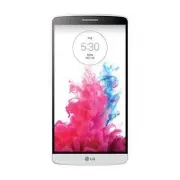


 LG A7110
User Manual
LG A7110
User Manual
 LG AX5000
User Manual
LG AX5000
User Manual
 LG C1300
User Manual
LG C1300
User Manual
 LG C1300A
User Manual
LG C1300A
User Manual
 LG C1300I
User Manual
LG C1300I
User Manual
 LG C1500
User Manual
LG C1500
User Manual
 LG C2000
User Manual
LG C2000
User Manual
 LG CB630
User Manual
LG CB630
User Manual
 LG CE500
User Manual
LG CE500
User Manual
 LG CF360
User Manual
LG CF360
User Manual
 LG CF360A
User Manual
LG CF360A
User Manual
 LG CG180
User Manual
LG CG180
User Manual
 LG CG225
User Manual
LG CG225
User Manual
 LG CG300
User Manual
LG CG300
User Manual
 LG CP150
User Manual
LG CP150
User Manual
 LG CU320
User Manual
LG CU320
User Manual
 LG CU400
User Manual
LG CU400
User Manual
 LG CU405
User Manual
LG CU405
User Manual
 LG CU500
User Manual
LG CU500
User Manual