Page 2 - A l l r i g h t s r e s e r v e d
Copyright ©2010 LG Electronics, Inc. A l l r i g h t s r e s e r v e d . LG and the LG logo are registered trademarks of LGGroup and its related entities. All other trademarks arethe property of their respective owners.
Page 3 - I m p o r ta n t S a f ety P re c a u t i o n s
I m p o r ta n t S a f ety P re c a u t i o n s 1 Impor tant S afety P re cautions Read these instructions. Breaking the rules may be dangerous orillegal. Further detailed information is given in this user guide. WARNING! Violation of the instructions may cause serious injury or death. 1. Never use ...
Page 4 - Important Safety Precautions
Important Safety Precautions 2 Impor tant S afety P re cautions 1. Do not expose the battery charger or adapter to direct sunlight or use it in places with high humidity, such asa bathroom. 2. Do not use harsh chemicals (such as alcohol, benzene, thinners, etc.) or detergents to clean your phone. Th...
Page 6 - Ta b l e o f C o n te n ts; Table of Contents
Ta b l e o f C o n te n ts 4 Tab le o f C o n te n ts Important Safety Precautions 1 Table of Contents 4 Welcome 9 Technical Details 10 Important Information 10 FCC Part 15 Class B Compliance 10FCC RF Exposure Information 10 Bodily Contact During Operation12Vehicle-Mounted External Antenna 12 Cautio...
Page 7 - Using Phone Menus; Messaging; Call History
5 Tab le o f C o n te n ts Text Input 27 Contacts in Your Phone’sMemory 28 The Basics of Storing ContactsEntries 28 Phone Numbers With Pauses 28 Storing a Number with Pauses 29Adding a Pause to an ExistingNumber 29 Your Phone’s Contacts List 29 Scrolling Through Your Contacts30 Making a Call From Yo...
Page 9 - Troubleshooting
7 Tab le o f C o n te n ts 1.1 Ringers 67 1.2 Volume 68 1.3 Message Alerts 68 1.4 Alert Type 68 1.5 Service Alerts 68 1.6 Power On/Off Tone 69 1.7 Flip Tone 69 2. Display 70 2.1 Wallpaper 70 2.1.1 Main Screen 70 2.1.2 Front Screen 70 2.1.3 Shuffle 70 2.2 Banner 71 2.3 Backlight 71 2.4 Menu Styles 72...
Page 10 - Accessories
Table of Contents 8 Tab le o f C o n te n ts TIA (TelecommunicationsIndustry Association) SafetyInformation 84 Exposure to Radio Frequency Signal 84 Antenna Care 84 Phone Operation 85 Tips on Efficient Operation 85 Driving 85 Electronic Devices 85 Pacemakers 85 Persons with Pacemakers: 86 Hearing Ai...
Page 11 - We l c o m e; Wine II
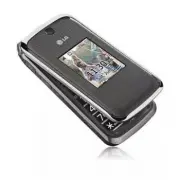
We l c o m e 9 Welc o m e Thank you for choosing theadvanced and compact Wine II cellular phone, designed tooperate with the latest digitalmobile communicationtechnology, Code DivisionMultiple Access (CDMA). Alongwith the many advanced featuresof the CDMA system, such asgreatly enhanced voice clarit...
Page 12 - Te c h n i c a l D eta i l s; Important Information
Te c h n i c a l D eta i l s 10 T e chnical D e tails Important Information This user’s guide providesimportant information on the useand operation of your phone.Please read all the informationcarefully prior to using thephone for the best performanceand to prevent any damage to ormisuse of the phon...
Page 14 - Technical Details
Technical Details 12 T e chnical D e tails The design of this phonecomplies with the FCC guidelinesand these internationalstandards. Bodily Contact DuringOperation This device was tested for typicaluse with the back of the phonekept 0.79 inches (2.0 cm) fromthe body. To comply with FCC RFexposure re...
Page 15 - Caution
13 T e chnical D e tails Caution Use only the supplied andapproved antenna. Use ofunauthorized antennas ormodifications could impair callquality, damage the phone, voidyour warranty and/or result inviolation of FCC and ICregulations.Do not use the phone with adamaged antenna. If a damagedantenna com...
Page 16 - - Reorient or relocate the
Technical Details 14 T e chnical D e tails Part 15.105 statement This equipment has been testedand found to comply with thelimits for a class B digital device,pursuant to Part 15 of the FCCRules. These limits are designedto provide reasonable protectionagainst harmful interference in aresidential in...
Page 17 - P h o n e O ve r v i ew
P h o n e O ve r v i ew 15 Phone O ve rvie w 1 . Earpiece Lets you hear the caller and prompts. 2 . Flip Open to answer an incoming call and close to end the call (dependent on the Answer Options, inCall Settings menu). 3 . LCD Screen Displays messages and indicator icons. 4 . Left Soft Key Use it o...
Page 18 - Phone Overview
16 Phone O ve rvie w Phone Overview Phone O ve rvie w 1 . Earphone Jack Allows the use of a wired headset. 2 . Side Keys Use to adjust the Master volume from the standby screen and the earpiece volumeduring a call. Note that the Master volume canonly be adjusted with the flip open. 3 . USB/Charger P...
Page 19 - M e nu s O ve r v i ew
17 M e nu s O ve r v i ew Men u s O ve rvie w Messaging 1. New Text Message 2. New Picture Message 3. Inbox 4. Sent 5. Drafts 6. Voicemail 7. Templates 8. Settings 1. All Messages 2. Text Message 3. Picture Message 4. Edit Voicemail # 9. Delete All 1. Delete Inbox 2. Delete Sent 3. Delete Drafts 4. ...
Page 20 - Menus Overview
Menus Overview 18 Men u s O ve rvie w BREW 1. BREW Apps Web Music 1. Last Played Song 2. All Songs 3. My Playlists 4. Albums 5. Artists 6. Genres My Schedule 1. Alarm Clock 2. Calendar 3. Notepad FM Radio Bluetooth 1. Paired Devices 2. Power 3. My Visibility 4. My Bluetooth Name 5. My Bluetooth Info...
Page 22 - The Battery; Installing the Battery; Make sure the power is off so; Charging the Battery; G ett i n g S ta r te d w i t h Yo u r P h o n e
20 Gett ing S ta rt edwith Y o urPhone The Battery The phone comes with arechargeable battery. Keep thebattery charged while not in usein order to maximize talk andstandby time. The battery chargelevel is shown at the top of theLCD screen. Installing the Battery Take the battery cover, locatedon the...
Page 23 - Plug the charger into a wall; Battery Charge Level; Turning the Phone On; Install a charged battery or; Turning the Phone Off; until the
21 Gett ing S ta rt edwith Y o urPhone logo faces up when insertingthe plug into the charger port. 2. Plug the charger into a wall outlet. Battery Charge Level The battery charge level is shownat the top right of the LCDscreen. When the battery chargelevel becomes low, the phonenotifies you in up to...
Page 24 - Getting Started with Your Phone; Signal Strength; The more bars, the better; Screen Icons; To see icon information, go to; Making Calls; Enter the phone number
Getting Started with Your Phone 22 Gett ing S ta rt edwith Y o urPhone Signal Strength Call quality depends on thesignal strength in your area. Thesignal strength is indicated onthe screen as the number of barsnext to the signal strength icon The more bars, the better the signal strength. If the sig...
Page 25 - Correcting Dialing Mistakes; for
Correcting Dialing Mistakes If you make a mistake whiledialing a number, press once to erase the last digitentered or hold down for at least 2 seconds to erase alldigits. How to Install Your microSDCard 1. Locate the microSD slot on the right side of the phoneand gently uncover the slotopening. (The...
Page 26 - Redialing Calls; twice to redial the; Answering Calls; Depending on your Answer
Getting Started with Your Phone 24 Gett ing S ta rt edwith Y o urPhone Redialing Calls 1. Press twice to redial the number for the last call placed,received, or missed. Up to 40calls are stored in each of thecall history lists (Missed,Received and Dialed Calls); youcan select one of these to calltha...
Page 27 - Quick Access to Convenient Features; Lock Mode; To quickly lock your phone press; Mute Function; Mute; Quick Volume Adjustment
25 Quick A cce ssto Con venient Fe a tur e s Quick Access to Convenient Features Lock Mode Sets your phone to require a 4-digit Lock Code in order to usethe phone. To quickly lock your phone press for three seconds. To unlock, press the Left Soft Key Unlock, enter the Lock Code and press . Mute Func...
Page 28 - to receive a waiting; Caller ID; OR
Quick Access to Convenient Features 26 Quick A cce ssto Con venient Fe a tur e s 1. Press to receive a waiting call. 2. Press again to switch between calls. Caller ID Caller ID displays the phonenumber (if available) or name of theincoming call. If the caller’s identityis stored in Contacts, the nam...
Page 29 - E n te r i n g a n d E d i t i n g I n f o r m at i o n; Key Functions; : Press to change text
27 Ent e ring and E diting Informa tion E n te r i n g a n d E d i t i n g I n f o r m at i o n Text Input You can input and edit text foryour Banner, Calendar, Contacts,Alarm Clock, Notepad, andMessages. When entering text,several functions are available. Key Functions Left Soft Key : Press to sele...
Page 30 - C o n ta c ts i n Yo u r P h o n e ’s M e m o r y; Save
28 Cont acts inY o urPhone’ s M emory C o n ta c ts i n Yo u r P h o n e ’s M e m o r y The Basics of StoringContacts Entries 1. From standby mode enter the phone number you want tosave (up to 48 digits). 2. Press the Left Soft Key Save . 3. Select either Save New or Update Existing . 4. Use to high...
Page 31 - Storing a Number with Pauses; Your Phone’s Contacts List
29 Cont acts inY o urPhone’ s M emory Storing a Number with Pauses 1. Press Menu . 2. Press Contacts . 3. Press New Contact . 4. Enter a name (up to 22 characters). 5. Enter the number in any of the text fields presented ( Mobile 1/ Home 1/ Work 1/ Mobile2/ Home 2/ Work 2/ Fax ). 6. Press the Right ...
Page 32 - Contacts in Your Phone’s Memory
Contacts in Your Phone’s Memory 30 Cont acts inY o urPhone’ s M emory Scrolling Through YourContacts 1. Press the Right Soft Key Contacts to display your Contacts alphabetically. 2. Use to scroll through the list. Searching by Letter 1. Press the Right Soft Key Contacts to display your Contacts alph...
Page 34 - U s i n g P h o n e M e nu s
U s i n g P h o n e M e nu s 32 Messaging Messaging The Wine II can store up to 535 messages (including a maximumof 200 SMS messages and 100MMS messages in the Inbox).Messaging and message contentsare determined by phone modeand service capability. Otherlimits to available characters permessage may ...
Page 36 - Displaying the message icon
Messaging 34 Messaging * Editing Subject Preview/ Add/ Go to/ SaveAs/ Priority Level/ DeliveryNotice/ Remove/ Cancel * Editing the Text Preview/ Add/ Go to/ SaveAs/ Priority Level/ DeliveryNotice/ Remove/ Cancel * Editing Image/Video Preview/ Add Slide/ Go to/Save As Draft/ Priority Level/Delivery N...
Page 38 - Resend
Messaging 36 Messaging 4. Sent Up to 100 (50 SMS and 50MMS) sent text messages orpicture messages can be storedin the Sent Folder. Access theSent message list to viewcontents of sent messages andverify whether the transmissionwas successful or not. 1. Press , , . 2. Use to highlight a sent message. ...
Page 41 - Messaging Settings; Text Message Only
39 Messaging Messaging Settings 8.1 All Messages 1. Reply Setting (Text Message Only/ Selection) Text Message Only automatically creates an SMSmessage when replying to amessage. Selection allows you to choose whether to replywith a Text message or anMMS message. 2. Auto Save (Auto Save/ Prompt/ Do N...
Page 42 - to highlight an
Messaging 40 Messaging 2. Auto Play (On/ Off) Allows the display toautomatically scroll downwhile viewing messages. 3. Callback # (On/ Off/ Edit) With this feature on, you caninput the callback numberthat will be automaticallyincluded when you send amessage. 8.3 Picture Message 1. Auto Receive (On/ ...
Page 43 - Access and Options
Call History 41 Messaging Call History This menu is a list of the lastphone numbers or Contactentries for calls you placed,accepted, or missed. It iscontinually updated as newnumbers are added to thebeginning of the list and theoldest entries are removed fromthe bottom of the list. Access and Option...
Page 44 - to highlight an entry.
Call History 42 Call Hist ory 4. All Calls Allows you to view the list of thelatest missed, received and dialedcalls. 1. Press , , . 2. Use to highlight an entry. 5. Call Timer Allows you to view the durationof selected call types. 1. Press , , . 2. Use to highlight one of the following call lists: ...
Page 45 - Contacts
Contacts 43 Cont acts Contacts The Contacts Menu allows youto store names, phone numbersand other information in yourphone’s memory. When youaccess the Contacts List, thenumber in parenthesesrepresents the number of entriesyou have stored (Up to 1000). Access and Options 1. Press . 2. Press Contacts...
Page 47 - Assign
45 Cont acts 4. Speed Dials Allows you to view your SpeedDials list, designate new SpeedDials, or remove Speed Dialdesignations entered in yourContacts. 1. Press , , . 2. Use to highlight the desired Speed Dial location(or enter the Speed Dialdigit), and press Assign . 3. Use to highlight the Contac...
Page 48 - Multimedia
Multimedia 46 Multimedia Multimedia Your phone’s built-in cameragives you the ability to take full-color digital pictures and torecord videos. View your picturesusing the phone’s display, andinstantly send them to family andfriends. Access and Options 1. Press Menu . 2. Press Multimedia . 3. Select ...
Page 49 - Use navigation keys to
47 Multimedia Take Takes the picture. Resolution 1200X1600/ 960X1280/ 480X640/240X320 Zoom Use navigation keys to adjust zoom (not available atthe highest resolution). 3. For more options, press the Right Soft Key Options to change the followingsettings: Options Tab Options Quality Fine/ Normal/ Eco...
Page 54 - Ringtone List/ Wallpaper List; BREW
Multimedia/ BREW 52 Multimedia/ BREW 7. Shuffle Allows you to customize yourphone's ringtone or wallpapershuffle lists. 1. Press , , . 2. Use to highlight Ringtone List/ Wallpaper List and press to select it (you must press the RightSoft Key Options to activate the Shuffle feature). 3. Press the Lef...
Page 55 - Downloading Applications
53 BREW Downloading Applications You can download applicationsand use Brew anywhere on thenetwork, as long as your handsethas a digital signal available. Incoming Calls While downloading anapplication, incoming calls will bedisplayed normally --downloading will not beinterrupted by an incoming call....
Page 56 - Web
Web 54 Web Web The Web browser allows you toview Internet content.Accessibility may be limited andselections within this feature aredependent upon your serviceprovider. For specific informationon Web contact your serviceprovider. 1. Start Browser Allows you to initiate an Websession. 1. Press , , . ...
Page 57 - Music; Options
Music 55 Music Music Allows you to access songsstored in your memory card. Foraccess to this feature, thereshould be music already storedin your memory card. Music canbe transferred to your phonefrom your PC. To enable thisfeature, please set the PCConnection to USB MassStorage (Menu > Settings &...
Page 58 - View; My Schedule; Set
Music/ My Schedule 56 Music/ My Schedule 2. Use to select the Album and press View to view the songs from that Album. 5. Artists Allows you to view and listen toyour music by Artists. 1. Press , , . 2. Use to select the artist to view and press View to view the songs in yourcollection by that Artist...
Page 61 - FM Radio
FM Radio 59 T ools FM Radio Listen to FM broadcasts andmusic from your phone. Wiredheadphones, or a wired headset,are required to use this feature 1. Press , . FM Frequency Range : 87.5MHz -107.9 MHz. Automatic Scan Station Tuning 1. Open FM Radio and press Channel . 2. Highlight Channel auto scan a...
Page 62 - Bluetooth
Bluetooth ® 60 Blue to o th Bluetooth The Wine II is compatible with devices that support theBluetooth headset and hands-free profile(s)*. You may createand store 20 pairings within the Wine II and connect to one device at a time. Theapproximate communicationrange for Bluetooth wirelesstechnology is...
Page 63 - Devices found will appear in
61 Blue to o th 4. Devices found will appear in the Add New Device menuonce they have been located.Highlight the device and press Pair . 5. The handset will attempt to Auto-Pair. If Auto-Pair is notavailable, you will be asked toprovide, or verify, matchingcodes. Consult the Bluetoothaccessory instr...
Page 64 - to clear the
Bluetooth 62 Blue to o th 4. My Bluetooth Name Allows you to edit the name ofthe Bluetooth device. 1. Press , , . 2. Hold down to clear the existing name. 3. Use the alphanumeric keypad to enter a new alias. 4. Press to save and exit, or the Right Soft Key Cancel to cancel editing. 5. My Bluetooth I...
Page 65 - Tools; Yes
Tools 63 T ools Tools Allows you to make use ofvarious tools and applications toyour phone. 1. Voice Command Allows you to make phone callsquickly and easily by voice. Yourphone recalls the number fromyour Contacts and then dials it.This menu is helpful to thosewho are driving or who may beblind. It...
Page 67 - AC
65 T ools 1. Press , , , . 2. Select options. 1 Match/ 4 Matches 2. My Menu Allows you quick access to yourfavorite menus. A maximum of 12items can be stored in My Menu. 1. Press , , . 2. Select the location of your choice by using , then press . 3. Select the menu you wish to add to My Menu by usin...
Page 69 - Settings
Settings 67 Sett ings Settings The Settings Menu has optionsto customize your phone. Access and Options 1. Press Menu . 2. Press Settings . 3. Select a sub-menu. 1. Sound 2. Display3. Security4. Call Settings5. PC Connection6. System7. Memory8. BREW & Web9. Phone Info. 1. Sound Provides options ...
Page 74 - Icon
Settings 72 Sett ings 2.4 Menu Styles Choose how your phone’s mainmenu is displayed on the screen. 1. Press , , , . 2. Select Icon or List and press . 2.5 Languages (Idiomas) Allows you to use the bilingualfeature according to yourpreference. Choose betweenEnglish and Spanish. 1. Press , , , . 2. Us...
Page 75 - Customize font settings for; then press
73 Sett ings 1. Press , , , , . 2. Choose a setting, then press . Normal Clock/ AnalogClock/ Digital Clock/Minimized Clock 3. Press to save settings. 2.7 Font Settings This menu allows you to changethe font settings. 1. Press , , , . 2. Customize font settings for type, size or color. 3. After custo...
Page 76 - Lock Phone
Settings 74 Sett ings 3. Security The Security menu allows you tosecure the phone electronically. 3.1 Lock Phone Keeps your phone fromunauthorized use. Once thephone is locked, it is in restrictedmode until the lock code isentered. You can receive phonecalls and still make emergencycalls. You can mo...
Page 78 - Master Reset
Settings 76 Sett ings 3.5 Master Reset Allows you to reset your phoneto the factory default settings. 1. Press , , . 2. Enter the four-digit lock code and press . 3. Press Master Reset . 4. Read the displayed message and press to continue. 5. A message will pop up that says “All settings will revert...
Page 79 - Noise Cancellation; or
77 Sett ings 2. Use to select a setting, then press . Off / Every 10 Seconds / Every 30 Seconds / Every 60 Seconds 4.3 One-Touch Dial Allows you to initiate a speeddial call by pressing and holdingthe speed dial digit. If set to Off,Speed Dial numbers designatedin your Contacts will notfunction. 1. ...
Page 80 - On
Settings 78 Sett ings 4.6 Airplane Mode Airplane Mode allows you to usemany of your phone’s features,such as Games, Notepad, VoiceMemos, etc., when you are in anairplane or in any other areawhere making or receiving callsor data is prohibited. When yourphone is in Airplane Mode, itcannot send or rec...
Page 82 - highlight
Settings 80 Sett ings 1. Press , , , , . 2. Use to highlight NAM1 or NAM2 , then press . 6.1.3 Auto NAM Allows the phone toautomatically switch betweenprogrammed telephone numberscorresponding to the serviceprovider area. 1. Press , , , , . 2. Use to highlight On or Off , then press . 6.1.4 Serving ...
Page 83 - BREW Access Prompt; My Number
81 Sett ings 7. Memory Allows you to check out thememory status of your phone. 1. Press , , . 2. Use to highlight Save Options/ Phone Memory/Card Memory and press . 8. BREW & Web 8.1 BREW Access Prompt 1. Press , , , . 2. Use to select a setting, then press . On/ Off 8.2 Web Settings 1. Press , ...
Page 84 - Tro u b l es h o ot i n g
Tro u b l es h o ot i n g 82 Tr o u b le sh o o ti n g This section lists some problems that you might encounter while usingyour phone. Some problems require that you call your service provider,but most of problems you encounter are easy to correct yourself Symptom Possible causes Possible Correctiv...
Page 86 - S a f ety; Antenna Care
S a f ety 84 Safe ty TIA (TelecommunicationsIndustry Association)Safety Information The following is the completeTIA Safety Information forwireless handheld phones. Exposure to Radio FrequencySignal Your wireless handheld portablephone is a low power radiotransmitter and receiver. When it isON, it r...
Page 87 - Phone Operation
85 Safe ty modifications, or attachmentscould damage the phone andmay violate FCC regulations. Phone Operation NORMAL POSITION: Hold thephone as you would any othertelephone with the antennapointed up and over your shoulder. Tips on Efficient Operation For your phone to operate mostefficiently: Do n...
Page 88 - Safety; Persons with Pacemakers:
Safety 86 Safe ty recommends that a minimumseparation of six inches bemaintained between a handheldwireless phone and a pacemakerto avoid potential interferencewith the pacemaker. Theserecommendations are consistentwith the independent researchby and recommendations ofWireless Technology Research. P...
Page 89 - Vehicles
87 Safe ty or health care facilities may useequipment that could besensitive to external RF energy. Vehicles RF signals may affect improperlyinstalled or inadequatelyshielded electronic systems inmotor vehicles. Check with themanufacturer or itsrepresentative regarding yourvehicle. You should also c...
Page 91 - Safety Information
89 Safe ty battery to explode. ● The battery does not need tobe fully discharged beforerecharging. ● Use only LG-approvedchargers specific to yourphone model since they aredesigned to maximize batterylife. ● Do not disassemble or short-circuit the battery. ● Keep the battery’s metalcontacts clean. ●...
Page 94 - Avoiding hearing damage
Safety 92 Safe ty ● When the phone is not usedfor a long period time, store itin a safe place with the powercord unplugged. ● Using the phone in proximityto receiving equipment (i.e.,TV or radio) may causeinterference to the phone. ● Only authorized personnelshould service the phone andits accessori...
Page 95 - Using your phone safely
93 Safe ty muffled speech, stop listeningand have your hearing checked.The louder the volume, the lesstime is required before yourhearing could be affected.Hearing experts suggest that toprotect your hearing: ● Limit the amount of time youuse your phone and/orheadset at high volume. ● Avoid turning ...
Page 96 - FDA Consumer Update; Do wireless phones pose a
Safety 94 Safe ty FDA Consumer Update The U.S. Food andDrug Administration’s Center for Devices andRadiological Health ConsumerUpdate on Mobile Phones: 1. Do wireless phones pose a health hazard? The available scientific evidencedoes not show that any healthproblems are associated withusing wireless...
Page 97 - The National Institutes of Health
95 Safe ty wireless phones are shown toemit radiofrequency energy (RF)at a level that is hazardous to theuser. In such a case, the FDAcould require the manufacturersof wireless phones to notifyusers of the health hazard and torepair, replace, or recall thephones so that the hazard nolonger exists. A...
Page 98 - What kinds of phones are
Safety 96 Safe ty participates in some interagencyworking group activities, as well. The FDA shares regulatoryresponsibilities for wirelessphones with the FederalCommunications Commission(FCC). All phones that are soldin the United States must complywith FCC safety guidelines thatlimit RF exposure. ...
Page 99 - What are the results of the
97 Safe ty from the source. The so called“cordless phones,” which have abase unit connected to thetelephone wiring in a house,typically operate at far lowerpower levels, and thus produceRF exposures far below the FCCsafety limits. 4. What are the results of the research done already? The research do...
Page 100 - What research is needed to
Safety 98 Safe ty other cancers. None of the studiesdemonstrated the existence of anyharmful health effects fromwireless phone RF exposures.However, none of the studies cananswer questions about long-termexposures, since the averageperiod of phone use in thesestudies was around three years. 5. What ...
Page 101 - What is the FDA doing to
99 Safe ty 6. What is the FDA doing to find out more about thepossible health effects ofwireless phone RF? The FDA is working with the U.S.National Toxicology Program andwith groups of investigatorsaround the world to ensure thathigh priority animal studies areconducted to address importantquestions...
Page 102 - How can I find out how
Safety 100 Safe ty 7. How can I find out how much radio frequencyenergy exposure I can getby using my wirelessphone? All phones sold in the UnitedStates must comply with FederalCommunications Commission(FCC) guidelines that limit radiofrequency energy (RF) exposures.The FCC established theseguidelin...
Page 103 - What steps can I take to
101 Safe ty for measuring the radiofrequency energy (RF) exposurefrom wireless phones and otherwireless handsets with theparticipation and leadership ofFDA scientists and engineers.The standard, “RecommendedPractice for Determining theSpatial-Peak Specific AbsorptionRate (SAR) in the Human BodyDue t...
Page 104 - What about children using
Safety 102 Safe ty wireless phone will reduce RFexposure. If you must conductextended conversations bywireless phone every day, youcould place more distancebetween your body and thesource of the RF, since theexposure level drops offdramatically with distance. Forexample, you could use a headsetand c...
Page 105 - What about wireless
103 Safe ty wireless phone causes braintumors or other ill effects. Theirrecommendation to limit wirelessphone use by children was strictlyprecautionary; it was not based onscientific evidence that any healthhazard exists. 11. What about wireless phone interference withmedical equipment? Radio frequ...
Page 106 - Where can I find; Your
Safety 104 Safe ty the use of wireless phones forpossible interactions with othermedical devices. Should harmfulinterference be found to occur,the FDA will conduct testing toassess the interference and workto resolve the problem. 12. Where can I find additional information? For additional informatio...
Page 112 - Wireless Phones and Hearing Aid Accessibility
Safety 110 Safe ty defined as a signal quality that isacceptable for normal operation. The M mark is intended to besynonymous with the U mark.The T mark is intended to besynonymous with the UT mark.The M and T marks arerecommended by the Alliance forTelecommunications IndustriesSolutions (ATIS). The...
Page 113 - Ac c es s o r i es; attery Charger
Ac c es s o r i es 111 A cce ssorie s There are a variety of accessories available for your mobile phone.Consult your local dealer for availability. Optional items are soldseparately. B attery Charger The batterycharger allowsyou to chargeyour phone. B attery Vehicle Power Charger The vehicle powerc...
Page 114 - Wa r ra n ty I n f o r m at i o n
Wa r ra n ty I n f o r m at i o n 112 W a rr anty Informa tion 1. WHAT THIS WARRANTYCOVERS: LG offers you a limited warrantythat the enclosed subscriber unitand its enclosed accessories willbe free from defects in materialand workmanship, according tothe following terms andconditions:(1) The limited...
Page 116 - Warranty Information
Warranty Information 114 W a rr anty Informa tion implied either in fact or byoperations of law, statutory orotherwise, including, but notlimited to any implied warranty ofmerchantability or fitness for aparticular purpose. (2) Shipping damage is the sole responsibility of the shippingcompany. 3. EX...
Page 117 - I n d ex
A Accessories 111Airplane Mode 78Alarm Clock 56Albums 55Alert Type 68All Calls 42All Messages 39All Songs 55Announce Alert 64Answer Options 76Answering Calls 24Artists 56Auto NAM 80Auto Retry 76 B Back to Top 69Backlight 71Banner 71Battery Charge Level21Battery Informationand Care 88Best Match 64 Bl...
Page 118 - Index
F FCC Hearing-AidCompatibility (HAC)Regulations forWireless Devices 108FDA Consumer Update94Flip Tone 69FM Radio 59Font Settings 73Front Screen 70, 72 G Genres 56Getting Started withYour Phone 20Groups 44 H Help 64How to Install YourmicroSD Card 23How to Remove YourmicroSD Card 23 I Images 49Importa...
Page 121 - MEMO
Page 122 - Precaución de Seguridad Importante
Precaución de Seguridad Importante 1 Pr ecaución deSeguridad Impor ta nt e Lea estas sencillas instrucciones. Romper las reglas puede serpeligroso o ilegal. Se ofrece más información detallada en esta guíadel usuario. ¡Aviso! No seguir las instrucciones puede ocasionar lesiones graves o la muerte. 1...
Page 125 - C o n te n i d o
C o n te n i d o 4 Cont enido Precaución de Seguridad Importante 1 Contenido 4 Bienvenidos 9 Detalles Técnicos 10 Información importante 10 Cumplimiento de clase B según el artículo 15 de la FCC 10 Información sobre la exposición a radiofrecuencias de la FCC 10 Contacto corporal durante el funcionam...
Page 126 - Mensajería; Lista Llam
5 Cont enido Introducir y editar información 28 Introducción de texto 28 Contactos en la memoria del teléfono 29 Aspectos básicos delalmacenamiento de entradas decontactos 29 Números de teléfono con pausas29 Almacenar un número con pausas 30Agregar una pausa a un número ya existente 30 Lista de Cont...
Page 127 - Contenido
Contenido 6 Cont enido 4. Imágenes 53 5. Vídeos 53 6. Sonido 54 7. Aleatorio 55 BREW 56 1. Aps de BREW 57 Web 57 1. Iniciar Navegador 57 Música 59 1. Últ. Canción Repro. 59 2. Todas las Canciones 59 3. Mis Listas 59 4. Álbums 60 5. Artistas 60 6. Géneros 60 Mi Horario 61 1. Alarma 61 2. Calendario 6...
Page 128 - Solución de problemas 90
7 Cont enido 1.1 Timbres 73 1.2 Volumen 74 1.3 Alertas de Mensaje 74 1.4 Tipo de Alerta 74 1.5 Alertas de Servicio 75 1.6 Tonos de Encender/ Apagar 751.7 Tono de Flip 76 2. Pantalla 76 2.1 Papel Tapiz 76 2.1.1 Pantalla Principal 76 2.1.2 Pantalla Delantera 76 2.1.3 Aleatorio 77 2.2 Pendón 77 2.3 Luz...
Page 129 - Accesorios
Contenido 8 Cont enido Información de seguridad de la TIA 92 Exposición a las señales de radiofrecuencia 92 Cuidado de la antena 93 Funcionamiento del teléfono 93 Sugerencias para un funcionamiento más eficiente 93 Manejo 93 Dispositivos electrónicos 94 Marcapasos 94 Las personas con marcapasos: 94 ...
Page 130 - B i e nve n i d o s; Nota
B i e nve n i d o s 9 Bien ve nidos Felicidades por elegir el avanzadoy compacto teléfono celular Wine II , diseñado para funcionar con la más reciente tecnología decomunicaciones móviles digitales:Acceso Múltiple de División deCódigo (CDMA). Junto con lasmuchas funciones avanzadas delsistema CDMA, ...
Page 131 - D eta l l es Té c n i c o s; Información importante; Lea esta
D eta l l es Té c n i c o s 10 Deta lles T écnicos Información importante Esta guía del usuario contieneinformación importante acercadel uso y funcionamiento delteléfono. Lea toda la informacióncon cuidado antes de usar elteléfono para obtener undesempeño óptimo y evitarcualquier daño o mal uso dela...
Page 133 - Bienvenidos; Precaución
Bienvenidos 12 Bien ve nidos pulgada) del cuerpo. Paracumplir los requisitos deexposición a RF de la FCC, debemantenerse una distancia deseparación mínima de 2.0 cm(0.79 de pulgada) entre elcuerpo del usuario y la parteposterior del teléfono, incluida laantena, ya sea extendida oretraída. No deben u...
Page 134 - reglamentos de la FCC e ICC.; Declaración del articulo 15.19
13 Bien ve nidos reglamentos de la FCC e ICC. No utilice el teléfono con unaantena dañada. Si una antenadañada entra en contacto con lapiel, puede producirse unapequeña quemadura.Comuníquese con su distribuidorlocal para obtener un reemplazode la antena. Declaración del articulo 15.19 Este dispositi...
Page 135 - Detalles Técnicos; - Aumentar la distancia entre el
Detalles Técnicos 14 Deta lles T écnicos y utiliza de acuerdo con lasinstrucciones, podria causarinterferencia danina para lascomunicaciones radiales. Sinembargo, no existe garantia deque la interferencia no seproduzca en una instalacion enparticular. Si este equipoocasiona interferencias daninasen ...
Page 136 - D es c r i p c i ó n g e n e ra l d e l te l é f o n o
15 Descripción g ener aldel teléfono D es c r i p c i ó n g e n e ra l d e l te l é f o n o 1. Auricular Le permite escuchar a quien le llama, alertas y avisos. 2. Tapa Abra la tapa para contestar una llamada entrante y ciérrela para terminar la llamada (dependiendo de Opciones de Contestar, en el m...
Page 137 - Descripción general del teléfono
16 Descripción g ener aldel teléfono 1 . Conector del auricular Permite utilizar el auricular con conexión de cable. 2 . Teclas laterales Úselas para ajustar el Volumen Principal desde la pantalla de espera y el volumendel auricular durante una llamada. Note que elVolumen Principal sólo puede ser aj...
Page 138 - D es c r i p c i ó n g e n e ra l d e l o s m e nú s
17 Descripción g ener aldelos m enús D es c r i p c i ó n g e n e ra l d e l o s m e nú s Mensajería 1. Nuevo Mensaje Texto 2. Nuevo Mensaje Foto 3. Entrada 4. Enviado 5. Borrador 6. Correo de Voz 7. Texto Rápido 8. Ambiente 1. Todos los Mensajes 2. Mensaje de Texto 3. Mensaje de Foto 4. # Correo de...
Page 139 - Descripción general de los menús
BREW 1. Aps de BREW Web Música 1. Últ. Canción Repro. 2. Todas las Canciones 3. Mis Listas 4. Álbums 5. Artistas 6. Géneros Mi Horario 1. Alarma 2. Calendario 3. Notas FM Radio Bluetooth 1. Aparatos Emparejados 2. Energía 3. Mi Visibilidad 4. Mi Nombre de Bluetooth 5. Mi Info de Bluetooth Herramient...
Page 141 - La batería; Instalación de la batería; Asegúrese de que esté; C ó m o e m p e z a r c o n s u te l é f o n o
La batería El teléfono viene con una bateríarecargable. Para maximizar eltiempo de llamada y de espera,mantenga el teléfono cargandocuando no esté en uso. El nivelde carga de la batería se muestraen la esquina superior derechade la pantalla LCD. Instalación de la batería Quite la tapa de la batería,...
Page 142 - Cargar la batería; Conecte el cargador al; Nivel de carga de la batería; Encender el teléfono; Instale una batería cargada o
21 Cómo empezar c on sute léfono Cargar la batería ¡Advertencia! Sólo use elcargador que viene incluido con elteléfono. El uso de cualquiercargador distinto del que vieneincluido con el Wine II puededañar el teléfono o la batería. 1. Conecte el cargador al teléfono. Asegúrese que ellogo de LG esté o...
Page 143 - Cómo empezar con su teléfono; Apagar el teléfono; Mantenga oprimido; Fuerza de la señal; Entre más barras; Iconos en pantalla; Ambiente; Hacer llamadas; Introduzca el número de
Cómo empezar con su teléfono 22 Cómo empezar c on sute léfono Apagar el teléfono 1. Mantenga oprimido hasta que se apague la pantalla. Fuerza de la señal La calidad de las llamadasdepende en la fuerza de la señalen su área. La fuerza de la señalse muestra en la pantalla segúnel número de barras quea...
Page 145 - Remarcado de llamadas; dos veces para; Contestar llamadas; Dependiendo en las Opciones
Cómo empezar con su teléfono 24 Cómo empezar c on sute léfono Remarcado de llamadas 1. Oprima dos veces para remarcar el último número quemarcó, recibió o perdió. Hasta 40 llamadas se almacenan encada de las listas del historialde llamadas (LlamadasPerdidas, Recibidas yMarcadas); puede elegir una de...
Page 146 - Modo de bloqueo; Desbloq; Función de silencio; Mudo; Ajuste rápido del volumen; Acceso rápido a funciones convenientes
Modo de bloqueo Ajusta su teléfono para que serequiera su Código Bloqueo de 4cifras para usar el teléfono. Para bloquear rápidamente suteléfono, oprima por 3 segundos. Para desbloquear,oprima la tecla suave izquierda Desbloq e introduzca el Código Bloqueo y oprima . Función de silencio La función de...
Page 147 - para recibir una; ID de Llamador
Acceso rápido a funciones convenientes 26 A cce sorápido a funcione s con venient e s en retención la llamada activamientras contesta la llamada queestá entrando. Hable con suproveedor de servicio parapedirle información sobre estafunción. 1. Oprima para recibir una llamada en espera. 2. Oprima de n...
Page 149 - Funciones de las teclas; Tecla suave izquierda:; I n t ro d u c i r y e d i ta r i n f o r m a c i ó n
Introducción de texto Puede introducir y editar textopara su Pendón, Calendario,Contactos, Alarma, Nota yMensajes. Existen variasfunciones disponibles alintroducir texto. Funciones de las teclas Tecla suave izquierda: Oprima para seleccionarun modo de introducciónde texto: - Pala.T9 (PALA.T9/ Pala.T...
Page 150 - Contactos en la memoria del teléfono; Oprima la tecla suave
Contactos en la memoria del teléfono 29 Intr oducir y e dita r información Aspectos básicos delalmacenamiento deentradas de contactos 1. Desde el modo de espera, introduzca el número deteléfono (hasta 48 dígitos)que desee guardar. 2. Oprima la tecla suave izquierda Guardar . 3. Seleccione Guardar Nu...
Page 155 - Uso de los menús del teléfono; Enviar Mensaje Texto
Uso de los menús del teléfono 34 Mensajería Mensajería El Wine II puede almacenar hasta 535 mensajes (incluyendo unmáximo de 200 mensajes SMS y100 mensajes MMS en laEntrada). La Mensajería y contenidos delos mensajes son determinadospor el modo del teléfono y lacapacidad del servicio. Puedenaplicar ...
Page 156 - Nuevo Mensaje Foto
35 Mensajería Cambiar modo de introducirtexto Mientras introduciendo texto,oprima la tecla suave izquierda para elegir Pala.T9/ Abc/ 123/ Símbolos . 2. Nuevo Mensaje Foto Le permite enviar mensajes deTexto, Imágen y Audio. 1. Oprima , , . 2. Introduzca la dirección del recipiente u oprima la teclasu...
Page 158 - Borrar
37 Mensajería Ver su buzón de Entrada Se pueden almacenar hasta 400(incluyendo 200 SMS, 100 MMSy 100 notificaciones MMS)mensajes recibidos en la Entrada. 1. Oprima , , . 2. Use para resaltar un mensaje de Entrada. 3. Oprima la tecla suave izquierda Resp . para responder, Chatear para ver el mensaje,...
Page 160 - Editar
39 Mensajería Borrar Borra el mensaje seleccionado. Transferir Reenvía un mensaje recibido a otras direcciones dedestino. Guardar Contacto Almacena el número del mensaje recibido ensus Contactos. Guar Texto Ráp Almacena el mensaje como una plantilla paramensajes futuros. Bloq./Desbloq. Bloquea o des...
Page 164 - para resaltar una
43 Mensajería 3. # Devolución de Llamada (Encendido/ Apagado/ Editar) Le permite introducir elnúmero de devolución que seincluye automáticamente almandar un mensaje. 8.3 Mensaje de Foto 1. Auto Recibir (Encendido/ Apagado) Con esta función encendida, elcontenido adjunto sedescargará automáticamentec...
Page 165 - Acceso y Opciones
Lista Llam 44 List a Llam Lista Llam El menú Lista Llam es una lista delos últimos números de teléfonoo entradas de Contactos dellamadas que haya realizado,aceptado o perdido. Se actualizaconstantemente con los númerosnuevos agregándose al principiode la lista y las entradas antiguasborrándose de la...
Page 166 - Llamadas; para resaltar una de
45 List a Llam 2. Use para resaltar una entrada. 4. Todas las Llam. Le permite ver la lista de las másrecientes llamadas perdidas,recibidas y marcadas. 1. Oprima , , . 2. Use para resaltar una entrada. 5. Cronómetro de Llamadas Le permite ver la duración de tiposde llamadas seleccionadas. 1. Oprima ...
Page 167 - Contactos
Contactos El menú Contactos le permitealmacenar nombres, números deteléfono y otros datos en lamemoria de su teléfono. Alacceder la Lista de Contactos, elnúmero en paréntesis representael número de entradas que haalmacenado (hasta 1000). Acceso y Opciones 1. Oprima Menú . 2. Oprima Contactos . 1. Nu...
Page 170 - Atajo
Multimedia 49 Multimedia Multimedia La cámara incorporada delteléfono le brinda la posibilidadde tomar fotos digitales a todocolor, ver sus fotos usando lapantalla de la cámara y enviarlasde manera instantánea afamiliares y amigos. Acceso y Opciones 1. Oprima Menú . 2. Oprima Multimedia . 3. Selecci...
Page 171 - Opciones
Multimedia 50 Multimedia Tomar Toma la foto. Resolución 1200X1600/ 960X1280/ 480X640/240X320 Zoom Use la tecla de navegación para ajustar elzoom (no está disponible enla resolución más alta). 3. Para más opciones, oprima la tecla suave derecha Opciones y configure las siguientes opciones: Opciones d...
Page 172 - Brillo
51 Multimedia 5. Oprima la tecla suave derecha Borrar , la tecla suave izquierda Guardar o seleccione una de lassiguientes opciones: ● Galería ● Enviar ● Nueva Imagen ● Fijar como 2. Grabar Vídeo 1. Oprima , , . 2. Seleccione de las siguientes opciones disponibles: Brillo Use la tecla de navegación ...
Page 173 - Almacenaje de La Memoria
Multimedia 52 Multimedia Opciones de la ficha Ambiente Almacenaje de La Memoria Memoria Del Teléfono/Memoria de La Tarjeta 3. Oprima Grabar para grabar un vídeo nuevo. 4. Oprima Detener para parar de grabar. 5. Oprima la tecla suave derecha Borrar , la tecla suave izquierda Guardar o seleccione una ...
Page 174 - Mi Imágenes
53 Multimedia 4. Imágenes Le permite navegar las imágenesque se encuentran en suteléfono. 1. Oprima , , . 2. Seleccione Mi Imágenes o Preferido . Para revisar sus imágenesguardadas : 3. Use su tecla de navegación para ver las imágenes ydesplazarse por ellas. 4. Oprima la tecla suave derecha Opciones...
Page 177 - Descarga de aplicaciones
BREW 56 BREW BREW BREW le permite hacer más quesólo hablar en su teléfono. BREWes una tecnología y un servicioque le permite descargar y usaraplicaciones en su teléfono. ConBREW, es rápido y fácil adaptarsu teléfono a su estilo de vida ya sus gustos personales.Simplemente descargue lasaplicaciones q...
Page 178 - Use la tecla direccional; Terminar una sesión Web.
BREW/ Web 57 BREW/ W eb 1. Aps de BREW Le permite descargaraplicaciones de las variasopciones divertidas ydisponilbles. 1. Oprima , , . 2. Use la tecla direccional para resaltar una opción: Browse catalog/ Search Web El navegador de Web le permitever contenido de lnternet.Accesibilidad puede ser lim...
Page 179 - Usando el navegador
Web 58 Web Usando el navegador Las opciones en pantalla puedenser disponibles en las siguientesmaneras: Opciones numeradas Puede usar su teclado numéricopara acceder esos enlaces yopciones. Desplazamiento Use la tecla direccional para desplazarse por el contenido si lapágina actual no cabe en unapan...
Page 180 - Música; Todas las Canciones
Música 59 Música Música Permite acceder canciones desdesu tarjeta de memoria. Para teneresa característica, su tarjeta dememoria debe tener cancionesya almacenadas. Música puedeser transferida de sucomputadora hacia su teléfono.Para habilitar esa característica,por favor fije la Conexión PC aAlmacen...
Page 181 - Ver
Música 60 Música 4. Álbums Le permite ver y escuchar músicapor Álbum. 1. Oprima , , . 2. Use para seleccionar el Álbum y oprima Ver para ver las canciones del álbum. 5. Artistas Le permite ver y escuchar sumúsica por Artistas. 1. Oprima , , . 2. Use para seleccionar el Artista para ver y oprima Ver ...
Page 182 - Mi Horario
Mi Horario 61 MiHor a rio Mi Horario 1. Alarma Le permite fijar una de cincoalarmas. 1. Oprima , , . 2. Resalte la alarma que desee editar y oprima . Alarma 1/ Alarma 2/ Alarma3/ Alarma 4/ Alarma 5 3. Use para resaltar Fijar Tiemp y fijar un tiempo de alarma. 4. Use para resaltar Repetir (configurac...
Page 184 - Seleccione una de las
63 MiHor a rio 3. Notas Le permite leer, agregar,modificar y borrar notas quehaya escrito para usted mismo. 1. Oprima , , . 2. Seleccione una de las siguientes opciones: ● Oprima la tecla suaveizquierda Nuevo para escribir una nota nueva.Escriba la nota y oprima Guardar para guardar. Durante el ingr...
Page 185 - Rango de la frecuencia FM; Opcns
FM Radio 64 FM R a dio FM Radio Escuche música desde suteléfono con el transmisor deFM. Se requieren auriculares parausar esta función. 1. Press , . Rango de la frecuencia FM : 87.5MHz -107.9 MHz. Sintonía automática deestaciones 1. Abra FM Radio y oprima Canal . 2. Resalte Auto búsqueda de canales ...
Page 186 - El; Emparejados
Bluetooth ® 65 Blue to o th Bluetooth El Wine II es compatible con aparatos que admiten los perfilesde audífonos y manos libres deBluetooth. Puede crear yalmacenar 20 emparejamientosdentro del Wine II y conectarse a un aparato a la vez. El alcancede comunicación aproximadopara la tecnología inalámbr...
Page 188 - Cancelar; Mi Info de Bluetooth
67 Blue to o th 3. Mi Visibilidad Le permite establecer lavisibilidad de la funciónBluetooth en su teléfono. 1. Oprima , , . 2. Use para resaltar un ajuste y oprima paraguardar. Visible/ Ocultado 4. Mi Nombre de Bluetooth Le permite editar el nombre delBluetooth. 1. Oprima , , . 2. Manténga presiona...
Page 189 - Herramientas; Diga el nombre o tipo de
Herramientas 68 Herr amient a s Herramientas Le permite usar variasherramientas y aplicaciones de suteléfono. 1. Comando de Voz Le permite hacer llamadas deteléfono rápido y fácilmenteusando comandos verbales. Suteléfono retira el número de susContactos y lo marca. Este menútambién es útil para quie...
Page 192 - Operador
71 Herr amient a s ● Use para alternar entre valores positivos ynegativos. ● Oprima la tecla suaveizquierda AC para borrar la entrada. ● Oprima la tecla suavederecha Operador para introducir otrosoperadores . ● Use la tecla de navegaciónpara introducir funciones. 3. Oprima para completar la ecuación...
Page 193 - Iniciar; Unidades
Herramientas 72 Herr amient a s 6. Cronómetro Esta función le permite usar suteléfono como Cronómetro. 1. Oprima , , . 2. Oprima Iniciar para empezar y oprima Detener para parar. ● Puede usar la funciónVuelta con la tecla suavederecha Vuelta Hay un máx. de 20 vueltasdisponibles. 3. Oprima la tecla s...
Page 194 - Use las teclas de navegación
Ambiente 73 Ambient e Ambiente El menú Ambiente tiene opcionespara personalizar su teléfono. Acceso y opciones 1. Oprima Menú . 2. Oprima Ambiente . 3. Seleccione un sub-menú. 1. Sonido 2. Pantalla3. Seguridad4. Config. de Llamada5. Conexión PC6. Sistema7. Memoria8. BREW y Web9. Info. de Teléfono 1....
Page 195 - Alertas de Mensaje
Ambiente 74 Ambient e 1.2 Volumen Le permite configurar variosajustes de volumen. 1. Oprima , , , . 2. Seleccione Volumen Principal / Teclado / Auricular / Altavoz. 3. Use para ajustar el volumen del timbre y oprima para guardar la configuración. 1.3 Alertas de Mensaje Le permite seleccionar el tipo...
Page 196 - Seleccione un tipo de tono; Alertas de Servicio; Apagar
75 Ambient e 3. Seleccione un tipo de tono usando y oprima Guardar . Sólo Timbre/ Sólo Vibrar/Timbre & Vib Alertas de Emer.: Timbre & Vib/ Sólo Vibrar 1.5 Alertas de Servicio Le permite configurar las alertasde servicio. 1. Oprima , , , . 2. Seleccione una opción de aviso. 1.5.1 Bip de Minut...
Page 200 - Relojes y Calendario; Resalte una opción y luego
79 Ambient e 2.6 Relojes y Calendario Le permite elegir el tipo de relojque se mostrarán en laspantallas. 1. Oprima , , , . 2.6.1 Pantalla Principal Le permite elegir el tipo de relojde la pantalla que se visualiza enla pantalla en el interior delteléfono. 1. Oprima , , , , . 2. Resalte una opción y...
Page 201 - Configuraciones de
Ambiente 80 Ambient e 2.7 Configuraciones de Fuente Le permite cambiar lasconfiguraciones de la fuente. 1. Oprima , , , . 2. Personalice la configuración de fuente para tipo, tamaño ocolor. 3. Después de personalizar la configuración, oprima para guardar. 2.8 Esquemas de Color Le permite elegir el c...
Page 202 - Al Encender El Teléfono
81 Ambient e 3.1 Bloq. Teléfono Evita el uso no autorizado delteléfono. Una vez bloqueado, elteléfono queda en modorestringido hasta que seintroduzca el código de bloqueo.Puede recibir llamadas y seguirhaciendo llamadas deemergencia. Puede cambiar elcódigo de bloqueo en el menúde Seguridad. 1. Oprim...
Page 203 - oprima; Cambiar Código de
Ambiente 82 Ambient e 4. Use para seleccionar Llamadas Entrantes/Llamadas Salientes/Mensajes Enrantes/ MensajesSalientes/ Cámara/ Datos y oprima . 3.3 #s de Emergencia Le permite introducir 3 númerosde emergencia. Podrá llamar aestos números de emergencia yal 911 incluso si el teléfono estábloqueado...
Page 204 - Reinicio Principal
83 Ambient e 3. Oprima Cambiar Código de Bloqueo y seleccione Sólo Teléfono / Llamada y Aplicaciones con la tecla . 4. Introduza el código de bloqueo actual y oprima . Luego introduzca un códigode bloqueo nuevo y oprima . 5. Introduzca el nuevo código de bloqueo de nuevo paraconfirmar. 3.5 Reinicio ...
Page 205 - Marcación de 1Toque; Apagado
Ambiente 84 Ambient e 1. Oprima , , , . 2. Use para resaltar una configuración y oprima para guardar. Al Abrirlo/ Sólo Tecla SEND/Cualquier Tecla/ Auto. conManos Libres 4.2 Auto Reintentar Le permite fijar el tiempo que elteléfono esperará antes deremarcar automáticamente unnúmero cuando falla la ll...
Page 206 - Privacidad de Voz; Mejorado; Cancelación de Ruido; Encendido
85 Ambient e 4.4 Privacidad de Voz Le permite configurar la funciónde privacidad de voz para lasllamadas CDMA como Mejoradoo Normal. CDMA ofrece unaprivacidad de voz inherente.Pregunte sobre su disponibilidadcon su proveedor de servicios. 1. Oprima , , , . 2. Resalte su configuración con y luego opr...
Page 208 - resaltar
87 Ambient e 6.1 Red 6.1.1 Selec. Sistema Le permite configurar el entornode administración del productordel teléfono. Deje estaconfiguración comopredeterminada a menos quedesee alterar la selección delsistema como se lo haya indicadosu proveedor de servicio. 1. Oprima , , , , . 2. Use para resaltar...
Page 210 - Aviso de Acceso a; Al
89 Ambient e 8. BREW y Web 8.1 Aviso de Acceso a BREW 1. Oprima , , , . 2. Use para resaltar un valor y oprima para guardar. Encendido/ Apagado 8.2 Ambiente de Web 1. Oprima , , , . 2. Use para resaltar un valor y oprima para guardar. Aviso de Acceso a Web: Al Iniciar/ Al Finalizar/ AmbasVeces/ Nunc...
Page 211 - S o l u c i ó n d e p ro b l e m as
S o l u c i ó n d e p ro b l e m as 90 Solución depr oblema s Esta sección enumera algunos problemas que podría encontrar alutilizar el teléfono. Algunos problemas requieren que llame a suproveedor de servicios, pero en la mayoría de los casos, puedecorregirlos usted mismo. Síntoma Causas posibles M...
Page 213 - S e g u r i d a d
S e g u r i d a d 92 Seguridad Información deseguridad de la TIA Lo que sigue es la Informacióncompleta de seguridad de la TIA(Asociación de la Industria de lasTelecomunicaciones) sobreteléfonos inalámbricos de mano. Exposición a las señales deradiofrecuencia Su teléfono celular de manoinalámbrico e...
Page 215 - Dispositivos electrónicos
Seguridad 94 Seguridad ● Preste toda su atención aconducir: manejar conseguridad es su primeraresponsabilidad; ● Use la operación a manoslibres, si la tiene; ● Salga del camino yestaciónese antes de hacer orecibir una llamada si lascondiciones de manejo o laley así lo demandan. Dispositivos electrón...
Page 216 - Aparatos para la sordera
95 Seguridad ● Deben usar la oreja opuesta almarcapasos para reducir almínimo la posibilidad deinterferencia; ● Deben apagar el teléfono deinmediato si tienen motivopara sospechar que estáocurriendo una interferencia. Aparatos para la sordera Algunos teléfonos inalámbricosdigitales pueden interferir...
Page 217 - Vehículos
Seguridad 96 Seguridad Vehículos Las señales de RF pueden afectara los sistemas electrónicos malinstalados o blindados demanera inadecuada en losvehículos automotores. Pregunteal fabricante o a su representanterespecto de su vehículo. Tambiéndebe consultar al fabricante decualquier equipo que hayaañ...
Page 218 - No seguir las
97 Seguridad tenemos: las áreas deabastecimiento de combustible(como las gasolineras), bajocubierta en barcos, instalacionesde almacenamiento otransferencia de combustible osustancias químicas, vehículosque usen gas de petróleo licuado(como propano o butano), áreasen las que el aire contengasustanci...
Page 219 - enchufe eléctrico de pared.
Seguridad 98 Seguridad enchufe eléctrico de pared. ● Use el adaptador correctopara su teléfono al usar elcargador de baterías en elextranjero. ● Únicamente use el cargadorde baterías aprobado. En casocontrario, esto podría darcomo resultado graves dañosal teléfono. Información y cuidado de labatería...
Page 220 - No desarme ni aplaste la
99 Seguridad batería y los tiempos deconversación y espera. ● La función de autoprotecciónde la interrumpe laalimentación del teléfonocuando su operación esté enun estado anormal. En estecaso, extraiga la batería delteléfono, vuelva a instalarla yencienda el teléfono. Peligros de explosión,descargas...
Page 221 - Aviso general; No pinte el teléfono.
Seguridad 100 Seguridad batería. Podría ocasionar unincendio. Aviso general ● El uso de una batería dañadao el introducir la batería en laboca pueden causar gravslesiones. ● No coloque cerca del teléfonoartículos que contengancomponentes magnéticoscomo serían tarjetas decrédito, tarjetas telefónicas...
Page 222 - ¡Información de
101 Seguridad actualización del software. Porfavor respalde sus números deteléfono importantes.(También podrían borrarse lostonos de timbre, mensajes detexto, mensajes de voz,imágenes y videos.) Elfabricante no es responsablede daños debidos a la pérdidade datos. ● Al usar el teléfono en lugarespúbl...
Page 223 - Evite los daños a la audición
Seguridad 102 Seguridad ● Limite la cantidad de tiempoque usa su teléfono oaudífonos a un volumen alto. ● Evite subir el volumen parabloquear entornos ruidosos. ● Baje el volumen si no puedeescuchar a la gente hablandocerca de usted. Para obtener información sobrecómo ajustar un límite máximo devolu...
Page 224 - Actualización de
103 Seguridad ● Evite subir el volumen parabloquear entornos ruidosos. ● Baje el volumen si no puedeescuchar a la gente hablandocerca de usted. Para obtener información sobrecómo ajustar un límite máximo devolumen en sus audífonos, vea la guíade características del terminal. Uso de los audífonos con...
Page 226 - Environmental Protection Agency
105 Seguridad ● Diseñar teléfonos inalámbricos detal modo que se minimice laexposición del usuario a RF que nosea necesaria para la función deldispositivo y ● Cooperar para dar a los usuariosde teléfonos inalámbricos la mejorinformación sobre los posiblesefectos del uso de los teléfonosinalámbricos ...
Page 241 - Para obtener información sobre los aparatos para audición y los
Seguridad 120 Seguridad define como una calidad de señalque es aceptable para elfuncionamiento normal. La marca M tiene tiene porobjeto ser sinónimo de la marcaU. La marca T tiene tiene porobjeto ser sinónimo de la marcaUT. Las marcas M y T sonrecomendadas por la Alianzapara las Soluciones de lasInd...
Page 242 - Ac c es o r i o s; Cargador de Bateria
Ac c es o r i o s 121 A cce sorios Cargador de Bateria El cargador debateria permitecargar la bateria parauso con elteléfono. B atería Cargador para el automóvil El cargador para elautomóvil le permitehacer funcionar elteléfono y llevar acabo una carga lentade la batería delteléfono en suvehículo. A...
Page 243 - D e c l a ra c i ó n D e G a ra n t í a L i m i ta d a; extiende solo al comprador
D e c l a ra c i ó n D e G a ra n t í a L i m i ta d a 122 Declar ación De Gar a ntía Limit a da 1. LO QUE CUBRE ESTAGARANTÍA: LG le ofrece una garantia limitadade que la unidad de suscriptoradjunta y sus accesoriosincluidos estaran libres dedefectos de materiales y manode obra segun los terminos yc...
Page 244 - eliminado el numero de
123 Declar ación De Gar a ntía Limit a da (6) El cliente se hara cargo del costo de envio del productoal Departamento de servicioal cliente de LG. LG se haracargo del costo de envio delproducto de vuelta alconsumidor despues derealizar el servicio segunesta garantia limitada. 2. LO QUE NO CUBRE ESTA...
Page 245 - Declaración De Garantía Limitada
Declaración De Garantía Limitada 124 Declar ación De Gar a ntía Limit a da serie, o en los que este seailegible. (6) Esta garantia limitada se otorga en lugar de cualquierotra garantia, explicita oimplicita, de hecho o por lodispuesto en las leyes,establecido por ellas oimplicado, incluso, aunquede ...
Page 247 - Llame o escriba para
Declaración De Garantía Limitada 126 Declar ación De Gar a ntía Limit a da 5. CÓMO OBTENER SERVICIOPOR LA GARANTÍA: Para obtener servicio de estagarantia llame al siguientetelefono desde cualquierubicacion continental de losEstados Unidos: Tel. 1-800-793-8896 o Fax. 1-800-448-4026 O visite http://us...
Page 248 - Í n d i c e
1 # Correo de Voz 43#s de Emergencia 82 A Acceso rápido afunciones convenientes25Accesorios 121Actualización de laFDA para losconsumidores 103Ajuste rápido delvolumen 25Alarma 61Álbums 60Aleatorio 55, 77Alertas de Mensaje 74Alertas de Servicio 75Ambiente 41, 73Ambiente de Web 89Anunciar Alertas 69Ap...
Page 251 - Otros
Solución de problemas90Sonido 54, 73 T Texto Rápido 40Timbres 73Tipo de Alerta 74Todas las Canciones59Todas las Llam. 45Todos los Mensajes 41Tomar Foto 49Tono de Flip 76Tonos de Encender/Apagar 75 U Ubicación 88Últ. Canción Repro. 59 V Vídeos 53Volumen 74Volver Arriba 75 W Web 57 Otros ¡Información ...


 LG A7110
User Manual
LG A7110
User Manual
 LG AX5000
User Manual
LG AX5000
User Manual
 LG C1300
User Manual
LG C1300
User Manual
 LG C1300A
User Manual
LG C1300A
User Manual
 LG C1300I
User Manual
LG C1300I
User Manual
 LG C1500
User Manual
LG C1500
User Manual
 LG C2000
User Manual
LG C2000
User Manual
 LG CB630
User Manual
LG CB630
User Manual
 LG CE500
User Manual
LG CE500
User Manual
 LG CF360
User Manual
LG CF360
User Manual
 LG CF360A
User Manual
LG CF360A
User Manual
 LG CG180
User Manual
LG CG180
User Manual
 LG CG225
User Manual
LG CG225
User Manual
 LG CG300
User Manual
LG CG300
User Manual
 LG CP150
User Manual
LG CP150
User Manual
 LG CU320
User Manual
LG CU320
User Manual
 LG CU400
User Manual
LG CU400
User Manual
 LG CU405
User Manual
LG CU405
User Manual
 LG CU500
User Manual
LG CU500
User Manual