Page 2 - About this user guide
1 About this user guide Thank you for choosing this LG product. Please carefully read this user guide before using the device for the first time to ensure safe and proper use. • Always use genuine LG accessories. The supplied items are designed only for this device and may not be compatible with oth...
Page 3 - Instructional notices
2 Instructional notices WARNING : Situations that could cause injury to the user and third parties. CAUTION : Situations that may cause minor injury or damage to the device. NOTE : Notices or additional information.
Page 4 - Table of contents; Basic Functions
3 Table of contents 01 Basic Functions 6 Product components and accessories 7 Parts overview 11 Home screen 14 Getting started with your phone 17 Quick access to convenient features 21 Entering and editing information 02 Useful Apps 23 Recent calls 26 Messaging 28 Contacts 35 Gallery 37 Music 38 Ema...
Page 8 - Parts overview
Basic Functions 7 Parts overview Earpiece OK key / Navigation key Home screen Left soft key Speakerphone key Send key USB/Charger port Clear key Right soft key Voice commands key End/Power key Vibrate mode key Microphone
Page 12 - Customizing the Home screen; Phone’s status icons
Basic Functions 11 Home screen The Home screen is your starting point to access all of the features on your phone using simple key presses. Status Bar Shows phone status information, including the time, signal strength, battery status, and notification icons. Customizing the Home screen You can cust...
Page 15 - Getting started with your phone; Step 1. Remove the back cover; Step 2. Insert the battery
Basic Functions 14 Getting started with your phone Step 1. Remove the back cover With the phone facing down, insert your fingernail into the cutout located on the bottom of the back cover and gently lift the cover. Step 2. Insert the battery Insert the battery, making sure the gold contacts line up....
Page 16 - Step 3. Replace the back cover; Step 4. Charge the phone
Basic Functions 15 Step 3. Replace the back cover Place the back cover over the back of the phone and then press down along the edges to secure. Step 4. Charge the phone Before turning on your phone, charge it fully. Insert the small end of the USB cable into the phone. Insert the larger end into th...
Page 17 - Removing the battery; Powering your phone on/off; Correcting dialing mistakes
Basic Functions 16 Removing the battery 1 Turn the phone off. 2 With the phone facing down, insert your fingernail into the cutout located on the bottom of the back cover and gently lift the cover. 3 Use the fingertip opening near the bottom of the battery compartment to lift the battery out. Chargi...
Page 18 - Redialing calls; Quick access to convenient; Vibrate mode
Basic Functions 17 Redialing calls With the flip open, press Send key twice to redial the latest number recorded in the call log. Quick access to convenient features Vibrate mode You can set the phone to vibrate instead of ringing ( is displayed). To set Vibrate Mode, with the flip open, press and h...
Page 20 - Conference call; Caller ID
Basic Functions 19 Conference call You can talk with up to six people at the same time in a conference call on your wireless phone. Airtime and other charges, which may include toll or long distance charges, will apply for all simultaneous calls until you end one call. 1 While on the first call, pre...
Page 21 - Voice commands
Basic Functions 20 Voice commands Voice Commands allow you to do things by verbal command (e.g., make calls, check Voice mail, etc.). From the Home screen, press Voice commands key on the keypad . 1 Call Say “Call” and then call someone simply by saying the name or phone number. 2 Send message Say “...
Page 22 - Entering and editing information; Text input; Text input modes
Basic Functions 21 Entering and editing information Text input The following key functions are available to help with text entry: Left soft key : Press to change the text input mode. Shift : Press to change capitalization (initial cap, caps lock, lowercase). Next : Press to display other matching wo...
Page 23 - Useful Apps
Page 24 - Recent calls
Useful Apps 23 Recent calls The Recent calls menu is a list of the last phone numbers or contact entries for calls you placed, accepted, or missed. It’s continually updated as new numbers are added to the beginning of the list and the oldest entries are removed from the bottom of the list. 1 From th...
Page 25 - Making calls using call logs
Useful Apps 24 Making calls using call logs 1 From the Home screen, press OK key [Menu] , then press 1 key [Recent calls ] . OR From the Home screen, press Send key to view the call logs screen. 2 Find a call from All calls , Missed calls , Dialed calls , or Received calls . 3 Use Navigation key to ...
Page 26 - Deleting recent calls records
Useful Apps 25 Deleting recent calls records 1 From the Home screen, press OK key [Menu] , then press 1 key [Recent calls ] . OR From the Home screen, press Send key to view your call logs. 2 Use Navigation key to find and highlight a call record (from All calls , Missed calls , Dialed calls , Recei...
Page 27 - Messaging; Creating and sending messages
Useful Apps 26 Messaging Allows you to send messages (text, image, video, and audio). Depending on the type of message you choose to send, you can also attach files to your messages, including images, videos, audio, voice recordings, contact cards, and calendar events. • Use Navigation key to highli...
Page 28 - Viewing new messages; Deleting messages
Useful Apps 27 5 Press OK key [Send] to send the message. • Your message is displayed and responses appear in the same window. Viewing new messages When you receive a new message, the New message icon ( ) appears on the Status bar. To view the message: • From the Home screen, press OK key [Menu] , t...
Page 29 - Contacts; Adding a new contact; Adding a new contact from recent calls
Useful Apps 28 Contacts Adding a new contact Allows you to add a new contact to your contacts list. • Using this method, the number is saved as a new contact, not into an existing contact. 1 From the Home screen, • Press OK key [Menu] and then press 3 key [Contacts ] . OR • Press Left soft key [Cont...
Page 30 - Editing a contact
Useful Apps 29 5 Enter the name and use Navigation key to scroll and enter the contact's information as necessary. 6 When the entry is complete, press OK key [Save] to save the entry. Editing a contact To make changes to an existing contact. 1 From the Home screen, press Left soft key [Contacts] . 2...
Page 31 - Deleting a contact; Assigning a speed dial
Useful Apps 30 2 Use Navigation key to highlight Add 2-sec pause or Add wait , then press OK key [Select] . 3 Enter the additional number(s) (e.g., pin number, credit card number, etc.). 4 When you're finished, press Right soft key [Options] . 5 Press 1 key [Add to Contacts] . 6 Choose Create contac...
Page 32 - Removing a speed dial
Useful Apps 31 2 Press OK key [Edit] . 3 Use Navigation key to highlight a phone number, then press Right soft key [Options] . 4 Use Navigation key to highlight Set speed dial , then press OK key [Select] . 5 Set the speed dial digit using Navigation key to highlight it, then press OK key [Select] ....
Page 33 - Favorites
Useful Apps 32 Favorites Allows you to add contact entries to your list of favorites to easily view, call, or send messages. 1 From the Home screen, press Left soft key [Contacts] . 2 Use Navigation key to highlight Favorites and then press OK key [View] . 3 Press OK key [Add] . 4 Use Navigation key...
Page 34 - Adding contacts to a group
Useful Apps 33 Options when viewing a group Press Right soft key [Options] to select one of the following: Message/ Remove contacts/ Rename group/ Delete group. Adding contacts to a group 1 Open your contacts list, select Groups , then use Navigation key to highlight the group name. • Press OK key [...
Page 35 - To unassign an ICE contact; Name card
Useful Apps 34 To unassign an ICE contact 1 From the ICE Contacts screen, press Right soft key [Options] , then press 2 key [Remove] . 2 Use Navigation key to highlight the contact, then press OK key [Select] . 3 Press Left soft key [Remove] , then press 1 key [Remove] . Entering your emergency info...
Page 36 - Gallery; Sharing content
Useful Apps 35 Gallery The Gallery app presents all of the pictures and videos stored in your phone, including those you’ve taken with the Camera app and those you downloaded from the web or other locations. When another app saves a picture, it automatically creates an album in the File Manager app ...
Page 37 - Assigning pictures
Useful Apps 36 Assigning pictures After taking a picture, assign it as a picture ID for a contact entry or as the background image (wallpaper) for your Home screen. 1 From the Home screen, press OK key [Menu] . 2 Press 4 key [Gallery ] . 3 Use Navigation key to highlight a desired photo or video. 4 ...
Page 38 - Music; Playing a song; Music options
Useful Apps 37 Music Your phone has a music player that lets you play all of your favorite tracks.Use the USB cable that came with your phone to transfer music files to your phone or download music files directly to your phone. Playing a song 1 From the Home screen, press OK key [Menu] , then press ...
Page 39 - Email; Setting up your Email
Useful Apps 38 • Shuffle On : Set the shuffle mode (toggle it on or off). • Add to playlist : Create or update playlists to organize your music files into sets of songs, which you can play in the order you set or in a shuffle. • Share : Share the selected song using Messaging or Email. You can also ...
Page 40 - Internet
Useful Apps 39 • Press Left soft key [Compose] to compose a new message. • Use Navigation key to scroll through your Inbox list. • Press OK key [View] to open a highlighted message. • Press Right soft key [Options] to access Sync now , Delete , Search , Mark as read/unread , Move , Select emails , S...
Page 41 - Entering a URL
Useful Apps 40 - Forward : Go to the next page in your browsing history. - Zoom : Adjust the zoom ratio of the page by pressing Left soft key and Right soft key . - Reset zoom : Return to the original size of the page. - Find on page : Find text in the current web page. - Request desktop/mobile site...
Page 42 - Navigating through the Internet; Links embedded in content; Fast scrolling
Useful Apps 41 Navigating through the Internet On-screen items appear in one of the following ways: Links embedded in content You can act on options or links on a web page by moving the cursor over it, then pressing OK key . Scrolling Use Navigation key to scroll in any direction on the page. • When...
Page 43 - Initiating a phone call from the internet; Changing between tabs; Closing tabs; Notifications; To open the notifications view
Useful Apps 42 Initiating a phone call from the internet You can make a phone call from the Internet if the site you’re using supports the feature. Using Navigation key , place the cursor over the phone number you want to call, press OK key [Go] to go to the call screen, then press OK key [Call] to ...
Page 44 - To respond to a notification; Camera
Useful Apps 43 To respond to a notification Open the Notifications view. Your current notifications are listed in the view, each with a brief description. • Press OK key [Open] to view the details of a highlighted notification. • Press Left soft key [Dismiss] to delete a highlighted notification. • ...
Page 45 - Taking a photo; Recording a video
Useful Apps 44 Taking a photo 1 From the Home screen, press OK key [Menu] . 2 Press 9 key [Camera ] . 3 Hold the phone and point the lens towards the subject of the photo. 4 Press OK key [Take] to take a photo. Your picture will be automatically saved to the Gallery. • You can also press Camera key ...
Page 46 - Calendar
Useful Apps 45 Calendar Allows you to store and access your agenda(s). Simply enter your appointments in the Calendar, and your phone can (depending on your settings) alert you with a reminder. 1 Open the flip and press OK key [Menu] . 2 Press Asterisk key [Calendar ] . 3 Use Navigation key to highl...
Page 47 - Tools; Voice command; Using voice command; Using the call command
Useful Apps 46 Tools Your phone’s tools include: Voice command, Voice recorder, Calendar, Alarm, World clock, Timer, Stopwatch, Calculator, Notepad, File manager, and FM radio. Voice command The Voice command app provides you with a variety of command options equipped with AVR (Advanced Voice Recogn...
Page 48 - Sending a message with voice command; Voice recorder
Useful Apps 47 Sending a message with voice command Say “Send message” and you’ll be prompted for the contact name or a phone number. If you say a full-sentence command, such as ‘Send Message to Bob’, it will automatically start a text message with Bob as the recipient. Speak clearly and say the nam...
Page 49 - Record a voice memo; Managing your voice memos
Useful Apps 48 Record a voice memo 1 From the Home screen, press OK key [Menu] . 2 Press 0 key [Tools ] . 3 Press 2 key [Voice recorder] . 4 Press OK key [Record] to start recording, then speak into the microphone. • Press Left soft key [Pause (Resume)] to pause or resume your recording. 5 When you’...
Page 50 - Alarm
Useful Apps 49 Single file 1 From the Recordings list, use Navigation key to highlight a file. 2 Press Right soft key [Options] . • Press 1 key [Delete] to delete the file. • Press 2 key [Share] to share the file. • Press 3 key [Rename] to rename the file. • Press 5 key [Details] to view the file in...
Page 51 - How to delete alarms
Useful Apps 50 5 Use Navigation key to highlight the information you want to set, then press Left soft key [Set] to view your setting choices. 6 Enter the alarm information including: • Turn On/Off • Time • Repeat • Snooze • Type • Alarm tone • Volume 7 Press OK key [Save] after setting all of the a...
Page 52 - World clock; Timer
Useful Apps 51 World clock Allows you to determine the current time in another time zone or country. 1 From the Home screen, press OK key [Menu] . 2 Press 0 key [Tools ] . 3 Press 5 key [World clock] . 4 Press Left soft key [Add] or press OK key [Add] to add. 5 Enter a city or state in the search ba...
Page 53 - Stopwatch
Useful Apps 52 Stopwatch The Stopwatch app allows you to use your phone as a typical stopwatch. 1 From the Home screen, press OK key [Menu] . 2 Press 0 key [Tools ] . 3 Press 7 key [Stopwatch] . 4 Press OK key [Start] to initiate the stopwatch. • Press OK key [Lap] to record lap times. 5 Press Left ...
Page 54 - Notepad
Useful Apps 53 Notepad Allows you to add, read, edit, and erase notes to yourself. 1 From the Home screen, press OK key [Menu] . 2 Press 0 key [Tools ] . 3 Press 9 key [Notepad] . • Press Left soft key [New] or OK key [New] to write a new note, then press OK key [Save] when you’re finished. • Use Na...
Page 55 - FM radio
Useful Apps 54 FM radio You can listen to FM radio. 1 From the Home screen, press OK key [Menu] . 2 Press 0 key [Tools ] . 3 Press Asterisk key [FM radio] . • Plug in your earphones to listen to FM radio.
Page 56 - Settings
Page 57 - Airplane mode
Settings 56 Wireless & networks The Wireless & networks menu allows you to configure and manage your device’s wireless radio communications. 1 From the Home screen, press OK key [Menu] . 2 Press Hashtag key [Settings ] . 3 Press 1 key [Wireless & networks] . Airplane mode 1 From the Wire...
Page 60 - VPN
Settings 59 VPN 1 From the Wireless & networks menu screen, press 5 key [VPN] to set up a Virtual Private Network. 2 Press Left soft key [Add] to create a new VPN. • Press Right soft key [Options] to access Edit , Delete , Always-on VPN or Help . 3 Press OK key to connect. • Enter the ID and pas...
Page 61 - Emergency alerts; Accessibility; Readout
Settings 60 Emergency alerts 1 From the Wireless & networks menu screen, press 7 key [Emergency alerts] to view emergency alerts and customize your emergency alerts settings. 2 Press Right soft key [Settings] to view and change its settings. Accessibility The Accessibility menu provides settings...
Page 62 - Larger text
Settings 61 Larger text 1 From the Accessibility menu screen, press 2 key [Larger text] . 2 Use Navigation key to highlight On or Off , then press OK key [OK] . Color inversion 1 From the Accessibility menu screen, press 3 key [Color inversion] to allow you to invert the screen colors for higher con...
Page 63 - Captions
Settings 62 Captions 1 From the Accessibility menu screen, press 5 key [Captions] . 2 Press Left soft key [Turn on] . 3 Select a captions setting and set it to your preferences. Use Navigation key to highlight your choice, then press OK key [OK] to apply it to your phone. • 1 key [Language] Allows y...
Page 64 - Hearing aid
Settings 63 • TTY Full : Users who cannot talk or hear send and receive a text message through TTY equipment. • TTY HCO : Users who can hear but cannot talk send a text message and receive voice through TTY equipment. • TTY VCO : Users who can talk but cannot hear receive a text message and send voi...
Page 65 - Sound & notifications; Volume
Settings 64 Sound & notifications 1 From the Home screen, press OK key [Menu] . 2 Press Hashtag key [Settings ] . 3 Press 3 key [Sound & notifications] . Volume 1 From the Sound & notifications menu screen, press 1 key [Volume] . 2 Select a Volume setting and set the level to your prefer...
Page 66 - Notification sounds
Settings 65 3 Press Clear key to exit. Notification sounds 1 From the Sound & notifications menu screen, press 4 key [Notification sounds] to set the sound played for new notifications. 2 Use Navigation key to highlight a desired sound, then press OK key [OK] to select it. • Press Left soft key ...
Page 67 - Display; Menu layout; Brightness; Wallpaper
Settings 66 Display 1 From the Home screen, press OK key [Menu] . 2 Press Hashtag key [Settings ] . 3 Press 4 key [Display] . Menu layout 1 From the Display menu screen, press 1 key [Menu layout] to display your Menu screen in a grid or list. 2 Use Navigation key to highlight Grid or List , then pre...
Page 68 - Display backlight
Settings 67 Display backlight 1 From the Display menu screen, press 4 key [Display backlight] to set the amount of time before the screen times out due to inactivity to conserve your battery power. 2 Use Navigation key to highlight your choice, then press OK key [OK] . Key backlight 1 From the Displ...
Page 69 - Font size; Clock; Phone settings; Language
Settings 68 Font size 1 From the Display menu screen, press 8 key [Font size] to set the size of the font used for the phone. 2 Use Navigation key to highlight your choice, then press OK key [OK] . Clock 1 From the Display menu screen, press 9 key [Clock] to set the kind of clock displayed on the Ho...
Page 70 - Key shortcuts; Setting Navigation key shortcuts
Settings 69 Key shortcuts Shortcuts are available from the Home screen. Simply press Navigation key up, down, right or left to open one. You can change the shortcut for each key and also change the shortcuts provided from the Shortcut menu (the Right Navigation key by default). Setting Navigation ke...
Page 71 - Storage
Settings 70 Storage 1 From the Phone settings menu screen, press 3 key [Storage] to view your phone's storage memory information (in text and on a bar graph). 2 Press 1 key [Phone] to view information for used memory, total memory, available memory and the amount of memory used by specific apps. Whe...
Page 72 - Location; Security
Settings 71 Location 1 From the Phone settings menu screen, press 5 key [Location] to set the GPS (Global Positioning System: Satellite assisted information system) mode. 2 Use Navigation key to highlight On or Off , then press OK key [OK] . • GPS satellite signals are not always received by the pho...
Page 73 - Accounts; Reset
Settings 72 - Clear credentials Allows you to delete user added secure certificates and related credentials. Accounts 1 From the Phone settings menu screen, press 7 key [Accounts] . 2 Press Right soft key [Options] to access Add account or Auto-sync data . Email 1 From the Phone settings menu screen...
Page 74 - Call settings; Answer options
Settings 73 • By default the Auto-date & time and Auto-time zone options are enabled. To activate the manual setting option(s), turn off the Auto option(s), then select Set date , Set time and/or Select time zone . • Turn on the Auto-date & time option to use the date/time provided by the ne...
Page 75 - Decline with message
Settings 74 Decline with message 1 From the Call settings menu screen, press 2 key [Decline with message] to view, edit, add and delete your quick messages that can be used when you want to ignore a call (e.g., during a meeting). 2 Select an action. • Use Navigation key to highlight a quick message,...
Page 76 - Blocked calls; Call restrictions; DTMF tones; Voice privacy
Settings 75 • Press 4 key [Vibrate] to set when to vibrate for voicemail notifications. Blocked calls 1 From the Call settings menu screen, press 5 key [Blocked calls] to allow you to view and manage your Blocked calls list. 2 Select the action you want. • Press OK key [Add] to add numbers from Cont...
Page 77 - Call duration; About phone
Settings 76 Call duration 1 From the Call settings menu screen, press 0 key [Call duration] to view call durations for the last call, outgoing calls, incoming calls and all calls. 2 Use Navigation key to highlight a call type, then press OK key [Reset] to reset its counter to zero. About phone View ...
Page 78 - LG mobile phone software update
Settings 77 LG mobile phone software update via Over the-Air (OTA) This feature allows you to conveniently update your phone’s software to a newer version via OTA, without connecting a USB cable. This feature will only be available if and when LG makes a newer firmware version available for your dev...
Page 79 - Appendix
Page 82 - More information; Open Source Software Notice Information
Appendix 81 More information Open Source Software Notice Information To obtain the source code under GPL, LGPL, MPL, and other open source licenses, that is contained in this product, please visit http:// opensource.lge.com.In addition to the source code, all referred license terms, warranty disclai...
Page 83 - For Your Safety
Page 84 - Important Information
For Your Safety 83 Important Information This user guide contains important information on the use and operation of this phone. Please read all the information carefully for optimal performance and to prevent any damage to or misuse of the phone. Any changes or modifications not expressly approved i...
Page 87 - HAC statement
For Your Safety 86 HAC statement This phone has been tested and rated for use with hearing aids for some of the wireless technologies that it uses. However, there may be some newer wireless technologies used in this phone that have not been tested yet for use with hearing aids. It is important to tr...
Page 88 - Consumer Information About Radio Frequency
For Your Safety 87 Consumer Information About Radio Frequency Emissions Your wireless phone, which contains a radio transmitter and receiver, emits radio frequency energy during use. The following consumer information addresses commonly asked questions about the health effects of wireless phones. Ar...
Page 92 - Consumer Information on SAR
For Your Safety 91 Consumer Information on SAR (Specific Absorption Rate) This model phone meets the government’s requirements for exposure to radio waves. Your wireless phone is a radio transmitter and receiver. It is designed and manufactured not to exceed the emission limits for exposure to Radio...
Page 93 - Regulations for Wireless Devices
For Your Safety 92 The FCC has granted an Equipment Authorization for this model phone with all reported SAR levels evaluated as in compliance with the FCC RF emission guidelines. SAR information on this model phone is on file with the FCC and can be found under the Display Grant section of http://w...
Page 95 - Avoid potential hearing loss.
For Your Safety 94 For information about hearing aids and digital wireless phonesWireless Phones and Hearing Aid Accessibility http://www.accesswireless.org/ Gallaudet University, RERC http://tap.gallaudet.edu/Voice/ FCC Hearing Aid Compatibility and Volume Control https://www.fcc.gov/general/hearin...
Page 96 - TIA Safety Information
For Your Safety 95 • Limit the amount of time you listen. As the volume increases, less time is required before your hearing could be affected. • Avoid using headphones after exposure to extremely loud noises, such as rock concerts, that might cause temporary hearing loss. Temporary hearing loss mig...
Page 97 - Tips on Efficient Operation
For Your Safety 96 Tips on Efficient Operation For your phone to operate most efficiently:Don’t touch the antenna unnecessarily when the phone is in use. Contact with the antenna affects call quality and may cause the phone to operate at a higher power level than otherwise needed. Electronic Devices...
Page 99 - For Vehicles Equipped with an Air Bag
For Your Safety 98 For Vehicles Equipped with an Air Bag An air bag inflates with great force. DO NOT place objects, including either installed or portable wireless equipment, in the area over the air bag or in the air bag deployment area. If in-vehicle wireless equipment is improperly installed and...
Page 100 - Safety Information; Charger and Adapter Safety
For Your Safety 99 Safety Information Please read and observe the following information for safe and proper use of your phone and to prevent damage. Violation of the instructions may cause minor or serious damage to the product. Charger and Adapter Safety • The charger and adapter are intended for i...
Page 102 - General Notice
For Your Safety 101 or pen) may short-circuit the phone and may cause an explosion. Always cover the receptacle when not in use. General Notice • Do not place items containing magnetic components such as a credit card, phone card, bank book, or subway ticket near your phone. The magnetism of the pho...
Page 103 - FDA Consumer Update
For Your Safety 102 FDA Consumer Update The U.S. Food and Drug Administration’s Center for Devices and Radiological Health Consumer Update on Mobile Phones: 1. Do wireless phones pose a health hazard? The available scientific evidence does not show that any health problems are associated with using ...
Page 109 - Driving; 0 Driver Safety Tips
For Your Safety 108 12. Where can I find additional information? For additional information, please refer to the following resources: FDA web page on wireless phones( http://www.fda.gov/Radiation-EmittingProducts/RadiationEmittingProductsa ndProcedures/HomeBusinessandEntertainment/CellPhones/default...
Page 112 - LIMITED
Page 113 - Limited Warranty – USA
LIMITED WARRANTY - USA 112 Limited Warranty – USA ARBITRATION NOTICE: THIS LIMITED WARRANTY CONTAINS AN ARBITRATION PROVISION THAT REQUIRES YOU AND LG (as defined hereinafter in the Definitions) TO RESOLVE DISPUTES BY BINDING ARBITRATION INSTEAD OF IN COURT, UNLESS YOU CHOOSE TO OPT OUT. IN ARBITRAT...
Page 114 - HOW SERVICE IS HANDLED:
LIMITED WARRANTY - USA 113 DAMAGES WHETHER BASED IN CONTRACT, TORT, OR OTHERWISE. LG’S TOTAL LIABILITY, IF ANY, SHALL NOT EXCEED THE PURCHASE PRICE PAID BY YOU FOR THE PRODUCT. Some states do not allow the exclusion or limitation of incidental or consequential damages or limitations on how long an i...
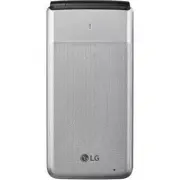


 LG A7110
User Manual
LG A7110
User Manual
 LG AX5000
User Manual
LG AX5000
User Manual
 LG C1300
User Manual
LG C1300
User Manual
 LG C1300A
User Manual
LG C1300A
User Manual
 LG C1300I
User Manual
LG C1300I
User Manual
 LG C1500
User Manual
LG C1500
User Manual
 LG C2000
User Manual
LG C2000
User Manual
 LG CB630
User Manual
LG CB630
User Manual
 LG CE500
User Manual
LG CE500
User Manual
 LG CF360
User Manual
LG CF360
User Manual
 LG CF360A
User Manual
LG CF360A
User Manual
 LG CG180
User Manual
LG CG180
User Manual
 LG CG225
User Manual
LG CG225
User Manual
 LG CG300
User Manual
LG CG300
User Manual
 LG CP150
User Manual
LG CP150
User Manual
 LG CU320
User Manual
LG CU320
User Manual
 LG CU400
User Manual
LG CU400
User Manual
 LG CU405
User Manual
LG CU405
User Manual
 LG CU500
User Manual
LG CU500
User Manual