Page 3 - Important Safety Precautions
1 Impor tant Saf e ty Pr ecautions Important Safety Precautions Read these instructions. Breaking the rules may be dangerous or illegal. Further detailed information is given in this user guide. WARNING! Violation of the instructions may cause serious injury or death. 1. Never use an unapproved batt...
Page 6 - Table of Contents
T able of Cont ents 4 Table of Contents Important Safety Precautions 1 Table of Contents 4 Welcome 9 Technical Details 10 Important Information .........................10 Technical Details ....................................10 FCC RF Exposure Information ..........10 Bodily Contact During Operatio...
Page 7 - Phone Menus
Table of Contents 5 T able of Cont ents Phone Numbers With Pauses ........ 25 Storing a Number with Pause or Wait ..........................................................25 Adding a Pause or Wait to an Existing Number ...................................................26 Searching Your Phone’s Mem...
Page 8 - New Text Message
Table of Contents T able of Cont ents 6 Browser 48 1. Start Browser .................................48 New Text Message 49 Take Photo 49 Bluetooth 50 1. Paired Devices ...............................50 For pairing new Bluetooth® device ..50 2. Power ..............................................51 ...
Page 10 - Accessories 89
Table of Contents T able of Cont ents 8 Accessories 89 Limited Warranty Statement 90 Index 93 Some content in this user guide may differ from your phone depending on the phone software. Features and specifications are subject to change without prior notice.
Page 11 - Welcome; cellular
9 W elcome Welcome Thank you for choosing the cellular phone, designed to operate with the latest digital mobile communication technology, Code Division Multiple Access (CDMA). Along with the many advanced features of the CDMA system, this compact phone offers: Significantly enhanced voice clarity....
Page 12 - Technical Details; Important Information; The; FCC RF Exposure Information
Technical De tails 10 Technical Details Important Information This user’s guide provides important information on the use and operation of your phone. Please read all the information carefully prior to using the phone for the best performance and to prevent any damage to or misuse of the phone. Any ...
Page 14 - Caution; harmful interference, and
Technical Details Technical De tails 12 Third-party belt-clips, holsters, and similar accessories containing metallic components may not be used. Avoid the use of accessories that cannot maintain 0.59 inches (1.5 cm) distance between the user’s body and the back of the phone and have not been tested...
Page 15 - - Reorient or relocate the; HAC
Technical Details 13 Technical De tails a residential installation. This equipment generates uses and can radiate radio frequency energy and, if not installed and used in accordance with the instructions, may cause harmful interference to radio communications. However, there is no guarantee that int...
Page 16 - Phone Overview
Phone Ov er view 14 Phone Overview 1. Earpiece Lets you hear the caller. 2. LCD Screen Displays messages and status icons. When the phone is turned on, Power Save mode automatically dims the screen and then darkens it if no keys are pressed. 3. Left Soft Key Use to access the Messaging menu from the...
Page 18 - Menus Overview; Menu Access; While in the home screen, press; Contacts
Menus Ov er view 16 Menus Overview Menu Access While in the home screen, press Menu to access the phone’s main menu. There are two methods of accessing menus and submenus: Use the Directional Key to highlight a menu/option and press to select it. Press the number key on the keypad that to activa...
Page 21 - Getting Started with Your Phone; The Battery; Installing the Battery; Insert your fingertip in the; Removing the Battery; Turn the phone off and insert; Charging the Battery
19 Getting S tarted with Your Phone Getting Started with Your Phone The Battery Note It is important to fully charge the battery before initial use of the phone. The phone comes with a rechargeable battery. The battery charge level is shown at the top right corner of the LCD screen. Installing the B...
Page 22 - Battery Charge Level; Turning the Phone On; Install a charged battery or; Turning the Phone Off; Press and hold; Signal Strength
Getting Started with Your Phone Getting S tarted with Your Phone 20 Notice Please make sure that the 'B' side faces up before inserting a charger or USB cable into the Micro USB Charging Port of your phone. Plug one end of the charging adapter into the phone’s Micro USB Charging Port and the other e...
Page 23 - Screen Icons; Menu; Making Calls; Correcting Dialing Mistakes
Getting Started with Your Phone 21 Getting S tarted with Your Phone Screen Icons To see the icon glossary, press Menu from the standby mode, then press Settings > Phone info > Icon Glossary . Making Calls 1. With the phone turned on, open the flip. 2. Enter the phone number (include the area co...
Page 24 - Quick Access to Convenient Features; Lock Mode; Unlock; Mute Function; Mute; Quick Volume Adjustments; Call Waiting
Quick A cce ss t o Conv enient F e atur e s 22 Quick Access to Convenient Features Lock Mode Sets your phone to require a 4-digit lock code in order to use the phone. Note Until you change it, the default lock code is the last 4 digits of your phone number. To quickly lock your phone press for three...
Page 25 - Caller ID; OR
Quick Access to Convenient Features 23 Quick A cce ss t o Conv enient F e atur e s Caller ID Caller ID displays the phone number or name of the incoming call. If the caller’s identity is stored in Contacts, the name will appear along with the phone number. Check with your service provider to ensure ...
Page 26 - Entering and Editing Information; Text Input; Key Functions; capitalization
E nt ering and E diting Inf ormation 24 Entering and Editing Information Text Input You can customize and enter text in many of the functions in your phone, including, but not limited to: the Banner, Calendar, Contacts and more. While entering text, the following are your options: Key Functions Left...
Page 27 - Contacts in Your Phone’s Memory
25 Contacts in Your Phone ’s Memor y Contacts in Your Phone’s Memory The Basics of Storing Contacts Entries 1. From the home screen, enter the phone number you want to save (up to 48 digits). 2. Press Save to save the number. 3. Select either Add New Contact or Update Existing . 4. Use to highlight ...
Page 28 - Searching by Letter; Contacts Options
Contacts in Your Phone’s Memory Contacts in Your Phone ’s Memor y 26 7. Enter the additional number(s) and press Save . Adding a Pause or Wait to an Existing Number 1. From the home screen, press the Right Soft Key Contacts to display your Contacts alphabetically. 2. Use to highlight the Contact ent...
Page 29 - From Contacts
Contacts in Your Phone’s Memory 27 Contacts in Your Phone ’s Memor y 3. Select an option (use and then press or press the corresponding number on the keypad): Send Message : Send a text message or picture message to the selected contact. Delete : Delete the selected entry in your Contacts. Edit : Ed...
Page 30 - Speed Dialing
Contacts in Your Phone’s Memory Contacts in Your Phone ’s Memor y 28 5. Press to place the call. Speed Dialing For a single-digit Speed Dial, press and hold the digit or press the digit, then press . For a double-digit Speed Dial, press the first digit and hold the second digit or press the first and ...
Page 33 - Edit; Messaging; To
Messaging 31 Mess aging 3. Use to highlight the Contact. 4. Use to choose a number, then press . A confirmation message is displayed. 6. My vCard Allows you to edit your vCard, which you can then send to others via Bluetooth. 1. Press , , . 2. Use to highlight the field you wish to edit and press the ...
Page 35 - Message Icon Reference; New Picture Message
Messaging 33 Mess aging Message Icon Reference Inbox New/Unread Text/Picture Message Opened/Read Text/ Picture Message New/Unread Notification Message Opened/Read Notification Message High Priority Message Outbox Failed Text/Picture Message Failed Multiple Text/Picture Messages Sent Text/Picture Messa...
Page 37 - View; Resend
Messaging 35 Mess aging 4. Once you select the View option for the message, press the Left Soft Key Reply to reply or the Right Soft Key Options to view the following additional options. Delete Deletes the selected message. Forward Forwards a received message to other destination address(es). Save C...
Page 38 - Options
Messaging Mess aging 36 resend the message to the recipient, or the Right Soft Key Options to access the additional options: Delete Deletes the selected message. Forward Forwards the message to other destination address(es). Save Contact Stores the callback number, e-mail address, and numbers in the...
Page 40 - Text Message; CMAS Settings; to highlight the alert
Messaging Mess aging 38 2. Auto Save ( Auto Save / Prompt / Do Not Save ) You can choose to automatically save messages in the Outbox, get prompted if you want to save the messages, or not save the messages at all. 3. Auto Delete ( On / Off ) With this feature on, read messages are automatically del...
Page 41 - Call History
Call History 39 Call His tory 1. Presidential Alert 2. Extreme Alert 3. Severe Alert 4. AMBER(Child Abduction Emergency) 5. Alert Vibrate 6. Alert Sound 7. Alert Reminder 9. Delete All Allows you to erase the messages stored in your Inbox, Sent, or Drafts message folders. You can also erase all mess...
Page 43 - Multimedia
Multimedia 41 Multimedia 5. Call Timer Allows you to view the duration of selected calls. 1. Press , , . 2. Use to highlight a call type. Last Call / Dialed Calls / Received Calls / Roam Calls / All Calls 3. Press the Left Soft Key Reset to reset the call timer for the highlighted call type. 6. Data...
Page 47 - BREW; BREW; Downloading Applications; Browse for apps and
BREW 45 BREW BREW BREW allows you to do more than just talk on your phone. BREW is a technology and service that allows you to download and use applications on your phone. With BREW, it is quick and easy to personalize your phone to suit your lifestyle and tastes. Just download the applications that...
Page 48 - My Schedule
My Schedule My Schedule 46 My Schedule 1. Alarm Clock Allows you to set up to five alarms. At the alarm time, any set alarm can sound (depending on your Master Volume settings) the tone of your choice, and an alarm message will be displayed on the LCD screen. 1. Press , , . 2. Use to highlight the al...
Page 50 - Browser; Browser Menu; Homepage
Browser Bro wser 48 Browser The Browser feature allows you to view Internet content. Accessibility and selections within this feature are dependent upon your service provider. For specific information on the Web, contact your service provider. 1. Start Browser Allows you to initiate a Web session. 1....
Page 51 - New Text Message / Take Photo; Downloads
New Text Message / Take Photo 49 New Text Me ss age / T ake Pho to Downloads Allows you to configure whether you want to enable or disable image, background, and object downloads. Restar t Browser Allows you to restart the Browser. Send Referrer Allows you to turn the HTTP Send Referrer Header on or ...
Page 52 - Bluetooth; Search
Bluetooth Blue tooth 50 Bluetooth Your phone is compatible with devices that support the Bluetooth ® Headset, HandsFree, Dial Up Networking, Serial Port, Phonebook Access, Basic Printing, Object Push, File Transfer, and Human Interface profiles. You may create and store 20 pairings within the phone a...
Page 54 - Tools
Tools Tools 52 Tools Your phone’s tools include: Voice Command, Calculator, My Menu, Ez Tip Calculator, World Clock, Stopwatch, and Unit Converter. 1. Voice Command Allows you to use voice commands to use your phone, including to make phone calls quickly and easily by voice. This feature is useful f...
Page 55 - Reset
Tools 53 Tools 1.2 Command Mode Allows you to set Command Mode to Normal or Speed (The Speed setting allows you to access and use the Voice Command functions more quickly with a faster non-verbal prompt). 1. Press , , , . 2. Select an option. Normal / Speed 1.3 Announce Alert Allows you to customize...
Page 58 - Settings
Settings Settings 56 Settings 1. Sound Allows you to customize your phone's sounds. 1.1 Ringtones Allows you to assign ringtones for incoming calls. 1. Press , , , . 2. Select All Calls / Caller ID/ No Caller ID/ Restricted Calls . 3. Select My Sounds or Default . 4. Use to highlight the ringtone. 5...
Page 59 - Off
Settings 57 Settings 1.4 Alert Type Allows you to select the alert types. 1. Press , , , . 2. Use to highlight the alert you wish to edit. Call Alert / Message Alert / Schedule Alert / Alarm Alert / E911 Alert 3. Use to scroll through the following alert types: Ring Only/ Vibrate Only/ Ring & Vi...
Page 61 - English; Name Match for Dialing
Settings 59 Settings 2. Use to highlight English or Español , then press . 2.6 Clocks & Calendar Allows you to select the type of clocks displayed on the main LCD screen and Front Screen. 1. Press , , , . 2. Use to highlight Main Screen / Front Screen and press . 3. Use to scroll through Normal ...
Page 62 - Emergency Numbers
Settings Settings 60 3.1 Lock Phone Keeps your phone from unauthorized use. Once the phone is locked, it is in restricted mode until the Lock Code is entered. You can still receive phone calls and make emergency calls. You can modify the Lock Code in the Change Lock Code sub-menu of the Security men...
Page 64 - Flip
Settings Settings 62 1. Press , , , . 2. Use to highlight Flip Open /SEND Key Only/Any Key/Auto with Handsfree , then press . 3. Press . 4.2 Auto Retry Allows you to set the length of time the phone waits before automatically redialing a number when the attempted call fails. 1. Press , , , . 2. Use ...
Page 65 - Location On / E911 Only
Settings 63 Settings 2. Read the displayed message and press to continue. 3. Use to highlight TT Y Full / TT Y + Talk / TT Y + Hear/ TT Y Off , then press . 5. System The System menu allows you to designate specific system network settings. 5.1 Network 5.1.1 System Select Allows you to set up the pho...
Page 66 - BREW Access Prompt; Web Access Prompt; On
Settings Settings 64 6. BREW & Web Allows you to turn the BREW and Web Access Prompt on or off. 6.1 BREW Access Prompt 1. Press , , , . 2. Use to highlight On or Off , then press . 6.2 Web Access Prompt 1. Press , , , . 2. Use to highlight On or Off , then press . 7. Memory Allows you to check t...
Page 67 - Safety; TIA Safety Information; ICNIRP; Antenna Care
65 Saf e ty Safety WARNING: This product contains chemicals known to the State of California to cause cancer and birth defects or other reproductive harm. Wash hands after handling. TIA Safety Information The following is the complete TIA Safety Information for wireless handheld phones. Exposure to ...
Page 68 - Tips on Efficient Operation
Safety Saf e ty 66 Tips on Efficient Operation For your phone to operate most efficiently: Don’t touch the antenna unnecessarily when the phone is in use. Contact with the antenna affects call quality and may cause the phone to operate at a higher power level than otherwise needed. Driving Check the l...
Page 70 - Safety Information; Only use the battery with a
Safety Saf e ty 68 Potentially Explosive Atmosphere Turn your phone OFF when in any area with a potentially explosive atmosphere and obey all signs and instructions. Sparks in such areas could cause an explosion or fire resulting in bodily injury or even death. Areas with a potentially explosive atmo...
Page 71 - Charger and Adapter Safety
Safety 69 Saf e ty charging system that has been qualified with the system per IEEE-Std-1725-2006. Use of an unqualified battery or charger may present a risk of fire, explosion, leakage, or other hazard. Do not short circuit a battery or allow metallic conductive objects to contact battery terminals...
Page 72 - wireless carrier for recycling.
Safety Saf e ty 70 wireless carrier for recycling. The battery doesn't need to be empty before recharging. Use only LG-approved chargers specific to your phone model since they are designed to maximize battery life. Do not disassemble or short-circuit the battery. Keep the battery’s metal con...
Page 73 - General Notice; Do not paint your phone.
Safety 71 Saf e ty Metallic articles such as a coin, paperclip or pen in your pocket or bag may short-circuit the + and – terminals of the battery (metal strips on the battery) upon moving. Short-circuit of the terminal may damage the battery and cause an explosion. Do not disassemble or crush the...
Page 74 - Avoiding hearing damage; FDA Consumer Update
Safety Saf e ty 72 public places, set the ringtone to vibration so you don't disturb others. Do not turn your phone on or off when putting it to your ear. Use accessories, such as earphones and headsets, with caution. Ensure that cables are tucked away safely and do not touch the antenna unneces...
Page 75 - Do wireless phones pose a
Safety 73 Saf e ty 1. Do wireless phones pose a health hazard? The available scientific evidence does not show that any health problems are associated with using wireless phones. There is no proof, however, that wireless phones are absolutely safe. Wireless phones emit low levels of Radio Frequency (...
Page 76 - What kinds of phones are
Safety Saf e ty 74 exposure to the user that is not necessary for device function; and Cooperate in providing users of wireless phones with the best possible information on possible effects of wireless phone use on human health. The FDA belongs to an interagency working group of the federal agenci...
Page 77 - What are the results of the
Safety 75 Saf e ty Frequency (RF) energy because of the short distance between the phone and the user’s head. These RF exposures are limited by FCC safety guidelines that were developed with the advice of the FDA and other federal health and safety agencies. When the phone is located at greater dist...
Page 78 - What research is needed to
Safety Saf e ty 76 demonstrated the existence of any harmful health effects from wireless phone RF exposures. However, none of the studies can answer questions about long-term exposures, since the average period of phone use in these studies was around three years. 5. What research is needed to deci...
Page 79 - How can I find out how much
Safety 77 Saf e ty influential result of this work has been the development of a detailed agenda of research needs that has driven the establishment of new research programs around the world. The project has also helped develop a series of public information documents on EMF issues. The FDA and the C...
Page 80 - What has the FDA done
Safety Saf e ty 78 of phone to the FCC. The FCC website (http://www.fcc.gov/oet/rfsafety) gives directions for locating the FCC identification number on your phone so you can find your phone’s RF exposure level in the online listing. 8. What has the FDA done to measure the Radio Frequency energy comin...
Page 81 - What about children using
Safety 79 Saf e ty receives, reducing the amount of time spent using a wireless phone will reduce RF exposure. If you must conduct extended conversations by wireless phone every day, you could place more distance between your body and the source of the RF, since the exposure level drops off dramatic...
Page 82 - Where can I find additional
Safety Saf e ty 80 devices. For this reason, the FDA helped develop a detailed test method to measure Electro Magnetic Interference (EMI) of implanted cardiac pacemakers and defibrillators from wireless telephones. This test method is now part of a standard sponsored by the Association for the Advanc...
Page 83 - 0 Driver Safety Tips; Get to know your wireless
Safety 81 Saf e ty National Radiological Protection Board (UK) (http://www.hpa.org.uk/radiation/) 10 Driver Safety Tips Your wireless phone gives you the powerful ability to communicate by voice almost anywhere, anytime. An important responsibility accompanies the benefits of wireless phones, one tha...
Page 84 - Don’t take notes or look
Safety Saf e ty 82 5. Don’t take notes or look up phone numbers while driving. If you are reading an address book or business card, or writing a “to-do” list while driving a car, you are not watching where you are going. It is common sense. Do not get caught in a dangerous situation because you are ...
Page 85 - Call roadside assistance or
Safety 83 Saf e ty local emergency number, as you would want others to do for you. 10. Call roadside assistance or a special wireless non-emergency assistance number when necessary. Certain situations you encounter while driving may require attention, but are not urgent enough to merit a call for em...
Page 88 - Hearing devices may also be
Safety Saf e ty 86 FCC Hearing-Aid Compatibility (HAC) Regulations for Wireless Devices On July 10, 2003, the U.S. Federal Communications Commission (FCC) Report and Order in WT Docket 01-309 modified the exception of wireless phones under the Hearing Aid Compatibility Act of 1988 (HAC Act) to requir...
Page 90 - Gallaudet University, RERC
Safety Saf e ty 88 For information about hearing aids and digital wireless phones FCC Hearing Aid Compatibility and Volume Control http://www.fcc.gov/cgb/dro/hearing.html Gallaudet University, RERC http://tap.Gallaudet.edu/DigWireless.KS/DigWireless.htm Hearing Loss Association of America [HLA A] ht...
Page 91 - Accessories; Battery Charger
89 A cce ssorie s Accessories There are a variety of accessories available for your mobile phone. Consult your local dealer for availability. Optional items are sold separately. Battery Charger Battery Vehicle Power Charger USB Cable Ear-mic
Page 92 - Limited Warranty Statement; WHAT THIS WARRANTY
Limit ed W arrant y S tat ement 90 Limited Warranty Statement 1. WHAT THIS WARRANTY COVERS: LG offers you a limited warranty that the enclosed subscriber unit and its enclosed accessories will be free from defects in material and workmanship, according to the following terms and conditions: (1) The ...
Page 93 - published maximum ratings.
Limited Warranty Statement 91 Limit ed W arrant y S tat ement repair, misuse, neglect, abuse, accident, alteration, improper installation, or other acts which are not the fault of LG, including damage caused by shipping, blown fuses, spills of food or liquid. (3) Breakage or damage to antennas unles...
Page 94 - HOW TO GET WARRANTY; Please call or
Limited Warranty Statement Limit ed W arrant y S tat ement 92 4. STATE LAW RIGHTS: No other express warranty is applicable to this product. THE DURATION OF ANY IMPLIED WARRANTIES, INCLUDING THE IMPLIED WARRANTY OF MARKETABILITY, IS LIMITED TO THE DURATION OF THE EXPRESS WARRANTY HEREIN. LG SHALL NOT...
Page 95 - Index; Numbers
93 Index Index Numbers 10 Driver Safety Tips 81 A Accessories 89 Airplane Mode 62 Alarm Clock 46 Alert Type 57 All Calls 40 Announce Alert 53 Answer Options 61 Auto Retry 62 B Backlight 58 Banner 58 Battery Charge Level 20 Best Match 53 Bluetooth 50 BREW Apps 45 BREW & Web 64 Browser 48 C Calcul...
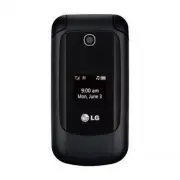


 LG A7110
User Manual
LG A7110
User Manual
 LG AX5000
User Manual
LG AX5000
User Manual
 LG C1300
User Manual
LG C1300
User Manual
 LG C1300A
User Manual
LG C1300A
User Manual
 LG C1300I
User Manual
LG C1300I
User Manual
 LG C1500
User Manual
LG C1500
User Manual
 LG C2000
User Manual
LG C2000
User Manual
 LG CB630
User Manual
LG CB630
User Manual
 LG CE500
User Manual
LG CE500
User Manual
 LG CF360
User Manual
LG CF360
User Manual
 LG CF360A
User Manual
LG CF360A
User Manual
 LG CG180
User Manual
LG CG180
User Manual
 LG CG225
User Manual
LG CG225
User Manual
 LG CG300
User Manual
LG CG300
User Manual
 LG CP150
User Manual
LG CP150
User Manual
 LG CU320
User Manual
LG CU320
User Manual
 LG CU400
User Manual
LG CU400
User Manual
 LG CU405
User Manual
LG CU405
User Manual
 LG CU500
User Manual
LG CU500
User Manual