Page 5 - Contents
iii Getting Started .......................................................................................1 In the Box ................................................................................................................1 Getting to Know Your Device .........................................
Page 7 - Getting Started; In the Box; The package contains the following items:; Also Included
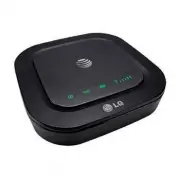
1 Getting Started In the Box The package contains the following items: AT&T Wireless Home Phone Back-up battery Power plug Power cord Also Included Quick Start User Guide For mor e detailed inf ormation on Ligh t Indicators, pleas e ref er to the Us er Guide. Getting T o Know Y our Device Bef or...
Page 8 - Getting to Know Your Device; LED Indicators; The table below describes possible states for each of the LED
2 Getting to Know Your Device LED Indicators The table below describes possible states for each of the LED indicators. Key Icon Name Status Condition Power Green Solid On Off No power Voicemail Green Blinking New message waitingOff No messages waiting Battery Charge Green Solid High Green Blinking B...
Page 10 - Before You Begin; Wireless Home Phone device works exclusively with the AT&T
4 How It Works The Wireless Home Phone device uses the AT&T cellular network to provide phone service to your cordless or corded home phone(s). Place it anywhere in your house where you have a wireless signal. It does not require the use of a home phone wall jack like traditional home phone serv...
Page 11 - Install the Back-up Battery; How It Works
5 Install the Back-up Battery Remove the cover from the battery compartment. Insert the back-up battery and replace the cover. Notes: • The battery is intended for backup purposes only and may take approximately three and a half (3.5) hours to fully charge (battery will charge inside the device whil...
Page 12 - Turn on Your Device; On; Check the Wireless Signal
6 Turn on Your Device 1) Connect the large end of the power cord into the power plug. Insert the power plug into an electrical outlet. 2) Insert the small end of the power cord into the Power Input port on the back of your Wireless Home Phone device. 3) Slide the On/Off switch to the On position. Ch...
Page 13 - DO NOT plug the Wireless Home
7 Turn on Your Device 1) Connect the large end of the power cord into the power plug. Insert the power plug into an electrical outlet. 2) Insert the small end of the power cord into the Power Input port on the back of your Wireless Home Phone device. 3) Slide the On/Off switch to the On position. Ch...
Page 14 - Place a Test Call; Place a test call from your connected home phone. Make
8 Place a Test Call Place a test call from your connected home phone. Make sure to dial the 10-digit phone number, including area code. For best results, place the cordless phone base at least 12 inches from the Wireless Home Phone device. Note: Keep your cordless phone plugged into a power outlet.
Page 15 - Dial “1” to set up and; Useful Tips; receive
9 Place a Test Call Place a test call from your connected home phone. Make sure to dial the 10-digit phone number, including area code. For best results, place the cordless phone base at least 12 inches from the Wireless Home Phone device. Note: Keep your cordless phone plugged into a power outlet. ...
Page 16 - Voicemail; Setup; voicemailsetup; Message Waiting
10 Voicemail Your Wireless Home Phone device comes with standard wireless voicemail. Follow the steps below to set up and use your voicemail. Setup Dial 1 on any home phone connected to the Wireless Home Phone device and wait four (4) seconds to connect to your AT&T wireless voicemail. Simply fo...
Page 17 - Remote Retrieval; Transferring a Phone Number
11 Remote Retrieval To retrieve voicemail messages from a phone not connected to the Wireless Home Phone device, dial the number associated with your Wireless Home Phone service. When voicemail picks up, press *. You will then be prompted to enter your password. Simply follow the prompts to listen t...
Page 18 - Using Your Device; Making Calls; Flash
12 Using Your Device Making Calls Using a phone connected to your Wireless Home Phone device, place and receive calls as you normally would. The Wireless Home Phone device supports both cordless and corded phone dialing methods. Note: You will need to dial 10 digits even for local numbers. Three-Way...
Page 19 - Call Waiting
13 Call Waiting You will hear two tones if someone calls while you are already on a call. To hold the current call and accept the waiting call, press the Flash (or Phone/Talk ) key. You can press the Flash (or Phone/Talk ) key anytime to switch back and forth between calls. To clear the current call...
Page 20 - Home Answering Machines
14 Call Forwarding To forward all calls, dial: 1) *21* 2) The 10-digit number to which you wish to forward your calls 3) # key (Example: *21*1234567890# forwards your calls to the phone number 123-456-7890) Please wait at least three (3) seconds and you hear a confirmation tone for the forwarding to...
Page 21 - Adjusting Volume
15 Adjusting Volume Use your home phone’s volume adjustment if available. Alternately, the volume of the Wireless Home Phone device can be adjusted if necessary. To adjust the ring tone volume (while not on a call) or call volume (while on a call), dial: • **1# for Lowest setting • **2# for Medium s...
Page 22 - TTY Support
16 AT&T 3G MicroCell™ The Wireless Home Phone device can be used with the AT&T 3G MicroCell when it’s within range of the MicroCell signal and the phone number associated with the Wireless Home Phone device has been added to the MicroCell’s approved user list. To update your approved user li...
Page 23 - Important Information; Power Outages
17 Important Information E911 Service For emergency calls, you may have to provide your location address to the 911 operator. Power Outages The Wireless Home Phone device has a back-up battery in the event of a power outage with talk time of approximately 4 hours depending on environmental factors. ...
Page 25 - Frequently Asked Questions; What kind of phone do I need to work with the Wireless Home
19 Frequently Asked Questions What kind of phone do I need to work with the Wireless Home Phone device? Most standard touch-tone phones may be used. Rotary phones are not supported. Cordless phone systems provide the most flexibility and allow you to easily place additional handsets throughout your ...
Page 28 - Troubleshooting; Problem
22 Troubleshooting Problem Possible Solution No dial tone • Make sure the device is turned on (Power indicator is green) and there is AC power to the Wireless Home Phone device. Do not connect to an AC outlet controlled by a wall switch. • Move the device to an area with sufficient network signal (a...
Page 33 - Specifications; Weight
27 Specifications Dimensions (W×D×H) 4.73" (W) × 4.73" (D) × 1.00" (H) Weight 6.35 oz. (including back-up battery) Back-up Battery 1,700 mAh(Typ) Talk time Approximately 4hrs Standby time Up to 38hrs Note: The value of the talk time or standby time varies with the actual environment.
Page 34 - Safety Instructions; Wash hands after handling.
28 Safety Instructions WARNING: This product contains chemicals known to the State of California to cause cancer and birth defects or other reproductive harm. Wash hands after handling. • During a thunderstorm, disconnect the external power supply and do not use the device. • Some electronic devices...
Page 36 - Battery Instructions
30 Battery Instructions • Do not disassemble or open crush, bend or deform, puncture or shred. • Do not modify or remanufacture, attempt to insert foreign objects into the battery, immerse or expose to water or other liquids, expose to fire, explosion or other hazard. • Only use the battery for the ...
Page 38 - FCC Compliance
32 FCC Compliance This device complies with part 15 of FCC rules. Operation is subject to the following two conditions. (1) This device may not cause harmful interference. (2) This device must accept any interference received, including interference that may cause undesired operation. Caution: Chang...
Page 39 - Warranty
33 Warranty LG offers you a limited warranty that the enclosed subscriber unit and its enclosed accessories will be free from defects in material and workmanship for a period that expires one (1) year from the date of sale of the Product to you, provided that you are the original end-user purchaser ...
Page 40 - LIMITED WARRANTY
34 d) If the Product has been opened, modified or repaired by anyone other than a warranty service center or if it is repaired using unauthorized spare parts. e) If the serial number or mobile accessory date code has been removed, erased, defaced, altered, or are illegible in any way subject to sole...
Page 41 - How to Get Warranty Service; DO NOT RETURN YOUR PRODUCT TO THE ABOVE ADDRESS.; Other Warranty Programs
35 How to Get Warranty Service To obtain warranty service, please call or fax to the following telephone numbers from anywhere in the continental United States: Tel. 1-800-793-8896 or Fax. 1-800-448-4026 Or visit http://us.lgservice.com. Correspondence may also be mailed to: LG Electronics Service- ...
Page 43 - Notes