Page 3 - Contents
3 Contents Contents ..................................................................................................3Getting to know your phone ..................................................................6Your Home screen .........................................................................
Page 4 - Violation of the instructions may cause serious injury or death.; Caution
4 Violation of the instructions may cause serious injury or death. WARNING : This product contains chemicals known to the State of California to cause cancer and birth defects or other reproductive harm. Wash hands after handling. # Never use an unapproved battery since this could damage the phone a...
Page 6 - Getting to know your phone; Before you start using the phone, please read this!; To uninstall applications:; Apps; Optimizing battery life; Reduce screen brightness and set a shorter screen timeout.
6 Getting to know your phone Before you start using the phone, please read this! Please check to see whether any problems you encountered with your phone are described in this section before taking the phone in for service or calling a service representative. 1. Phone memory When there is less than ...
Page 7 - To check the battery power level:; tab; Before installing an open source application and
7 Getting to know your phone To check the battery power level: # On the Home screen, touch > Apps tab > Settings > About phone (SYSTEM category) > Battery . The battery status (charging or not charging) and level (percentage charged) is displayed at the top of the screen. To monitor and ...
Page 8 - Opening and switching applications; To view a list of recently used applications:
8 Getting to know your phone 5. Using the hard reset (Factory reset) If your phone needs to be restored to its original condition, perform a hard reset to reboot your phone. 1. Turn the phone off 2. At the same time press and hold Volume Down Key + Power/Lock Key . 3. Release the keys when the Andro...
Page 9 - To stop applications:; Scroll and touch the desired application and touch; Hold your phone upright; Press and hold the
9 Getting to know your phone To stop applications: 1. On the Home screen, touch > Apps tab > Settings > Apps (DEVICE category) > Running tab. 2. Scroll and touch the desired application and touch Stop to stop it. 7. Hold your phone upright Hold your mobile phone vertically, as you would ...
Page 10 - Device components
10 Getting to know your phone Device components Earpiece Proximity Sensor Front Camera Lens Home Key • Return to the Home screen from any screen. • Press and hold to view a list of the most recently used apps. Back Key Return to the previous screen. Power/Lock Key • Press and hold to turn the phone ...
Page 12 - Installing the battery; area on the card is facing downwards.
12 Getting to know your phone Installing the battery Before you can start exploring your new phone, you'll need to set it up. To insert the SIM card and battery: 1. To remove the back cover, hold the phone firmly in one hand. With your other hand, lift off the back cover with your thumbnail as shown...
Page 13 - and the phone and pressing it down until it clicks into place .; Charging your phone
13 Getting to know your phone 3. Insert the battery into place by aligning the gold contacts on the battery and the phone and pressing it down until it clicks into place . 4. Align the back cover over the battery compartment and press it down until it clicks into place. Charging your phone The Charg...
Page 14 - Using the memory card; To insert a memory card:; To remove the memory card safely:; To format the memory card:; and touch
14 Getting to know your phone Using the memory card To insert a memory card: Insert the memory card (not included) into the slot. Make sure the gold contact area is facing downwards. WaRninG Do not insert or remove the memory card when the phone is on. Doing so may damage the memory card as well as ...
Page 15 - Locking and unlocking the screen; When you are not using the phone, press the; Secure your lock screen; To set a screen lock; or
15 Getting to know your phone noTE If there is content on your memory card, the folder structure may be different after formatting as all the files will be deleted. Locking and unlocking the screen If you do not use the phone for a while, the screen is turned off and locked automatically. This helps...
Page 16 - When you cannot recall your unlock pattern:; To adjust the volume; To disable TalkBack follow these steps:
16 Getting to know your phone When you cannot recall your unlock pattern: If you logged in to your Google account on the phone but failed to enter the correct pattern 5 times, touch Forgot pattern? . You are then required to log in with your Google account to unlock your phone or enter your Backup P...
Page 17 - Your Home screen; Touch screen tips; Home screen
17 Your Home screen Touch screen tips Here are some tips on how to navigate around your phone. Touch – To choose a menu/option or open an application, touch it. Touch and hold – To open an options menu or grab an object you want to move, touch and hold it. Drag – To scroll through a list or move slo...
Page 18 - Customizing the Home screen; To add items on your Home screen:; Go to the Home screen panel where you want to add the item. Then; you want to add. You will then see added items on the Home screen.; To remove an item from the Home screen:; On the Home screen, touch and hold the icon you want to remove,
18 Your Home screen NOTE To add an icon, touch and hold the desired icon and drag it to the Quick Keys bar. Release it at the desired location. To remove an icon, touch and hold it, then drag it out of the Quick Keys bar. Customizing the Home screen You can personalize your Home screen by adding app...
Page 19 - Customizing an application icon from the Home screen; Returning to recently-used applications
19 Your Home screen Customizing an application icon from the Home screen NOTE This feature allows you to make and use an icon with the pictures in your Gallery. You can now edit the icons on the Quick Keys bar or Home screen by creating your own icons with the camera or Gallery images. This gives yo...
Page 20 - Status Bar; The Status Bar runs across the top of your screen.; Viewing the Status Bar; Icon
20 Your Home screen Status Bar The Status Bar runs across the top of your screen. Touch and slide the Status Bar down with your finger to display the Notifications Panel. The Notifications Panel displays all of your notifications along with the Quick Settings and QSlide apps at the top. Scroll to th...
Page 22 - Tap to switch to the numbers and symbols keyboard. Tap again to; Entering special characters
22 Your Home screen On-screen keyboard You can enter text using the on-screen keyboard. The on-screen keyboard appears automatically on the screen when you need to enter text. To manually display the keyboard, simply touch a text field where you want to enter text. Using the keypad & entering te...
Page 23 - QuickMemo
23 Your Home screen QuickMemo The QuickMemo feature allows you to create memos and capture screen shots. You can use QuickMemo to easily and efficiently create memos during a call, with a saved picture or on the current phone screen. 1. While viewing the screen you want to capture and create a memo ...
Page 24 - Menu Key; Viewing the saved QuickMemo; Gallery
24 Your Home screen - Touch to erase the memo that you created. - Touch to share the memo with others via any of the available applications. - Touch to save the memo you’ve created. Touch the Menu Key > Signature off if you want not to display "LG QuickMemo" label on the right bottom of t...
Page 25 - Sign into a Google Account from the prompted setup screen.
25 Google account setup When you first turn on your phone, you have the opportunity to activate the network, to sign into your Google Account and how you want to use some Google services. To set up your Google account: # Sign into a Google Account from the prompted setup screen. OR # On the Home scr...
Page 26 - Connecting to Networks and Devices; Connecting to Wi-Fi networks; Turning Wi-Fi on and connecting to a Wi-Fi network
26 Connecting to Networks and Devices Wi-Fi With Wi-Fi, you can use high-speed Internet access within the coverage of the wireless access point (AP). Enjoy wireless Internet using Wi-Fi, without extra charges. Connecting to Wi-Fi networks To use Wi-Fi on your phone, you need to access a wireless acc...
Page 27 - Bluetooth; Touch the switch; Sending pictures using Bluetooth; Choose the device you want to send data to from the list.
27 Connecting to Networks and Devices Bluetooth You can use Bluetooth to send data by running a corresponding application, not from the Bluetooth menu as on most other mobile phones. Turning on Bluetooth and pairing up your phone with a Bluetooth device You must pair your device with another device ...
Page 28 - CREATE GROUP; To share data after connecting, use SmartShare on the device.
28 Connecting to Networks and Devices Using Wi-Fi Direct You can share your music, picture and video content between users who use Android phones connected via the same Wi-Fi and Wi-Fi Direct network. Check your Wi-Fi and Wi-Fi Direct network in advance and make sure the users are connected to the s...
Page 29 - Enabling Wi-Fi Direct to share through; Using SmartShare; To turn SmartShare on and allow sharing contents; To control your renderer devices
29 Connecting to Networks and Devices Enabling Wi-Fi Direct to share through SmartShare Wi-Fi Direct automatically scans nearby Wi-Fi Direct devices and lists them as they are found. You can select a specific device to share multimedia data through SmartShare. Using SmartShare SmartShare uses DLNA (...
Page 30 - To download contents from remote content library
30 Connecting to Networks and Devices 1. On the Home screen, touch > SmartShare . 2. Touch the Player icon and select the device from the renderer device list. 3. Touch the Library icon and select the device of the remote content library. 4. You can browse the content library.5. Touch and hold a ...
Page 31 - icon and select
31 Connecting to Networks and Devices To upload contents to the remote content library 1. On the Home screen, touch > SmartShare . 2. Touch the Library icon and select My phone . 3. You can browse the local content library to find the content(s) you want.4. Touch and hold a content thumbnail and ...
Page 32 - Calls; Making a call; Search contacts; Answering and rejecting a call; Locked screen; Adjusting call volume
32 Calls Making a call 1. On the Home screen, touch to open the keypad.2. Enter the number using the keypad. To delete a digit, touch . 3. Touch to make a call. 4. To end a call, touch . TiP! To enter "+" to make international calls, touch and hold . Calling your contacts 1. On the Home scre...
Page 33 - Making a second call; Viewing your call logs
33 Calls In-call options Once you initiate a call, you will see these on-screen options. Add call - Touch to initiate a 3-way call. End - Touch to end the call. Dialpad - Touch to display the dialpad. Speaker - Touch to turn the speakerphone on or off. The Speaker button lights up to indicate that t...
Page 34 - Call settings
34 Calls TiP! Touch any call log entry to view the date, time and duration of the call. TiP! Touch the Menu Key , then touch Delete all to delete all the recorded items or touch Delete to select individual items. Call settings You can configure phone call settings such as call reject and other speci...
Page 35 - Contacts; Searching for a contact
35 Contacts Add contacts to your phone and synchronize them with the contacts in your Google account or other accounts that support contact syncing. Searching for a contact 1. On the Home screen, touch to open your contacts. 2. Touch the Search contacts field and enter the contact name using the key...
Page 36 - Favorite contacts; You can classify frequently called contacts as favorites.; Adding a contact to your favorites; indicating that the contact has been added to your favorites.; Removing a contact from your favorites list; Favorites
36 Contacts Favorite contacts You can classify frequently called contacts as favorites. Adding a contact to your favorites 1. On the Home screen, touch to open your contacts.2. Touch a contact to view their details.3. Touch the star to the right of the contact's name. The star turns yellow, indicati...
Page 37 - Messaging; Sending a message; field. As you enter; to open the Options menu. Choose from; Threaded box; Liven up your messages using Smilies.
37 Messaging Your phone combines text (SMS) and multimedia (MMS) messages into one intuitive, easy-to-use menu. Sending a message 1. Touch on the Home screen, and touch to create a new message.2. Enter a contact name or contact number in the To field. As you enter the contact name, matching contacts...
Page 38 - Changing your message settings; Storage
38 Messaging Changing your message settings Your phone's message settings are predefined, so you can send messages immediately. You can change the settings based on your preferences. Open the Messaging application and touch the Menu Key > Settings . Set you preferences as desired. Storage • Delet...
Page 41 - Email; Managing an email account; To add another email account:; Email account screen
41 Email You can use the Email application to read emails from services other than Gmail. The Email application supports the following account types: POP3, IMAP and Exchange. Your service provider or system administrator can provide the account settings you need. Managing an email account The first ...
Page 42 - Working with account folders; To compose and send a message
42 Email Working with account folders Each account has an Inbox, Outbox, Sent and Drafts folder. Depending on the features supported by your account's service provider, you may have additional folders. Composing and sending email To compose and send a message 1. Open the Email application and touch ...
Page 43 - Camera; Getting to know the viewfinder
43 Camera Getting to know the viewfinder Swap camera – Switch between the rear–facing camera lens and the front–facing camera lens. Cheese shutter – Take photo with voice command (saying "Cheese", "Smile", "Whisky", "Kimchi" or "LG"). Time catch shot – Allows ...
Page 44 - Once you've taken the photo
44 Camera 5. Touch to capture the image. Once you've taken the photo Touch the image preview at the bottom of the screen to view the last photo you captured. Touch to share via SmartShare. Touch to return to Camera mode to take another picture. Touch to share your photo using any supported applicati...
Page 45 - Using the advanced settings
45 Camera Using the advanced settings In the viewfinder, touch to open the advanced options. – Touch if you want to change the viewfinder menu. – Allows you to turn on the flash when taking a photo in dark conditions. – Zoom in or out. – Defines and controls the amount of sunlight entering the photo...
Page 46 - – Select the storage location where you want to save images.
46 Camera – Select the storage location where you want to save images. – Restore all camera default settings. – Touch this whenever you want to know how a function works. This icon will provide you with a quick guide.
Page 47 - Video camera
47 Video camera Getting to know the viewfinder Swap camera – Switch between the rear–facing camera lens and the front-facing camera lens. Video size – Define the resolution from Full HD (1920x1080), HD (1280x720), TV(720x480), VGA(640x480), MMS(320x240), MMS(176x144). Live Effect – Allows you to put...
Page 48 - After recording a video
48 Video camera 6. Touch on the screen to stop recording. After recording a video Touch the image preview at the bottom of the screen to view the last video you recorded. Touch to play the video. Touch to share via SmartShare. Touch to return to Camera mode to take another picture or record a video....
Page 49 - provide you with a quick guide.; Adjusting the volume when viewing a video
49 Video camera – Select the storage location where you want to save videos. – Restore all video camera default settings. – Touch this if you want to know how this function works. This icon will provide you with a quick guide. Adjusting the volume when viewing a video To adjust the volume of a video...
Page 50 - Multimedia
50 Multimedia You can store multimedia files on a memory card for easy access to all your image and video files. Gallery On the Home screen, touch > Apps tab > Gallery . Open a list of albums that store all your image and video files. Playing a video 1. On the Home screen, touch > Apps tab ...
Page 51 - Live Zooming; or spreading motion to zoom in or out.; Video Editor; You can edit the photos or videos stored on the phone.
51 Multimedia Live Zooming Live Zooming allows you to zoom in or zoom out on a portion of a video that is being played to make the desired scan appear larger or smaller. 1. When viewing the video, use your index finger and thumb in a pinching or spreading motion to zoom in or out. NOTE • When in vid...
Page 52 - Projects may be exported to play in applications such as Videos.; Split video clip into two portions.
52 Multimedia Projects may be exported to play in applications such as Videos. Play project. Delete project. Share project. < Project edit screen > Preview area Timeline area Move to the main project list screen. Currently edited project is saved automatically. Split video clip into two portio...
Page 53 - Video Wiz
53 Multimedia Video Wiz You can make your own movie using your images/video and music. 1. On the Home screen, touch > Video Wiz . 2. After seeing the brief introduction on the steps to follow, touch OK . 3. Touch to add images or video to your movie. 4. Touch the desired images or videos, then to...
Page 54 - Music; Add music files to your phone; USB connected; Playing a song; Music
54 Multimedia Music Your phone has a music player that lets you play all your favorite tracks. To access the music player, on the Home screen, touch > Music . Add music files to your phone Start by transferring music files to your phone: • Transfer music using Media sync (MTP). • Download from th...
Page 56 - Tasks; To Synchronize MS Exchange
56 Multimedia Tasks This task can be synchronized with MS Exchange account. You can create task, revise it and delete it in MS Outlook or MS Office Outlook Web Access. To Synchronize MS Exchange 1. On the Home screen, touch > Settings . 2. Touch Accounts & sync > ADD ACCOUNT. 3. Touch Micr...
Page 57 - Utilities; QSlide; The; VuTalk; Registering VuTalk
57 Utilities QSlide The QSlide function enables an overlay on your phone’s display for easy multi-tasking. OR 1. Open the Notifications Panel and touch the desired app from the QSlide apps section. OR While using an application that supports QSlide, touch . The function will be continuously displaye...
Page 59 - • Touch to attach an image, take a photo, or insert a map view or; to end the VuTalk feature.; Setting your alarm; and
59 Utilities VuTalk request screen VuTalk agreement screen • Touch to attach an image, take a photo, or insert a map view or sticker. A example of use 2 A example of use 1 3. Touch or the Back Key to end the VuTalk feature. • You may save VuTalk contents to the Notebook when exiting VuTalk. • The Vu...
Page 60 - Using your calculator; Adding an event to your calendar
60 Utilities Using your calculator 1. On the Home screen, touch > Apps tab > Calculator . 2. Touch the number keys to enter numbers.3. For simple calculations, touch the function you want ( , , or ) followed by . NOTE For more complex calculations, touch the Menu Key , select Advanced panel , ...
Page 61 - To open the Play Store application; Play Store; To download the applications; Install
61 Utilities Viewing files Mobile users can now easily view a wide variety of file types, including Microsoft Office documents and Adobe PDF, right on their mobile devices. When viewing documents using Polaris Viewer 4, the objects and layout remain the same as in their original documents. Play Stor...
Page 63 - The web; Browser; Using the web toolbar
63 The web Browser The Browser gives you a fast, full-color world of games, music, news, sport, entertainment and much more, right on your mobile phone. Wherever you are and whatever you enjoy. noTE Additional charges apply when connecting to these services and downloading content. Check data charge...
Page 65 - Settings; NFC; Miracast; File networking
65 Settings < Share & Connect > NFC - Touch the switch to toggle NFC on and off. NOTE NFC (Near Field Communication) is a wireless technology that enables data transmission between two objects when they are brought within a few inches of each others. When you enable NFC on your your phone,...
Page 66 - DEVICE
66 Settings DEVICE < Sound > Quiet time – Set times to turn off all sounds except alarm and media. Sound profile – You can choose Sound, Vibrate only or Silent . Volumes – You can manage the volumes for various phone settings. Ringtone with vibration – Vibration feedback for calls and notifica...
Page 69 - PERSONAL
69 Settings Help - Displays help information about the available options. < Storage > INTERNAL STORAGE – Displays internal storage availability and the types of data that is using up internal storage. < Battery > Here you can manage the battery and check the power saving items. You can a...
Page 70 - SYSTEM
70 Settings Phone administrators – View or deactivate device administrators. Unknown sources – Allows you to install non-Market applications. Trusted credentials – Display trusted CA certificates. Install from storage – Choose to install encrypted certificates from your SD card. Clear credentials – ...
Page 71 - – You can set the desired mode (
71 Settings < PC connection > USB connection type – You can set the desired mode ( Charge only , Media sync (MTP) , Camera (PTP) ). Ask on connection – Ask USB connection mode when connecting to a computer. Help - Displays information about the USB connection types. <Developer options> A...
Page 72 - DivX Mobile
72 Settings DivX Mobile ABOUT DIVX VIDEO: DivX ® is a digital video format created by DivX, LLC, a subsidiary of Rovi Corporation. This is an official DivX Certified ® device that has passed rigorous testing to verify that it plays DivX video. Visit divx.com for more information and software tools t...
Page 73 - Accessories; These accessories are available for use with your phone.
73 Accessories These accessories are available for use with your phone. (Items described below may be optional and sold separately) Travel adapter Battery USB Data cable Connect your phone and PC. User Guide Learn more about your phone. Stereo headset noTE • Always use genuine LG accessories Failure...
Page 74 - Troubleshooting
74 Troubleshooting Please check to see if any problems you have encountered with your phone are described in this section before taking the phone in for service or calling a service representative. Category Sub-Category Question Answer Bluetooth Bluetooth Devices What are the functions available via...
Page 81 - Safety; HAC
81 Safety WARNING : This product contains chemicals known to the State of California to cause cancer and birth defects or other reproductive harm. Wash hands after handling. HAC This phone has been tested and rated for use with hearing aids for some of the wireless technologies that it uses. However...
Page 82 - Consumer Information About Radio Frequency
82 Safety electromagnetic energy emitted by FCC regulated transmitters. Those guidelines are consistent with the safety standard previously set by both U.S. and international standards bodies. The design of this phone complies with the FCC guidelines and these international standards. Bodily Contact...
Page 83 - effects of wireless phones.; What does “SAR” mean?
83 Safety effects of wireless phones. Are wireless phones safe? Scientific research on the subject of wireless phones and radio frequency (“RF”) energy has been conducted worldwide for many years, and continues. In the United States, the Food and Drug Administration (“FDA”) and the Federal Communica...
Page 84 - Can I minimize my RF exposure?
84 Safety highest power level in all tested frequency bands. Since 1996, the FCC has required that the SAR of handheld wireless phones not exceed 1.6 watts per kilogram, averaged over one gram of tissue. Although the SAR is determined at the highest power level, the actual SAR value of a wireless ph...
Page 85 - Where can I get further information about RF emissions?; FDA Consumer magazine November-December 2000; Independent Expert Group on Mobile Phones
85 Safety danger to users of wireless communication devices, including children.”The FDA/FCC website further states that “some groups sponsored by other national governments have advised that children be discouraged from using wireless phones at all”. For example, the Stewart Report from the United ...
Page 86 - 83 Sparks Street Ottawa, Ontario K1R 7X9 Canada
86 Safety Royal Society of Canada Expert Panels on Potential Health Risks of Radio Frequency Fields from Wireless Telecommunication Devices 283 Sparks Street Ottawa, Ontario K1R 7X9 Canada Telephone: (613) 991-6990 http://www.rsc.ca/index.php?page=Expert_Panels_RF &Lang_id=120 World Health Organ...
Page 87 - Engineering in Medicine and Biology Society, Committee on; Consumer Information on SAR
87 Safety Engineering in Medicine and Biology Society, Committee on Man and Radiation (COMAR) of the Institute of Electrical and Electronics Engineers http://ewh.ieee.org/soc/embs/comar/ Consumer Information on SAR (Specific Absorption Rate) This model phone meets the Government’s requirements for e...
Page 89 - for Wireless Devices; T4 is the better/higher of the two ratings.
89 Safety FCC Hearing-Aid Compatibility (HAC) Regulations for Wireless Devices On July 10, 2003, the U.S. Federal Communications Commission (FCC) Report and Order in WT Docket 01-309 modified the exception of wireless phones under the Hearing Aid Compatibility Act of 1988 (HAC Act) to require digita...
Page 90 - For information about hearing aids and digital wireless phones
90 Safety hearing health professional may help you find this rating. Higher ratings mean that the hearing device is relatively immune to interference noise. The hearing aid and wireless phone rating values are then added together. A sum of 5 is considered acceptable for normal use. A sum of 6 is con...
Page 91 - which you can hear adequately.
91 Safety Caution: Avoid potential hearing loss. Prolonged exposure to loud sounds (including music) is the most common cause of preventable hearing loss. Some scientific research suggests that using portable audio devices, such as portable music players and cellular telephones, at high volume setti...
Page 92 - TIA Safety Information; Exposure to Radio Frequency Signal
92 Safety TIA Safety Information The following is the complete TIA Safety Information for wireless handheld phones. Exposure to Radio Frequency Signal Your wireless handheld portable phone is a low power radio transmitter and receiver. When ON, it receives and sends out Radio Frequency (RF) signals....
Page 93 - Tips on Efficient Operation; For your phone to operate most efficiently:; Electronic Devices; Persons with pacemakers:; • Should ALWAYS keep the phone more than six (6) inches from their; Hearing Aids
93 Safety Tips on Efficient Operation For your phone to operate most efficiently: Don’t touch the antenna unnecessarily when the phone is in use. Contact with the antenna affects call quality and may cause the phone to operate at a higher power level than otherwise needed. Electronic Devices Most mo...
Page 95 - For Vehicles Equipped with an Air Bag; - Increase the separation between the equipment and receiver.
95 Safety stations); below deck on boats; fuel or chemical transfer or storage facilities; vehicles using liquefied petroleum gas (such as propane or butane); areas where the air contains chemicals or particles (such as grain, dust, or metal powders); and any other area where you would normally be a...
Page 96 - Safety Information; Violation of the instructions may cause minor or serious damage; • Do not disassemble or open crush, bend or deform, puncture or shred.
96 Safety Part 15.21 statement Changes or modifications that are not expressly approved by the manufacturer could void the user’s authority to operate the equipment. Wi-Fi Caution This device is capable of operating in 802.11a/n mode. For 802.11a/n devices operating in the frequency range of 5.15 - ...
Page 97 - Charger and Adapter Safety
97 Safety • Do not short circuit a battery or allow metallic conductive objects to contact battery terminals. • Replace the battery only with another battery that has been LGCaution 32 approved and qualified with the system per this standard, IEEE-Std-1725-2006. Use of an unqualified and non-LG-appr...
Page 98 - • Do not place any heavy items on the power cord. Do not allow the
98 Safety • Do not place any heavy items on the power cord. Do not allow the power cord to be crimped as it may cause electric shock or fire. • Unplug the power cord prior to cleaning your phone, and clean the power plug pin when it’s dirty. When using the power plug, ensure that it’s firmly connect...
Page 100 - General Notice
100 Safety Explosion, Shock, and Fire Hazards Check the laws and regulations on the use of wireless phones in the areas where you drive and always obey them. Also, if using your phone while driving, please observe the following: • Do not put your phone in a place subject to excessive dust and keep t...
Page 101 - American Academy of Audiology
101 Safety • Using the phone in proximity to receiving equipment (i.e., TV or radio) may cause interference to the phone. • Do not use the phone if the antenna is damaged. If a damaged antenna contacts skin, it may cause a slight burn. Please contact an LG Authorized Service Center to replace the da...
Page 102 - National Institute on Deafness and Other Communication; National Institutes of Health; National Institute for Occupational Safety and Health; FDA Consumer Update; Do wireless phones pose a health hazard?
102 Safety National Institute on Deafness and Other Communication Disorders National Institutes of Health 31 Center Drive, MSC 2320 Bethesda, MD USA 20892-2320 Voice: (301) 496-7243 Email: [email protected] Internet: http://www.nidcd.nih.gov/health/hearing National Institute for Occupational Safety ...
Page 103 - What is the FDA’s role concerning the safety of wireless phones?
103 Safety researchers have had difficulty in reproducing those studies, or in determining the reasons for inconsistent results. 2. What is the FDA’s role concerning the safety of wireless phones? Under the law, the FDA does not review the safety of radiation-emitting consumer products such as wirel...
Page 104 - What kinds of phones are the subject of this update?
104 Safety The FDA shares regulatory responsibilities for wireless phones with the Federal Communications Commission (FCC). All phones that are sold in the United States must comply with FCC safety guidelines that limit RF exposure. The FCC relies on the FDA and other health agencies for safety ques...
Page 105 - What research is needed to decide whether RF exposure from
105 Safety studies that showed increased tumor development used animals that had been genetically engineered or treated with cancer-causing chemicals so as to be pre-disposed to develop cancer in the absence of RF exposure. Other studies exposed the animals to RF for up to 22 hours per day. These co...
Page 106 - What is the FDA doing to find out more about the possible
106 Safety 6. What is the FDA doing to find out more about the possible health effects of wireless phone RF? The FDA is working with the U.S. National Toxicology Program and with groups of investigators around the world to ensure that high priority animal studies are conducted to address important q...
Page 107 - What has the FDA done to measure the Radio Frequency energy
107 Safety the wireless phone and is set well below levels known to have effects. Manufacturers of wireless phones must report the RF exposure level for each model of phone to the FCC. The FCC website (http://www.fcc.gov/cgb/cellular.html) gives directions for locating the FCC identification number ...
Page 108 - What about children using wireless phones?
108 Safety For example, you could use a headset and carry the wireless phone away from your body or use a wireless phone connected to a remote antenna. Again, the scientific data does not demonstrate that wireless phones are harmful. But if you are concerned about the RF exposure from these products...
Page 109 - Where can I find additional information?; Driving; conditions or the law require it.
109 Safety The FDA has tested hearing aids for interference from handheld wireless phones and helped develop a voluntary standard sponsored by the Institute of Electrical and Electronic Engineers (IEEE). This standard specifies test methods and performance requirements for hearing aids and wireless ...
Page 110 - 0 Driver Safety Tips; Don’t take notes or look up phone numbers while driving. If you are
110 Safety 10 Driver Safety Tips Your wireless phone gives you the powerful ability to communicate by voice almost anywhere, anytime. An important responsibility accompanies the benefits of wireless phones, one that every user must uphold. When operating a car, driving is your first responsibility. ...
Page 112 - Limited Warranty Statement; (5) Upon request from LG, the consumer must provide information to
112 Limited Warranty Statement Limited Warranty Statement 1. WHAT THIS WARRANTY COVERS: LG offers you a limited warranty that the enclosed subscriber unit and its enclosed accessories will be free from defects in material and workmanship, according to the following terms and conditions: (1) The limi...
Page 113 - material or workmanship.
113 Limited Warranty Statement unauthorized connections, unauthorized repair, misuse, neglect, abuse, accident, alteration, improper installation, or other acts which are not the fault of LG, including damage caused by shipping, blown fuses, spills of food or liquid. (3) Breakage or damage to antenn...
Page 114 - No other express warranty is applicable to this product.
114 Limited Warranty Statement 4. STATE LAW RIGHTS: No other express warranty is applicable to this product. THE DURATION OF ANY IMPLIED WARRANTIES, INCLUDING THE IMPLIED WARRANTY OF MARKETABILITY OR MERCHANTABILITY OR FITNESS FOR A PARTICULAR PURPOSE, IS LIMITED TO THE DURATION OF THE EXPRESS WARRA...
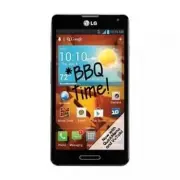


 LG A7110
User Manual
LG A7110
User Manual
 LG AX5000
User Manual
LG AX5000
User Manual
 LG C1300
User Manual
LG C1300
User Manual
 LG C1300A
User Manual
LG C1300A
User Manual
 LG C1300I
User Manual
LG C1300I
User Manual
 LG C1500
User Manual
LG C1500
User Manual
 LG C2000
User Manual
LG C2000
User Manual
 LG CB630
User Manual
LG CB630
User Manual
 LG CE500
User Manual
LG CE500
User Manual
 LG CF360
User Manual
LG CF360
User Manual
 LG CF360A
User Manual
LG CF360A
User Manual
 LG CG180
User Manual
LG CG180
User Manual
 LG CG225
User Manual
LG CG225
User Manual
 LG CG300
User Manual
LG CG300
User Manual
 LG CP150
User Manual
LG CP150
User Manual
 LG CU320
User Manual
LG CU320
User Manual
 LG CU400
User Manual
LG CU400
User Manual
 LG CU405
User Manual
LG CU405
User Manual
 LG CU500
User Manual
LG CU500
User Manual