Page 2 - A l l r i g h t s r e s e r v e d
Copyright ©2010 LG Electronics, Inc. A l l r i g h t s r e s e r v e d . LG and the LG logo are registered trademarks of LGGroup and its related entities. All other trademarks arethe property of their respective owners.
Page 3 - I m p o r ta n t S a f ety P re c a u t i o n s; Impor
I m p o r ta n t S a f ety P re c a u t i o n s 1 Impor tant S afety P re cautions Read these instructions. Breaking the rules may be dangerous orillegal. Further detailed information is given in this user guide. WARNING! Violation of the instructions may cause serious injury or death. 1. Never use ...
Page 4 - Important Safety Precautions
Important Safety Precautions 2 Impor tant S afety P re cautions 1. Do not expose the battery charger or adapter to direct sunlight or use it in places with high humidity, such asa bathroom. 2. Do not use harsh chemicals (such as alcohol, benzene, thinners, etc.) or detergents to clean your phone. Th...
Page 6 - Ta b l e o f C o n te n ts; le
Ta b l e o f C o n te n ts 4 Tab le o f C o n te n ts Important Safety Precautions 1 Table of Contents 4 Welcome 9 Technical Details 10 Important Information 10 FCC Part 15 Class B Compliance 10Technical Details 10 FCC RF Exposure Information 12 Bodily Contact During Operation 12Vehicle-Mounted Exte...
Page 7 - Screen; CALL HISTORY
5 Tab le o f C o n te n ts Screen 36 Shortcuts Bin 36 Quick Access to ConvenientFeatures 38 Lock Mode 38 Quick Volume Adjustment 38 Vibrate Mode 38 Call Waiting 38 Voice Commands 39 Contacts in Your Phone’sMemory 40 Storing Basics 40 Changing Contact Entries 41 Speed Dial 41 Storing a Number with Pa...
Page 8 - Table of Contents
Table of Contents 6 Tab le o f C o n te n ts 5. Speed Dials 72 6. My Name Card 73 MULTIMEDIA 73 1. Take Picture 73 2. Record Video 74 3. Record Voice 75 4. Images 76 5. Videos 77 6. Audios 78 6.1 My Ringtones 78 6.2 My Sounds 79 BREW 80 1. BREW Apps 80 2. BREW Info 81 WEB 81 MUSIC 89 1. My Music 89 ...
Page 9 - USB Auto Detection
7 Tab le o f C o n te n ts 1.3.3 Call ID Readout 112 1.4 Alert Sounds 112 1.5 Button Sounds 113 1.6 Digit Dial Readout 113 1.7 Service Alerts 114 1.8 Power On/Off 114 2. Display Settings 115 2.1 Easy Set-Up 115 2.2 Banner 115 2.2.1 Personal Banner 115 2.3 Backlight 116 2.4 Wallpaper 116 2.5 Charging...
Page 10 - Safety; TIA Safety Information; Accessories
Table of Contents 8 Tab le o f C o n te n ts Safety 140 TIA Safety Information 140 Exposure to Radio Frequency Signal 140 Antenna Care 141 Phone Operation 141 Tips on Efficient Operation 141 Driving 141 Electronic Devices 141 Pacemakers 142 Persons with pacemakers: 142 Hearing Aids 142 Other Medical...
Page 11 - We l c o m e; Dolby; Note
We l c o m e 9 Welc o m e Thank you for choosing the Samba Touch cellular phonedesigned to operate with thelatest digital mobilecommunication technology,Code Division Multiple Access(CDMA). Along with the manyadvanced features of the CDMAsystem, such as greatly enhancedvoice clarity, this compact ph...
Page 12 - Te c h n i c a l D eta i l s; chnical
Te c h n i c a l D eta i l s 10 T e chnical D e tails Important Information This user’s guide providesimportant information on the useand operation of your phone.Please read all the informationcarefully prior to using the phonefor the best performance and toprevent any damage to or misuseof the phon...
Page 13 - CDMA Standard
11 T e chnical D e tails The Cellular and PCS CDMAnetworks consist of MSO (MobileSwitching Office), BSC (Base Station Controller), BTS (BaseStation Transmission System), andMS (Mobile Station). CDMA Standard Basic AirInterface TIA/EIA-95ATSB-74ANSI J-STD-008TIA/EIA-IS2000 CDMA Dual-Mode Air Interfac...
Page 14 - Technical Details; FCC RF Exposure Information
Technical Details 12 T e chnical D e tails * TSB-74: Protocol between an IS- 95A system and ANSI J-STD- 008 Its battery life is twice as long asIS-95. High-speed datatransmission is also possible. The following tab lists somemajor CDMA standards. FCC RF Exposure Information WARNING! Read thisinforma...
Page 15 - FCC Notice and Cautions
13 T e chnical D e tails accessories that cannot maintain0.79 inches (2.0 cm) distancebetween the user’s body and theback of the phone and have notbeen tested for compliance withFCC RF exposure limits. Vehicle-Mounted ExternalAntenna (Optional, if available.) To satisfy FCC RF exposurerequirements, ...
Page 16 - Caution
Technical Details 14 T e chnical D e tails Don't use the phone with adamaged antenna. A damagedantenna could cause a minor skinburn. Contact your local dealerfor a replacement antenna. Caution Use only the supplied andapproved antenna. Use ofunauthorized antennas ormodifications could impair callqua...
Page 17 - - Reorient or relocate the
15 T e chnical D e tails Part 15.105 statement This equipment has been testedand found to comply with thelimits for a class B digital device,pursuant to Part 15 of the FCCRules. These limits are designedto provide reasonable protectionagainst harmful interference in aresidential installation. Thiseq...
Page 18 - P h o n e O ve r v i ew; Phone
P h o n e O ve r v i ew 16 Phone O ve rvie w 1. 3.5mm Headset Jack Allows you to plug in an optional wired headset for convenient, hands-free conversations.The 3.5mm jack also allows you to connectheadphones normally used with other portable media(MP3) players. 2. Earpiece Lets you hear the caller. ...
Page 20 - Quick Glance of the Touch Screen and How to Use It; Touch Sensitive Soft Keys; How to Unlock; OR
Quick Glance of the Touch Screen and How to Use It 18 Quick G lance ofthe Touch S cr een andHow to U seIt Touch Sensitive Soft Keys ( , , , , ) 1. Make sure your hands are clean and dry. Remove moisture fromthe surface of your hands. Don'tuse the touch keys in a humidenvironment. 2. Touch screen is ...
Page 21 - C a l i b rat i n g t h e To u c h S c re e n; Calibr
C a l i b rat i n g t h e To u c h S c re e n 19 Calibr a ting theT o uch S cr een Calibration allows the phone torecognize the accuracy of yourtouch. 1. Press and hold to unlock or press the Unlock Key ( ) on the right side of your phone.Then, touch the Menu TouchSoft Key . 2. Touch the Settings ic...
Page 22 - S h o r t c u t M e nu; Shor; Touch Screen Shortcut Menu; or press the Unlock Key (
S h o r t c u t M e nu 20 Shor tcut Men u Touch Screen Shortcut Menu The Touch Screen Shortcut Menu allows instant access to menus andphone features with the quick touch of your fingertip. To use theShortcut Menu: 1. Press and hold to unlock or press the Unlock Key ( ) on the right side of your phon...
Page 23 - Menu; When you touch the Phone Touch Soft Key
21 Shor tcut Men u Menu : Displays the Main Menu. Touch Soft Keys Messages : Displays the Messages menu. Contacts : Displays yourContact List. Phone: Displays the Dialpad Touch Keys so you can make a call. Dialmanually using the numeric keys oreasily from your Recent Calls,Contacts, or with Voice Di...
Page 24 - Text Input; Using the Touch Screen; NEW; E n te r i n g a n d E d i t i n g I n f o r m at i o n
Text Input You can enter information usingthe Touch Screen keypad. Thereare special key functions to helpyou with text entry. Using the Touch Screen 1. Press and hold to unlock or press the Unlock Key ( ) on the right side of your phone. 2. Touch the Message Touch Soft Key . 3. Touch . 4. Select Tex...
Page 25 - NOTE
23 Ent e ring and E diting Informa tion Changing Input Method When entering text, besides"typing" the text with Touch Keysyou have the option to write withyour fingertip. The Touch Screenwill translate your movementsinto characters. 1. Touch a text field, then touch on the right side of the ...
Page 26 - Entering and Editing Information
Entering and Editing Information 24 Ent e ring and E diting Informa tion The following tables may help inunderstanding how the TouchScreen interprets movements intocharacters. Writing in Lower-Case Writing in Upper-Case NOTE You must touch the All Caps Touch Key to write in upper-case letters.
Page 27 - on
25 Ent e ring and E diting Informa tion To change text input from"handwriting" mode back to"typing" mode, touch on the right-hand side. NOTE You must touch the Symbols Touch Key to write in upper-case letters. NOTE You must touch the Numbers Touch Key to write in upper-case letters.
Page 28 - M e nu Tre e O ve r v i ew; Men; Messaging; New Message; Call History; Unlock the screen by pressing the unlock key
M e nu Tre e O ve r v i ew 26 Men u T reeOvervie w Messaging New Message Text MessagePicture MessageVideo MessageVoice Message MessagesDraftsVoicemailSettings Messages ViewEntry ModeText Entry SettingsAuto Save SentAuto Erase InboxMessage Font SizeText Auto ViewText Auto Scroll Multimedia Auto Recei...
Page 29 - Readout
27 Men u T reeOvervie w BREW BREW AppsBREW Info Web LaunchPrompt Music My Music All SongsPlaylistsArtistsGenresAlbumsManage My Music EraseMove to CardMove to PhoneLock/Unlock Music Settings RepeatShuffleMusic Only My Schedule Alarm ClockCalendarNotepad FM Radio Bluetooth Tools Voice Commands Call &l...
Page 30 - Menu Tree Overview
Menu Tree Overview 28 Men u T reeOvervie w Power On/Off Power On SoundPower On VibratePower Off SoundPower Off Vibrate Display Settings Easy Set-upBanner Personal Banner BacklightWallpaper My PicturesMy VideosFun Animations Charging ScreenDisplay ThemesFontsDial FontsClock FormatShortcut BinMusic Ha...
Page 31 - G ett i n g S ta r te d w i t h Yo u r P h o n e; ing; The Battery; Installing the Battery; Charging the Battery; Connect the USB data cable; NOTICE
G ett i n g S ta r te d w i t h Yo u r P h o n e 29 Gett ing S ta rt edwith Y o urPhone The Battery The phone comes with arechargeable battery. The batterycharge level is shown at the topof the LCD screen. Installing the Battery To install the battery, insert theedge with the battery contactsinto th...
Page 32 - The charge time varies; Charging with USB; Remove the back cover and; Getting Started with Your Phone
2. Gently uncover the phone's accessory/ charging port.Then plug the end of the ACadapter into the accessory/charger port and the otherend into an electrical outlet. 3. The charge time varies depending upon the batterylevel. Charging with USB You can use your computer tocharge your phone. To be able...
Page 33 - Insert the microSD; Card; Remove the microSD
31 Gett ing S ta rt edwith Y o urPhone 2. Insert the microSD ™ card (purchased separately) withthe logos facing up. Push inuntil it clicks into the slot.Please note that if you insertthe card in the wrongdirection, it may damage yourphone or your card. How to Remove amicroSD ™ Card 1. Gently push th...
Page 34 - B attery Charge Level; Turning the Phone On
B attery TemperatureProtection Though extremely rare, if thebattery becomes overheated, thephone will automatically turn off.When you turn the phone backon, a message pops up alertingyou that the phone was poweredoff for your safety. B attery Charge Level You can find the battery chargelevel at the ...
Page 35 - Signal Strength; Phone Info; Making Calls
33 Gett ing S ta rt edwith Y o urPhone Signal Strength Call quality depends on thesignal strength in your area. Youcan tell how much signal strengthyou have by the number of barsnext to the signal strength icon:the more bars, the stronger thesignal. If you’re having problemswith signal quality, move...
Page 36 - Correcting Dialing Mistakes; Answer
Getting Started with Your Phone 34 Gett ing S ta rt edwith Y o urPhone 3. Press the SEND Key or touch the Call touch key to place the call. 4. Press the PWR/END Key or touch the End touchkey to end the call. Correcting Dialing Mistakes If you make a mistake whiledialing a number, touch the Cleartouc...
Page 37 - M a i n M e nu S c re e n; Main; Menu Access
M a i n M e nu S c re e n 35 Main Men u Scre en Menu Access The Menu Touch Soft Key provides access to the main phone menus. To access the main menus, unlock the screen by pressing the unlock key ( ) on the right side of your phone or touch and hold . Touch the Menu Touch Soft Key at the bottom of t...
Page 38 - Shortcuts Bin; S h o r t c u t M e nu o n t h e To u c h S c re e n
Shortcuts Bin The Shortcuts Bin allows quick, direct access to several frequently useddevice features from the Touch Screen. Up to 11 shortcuts can be set.To access the Shortcut Menu, unlock the Touch Screen, then touch theShortcut Bin Touch Key . By default, the shortcuts below are provided, but yo...
Page 40 - Q u i c k Ac c es s to C o nve n i e n t Fe at u res; Lock Mode; To set lock mode on, touch; Quick Volume Adjustment; is displayed on; Call Waiting
Q u i c k Ac c es s to C o nve n i e n t Fe at u res 38 Quick A cce ssto Con venient Fe a tur e s Lock Mode Sets your phone to require a 4digit password in order to usethe phone. To set lock mode on, touch Menu -> Settings -> Phone Settings -> Security -> Enter Phone Lock Code -> Touc...
Page 41 - Voice Commands; Follow the prompts to use; Ignore
39 Quick A cce ssto Con venient Fe a tur e s Ignoring a Call Waiting If you don't want to answer theincoming call, touch on the Touch Screen. The CallWaiting beep stops and the callgoes to your voicemail, ifavailable. Answering a Call Waiting 1. Press , to automatically put the first call on hold an...
Page 42 - Storing Basics; Update Existing; C o n ta c ts i n Yo u r P h o n e ’s M e m o r y; Cont
Storing Basics 1. Press and hold to unlock or press the Unlock Key ( ) on the right side of yourphone. 2. Touch the Contact Touch Soft Key . 3. Touch the New touch key . 4. Touch a field, use the pop-up touch keys to enterinformation, then touch theDone touch key . Do this for each field you want to...
Page 43 - Changing Contact Entries; Set Speed Dial
41 Cont acts inY o urPhone’ s M emory Changing Contact Entries 1. Press and hold to unlock or press the Unlock Key ( ) on the right side of yourphone. 2. Touch the Contact List Touch Soft Key . 3. Touch the Contact you want to customize. 4. Touch the Edit touch key , touch and edit the fields you wa...
Page 44 - Contacts in Your Phone’s Memory; Storing a Number with Pauses; Wait; Deleting; Deleting a Contact Entry
Contacts in Your Phone’s Memory 42 Cont acts inY o urPhone’ s M emory Storing a Number with Pauses Pauses allow you to enteradditional series of numbers toaccess automated systems suchas Voicemail or credit billingnumbers. Pause types are: Wait (W) The phone stops dialing until you press the Release...
Page 45 - C a m e ra Fe at u res; Camer
C a m e ra Fe at u res 43 Camer a Fe a tur e s 3D (Three-axis-accelerometer) Rotation 3D Rotation is a feature that allows you to have flexibility in how youview content on your screen. Simply turn your Samba Touch devicefrom vertical to horizontal (or horizontal to vertical ) and get a wholenew per...
Page 46 - Camera Features; Camera Fe atures; Camera Settings
Camera Features 44 Camer a Fe a tur e s Camera Fe atures The built-in 3.2 MP camera featureis complete with optics for superiorphoto capabilities with variousoptions, effects, and controls. Camera Settings The images below show how toaccess the camera settings. Back Brightness White Balance Shot Typ...
Page 47 - Brightness Setting
45 Camer a Fe a tur e s Options in Camera Mode Brightness Setting Touch the level of brightness youwant. White Balance Auto/ Sunny/ Cloudy/Fluorescent/ Glow Shot Types Normal Panorama Intelligent Facial Makeover Normal : No effect is applied to the picture. Panorama : Take series of pictures from le...
Page 48 - Video Camera; Video Camera Settings
Camera Features 46 Camer a Fe a tur e s Video Camera The built-in video camera feature comes with options similar to theCamera feature. Video Camera Settings The images below show how to access the video settings. Back Brightness White Balance Record Settings Touch to change toCamera mode Zoom Setti...
Page 49 - Video Settings; Save; After Recording Video; or
47 Camer a Fe a tur e s Options in Video Mode Video Settings Recording Time : For Send/ For Save For Send : Limits the recording time so the video clip can besent in a video message. Pleasenote that the video clip may stillneed to be shortened forSending. For Save : Allows the video to be saved as a...
Page 50 - Picture Editing; Editing Touch Keys
Camera Features 48 Camer a Fe a tur e s Picture Editing With the Samba Touch’s many picture editing features, you haveendless possibilites in creating fun pictures. While viewing a picture,touch the Options icon , then touch Edit. Editing Touch Keys Drawing 1. Touch the Drawing touch key . Options a...
Page 52 - Video Player Controls; Editing a Video to Send
Camera Features 50 Camer a Fe a tur e s Video Player Controls To display the video playercontrols, simply touch the TouchScreen while the video is playingto display the following: Rewind Fast Forward / Play/ Pause Marks as favorite* Display in wide screen Display in normal size Display in small size...
Page 53 - Editing Using Video Effects
51 Camer a Fe a tur e s 4. Touch the Save icon to save the edited video or touchthe Send icon to send it. Editing Using Video Effects Access Videos and touch the video clip to open it. Touch thescreen as it begins to play, thentouch the Options icon for the following options (bulleted): ● Multi Trim...
Page 54 - U s i n g P h o n e M e nu s; MESS; MESSAGING; New Message Alert; Shortcut
52 U s i n g P h o n e M e nu s MESS A G ING MESSAGING The phone can store up to 540messages (with a maximum of200 SMS and 100 MMSreceived messages). Theinformation stored in themessage is determined by phonemode and service capability.Other limits to availablecharacters per message mayexist. Please...
Page 55 - Other Message Options
53 MESS A G ING 3. Touch New Message . 4. Touch Text Message . 5. Touch to enter the recipient's phone number oremail address using the touchkeys, then touch the Donetouch key . 6. Touch the Text area to enter your message. Use the keypadthat pops up, or touch thePen touch key to write in your messa...
Page 56 - Text Field Options
MESSAGING MESS A G ING Text Field Options 1. Touch the text entry area, then touch the Options icon . 2. Select from the following options. Insert Quick Text Allows you to insert a quick text. See page63 for more information. Save As Draft Saves the message into the Drafts folder. Add Allows you to ...
Page 58 - Using the To: Field Options
MESSAGING 56 MESS A G ING Other Picture MessageOptions Using the To: Field Options 1. Touch the New # touch key , then Touch the Options icon . 2. Select from the following options: From Contacts/ From RecentCalls/ Favorites/ Groups Using the Text or Subject FieldOptions 1. Touch the Options icon . ...
Page 61 - To change the message view:
59 MESS A G ING 2. Messages When your phone receives amessage, you are alerted by: ● A notification message on thescreen. ● An alert tone and/or vibration,depending on your volumesettings. If you don’t respond to thenotification within a few minutes,the notification message disappearsand the New Mes...
Page 63 - Drafts
61 MESS A G ING 3. Drafts Your phone allows you to saveDrafts of messages. When Draftsare saved, they are saved in theDrafts folder. 1. Press and hold to unlock or press the Unlock Key ( ) on the right side of yourphone and touch the MenuTouch Soft Key . 2. Touch . 3. Touch Drafts . 4. Touch a messa...
Page 64 - Voicemail
MESSAGING 62 MESS A G ING 2. Touch . 3. Touch Voicemail . 4. Options from here: ● Touch the Clear touch key to clear the Voicemail counter. ● Press the SEND Key or touch the Call touch key to listen to the message(s). 5. Settings Allows you to configure settingsfor your messages. 1. Press and hold t...
Page 65 - Select
63 MESS A G ING 4. Auto Save Sent Select On to automatically save your Sent messages.Select Off if you don't want to save them. Select Prompt to be asked whenever a new message is sent. 5. Auto Erase Inbox Select On to automaticallydelete read messages when youexceed the storage limit. 6. Message Fo...
Page 66 - to unlock
MESSAGING 64 MESS A G ING 12. Callback # Select On to automatically senda designated callback numberwith your messages. Or, selectOff. 13. Signature Select Custom to create/edit asignature to automatically sendwith your messages. Select Nonefor no signature. 14. Delivery Receipt When set to On, the ...
Page 67 - CALL; Missed Calls
CALL HISTORY 65 CALL HIS T ORY CALL HISTORY The Call History Menu is a list ofthe last phone numbers orContact entries for calls youplaced, accepted, or missed. It'scontinually updated as newnumbers are added to thebeginning of the list and theoldest entries are removed fromthe bottom of the list. 1...
Page 68 - Received Calls
CALL HISTORY 66 CALL HIS T ORY 2. Received Calls Allows you to view the list ofincoming calls; up to 90 entries. 1. Press and hold to unlock or press the Unlock Key ( ) on the right side of yourphone and touch the MenuTouch Soft Key . 2. Touch . 3. Touch Received Calls . 4. Touch a Received Call ent...
Page 69 - All Calls
67 CALL HIS T ORY 4. Touch a Dialed Call entry to view the entry. Options fromhere: ● Touch the Call touch key to place a call to the number. ● Touch the Message touch key to send a message. ● Touch the ContactInformation touch key to view the caller's contact entry. OR Touch the Save touch key to s...
Page 70 - View Timers; SAVE
CALL HISTORY 68 CALL HIS T ORY OR Touch the Save touch key to save the call information into your ContactList. ● Touch the Options icon for the following options: Save to Contacts (Contactinfo) / Erase/ Lock(Unlock)/View Timers 5. View Timers Allows you to view the durationof the different call type...
Page 71 - CONT; New Contact
CONTACTS 69 CONT A CTS CONTACTS The Contacts Menu allows youto store names, phone numbersand other information in yourphone’s memory. 1. New Contact Allows you to add a new numberto your Contact List. 1. Press and hold to unlock or press the Unlock Key ( ) on the right side of yourphone and touch th...
Page 72 - MESSAGE
CONTACTS 70 CONT A CTS 4. Touch a Contact entry. 5. Options from here: ● Touch the Erase touch key to erase the Contact. ● Touch the Edit touch key to edit the Contact. ● Touch the Message touchkey to send the Contact a message. ● Touch the Options icon to select one of thefollowing: Send Name Card/...
Page 73 - Favorites; DONE
71 CONT A CTS 1. Press and hold to unlock or press the Unlock Key ( ) on the right side of yourphone and touch the MenuTouch Soft Key . 2. Touch . 3. Touch Favorites . 4. Touch the Add touch key . 5. Touch CONTACT or GROUP . 6. Mark the contact entry or group to add and touch theDone touch key . 4. ...
Page 74 - Speed Dials
CONTACTS 72 CONT A CTS ● Touch the New Group touchkey to add a new group to the list. ● Touch a group with at leastone member in it thenTouch the Options icon to select Mark All / Unmark All / Remove All . Once one or more contacts ismarked, touch the Optionsicon to select an option: Remove/ New Tex...
Page 75 - MULTIMEDIA; Shortcuts
Contacts/ Multimedia 73 Cont acts/ M ultimedia 6. My Name Card Allows you to create, edit and viewyour own Contact informationincluding name, phone numbers,and email address. 1. Press and hold to unlock or press the Unlock Key ( ) on the right side of yourphone and touch the MenuTouch Soft Key . 2. ...
Page 76 - MUL; Brightness
MULTIMEDIA 74 MUL T IMEDIA 2. Touch . 3. Touch Take Picture . 4. Touch the screen to set camera options. For moreinformation on how to use thecamera, see the Camerasection on page 44. ● Select the option(s) tocustomize. Brightness White Balance Auto/ Sunny/ Cloudy/ Fluorescent/ Glow Shot Types Norma...
Page 77 - Stop
75 MUL T IMEDIA 2. Touch . 3. Touch Record Video . 4. Touch the screen to set Video options. For more informationon how to use Videorecording, see page 46. ● Select the option(s) tocustomize. Brightness White Balance Auto/ Sunny/ Cloudy/ Fluorescent/ Glow Settings Recording Time For Send/ For Save R...
Page 78 - Record Voice
MULTIMEDIA 76 MUL T IMEDIA 3. Touch Record Voice . 4. Start recording by pressing . Touch to stop. Touch to pause. 5. After recording, voice memo is automatically saved in yourphone. 4. Images Allows you to view photos storedin the phone. 1. Press and hold to unlock or press the Unlock Key ( ) on th...
Page 79 - Options for Standard Images:
77 MUL T IMEDIA Options for Standard Images: Set As Wallpaper/ Picture ID Take Picture Turns on the camera function. Slide Show Allows you to view the picture gallery imagesin a slide show. Edit To edit the image. Rename To rename the image. Print Via Bluetooth/ Preferences File Info Name/ Date/ Tim...
Page 80 - Move; Video Player Options
MULTIMEDIA 78 MUL T IMEDIA Move Allows you to select video(s) to move betweenyour phone and microSD card. Lock/ Unlock Allows you to select video(s) to Lock/ Unlock. Erase All From Card/ From Phone Video Player Options While the video is playing, touchthe screen to access the on-screen options: 6. A...
Page 81 - Audios
79 MUL T IMEDIA ● Call Ringtone: Allows you toset as a Ringtone for incomingcalls. ● Contact ID: Allows you to setthe Ringtone to notify youwhen a specific Contact iscalling you. ● Alert Sounds: Allows you toset the ringtone to notify youwhenever a new Text Message,Multimedia Message and/orVoicemail...
Page 82 - BREW; BREW; Downloading Applications
BREW 80 BREW BREW Brew allows you to do more thanjust talk on your phone. Brew is atechnology and service thatallows you to download and useapplications on your phone. WithBrew, it is quick and easy topersonalize your phone to suityour lifestyle and tastes. Justdownload the applications thatappeal t...
Page 83 - BREW Apps; WEB; Start Browser
BREW/ WEB 81 BREW/ WEB 3. Touch BREW Apps . 2. BREW Info 1. Press and hold to unlock or press the Unlock Key ( ) on the right side of yourphone and touch the MenuTouch Soft Key . 2. Touch . 3. Touch BREW Info . WEB The Web opens a browser sothat you can access the internet,directly from your phone.A...
Page 84 - Ending an Web Session; End an Web session by pressing; Browser Navigation; Links embedded in content
WEB 82 WEB Ending an Web Session End an Web session by pressing . Browser Navigation Links embedded in content Select items or links by touchingit on the screen. Scrolling / Fast Scrolling Use your fingertip to scroll thescreen contents in the directionyou move your finger.How quickly you move yourf...
Page 85 - Standard
83 WEB Browser Menu Options Touch the Command bar icon , then touch the Options icon . ● Full Screen View Use the whole screen including theannuciator and command bararea to view pages. You canget the command bar bytouching the Command baricon . ● WWW Takes you to the Go To WWW screen where youcan e...
Page 86 - Send URL
WEB 84 WEB ● Send URL Allows you to send the link of the current pagevia a text message. ● Settings Allows you to configure to your preferredBrowser settings. The optionsare: JavaScript ON / OFF Feed settings 25 items/ 50 items/ 75 items RSS Update mode Automatic/ Manual Security Cookies/ Send Refer...
Page 87 - Command Bar Icons on the Touch Screen; RSS Reader
85 WEB Command Bar Icons on the Touch Screen Go To WWW Shows you the current page. Menu Displays the Browser menu RSS Reader Allows you to access your RSS feeds. Back/ Forward Home Returns to Home Page Zoom Bookmark Allows you to view saved Bookmarks Refresh Allows you to reload the current Webpage....
Page 88 - ZOOM Options
WEB 86 WEB ZOOM Options 1. Access the Browser. 2. With the Command Bar menu open, touch the Zoom icon to display the zoom button. ● Touch the Plus Zoom icon to zoom in and touch theMinus Zoom icon to zoom out. Fixed Width Display Mode The Fixed Width View modesimply resizes the page elements(e.g., i...
Page 89 - From the Touch Screen:
87 WEB From the Touch Screen: 1. Access the Browser. 2. Touch the Command bar icon . Then touch the Options icon . 3. Touch Display Mode . 4. Touch Fixed Width . 5. Touch Save . Using RSS reader RSS (Really Simple Syndication)is a family of web feed formatsused to publish frequentlyupdated content s...
Page 90 - Add New Feed
WEB 88 WEB Add New Feed When a web page finishesloading, the RSS Feed Indicatorwill appear on the bottom-left ofthe screen if an RSS feed isavailable. Touch the RSS Feed indicatoricon and select the feed you want to add. In the followingscreen, touch Save to save your new feed. Update Feeds Touch th...
Page 91 - MUSIC; MUSIC
MUSIC 89 MUSIC MUSIC 1. My Music The Samba Touch allows you tostore and to listen to music rightfrom your phone. 1. Press and hold to unlock or press the Unlock Key ( ) on the right side of yourphone and touch the MenuTouch Soft Key . 2. Touch . 3. Touch a submenu to access your music. Playing Your ...
Page 92 - Touch one of the following; Music Sub-Menu Options; Allows you to play all songs.
MUSIC 90 MUSIC 3. Touch one of the following submenus. All Songs/ Playlists/ Artists/Genres/ Albums/ ManageMy Music/ Music Settings 4. Touch the name of the song you want to hear to start themusic player. Music Sub-Menu Options Play All Allows you to play all songs. All Songs Allows you to view all ...
Page 93 - selected song repeatedly.
91 MUSIC ● Repeat : Repeat All : Repeats the playlist once the last song isplayed. Repeat One : Plays the selected song repeatedly. Repeat Off : Plays all songs in the list once, thenstops and exits the Music Player. ● Shuffle : Shuffle On : Shuffles music files in thesongs list and plays them inran...
Page 94 - Landscape mode; Music Player Controls
MUSIC 92 MUSIC ● Side Volume Keys : Adjustthe volume. Landscape mode While music is playing, rotate theSamba Touch to enter Landscapemode. *Tip * This function allows you to join the band by touching Cymbal, drum orsynthesizer and enjoy the musicplay during the play. Music Player Controls Shuffle Ba...
Page 95 - Background Music Mode; MY SCHEDULE
MUSIC/ MY SCHEDULE 93 MUSIC/ MY SCHEDULE Background Music Mode While music is playing, press thePWR/ END Key (or touch the Options icon , then touch Home Screen) to move theMusic Player to the backgroundof the Standby mode screen. Exit From the Music Player Press the PWR/ END Key twice to exit the M...
Page 96 - MY; Calendar
MY SCHEDULE 94 MY SCHEDULE 4. Touch the Add touch key . (Up to 10 can be added). 5. Touch the fields to edit the alarm information, including: ● Set Time ● Repeat ● Ringtone 6. Touch the Save touch key after setting all of the Alarm fields as necessary. 2. Calendar Allows you to keep your agendaconv...
Page 97 - MY SCHEDULE/ FM RADIO; Notepad; FM RADIO; Access FM Radio; ADD
MY SCHEDULE/ FM RADIO 95 MY SCHEDULE/ FM R A DIO 3. Notepad Allows you to add, read, edit,and erase notes. 1. Press and hold to unlock or press the Unlock Key ( ) on the right side of yourphone and touch the MenuTouch Soft Key . 2. Touch . 3. Touch Notepad . 4. Touch the Add touch key to write a new...
Page 98 - FM; FM Frequency Range
FM RADIO 96 FM R A DIO FM Frequency Range : 87.5MHz -107.9 MHz. Automatic Scan Station Tuning Available broadcast stations aredependent on the transmissionsignal strength in your currentlocation. Touch the ScanBackward/ Scan Forward touchkeys / to scan through the available FM Radio stationsin your ...
Page 100 - Go to My Music; BLUETOOTH
FM RADIO/ BLUETOOTH 98 FM R A DIO/ BLUET O O T H ● Go to My Music Returns to My Music. ● Home Screen Exits to Standby mode with FM Radioplaying in the background. FM Radio Icon Reference Icons at the top of the LCDscreen indicate the FM Radiostatus. FM Radio playing. FM Radio paused. BLUETOOTH The S...
Page 101 - BLUET; Add New Device; START
99 BLUET O O T H Add New Device Pairing is the process that allowsthe handset to locate, establish,and register 1-to-1 connectionwith the target device. For pairing with a new Bluetoothdevice 1. Follow the Bluetooth ® accessory instructions to setthe device to pairing mode. 2. Press and hold to unlo...
Page 102 - REFRESH
BLUETOOTH 100 BLUET O O T H 8. Once pairing is successful, touch either Always Ask orAlways Connect. (exceptaudio devices) 9. Once connected, you will see the device listed in thephone's Bluetooth Menu. Icon Reference in Adding NewDevice When the Bluetooth wirelessconnection is created and paireddev...
Page 103 - My Device Info; Discovery Mode
101 BLUET O O T H My Device Info Allows you to view your device'sBluetooth information and toedit the name of the Bluetoothdevice. 1. Press and hold to unlock or press the Unlock Key ( ) on the right side of yourphone and touch the MenuTouch Soft Key . 2. Touch . 3. Touch the Options icon . 4. Touch...
Page 104 - Supported Profiles
BLUETOOTH 102 BLUET O O T H 2. Touch . 3. Touch the Options icon . 4. Touch Discovery Mode . 5. Touch a setting. On/ Off Supported Profiles Allows you to see profiles thatyour Samba Touch phone cansupport. 1. Press and hold to unlock or press the Unlock Key ( ) on the right side of yourphone and tou...
Page 105 - OLS; TOOLS; INFO
TOOLS 103 T O OLS TOOLS Your phone tools include VoiceCommands, EZ Tip Calculator,Calculator, World Clock,Stopwatch, Drawing Pad, and USBMass Storage. 1. Voice Commands This feature provides you withthe following options equippedwith AVR (Advanced VoiceRecognition) technology. Eachoption has its det...
Page 106 - Prompt Mode
TOOLS 104 T O OLS Prompt Mode Prompts/ Readout + Alerts/ Readout/Tones Only Audio Playback Speakerphone/ Earpiece Prompt Timeout 5 seconds/ 10 seconds CLR Key Activation ON/ OFF Info Provides Settings Info. Using Voice Commands To access the Voice Commandoptions (below): 1. From Standby Mode, press ...
Page 108 - Ez Tip Calculator; RESET
TOOLS 106 T O OLS 2. Ez Tip Calculator Allows you to quickly and easilycalculate bill amounts using thebill total, tip % and number ofpeople as variables. 1. Press and hold to unlock or press the Unlock Key ( ) on the right side of yourphone and touch the MenuTouch Soft Key . 2. Touch . 3. Touch Ez ...
Page 109 - World Clock; OK
107 T O OLS 4. World Clock Allows you to determine thecurrent time in another timezone or country. 1. Press and hold to unlock or press the Unlock Key ( ) on the right side of yourphone and touch the MenuTouch Soft Key . 2. Touch . 3. Touch World Clock . 4. Touch the Cities touch key to choose from ...
Page 110 - Stopwatch
TOOLS 108 T O OLS 3. Touch Stopwatch . 4. Touch the Start touch key . The following options are available: ● . ● . ● . ● . 6. Drawing Pad This function allows you to drawfreely so that you can simplysave the image, send it in amessage or set it as a Wallpaper. 1. Press and hold to unlock or press th...
Page 111 - USB Mass Storage
109 T O OLS 7. USB Mass Storage This menu allows you to transfercontent from the memory cardon your phone to your Windows ® (XP, Vista TM , or Window7) PC (or vice versa) when your phone isconnected to your Windows ® PC with a compatible USB cable.Mac OS operating system is notsupported. 1. Connect ...
Page 112 - SETTINGS; SETTINGS; Sounds Settings
SETTINGS 110 SETTINGS SETTINGS 1. Sounds Settings Provides options to customizethe phone’s sounds. 1.1 Easy Set-Up Allows you to easily set theSounds settings all from onesubmenu. 1. Press and hold to unlock or press the Unlock Key ( ) on the right side of yourphone and touch the MenuTouch Soft Key ...
Page 117 - Display Settings
115 SETTINGS 5. Touch Power On Sound / Power On Vibrate / PowerOff Sound / Power OffVibrate to toggle the setting. On/ Off 2. Display Settings Provides options to customizethe phone’s display screen. 2.1 Easy Set-Up Allows you to easily set theDisplay settings all from onesubmenu. 1. Press and hold ...
Page 119 - Touch your choice to set it or
117 SETTINGS 5. Touch a submenu. My Pictures/ My Videos/ FunAnimations 6. Touch your choice to set it or touch the thumbnail, thentouch SET . 2.5 Charging Screen Allows you to set an alternatedisplay for when the phone ischarging. 1. Press and hold to unlock or press the Unlock Key ( ) on the right ...
Page 120 - Allows you to set menu fonts.
SETTINGS 118 SETTINGS 5. Touch a setting. Hi-Fi/ Shooting Star 2.7 Fonts Allows you to set menu fonts. 1. Press and hold to unlock or press the Unlock Key ( ) on the right side of yourphone and touch the MenuTouch Soft Key . 2. Touch . 3. Touch Display Settings . 4. Touch Fonts . 5. Touch a setting....
Page 123 - Sound
121 SETTINGS Sound Wood Block/ Percussion/ Clean/ Echo/ Off Calibration 4. Phone Settings The Phone Settings Menu allowsyou to designate specific settingsto customize how you use yourphone. 4.1 Airplane Mode Turns off all wirelesscommunications. This featureallows you to use the phonewhen radio tran...
Page 124 - Phone Settings
SETTINGS 122 SETTINGS Confirm Choices Automatic/ Always Confirm/ NeverConfirm Sensitivity More Sensitive/ Automatic/ Less Sensitive Adapt Voice Train Digits/ Train Words Prompt Mode Prompts/ Readout + Alerts/ Readout/Tones Only Audio Playback Speakerphone/ Earpiece Prompt Timeout 5 seconds/ 10 secon...
Page 125 - Notes
123 SETTINGS 2. Touch . 3. Touch Phone Settings . 4. Touch Location . 5. Touch a setting. Location On/ E911 Only 4.5 Current Country The Current Country menuallows you to change the phonesettings to reflect the Countrywhere you are currently located. 1. Press and hold to unlock or press the Unlock K...
Page 133 - TTY Full
131 SETTINGS 1. Press and hold to unlock or press the Unlock Key ( ) on the right side of yourphone and touch the MenuTouch Soft Key . 2. Touch . 3. Touch Call Settings . 4. Touch TTY Mode . 5. Touch a setting. TTY Full/ TTY + Talk/ TTY +Hear/ TTY Off TTY Full : - Users who cannot talk and hear can ...
Page 134 - TTY Off
SETTINGS 132 SETTINGS TTY + Talk : - Users who can talk but cannot hear receive a textmessage and send voicethrough TTY equipment. TTY + Hear : - Users who can hear but cannot talk send a textmessage and receive voicethrough TTY equipment. TTY Off : - Users communicate without TTY equipment. Connect...
Page 135 - Call Settings
133 SETTINGS 5.5 One Touch Dial Allows you to initiate a speed dialcall by touching and holding thespeed dial digit on the dialpad. Ifset to Off, designated Speed Dialnumbers will not function. 1. Press and hold to unlock or press the Unlock Key ( ) on the right side of yourphone and touch the MenuT...
Page 137 - My Pictures
135 SETTINGS 7. Memory Allows you to set your phone'sSave Options. Also allows you tocheck your Samba Touch internalphone memory as well as themicroSD TM external memory. The Samba Touch may be ableto access the following file typesstored on the respective foldersin the microSD TM card. My Pictures ...
Page 142 - S a f ety; Safe
S a f ety 140 Safe ty TIA Safety Information The following is the completeTIA Safety Information forwireless handheld phones. Exposure to Radio FrequencySignal Your wireless handheld portablephone is a low power radiotransmitter and receiver. WhenON, it receives and sends outRadio Frequency (RF) sig...
Page 144 - Pacemakers
Safety 142 Safe ty Pacemakers The Health IndustryManufacturers Associationrecommends that a minimumseparation of six (6) inches bemaintained between a handheldwireless phone and a pacemakerto avoid potential interferencewith the pacemaker. Theserecommendations are consistentwith the independent rese...
Page 145 - Health Care Facilities
143 Safe ty Health Care Facilities Turn your phone OFF in healthcare facilities when anyregulations posted in these areasinstruct you to do so. Hospitalsor health care facilities may useequipment that could besensitive to external RF energy. Vehicles RF signals may affect improperlyinstalled or inad...
Page 147 - Safety Information; Violation of the
145 Safe ty Safety Information Please read and observe thefollowing information for safeand proper use of your phoneand to prevent damage. Also,keep the user guide in anaccessible place at all times afterreading it. C C aa uu tt ii oo nn!! Violation of the instructions may cause minor or serious dam...
Page 148 - Charger and Adapter Safety
Safety 146 Safe ty battery is dropped, especiallyon a hard surface, and theuser suspects damage, take itto a service center forinspection. ● Improper battery use mayresult in a fire, explosion orother hazard. ● The phone shall only beconnected to USB productsthat bear the USB-IF logo orhave complete...
Page 150 - General Notice; When the phone is not used
Safety 148 Safe ty may damage the battery andcause an explosion. ● Do not disassemble or crushthe battery. It may cause afire. General Notice ● Using a damaged battery orplacing a battery in yourmouth may cause seriousinjury. ● Do not place items containingmagnetic components such asa credit card, p...
Page 151 - Avoiding hearing damage
149 Safe ty phone, or upgrade of thesoftware. Please backup yourimportant phone numbers.(Ring tones, text messages,voice messages, pictures, andvideos could also be deleted.)The manufacturer is not liablefor damage due to the loss ofdata. ● When you use the phone inpublic places, set the ringtoneto ...
Page 152 - Using your phone safely
Safety 150 Safe ty ● Avoid turning up the volumeto block out noisysurroundings. ● Turn the volume down if youcan’t hear people speakingnear you. For information about how to seta maximum volume limit on yourphone, see the features guide foryour phone. Using your phone safely Use of your phone whileo...
Page 153 - FDA Consumer
151 Safe ty FDA Consumer Update The U.S. Food and DrugAdministration’s Center forDevices and Radiological HealthConsumer Update on MobilePhones: 1. Do wireless phones pose ahealth hazard? The available scientific evidencedoes not show that any healthproblems are associated withusing wireless phones....
Page 159 - gives directions for locating the
157 Safe ty guidelines in consultation withthe FDA and the other federalhealth and safety agencies. TheFCC limit for RF exposure fromwireless phones is set at aSpecific Absorption Rate (SAR)of 1.6 watts per kilogram (1.6W/kg). The FCC limit isconsistent with the safetystandards developed by theInsti...
Page 163 - For additional information, please; 0 Driver Safety Tips
161 Safe ty 12. Where can I find additionalinformation? For additional information, please refer to the following resources:Federal CommunicationsCommission (FCC) RF SafetyProgram(http://www.fcc.gov/oet/rfsafety)International Commission onNon-lonizing RadiationProtection(http://www.icnirp.de)World H...
Page 164 - Make sure you place your
Safety 162 Safe ty taking your attention off theroad. 2. When available, use a hands- free device. A number ofhands-free wireless phoneaccessories are readilyavailable today. Whether youchoose an installed mounteddevice for your wireless phoneor a speaker phone accessory,take advantage of thesedevic...
Page 165 - Dial sensibly and assess the
163 Safe ty 6. Dial sensibly and assess the traffic; if possible, place callswhen you are not moving orbefore pulling into traffic. Tryto plan your calls before youbegin your trip or attempt tocoincide your calls with timesyou may be stopped at a stopsign, red light, or otherwisestationary. But if y...
Page 166 - Call roadside assistance or a
Safety 164 Safe ty progress or other seriousemergency where lives are indanger, call 911 or other localemergency number, as youwould want others to do foryou. 10. Call roadside assistance or a special wireless non-emergency assistancenumber when necessary.Certain situations youencounter while drivin...
Page 167 - Your
165 Safe ty Consumer Informationon SAR (Specific Absorption Rate) This Model Phone Meets theGovernment’s Requirements forExposure to Radio Waves. Your wireless phone is a radiotransmitter and receiver. It isdesigned and manufactured notto exceed the emission limits forexposure to radiofrequency (RF)...
Page 169 - after searching on FCC ID.
167 Safe ty may not comply with FCC RFexposure limits and should beavoided. The FCC has granted anEquipment Authorization for thismodel phone with all reportedSAR levels evaluated as incompliance with the FCC RFemission guidelines. The highest SAR value for thismodel phone when tested foruse at the ...
Page 171 - considered for best use.
169 Safe ty to interference, you may not beable to use a rated phonesuccessfully. Trying out thephone with your hearing deviceis the best way to evaluate it foryour personal needs. M-Ratings: Phones rated M3 orM4 meet FCC requirements andare likely to generate lessinterference to hearing devicesthan...
Page 172 - Wireless Phones and Hearing Aid Accessibility
Safety 170 Safe ty The M and T marks arerecommended by the Alliance forTelecommunications IndustriesSolutions (ATIS). The U and UTmarks are referenced in Section20.19 of the FCC Rules. TheHAC rating and measurementprocedure are described in theAmerican National StandardsInstitute (ANSI) C63.19standa...
Page 173 - Ac c es s o r i es; cce; B attery
Ac c es s o r i es 171 A cce ssorie s There are a variety of accessories available for your mobile phone.Consult your local dealer for availability. Optional items are soldseparately. Wall/USBCharger B attery Vehicle Power Charger USB Cable Stereo Headset Adapterwith Microphone -400
Page 174 - L i m i te d Wa r ra n ty S tate m e n t; Limit
L i m i te d Wa r ra n ty S tate m e n t 172 Limit e d W a rr anty Sta tement 1. WHAT THIS WARRANTYCOVERS: LG offers you a limited warrantythat the enclosed subscriber unitand its enclosed accessories willbe free from defects in materialand workmanship, according tothe following terms andconditions:...
Page 176 - Limited Warranty Statement; published maximum ratings.
Limited Warranty Statement 174 Limit e d W a rr anty Sta tement statutory or otherwise,including, but not limited toany implied warranty ofmarketability or fitness for aparticular use. (7) Damage resulting from use of non-LG approvedaccessories. (8) All plastic surfaces and all other externally expo...
Page 177 - . Please call or write
175 Limit e d W a rr anty Sta tement LG SHALL NOT BE LIABLE FORTHE LOSS OF THE USE OF THEPRODUCT, INCONVENIENCE,LOSS OR ANY OTHERDAMAGES, DIRECT ORCONSEQUENTIAL, ARISINGOUT OF THE USE OF, ORINABILITY TO USE, THISPRODUCT OR FOR ANYBREACH OF ANY EXPRESS ORIMPLIED WARRANTY,INCLUDING THE IMPLIEDWARRANTY...
Page 178 - I n d ex; Inde
I n d ex 123 10 Driver Safety Tips1613D (Three-axis-accelerometer)Rotation 43 A Accessories 171Add New Device 99Airplane Mode 121Alarm Clock 93Alert Sounds 112All Calls 67Answer Options 129Audios 78Auto Retry 130 B Backlight 116Banner 115Battery Charge Level32Battery TemperatureProtection 32 BLUETOO...
Page 180 - Index
N NAM Select 128New Contact 69New Message 52Notepad 95 O One Touch Dial 133 P Personal Banner 115Phone Info 137Phone Lock 126Phone Memory 136Phone Overview 16Phone Settings 121Picture Message 55Play 105Power On/Off 114 Q Quick Access toConvenient Features38 Quick Glance of TouchScreen and How toUse ...
Page 182 - MEMO
Page 184 - Precaución de Seguridad Importante; Pr
Precaución de Seguridad Importante 1 Pr ecaución deSeguridad Impor ta nt e Lea estas sencillas instrucciones. Romper las reglas puede serpeligroso o ilegal. Se ofrece más información detallada en esta guíadel usuario. ¡Aviso! No seguir las instrucciones puede ocasionar lesiones graves o la muerte. 1...
Page 187 - C o n te n i d o
C o n te n i d o 4 Cont enido Precaución de Seguridad Importante 1 Contenido 4 Bienvenidos 9 Detalles Técnicos 10 Información Importante 10 Cumplimiento de clase B según elartículo 15 de la FCC 10 Detalles Técnicos 10 Información de la FCC sobreexposición a la RF 12 Contacto corporal durante elfunci...
Page 188 - Mensajería
5 Cont enido Pantalla del Menú principal 38 Menú Atajos en la Pantalla Táctil 39 Bandeja de atajos 39 Acceso rápido a funciones de conveniencia 41 Modo de bloqueo 41 Ajuste rápido del volumen 41 Modo de vibración 41 Llamada en espera 41 Comandos de Voz 42 Contactos en la memoria de su teléfono 43 As...
Page 189 - Contenido
Contenido 6 Cont enido Contactos 75 1. Nuevo Contacto 75 2. Lista de Contactos 75 3. Favoritos 77 4. Grupos 77 5. Marcado Rápido 79 6. Mi Tarjeta de Nombre 79 Multimedia 80 1. Tomar Foto 80 2. Grabar Video 81 3. Grabar Voz 82 4. Imágenes 83 5. Vídeos 84 6. Audios 86 6.1 Mis Timbres 86 6.2 Mis Sonido...
Page 190 - Detección Automática de
7 Cont enido 1.2 Volumen Maestro 122 1.3 Sonidos de Llamada 123 1.3.1 Timbre de Llamada 123 1.3.2 Vibrar de Llamada 124 1.3.3 Lectura de ID de Llamador 124 1.4 Sonidos de Alerta 124 1.5 Volumen de Teclado 125 1.6 Lectura de Número Marcado 1261.7 Alertas de Servicio 126 1.8 Encender/Apagar 127 2. Pro...
Page 191 - Seguridad
Contenido 8 Cont enido 9. Asistente de Programación 153 Seguridad 154 Información de seguridad de la TIA 154 Exposición a las señales deradiofrecuencia 154 Cuidado de la antena 155 Funcionamiento del teléfono 155 Sugerencias para un funcionamientomás eficiente 155 Manejo 155 Dispositivos electrónico...
Page 192 - B i e nve n i d o s; Bien
B i e nve n i d o s 9 Bien ve nidos Gracias por elegir el teléfonocelular avanzado y compactoSamba Touch, diseñado parafuncionar con la más recientetecnología de comunicación móvildigital, Acceso Múltiple deDivisión de Código (CDMA).Junto con las funciones avanzadasdel sistema CDMA, como unaclaridad...
Page 193 - D eta l l es Té c n i c o s; écnicos; Nota
D eta l l es Té c n i c o s 10 Deta lles T écnicos Información Importante Esta guía del usuario ofreceinformación importante sobre eluso y funcionamiento de suteléfono. Lea toda la informacióncuidadosamente antes de usar elteléfono, para tener el mejordesempeño y para evitarcualquier daño al teléfon...
Page 195 - Detalles Técnicos
Detalles Técnicos 12 Deta lles T écnicos potencia de RF dinámica secombinan para reducir lasinterrupciones de las llamadas. Las redes celular y PCS CDMAconstan de MSO (Oficina deconmutación móvil), BSC(Controlador de estación debase), BTS (Sistema detransmisión de estación de base),y MS (Estación mó...
Page 196 - FCC Notice y Precaución
13 Deta lles T écnicos Contacto corporal durante elfuncionamiento Este dispositivo se probó para unuso ordinario con la parteposterior del teléfono a unadistancia de 2.0 cm (0.79pulgadas) del cuerpo. Paracumplir con los requisitos deexposición a RF de la FCC, debemantenerse una distancia deseparació...
Page 197 - Declaracion del articulo 15.21
Detalles Técnicos 14 Deta lles T écnicos funcionamiento está sujeto a lasdos siguientes condiciones: (1)Este dispositivo y sus accesoriosno pueden causar interferenciadañina y (2) este dispositivo ysus accesorios deben aceptarcualquier interferencia quereciban, incluida la interferenciaque cause un ...
Page 198 - - Aumentar la distancia entre el
15 Deta lles T écnicos recibida, incluyendointerferencias que puedancausar un funcionamiento nodeseado. Declaracion del articulo15.105 Este equipo ha sido evaluado yse ha comprobado que cumplecon los limites para un dispositivodigital clase B, conforme elArticulo 15 de las reglas de laFCC. Estos lim...
Page 199 - D es c r i p c i ó n g e n e ra l d e l Te l é f o n o; gener
D es c r i p c i ó n g e n e ra l d e l Te l é f o n o 16 Descripción gener aldel T eléfono 1. 3.5mm enchufe de auricular Le permite conectar unos auriculares opcionales para tener conversaciones cómodasde manos libres. El enchufe para auriculares de 3.5mm lepermite conectar auriculares que normalme...
Page 201 - Vista rápida de la Pantalla Táctil y cómo usarla; Teclas Suaves Táctiles
Vista rápida de la Pantalla Táctil y cómo usarla 18 V ist a rápida d e la PantallaTá ctil y cómo usarla Teclas Suaves Táctiles ( , , , , ) 1. Asegúrese de tener las manos limpias y secas. Elimine lahumedad de la superficie desus manos. No use los teclastáctiles en un entorno húmedo. 2. Los sensores ...
Page 202 - C a l i b ra c i ó n d e l a p a n ta l l a tá c t i l; Cómo desbloquear
C a l i b ra c i ó n d e l a p a n ta l l a tá c t i l 19 Calibr ación d e la pant a llatáctil Cómo desbloquear La calibración permite que elteléfono reconozca la precisióndel toque 1. Toque y mantenga oprimida para desbloquear u oprima la tecla de desbloqueo( ) en el lado derecho del teléfono y toq...
Page 203 - Calibración de la pantalla táctil; Toque el objetivo cada vez que
Calibración de la pantalla táctil 20 Calibr ación d e la pant a llatáctil 5. Toque el objetivo cada vez que aparezca. 6. Después de configurar la calibración, toque Verificar calibración o Guardar sin verificar . ● Si toca Verificar calibración,toque cada objetivo tal ycomo aparece. La pantallamostr...
Page 204 - M e nú Ata j o s; Menú Atajos de la Pantalla Táctil; Mis Medios
M e nú Ata j o s 21 Men ú A tajos Menú Atajos de la Pantalla Táctil El menú Atajos le brinda un acceso instantáneo a menús con el toqueveloz de su dedo. Para usar el menú Atajos: 1. Toque y mantenga oprimida para desbloquear o presione la tecla de desbloqueo ( ) en el lado derecho izquierdo del telé...
Page 205 - Menú Atajos; Cuando toca la tecla suave táctil Teléfono
Menú Atajos 22 Men ú A tajos Menu : Muestra el Menú principal. Teclas Suaves Táctiles Mensajes : Muestra el menú de mensajes. Contactos : Muestra suLista deContactos. Teléfono : Muestra el teclado táctil de marcación de modo que usted puederealizar una llamada. Marque manualmenteusando las teclas nu...
Page 206 - I n t ro d u c i r y e d i ta r i n f o r m a c i ó n; Intr; Entrada de texto; Mensaje de Texto; NUEVO
I n t ro d u c i r y e d i ta r i n f o r m a c i ó n 23 Intr oducir y e dita r información Entrada de texto Puede introducir informaciónusando el teclado de la pantallatáctil. Cada uno tiene funciones detecla especiales para ayudarle conla introducción de texto. Introducción de Texto en unMensaje d...
Page 207 - NOTA; Introducir y editar información
Cambiar el método de entrada Al introducir texto, además de"escribir" el texto con las teclastáctiles, también tiene la opciónde escribir con la punta de sudedo. La pantalla táctil traducesus movimientos en caracteres. 1. Toque un campo de texto, luego toque el icono deescritura manual al la...
Page 209 - en el lado
Para cambiar la entrada de textode Modo "a mano" a Modo"escribir", toque en el lado derecho. Introducir y editar información 26 Intr oducir y e dita r información NOTA También puede tocar la tecla táctil desímbolos. para escribir todo en símbolos. NOTA También puede tocar la tecla tá...
Page 210 - Vi s i ó n g e n e ra l d e l m e nú d e á r b o l; isión; Nuevo Mensaje; Lista Llam; Desbloquee su teléfono oprimiendo la tecla de desbloquear
Vi s i ó n g e n e ra l d e l m e nú d e á r b o l 27 V isión gener a l d elmen ú deárbol Mensajería Nuevo Mensaje Mensaje de TextoMensaje de FotoMensaje de VideoMensaje de Voz MensajesBorradoresBzn Msjs VozProg Vista de MensajesModo de IngresoProg. de Ingreso de TextoAuto Guardar Enviado Auto Borra...
Page 211 - Visión general del menú de árbol
Visión general del menú de árbol 28 V isión gener a l d elmen ú deárbol Marcado RápidoMi Tarjeta de Nombre Multimedia Tomar FotoGrabar VideoGrabar VozImágenesVídeosAudios Mis TimbresMis Sonidos BREW BREW AppsBREW Info Web LanzarPrompt Música Mi Música Todas las CancionesLista de CancionesArtistasGén...
Page 212 - Programación; Configuración fácil
29 V isión gener a l d elmen ú deárbol Ayuda Ez SugerenciaCalculadoraReloj MundialCronómetroCuaderno de DibujoAlmacenamiento Masivo USB Programación Prog. de Sonidos Configuración fácil Volumen MaestroSonidos de Llamada Timbre de LlamadaVibrar de LlamadaLectura de ID de Llamador Sonidos de Alerta Me...
Page 214 - E m p e z a n d o c o n s u te l é f o n o; Empezando; La batería; Instalación de la batería; Carga de la batería
E m p e z a n d o c o n s u te l é f o n o 31 Empezando c on sute léfono La batería El teléfono viene con una bateríarecargable. El nivel de carga de labatería se muestra en la partesuperior de la pantalla LCD. Instalación de la batería Para instalar la batería, inserte laorilla con los contactos de...
Page 215 - Empezando con su teléfono; Aviso
1. Conecte el cable de datos USB con el adaptador depared como se muestra en lasiguiente ilustración. 2. Cuidadosamente, destape el puerto de cargador yaccesorios. Luego enchufe eladaptador AC dentro delpuerto de cargador yaccesorios y el otro extremoen un toma corriente. 3. El tiempo de carga varía...
Page 216 - Carga con USB; Extraiga la tapa de batería y; Inserte la tarjeta microSD
33 Empezando c on sute léfono Carga con USB Es posible usar una computadorapara cargar el telefono. Parapoder cargar el teléfono con uncable de datos USB, primerodeberá tener los controladoresde USB adecuados instalados ensu computadora. Conecte unextremo del cable de datos USBal puerto para cargado...
Page 218 - Nivel de carga de la batería; Encender el teléfono; Potencia de la señal
35 Empezando c on sute léfono Nivel de carga de la batería El nivel de carga de la batería semuestra en la parte superiorderecha de la pantalla LCD.Cuando disminuya el nivel decarga de la batería, el sensor debatería baja le alerta sonando untono audible, parpadeando elicono de batería y mostrando u...
Page 219 - Iconos de pantalla; Info de Teléfono; Para hacer llamadas; LLAMADA
Empezando con su teléfono 36 Empezando c on sute léfono potencia de la señal. Si la calidadde la señal es defectuosa,trasládese a una zona abierta. Siestá en un edificio, la recepciónpuede ser mejor cerca de unaventana. Iconos de pantalla Cuando el teléfono estáencendido, la línea superior de lapant...
Page 220 - Corregir Errores de Marcado; CLR
37 Empezando c on sute léfono 4. Oprima la tecla PWR/ END o la tecla para finalizar la llamada. Corregir Errores de Marcado Si hace un error al introducir unnúmero, toque la tecla táctil una vez para borrar el último dígito introducido omantenga oprimida por al menos 2 segundos para borrartodos los ...
Page 221 - Pa n ta l l a d e l M e nú p r i n c i p a l; nt; Acceso a los menús; La tecla suave táctil Menú; Toque la tecla suave suave táctil
Pa n ta l l a d e l M e nú p r i n c i p a l 38 P a nt alla del M enú p rincipal Acceso a los menús La tecla suave táctil Menú proporciona acceso a los menús principales del teléfono. Para acceder los menús principales, desbloquee la pantalla oprimiendo la tecla de desbloqueo ( ) en la parte derecha...
Page 222 - M e nú Ata j o s e n l a Pa n ta l l a Tá c t i l; Ata; Bandeja de atajos; . De forma predeterminada, se le proporcionan
M e nú Ata j o s e n l a Pa n ta l l a Tá c t i l 39 M e n ú Ata jo s e n la P a n ta lla T á c ti l Bandeja de atajos La Bandeja de atajos permite acceder de manera rápida y directa avarias funciones del teléfono usadas frecuentemente desde la pantallatáctil. Se pueden establecer hasta 11 Atajos. P...
Page 223 - Menú Atajos en la Pantalla Táctil; Administrar atajos
Menú Atajos en la Pantalla Táctil 40 M e n ú Ata jo s e n la P a n ta lla T á c ti l Administrar atajos Puede agregar, borrar y reorganizar los iconos de atajo. Para agregar,toque la tecla táctil , desplácese hasta la función deseada y luegotóquela. Para remover un icono de la pantalla de atajos, ar...
Page 224 - Acceso rápido a funciones de conveniencia; Modo de bloqueo; para mostrar; Llamada en espera
Acceso rápido a funciones de conveniencia 41 A cce sorá pido a funcione s decon veniencia Modo de bloqueo Ajusta su teléfono para requerirla contraseña de 4 cifras parausar el teléfono. Para establecerel modo de bloqueo, toque Menú -> Programación -> Prog. de Teléfono -> Seguridad -> Int...
Page 225 - Comandos de Voz; Siga las indicaciones para usar; Ignorar
Ignorar una llamada en espera Si no desea responder la llamadaentrante, toque en la pantalla táctil. El pitido de lallamada en espera se detiene y lallamada va a su correo de voz, sidisponible. Contestar una llamada enespera 1. Oprima para colocar la primera llamada en espera yresponder a la nueva l...
Page 226 - Contactos en la memoria de su teléfono; Aspectos básicos; Actualizar Existente
Contactos en la memoria de su teléfono 43 Cont acto s e n la m emoria desute léfono Aspectos básicos 1. Toque y mantenga oprimida para desbloquear u oprima la tecla de desbloqueo( ) en el lado derecho del teléfono. 2. Toque la tecla suave táctil Contacto . 3. Toque la tecla táctil . 4. Toque un camp...
Page 227 - Marcado Rápido; Fijar Marcado Rápido
Contactos en la memoria de su teléfono 44 Cont acto s e n la m emoria desute léfono 2. Toque la tecla suave táctil Contacto . 3. Toque el contacto que desee personalizar. 4. Toque la tecla táctil . Después toque y edite loscampos que desee cambiar ytoque . 5. Toque cuando la personalización es compl...
Page 228 - Pausa; Borrar; Borrar una entrada de contacto
45 Cont acto s e n la m emoria desute léfono suave táctil para pasar al siguiente número. 2-Seg Pausa (P) El teléfono espera 2 segundos antes de enviar lasiguiente serie de números. 1. Toque y mantenga oprimida para desbloquear u oprima la tecla de desbloqueo( ) en el lado derecho del teléfono. 2. T...
Page 229 - Rotación en 3D (accelerómetro de tres ejes); Fu n c i o n es d e c á m a ra; Fu
Rotación en 3D (accelerómetro de tres ejes) Rotación en 3D es una función que le permite tener flexibilidad en cómove el contenido en pantalla. Simplemente gire su teléfono Samba Touchde vertical a horizontal (u horizontal a vertical) y obtenga unaperspectiva totalmente nueva. El Samba Touch detecta...
Page 230 - Funciones de cámara; Configuración de cámara
47 Fu ncione s d e c ámar a Funciones de cámara La función de la cámaraincorporada de 3.2 MP vienecompleta con óptica para brindarposibilidades fotográficas deexcelencia con varias opciones,efectos y controles. Configuración de cámara Las siguientes imágenes muestrancómo acceder a la configuraciónde...
Page 232 - Externa
49 Fu ncione s d e c ámar a Configuración de laCámara Le permite configurar los efectosde su cámara: Resolución : 2048x1536 / 1600x1200 /1280x960/ 800x480 / 640x480Tenga en cuenta que cuanto másalta sea la resolución, másmemoria utilizará. Zoom no estádisponible si está configurada a laresolución má...
Page 233 - Vídeo Cámara; Las funciones de vídeo son similares a los de cámara.
Funciones de cámara 50 Fu ncione s d e c ámar a Atras Brillo Equil Blanco Configuración de Vídeo Cámara Toque para cambiaral modo de cámara Ajuste de zoom Toque y deslice a la derecha para acercar o a la izquierdapara alejar la imagen. Vídeo Cámara Las funciones de vídeo son similares a los de cámar...
Page 234 - Opciones en el Modo de Vídeo; Configuración de Vídeo; Para Guardar
Opciones en el Modo de Vídeo Configuración de Vídeo Grabación Hora: Para Enviar/ Para Guardar Para Enviar : Limita el tiempo de grabación para que el clip devídeo pueda ser enviado en unmensaje. Note que el clip devídeo todavía tendrá que sercortado para ser enviado. Para Guardar : Establezca esta o...
Page 235 - Edición de imágenes; y luego toque Editar.
Funciones de cámara 52 Fu ncione s d e c ámar a Edición de imágenes Con las múltiples funciones de edición de imágenes de Samba Touch,usted cuenta con infinitas posibilidades para crear imágenes divertidas.Para editar una imagen mientra la esta viendo, toque la tecla táctilOpciones y luego toque Edi...
Page 237 - Edición de vídeo; Editar un vídeo para enviar
Funciones de cámara 54 Fu ncione s d e c ámar a Controles del reproductorde vídeo Al seleccionar la función deedición, se visualiza la pantalla deedición. Para mostrar los controles delvídeo, simplemente toque lapantalla táctil mientras el vídeose este mostrando para ver lassiguientes opciones: Regr...
Page 238 - Editar con efectos de vídeo
55 Fu ncione s d e c ámar a 4. Toque la tecla táctil Guardar para guardar el vídeo editado o toque Enviar para enviar el vídeo editado enun mensaje. Editar con efectos de vídeo Vaya a Vídeos , luego seleccione el clip de vídeo que desea editar.Toque Opciones para las siguientes opciones: ● Multi Tri...
Page 239 - U s o d e l o s m e nú s d e l te l é f o n o; Alerta de nuevo mensaje; Atajo
56 U s o d e l o s m e nú s d e l te l é f o n o Mensajería Mensajería El teléfono puede almacenarhasta 540 mensajes (con unmáximo de 200 SMS y 100MMS mensajes recibidos). Lainformación almacenada en elmensaje está determinada por elmodo del teléfono y la capacidaddel servicio. Puede haber otroslími...
Page 240 - para acceder al
57 Mensajería teléfono y toque el iconoMenú para acceder al menú. 2. Toque . 3. Toque Nuevo Mensaje . 4. Toque Mensaje de Texto . 5. Toque para introducir la direcciónmanualmente o dirección decorreo electrónico utilizandoel teclado táctil y luego toquela tecla táctil . 6. Toque el campo de texto pa...
Page 241 - Opciones del campo de Texto
Mensajería Mensajería Opciones del campo de Texto 1. Toque el área de entrada de texto y luego toque . 2. Seleccione las opciones que desea personalizar. Insertar Text Rápido Le permite insertar texto rápidoen teléfono. Vaya a la página68 para mas información. Guardar Como Borrador Guarda el mensaje...
Page 242 - Cancelar Mensaje
59 Mensajería Cancelar Mensaje Cancela la edición del mensajes y va almenú mensajes. 3. Finalize y envíe el mensaje oprimiendo o tocando en la pantalla táctil. 1.2 Mensaje de Foto 1. Toque y mantenga oprimida para desbloquear u oprima la tecla de desbloqueo( ) en el lado derecho del teléfono y toque...
Page 243 - Añadir
Mensajería 60 Mensajería Otras opciones para Mensajede Foto ● Opciones del campo Para (A): 1. Toque , luego toca . 2. Seleccione de las siguientes opciones: De Contactos/ De Llamas.Recntes/ Favoritos/ Grupos ● Opciones para el campoTexto o Asunto 1. Toque el icono Opciones . 2. Seleccione las opcion...
Page 245 - Seleccione
Mensajería 62 Mensajería 6. Toque después de introducir el/losdestinatario(s) (hasta 10). 7. Toque el campo Texto y luego escriba el mensaje con elteclado táctil. Toque para cambiar los modos deentrada de texto o agregartexto rápidamente. Toque . 8. Toque el campo Video y toque el vídeo deseado. Lue...
Page 246 - Texto
63 Mensajería 8. Toque después de introducir el/losdestinatario(s) (hasta 10). 9. Toque los campos Texto y/o Asunto para añadirle a su mensaje. 10. Toque para enviarlo. 2. Mensajes Cuando recibe un mensaje, ustedserá alertado de las siguientesmaneras: ● Mostrando una notificación demensaje en la pan...
Page 247 - Vista de Mensajes
Mensajería 64 Mensajería 4. Toque Vista de Mensajes , luego toque un ajuste. TIEMPO/ CONTACTOS 5. Toque . Ver sus mensajes 1. Toque y mantenga oprimida para desbloquear u oprima la tecla de desbloqueo( ) en el lado derecho del teléfono y toque el iconoMenú para acceder al menú. 2. Toque . 3. Toque M...
Page 248 - Borradores
65 Mensajería Mensajes deTexto/Foto/Vídeofallidos Mensaje pendiente Múltiples mensajesenviados Múltiples mensajesentregados Múltiples mensajesfallidos Múltiples mensajesincompletos Bloqueado 3. Borradores Su teléfono le permitirá guardarmensajes en la carpeta deBorradores. 1. Toque y mantenga oprimi...
Page 249 - Bzn Msjs Voz
Mensajería 66 Mensajería 4. Bzn Msjs Voz Le permite ver el número denuevos mensajes de voz nuevosgrabados en la bandeja deCorreo de Voz. Una vez quesupere el límite dealmacenamiento, se sobrescribenlos mensajes antiguos. Cuandotenga un nuevo mensaje de voz,el teléfono lo alertará. Revisión de su Buz...
Page 252 - Recibo de Entrega
69 Mensajería 14. Recibo de Entrega Cuando está configurado a On,el teléfono le indicará si losmensajes enviados fueronentregados con éxito. Por favorvea la página 64 para ver elicono que indica "Mensajeentregado". 6. Opcs de Borr Le permite borrar todos losmensajes almacenados en suBandeja ...
Page 253 - List; Perdidas
Lista Llam 70 List a Llam Lista Llam El menú Lista Llam es una lista delos últimos números de teléfono oentradas de contacto de lasllamadas perdidas, recibidas ymarcadas. Se actualizacontinuamente cuando seagregan nuevos números alprincipio de la lista y las entradasmás antiguas se eliminan de lapar...
Page 254 - Recibidas
71 List a Llam ● Toque para las siguientes opciones: Guardar en contactos (Info decontacto)/ Borrar/ Asegurar(Abrir)/ Ver Contadores 2. Recibidas Le permite ver la lista dellamadas recibidas; hasta 90entradas. 1. Toque y mantenga oprimida para desbloquear u oprima la tecla de desbloqueo( ) en el lad...
Page 255 - Marcadas
Lista Llam 72 List a Llam 3. Marcadas Le permite ver la lista dellamadas marcadas; hasta 90entradas. 1. Toque y mantenga oprimida para desbloquear u oprima la tecla de desbloqueo( ) en el lado derecho del teléfono y toque el iconoMenú para acceder al menú. 2. Toque . 3. Toque Marcadas . 4. Toque una...
Page 256 - Todas; GRDR
73 List a Llam 4. Todas Le permite ver la lista de todaslas llamadas recientes; hasta 270entradas. 1. Toque y mantenga oprimida para desbloquear u oprima la tecla de desbloqueo( ) en el lado derecho del teléfono y toque el iconoMenú para acceder al menú. 2. Toque . 3. Toque Todas . 4. Toque una entr...
Page 257 - Ver Contadores
Lista Llam 74 List a Llam 5. Ver Contadores Le permite ver la duración de losdiferentes tipos de llamadas.También le permite ver loscontadores de las llamadas dedatos. 1. Toque y mantenga oprimida para desbloquear u oprima la tecla de desbloqueo( ) en el lado derecho del teléfono y toque el iconoMen...
Page 258 - Contactos; Nuevo Contacto; Lista de Contactos
Contactos 75 Cont acto s Contactos El menú Contactos le permitealmacenar nombres, números deteléfono y otros tipos deinformación en la memoria de suteléfono. 1. Nuevo Contacto Le permite agregar una nuevoentrada a su Lista de Contactos. 1. Toque y mantenga oprimida para desbloquear u oprima la tecla...
Page 259 - MENSAJE
Contactos 76 Cont acto s 4. Toque una entrada de Contacto. 5. Opciones desde aquí: ● Toque la tecla táctil para borrar el contacto deseado. ● Toque la tecla táctil para editar el contacto. ● Toque la tecla táctil para enviar un mensaje al contacto. ● Toque para seleccionar uno de los siguientes: Env...
Page 260 - Favoritos; HECHO
77 Cont acto s 3. Favoritos Le permite añadir entradas deContacto o Grupos de Contactoa su lista de Favoritos para verllamar o enviar mensajesfacilmente. 1. Toque y mantenga oprimida para desbloquear u oprima la tecla de desbloqueo( ) en el lado derecho del teléfono y toque el iconoMenú para acceder...
Page 262 - Mi Tarjeta de Nombre
79 Cont acto s 5. Marcado Rápido Le permite ver su lista deMarcado Rápido o designarMarcado Rápido para númerosintroducidos en sus Contactos. 1. Toque y mantenga oprimida para desbloquear u oprima la tecla de desbloqueo( ) en el lado derecho del teléfono y toque el iconoMenú para acceder al menú. 2....
Page 263 - Multimedia; Multimedia; Toque y mantenga oprimida
Multimedia 80 Multimedia Multimedia 1. Tomar Foto Tome fotos directamente desdesu teléfono. 1. Toque y mantenga oprimida para desbloquear u oprima la tecla de desbloqueo( ) en el lado derecho del teléfono y toque el iconoMenú para acceder al menú. 2. Toque . 3. Toque Tomar Foto . 4. Toque la pantall...
Page 264 - Mis Fotos
81 Multimedia Resolución 2048X1536/ 1600X1200/ 1280X960/800X480/ 640X480 Sonido Dispa Obturador/ Sin Sonido/ Say "Cheez"/Ready!123 Efectos Color Normal/ Negativo/ Aqua/ Sepia/Negro&Blanco Disparo Auto Apagado/ 3 Segundos/ 5 Segundos/ 10Segundos Auto Guardar Encendido/ Apagado Opción de G...
Page 265 - Grabación Hora; Pare
Multimedia 82 Multimedia Grabación Hora Para Enviar/ Para Guardar Resolución 320x240/ 176x144 Efectos Color Normal/ Negativo/Aqua/ Sepia/Negro& Blanco Excepto Automático Encendido/ Apagado Excepto Opción Interna/ Externa 6. Grabe un video tocando , luego toque para finalizar la grabación. 7. Toq...
Page 266 - Imágenes
83 Multimedia 4. Imágenes Le permite ver fotos almacenadasen el teléfono. 1. Toque y mantenga oprimida para desbloquear u oprima la tecla de desbloqueo( ) en el lado derecho del teléfono y toque el iconoMenú para acceder al menú. 2. Toque . 3. Toque Imágenes . 4. Toque el imagen deseado. Opciones de...
Page 267 - Muestra
Multimedia 84 Multimedia Muestra Muestra sus imágenes como unapresentación de diapositivas apartir de la imagenseleccionada. Editar Menú para editar la imagen. Renombrar Cambia el nombre de la imagen. Imprimir Vía Bluetooth/ Preferencias Información de Archivo Nombre/ Fecha/ Hora/Resolución/ Tamaño/...
Page 268 - Grabar Vídeo; Borrar Todo; Opciones para el reproductor de vídeo
85 Multimedia ● Toque para seleccionar una de las siguientes opciones(las opciones dependen de lostipos de archivo). Grabar Vídeo Activa la función de cámara de vídeo. Borrar Le permite marcar los vídeos que va a borrar. Mover Le permite marcar los archivos que quiere moverentre el teléfono y la tar...
Page 271 - Descarga de aplicaciones
BREW 88 BREW BREW BREW le permite hacer más quesólo hablar en su teléfono. BREWes una tecnología y un servicioque le permite descargar y usaraplicaciones en su teléfono. ConBREW, es rápido y fácil adaptarsu teléfono a su estilo de vida ya sus gustos personales.Simplemente descargue lasaplicaciones q...
Page 273 - Web; Iniciar Browser; SUGERENCIA
Web 90 Web Web Web abre un navegador paraacceder al internet directamentedesde su teléfono. Para obtenerinformación concreta sobre elacceso al servicio de Web en suteléfono, comuníquese con suproveedor de servicios. Iniciar Browser Le permite iniciar una sesión deWeb. 1. Toque y mantenga oprimida pa...
Page 274 - PRECAUCIÓN
91 Web Desplazamiento /Desplazamiento rápido Use la punta de su dedo paradesplazar el contenido de lapantalla en el sentido en quemueve su dedo. La rapidez con laque mueve el dedo determina larapidez del desplazamiento. Recorrer Recorriendo es cuando se muevepor el contenido de la pantallaoprimiento...
Page 275 - Muestra la
Web 92 Web ● History (Historia) Muestra la lista de páginas web visitadasrecientemente. ● Display Mode (Modo demuestra) Cambia el modo en como el teléfono muestra laspáginas. Las opciones son: Standard (Estandar) Muestra un navegador estándar connavegación de pantalla verticaly horizontal. Page Over...
Page 277 - Iconos de la barra de comandos en la pantalla táctil
Web 94 Web Iconos de la barra de comandos en la pantalla táctil WWW Muestra la dirección URL actual. Menú Muestra las opciones del Menúdel Navegador Indicador de fuentes RSS Aparece cuando una fuente RSS está disponible. Tóquela para agregarla. Atras / Adelante Inicio para volver a la página de inic...
Page 278 - ZOOM
95 Web ZOOM Desde la pantalla táctil: 1. Acceda al navegador. 2. Con la barra de comandos abierta, toque para que se muestre el botón de zoom. ● Toque el icono de Zoom(Más) para acercar y toque el icono de Zoom(Menos) para alejar la imagen. Fixed Width (Anchura Fijada) Fit To Width (Anchura Fijada)s...
Page 279 - Desde la pantalla táctil:
Web 96 Web Desde la pantalla táctil: 1. Acceda el navegador. 2. Toque el icono barra de comandos . Luego toque el icono Opciones . 3. Toque Display Mode . 4. Toque Fixed Width . 5. Toque Save . Uso del lector de RSS RSS (por su sigla en inglés,Really Simple Syndication) esuna familia de formatos def...
Page 281 - Música; Música
Música 98 Música Música 1. Mi Música El Samba Touch le permitealmacenar música y escucharladirectamente desde su teléfono. 1. Toque y mantenga oprimida para desbloquear u oprima la tecla de desbloqueo( ) en el lado derecho del teléfono y toque el iconoMenú para acceder al menú. 2. Toque . 3. Toque u...
Page 282 - Acceso a Mi Música
99 Música Acceso a Mi Música 1. Toque y mantenga oprimida para desbloquear u oprima la tecla de desbloqueo( ) en el lado derecho del teléfono y toque el iconoMenú para acceder al menú. 2. Toque . 3. Toque uno de los siguientes submenús: Todas las Canciones/ Listade Canciones/ Artistas/Géneros/ Álbum...
Page 283 - Artistas
Música 100 Música Artistas Le permite ver y reproducir lascanciones agrupadas por artista. Géneros Le permite ver y reproducir lascanciones por género (tipo). Álbumes Le permite ver y reproducir lascanciones por álbum. Administrar Mi Música Permite administrar los archivosde música. ( Borrar/ Mover ...
Page 284 - Aleatorio Apag
101 Música Aleatorio Apag : Reproduce los archivos demúsica en el orden en cual semuestran. ● Sólo Música : Encendido : Permite escucharexclusivamente su música(como en el caso de losreproductores MP3) sin quelo interrumpa una llamada. Apagado : Permite que el teléfono leavise cuando recibe unallama...
Page 285 - Modo Paisaje; Controles de música de la pantalla táctil
Música 102 Música ● Teclas de volumen : Ajustael volumen. Modo Paisaje Mientras este escuchando sumúsica, gire el Samba Touch paraentrar en modo paisaje. *SUGERENCIA * Esta función le permite tocar Platillo, tambor o sintetizador paraunirse a la banda y disfrutar delreproductor de música durante lar...
Page 286 - Mi Horario
Modo de música de fondo Mientras escucha su música,oprima la tecla PWR/ END (o toque el icono Opciones y luego toque Pantalla Principal)para mover el reproductor demúsica al fondo de la pantalla demodo de espera. Salir del reproductor de música Oprima para salir del reproductor de música. Mi Horario...
Page 287 - rio; Reloj Despertador
Mi Horario 104 MiHor a rio 2. Toque . 3. Toque Reloj Despertador . 4. Toque . (Hasta 10 se pueden añadir.) 5. Toque el campo para editar la información de alarma, enparticular: ● Fijar Tiemp ● Periodicidad ● Timbre 6. Toque después de configurar todos los camposde la alarma según lo necesite. 2. Cal...
Page 288 - Cuaderno de Notas; AÑADIR
105 MiHor a rio 7. Desplácese a otros campos de Calendario. Para cada eventode Calendario puedeestablecer: ● Hora de Comienzo ● Hora de Término ● Repetir ● Hasta ● Alerta ● Tonos ● Vibrar 8. Toque después de configurar todos los campos delCalendario según lo necesite. 3. Cuaderno de Notas Le permite...
Page 289 - Acceso a Radio FM
FM RADIO 106 FM R A DIO FM RADIO Escuche música desde suteléfono con el transmisor deFM. Se requieren auriculares parausar esta función. Acceso a Radio FM 1. Toque y mantenga oprimida para desbloquear u oprima la tecla de desbloqueo( ) en el lado derecho del teléfono y toque el iconoMenú para accede...
Page 290 - Sintonía manual
107 FM R A DIO Sintonía manual Toque y arrastre el dedo a travésde la rueda de sintonización para sintonizar una estación de radio manualmente. Configuración de estacionesfavoritas Acceda rápidamente a susestaciones favoritas. Configurehasta 12 estaciones para accederson solo un toque. 1. Accede FM ...
Page 291 - Opciones de Radio FM
FM RADIO 108 FM R A DIO Uso de Canales/EstacionesFavoritas Guardadas ● Desde Radio FM, toquecualquier estaciónpreestablecida para irautomáticamente a esaestación. ● Desde el modo de espera conRadio FM ejecutándose en elfondo de la pantalla, toque para ver sus estacionesfavoritas preajustadas. Use el...
Page 292 - Auto Búsqueda
109 FM R A DIO ● Auto Búsqueda Explora las frecuencias de radiodisponibles automáticamente. ● Borrar Canal Borra el canal preestablecido actual. ● Restablecer todos losCanales Restablece todos los canales de Radio FMpreajustados. ● Info RBDS Encendida/Apagada Muestra la información transmitida por e...
Page 293 - Blue; Bluetooth
Bluetooth 110 Blue to o th Bluetooth El Samba Touch es compatiblecon aparatos que admiten losperfiles de Auricular, ManosLibres, Acceso Telefónico aRedes, Estéreo, Acceso a agendatelefónica, Impresión Básica,Push de Objeto*, Transferenciade archivos, Básico Imagen eInterfaz Humana. Puede crear y alm...
Page 294 - Anadir Nuevo Aparato; AÑADIR NUEVO
111 Blue to o th Anadir Nuevo Aparato El emparejamiento es el procesoque permite que el teléfonoubique, establezca y registre unaconexión 1-a-1 con el aparatoobjetivo. Para emparejar con un nuevoaparato Bluetooth. 1. Siga las instrucciones de Bluetooth ® para configurar el aparato para modo deempare...
Page 295 - y se
Bluetooth 112 Blue to o th 9. Una vez conectado, verá que el aparato está incluido en elMenú de Bluetooth. Referencia de iconos paraagregar nuevo aparato Cuando se crea la conexióninalámbrica Bluetooth ® y se encuentran aparatosemparejados, se muestran losiconos siguientes. Cuando su Samba Touchencu...
Page 296 - Mi Nombre de Teléfono; Mi Info de Dispositivo; Modo de Descubrimiento
113 Blue to o th Mi Nombre de Teléfono Le permite ver la infromación desu aparato Bluetooth ® o editar el nombre de Bluetooth ® de su teléfono. 1. Toque y mantenga oprimida para desbloquear u oprima la tecla de desbloqueo( ) en el lado derecho del teléfono y toque el iconoMenú para acceder al menú. ...
Page 297 - Modo de; Perfiles Soportados
Bluetooth 114 Blue to o th 3. Toque . 4. Toque Modo de Descubrimiento . 5. Toque una configuración. Encendida/ Apagado Perfiles Soportados Le permite ver perfiles que suteléfono Samba Touch puedeadmitir. 1. Toque y mantenga oprimida para desbloquear u oprima la tecla de desbloqueo( ) en el lado dere...
Page 298 - Herr; Herramientas; Confirmar Selección
Herramientas 115 Herr amient a s Herramientas Las herramientas de su teléfonoincluyen un Comandos de Voz, Ez Sugerecia, Calculadora, RelojMundial, Cronómetro, Cuadernode Dibujo, y AlmacenamientoMasivo USB. 1. Comandos de Voz Esta función le proporcionaopciones equipada con tecnologíaAVR (Reconocimie...
Page 299 - Aviso de Tiempo de Espera
Herramientas 116 Herr amient a s Aviso de Tiempo de Espera 5 segundos/ 10 segundos Activación de tecla CLR ON/ OFF Info Proporciona información de configuraciones. Usando Comandos de Voz 1. Desde el modo de espera oprima la tecla CLR/Comandos de Voz . 2. Cuando se solicite, diga el nombre de la func...
Page 301 - Ez Sugerencia; REAJUSTAR
Herramientas 118 Herr amient a s 2. Ez Sugerencia Le permite calcular lascantidades de las propinasrápido y fácilmente usando eltotal de la factura, el % depropina y el número de personascomo variables. 1. Toque y mantenga oprimida para desbloquear u oprima la tecla de desbloqueo( ) en el lado derec...
Page 302 - Reloj Mundial
119 Herr amient a s 4. Reloj Mundial Le permite determinar la horaactual en otra zona horaria o país. 1. Toque y mantenga oprimida para desbloquear u oprima la tecla de desbloqueo( ) en el lado derecho del teléfono y toque el iconoMenú para acceder al menú. 2. Toque . 3. Toque Reloj Mundial . 4. Toq...
Page 303 - Cuaderno de Dibujo
Herramientas 120 Herr amient a s 4. Toque . Las siguientes opciones sondisponibles: ● . ● . ● . ● . 6. Cuaderno de Dibujo Esta función le permite dibujarlibremente de modo que puedesimplemente guardar la imagen,enviarla en un mensaje oconfigurarlo como un papel tapiz. 1. Toque y mantenga oprimida pa...
Page 304 - Masivo USB; Almacenamiento
121 Herr amient a s 7. Almacenamiento Masivo USB Este menú le permite transferircontenido desde su teléfono a sucomputadora Windows ® (XP, Vista™ o Window7) (oviceversa) cuando el teléfonoestá conectado a la computadoracon un cable de datos USBcompatible. El Sistema OperativoMac no es compatible. 1....
Page 306 - Sonidos de Llamada
123 Pr ogr a mación 1.3 Sonidos de Llamada Le permite configurar el Timbrede Llamada y Vibrar de Llamadapara llamadas entrantes. 1. Toque y mantenga oprimida para desbloquear u oprima la tecla de desbloqueo( ) en el lado derecho del teléfono y toque el iconoMenú para acceder al menú. 2. Toque . 3. T...
Page 307 - Llamador; Sonidos de Alerta
Programación 124 Pr ogr a mación 1.3.2 Vibrar de Llamada 1. Toque y mantenga oprimida para desbloquear u oprima la tecla de desbloqueo( ) en el lado derecho del teléfono y toque el iconoMenú para acceder al menú. 2. Toque . 3. Toque Prog. de Sonidos . 4. Toque Sonidos de Llamada . 5. Toque Vibrar de...
Page 308 - Sonidos de Alerta; Volumen de Teclado
125 Pr ogr a mación 2. Toque . 3. Toque Prog. de Sonidos . 4. Toque Sonidos de Alerta . 5. Toque Mensaje de Texto/ Mensaje de Multimedias/ Bzn Msjs Voz/ Tono deEmergencia/ LlamadaPerdida . ● Cada menú de Sonido deAlerta tiene las siguientesopciones: Tono/ Vibrar/ Recordatorio ● La opción de Tono deE...
Page 309 - Lectura de Número; Alertas de Servicio
Programación 126 Pr ogr a mación 1.6 Lectura de Número Marcado Le permite configurar el teléfonopara que dicte en voz alta losdígitos marcados. 1. Toque y mantenga oprimida para desbloquear u oprima la tecla de desbloqueo( ) en el lado derecho del teléfono y toque el iconoMenú para acceder al menú. ...
Page 310 - Conexión de Llamada; Configuración fácil
127 Pr ogr a mación Conexión de Llamada Le avisa cuando la llamada se haconectado. Cargar Completado Lo alerta cuando la batería estácompletamente cargada. 1.8 Encender/Apagar Le permite configurar el teléfonopara que suene o vibre alencender o apagar. 1. Toque y mantenga oprimida para desbloquear u...
Page 312 - Luz de Fondo; Fondo de Pantalla
129 Pr ogr a mación 2. Toque . 3. Toque Prog. de Pantalla . 4. Toque Luz de Fondo . 5. Toque un ajuste de luz de fondo. 7 Segundos/ 15 Segundos/ 30 Segundos/ 1 Minuto 2.4 Fondo de Pantalla Permite que usted elija la clasede fondo de pantalla que seexhibirá en el teléfono. Lasposibilidades son infini...
Page 313 - Pantalla de Cargar; Temas de Pantalla
Programación 130 Pr ogr a mación 2.5 Pantalla de Cargar Permite establecer unsalvapantallas que se muestramientras el teléfono se estácargando. 1. Toque y mantenga oprimida para desbloquear u oprima la tecla de desbloqueo( ) en el lado derecho del teléfono y toque el iconoMenú para acceder al menú. ...
Page 314 - Fuentes; Fuentes de Marcado
131 Pr ogr a mación 2.7 Fuentes Le permite configurar las fuentesde los menú. 1. Toque y mantenga oprimida para desbloquear u oprima la tecla de desbloqueo( ) en el lado derecho del teléfono y toque el iconoMenú para acceder al menú. 2. Toque . 3. Toque Prog. de Pantalla . 4. Toque Fuentes . 5. Toqu...
Page 315 - Formato Reloj
Programación 132 Pr ogr a mación 2.9 Formato Reloj Le permite elegir el tipo de reloj quese mostrará en la pantalla LCD. 1. Toque y mantenga oprimida para desbloquear u oprima la tecla de desbloqueo( ) en el lado derecho del teléfono y toque el iconoMenú para acceder al menú. 2. Toque . 3. Toque Pro...
Page 316 - Controlador de Música; Controlador de
133 Pr ogr a mación 2.11 Controlador de Música Muestra o esconde el icono delControlador de Música ( ) en la pantalla de espera. 1. Toque y mantenga oprimida para desbloquear u oprima la tecla de desbloqueo( ) en el lado derecho del teléfono y toque el iconoMenú para acceder al menú. 2. Toque . 3. T...
Page 317 - Efectos de Vibración
Programación 134 Pr ogr a mación Efectos de Vibración ON/ OFF Sonido Bloque de Madera / Percusión / Limpio / Gota deagua / Desactivado Calibración 4. Prog. de Teléfono El menú Prog. de Teléfono lepermite designar ajustesespecíficos para personalizarcómo usa el teléfono. 4.1 Modo Avión Apaga todas la...
Page 319 - Notas
Programación 136 Pr ogr a mación 4.4 Ubicación Le permite configurar el modoGPS (Sistema deposicionamiento global: sistemade información de la ubicaciónasistido por satélite). 1. Toque y mantenga oprimida para desbloquear u oprima la tecla de desbloqueo( ) en el lado derecho del teléfono y toque el ...
Page 320 - País Actual
137 Pr ogr a mación 4.5 País Actual El menú 'Pais Actual' le permiteajustar las configuraciones delteléfono al país donde se ubiqueactualmente. 1. Toque y mantenga oprimida para desbloquear u oprima la tecla de desbloqueo( ) en el lado derecho del teléfono y toque el iconoMenú para acceder al menú. ...
Page 322 - Llamadas Entrantes
139 Pr ogr a mación 8. Toque un submenú de Restricciones, luego laconfiguración. Prog. de Ubicación Prog de Bloq./ Prog de Abrir Llamadas Entrantes Permitir todo/ Sólo contactos/Bloquear todo Llamadas Salientes Permitir todo/ Sólo contactos/Bloquear todo Mensajes Entrantes Permitir todo/ Bloquear to...
Page 323 - Ahora
Programación 140 Pr ogr a mación 3. Toque Prog. de Teléfono . 4. Toque Seguridad . 5. Introduzca el código de bloqueo de cuatro cifras. 6. Toque Bloqueo de Teléfono . 7. Toque una configuración. Desbloqueado El teléfono no está bloqueado de manerapredeterminada. Al Encender El Teléfono El teléfono s...
Page 324 - Selección de Sistema
141 Pr ogr a mación 4.6.5 Restablecer a Predeterminado Le permite restablecer el teléfonoa los ajustes de fábricapredeterminados. 1. Toque y mantenga oprimida para desbloquear u oprima la tecla de desbloqueo( ) en el lado derecho del teléfono y toque el iconoMenú para acceder al menú. 2. Toque . 3. ...
Page 325 - Selección de Sistema
Programación 142 Pr ogr a mación 1. Toque y mantenga oprimida para desbloquear u oprima la tecla de desbloqueo( ) en el lado derecho del teléfono y toque el iconoMenú para acceder al menú. 2. Toque . 3. Toque Prog. de Teléfono . 4. Toque Selección de Sistema . 5. Toque una configuración. Sólo Base :...
Page 326 - Opciones de Contestar; Opciones de; Marcación
143 Pr ogr a mación 5. Prog. de Llamada El menú Prog. de Llamada lepermite designar cómo manejaráel teléfono las llamadas entrantesy salientes. 5.1 Opciones de Contestar Le permite determinar cómomanejar una llamada recibida. 1. Toque y mantenga oprimida para desbloquear u oprima la tecla de desbloq...
Page 327 - Mostrar Teclado; Automáticamente
Programación 144 Pr ogr a mación 3. Toque Prog. de Llamada . 4. Toque Mostrar Teclado Marcación . 5. Toque una configuración. Correo voz/Gratuito/ Todasllamadas/ Númeropersonlizd 6. Toque . 5.3 Reintentar Automáticamente Le permite fijar cuánto tiempoespera el teléfono antes deremarcar automáticamen...
Page 328 - TTY Llena
145 Pr ogr a mación 1. Toque y mantenga oprimida para desbloquear u oprima la tecla de desbloqueo( ) en el lado derecho del teléfono y toque el iconoMenú para acceder al menú. 2. Toque . 3. Toque Prog. de Llamada . 4. Toque Modo TTY . 5. Toque una configuración. TTY Llena/ TTY + Charla/ TTY + Oír/ T...
Page 329 - TTY Apagada
Programación 146 Pr ogr a mación TTY + Charla : - Los usuarios que pueden hablar pero no oír recibenun mensaje de texto y envíanvoz por medio de un equipode TTY. TTY + Oír : - Los usuarios que pueden oír pero no hablar envían unmensaje de texto y recibenvoz por medio de un equipode TTY. TTY Apagada ...
Page 330 - Marcación de 1 Toque; Privacidad de Voz
147 Pr ogr a mación 5.5 Marcación de 1 Toque Le permite iniciar una llamada demarcado rápido manteniendooprimida el dígito del marcadorápido. Si se configura comoDesactivado, los números demarcado rápido designados nofuncionarán. 1. Toque y mantenga oprimida para desbloquear u oprima la tecla de des...
Page 331 - Tonos DTMF; Automática de USB; Detección Automática
Programación 148 Pr ogr a mación 5.7 Tonos DTMF Permite configurar la longitud delos tonos DTMF 1. Toque y mantenga oprimida para desbloquear u oprima la tecla de desbloqueo( ) en el lado derecho del teléfono y toque el iconoMenú para acceder al menú. 2. Toque . 3. Toque Prog. de Llamada . 4. Toque ...
Page 333 - Opciones de Memoria
Programación 150 Pr ogr a mación Mi Timbres : mid, midi, qcp, pmd, mp4, aac mp3, wav, amr Mi Música : wma, mp3, wav, m4a Mis Sonidos : mid, qcp, midi, aac, mp3, wav, amr Mi Contactos : vcf 7.1 Opciones de Memoria Le permite designar cual tipo dememoria (teléfono o tarjeta dememoria) desea usar parag...
Page 334 - Memoria del; Memoria de la Tarjeta; Memoria
151 Pr ogr a mación 4. Toque Memoria del Teléfono . 5. Toque Uso de la Memoria/ Mis Fotos/ Mis Vídeos/ MisTimbres/ Mi Música/ MisSonidos/ Mis Contactos/Mover Todo a la Tarjeta . 7.3 Memoria de la Tarjeta Muestra la información dememoria almacenada en la tarjetay los archivos por tipo. 1. Toque y man...
Page 336 - Glosario de Iconos; Asistente de
153 Pr ogr a mación 8.3 Glosario de Iconos Le permite ver todos los iconos ysus significados. 1. Toque y mantenga oprimida para desbloquear u oprima la tecla de desbloqueo( ) en el lado derecho del teléfono y toque el iconoMenú para acceder al menú. 2. Toque . 3. Toque Info de Teléfono . 4. Toque Gl...
Page 337 - S e g u r i d a d
S e g u r i d a d 154 Seguridad Información deseguridad de la TIA Lo que sigue es la Informacióncompleta de seguridad de la TIA(Asociación de la industria de lastelecomunicaciones) sobreteléfonos inalámbricos de mano. Exposición a las señales deradiofrecuencia Su teléfono celular de manoinalámbrico ...
Page 339 - Dispositivos electrónicos
Seguridad 156 Seguridad ● Preste toda su atención aconducir: manejar conseguridad es su primeraresponsabilidad; ● Use la operación a manoslibres, si la tiene; ● Salga del camino yestaciónese antes de hacer orecibir una llamada si lascondiciones de manejo o laley así lo demandan. Dispositivos electró...
Page 340 - Aparatos para la sordera
157 Seguridad ● Deben usar la oreja opuesta almarcapasos para reducir almínimo la posibilidad deinterferencia; ● Deben apagar el teléfono deinmediato si tienen motivopara sospechar que estáocurriendo una interferencia. Aparatos para la sordera Algunos teléfonos inalámbricosdigitales pueden interferi...
Page 341 - Instalaciones con letreros
Seguridad 158 Seguridad Instalaciones con letreros Apague el teléfono en cualquierinstalación donde así lo exijan losletreros de aviso. Aeronaves Los reglamentos de la FCCprohíben el uso del teléfono enel aire. Apague el teléfono antesde abordar una aeronave. Áreas de explosivos Para evitar la inter...
Page 342 - No seguir las
159 Seguridad (como granos, polvo o polvometálico) y cualquier otra área enla que normalmente seríarecomendable que apagara elmotor de su vehículo. Para vehículos equipados conbolsas de aire Una bolsa de aire se infla congran fuerza. NO coloque objetos,incluido el equipo inalámbrico, yasea instalado...
Page 345 - Aviso general
Seguridad 162 Seguridad Peligros de explosión, descargaseléctricas e incendio ● No coloque el teléfono ensitios espuestos a exceso depolvo y mantenga la distanciamínima requerida entre elcable de alimentación y lasfuentes de calor. ● Desconecte el cable dealimentación antes de limpiarel teléfono, y ...
Page 346 - No pinte el teléfono.
163 Seguridad como serían tarjetas decrédito, tarjetas telefónicas,libretas de banco o boletosdel metro. El magnetismo delteléfono puede dañar losdatos almacenados en la tiramagnética. ● Hablar por el teléfono duranteun período de tiempoprolongado puede reducir lacalidad de la llamada debidoal calor...
Page 347 - ¡Información de; Evite los daños a la audición
Seguridad 164 Seguridad ● Al usar el teléfono en lugarespúblicos, fije el tono de timbreen vibración para no molestara otras personas. ● No apague o encienda elteléfono cuando se lo pongaal oído. ● Use los accesorios(especialmente losmicrófonos) con cuidado yasegúrese de que los cablesestán protegid...
Page 348 - audífonos a un volumen alto.
165 Seguridad audífonos a un volumen alto. ● Evite subir el volumen parabloquear entornos ruidosos. ● Baje el volumen si no puedeescuchar a la gente hablandocerca de usted. Para obtener información sobrecómo ajustar un límite máximo devolumen en su teléfono, vea la guíade características del mismo. ...
Page 349 - Actualización de
Seguridad 166 Seguridad Actualización de la FDA para los consumidores Actualización para consumidoressobre teléfonos móviles del Centro dedispositivos y salud radiológica de laAdministración de alimentos ymedicamentos de EE.UU.: 1. ¿Representan un riesgo para lasalud los teléfonos inalámbricos? La e...
Page 350 - Environmental Protection Agency
167 Seguridad acciones si se demuestra que losteléfonos inalámbricos emiten energíade radiofrecuencia (RF) a un nivel quesea peligroso para el usuario. En talcaso, la FDA podría exigir a losfabricantes de teléfonos inalámbricosque informaran a los usuarios delriesgo para la salud y reparar,reemplaza...
Page 360 - Conozca su teléfono
177 Seguridad volante, sea sensato y tengapresente los siguientes consejos: 1. Conozca su teléfono inalámbrico y sus funciones,como la marcación rápida y larellamada. Lea el manual deinstrucciones con atención yaprenda a sacar partido de lasvaliosas funciones que ofrecenla mayoría de teléfonos, entr...
Page 361 - No tome notas ni busque
Seguridad 178 Seguridad comporten un peligro para laconducción. La lluvia, elaguanieve, la nieve y el hielopueden ser peligrosos, asícomo un tráfico denso. Comoconductor, su principalresponsabilidad es prestaratención a la carretera. 5. No tome notas ni busque números de teléfono mientrasconduce. Si...
Page 362 - Utilice el teléfono inalámbrico
179 Seguridad conduciendo y, si fueranecesario, termine aquellasconversaciones que puedandistraer su atención de lacarretera. 8. Utilice el teléfono inalámbrico para pedir ayuda. Un teléfonoinalámbrico es una de lasmejores herramientas queposee para protegerse a ustedy proteger a su familia ensituac...
Page 363 - Su teléfono
Seguridad 180 Seguridad averiado que no supone unpeligro, una señal de tráficorota, un accidente de tráficode poca importancia en laque no parece haber heridoso un vehículo robado, llameal servicio de asistencia encarretera o a otro número deasistencia especial parasituaciones que no sean deemergenc...
Page 366 - Puede encontrar información
183 Seguridad operaciones típicas de uso en elcuerpo pueden no cumplir conlos límites de exposición de RFde la FCC y deben evitarse. La FCC ha otorgado unaAutorización de Equipos paraeste modelo de teléfono contodos los niveles de SARinformados evaluados encumplimiento con las pautas deemisión de RF...
Page 368 - una etiqueta situada en la caja.
185 Seguridad Aunque algunos teléfonosinalámbricos se usan cerca dealgunos dispositivos para laaudición (aparatos para lasordera e implantes cocleares),los usuarios pueden detectar unruido de zumbido, murmullo ochirrido. Algunos dispositivosauditivos son más inmunes a esteruido de interferencia que ...
Page 369 - considera como la de mejor uso.
Seguridad 186 Seguridad Clasificaciones T: Los teléfonosclasificados como T3 o T4cumplen con los requisitos de laFCC y es probable que generenmenos interferencia a losdispositivos para la audición quelos teléfonos que no estánetiquetados. T4 la mejor o másalta de las dos clasificaciones. Los disposi...
Page 370 - Teléfonos inalámbricos y accesibilidad
187 Seguridad industrias de telecomunicaciones(ATIS). Las marcas U y UT sereferencian en la Sección 20.19de las reglas de la FCC. El procedimiento de clasificacióny medición HAC se describe enel estándar C63.19 del Institutode estándares nacionalestadounidense (ANSI). Al estar hablando por el telefo...
Page 371 - Ac c es o r i o s; B atería
Ac c es o r i o s 188 A cce sorios Hay diversos accesorios disponibles para su teléfono celular. Consulte asu distribuidor local para saber con cuáles cuenta. Los artículosopcionales se venden por separado. Cargador de Pared/ USB B atería Cargador para el automóvil Cable de datos USB Adaptador de au...
Page 372 - D e c l a ra c i ó n D e G a ra n t í a L i m i ta d a
189 Declar ación De Gar a ntía Limit a da 1. LO QUE CUBRE ESTA GARANTÍA: LG le ofrece una garantía limitadade que la unidad de suscriptoradjunta y sus accesoriosincluidos estaran libres dedefectos de materiales y manode obra segun los terminos ycondiciones siguientes: (1) La garantía limitada del pr...
Page 373 - Declaración De Garantía Limitada; Declar; LO QUE NO CUBRE ESTA
Declaración De Garantía Limitada 190 Declar ación De Gar a ntía Limit a da (5) A solicitud de LG, el consumidor debera aportarinformacion aceptable paraprobar la fecha de compra. (6) El cliente se hara cargo del costo de envio del productoal Departamento de servicioal cliente de LG. LG se haracargo ...
Page 374 - de accesorios no aprobados
191 Declar ación De Gar a ntía Limit a da defecto o desperfecto delproducto durante el periodode garantía limitadaaplicable para hacer efectivala garantía. (5) Productos a los que se haya eliminado el numero deserie, o en los que este seailegible. (6) Esta garantía limitada se otorga en lugar de cua...
Page 375 - DERECHOS DE LA LEY
192 Declar ación De Gar a ntía Limit a da Declaración De Garantía Limitada cumpla con la presente garantíalimitada. LG puede, a su elección,optar por usar partes o unidadesnuevas, restauradas oreacondicionadas equivalentes encuanto a funcionalidad. Además,LG no reinstalará o realizarácopias de segur...
Page 376 - CÓMO OBTENER SERVICIO
193 Declar ación De Gar a ntía Limit a da consecuenciales, o laslimitaciones sobre la duración dela garantía implícita, de modoque es posible que estaslimitaciones o exclusiones no sele apliquen a usted. Esta garantíale concede derechos legalesconcretos y es posible quetambien tenga otros derechos,q...
Page 380 - Otros
197 Inde x Protección de latemperatura de labatería 34 R Recibidas 71Reglas para lacompatibilidad conaparatos para lasordera (HAC) de laFCC para losdispositivosinalámbricos 184ReintentarAutomáticamente 144Reloj Despertador 103Reloj Mundial 119Remarcado dellamadas 37Remarcar 117Reproducir 117Restable...
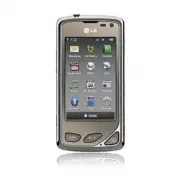


 LG A7110
User Manual
LG A7110
User Manual
 LG AX5000
User Manual
LG AX5000
User Manual
 LG C1300
User Manual
LG C1300
User Manual
 LG C1300A
User Manual
LG C1300A
User Manual
 LG C1300I
User Manual
LG C1300I
User Manual
 LG C1500
User Manual
LG C1500
User Manual
 LG C2000
User Manual
LG C2000
User Manual
 LG CB630
User Manual
LG CB630
User Manual
 LG CE500
User Manual
LG CE500
User Manual
 LG CF360
User Manual
LG CF360
User Manual
 LG CF360A
User Manual
LG CF360A
User Manual
 LG CG180
User Manual
LG CG180
User Manual
 LG CG225
User Manual
LG CG225
User Manual
 LG CG300
User Manual
LG CG300
User Manual
 LG CP150
User Manual
LG CP150
User Manual
 LG CU320
User Manual
LG CU320
User Manual
 LG CU400
User Manual
LG CU400
User Manual
 LG CU405
User Manual
LG CU405
User Manual
 LG CU500
User Manual
LG CU500
User Manual