Page 2 - All rights reserved
Copyright ©2010 LG Electronics, Inc. All rights reserved . LG and the LG logo are registered trademarks of LGGroup and its related entities. All other trademarks are theproperty of their respective owners. LG840_cover_Ver1.1_100319.qxd 3/19/10 2:39 PM Page 3
Page 3 - I m p o r ta n t S a f ety P re c a u t i o n s
Important Safety Precautions 1 Im po rta nt Sa fet y Pre ca uti on s Read these instructions. Breaking the rules may be dangerous orillegal. Further detailed information is given in this user guide. WARNING! Violation of the instructions may cause serious injury or death. 1. Never use an unapproved ...
Page 4 - Important Safety Precautions
Important Safety Precautions 2 Im po rta nt Sa fet y Pre ca uti on s 1. Do not expose the battery charger or adapter to direct sunlight or use it in places with high humidity, such asa bathroom. 2. Do not use harsh chemicals (such as alcohol, benzene, thinners, etc.) or detergents to clean your phon...
Page 6 - Ta b l e o f C o n te n ts; Table of Contents
Table of Contents 4 Ta ble of Co nte nts Important Safety Precautions 1 Table of Contents 4 Welcome 9 Technical Details 10 FCC RF Exposure Information 12 Bodily Contact During Operation 12 Vehicle-Mounted the External Antenna 13 FCC Notice and Cautions 13 Caution 14 Part 15.19 statement 14 Part 15.2...
Page 7 - Using Phone Menus
5 Ta ble of Co nte nts Searching Your Phone’s Memory 34 Accessing Options 34 Making a Call From Your Phone’sMemory 35 Using Phone Menus 36 Contacts 36 1. New Contact 36 2. Contact List 37 3. Speed Dials 37 4. Groups 38 5. My Name Card 38 Recent Calls 39 1. Missed Calls 39 2. Received Calls 40 3. Dia...
Page 8 - Multimedia
Table of Contents 6 Ta ble of Co nte nts 1. Now Playing/ RecentlyPlayed 63 2. All Songs 63 3. Artists 64 4. Albums 64 5. Genres 64 6. My Playlists 64 7. Settings 65 7.1 Repeat 65 7.2 Shuffle 65 7.3 Background Music 65 My Playlists 65 My Stuff 66 Documents 66 Games 66 Voice Command 67 1. Start Comman...
Page 9 - Safety
7 Ta ble of Co nte nts Notepad 75 Sound 76 1. Ringers 76 2. Volume 77 3. Message Alerts 77 4. Alert Type 77 5. Service Alerts 78 6. Power On/Off Tones 78 7. Slide Tone 79 Display 79 1. Wallpaper 79 1.1 Screen 79 1.2 Shuffle 80 2. Banner 80 3. Backlight 80 4. Brightness 81 5. Menu Style 81 6. Languag...
Page 10 - Accessories
Table of Contents 8 Ta ble of Co nte nts 3.1 Lock Phone 90 3.2 Restrictions 91 3.3 Emergency Numbers 92 3.4 Change Lock Code 92 4. Memory 92 5. USB Connection Mode 93 6. Phone Info 93 6.1 My Number 94 6.2 ESN/MEID 94 6.3 Icon Glossary 94 6.4 Version 94 7. BREW & Web 95 7.1 BREW Access Prompt 95 ...
Page 11 - We l c o m e; Thank you for choosing the; Significantly enhanced voice
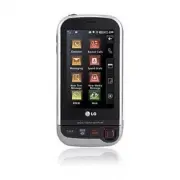
Welcome 9 W elc om e Thank you for choosing the Spyder II cellular phone designed to operate with the latest digitalmobile communication technology,Code Division Multiple Access(CDMA). Along with the manyadvanced features of the CDMAsystem, such as greatly enhancedvoice clarity, this compact phoneof...
Page 12 - Te c h n i c a l D eta i l s; Important Information; Technical Details; The
Technical Details 10 Te ch nic al De tail s Important Information This user’s guide providesimportant information on the useand operation of your phone.Please read all the informationcarefully prior to using thephone for the best performanceand to prevent any damage to ormisuse of the phone. Anyunap...
Page 13 - Its battery life is twice as long as
11 Te ch nic al De tail s * TSB-74: Protocol between an IS- 95A system and ANSI J-STD-008 Its battery life is twice as long asIS-95. High-speed data transmission is also possible. The following tab lists somemajor CDMA standards. CDMA Standard Basic Air Interface TIA/EIA-95ATSB-74ANSI J-STD-008TIA/E...
Page 14 - FCC RF Exposure Information
Technical Details 12 Te ch nic al De tail s FCC RF Exposure Information WARNING! Read this information before operating the phone. In August 1996, the FederalCommunications Commission(FCC) of the United States, withits action in Report and OrderFCC 96-326, adopted anupdated safety standard forhuman ...
Page 15 - FCC Notice and Cautions
13 Te ch nic al De tail s Vehicle-Mounted the External Antenna (Optional, if available.) To satisfy FCC RF exposurerequirements, keep 8 inches (20cm) between the user /bystander and vehicle-mountedthe external antenna. For moreinformation about RF exposure,visit the FCC website atwww.fcc.gov. FCC No...
Page 16 - P h o n e O ve r v i ew
Welcome 14 W elc om e Caution Use only the supplied andapproved antenna. Use ofunauthorized antennas ormodifications could impair callquality, damage the phone, voidyour warranty and/or result inviolation of FCC regulations. Donot use the phone with adamaged antenna. If a damagedantenna comes into c...
Page 17 - Touch Sensitive Soft Keys; Make sure your hands are
15 W elc om e Part 15.105 statement This equipment has been testedand found to comply with thelimits for a class B digital device,pursuant to Part 15 of the FCCRules. These limits are designedto provide reasonable protectionagainst harmful interference in aresidential installation. Thisequipment gen...
Page 18 - Phone Overview; When both the outside LCD
Phone Overview 16 Ph on e O ve rvie w 1. Earphone Jack Allows the use of a headset to hear caller's voice. 2. Proximity Sensor When close (within 2-3 cm) to this sensor during a call, LCD turns offallowing you to only adjust volume or end thecall so that you don't inadvertently activate afeature. 3 ...
Page 19 - Touch Screen Shortcut Menu
17 Ph on e O ve rvie w 1. Side Camera Key Use for quick access to Camera and Videofunctions. 2. Side Volume Keys Use to adjust the ringer volume in standby mode andthe earpiece volume during a call. 3. HOLD Key Use to lock your phone when the slide is closed. To unlock,press ( ) or open the slide. 4...
Page 20 - M e nu s O ve r v i ew
Phone Overview 18 Ph on e O ve rvie w 5. When the LCD screen is off, touch keys are deactivated.Press the Unlock Key ( ) to turn on the Touch Screen andtouch key. 6. The Screen Lock feature protects against accidental keypresses during phone calls withthe flip closed. 7. Keep metal and other conduct...
Page 22 - Menus Overview; Display; Call Settings
Phone Overview 20 Ph on e O ve rvie w Main Multimedia Widget Contacts Set the features and items you want on each home screen and evendisplay different backgrounds for each one. 1. Message Displays the Messaging Menu. 2. Call Displays the Dialing Touchpad. 3. Menu Displays the Main Menu. 4. Contacts...
Page 23 - System; Touch the MENU
Menus Overview 21 M en us O ve rvie w Contacts New ContactContact ListSpeed DialsGroupsMy Name Card Recent Calls Missed CallsReceived CallsDialed CallsAll Calls Call TimerDataData Counter Messaging New Text MessageNew Media MessageInbox OutboxDraftsVoicemailTemplatesDelete All Delete InboxDelete Out...
Page 24 - The Battery; Installing the Battery; While holding down the; Charging the Battery; Plug the end of the adapter; Note; G ett i n g S ta r te d w i t h Yo u r P h o n e
Menus Overview 22 M en us O ve rvie w My Playlists My Stuff ImagesVideosAudiosDocuments Documents Games Voice Command Start CommandCommand ModeAnnounce AlertTrain WordBest Match Alarm Clock Organizer CalendarDate Finder World Clock Tools CalculatorEz Tip CalculatorUnit Converter Stopwatch Drawing Pa...
Page 25 - B attery Charge Level; Turning the Phone On; Install a charged battery or; Turning the Phone Off; Open the slide to reveal the
23 M en us O ve rvie w Alert Type Call Alert Message Alert Schedule Alert Alarm Alert Service Alerts Minute Beep Call Connect Low Battery Power On/Off Tones Slide Tone Display Wallpaper Screen Main Widget Contacts Multimedia Lock Screen Shuffle Screen Repeat Banner Backlight Display Keypad Brightnes...
Page 26 - Getting Started with Your Phone; Signal Strength; To see the icon glossary, touch; Making Calls; Make sure the phone is
Handset Reserved MemoryExternal MemoryPrimary Storage Setting ImagesVideosAudiosDocuments USB Connection ModePhone Info My NumberESN/MEIDIcon GlossaryVersion BREW & Web BREW Access PromptWeb settings Reset Settings Call Settings Answer Options Auto Retry One-Touch Dial Voice Privacy Auto Volume ...
Page 27 - Correcting Dialing Mistakes; END
Getting Started with Your Phone 25 Ge ttin g Sta rte d wit h Yo ur Ph on e The Battery The phone comes with arechargeable battery. Keep thebattery charged while not in usein order to maximize talk andstandby time. The battery chargelevel is shown at the top of theLCD screen. Installing the Battery I...
Page 28 - Q u i c k Ac c es s to C o nve n i e n t Fe at u res; Lock Mode; To quickly lock your phone press; Mute Function; and touch; Volume Quick Adjustment; Unlock
2. Gently uncover the accessory charging port, then plug theend of the AC adapter intothe phone’s charger port andthe other end into anelectrical outlet. 3. The charge time varies depending upon the batterylevel. Battery Charge Level The battery charge level is shownat the top right of the LCDscreen...
Page 29 - Caller ID; OR
27 Ge ttin g Sta rte d wit h Yo ur Ph on e Signal Strength Call quality depends on thesignal strength in your area. Thesignal strength is indicated onthe screen as the number of barsnext to the signal strength icon . The more bars, the better the signal strength. If the signalquality is poor, move t...
Page 30 - E n te r i n g a n d E d i t i n g I n f o r m at i o n; Using the Touch Screen; When you touch the
Correcting Dialing Mistakes If you make a mistake whiledialing a number, press or touch once to erase the last digit entered, orhold down or touch and hold for at least 2 seconds to go to standby mode. Redialing Calls 1. Press twice to redial the last number you dialed. The last 150 numbers (dialing...
Page 31 - C o n ta c ts i n Yo u r P h o n e ’s M e m o r y; From standby mode enter the
Quick Access to Convenient Features 29 Q uic k Ac ce ss to Co nve nie nt Fea tu res Lock Mode Sets your phone to require a 4-digit password in order to usethe phone.To set lock mode on, touch Menu -> Settings -> Phone Settings -> Security -> Lock Phone -> Touch When Switch On or Immed...
Page 32 - Contacts in Your Phone’s Memory
1. Press to receive a waiting call. 2. Press again to switch between calls. Caller ID Caller ID displays the phonenumber or name of the incomingcall. If the caller’s identity is storedin Contacts, the name will appearalong with the phone number.Check with your service provider toensure they offer th...
Page 33 - Accessing Options
Entering and Editing Information 31 En ter ing an d Ed itin g Inf orm ati on Text Input Each time you touch a data entry field, the Touch Screen automaticallydisplays Touch Keys allowing you to change the input. For example, in aname field, alphabet Touch Keys appear, but you can touch to select and...
Page 34 - Call
Contacts in Your Phone’s Memory 32 Co nta cts in Yo ur Ph on e’s M em ory The Basics of Storing Contacts Entries 1. Open the slide to reveal the keypad and enter the phonenumber you want to save (upto 48 digits). 2. Touch . 3. Touch Save and select either Add New Contact or Update Existing on the po...
Page 35 - Speed Dialing
33 Co nta cts in Yo ur Ph on e’s M em ory 2-Sec Pause (P) The phone waits 2 secondsbefore sending the next string ofdigits. Storing a Number with Pauses 1. Touch . 2. Touch Contacts . 3. Touch New Contact . 4. Enter a name (up to 32 characters) and touch thenumber field to enter anumber. 5. Touch an...
Page 36 - U s i n g P h o n e M e nu s; Missed Calls
Searching Your Phone’s Memory The Spyder II phone is able to perform a dynamic search of thecontents in your phone’smemory. A dynamic searchcompares entered letters ornumbers against the entries inyour Contacts. A matching list isdisplayed in descending order.You can then select a numberfrom the lis...
Page 37 - The history of all calls is
35 Co nta cts in Yo ur Ph on e’s M em ory Making a Call From Your Phone’s Memory Once you have stored phonenumbers in your Contacts, youcan place calls to those numbersquickly and easily. l By highlighting a phonenumber in Contacts or RecentCalls, and pressing or touching Call . l By using Speed Dia...
Page 38 - Data Counter; Contacts; New Contact
36 Using Phone Menus Co mm un ica te Communicate Contacts The Contacts Menu allows youto store names, phone numbersand other information in yourphone’s memory. 1. New Contact Allows you to add a new contactto your Contact List. 1. Touch . 2. Touch . 3. Touch New Contact . 4. Enter the name. 5. Conti...
Page 39 - Contact List
37 Co mm un ica te 2. Contact List Allows you to view your ContactList. 1. Touch . 2. Touch . 3. Touch Contact List . 4. Choose from the following options: l Scroll through yourContacts alphabetically. l Touch to select one of the following: Send Message/ Delete/ Sort By/ Send via Bluetooth/ Delete ...
Page 40 - Groups
Communicate Co mm un ica te 4. Groups Allows you to view your groupedContacts, add a new group,change the name of a group, ordelete a whole group. 1. Touch . 2. Touch . 3. Touch Groups . 4. Choose from the following options: l Touch a group to view. l Touch a group, then touch to choose from the fol...
Page 41 - My Name Card; Messaging; Shortcut
39 Co mm un ica te Recent Calls The Recent Calls Menu is a listof the last phone numbers orContact entries for calls youplaced, accepted, or missed. It iscontinually updated as newnumbers are added to thebeginning of the list and theoldest entries are removed fromthe bottom of the list. 1. Missed Ca...
Page 42 - Send
Communicate 40 Co mm un ica te 2. Received Calls Allows you to view the list ofincoming calls; up to 50 entries. 1. Touch . 2. Touch . 3. Touch Received Calls . 4. Touch the entry. 3. Dialed Calls Allows you to view the list ofoutgoing calls; up to 50 entries. 1. Touch . 2. Touch . 3. Touch Dialed C...
Page 43 - Text Options; Message Icon Reference
41 Co mm un ica te 6. Data Allows you to view the list ofdata calls; up to 50 entries. 1. Touch . 2. Touch . 3. Touch Data . 4. Touch the entry. 7. Data Counter Allows you to view the list ofreceived and transmitted datacalls. 1. Touch . 2. Touch . 3. Touch Data Counter . 4. Transmitted data are dis...
Page 44 - Save As
Communicate 42 Co mm un ica te The Basics of Sending a Text Message 1. Touch Messaging and New Text Message . 2. Touch to enter the recipient's addressor to add contact. 3. Touch the Text field to access the message screen. 4. Type your message (text or e-mail). 5. Touch , then touch . A confirmatio...
Page 45 - Shows your message
43 Co mm un ica te 1. Touch Messaging and New Text Message . 2. Touch the Text field to access the Enter Text screen. 3. Touch . 4. Touch the option(s) to customize. Insert Templates/ Signature/ Name & Number Save To Drafts / Templates Priority Level High/ Normal Callback Number On/ Off Copy Tex...
Page 46 - Delete
Communicate 44 Co mm un ica te 6. Options with the Menu: Insert Slide Inserts slide to add more picture message. Preview Shows your message before sending. Save to Draft Saves the current message as a Draft. Priority Level High/ Normal Delivery Notice Informs you that the message has beensuccessfull...
Page 50 - Web; and
Communicate 48 Co mm un ica te l When you are finished editingthe message, press Send tosend it. 6. Voicemail Allows you to view new voicemessages recorded in your voicemail box. Your phone will alertyou when you receive a newvoice message. Checking Your Voicemail Box 1. Touch Messaging and Voicemai...
Page 51 - Scrolling
49 Co mm un ica te Speed Dials Refer to page 37 for moreinfomation 1. Touch . 2. Touch . New Text Message Refer to page 41 ~ 43 for more infomation 1. Touch . 2. Touch . New Media Message Refer to page 43 ~ 44 for more infomation 1. Touch . 2. Touch . BREW Brew allows you to do more thanjust talk on...
Page 52 - to clear the last
Communicate 50 Co mm un ica te Downloading Applications You can download applicationsand use Brew anywhere on thenetwork, as long as your handsethas a digital signal available.Most applications do not use anetwork connection while in use. Incoming Calls While downloading anapplication, incoming call...
Page 53 - BREW
51 Co mm un ica te Web The Web feature allows you toview Internet content.Accessibility and selectionswithin this feature are dependentupon your service provider. Forspecific information on Webcontact your service provider. Start Browser Allows you to initiate an Websession. 1. Touch . 2. Touch Web ...
Page 55 - New Events Manager
53 Co mm un ica te Screen Optimized Displays vertically aligned contents ofthe Web page which fit thesize of the screen. Allowsvertical navigation only. Text Only Displays only text and excludes images used inthe Web page. l Send URL Allows you to send the link of the current pagevia a text message....
Page 56 - Bluetooth; Bluetooth headset
Communicate 54 Co mm un ica te l Manage Memory Manages memory used by browser. l InformationShow URL Redisplays current Web page. About Displays the current browser information. Thumbnail Option in Browser Menu This option displays the entireoutline of the Web page in thescreen corner, which is help...
Page 57 - Pairing a new Bluetooth; Pair
55 Co mm un ica te Entering/Deleting Text, Numbers or Symbols When text, numbers or symbolsneed to be entered on thescreen, a Touch Keypad will popup when you touch the text field,on the screen. Simply touch thecharacters you want and touch to delete. Flash Contents Spyder II has FlashLite engine th...
Page 59 - USB Connection; Save
57 Co mm un ica te To add an RSS feed, you mustfirst be on a website thatsupports RSS. The RSSregistration indicator will showthe RSS icon if the site has RSS. Touch the RSS registrationindicator next to the URL field(as shown in the first screenshotbelow) to add the RSS Feed toyour Feeds. Reading a...
Page 61 - The Music Player files will
Entertainment 59 En ter tain me nt Take Photo 1. Touch . 2. Touch . 3. Touch Take Photo or use the one of the following optionsto customize your settings: Back Record Video Changes from Camera mode to Video mode. Zoom Brightness Shot Mode Multishot/ Templates Self Timer Off/ 3 Seconds/ 5 Seconds/ 10...
Page 62 - M u l t i m e d i a; Music; Shuffle; Notes
Entertainment 60 En ter tain me nt Others Tab Settings Memory Storage Internal/ External Auto Focus On/ Off View Option Actual View/ Full Screen Shutter Sound Shutter/ No Sound/ Say “Cheese”/Ready! 1 2 3/ Auto Save On/ Off Send Reminder On/ Off Reset Yes/No 4. Take a picture by pressing the Camera b...
Page 63 - Ringtone List; Take Photo
61 En ter tain me nt Video Tab Settings Color Effects Normal/ Negative/ Aqua/ Sepia/Mono/ Solarize White Balance Auto/ Sunny/ Cloudy/Fluorescent/ Glow Quality Normal/ Fine/ Super Fine Record Time For Send/ For Save Other Tab Settings Memory Storage Internal/ External Mute On/ Off Auto Save On/ Off S...
Page 64 - My; Image
Entertainment 62 En ter tain me nt Record Voice Allows you to record short verbalreminders. 1. Touch . 2. Touch . 3. Touch Record Voice . 4. Start recording by pressing . Touch to stop. Touch to pause. 5. After recording, voice memo is automatically saved in yourphone. Music Allows you to transfer s...
Page 65 - Default; Record Video
63 En ter tain me nt 1. Now Playing/ Recently Played Allows you to view the mostrecently played songs. 1. Touch . 2. Touch . 3. Touch Music . 4. Touch Now Playing or Recently Played . 5. Select the music file and touch to play. 2. All Songs Allows you to play All Songs. 1. Touch . 2. Touch . 3. Touc...
Page 66 - Memory Storage; Video
Entertainment 64 En ter tain me nt 3. Artists Allows you to view and listen toyour music by Artists. 1. Touch . 2. Touch . 3. Touch Music . 4. Touch Artists and touch the Artist you want to listen to. 4. Albums Allows you to view and listen toyour music by Album. 1. Touch . 2. Touch . 3. Touch Music...
Page 67 - Record Audio; Audio
65 En ter tain me nt 7. Settings Allows you to customize musicplayback settings. 7.1 Repeat Allows you to set repeat settings. 1. Touch . 2. Touch . 3. Touch Music . 4. Touch Settings . 5. Touch Repeat . Repeat One/ Repeat All/ Off 7.2 Shuffle Allows you to set shuffle settings. 1. Touch . 2. Touch ...
Page 68 - To o l s; Voice Command; Touch to select one of the
Entertainment 66 En ter tain me nt My Stuff Allows you to view images,videos, audios and documentssaved in phone. 1. Touch . 2. Touch . 3. Touch My Stuff . 4. Touch Images/ Videos/ Audios/ Documents. Documents Allows you to view documentssaved in phone. 1. Touch . 2. Touch . 3. Touch Documents . 4. ...
Page 69 - Calendar
Utilities 67 Ut ilit ies Voice Command Allows you to make phone callsquickly and easily by voice. Yourphone recalls the number fromyour Contacts, displays it briefly,and then dials it. This menu alsoincludes a feature for those whoare driving or blind. It deliverstime and date information byvoice an...
Page 70 - Tools; Cities; Calculator; Ez Tip Calc
Utilities 68 Ut ilit ies 1.3 Missed Calls You can hear details aboutmissed calls. 1. Touch . 2. Touch . 3. Touch Voice Command . 4. Touch Start Command . 5. Touch Missed Calls . 1.4 Messages This voice command feature willread out information frommessages received. 1. Touch . 2. Touch . 3. Touch Voi...
Page 71 - Notepad
69 Ut ilit ies 2. Command Mode Allows you to choose betweenNormal or Speed settings. TheSpeed setting allows you toaccess the Voice Commandfunctions more quickly with anon-verbal prompt. 1. Touch . 2. Touch . 3. Touch Voice Command . 4. Touch Command Mode . 5. Select options. Normal/ Speed 3. Announ...
Page 72 - S ett i n g s
Utilities 70 Ut ilit ies 3. Touch Voice Command . 4. Touch Train Word. 5. Select options. Voice Command/ Answer/ Digit Dial 5. Best Match Allows you to customize BestMatch settings. 1. Touch . 2. Touch . 3. Touch Voice Command . 4. Touch Best match . 5. Select options. 1 Match/ 4 Matches Alarm Clock...
Page 75 - Sound Settings
73 Ut ilit ies l Touch the correspondingTouch Keys to enterfunctions ( +, -, x, / ). l Touch to complete equation. 2. Ez Tip Calculator Allows you to quickly and easilyestimate the tip and totalamount of a bill by inputting thebill amount before tip, the tippercentage, and divide it by thenumber of ...
Page 76 - For the; Minute Beep
Utilities 74 Ut ilit ies 3. Unit Converter Allows you to convert units ofmeasurement. 1. Touch . 2. Touch . 3. Touch . 4. Touch Unit Converter . 5. Touch the unit of measurement you want to convert: Currency/ Area/ Length/ Mass/ Temperature/ Volume/ Velocity Stopwatch Allows you to use your phone as...
Page 77 - Call Connect; Touch Settings
75 Ut ilit ies Drawing Panel This function allows you to drawfreely so that you can simplysave an image, send it in amessage or set it as a Wallpaper. 1. Touch . 2. Touch . 3. Touch Drawing Panel . 4. Touch to write a new note. 5. Create a drawing, then touch to save it. A confirmation message displ...
Page 81 - Message Settings
79 Se ttin gs 4. Toggle the setting between the two options: On / Off 7. Slide Tone Allows you to set a slide tonethat will play when you slide yourphone open or closed. 1. Touch . 2. Touch . 3. Touch Sound and scroll down to Slide Tone . 4. Toggle the setting between the two options: On / Off Displ...
Page 85 - Security; within the Security
83 Se ttin gs 9. Name Match for Dialing Matches a saved Contact entrywith the corresponding lettersentered on the Dialpad. 1. Touch . 2. Touch . 3. Touch Display and Name Match for Dialing . 4. Touch the Status field and touch On/ Off . Touch 1. Touchscreen Calibration Allows you to calibrate the To...
Page 87 - Touch the emergency number
85 Se ttin gs Bluetooth ® The Spyder II is compatible with devices that support the Bluetooth ® headset, stereo headset and hands-freeprofile(s)*. You may create andstore 20 pairings within the Spyder II and connect to one device at a time. Theapproximate communicationrange for Bluetooth ® wireless ...
Page 88 - Phone Information
Settings 86 Se ttin gs 2. Add New Pairing is the process that allowsthe handset to locate, establishand register a 1-to-1 connectionwith the target device. Pairing a new Bluetooth ® device 1. Touch . 2. Touch . 3. Touch Bluetooth and . 4. Follow the Bluetooth ® accessory instructions to setthe devic...
Page 90 - S a f ety; TIA Safety Information; Antenna Care
Settings 88 Se ttin gs 4.3 My Bluetooth Info Allows you to view your phone's Bluetooth ® information. 1. Touch . 2. Touch . 3. Touch Bluetooth , and My Bluetooth Info. System The System menu allows you todesignate specific systemnetwork settings. 1. Network 1.1 System Select Allows you to set up the...
Page 92 - Persons with pacemakers:; interference is taking place.; Hearing Aids
Settings 90 Se ttin gs Phone Settings 1. Power Save Allows you to set power savemode. 1. Touch . 2. Touch . 3. Touch Phone Settings and Power Save . 4. Touch a setting. On/ Off 2. Auto Lock Allows you to set the automaticscreen lock. 1. Touch .2. Touch . 3. Touch Phone Settings and Auto Lock. 4. Tou...
Page 93 - Vehicles
91 Se ttin gs 4. Touch Lock Phone . 5. Touch an option. None The phone is never locked (though Lock modecan still be used). When Switch On The phone is locked when it is turned on. Immediately The phone is always locked. When locked,you can receive incoming callsand make only emergencycalls. 6. Ente...
Page 94 - Safety Information; Violation of the; Charger and Adapter Safety
Settings 92 Se ttin gs 3.3 Emergency Numbers Allows you to enter 3 emergencynumbers. You can call theseemergency numbers and 911,even when the phone is lockedor restricted. 1. Touch . 2. Touch . 3. Touch Phone Settings , Security . 4. Touch Emergency Numbers . 5. Touch the emergency number you want ...
Page 95 - Battery Information and Care
93 Se ttin gs 4. Touch an option: Handset Common Memory/ Handset Reserved Memory/ External Memory/ Primary Storage Setting 5. USB Connection Mode Allows you to select the PCconnection mode for yourdevice. 1. Touch . 2. Touch . 3. Touch Phone Settings , USB Connection Mode . 4. Touch a setting. USB M...
Page 96 - General Notice
Settings 94 Se ttin gs 6.1 My Number Allows you to view your phonenumber. 1. Touch . 2. Touch . 3. Touch Phone Settings , Phone Info and My Number . 6.2 ESN/MEID Allows you to view the ESN andMEID information of your phone. 1. Touch . 2. Touch . 3. Touch Phone Settings , Phone Info and ESN/ MEID . 6...
Page 97 - Do not paint your phone.
95 Se ttin gs 7. BREW & Web 7.1 BREW Access Prompt Allows you to set the BREWAccess prompt to On or Off. 1. Touch . 2. Touch . 3. Touch Phone Settings , BREW & Web . 4. Touch a setting. BREW Access Prompt (ON/ OFF) 7.2. Web Settings Allows you to set the Webnotification settings. 1. Touch . ...
Page 98 - Avoiding hearing damage
Settings 96 Se ttin gs 8. Reset Settings Allows you to reset your phoneto the factory default settings. 1. Touch . 2. Touch . 3. Touch Phone Settings , Reset Settings . 4. Touch . 5. A message will pop up that says "All settings will revert tofactory default." 6. Touch / . 7. Enter the four-...
Page 100 - FDA Consumer
Settings 98 Se ttin gs 4. Voice Privacy Allows you to set the voiceprivacy feature for CDMA calls asEnhanced or Standard. CDMAoffers inherent voice privacy.Check with your service providerfor availability. 1. Touch . 2. Touch . 3. Touch Call Settings , and Voice Privacy . 4. Touch a setting. Enhance...
Page 106 - gives directions for locating the
Safety 104 Sa fet y separation of six (6) inches bemaintained between a handheldwireless phone and a pacemakerto avoid potential interferencewith the pacemaker. Theserecommendations are consistentwith the independent researchby and recommendations ofWireless Technology Research. Persons with pacemak...
Page 110 - For additional information, please; 0 Driver Safety Tips
Safety 108 Sa fet y l Unplug the power cord priorto cleaning your phone, andclean the power plug pin whenit’s dirty. l When using the power plug,ensure that it’s firmlyconnected. If not, it may causeexcessive heat or fire. l If you put your phone in apocket or bag withoutcovering the receptacle of t...
Page 111 - Make sure you place your
109 Sa fet y in a safe place with the powercord unplugged. l Using the phone in proximityto receiving equipment (i.e.,TV or radio) may causeinterference to the phone. l Do not use the phone if theantenna is damaged. If adamaged antenna contactsskin, it may cause a slightburn. Please contact an LGAut...
Page 112 - Dial sensibly and assess the
Safety 110 Sa fet y Warning! Important safety information Avoiding hearing damage Permanent hearing loss mayoccur if you use your phoneand/or headset at a high volume.Set the volume to a safe level.You can adapt over time to ahigher volume of sound that maysound normal but can bedamaging to your hea...
Page 113 - Call roadside assistance or a
111 Sa fet y Avoiding hearing damage Permanent hearing loss mayoccur if you use your headset ata high volume. Set the volume toa safe level. You can adapt overtime to a higher volume of soundthat may sound normal but canbe damaging to your hearing. Ifyou experience ringing in yourears or muffled spe...
Page 114 - Your
Safety 112 Sa fet y FDA Consumer Update The U.S. Food and DrugAdministration’s Center forDevices and Radiological HealthConsumer Update on MobilePhones: 1. Do wireless phones pose a health hazard? The available scientific evidencedoes not show that any healthproblems are associated withusing wireles...
Page 116 - after searching on FCC ID.
Safety 114 Sa fet y The FDA shares regulatoryresponsibilities for wirelessphones with the FederalCommunications Commission(FCC). All phones that are soldin the United States must complywith FCC safety guidelines thatlimit RF exposure. The FCC relieson the FDA and other healthagencies for safety ques...
Page 119 - FCC Hearing Aid Compatibility and Volume Control
117 Sa fet y high priority animal studies areconducted to address importantquestions about the effects ofexposure to Radio Frequency(RF) energy. The FDA has been a leadingparticipant in the World HealthOrganization InternationalElectro Magnetic Fields (EMF)Project since its inception in1996. An infl...
Page 120 - Ac c es s o r i es; attery
Safety 118 Sa fet y guidelines in consultation withthe FDA and the other federalhealth and safety agencies. TheFCC limit for RF exposure fromwireless phones is set at aSpecific Absorption Rate (SAR)of 1.6 watts per kilogram (1.6W/kg). The FCC limit isconsistent with the safetystandards developed by ...
Page 121 - L i m i te d Wa r ra n ty S tate m e n t
119 Sa fet y measuring the rate at which RF isdeposited in the heads ofwireless phone users. The testmethod uses a tissue-simulatingmodel of the human head.Standardized SAR testmethodology is expected togreatly improve the consistencyof measurements made atdifferent laboratories on thesame phone. SA...
Page 122 - Limited Warranty Statement
Safety 120 Sa fet y headset and carry the wirelessphone away from your body oruse a wireless phone connectedto a remote antenna. Again, thescientific data do notdemonstrate that wirelessphones are harmful. But if youare concerned about the RFexposure from these products,you can use measures like tho...
Page 123 - published maximum ratings.
121 Sa fet y 11. What about wireless phone interference with medical equipment? Radio Frequency (RF) energyfrom wireless phones can interactwith some electronic devices. Forthis reason, the FDA helpeddevelop a detailed test methodto measure Electro MagneticInterference (EMI) of implantedcardiac pace...
Page 124 - . Please call or write
Safety 122 Sa fet y 12. Where can I find additional information? For additional information, pleaserefer to the following resources: FDA web page on wirelessphones(http://www.fda.gov/cellphones/) Federal CommunicationsCommission (FCC) RF SafetyProgram(http://www.fcc.gov/oet/rfsafety) International C...
Page 125 - I n d ex
123 Sa fet y speed dial function withouttaking your attention off theroad. 2. When available, use a hands- free device. A number ofhands-free wireless phoneaccessories are readilyavailable today. Whether youchoose an installed mounteddevice for your wireless phoneor a speaker phone accessory,take ad...
Page 126 - Index
Safety 124 Sa fet y 6. Dial sensibly and assess the traffic; if possible, place callswhen you are not moving orbefore pulling into traffic. Tryto plan your calls before youbegin your trip or attempt tocoincide your calls with timesyou may be stopped at a stopsign, red light, or otherwisestationary. ...
Page 128 - Precaución de Seguridad Importante
Safety 126 Sa fet y Consumer Information on SAR (Specific Absorption Rate)This Model Phone Meets the Government’s Requirements for Exposure to Radio Waves. Your wireless phone is a radiotransmitter and receiver. It isdesigned and manufactured notto exceed the emission limits forexposure to radiofreq...
Page 131 - C o n te n i d o; Contenido
129 Sa fet y one gram of tissue. The standardincorporates a substantial marginof safety to give additionalprotection for the public and toaccount for any variations inmeasurements. FCC Hearing-Aid Compatibility (HAC) Regulations for Wireless Devices On July 10, 2003, the U.S.Federal CommunicationsCo...
Page 134 - Seguridad
Accessories 132 Ac ce sso rie s There are a variety of accessories available for your mobile phone.Consult your local dealer for availability. Optional items are soldseparately. Wall/USB Charger Battery Vehicle Power Charger USB Cable Stereo Headset Adaptor with Microphone
Page 135 - Accesorios
133 Lim ite d W arr an ty Sta tem en t 1. WHAT THIS WARRANTY COVERS: LG offers you a limited warrantythat the enclosed subscriber unitand its enclosed accessories willbe free from defects in materialand workmanship, according tothe following terms andconditions: (1) The limited warranty for the prod...
Page 136 - B i e nve n i d o s; Teclado de 15 teclas
Limited Warranty Statement 134 Lim ite d W arr an ty Sta tem en t Department of LG. LG shallbear the cost of shippingthe product back to theconsumer after thecompletion of service underthis limited warranty. 2. WHAT THIS WARRANTY DOES NOT COVER: (1) Defects or damages resulting from use of theproduc...
Page 137 - D eta l l es Té c n i c o s; Información importante; Detalles técnicos; EL es
135 Lim ite d W arr an ty Sta tem en t statutory or otherwise,including, but not limited toany implied warranty ofmarketability or fitness for aparticular use. (7) Damage resulting from use of non-LG approvedaccessories. (8) All plastic surfaces and all other externally exposedparts that are scratch...
Page 139 - Detalles Técnicos
1 10 Driver Safety Tips122 A Accessing Options 34Accessories 132Add New 86Airplane Mode 99Alarm Clock 70Albums 64Alert Type 77All Calls 40All Messages 100All Songs 63Announce Alert 69Answer Options 96Artists 64Auto Lock 90Auto NAM 89Auto Retry 97Auto Volume 98 B Background Music 65Backlight 80Banner...
Page 141 - D es c r i p c i ó n g e n e ra l d e l te l é f o n o
O One-Touch Dial 97Organizer 71Outbox 46 P Paired Devices 87Phone Info 93Phone Numbers WithPauses 32Phone Overview 16Phone Settings 90Power 85Power On/Off Tones78Power Save 90 Q Quick Access toConvenient Features29 R Received Calls 40 Receiving Calls 28Recent Calls 39Record Video 60Record Voice 62Re...
Page 142 - Teclas suaves sensibles al tacto
Touch Sensitive SoftKeys 17Touchscreen Effect 83Train Word 69TTY Mode 99Turning the Phone Onand Off 26 U Unit Converter 74USB Connection Mode93Using Phone Menus36 V Version 94Voice Command 67Voice Privacy 98Voicemail 48, 67Voicemail Number 101Volume 77Volume QuickAdjustment 29 W Wallpaper 79Warning!...
Page 143 - Descripción general del teléfono; Si la tapa está cerrada y está
Precaución de Seguridad Importante 1 Pre ca uc ión de Se gu rid ad Im po rta nte Lea estas sencillas instrucciones. Romper las reglas puede serpeligroso o ilegal. Se ofrece más información detallada en esta guíadel usuario. ¡Aviso! No seguir las instrucciones puede ocasionar lesiones graves o la mue...
Page 144 - Menú Atajo De La Pantalla Táctil; las teclas suaves sensibles; Acceso; En el modo de espera, toque la pantalla táctil con el dedo.
Precaución de Seguridad Importante 2 Pre ca uc ión de Se gu rid ad Im po rta nte 1. No exponga cargador de baterías o el adaptador a la luz directa del sol, ni lo utilice en sitios con elevadahumedad, como por ejemplo el baño. 2. No use sustancias químicas corrosivas (como alcohol, bencina, solvente...
Page 145 - Descripción general de los menús
3 Pre ca uc ión de Se gu rid ad Im po rta nte 1. No haga ni conteste llamadas mientras esté cargando el teléfono, ya que puede causar un corto circuito en éste o provocar descargas eléctricas oincendios. 2. No sostenga la antena ni permita que entre en contacto con su cuerpo durante las llamadas. 3....
Page 148 - Sistema; Acceso a los menús; Toque la tecla sensitiva MENÚ
Contenido 6 Co nte nid o 1. Tocando Ahora / Recientemente Tocadas 68 2. Todas Canciones 68 3. Artistas 69 4. Álbums 69 5. Géneros 69 6. Lista de Reproducción 69 7. Ambiente 70 7.1 Repetir 70 7.2 Revolver 70 7.3 Música de Fondo 71 Lista de Reproducción 71 Mis Cosas 71 Documentos 72 Juegos 72 Voz Coma...
Page 149 - La batería; Instalación de la batería; Cargar la batería; Para hacer funcionar su teléfono por primera vez
7 Co nte nid o Sonido 83 1. Timbres 83 2. Volumen 83 3. Alertas de Mensaje 84 4. Sonidos Alerta 84 5. Alertas Servc 85 6. Tonos de Enc./Apag. 85 7. Tono de Slide 86 Pantalla 86 1. Papel Tapiz 86 1.1 Pantalla 86 1.2 Revolver 87 2. Pancarta 87 3. Luz de Fondo 88 4. Brillo 88 5. Estilo de Menú 88 6. Id...
Page 150 - Nivel de carga de la batería; Encender el teléfono; Instale una batería cargada o; Apagar el teléfono; Mantenga presionada; Fuerza de la señal
Contenido 8 Co nte nid o 3. Seguridad 98 3.1 Bloqueo de Teléfono 98 3.2 Restricciones 99 3.3 Números de Emergencia 100 3.4 Cambiar Código de Bloqueo 100 4. Memoria 101 5. Modo de Conexión USB 1016. Info de Teléfono 102 6.1 Mi Número 102 6.2 ESN/MEID 102 6.3 Glosario de Iconos 102 6.4 Versión 103 7. ...
Page 151 - Iconos en pantalla; Glosario de Iconos; Hacer llamadas
Bienvenidos 9 Bie nve nid os Felicidades por elegir el avanzadoy compacto teléfono celular Spyder II , diseñado para funcionar con la más recientetecnología de comunicacionesmóviles digitales: Acceso múltiplede división de código (CodeDivision Multiple Access,CDMA). Junto con las muchasfunciones ava...
Page 152 - Remarcado de llamadas
Detalles Técnicos 10 De tall es Té cn ico s Información importante Esta guía del usuario contieneinformación importante acerca deluso y funcionamiento delteléfono. Lea toda la informacióncon cuidado antes de usar elteléfono para obtener undesempeño óptimo y evitarcualquier daño o mal uso delaparato....
Page 153 - Acceso rápido a funciones prácticas; Modo de bloqueo; durante 3; Función de silencio; Mudo; Ajuste rápido del volumen
11 De tall es Té cn ico s potencia de radiofrecuenciadinámica se combinan parareducir las interrupciones en lasllamadas.Las redes celular y CDMA PCSconstan de MSO (Oficina deconmutación de telefonía móvil),BSC (Controlador de estación debase), BTS (Sistema detransmisión de estación de base)y MS (Est...
Page 154 - para recibir una; ID de Llamador
Detalles Técnicos 12 De tall es Té cn ico s Información de la FCC sobre exposición a la RF ¡ADVERTENCIA! Lea esta información antes de hacer funcionar el teléfono. En agosto de 1996, la Comisiónfederal de comunicaciones (FCC)de los Estados Unidos, con suacción sobre el Informe y ordenFCC 96-326, ado...
Page 155 - I n t ro d u c i r y e d i ta r i n f o r m a c i ó n; Entrada de texto; Uso de la pantalla táctil; Cuando usted toca la tecla táctil
13 De tall es Té cn ico s Antena externa instalada en un vehículo (Opcional, en caso de estar disponible.) Debe mantenerse una distanciamínima de separación de 20 cm(8 pulgadas) entre el usuario oquien esté cerca y la antenaexterna instalada en un vehículopara satisfacer los requisitos deexposición ...
Page 156 - Contactos en la memoria del teléfono; En el modo de espera
Detalles Técnicos 14 De tall es Té cn ico s Precaución Utilice solamente la antenaincluida y aprobada. El uso deantenas no autorizadas o elhacerle modificaciones podriadeteriorar la calidad de lallamada, danar el telefono,invalidar la garantia o dar comoresultado una violacion de losreglamentos de l...
Page 158 - Carta de la búsqueda; . Se muestra la lista; Accediendo opciones; Se muestra la lista
Descripción general del teléfono 16 De scr ipc ión ge ne ral de lte léf on o 1. Conector del audífono Úselo para conectar el audífiono para permitirle oír a quien le llama. 2. Sensor de proximidad Cuando uno está cerca (entre 2 y 3 cm) a este sensor durante una llamada, la pantallaLCD se apaga permi...
Page 159 - Editar
17 De scr ipc ión ge ne ral de lte léf on o 1. Tecla lateral de Cámara Úsela para acceder rápidamente a las funciones deCámara y Video. 2. Teclas de Volumen Úselas para ajustar el volumen del timbre en modo de esperay el volumen del auricular durante unallamada. 3. Tecla HOLD Úsela para bloquear su ...
Page 161 - Uso de los menús del teléfono; Llamada Perdidas
19 De scr ipc ión ge ne ral de lte léf on o SUGERENCIA Tenga en cuenta que cuánto más pequeño sea el texto que aparece en la pantalla, más pequeña será la zona de activación táctil. Intente acercar la pantalla con elzoom, si está disponible, para aumentar el área de toque. La pantalla táctil es una ...
Page 162 - Llamadas Entrantes
Descripción general del teléfono 20 De scr ipc ión ge ne ral de lte léf on o Principal Multimedia Widget Contactos 1.Mensaje Muestra el menú de Mensajería. 2.Llamadas Muestra las teclas de marcación. 3.Menú Muestra el menú principal. 4.Contactos Muestra tu lista de contactos.
Page 164 - Contactos; Nuevo contacto
Descripción general de los menús De scr ipc ión ge ne ral de los me nú s 22 De scr ipc ión ge ne ral de los me nú s Lista de Reproducción Ambiente Repetir Revolver Música de Fondo Lista de Reproducción Mis Cosas Imágenes Mi Imágenes Predeterminadas Vídeos Audios Tonos de Timbre Documentos Documentos...
Page 165 - uno de los siguientes:
23 De scr ipc ión ge ne ral de los me nú s Sonido Timbres Todas Las Llamadas ID de Llamador Sin ID de Llamador LlamadasRestringidas Revolver Volumen Volumen Principal Teclado Audífono Altavoz Alertas de Mensaje Mensaje de texto Mensaje de medio Correo de voz Todos los mensajes Recordatorio demensaje...
Page 166 - Toque la posición de marcado; Mi Tarjeta de Nombre; Mi Tarjeta de
Descripción general de los menús 24 De scr ipc ión ge ne ral de los me nú s Toque Calibracion de laPantalla Táctil Efecto de la PantallaTáctil Efecto del BotónIndicador Calibración delBotón Indicador Sensibilidad delBotón Indicador Bluetooth Sistema Red Ubicación Config Teléfono Ahorro de Energía Au...
Page 167 - admite hasta; Nuevo Mensaje Texto; Mensajería
25 De scr ipc ión ge ne ral de los me nú s Modo de Ingreso Firma Mensaje de Prisa Mensaje de Texto Auto-ver Auto-reproducir Número devoluciónde llamada Notificación deEntrega Mensaje de Medios Auto-Recibir Buzón de Voz Número Acceso a los menús Toque la tecla táctil MENÚ para obtener acceso a menús ...
Page 168 - Referencia de los iconos de mensaje
Para hacer funcionar su teléfono por primera vez 26 Par a hac er fun cio nar su telé fon o po rp rim era vez La batería El teléfono viene con una bateríarecargable. Conserve cargada labatería cuando no use elteléfono, para mantener almáximo el tiempo de llamada yde espera. El nivel de carga de labat...
Page 169 - Opciones de texto; para acceder; medio
27 Par a hac er fun cio nar su telé fon o po rp rim era vez 2. Destape cuidadosamente el puerto de carga y accesorios,y conecte el teléfono aladaptador de carga/ cable dedatos y éste al toma corrienteeléctrico. 3. El tiempo de carga varia del nivel de carga de la batería. Nivel de carga de la baterí...
Page 174 - Borrar Múltiple
Acceso rápido a funciones prácticas 32 Ac ce so ráp ido a fun cio ne s prá cti cas Llam. en Espera Es posible que su servicio celularle ofrezca el servicio de llamadaen espera. Mientras una llamadaestá en curso, un beep indica queotra llamada está entrando.Cuando está habilitada la llamadaen espera,...
Page 175 - Después de algunos
33 Ac ce so ráp ido a fun cio ne s prá cti cas Marcado Veloz El Marcardo veloz es unacaracterística conveniente quepermite que usted haga llamadastelefónicas rápidamente. Unatecla del número se puedeasignar a un número de teléfonoespecífico. Presionando ymanteniendo una tecla delnúmero, su teléfono ...
Page 176 - para
Introducir y editar información 34 Int ro du cir y ed ita rin fo rm aci ón Entrada de texto Cada vez que toca un campo de texto, la pantalla táctil muestra las teclastáctiles permitiendole introducir texto o números. Introduzca el texto Opciones. Insertar/ Guardar Como/ Prioridad/ Número devolución/...
Page 178 - Brew
Espera (W) El teléfono deja de marcar hastaque usted seleccionar Liberar para avanzar al número siguiente. 2-Seg Pausa (P) El teléfono espera 2 segundosantes de enviar la siguientescadena de dígitos. Almacenar un número con pausas 1. Toque . 2. Toque Contactos . 3. Toque Nuevo contacto . 4. Introduz...
Page 180 - Seleccione la applicación que
Contactos en la memoria del teléfono 38 Co nta cto s en la me mo ria de lte léf on o Borrar Eliminar la entrada seleccionadade tus contactos. Ordenar Por Ordenar la lista de contactos conAscendiendo o Descendiendo. Envió vía Bluetooth Enviar un contacto (vCard) através de Bluetooth ® . En caso de qu...
Page 181 - evento; nuevo evento; El es
Desde Llamadas recientes 1. Toque . 2. Toque . 3. Toque el tipo de llamada reciente. Llamadas de Perdidas/ Llamadas de Entrada/ Llamadas de Salida/ Todas Llamadas 4. Toque el número de teléfono. 5. Toque u oprima para hacer la llamada. Marcado Veloz Mantenga oprimida la cifra demarcado veloz u oprim...
Page 182 - Consulte las instrucciones del
Uso de los menús del teléfono Co mu nic ar 40 Comunicar Contactos El Menú de Contactos le permitealmacenar nombres, números deteléfono y otros datos en lamemoria de su teléfono. 1. Nuevo Contacto Le permite agregar un nuevocontacto. 1. Toque . 2. Toque . 3. Toque Nuevo contacto . 4. Introduzca el no...
Page 184 - Le permite establecer; borrar
● Toque un grupo que deseever. ● Toque un grupo y toque para cambiar el nombre del grupo o paraborrarlo. Nuevo Mensaje/ Renombrar Grupos/ Eliminar de Grupos/ Grupos de Timbre/ Envió vía Bluetooth/ Borrar/ Borrar Todos 5. Mi Tarjeta de Nombre Le permite ver toda suinformación de contactopersonal, lo ...
Page 185 - Conexión USB
43 Co mu nic ar Llamadas Recientes El Menú de Llamas. Recntes esuna lista de los últimos númerosde teléfono o entradas deContactos de llamadas que hayarealizado, aceptado o perdido.Se actualiza constantemente conlos nuevos números agregándoseal principio de la lista y lasentradas más antiguaseliminá...
Page 186 - memoria microSD; en el; Los archivos del reproductor
Comunicar 44 Co mu nic ar 2. Llamadas de Entrada Le permite ver la lista dellamadas que ha recibido, puedetener hasta 50 entradas. 1. Toque . 2. Toque . 3. Toque Llamadas Entrantes . 4. Toque una entrada. 3. Llamadas de Salida Le permite ver la lista dellamadas que ha hecho, puedetener hasta 50 entr...
Page 187 - Música
45 Co mu nic ar 6. Datos Le permete ver la lista dellamadas de datos, puede tenerhasta 50 entradas. 1. Toque . 2. Toque . 3. Toque Datos . 4. Toque una entrada. 7. Contador de Datos Le permete ver la lista dellamadas de datos. 1. Toque . 2. Toque . 3. Toque Contador de Datos . 4. Toque una entrada. ...
Page 188 - Tomar Foto
Comunicar 46 Co mu nic ar 1. Nuevo Mensaje Texto Le permite enviar mensajes detexto, de localizador ytransmisiones de correoelectrónico. Aspectos básicos del envío de mensajes 1. Toque Mensajería y Nuevo Mensaje Texto . 2. Toque para introducir la dirección deldestinatario o para agregar un contacto...
Page 189 - Guar; Imagen
47 Co mu nic ar Opciones de texto Al redactar un mensaje de texto,puede optar por insertar textopersonalizado. 1. Toque Mensajería y Nuevo Mensaje Texto . 2. Toque el campo de Texto para acceder a la pantalla demensaje. 3. Toque . 4. Seleccione la opción u opciones que deseapersonalizar. Insertar Te...
Page 190 - Resalte una imagen y toque; Grabar Vídeo; Mi Vídeo
5. Cuando se toque el Audio campo, tiene la opción deañadir un audio guardado ouna grabación nueva. 6. Con opciones del Menú : Insertar Diapositiva Inserta diapositivas para añadir masimágenes. Avance Muestra tu mensaje antes de enviarlo. Guardar Como Borrador Prioridad Alto/ Normal Noticia de Entre...
Page 191 - Calidad; Vídeo
49 Co mu nic ar 3. Entrada El teléfono le avisa de 3 formascuando recibe un mensaje nuevo: ● Viendo una notificación mensajeen la pantalla. ● Haciendo parpadear (Sólo cuando recibe unmensaje urgente). ● Haciendo un sonido o vibrando,si así lo ha configurado. Los mensajes recibidos semuestran del más...
Page 192 - Grabar audio
Ir a sitio web Abre la web. (Solo para mensajes que contengan unURL.) Bloq/Desbloq Bloquea o desbloquea el mensajeseleccionado. Llamada de vuelta Pide el número en el mensaje recibido. Dirección Del Extrac... Permite que la dirección incluida en elmensaje sea extraida para servista. Info. Mensaje Mu...
Page 193 - H e r ra m i e n tas; Voz Comando
51 Co mu nic ar Transferir/ Adelantar Reenvia los mensajes recibidos a otrocontacto(s). Guardar Contacto Elija para guardar el número teléfonico ensus contactos Guardar Multimedia Elija Imagen/ Audio para guardar los archivos adjuntos a su teléfono.(Sólo para mensajes conimágenes o de audio.) Bloq/D...
Page 194 - Calendario
Comunicar 52 Co mu nic ar 6. Buzón de Voz Le permite ver los nuevosmensajes de voz grabados en subuzón de correo de voz. Una vezalcanzado el límite dealmacenamiento, se sobrescribenlos mensajes antiguos. Cuandotiene un mensaje de voz nuevo, elteléfono le avisa. Para comprobar su buzón de correo de v...
Page 195 - Herramientas; Ciudad; Calculadora; Ez Sugerencia
53 Co mu nic ar 1. Toque Mensajería y Borrar Todos . 2. Toque Borrar Entrada / Borrar Enviado / Borrar Borradores / Borrar Todos Mensajes . Marcado Veloz Consulte la página 33 para másinformación. 1. Toque . 2. Toque . Nuevo Msj Texto Consulte la página 46 ~ 48 para más información. 1. Toque . 2. To...
Page 197 - C o n f i g u ra c i ó n; Pantalla
55 Co mu nic ar 1. BREW Apps Le permite descargar aplicacionesseleccionadas al tiempo quemuestra la lista de aplicacionesde BREW Apps reenviada de laconexión al servidor de BREWApps. 1. Toque . 2. Toque . 3. Toque una opción. MobileShop/ Configuración/ Ayuda Web La función de Web le permite verconte...
Page 199 - Configuración; Opciones de el Tipo de Fuente; Config Sonido
57 Co mu nic ar l Inicio Vuelve a Portada l Zoom Le permite acercar o alejar la pantalla. l Favoritos Le permite agregar marcadores. l Le permite introducir una dirección web para ir a. l Permite el acceso al menú de su navegador. Uso del menú del navegador Toque para ver. Elementos del menú Navegad...
Page 200 - Alertas de Mensaje; OK
l Buscar texto Búsqueda de texto te permite buscar textoque desea encontrar en lapágina web. (Buscar texto nodistingue entre mayúsculas yminúsculas.) l Historia Muestra la lista de páginas web visitadas. l Configuraciones Página de Inicio Establecer la página seleccionada como supágina de inicio. Pa...
Page 201 - Toque un estilo de tono y; Bip de Minuto; Desactivación
59 Co mu nic ar Miniatura opción en el menú de su navegador Esta opción muestra todo elesquema de la página web en lapantalla de esquina, que es útilpara averiguar dónde usted estáen la página y pasar a dóndequiere ir a la página web. 1. Toque Menú para acceder al menú. 2. Toque el icono de Navegado...
Page 202 - Feedback de tecla de; Toque la opción que quiere
Contenidos Flash Spyder II está compuesto con FlashLite que soporta elcontenido Flash con lossiguientes Codecs: - Códec de vídeo: sorenson, on2 - codec de audio: mp3 Cómo reproducir contenidosFlash: Toque o el recuadro de la imagen. Medios Flash incompatibles: l Medios Flash que requiere unamayor ve...
Page 203 - Toque el objetivo en la; Config Llamada
61 Co mu nic ar Uso del lector de RSS RSS (por su sigla en inglés,Really Simple Syndication)denomina a una familia deformatos de fuentes webutilizada para publicarfrecuentemente contenidosactualizados como entradas enblogs, titulares o podcasts(archivos digitales de audio). Un documento RSS, también...
Page 205 - Lea el mensaje de advertencia
63 Co mu nic ar Ajustar a anchura La función de Browser maneja el tamaño de la página para que quepamejor en la pantalla. Icono Ajustar el ancho : Permite ajustar el nivel de zoom de la pantalla del navegador. Para configurar el ancho apropiado parala configuración, siga los siguientes pasos: Browse...
Page 206 - Todos los Mensajes
Entretenimiento 64 En tre ten im ien to Tomar Foto 1. Toque . 2. Toque . 3. Toque Tomar Foto o utilizar una de las siguientesopciones para personalizar suconfiguración: Atras Grabar video Cambios a modo de cámara Modo devídeo. Zoom (no disponible en más alta resolución). BrilloModo foto Multishot/ P...
Page 207 - Toque Configuración de
65 En tre ten im ien to Otros Ficha Configuración Almacenaje de La Memoria Interna/ Externa Auto Enfoque Encendido/ Apagado Modo de Vista Vista Real/ Pantalla Llena Sonido Dispa Obturador/ Sin Sonido/ Say "Cheese"/Ready! 1 2 3 Auto Guardar Encendido/ Apagado Enviar Aviso Encendido/ Apagado R...
Page 209 - Sistema de Servicio
67 En tre ten im ien to Grabar Voz Le permite grabar recordatoriosverbales corto. 1. Toque . 2. Toque . 3. Toque Grabar Voz . 4. Iniciar la grabación presionando . Toque para detener. Toque para hacer una pausa. 5. Después de la grabación, la nota de voz es guardaautomáticamente en suteléfono. Músic...
Page 211 - Desbloquear
69 En tre ten im ien to 3. Artistas Le permite ver y escuchar sumúsica por Artista. 1. Toque . 2. Toque . 3. Toque Música . 4. Toque Artistas y toque la Artista que desea escuchar. 4. Álbums Le permite ver y escuchar sumúsica por Álbum. 1. Toque . 2. Toque . 3. Toque Música . 4. Toque Álbum y toque ...
Page 212 - Bloqueo; Restablecer Implícito
Entretenimiento 70 En tre ten im ien to 4. Toque Lista de Reproducción . 5. Crear una nueva lista de reproducción por tocar . A continuación, el nombre y añadir canciones a lalista de reproducción. 7. Ambiente Le permite personalizar la músicaparámetros de reproducción. 7.1 Repetir Le permite establ...
Page 214 - Glosario de Iconos
Entretenimiento 72 En tre ten im ien to Documentos Le permite ver documentosguardados en el teléfono. 1. Toque . 2. Toque . 3. Toque Documentos . 4. Toque el documento para abrirlo. Para obtener más opciones,oprima Opciones y seleccione Administrador De M... . 5. Elija entre las siguientes opciones:...
Page 215 - S e g u r i d a d; El diseño de su teléfono cumple
Utilidades 73 Ut ilid ad es Voz Comando Le permite hacer llamadas deteléfono rápida y fácilmentemediante comandos verbales. Suteléfono recuerda el número desus Contactos, lo muestrabrevemente y lo marca. Estemenú también incluye unafunción para quienes estánmanejando o son invidentes.Ofrece informac...
Page 217 - Dispositivos electrónicos
75 Ut ilid ad es 2. Modo Comando Le permite escoger entre Normalo Marcado. (La opción deMarcado le permite acceder a lasfunciones de comando de vozmas rápido con una solicitaciónno-verbal.) 1. Toque . 2. Toque . 3. Toque Voz Comando . 4. Toque Modo Comando . 5. Seleccione Opciones. Normal/ Marcado 3...
Page 220 - No seguir las
Utilidades 78 Ut ilid ad es Reloj Mundial Le permite determinar la horaactual en otro huso horario o enotro país. 1. Toque . 2. Toque . 3. Toque Reloj Mundial . 4. Desplazarse a través de los continentes tocando lasflechas bajo el mundo. 5. Toque para ver un continente ciudades. 6 Toque una ciudad p...
Page 222 - Aviso general
Utilidades 80 Ut ilid ad es ● Toque el campo Cuenta y use las teclas táctiles queaparecen para introducir elimporte. ● Toque las flechas izquierda y derecha para aumentar odisminuir los importes. Loscampos de cálculocorrespondientes (propina ytotal por persona) apareceránautomáticamente. 6. Toque cu...
Page 223 - No pinte el teléfono.; ¡Información de; Evite los daños a la audición
81 Ut ilid ad es Cronómetro Le permite utilizar el teléfonocomo un cronómetro. 1. Toque . 2. Toque . 3. Toque . 4. Toque para empezar, y toque para detener. l Puede utilizar la función deRegazo si oprime la tecla para registrar hasta 20 regazos y sustiempos. 5. Toque para restablecer. Cuaderno de Di...
Page 225 - Actualización de
Configuraciones 83 Co nfig ura cio ne s Sonido Opciones para personalizar lossonidos del teléfono. 1. Timbres Configura tonos para distintostipos de llamadas entrantes. 1. Toque . 2. Toque . 3. Toque Sonido y Timbres . 4. Toque Todas Las Llamadas / ID de Llamador / Sin ID de Llamador / Llamadas Rest...
Page 227 - Environmental Protection Agency
85 Co nfig ura cio ne s 5. Alertas Servc Le permite configurar la 3Servicio de Alerta siguientesopciones. 1. Toque . 2. Toque . 3. Toque Sonido y Alertas Servc . 4. Toque una opción de alerta. Bip de Minuto Le avisa 10 segundos antes delfinal de cada minuto durante unallamada. Conectar Llam Le avisa...
Page 236 - Conozca su teléfono
Configuraciones 94 Co nfig ura cio ne s 5. Si Bluetooth ® se configuró en apagado, se le indicará que loencienda. Toque Sí . 6. El dispositivo aparecerá en el menú Dispositivos Encontrados una vez que se lo ubica. Toque el dispositivo. 7. El teléfono puede pedirle para la clave. Consulte la Accesori...
Page 237 - Termine las conversaciones
95 Co nfig ura cio ne s 4. Toque una opción Encendida/ Apagado 4.2 Nombre de Aparato Le permite editar el nombre delBluetooth ® . 1. Toque . 2. Toque . 3. Toque Bluetooth , toque Mi Info de Bluetooth . 4. Toque . 5. Manténgase para borrar el nombre existente. 6. Use el teclado numérico para introduc...
Page 238 - No mantenga conversaciones
Configuraciones 96 Co nfig ura cio ne s Sistema El menú Sistema le permitedesignar configuracionesespecíficas de red del sistema. 1. Red 1.1 Selec Sistema Le permite configurar el entornode administración del productordel teléfono. Deje estaconfiguración comopredeterminada a menos quedesee alterar l...
Page 239 - Llame al servicio de asistencia
97 Co nfig ura cio ne s 1.3 Auto NAM Permite que el teléfono cambieautomáticamente entre númerostelefónicos programados quecorrespondan al área delproveedor de servicio. 1. Toque . 2. Toque . 3. Toque Sistema , Red y Auto NAM. 4. Toque una configuración. On/ Off 1.4 Sistema de Servicio Identifica el...
Page 240 - Su teléfono
Configuraciones 98 Co nfig ura cio ne s Config Teléfono 1. Ahorro de Energía Le permite configurar el modo deahorro de energía. 1. Toque . 2. Toque . 3. Toque Config Teléfono , y Ahorro de Energía . 4. Toque un ajuste. ON/ OFF 2. Auto-Bloqueo 1. Toque . Le permite establecer el bloqueoautomático. 1....
Page 246 - Compatibilidad y control de volumen según la FCC
Configuraciones 104 Co nfig ura cio ne s ● Indicador Le permite personalizar opciones dealerta. Al Empezar/ Al Terminar/ Ambos/ Ningún 8. Config. de Restaurar Le permite restaurar el teléfono ala configuración predeterminadade fábrica. 1. Toque . 2. Toque . 3. Toque Config Teléfono , y Config. de Re...
Page 247 - Ac c es o r i o s; argador
105 Co nfig ura cio ne s 4. Toque una configuración. Al Abrirlo/ Cualquier Tecla/ Sólo Tecla TALK/ Auto Respuesta 2. Auto Reintento Le permite fijar el tiempo que elteléfono esperará antes deremarcar automáticamente unnúmero cuando no se consigauna llamada que se marco. 1. Toque . 2. Toque . 3. Toqu...
Page 248 - D e c l a ra c i ó n D e G a ra n t í a L i m i ta d a
Configuraciones 106 Co nfig ura cio ne s 4. Privacidad de Voz Le permite configurar la funciónde privacidad de voz para lasllamadas CDMA como Mejoradoo Normal. CDMA ofrece unaprivacidad de voz inherente.Pregunte sobre su disponibilidadcon su proveedor de servicios. 1. Toque . 2. Toque . 3. Toque Con...
Page 249 - Declaración De Garantía Limitada; LO QUE NO CUBRE ESTA
107 Co nfig ura cio ne s 6. Modo Avión Le permite solo usar opciones desu teléfono que no requierenconexión con la red. 1. Toque . 2. Toque . 3. Toque Config Llamada , y Modo Avión . 4. Toque una configuración. ON/ OFF 5. Lea el mensaje de advertencia y toque . 7. Modo TTY Le permite conectar undisp...
Page 251 - DERECHOS DE LA LEY
109 Co nfig ura cio ne s contacto, mantenga oprimidoel número de Marcado Veloz;el mensaje será enviadoautomáticamente al contactoque tiene asignado esenúmero de Marcado Veloz. 2. Mensajes de Texto 1. Auto-ver (ON/ OFF) Cuando se ponga en On, losnuevos mensajesautomáticamente se muestranen la pantall...
Page 252 - CÓMO OBTENER SERVICIO
Seguridad 110 Se gu rid ad Información de seguridad de la TIA Lo que sigue es la Informacióncompleta de seguridad de la TIA(Asociación de la industria de lastelecomunicaciones) sobreteléfonos inalámbricos de mano. Exposición a las señales de radiofrecuencia Su teléfono celular de manoinalámbrico es ...
Page 253 - Í n d i c e
los lineamientos de la FCC (yesas normas internacionales). Cuidado de la antena Utilice solamente la antenaincluida o una antena dereemplazo aprobada. Lasantenas, modificaciones oaccesorios no autorizadospueden dañar el teléfono y violarlos reglamentos de la FCC. Funcionamiento del teléfono POSICIÓN...


 LG A7110
User Manual
LG A7110
User Manual
 LG AX5000
User Manual
LG AX5000
User Manual
 LG C1300
User Manual
LG C1300
User Manual
 LG C1300A
User Manual
LG C1300A
User Manual
 LG C1300I
User Manual
LG C1300I
User Manual
 LG C1500
User Manual
LG C1500
User Manual
 LG C2000
User Manual
LG C2000
User Manual
 LG CB630
User Manual
LG CB630
User Manual
 LG CE500
User Manual
LG CE500
User Manual
 LG CF360
User Manual
LG CF360
User Manual
 LG CF360A
User Manual
LG CF360A
User Manual
 LG CG180
User Manual
LG CG180
User Manual
 LG CG225
User Manual
LG CG225
User Manual
 LG CG300
User Manual
LG CG300
User Manual
 LG CP150
User Manual
LG CP150
User Manual
 LG CU320
User Manual
LG CU320
User Manual
 LG CU400
User Manual
LG CU400
User Manual
 LG CU405
User Manual
LG CU405
User Manual
 LG CU500
User Manual
LG CU500
User Manual