Page 2 - All rights reserved
Copyright ©2008 LG Electronics, Inc. All rights reserved . LG and the LG logo are registered trademarks of LGGroup and its related entities. All other trademarks are theproperty of their respective owners. LG830_cover.qxd 8/25/08 11:01 AM Page 2
Page 3 - I m p o r ta n t S a f ety P re c a u t i o n s
I m p o r ta n t S a f ety P re c a u t i o n s 1 Impor tant Safe ty Precautions Read these instructions. Breaking the rules may be dangerous orillegal. Further detailed information is given in this user guide. WARNING! Violation of the instructions may cause serious injury or death. 1. Never use an...
Page 4 - Important Safety Precautions
Important Safety Precautions 2 Impor tant Safe ty Precautions 1. Do not expose the battery charger or adapter to direct sunlight or use it in places with high humidity, such asa bathroom. 2. Do not use harsh chemicals (such as alcohol, benzene, thinners, etc.) or detergents to clean your phone. This...
Page 6 - Ta b l e o f C o n te n ts; Table of Contents
Ta b l e o f C o n te n ts 4 T able of Cont ent s Important Safety Precautions 1 Table of Contents 4 Welcome 9 Technical Details 10 FCC RF Exposure Information 12 Bodily Contact During Operation 12 Vehicle-Mounted the External Antenna 13 FCC Notice and Cautions 13 Phone Overview 14 Touch Sensitive S...
Page 7 - Using Phone Menus
5 T able of Cont ent s Entering and EditingInformation 28 Text Input 28 Contacts in Your Phone’sMemory 29 The Basics of Storing ContactsEntries 29 Phone Numbers With Pauses 29 Storing a Number with Pauses 30 Adding a Pause to an Existing Number 30 Searching Your Phone’s Memory 31 Accessing Options 3...
Page 8 - Multimedia
Table of Contents 6 T able of Cont ent s BREW 51 1. MobileShop 52 2. Settings 53 New Events Manager 53 Bluetooth® 54 1. Turn On/Off 54 2. Add New 55 3. Trusted Devices 56 4. Settings 56 4.1 Power 56 4.2 Visibility 56 4.3 Device Name 56 4.4 Device Info 57 USB Connection 57 Music 60 Shuffle 60 Multime...
Page 9 - Safety
7 T able of Cont ent s Sound Settings 73 1. Ringers 73 2. Volume 73 3. Message Alert 73 4. Alert Type 74 5. Service Alerts 74 6. Power On/Off Tones 75 7. Slide Tone 75 Touch Settings 75 1. Touch Key Feedback 75 2. Touch Calibration 76 Call Settings 76 1. Answer Options 76 2. End Options 77 3. Auto R...
Page 10 - Accessories
Table of Contents 8 T able of Cont ent s Tips on Efficient Operation 89 Driving 89 Electronic Devices 89 Pacemakers 89 Persons with pacemakers: 90 Hearing Aids 90 Other Medical Devices 90 Health Care Facilities 90 Vehicles 91 Posted Facilities 91 Aircraft 91 Blasting Areas 91 Potentially Explosive A...
Page 11 - We l c o m e; Thank you for choosing the; Significantly enhanced voice
We l c o m e 9 W e lcome Thank you for choosing the cellular phone designed to operate with the latestdigital mobile communicationtechnology, Code Division MultipleAccess (CDMA). Along with themany advanced features of theCDMA system, such as greatlyenhanced voice clarity, this compactphone offers: ...
Page 12 - Te c h n i c a l D eta i l s; Important Information; Technical Details; The
Te c h n i c a l D eta i l s 10 T echnical De tails Important Information This user’s guide providesimportant information on the useand operation of your phone.Please read all the informationcarefully prior to using thephone for the best performanceand to prevent any damage to ormisuse of the phone....
Page 13 - Its battery life is twice as long as
11 T echnical De tails * TSB-74: Protocol between an IS- 95A system and ANSI J-STD- 008 Its battery life is twice as long as IS-95. High-speed data transmission is also possible.The following tab lists some major CDMA standards. CDMA Standard Basic AirInterface TIA/EIA-95ATSB-74ANSI J-STD-008TIA/EIA...
Page 14 - FCC RF Exposure Information
Technical Details 12 T echnical De tails FCC RF Exposure Information WARNING! Read thisinformation before operatingthe phone. In August 1996, the FederalCommunications Commission(FCC) of the United States, withits action in Report and OrderFCC 96-326, adopted anupdated safety standard forhuman expos...
Page 15 - FCC Notice and Cautions
13 T echnical De tails Vehicle-Mounted the ExternalAntenna (Optional, if available.) To satisfy FCC RF exposurerequirements, keep 8 inches (20cm) between the user /bystander and vehicle-mountedthe external antenna. For moreinformation about RF exposure,visit the FCC website atwww.fcc.gov. FCC Notice...
Page 16 - P h o n e O ve r v i ew
P h o n e O ve r v i ew 14 Phone Ov ervie w 1. Earpiece Lets you hear the caller. 2. Slide Slide up to answer an incoming call and slide it down to end the call. 3. LCD Screen Displays incoming calls, messages and indicator icons as well as viewing a widevariety of content you select to view. 4. TAL...
Page 17 - Touch Sensitive Soft Keys; Make sure your hands are
15 Phone Ov ervie w 1. HOLD Key Use to lock your phone when the slide is closed. To unlock,press or slide up. 2. Earphone Jack Allows the use of a headset to hear caller's voice. 3. Charger Port Connects the phone to the battery charger or otheravailable accessories. 4. Side Keys Use to adjust the r...
Page 18 - Phone Overview; When both the outside LCD
Phone Overview 16 Phone Ov ervie w 5. When both the outside LCD screen and touch key lights areoff, touch keys are deactivated.Press the Unlock Key ( ) to turn on the Touch Screen andtouch key lights. 6. If the slide is closed and the Touch Protection function ison, during calls the TouchProtection ...
Page 19 - Touch Screen Shortcut Menu
TIP Keep in mind that the smaller the text appears on the screen, the smaller the area of touch activation. Try zoomingthe screen in, if available, to increase the touch area. 17 Phone Ov ervie w Message : Displays theMessagingmenu. Menu : Displays a list of menus. Contacts : Displays yourContact Li...
Page 20 - M e nu s O ve r v i ew
Recent Calls 1. Missed Calls2. Received Calls3. Dialed Calls4. All Calls 5. Call Timer 1. Last Call2. Home Calls3. Roam Calls4. All Calls 6. Data7. Data Counter 1. Received Data2. Sent Data3. All Data Contacts 1. New Contact2. Contact List3. Groups4. Speed Dials5. My Name Card Messaging 1. New Text ...
Page 22 - Menus Overview; Display; Call Settings
Menus Overview 20 Men us Ov ervie w Display 1. Wallpaper 2. Banner 3. Backlight 4. Languages 5. Clock & Calendar 6. Font Settings 7. Color Scheme Sounds Settings 1. Ringers 2. Volume 3. Message Alert 4. Alert Type 5. Service Alerts 6. Power On/Off Tones 7. Slide Tone Touch Settings 1. Touch Key ...
Page 23 - System; Touch the MENU
21 Men us Ov ervie w System 1. Network 2. Location Security 1. Lock Phone 2. Restrictions 3. Emergency #s 4. Change Lock Code 5. Reset Default Phone Information 1. My Number 2. ESN/MEID 3. Icon Glossary 4. Version 5. Memory Menu Access Touch the MENU Touch Key to have access to phone menus. To acces...
Page 24 - The Battery; Installing the Battery; While holding down the; Charging the Battery; Plug the end of the adapter; Note; G ett i n g S ta r te d w i t h Yo u r P h o n e
The Battery The phone comes with arechargeable battery. Keep thebattery charged while not in usein order to maximize talk andstandby time. The battery chargelevel is shown at the top of theLCD screen. Installing the Battery Insert the bottom of the batteryinto the opening on the back ofthe phone, th...
Page 25 - B attery Charge Level; Turning the Phone On; Install a charged battery or; Turning the Phone Off; Open the slide to reveal the
23 Getting St ar ted with Y our Phone B attery Charge Level The battery charge level is shownat the top right of the LCDscreen. When the battery chargelevel becomes low, the lowbattery sensor alerts you in threeways: sounding an audible tone,blinking the battery icon, anddisplaying a warning message...
Page 26 - Getting Started with Your Phone; Signal Strength; To see the icon glossary, touch; Making Calls; Make sure the phone is
Getting Started with Your Phone 24 Getting St ar ted with Y our Phone Signal Strength Call quality depends on thesignal strength in your area. Thesignal strength is indicated onthe screen as the number of barsnext to the signal strength icon . The more bars, the better the signal strength. If the si...
Page 27 - Correcting Dialing Mistakes; END
25 Getting St ar ted with Y our Phone 4. Press or touch to end the call. Correcting Dialing Mistakes If you make a mistake whiledialing a number, press or touch once to erase the last digit entered, orhold down or touch and hold for at least 2 seconds to go to standby mode. Redialing Calls 1. Press ...
Page 28 - Q u i c k Ac c es s to C o nve n i e n t Fe at u res; Lock Mode; To quickly lock your phone press; Mute Function; and touch; Volume Quick Adjustment; Unlock
Q u i c k Ac c es s to C o nve n i e n t Fe at u res 26 Quick A cce ss t o Con venient F e a tur e s Lock Mode Sets your phone to require a 4-digit password in order to usethe phone. To quickly lock your phone press for three seconds. To cancel, touch and enter the password. Mute Function The Mute F...
Page 29 - Caller ID; OR
27 Quick A cce ss t o Con venient F e a tur e s 1. Press to receive a waiting call. 2. Press again to switch between calls. Caller ID Caller ID displays the phonenumber or name of the incomingcall. If the caller’s identity is storedin Contacts, the name will appearalong with the phone number.Check w...
Page 30 - E n te r i n g a n d E d i t i n g I n f o r m at i o n; Using the Touch Screen; When you touch the
E n te r i n g a n d E d i t i n g I n f o r m at i o n 28 Ent ering and Editing Informa tion Text Input You can enter information using the Touch Screen or the keypad. Each has special key functions to help you with text entry. Using the Touch Screen When creating a Text, Picture or Video message u...
Page 31 - C o n ta c ts i n Yo u r P h o n e ’s M e m o r y; From standby mode enter the
C o n ta c ts i n Yo u r P h o n e ’s M e m o r y 29 Cont acts in Y our Phone’ s Memory The Basics of StoringContacts Entries 1. From standby mode enter the phone number you want tosave (up to 48 digits). 2. Touch . 3. Touch Save and select either New Entry or Existing Entry on the pop-up screen. 4....
Page 32 - Contacts in Your Phone’s Memory
Contacts in Your Phone’s Memory 30 Cont acts in Y our Phone’ s Memory Storing a Number with Pauses 1. Touch . 2. Touch Contacts . 3. Touch 1 New Contact . 4. Enter a name (up to 32 characters) and touch thenumber field to enter anumber. 5. Touch and select 1 Wait or 2 Pause . 6. Enter additional num...
Page 33 - Accessing Options
31 Cont acts in Y our Phone’ s Memory Searching Your Phone’sMemory The phone is able to perform a dynamicsearch of the contents in yourphone’s memory. A dynamicsearch compares entered lettersor numbers against the entries inyour Contacts. A matching list isdisplayed in descending order.You can then ...
Page 34 - Call
Contacts in Your Phone’s Memory 32 Cont acts in Y our Phone’ s Memory case Bluetooth power is not on, a notice pops up to turnBluetooth on. Making a Call From YourPhone’s Memory Once you have stored phonenumbers in your Contacts, youcan place calls to those numbersquickly and easily. ● By highlighti...
Page 35 - Speed Dialing
33 Cont acts in Y our Phone’ s Memory Speed Dialing For a single-digit Speed Dial,press and hold the digit or pressthe digit, then press . For a double-digit Speed Dial, pressthe first digit and hold thesecond digit or press the firstand second digits, then press . LG830_Eng_0825.qxd 8/25/08 10:38 A...
Page 36 - U s i n g P h o n e M e nu s; Missed Calls
34 U s i n g P h o n e M e nu s Using Phone Men us Recent Calls The Recent Calls Menu is a listof the last phone numbers orContact entries for calls youplaced, accepted, or missed. It iscontinually updated as newnumbers are added to thebeginning of the list and theoldest entries are removed fromthe ...
Page 37 - The history of all calls is
35 Using Phone Men us 2. Received Calls Allows you to view the list ofincoming calls; up to 50 entries. 1. Touch . 2. Touch . 3. Touch 2 Received Calls . 4. Touch the entry. 3. Dialed Calls Allows you to view the list ofoutgoing calls; up to 50 entries. 1. Touch . 2. Touch . 3. Touch 3 Dialed Calls ...
Page 38 - Data Counter; Contacts; New Contact
Using Phone Menus Using Phone Men us 7. D ata Counter Allows you to view the list ofreceived and transmitted datacalls. 1. Touch . 2. Touch . 3. Touch 7 Data Counter . 4. Touch a data call list. Received Data / Sent Data / All Data Contacts The Contacts Menu allows you tostore names, phone numbers a...
Page 39 - Contact List
37 Using Phone Men us 5. Touch the Phone Number field , and enter the number. 6. Continue entering Contact information by touching thecorresponding field andentering the desiredinformation. 2. Contact List Allows you to view your ContactList. 1. Touch . 2. Touch . 3. Touch 2 Contact List . 4. Touch ...
Page 40 - Groups
Using Phone Menus 38 Using Phone Men us 3. Groups Allows you to view your groupedContacts, add a new group,change the name of a group, ordelete a whole group. 1. Touch . 2. Touch . 3. Touch 3 Groups . 4. Choose from the following options: ● Touch a group to view. ● Touch a group, then touch to choos...
Page 41 - My Name Card; Messaging; Shortcut
39 Using Phone Men us 5. My Name Card Allows you to view all of yourpersonal Contact informationincluding name and phonenumbers. 1. Touch . 2. Touch . 3. Touch 5 My Name Card . 4. Touch Edit . 5. Touch the feature you want to edit. 6. Edit the information as necessary and touch Save . Messaging The ...
Page 42 - Send
Using Phone Menus 40 Using Phone Men us The Basics of Sending a TextMessage 1. Touch . 2. Touch Messaging and 1. New Text Message . 3. Touch the address field and enter the recipient's address. 4. Touch the Message tab to access the message screen. 5. Type your message (text or e-mail). 6. Touch . A...
Page 43 - Text Options; Message Icon Reference
41 Using Phone Men us Text Options While you are composing the textof a message you can insertcustomized text. 1. Touch .2. Touch Messaging and 1 New Text Message . 3. Touch the Message tab to access the message screen. 4. Touch . 5. Touch the option(s) to customize. Add Template/ Signature Single A...
Page 44 - Save As
Using Phone Menus 42 Using Phone Men us Save As Draft / Template Priority Level Normal / High Callback # On/ Off/ Edit Delivery Notice Enhanced / Normal Cancel message Yes/ No 6. Complete your message and send or save it. 2. New Media Message Allows you to send messages withText, Image/ Video, and A...
Page 45 - Shows your message
43 Using Phone Men us * Editing the Text Preview Shows your message before sending. Add Template/ Signature/ Slide Save As Draft / Template Priority Level Normal / High Delivery Notice Informs you that the message has beensuccessfully delivered to therecipient. Enhanced / Normal Remove Image/Video /...
Page 46 - Delete
Using Phone Menus 44 Using Phone Men us notifications) can be stored in theInbox. 1. Touch . 2. Touch Messaging and 3 Inbox . 3. Touch an Inbox message. ● Touch Reply to reply to the message. ● Touch to choose from the following options: Text Messages : Call/ Delete/ Forward/ Save Contact/ Lock/Dele...
Page 50 - Web; and
Using Phone Menus 48 Using Phone Men us Web The Web feature allows you toview Internet content.Accessibility and selectionswithin this feature are dependentupon your service provider. Forspecific information on Webcontact your service provider. 1. Start Browser Allows you to initiate an Websession. ...
Page 51 - Scrolling
49 Using Phone Men us Scrolling Use / to scroll through the content if the current page doesnot fit on one screen. Thecurrently selected item isindicated by a cursor on thescreen. Fast Scrolling Press and hold / to quickly move the cursor up and down onthe current screen. Touch Soft Keys The Left To...
Page 52 - to clear the last
Using Phone Menus 50 Using Phone Men us Clearing Out Text/Numbers Entered When entering text or numbers,press to clear the last number, letter, or symbol. Pressand hold to clear the input field completely. Initiating a Phone Call FromWeb You can make a phone call fromWeb if the site you are usingsup...
Page 53 - BREW
51 Using Phone Men us ● Alert Beep Touch an option. Mute / 2 Beeps / 4 Beeps BREW Brew allows you to do more thanjust talk on your phone. Brew is atechnology and service thatallows you to download and useapplications on your phone. WithBrew, it is quick and easy topersonalize your phone to suityour ...
Page 55 - New Events Manager
53 Using Phone Men us 2. Settings Allows you to customize Brewsettings. 1. Touch . 2. Touch BREW . 3. Touch Settings . Order Apps/ Move Apps/Manage Apps/ View Log Managing Your Brew AppsApplications Download new applications anddelete old ones at anytime. Deleting Applications Only removing an appli...
Page 56 - Bluetooth; Bluetooth headset
Using Phone Menus 54 Using Phone Men us Bluetooth ® The iscompatible with devices thatsupport the Bluetooth headset and hands-free profile(s)*. Youmay create and store 25 pairingswithin the and connect to one device at a time.The approximate communicationrange for Bluetooth wireless technology is up...
Page 57 - Pairing a new Bluetooth; Pair
55 Using Phone Men us 3. Touch a setting. On / Off 2. Add New Pairing is the process that allowsthe handset to locate, establishand register 1-to-1 connectionwith the target device. Pairing a new Bluetooth ® device 1. Touch . 2. Touch Bluetooth and 2 Add New . 3. Follow the Bluetooth accessory instr...
Page 59 - USB Connection; Save
57 Using Phone Men us 2. Touch Bluetooth , 4 Settings and 3 Device Name . 3. Hold down to clear the existing name. 4. Use the alphanumeric keypad to enter a new alias. 5. Touch to save and exit. 4.4 Device Info Allows you to view your phone'sBluetooth information. 1. Touch . 2. Touch Bluetooth , 4 S...
Page 61 - The Music Player files will
59 Using Phone Men us 4. On the phone, go to Menu > Phone > USB Connection >USB Mass Storage.A prompt will be displayedstating “USB Connection Set”.Press END key to return tostandby mode. After a fewseconds, a new explorerwindow containing thefollowing folders should popup on the computer s...
Page 62 - M u l t i m e d i a; Music; Shuffle; Notes
M u l t i m e d i a 60 Multimedia Music Allows you to transfer songsstored in your memory card. To access this feature, thereshould be stored music in yourmemory card. 1. Touch . 2. Touch . 3. Touch Music . 4. You can view the list of All Songs, Playlists, RecentlyPlayed, Artists, Genres, Albums. Sh...
Page 63 - Ringtone List; Take Photo
61 Multimedia 4. Touch Ringtone List / Wallpaper List . 5. Touch the Images or Ringtones you want to add to your list. 6. When you are finished, touch Done . Using the Side Camera Key You can use the Side Camera Key to access the sub menu list. 1. Press the Side Camera Key for about 3 seconds to ent...
Page 64 - My; Image
Multimedia 62 Multimedia VGA(640*480) / Q VGA(320*240 ) Quality Fine / Normal / Economy Memory Storage Phone Memory/ Card Memory SettingsSelf Timer Off/ 3 Seconds/ 5 Seconds/ 10 Seconds Multishot 1 shot/ 3 shots/ 6 shots BrightnessNight Mode On / Off White Balance Auto/ Tungsten/ Fluorescent/Sunny/ ...
Page 65 - Default; Record Video
63 Multimedia Rename/ Move/Copy/ Lock/Information/ Delete Multiple/Send Via Bluetooth ● Default Highlight an image and touch to choose from the following options: Set as/ List View/ Information Record Video 1. Touch . 2. Touch . 3. Touch Record Video . ● Touch the option(s) tocustomize. My Videos Ch...
Page 66 - Memory Storage; Video
Multimedia 64 Multimedia Memory Storage Phone Memory/ Card Memory SettingsBrightnessWhite Balance Auto/ Tungsten/ Fluorescent/Sunny/ Cloudy Color Effects Color/ Mono/ Negative/ Sepia/ Aqua Cue Sound Cue 1/ Cue 2/ Cue 3/ Off 4. Press to begin recording. 5. Press to stop recording. 6. Touch to save th...
Page 67 - Record Audio; Audio
65 Multimedia Record Audio Allows you to record short verbalreminders. 1. Touch . 2. Touch . 3. Touch Record Audio . 4. Start recording after the tone. 5. After recording, voice memo has been saved in your phone. Touch to stop. Touch to pause. Touch to end. Audio Allows you to choose audio clips. 1....
Page 68 - To o l s; Voice Command; Touch to select one of the
To o l s 66 T ools Voice Command Allows you to make phone callsquickly and easily by voice. Yourphone recalls the number fromyour Contacts, displays it briefly,and then dials it. This menu alsoincludes a feature for those whoare driving or blind. It delivers timeand date information by voice andallo...
Page 69 - Calendar
67 T ools Once / Daily / Mon - Fri / Weekends 8. Touch My Audio / Default . 9. Touch a tone and touch Set . 10. Touch Save . Calendar Allows you to store and accessyour agenda(s). Simply storeyour appointments in yourCalendar and your phone willalert you with a reminder. 1. Touch . 2. Touch . 3. Tou...
Page 70 - Tools; Cities; Calculator; Ez Tip Calc
Tools 68 T ools 7. Touch Cities to choose from a list of available cities. 8. Touch a city from the list. Touch the selected city on theglobe to view the current dateand time. 9. Touch to turn Daylight Savings Time on or off. Calculator Allows you to perform simplemathematical calculations. Youcan e...
Page 71 - Notepad
69 T ools Notepad Allows you to add, read, edit,and erase notes to yourself. 1. Touch . 2. Touch . 3. Touch Notepad . 4. Touch to write a new note. 5. Type the note, then touch . A confirmation message displaysbriefly, then displays your list ofnotes. Viewing a Notepad Entry 1. Access Notepad and hi...
Page 72 - S ett i n g s
S ett i n g s 70 Settings Display Options to customize yourphone's display screen. 1. Wallpaper Allows you to choose the kind ofbackground to be displayed onthe phone. 1. Touch . 2. Touch . 3. Touch Display and 1 Wallpaper . 4. Touch Screen/ Shuffle . 5. Touch a submenu. My image/ Default 6. Touch y...
Page 75 - Sound Settings
73 Sett ings Sound Settings Options to customize thephone’s sounds. 1. Ringers Allows you to assign ringtonesfor incoming calls. 1. Touch . 2. Touch . 3. Touch Sound Settings and 1 Ringers . 4. Touch All Calls / Caller ID / No Caller ID / Restricted Calls / Shuffle . 5. Touch My Audio/ Default . 6. ...
Page 76 - For the; Minute Beep
Settings 74 Settings 4. Touch Text Message / Media Message / Voicemail / All Messages / Message Reminder. 5. Touch My Audio / Default . 6. Touch a ringtone, then touch Set . For the Message Reminder option, choose from thefollowing settings: Once/ Every 2 Minutes/Every 15 Minutes/ Off 4. Alert Type ...
Page 77 - Call Connect; Touch Settings
75 Sett ings Call Connect Alerts you when the call isconnected. Low Battery Alerts you when the batterycharge level is low. 5. Touch a setting. On / Off (for Low Battery option, Announce / Tone ) 6. Power On/Off Tones Allows you to set the phone tosound a tone when the phone ispowered on and off. 1....
Page 81 - Message Settings
79 Sett ings 5. Touch a setting. On / Off 8. TTY Mode Allows you to attach a TTY(Teletype writer) device enablingyou to communicate with partiesalso using a TTY device. A phonewith TTY support is able totranslate typed characters tovoice. Voice can also betranslated into characters andthen displayed...
Page 85 - Security; within the Security
83 Sett ings 2. Location Menu for GPS (GlobalPositioning System: Satelliteassisted location informationsystem) mode. 1. Touch . 2. Touch . 3. Touch System and 2 Location . 4. Touch a setting. Location On / E911 Only Security The Security menu allows you tosecure the phone electronically. 1. Lock Pho...
Page 87 - Touch the emergency number
85 Sett ings 4. Enter the four-digit lock code. 5. Touch 3 Emergency #s . 6. Touch the emergency number you want to edit. 4. Change Lock Code Allows you to enter a new four-digit lock code. 1. Touch . 2. Touch . 3. Touch Security . 4. Enter the four-digit lock code. 5. Touch 4 Change Lock Code . 6. ...
Page 88 - Phone Information
Settings 86 Settings Phone Information The Phone Information menuprovides you with specificinformation pertaining to yourphone model. 1. Touch . 2. Touch . 3. Touch Phone Information . 1. My Number Allows you to view your phonenumber. 1. Touch . 2. Touch . 3. Touch Phone Information and 1 My Number ...
Page 90 - S a f ety; TIA Safety Information; Antenna Care
S a f ety 88 Safe ty TIA Safety Information The following is the completeTIA Safety Information forwireless handheld phones. Exposure to Radio FrequencySignal Your wireless handheld portablephone is a low power radiotransmitter and receiver. WhenON, it receives and sends outRadio Frequency (RF) sign...
Page 92 - Persons with pacemakers:; interference is taking place.; Hearing Aids
Safety 90 Safe ty recommends that a minimumseparation of six (6) inches bemaintained between a handheldwireless phone and a pacemakerto avoid potential interferencewith the pacemaker. Theserecommendations are consistentwith the independent researchby and recommendations ofWireless Technology Researc...
Page 93 - Vehicles
91 Safe ty instruct you to do so. Hospitalsor health care facilities may useequipment that could besensitive to external RF energy. Vehicles RF signals may affect improperlyinstalled or inadequatelyshielded electronic systems inmotor vehicles. Check with themanufacturer or itsrepresentative regardin...
Page 94 - Safety Information; Violation of the; Charger and Adapter Safety
Safety 92 Safe ty below deck on boats; fuel orchemical transfer or storagefacilities; vehicles using liquefiedpetroleum gas (such as propaneor butane); areas where the aircontains chemicals or particles(such as grain, dust, or metalpowders); and any other areawhere you would normally beadvised to tu...
Page 95 - Battery Information and Care
93 Safe ty ● Only use the approved batterycharger. Otherwise, you maycause serious damage to yourphone. Battery Information and Care ● Please dispose of your batteryproperly or take it to yourlocal wireless carrier forrecycling. ● The battery doesn't need tobe empty before recharging. ● Use only LG-...
Page 96 - General Notice
Safety 94 Safe ty ● Unplug the power cord priorto cleaning your phone, andclean the power plug pin whenit’s dirty. ● When using the power plug,ensure that it’s firmlyconnected. If not, it may causeexcessive heat or fire. ● If you put your phone in apocket or bag withoutcovering the receptacle of the...
Page 97 - Do not paint your phone.
95 Safe ty in a safe place with the powercord unplugged. ● Using the phone in proximityto receiving equipment (i.e.,TV or radio) may causeinterference to the phone. ● Do not use the phone if theantenna is damaged. If adamaged antenna contactsskin, it may cause a slightburn. Please contact an LGAutho...
Page 98 - Avoiding hearing damage
Safety 96 Safe ty Warning! Importantsafety information Avoiding hearing damage Permanent hearing loss mayoccur if you use your phoneand/or headset at a high volume.Set the volume to a safe level.You can adapt over time to ahigher volume of sound that maysound normal but can bedamaging to your hearin...
Page 100 - FDA Consumer
Safety 98 Safe ty FDA Consumer Update The U.S. Food and DrugAdministration’s Center forDevices and Radiological HealthConsumer Update on MobilePhones: 1. Do wireless phones pose ahealth hazard? The available scientific evidencedoes not show that any healthproblems are associated withusing wireless p...
Page 106 - gives directions for locating the
Safety 104 Safe ty guidelines in consultation withthe FDA and the other federalhealth and safety agencies. TheFCC limit for RF exposure fromwireless phones is set at aSpecific Absorption Rate (SAR)of 1.6 watts per kilogram (1.6W/kg). The FCC limit isconsistent with the safetystandards developed by t...
Page 110 - For additional information, please; 0 Driver Safety Tips
Safety 108 Safe ty 12. Where can I find additionalinformation? For additional information, please refer to the following resources: FDA web page on wirelessphones(http://www.fda.gov/cellphones/) Federal CommunicationsCommission (FCC) RF SafetyProgram(http://www.fcc.gov/oet/rfsafety) International Co...
Page 111 - Make sure you place your
109 Safe ty speed dial function withouttaking your attention off theroad. 2. When available, use a hands- free device. A number ofhands-free wireless phoneaccessories are readilyavailable today. Whether youchoose an installed mounteddevice for your wireless phoneor a speaker phone accessory,take adv...
Page 112 - Dial sensibly and assess the
Safety 110 Safe ty 6. Dial sensibly and assess the traffic; if possible, place callswhen you are not moving orbefore pulling into traffic. Tryto plan your calls before youbegin your trip or attempt tocoincide your calls with timesyou may be stopped at a stopsign, red light, or otherwisestationary. B...
Page 113 - Call roadside assistance or a
111 Safe ty progress or other seriousemergency where lives are indanger, call 911 or other localemergency number, as youwould want others to do foryou. 10. Call roadside assistance or a special wireless non-emergency assistancenumber when necessary.Certain situations youencounter while driving mayre...
Page 114 - Your
Safety 112 Safe ty Consumer Informationon SAR (Specific Absorption Rate) This Model Phone Meets theGovernment’s Requirements forExposure to Radio Waves. Your wireless phone is a radiotransmitter and receiver. It isdesigned and manufactured notto exceed the emission limits forexposure to radiofrequen...
Page 116 - after searching on FCC ID.
Safety 114 Safe ty may not comply with FCC RFexposure limits and should beavoided. The FCC has granted anEquipment Authorization for thismodel phone with all reportedSAR levels evaluated as incompliance with the FCC RFemission guidelines. The highest SAR value for thismodel phone when tested foruse ...
Page 119 - FCC Hearing Aid Compatibility and Volume Control
117 Safe ty recommended by the Alliance forTelecommunications IndustriesSolutions (ATIS). The U and UTmarks are referenced in Section20.19 of the FCC Rules. TheHAC rating and measurementprocedure are described in theAmerican National StandardsInstitute (ANSI) C63.19standard. When you're talking over...
Page 120 - Ac c es s o r i es; attery
Ac c es s o r i es 118 A cce ssorie s There are a variety of accessories available for your mobile phone.Consult your local dealer for availability. Optional items are soldseparately. B attery Charger B attery Vehicle Power Charger(Optional) USB Cable (Optional) Stereo Headset Adaptorwith Microphone...
Page 121 - L i m i te d Wa r ra n ty S tate m e n t
119 Limit e d W arranty Sta tement 1. WHAT THIS WARRANTYCOVERS: LG offers you a limited warrantythat the enclosed subscriber unitand its enclosed accessories willbe free from defects in materialand workmanship, according tothe following terms andconditions: (1) The limited warranty for the product e...
Page 122 - Limited Warranty Statement
Limited Warranty Statement 120 Limit e d W arranty Sta tement Department of LG. LG shallbear the cost of shippingthe product back to theconsumer after thecompletion of service underthis limited warranty. 2. WHAT THIS WARRANTYDOES NOT COVER: (1) Defects or damages resulting from use of theproduct in ...
Page 123 - published maximum ratings.
121 Limit e d W arranty Sta tement statutory or otherwise,including, but not limited toany implied warranty ofmarketability or fitness for aparticular use. (7) Damage resulting from use of non-LG approvedaccessories. (8) All plastic surfaces and all other externally exposedparts that are scratched o...
Page 124 - . Please call or write
122 Limit e d W arranty Sta tement Limited Warranty Statement LG SHALL NOT BE LIABLE FORTHE LOSS OF THE USE OF THEPRODUCT, INCONVENIENCE,LOSS OR ANY OTHERDAMAGES, DIRECT ORCONSEQUENTIAL, ARISINGOUT OF THE USE OF, ORINABILITY TO USE, THISPRODUCT OR FOR ANYBREACH OF ANY EXPRESS ORIMPLIED WARRANTY,INCL...
Page 125 - I n d ex
123 Inde x I n d ex A Add New 73Airplane Mode 82Alarm Clock 62Alert Type 70All Calls 35Answer Options 80Audio 61Auto Retry 81Auto Volume 82Axcess Info 55Axcess Shop 53Axcess TV 61Web 50 B Backlight 66Banner 66Battery Charge Level23Bluetooth ® 72 C Calculator 64Calendar 63Call Settings 80Call Timer 3...
Page 126 - Index
I Icon Glossary 86Image 58Important SafetyPrecautions 1Inbox 43 L Languages 67Location 85Lock Mode 26Lock Phone 78 M Making Calls 24Memory 87Menus Overview 18Message Alert 69Messaging 39Missed Calls 34Music 56Mute Function 26My Circle 37 My Name Card 39My Number 85 N Network 83New Contact 36New Even...
Page 128 - Precaución de Seguridad Importante
Precaución de Seguridad Importante 1 Pr ecaución de Seguridad Impor ta nt e Lea estas sencillas instrucciones. Romper las reglas puede serpeligroso o ilegal. Se ofrece más información detallada en esta guíadel usuario. ¡Aviso! No seguir las instrucciones puede ocasionar lesiones graves o la muerte. ...
Page 131 - C o n te n i d o; Contenido
C o n te n i d o 4 Cont enido Precaución de SeguridadImportante 1 Contenido 4 Bienvenidos 9 Detalles Técnicos 10 Información de la FCC sobreexposición a la RF 12 Contacto corporal durante elfuncionamiento 12 Antena externa instalada en un vehículo 13 FCC Notice y Precaución 13 Descripción general de...
Page 134 - Seguridad
7 Cont enido 7. Esquemas de Color 72 Config Sonido 72 1. Timbres 72 2. Volumen 73 3. Alertas de Mensaje 73 4. Sonidos Alerta 73 5. Alertas Serv 74 6. Tonos de Activación / Desactivación 74 7. Tono de slide 75 Configuración de Toque 75 1. Feedback de tecla de toque 75 2. Calibración 76 Config Llamada...
Page 135 - Accesorios
Contenido 8 Cont enido Información de seguridad de laTIA 88 Exposición a las señales deradiofrecuencia 88 Cuidado de la antena 89 Funcionamiento del teléfono 89 Sugerencias para un funcionamientomás eficiente 89 Manejo 89 Dispositivos electrónicos 90 Marcapasos 90 Las personas con marcapasos: 90 Apa...
Page 136 - B i e nve n i d o s; Teclado de 15 teclas
B i e nve n i d o s 9 Bien venidos Felicidades por elegir el avanzadoy compacto teléfono celular , diseñado para funcionar con la más recientetecnología de comunicacionesmóviles digitales: Acceso múltiplede división de código (CodeDivision Multiple Access,CDMA). Junto con las muchasfunciones avanzad...
Page 137 - D eta l l es Té c n i c o s; Información importante; Detalles técnicos; EL es
D eta l l es Té c n i c o s 10 Detalles Técnicos Información importante Esta guía del usuario contieneinformación importante acerca deluso y funcionamiento delteléfono. Lea toda la informacióncon cuidado antes de usar elteléfono para obtener undesempeño óptimo y evitarcualquier daño o mal uso delapa...
Page 139 - Detalles Técnicos
Detalles Técnicos 12 Detalles Técnicos Información de la FCC sobreexposición a la RF ¡ADVERTENCIA! Lea estainformación antes de hacerfuncionar el teléfono. En agosto de 1996, la Comisiónfederal de comunicaciones (FCC)de los Estados Unidos, con suacción sobre el Informe y ordenFCC 96-326, adoptó unes...
Page 141 - D es c r i p c i ó n g e n e ra l d e l te l é f o n o
D es c r i p c i ó n g e n e ra l d e l te l é f o n o 14 Descripción gener al del t e léfono 1. Audífono Le permite escuchar a quien le llama. 2. Tapa Deslice el teléfono hacia arriba para responder a una llamada entrante y deslícelo haciaabajo para terminar la llamada. 3. Pantalla de cristal líqui...
Page 142 - Teclas suaves sensibles al tacto
15 Descripción gener al del t e léfono 1. Tecla HOLD Úsela para bloquear el teléfono. Para desbloquearlo, deslícelahacia arriba o toque en la pantalla. 2. Conector del audífono Úselo para conectar el audífiono para permitirle oír a quien le llama. 3. Puerto para cargador Le permite cargar su batería...
Page 143 - Descripción general del teléfono; Si la tapa está cerrada y está
Descripción general del teléfono 16 Descripción gener al del t e léfono desactivados. Oprima y sueltela tecla de bloqueo ( ) para encender la pantalla de inicioy las luces de los teclastáctiles. 6. Si la tapa está cerrada y está activada la función deProtección táctil, durante lasllamadas, la funció...
Page 144 - Menú Atajo De La Pantalla Táctil; las teclas suaves sensibles; Acceso; En el modo de espera, toque la pantalla táctil con el dedo.
17 Descripción gener al del t e léfono SUGERENCIA Tenga en cuenta que cuánto más pequeño sea el texto que aparece en la pantalla, más pequeña será la zona de activación táctil. Intente acercar la pantalla con elzoom, si está disponible, para aumentar el área de toque. Mensaje : Muestra elmenúMensaje...
Page 145 - Descripción general de los menús
Descripción general de los menús Descripción gener al de los men ús 18 Descripción gener al de los men ús Llamas. Recntes 1. Llamadas Perdidas2. Llamadas Entrantes 3. Llamadas Salientes 4. Llamadas Todos 5. Ver Temporizador 1. Última Llamada 2. Llamada de Base 3. Llamada de Roam 4. Todas Las Llamada...
Page 148 - Sistema; Acceso a los menús; Toque la tecla sensitiva MENÚ
21 Descripción gener al de los men ús Sistema 1. Red 2. Lugar Seguridad 1. Bloq. Teléfono 2. Restricciones 3. Emergencia #s 4. Cambiar Código de Bloqueo 5. Restablecer Implícito Info. de Tel 1. Mi Numero 2. ESN/MEID 3. Glosario de Iconos 4. Versión 5. Memoria Acceso a los menús Toque la tecla sensit...
Page 149 - La batería; Instalación de la batería; Cargar la batería; Para hacer funcionar su teléfono por primera vez
La batería El teléfono viene con una bateríarecargable. Conserve cargada labatería cuando no use el teléfono,para mantener al máximo eltiempo de llamada y de espera.El nivel de carga de la batería semuestra en la parte superior de lapantalla de cristal líquido. Instalación de la batería Introduzca l...
Page 150 - Nivel de carga de la batería; Encender el teléfono; Instale una batería cargada o; Apagar el teléfono; Mantenga presionada; Fuerza de la señal
23 Pa ra hacer funcionar su t eléfono por primer a vez Nivel de carga de la batería El nivel de carga de la batería semuestra en la parte superiorderecha de la pantalla de cristallíquido. Cuando el nivel de cargade la batería es bajo, el sensorde batería baja le avisa de tresformas: haciendo sonar u...
Page 151 - Iconos en pantalla; Glosario de Iconos; Hacer llamadas
Para hacer funcionar su teléfono por primera vez 24 Pa ra hacer funcionar su t eléfono por primer a vez el número de barras queaparecen junto al icono de fuerzade la señal: Entre más barras haya, mejor será la fuerzade la señal. Si la calidad de laseñal es mala, trasládese a unsitio abierto. Si está...
Page 152 - Remarcado de llamadas
25 Pa ra hacer funcionar su t eléfono por primer a vez Corrección de errores demarcado Si comete un error al marcar unnúmero, oprima o toque una vez para borrar el último número que introdujo omantenga presionada o simplemente toque durante al menos 2 segundos para vaya ala pantalla de espera. Remar...
Page 153 - Acceso rápido a funciones prácticas; Modo de bloqueo; durante 3; Función de silencio; Mudo; Ajuste rápido del volumen
Acceso rápido a funciones prácticas 26 A cce so r ápido a funcione s pr áctica s Modo de bloqueo Ajusta su teléfono para que serequiera su contraseña de 4 cifraspara usar el teléfono. Para bloquear rápidamente suteléfono, oprima durante 3 segundos. Para desbloquear,toque Desbloquear e introduzca la ...
Page 154 - para recibir una; ID de Llamador
27 A cce so r ápido a funcione s pr áctica s pedirle información sobre estafunción.1. Oprima para recibir una llamada en espera. 2. Oprima de nuevo para alternar entre llamadas. ID de Llamador El identificador de llamadasmuestra el número de la personaque llama cuando suena suteléfono. Si la identid...
Page 155 - I n t ro d u c i r y e d i ta r i n f o r m a c i ó n; Entrada de texto; Uso de la pantalla táctil; Cuando usted toca la tecla táctil
I n t ro d u c i r y e d i ta r i n f o r m a c i ó n 28 Intr oducir y edit ar información Entrada de texto Puede introducir información usando la pantalla táctil externa o elteclado. Cada uno tiene funciones de tecla especiales para ayudarle conla introducción de texto. Uso de la pantalla táctil Cu...
Page 156 - Contactos en la memoria del teléfono; En el modo de espera
Contactos en la memoria del teléfono 29 Cont actos en la memoria del t e léfono Aspectos básicos delalmacenamiento deentradas de contactos 1. En el modo de espera introduzca el número deteléfono (de hasta 48 dígitos)que desee guardar. 2. Toque . 3. Toque Guar y seleccionar Nueva Entrada o Entrd Exis...
Page 158 - Carta de la búsqueda; . Se muestra la lista; Accediendo opciones; Se muestra la lista
31 Cont actos en la memoria del t e léfono Búsqueda en la memoriadel teléfono El teléfono puede llevar a cabo unabúsqueda dinámica del contenidode su memoria. La búsquedadinámica compara las letras onúmeros introducidos con lasentradas de sus Contactos. Semuestra una lista de coincidenciasen orden d...
Page 159 - Editar
Contactos en la memoria del teléfono 32 Cont actos en la memoria del t e léfono Editar : Editar la información de contacto seleccionada. Borrar : Borre la entrada seleccionada en sus contactos. Borrado Múltiple: Borra múltiples entradas. Enviar contacto : Enviar a un contacto (vCard) medianteconexió...
Page 161 - Uso de los menús del teléfono; Llamada Perdidas
Uso de los menús del teléfono Uso de los men ús del t e léfono 34 Llamas. Recntes El Menú de Llamas. Recntes esuna lista de los últimos númerosde teléfono o entradas deContactos de llamadas que hayarealizado, aceptado o perdido.Se actualiza constantemente conlos nuevos números agregándoseal principi...
Page 162 - Llamadas Entrantes
35 Uso de los men ús del t e léfono 2. Llamadas Entrantes Le permite ver la lista dellamadas que ha recibido, puedetener hasta 50 entradas. 1. Toque . 2. Toque . 3. Toque 2 Llamadas Entrantes . 4. Toque una entrada. 3. Llamadas Salientes Le permite ver la lista dellamadas que ha hecho, puedetener ha...
Page 164 - Contactos; Nuevo contacto
37 Uso de los men ús del t e léfono Contactos El Menú de Contactos le permitealmacenar nombres, números deteléfono y otros datos en lamemoria de su teléfono. Al entrara sus Contactos, el número enparéntesis representa el númerode entradas que ha almacenado(hasta 500). 1. Nuevo Contacto Le permite ag...
Page 165 - uno de los siguientes:
Uso de los menús del teléfono 38 Uso de los men ús del t e léfono uno de los siguientes: Enviar mensaje/ NuevaContacto/ Editar/ Borrar/Borrado Múltiple/ Enviarcontacto ● Seleccione Nueva Contacto para guardar un nuevocontacto. 3. Grupos Le permite ver sus Contactosagrupados, agregar un nuevogrupo, c...
Page 166 - Toque la posición de marcado; Mi Tarjeta de Nombre; Mi Tarjeta de
39 Uso de los men ús del t e léfono 4. Toque la posición de marcado rápido (o introduzca el dígitode marcado rápido) y toque Asignar . 5. Toque el contacto. 6. Toque el ícono que está enseguida del númerotelefónico para cambiar denúmeros de teléfono. Despuéstoque Selecci... Aparece un mensaje deconf...
Page 167 - admite hasta; Nuevo Mensaje Texto; Mensajería
Uso de los menús del teléfono 40 Uso de los men ús del t e léfono Mensajería El teléfono puede almacenarhasta 540 mensaje. El admite hasta 160 caracteres por mensaje. Lainformación almacenada en elmensaje está determinada por elmodo del teléfono y la capacidaddel servicio. Puede haber otroslímites a...
Page 168 - Referencia de los iconos de mensaje
41 Uso de los men ús del t e léfono 4. Seleccione la opción u opciones que deseapersonalizar. Contactos Para seleccionar a un destinatario de su lista deContactos. Llams. Recntes Para seleccionar a un destinatario de su lista deLlamadas recientes. Mensaje. Recntes Entrada / Enviado Grupos Grupo para...
Page 169 - Opciones de texto; para acceder; medio
Opciones de texto Al redactar un mensaje de texto,puede optar por insertar textopersonalizado. 1. Toque . 2. Toque Mensajería y 1 Nuevo Mensaje Texto . 3. Toque Mensaje para acceder a la pantalla de mensaje. 4. Toque . 5. Seleccione la opción u opciones que deseapersonalizar. Agregar Textos-Rápidos/...
Page 174 - Borrar Múltiple
47 Uso de los men ús del t e léfono Borrar Múltiple Borra múltiples mensajes a la vez. Bloq/ Desloq Bloquea el mensaje para que el mensaje nosea borrado cuando la opción deBorrar o Borrar Múltiple esutilizada. 5. Toque Editar para editar Borradores. ● Mientras que ve el mensajeseleccionado, toque : ...
Page 175 - Después de algunos
una opción y el tacto paraseleccionar. Editar/ Añad/ Borrar/ BorrarMúltiple 8. Borrar Todo Le permite borrar todos losmensajes de texto guardados ensu Buzón de entrada, Buzón desalida o Mensajes guardados.También puede borrar todos losmensajes al mismo tiempo. 1. Toque . 2. Toque Mensajería y 8 Borr...
Page 176 - para
49 Uso de los men ús del t e léfono Terminar una sesión de AxcessWeb. Termine la sesión del Axcess Webpresionando . Uso del navegador Los elementos en pantalla sepueden presentar de una de lassiguientes formas: ● Opciones numeradas Puede usar su tecladonumérico o puede seleccionarlos elementos movie...
Page 178 - Brew
51 Uso de los men ús del t e léfono 2. Mensajes de Web Le permite ver mensajes Web. Sihay mensajes del navegador,aparece una lista del más nuevoal más antiguo. 1. Toque . 2. Toque Web y 2 Mensajes de Web . Aparecerá su lista de mensajeWeb. 3. Ambiente de Web Le permite seleccionar un sonidode aviso ...
Page 180 - Seleccione la applicación que
53 Uso de los men ús del t e léfono 2. Configuración Le permite personalizar laconfiguración de Brew. 1. Toque . 2. Toque . 3. Toque Configuración . Ordenar programas/Desplazar programas/Gestionar programas/ Verregistro Administración de susaplicaciones de Brew Apps Descargue nuevas aplicaciones yel...
Page 181 - evento; nuevo evento; El es
Admin. nuevo evento Este menú le permite ver su listade alertas perdidas. Cuando haymúltiples alertas perdidas (Buzónde voz, mensajes de texto,llamadas perdidas etc...), éstanserán guardadas en Admin. nuevo evento . Si hay solo una alerta, ésta aparecerá solo en supantalla, no en Admin. nuevo evento...
Page 182 - Consulte las instrucciones del
55 Uso de los men ús del t e léfono 1. Potencia Le permite establecer el estado dealimentación Encendido/Apagado. 1. Toque . 2. Toque Bluetooth y 1 Potencia . 3. Toque una configuración. Encender / Apagar 2. Agregar Nuevo El emparejamiento es el procesoque permite que la terminalubique, establezca y...
Page 184 - Le permite establecer; borrar
57 Uso de los men ús del t e léfono 4.2 Visibilidad Le permite establecer Escondido / Visible por 1 min para emparejar. 1. Toque . 2. Toque Bluetooth , 4 Configuración y 2 Visibilidad . 3. Toque una opción Escondido / Visible por 1 min 4.3 Nombre de Aparato Le permite editar el nombre delBluetooth ®...
Page 185 - Conexión USB
Uso de los menús del teléfono 58 Uso de los men ús del t e léfono Conexión USB Le permite seleccionar el puertode datos. 1. Toque . 2. Toque Conexión USB . 3. Toque una configuración.. Módem del USB / USB Memoria de Gr Uso del modo de unidad USB Requisitos: ● Teléfono ● Cable USB de ● microSD TM ins...
Page 186 - memoria microSD; en el; Los archivos del reproductor
59 Uso de los men ús del t e léfono memoria microSD TM en el teléfono, de modo que lascarpetas requeridas se creenpara su uso con el teléfono.Para formatear la tarjeta dememoria, navegue en elteléfono a > > Info. de Tel > 5 Memoria > Memoria de La Tarjeta y seleccione la opciónFormatear....
Page 187 - Música
M u l t i m e d i a 60 Multimedia Música Permite transferir cancionesdesde su tarjeta de música haciael teléfono. Para tener esahabilidad, su tarjeta de músicadebe tener cancionesalmacenadas. 1. Toque . 2. Toque . 3. Toque Música . 4. Usted puede visión la lista de Toda canciones, Listas, Hacepoco t...
Page 188 - Tomar Foto
61 Multimedia Shuffle Le permite seleccionar el papeltapiz y el tono de timbre de laslistas al azar. 1. Toque . 2. Toque . 3. Toque Shuffle . 4. Toque Lista de Timbre/ Lista de Papel Tapiz . Tomar Foto 1. Toque . 2. Toque . 3. Toque Tomar Foto . ● Toque la opción u opcionesque desea personalizar. Mi...
Page 189 - Guar; Imagen
Multimedia 62 Multimedia Almacenaje de La Memoria Memoria Del Teléfono/Memoria de La Tarjeta ConfiguraciónDisparo Auto Apagado/ 3 Segundos/ 5 Segundos/ 10 Segundos Multishot 1 shot/ 3 shots/ 6 shots BrilloModo Nocturno Activado/ Desactivado Equil Blanco Auto/ Tungsteno/ Fluorescente/ De sol/ Nublado...
Page 190 - Resalte una imagen y toque; Grabar Vídeo; Mi Vídeo
63 Multimedia 4. Toque Mi Imagen / Preferido . ● Mi Imagen Resalte una imagen y toque Env para enviar la imagen a otrapersona, o toque para elegir entre las siguientes opciones: Fijar como/ Tomar Foto/Borrar/ Cambiar Nombre/Mover/Copiar / Bloq/ Ver lista/Información/ Borrar Múltiple/Ordenar Por/ Env...
Page 191 - Calidad; Vídeo
Multimedia 64 Multimedia Configuración de Vídeo Resolución Q VGA(320*240 )/ QCIF(176*144) Calidad Fina/ Normal/ Económica Tiempo de Rec. 15 seg/ 1 hora Almacenaje de La Memoria Memoria Del Teléfono/Memoria de La Tarjeta ConfiguracionesBrilloEquil Blanco Auto/ Tungsteno/ Fluorescente/ De sol/ Nublado...
Page 192 - Grabar audio
65 Multimedia Grabar audio Le permite grabar recordatoriosverbales corto. 1. Toque . 2. Toque . 3. Toque Grabar audio . 4. Iniciar la grabación después del tono. 5. Después de la grabación, nota de voz se ha guardado en suteléfono. Toque para detener. Toque para hacer una pausa. Toque para terminar....
Page 193 - H e r ra m i e n tas; Voz Comando
H e r ra m i e n tas 66 Herr amient a s Voz Comando Le permite hacer llamadas deteléfono rápida y fácilmentemediante comandos verbales. Suteléfono recuerda el número desus Contactos, lo muestrabrevemente y lo marca. Estemenú también incluye unafunción para quienes estánmanejando o son invidentes.Ofr...
Page 194 - Calendario
67 Herr amient a s 5. Configure la hora de la alarma. 6. Toque Una vez (configuración recurrente). 7. Toque para seleccionar una de las siguientes. Una Vez / Diario / Lun - Vie / Fines de semana 8. Toque Mi Audio / Preferido . 9. Toque un timbre y toque Fijada . 10. Toque Guar . Calendario El progra...
Page 195 - Herramientas; Ciudad; Calculadora; Ez Sugerencia
Herramientas 68 Herr amient a s 4. Navegue entre los distintos paises tocando las flechasbajo el mapamundi. 5. Toque un pais para ver las ciudades. 6.Toque una ciudad para ver la fecha y la hora en esa ciudad. 7. Toque Ciudad para elegir entre una lista de ciudadesdisponibles. 8. Toque una ciudad de...
Page 197 - C o n f i g u ra c i ó n; Pantalla
C o n f i g u ra c i ó n 70 Configur ación Pantalla Opciones para personalizar lapantalla del teléfono. 1. Papel Tapiz Le permite seleccionar el tipo defondo que se muestra en elteléfono. 1. Toque . 2. Toque . 3. Toque Pantalla y 1 Papel Tapiz . 4. Toque Pantalla/ Shuffle . 5. Toque un submenú. Mi I...
Page 199 - Configuración; Opciones de el Tipo de Fuente; Config Sonido
Configuración 72 Configur ación Fuente Opciones de el Tipo de Fuente LG Gothic/ LG Serif/ LG Joy/LG Script Opciones de el Tamaño deFuente Navegador/ Bloc de Notas 7. Esquemas de Color Le permite elegir el color de lapantalla de fondo. 1. Toque . 2. Toque . 3. Toque Pantalla y 7 Esquemas de Color . 4...
Page 200 - Alertas de Mensaje; OK
73 Configur ación 5. Toque My Audio/ Preferido . 6. Toque un timbre y toque . 2. Volumen Le permite configurar varios valores de volumen. 1. Toque . 2. Toque . 3. Toque Config Sonido y 2 Volumen . 4. Toque Vol Principal / Teclado / Auricular / Altavoz. 5. Ajuste el volumen tocando los botones de fle...
Page 201 - Toque un estilo de tono y; Bip de Minuto; Desactivación
Configuración 74 Configur ación 2. Toque . 3. Toque Config Sonido y 4 Sonidos Alerta . 4. Toque un estilo de tono y toque . Alertas de Llamada / Alertas de Mensaje / Alertas de Agenda / Alertas de Alarma 5. Elija entre las siguientes opciones: Solo timbre/ Vibración/Sonido Llamda. 5. Alertas Serv Le...
Page 202 - Feedback de tecla de; Toque la opción que quiere
75 Configur ación 1. Toque . 2. Toque . 3. Toque Config Sonido y 6 Tonos de Activación/... 4. Toque una configuración. Encendido / Apagado 7. Tono de slide Le permite configurar un tono detapa deslizante disponible quesonará cuando abra o cierre latapa deslizante de su teléfono. 1. Toque . 2. Toque ...
Page 203 - Toque el objetivo en la; Config Llamada
Configuración 76 Configur ación ● Vibración Vibración 1/ Vibración 2/Vibración 3/ Vibración 4 ● Nivel Nivel 1/ Nivel 2/ Nivel 3/Nivel 4 2. Calibración Calibra el toque de la pantalla.Siga el blanco e intente golpear/tocar el blanco tan exacto comosea posible según lo dirija lapantalla. 1. Toque . 2....
Page 205 - Lea el mensaje de advertencia
Configuración 78 Configur ación 5. Privacidad Le permite configurar la funciónde privacidad de voz para lasllamadas CDMA como Mejoradoo Normal. CDMA ofrece unaprivacidad de voz inherente.Pregunte sobre su disponibilidadcon su proveedor de servicios. 1. Toque . 2. Toque . 3. Toque Llamada , y 5 Priva...
Page 206 - Todos los Mensajes
79 Configur ación 8. Modo TTY Le permite conectar undispositivo TTY (teclado parapersonas con problemas deaudición) para comunicarse conpersonas que también lo usen.Un teléfono con compatibilidadTTY puede traducir caracteresescritos a voz. La voz tambiénpuede traducirse en caracteres ymostrarse en e...
Page 207 - Toque Configuración de
Configuración 80 Configur ación Auto Borrar (Encendido/ Apagado) Con esta función activada, losmensajes leídos se borranautomáticamente al superarseel límite de almacenamiento. Modo Anotac (T9Word/ Abc/ 123) Le permite seleccionar elmétodo de introducciónpredeterminado. Firma Le permite crear o modi...
Page 209 - Sistema de Servicio
Configuración 82 Configur ación 1.2 Fijar NAM Le permite seleccionar el NAM(Módulo de asignación denúmero) del teléfono si éste estáregistrado con variosproveedores de servicio. 1. Toque . 2. Toque . 3. Toque Sistema , 1 Red y 2 Fijar NAM. 4. Toque una configuración. NAM1/ NAM2 1.3 Auto NAM Permite ...
Page 211 - Desbloquear
Configuración 84 Configur ación 6. Toque una opción. Desbloquear El teléfono nunca está bloqueado (sepuede usar el modo deBloqueo). Bloquear Ahora El teléfono siempre está bloqueado. Alestar bloqueado, puede recibirllamadas entrantes o hacersólo llamadas de emergencia. Al Encenderse El teléfono está...
Page 212 - Bloqueo; Restablecer Implícito
85 Configur ación 3. Emergencia #s Le permite introducir 3 númerosde emergencia. Podrá llamar aestos números de emergencia y al911 incluso si el teléfono estábloqueado o restringido. 1. Toque . 2. Toque . 3. Toque Seguridad . 4. Introduzca el código de bloqueo de cuatro dígitos. 5. Toque 3 Emergenci...
Page 214 - Glosario de Iconos
87 Configur ación 3. Glosario de Iconos Le permite ver todos los iconos ysus significados. 1. Toque . 2. Toque . 3. Toque Info. de Tel y 3 Glosario de Iconos . 4. Versión Le permite ver las versiones de laaplicaciones. 1. Toque . 2. Toque . 3. Toque Info. de Tel y 4 Versión . 5. Memoria Le permite v...
Page 215 - S e g u r i d a d; El diseño de su teléfono cumple
S e g u r i d a d 88 Seguridad Información deseguridad de la TIA Lo que sigue es la Informacióncompleta de seguridad de la TIA(Asociación de la industria de lastelecomunicaciones) sobreteléfonos inalámbricos de mano. Exposición a las señales deradiofrecuencia Su teléfono celular de manoinalámbrico e...
Page 217 - Dispositivos electrónicos
Seguridad 90 Seguridad condiciones de manejo o laley así lo demandan. Dispositivos electrónicos La mayoría del equipo electrónicomoderno está blindado contra lasseñales de RF. Sin embargo,algunos equipos electrónicospueden no estar blindados contralas señales de RF de su teléfonoinalámbrico. Marcapa...
Page 220 - No seguir las
93 Seguridad Información deseguridad Lea y atienda la informaciónsiguiente para el uso seguro yadecuado de su teléfono y paraevitar cualquier daño.Igualmente, mantenga la guía delusuario en un sitio accesible entodo momento después deleerla. ¡¡ PPrr ee cc aa uu cc ii óó nn!! No seguir las instruccio...
Page 222 - Aviso general
95 Seguridad usando. ● No le provoque un cortocircuito a la batería. Losartículos metálicos comomonedas, clips o plumas en elbolsillo o bolso puedenprovocar al moverse uncortocircuito en los terminales+ y – de la batería (las tirasde metal de la batería). Elcortocircuito de los terminalespuede dañar...
Page 223 - No pinte el teléfono.; ¡Información de; Evite los daños a la audición
Seguridad 96 Seguridad ● No sumerja el teléfono enagua. Si esto ocurre, apáguelode inmediato y extraiga labatería. Si el teléfono nofunciona, llévelo a un Centrode servicio autorizado LG. ● No pinte el teléfono. ● Los datos guardados en elteléfono se pueden borrardebido a un uso descuidado,reparació...
Page 225 - Actualización de
Seguridad 98 Seguridad ● Evite subir el volumen parabloquear entornos ruidosos. ● Baje el volumen si no puedeescuchar a la gente hablandocerca de usted. Para obtener información sobrecómo ajustar un límite máximo devolumen en sus audífonos, vea la guíade características del terminal. Uso de los audí...
Page 227 - Environmental Protection Agency
Seguridad 100 Seguridad sea necesaria para la función deldispositivo y ● Cooperar para dar a los usuariosde teléfonos inalámbricos la mejorinformación sobre los posiblesefectos del uso de los teléfonosinalámbricos sobre la saludhumana. La FDA pertenece a un grupo detrabajo interinstitucional dedepen...
Page 236 - Conozca su teléfono
109 Seguridad 10 Consejos deSeguridad paraConductores Un teléfono inalámbrico le ofrecela extraordinaria capacidad decomunicarse por vozprácticamente en cualquier lugary a cualquier hora. Las ventajasde los teléfonos inalámbricos vanacompañadas de una granresponsabilidad por parte de losconductores....
Page 237 - Termine las conversaciones
Seguridad 110 Seguridad pueda utilizarlo sin perder devista la carretera. Si recibe unallamada en un momentoinoportuno, si es posible,dejeque el buzón de vozconteste en su lugar. 4. Termine las conversaciones que se produzcan encondiciones o situaciones deconducción peligrosa.Comunique a la persona ...
Page 238 - No mantenga conversaciones
111 Seguridad en rojo o en cualquier otrasituación en la que debadetenerse. Si necesita marcarmientras conduce, siga estesencillo consejo: marque unoscuantos números, compruebela carretera y los espejos y, acontinuación, siga marcando. 7. No mantenga conversaciones conflictivas o de gran cargaemocio...
Page 239 - Llame al servicio de asistencia
Seguridad 112 Seguridad emergencia grave en la quehaya vidas en peligro, llame al911 o a otro número deemergencia local, ya quetambién le gustaría que otroslo hicieran por usted. 10. Llame al servicio de asistencia en carretera o a un númerode asistencia especial parasituaciones que no sean deemerge...
Page 240 - Su teléfono
113 Seguridad Información alconsumidor sobre laSAR (Tasa de absorción específica,Specific Absorption Rate) Este modelo de teléfonocumple los requisitos delgobierno sobre exposición a lasondas radiales. Su teléfono inalámbrico es esencialmente untransmisor y receptor de radio.Ha sido diseñado y fabri...
Page 246 - Compatibilidad y control de volumen según la FCC
119 Seguridad U. La marca T tiene tiene porobjeto ser sinónimo de la marcaUT. Las marcas M y T sonrecomendadas por la Alianzapara las soluciones de lasindustrias de telecomunicaciones(ATIS). Las marcas U y UT sereferencian en la Sección 20.19de las reglas de la FCC. El procedimiento de clasificación...
Page 247 - Ac c es o r i o s; argador
Ac c es o r i o s 120 A cce sorios Hay diversos accesorios disponibles para su teléfono celular. Consulte asu distribuidor local para saber con cuáles cuenta. Los artículosopcionales se venden por separado. C argador de viajero B atería Cargador para el automóvil (Opcional) Cable del USB (Opcional) ...
Page 248 - D e c l a ra c i ó n D e G a ra n t í a L i m i ta d a
121 Declar ación De Gar antía Limit ada D e c l a ra c i ó n D e G a ra n t í a L i m i ta d a 1. LO QUE CUBRE ESTA GARANTÍA: LG le ofrece una garantía limitadade que la unidad de suscriptoradjunta y sus accesoriosincluidos estaran libres dedefectos de materiales y manode obra segun los terminos yco...
Page 249 - Declaración De Garantía Limitada; LO QUE NO CUBRE ESTA
Declaración De Garantía Limitada 122 Declar ación De Gar antía Limit ada (5) A solicitud de LG, el consumidor debera aportarinformacion aceptable paraprobar la fecha de compra. (6) El cliente se hara cargo del costo de envio del productoal Departamento de servicioal cliente de LG. LG se haracargo de...
Page 251 - DERECHOS DE LA LEY
Declaración De Garantía Limitada 124 Declar ación De Gar antía Limit ada 3. LO QUE HARÁ LG: LG, a su exclusivo criterio,reparará, reemplazará orembolsará el precio de comprade cualquier unidad que nocumpla con la presente garantíalimitada. LG puede, a su elección,optar por usar partes o unidadesnuev...
Page 252 - CÓMO OBTENER SERVICIO
125 Declar ación De Gar antía Limit ada IMPLÍCITA DECOMERCIABILIDAD APLICABLEA ESTE PRODUCTO. Algunos paises no permiten laexcluyente de limitación dedaños incidentales oconsecuenciales, o laslimitaciones sobre la duración dela garantía implícita, de modoque es posible que estaslimitaciones o exclus...
Page 253 - Í n d i c e
A Acceso rápido afunciones prácticas 26Admin. nuevo evento54Accesorios 120Actualización de laFDA para losconsumidore 98Actualización de laFDA para losconsumidores 98Agregar Nuevo 55Ajuste rápido delvolumen 26Alarma de Reloj 66Alertas de Mensaje 73Alertas Serv 74Ambiente de Web 51Audio 65Auto Reinten...
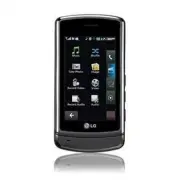


 LG A7110
User Manual
LG A7110
User Manual
 LG AX5000
User Manual
LG AX5000
User Manual
 LG C1300
User Manual
LG C1300
User Manual
 LG C1300A
User Manual
LG C1300A
User Manual
 LG C1300I
User Manual
LG C1300I
User Manual
 LG C1500
User Manual
LG C1500
User Manual
 LG C2000
User Manual
LG C2000
User Manual
 LG CB630
User Manual
LG CB630
User Manual
 LG CE500
User Manual
LG CE500
User Manual
 LG CF360
User Manual
LG CF360
User Manual
 LG CF360A
User Manual
LG CF360A
User Manual
 LG CG180
User Manual
LG CG180
User Manual
 LG CG225
User Manual
LG CG225
User Manual
 LG CG300
User Manual
LG CG300
User Manual
 LG CP150
User Manual
LG CP150
User Manual
 LG CU320
User Manual
LG CU320
User Manual
 LG CU400
User Manual
LG CU400
User Manual
 LG CU405
User Manual
LG CU405
User Manual
 LG CU500
User Manual
LG CU500
User Manual