Page 2 - I M P O RTA N T SA F E T Y P R E C AU T I O N S; W A
I M P O RTA N T SA F E T Y P R E C AU T I O N S 1 IMPOR T ANT S AFETY PRECA UTIONS Read these instructions. Breaking the rules may be dangerous or illegal. Further detailed information is given in this user guide. W W A A R R N N II N N G G !! V V ii oo ll aa tt ii oo nn oo ff tt hh ee ii nn ss tt r...
Page 3 - IMPORTANT SAFETY PRECAUTIONS
IMPORTANT SAFETY PRECAUTIONS 2 IMPOR T ANT S AFETY PRECA UTIONS 1. Do not expose the battery charger or adapter to direct sunlight or use it in places with high humidity, such as a bathroom. 2. Do not use harsh chemicals (such as alcohol, benzene, thinners, etc.) or detergents to clean your phone. T...
Page 5 - TA B L E O F C O N T E N T S; Table of Contents
T ABLE OF CONTENTS TA B L E O F C O N T E N T S 4 IMPORTANT SAFETYPRECAUTIONS 1 Table of Contents 4 Welcome 9 Technical Details 10 Phone Overview 13 Menus Overview 14 Getting Started with YourPhone 16 The Battery 16 Installing the Battery 16 Removing the Battery 16 Charging the Battery 16 Battery Ch...
Page 6 - Using Phone Menus
5 T ABLE OF CONTENTS Contacts in Your Phone’sMemory 25 The Basics of Storing Contacts Entries 25 Options to Customize YourContacts 25 Adding or Changing the Group 25 Changing the Call Ringer 26 Adding or Changing the Memo 26 Adding or Changing the Picture ID 26 Adding Speed Dial 27 Editing Contacts ...
Page 7 - TABLE OF CONTENTS
T ABLE OF CONTENTS TABLE OF CONTENTS 6 Web 47 1. Start Browser 47 2. Web Messages 49 3. Web Alerts 49 Multimedia 50 1. Take Picture 50 2. Record Voice 51 Contacts 52 1. New Contact 52 2. Contact List 53 3. Groups 53 4. Speed Dials 54 5. My Name Card 54 Recent Calls 55 1. Missed 55 2. Received 55 3. ...
Page 8 - Safety
7 T ABLE OF CONTENTS 2.4 Menu Styles 64 2.5 Languages 64 2.6 Dial Fonts 65 2.7 Clocks 65 2.8 Color Schemes 65 3. Security 66 3.1 Lock Phone 66 3.2 Restrict Call 66 3.3 Emergency #s 67 3.4 Change Lock Code 67 3.5 Reset Default 67 4. Call Settings 68 4.1 Answer Options 68 4.2 Auto Retry 68 4.3 One-Tou...
Page 9 - ACCESSORIES
TABLE OF CONTENTS 8 T ABLE OF CONTENTS Safety Information 78 Charger and Adapter Safety 78 Battery Information and Care 78 Explosion, Shock, and Fire Hazards 79 General Notice 79 Avoid damage to your hearing 80 FDA Consumer Update 82 10 Driver Safety Tips 89 Consumer Information on SAR 91 FCC Hearin...
Page 10 - W E LC O M E; Note
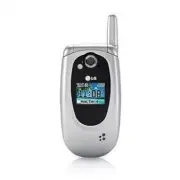
WEL COME Thank you for choosing the advanced and compactLG245 cellular phone, designed to operate with thelatest digital mobile communication technology, CodeDivision Multiple Access (CDMA) and AdvancedMobile Phone Service (AMPS). Along with the manyadvanced features of the CDMA system, this phoneof...
Page 11 - T E C H N I C A L D E TA I L S
10 TECHNICAL DET AILS T E C H N I C A L D E TA I L S Technical Details The LG245 is a trimode phone that operates on both(Code Division Multiple Access CDMA) frequencies:cellular services at 800 MHz and (PersonalCommunication Services PCS) at 1.9 GHz. Also, theLG245 works on Advanced Mobile Phone Se...
Page 13 - TECHNICAL DETAILS; FCC RF Exposure Information
12 TECHNICAL DET AILS TECHNICAL DETAILS FCC RF Exposure Information WARNING! Read this information before operating the phone. In August 1996, the Federal CommunicationsCommission (FCC) of the United States, with its action inReport and Order FCC 96-326, adopted an updatedsafety standard for human e...
Page 14 - P H O N E OV E RV I E W
PHONE O VER VIEW P H O N E OV E RV I E W 13 1. Earpiece Lets you hear the caller. 2. Flip Open the case to answer an incoming call and close to end the call. 3. LCD Screen Displays messages and indicator icons. 4. Left Soft Key Use to display the function setting menu. 5. SEND Key Use to place or an...
Page 15 - M E N U S OV E RV I E W
14 MENUS O VER VIEW M E N U S OV E RV I E W Messaging 1. New Text Message2. New Picture Message3. Inbox4. Sent5. Drafts6. Voicemail7. Settings 1. Auto Save2. Auto Delete3. Text-Auto View4. Picture-Auto Receive 5. Text-Callback #6. Edit Voicemail #7. Entry Mode8. Quick-Text9. Text-Auto Play0. Text Si...
Page 16 - Settings
MENUS O VER VIEW 15 Settings 1. Sound 1. Ringers 2. Volume 3. Message Alerts 4. Alert Type 5. Service Alerts 6. Power On/Off Tones 2. Display 1. Wallpaper 2. Banner 3. Backlight 4. Menu Styles 5. Languages 6. Dial Fonts 7. Clocks 8. Color Schemes 3. Security 1. Lock Phone 2. Restrict Call 3. Emergen...
Page 17 - G E T T I N G STA RT E D W I T H YO U R P H O N E; The B attery; Installing the Battery; Charging the Battery
16 G E T T I N G STA RT E D W I T H YO U R P H O N E GETTING S T ARTED WITH Y OUR PHONE The B attery The phone comes with a rechargeable battery. Keepthe battery charged while not in use in order tomaximize talk and standby time. The battery chargelevel is shown at the top of the LCD screen. Install...
Page 18 - B attery Charge Level; Turning the Phone On; Turning the Phone Off
17 GETTING S T ARTED WITH Y OUR PHONE B attery Charge Level The battery charge level is shown at the top right ofthe LCD screen. When the battery charge levelbecomes low, the low battery sensor alerts you inthree ways: sounding an audible tone, blinking thebattery icon, and displaying a warning mess...
Page 19 - GETTING STARTED WITH YOUR PHONE; Signal Strength; Making Calls
18 GETTING STARTED WITH YOUR PHONE GETTING S T ARTED WITH Y OUR PHONE Signal Strength Call quality depends on the signal strength in yourarea. The signal strength is indicated on the screenas the number of bars next to the signal strengthicon: The more bars, the better the signal strength. Ifthe sig...
Page 20 - Correcting Dialing Mistakes
19 GETTING S T ARTED WITH Y OUR PHONE Correcting Dialing Mistakes If you make a mistake while dialing a number, press once to erase the last digit entered, or hold down for at least 2 seconds to go to the standby mode. Redialing Calls 1. Press twice to redial the last number you dialed. The last 30 ...
Page 21 - QU I C K AC C E S S TO C O N V E N I E N T F E AT U R E S; Vibrate mode; Mute Function; Volume Quick Adjustment
20 QU I C K AC C E S S TO C O N V E N I E N T F E AT U R E S Q U ICK A CCESS T O CONVENIENT FEA TURES Vibrate mode Sets the phone to vibrate instead of ring ( is displayed). To quickly set Vibrate mode press andhold . To return to Normal Mode, press and hold . Lock Mode Sets your phone to require a ...
Page 22 - Call Waiting; Dialing Single Digit Speed Dials (from 2 to 9)
21 Q U ICK A CCESS T O CONVENIENT FEA TURES Call Waiting Your cellular service may offer call waiting. While acall is in progress, two beeps indicate anotherincoming call. When call waiting is enabled, you mayput the active call on hold while you answer theother incoming call. Check with your cellul...
Page 23 - E N T E R I N G A N D E D I T I N G I N FO R M AT I O N; Text Input; Key Functions; Text Input Modes
22 E N T E R I N G A N D E D I T I N G I N FO R M AT I O N ENTERING AND EDITING INF ORMA TION Text Input You can input and edit your Banner, Schedule,Contacts, Notepad, and Messages. Key Functions Left Soft Key : Press to scroll through the following text inputmodes: T9Word (T9WORD/T9Word/ T9word) -...
Page 24 - Symbols Mode; Text Input Examples; Using T9 Mode Text Input
23 ENTERING AND EDITING INF ORMA TION Symbols Mode Use to insert special characters or punctuation.There are 36 special characters including "SP" whichinserts a space, and "LF" which forces the text to thebeginning of the next line. Changing Letter Case Text can be capitalized when i...
Page 25 - ENTERING AND EDITING INFORMATION; Adding Words to the T9 Database
24 ENTERING AND EDITING INFORMATION ENTERING AND EDITING INF ORMA TION 4. Press . Call the office. is displayed. Using the NEXT Key (In T9 Mode) After you have finished entering a word, if the worddisplayed is not the one you want, press to display additional choices of words from thedatabase. 1. Pr...
Page 26 - Contacts Entries; The Basics of Storing Contacts Entries; Adding or Changing the Group; C O N TAC T S I N YO U R P H O N E ’ S M E M O RY
Contacts Entries This allows you to have easy access to your mostfrequently dialed phone numbers. You may store upto 500 entries with up to 5 phone numbers each.Each entry 'Name' may be up to 22 characters. The Basics of Storing Contacts Entries 1. From standby mode enter the phone number you want t...
Page 27 - CONTACTS IN YOUR PHONE’S MEMORY
3. Use to highlight No Group , to select a group. 4. Use to select the Group. No Group / Family / Friends / Colleagues / Business / School 5. Press Save to save the change. Changing the Call Ringer Allows you to identify who is calling, by settingdifferent ringers for different phone numbers in your...
Page 28 - Adding Speed Dial; Adding Another Phone Number
5. Use to select one of the images available, then press . 6. Press Left Soft Key Set . 7. Press Save to save the change. Adding Speed Dial 1. Press Right Soft Key Contacts and use to highlight an entry, then press . 2. Press Left Soft Key to select Edit . 3. Use to highlight the phone number you wa...
Page 29 - Default Numbers
28 CONTACTS IN YOUR PHONE’S MEMORY CONT A CTS IN Y OUR PHONE’S MEMOR Y Default Numbers The phone number saved when a Contact is createdis the Default Number. If more than one number issaved in a Contact entry, another number can bedesignated as the Default Number. Changing the Default Number 1. Pres...
Page 30 - Editing Customized Options; Deleting
29 CONT A CTS IN Y OUR PHONE’S MEMOR Y 3. Press Left Soft Key Edit . 4. Use to highlight the name. 5. Edit the name as necessary. 6. Press Save to save the change. Editing Customized Options Edit any of the Contacts options in the same manneras when the Contact is created. 1. Press Right Soft Key Co...
Page 31 - Additional Ways to Delete a Contact; Phone Numbers With Pauses; Storing a Number with Pauses
30 CONTACTS IN YOUR PHONE’S MEMORY CONT A CTS IN Y OUR PHONE’S MEMOR Y Additional Ways to Delete a Contact At any time when your Contacts are displayed, theRight Soft Key Options allows you to erase the highlighted entry. Phone Numbers With Pauses When you call automated systems such as voice mailor...
Page 32 - Adding a Pause to an Existing Number; Searching Your Phone’s Memory; Scrolling Through Your Contacts
31 Adding a Pause to an Existing Number 1. Press Right Soft Key Contacts to display your Contacts alphabetically. 2. Use to highlight the Contact entry to edit, then press . 3. Press Left Soft Key Edit . 4. Use to highlight the number. 5. Press Right Soft Key Options . 6. Press Wait or Pause . 7. En...
Page 34 - Making a Call From Your Phone’s Memory
33 Making a Call From Your Phone’s Memory Once you have stored phone numbers in yourContacts, you can place calls to those numbersquickly and easily. G By pressing Send Key after searching for a phone number in Contacts or Recent Calls andhighlighting it. G By using Speed Dialing From Contacts 1. Pr...
Page 35 - U S I N G P H O N E M E N U S
Menu Access Press Left Soft Key Menu to access nine phone menus. There are two methods of accessing menusand submenus: G Use the navigation key to highlight and select, or G Press the number key that corresponds to themenu (or submenu). For example: 1. Press Left Soft Key Menu to display nine menu i...
Page 36 - Access and Options; MESSAGING
Messaging Access and Options 1. Press Left Soft Key Menu . 2. Press Messaging . 3. Select a submenu. 1. New Text Message : Sends a text message. 2. New Picture Message : Sends a picture message. 3. Inbox : Shows the list of received messages. 4. Sent : Shows the list of sent messages. 5. Drafts : Sh...
Page 37 - The Basics of Sending a Text Message
New Message Alert There are three ways your phone alerts you to newmessages. 1. The phone displays a message on the screen. 2. One of eight ring tones is heard, if selected. 3. 2 min reminder 1. New Text Message Allows you to send text messages, pages, and e-mailtransmissions. Each message has a des...
Page 39 - Message Icon Reference
MESSAGING 38 MESS A GING Message Icon Reference Text Message Multi Picture Message delivered Delivered Picture Message Failed Multi Text/Picture Messages Failed Text/Picture Messages Multi Messages Pending Sent Message Pending Multi Text/Picture Messages in transfer Read SMS/EMS Unread Sent Text/Pic...
Page 44 - Message Settings Submenu Descriptions
MESSAGING 43 MESS A GING 7. Settings Allows you to configure 10 settings for receivedmessages. 1. Press Left Soft Key , , . 2. Use to highlight one of the settings and press to select it. Message Settings Submenu Descriptions 7.1 Auto Save Allows you to automatically save sent messages inyour Outbox...
Page 47 - Shortcut
1. Brew Apps Allows you to download selected applications whiledisplaying the entire application list retrieved fromthe Brew Apps server connection. 1. Press Left Soft Key , , . 2. Press . 3. Select [Brew Apps] Icon and press . 2. Brew Info Gives you information about the Brew Apps selection key. 1....
Page 48 - Web
WEB 47 WEB Web The Mobile Web feature allows you to view internetcontent. Access and selections within this feature aredependent upon your service provider. For specificinformation on Mobile Web access through yourphone, contact your service provider. Access and Options 1. Press Left Soft Key Menu ....
Page 51 - Multimedia; MULTIMEDIA
Multimedia View, take, and trade your digital pictures and videoright from your wireless phone. Access and Options 1. Press Left Soft Key Menu . 2. Press Multimedia . 3. Select a submenu. 1. Take Picture 2. Record Voice 1. Take Picture 1. Press Left Soft Key , , . 2. Set the brightness , zoom and pr...
Page 53 - Contacts; CONTACTS
Contacts The Contacts Menu allows you to store names,phone numbers and other information in yourphone’s memory. When you access your Contacts,the number in parentheses represents the number ofentries you have stored (up to 500). Access and Options 1. Press Left Soft Key [Menu] . 2. Press Contacts . ...
Page 56 - Recent Calls
Recent Calls The Recent Calls Menu is a list of the last phonenumbers or Contact entries for calls you placed,accepted, or missed. It is continually updated as newnumbers are added to the beginning of the list andthe oldest entries are removed from the bottom ofthe list. Access and Options 1. Press ...
Page 58 - My Media
My Media This menu allows you to use a wide variety of images,sounds, and more. Access and Options 1. Press Left Soft Key Menu . 2. Press My Media . 3. Select a submenu. 1. Image 2. Audio 1. Image Allows you to select images to customize yourphone's Main Screen, Front Screen, or Picture ID. 1. Press...
Page 59 - Tools; TOOLS
Tools Your phone tools include a Voice Command,Calendar, Alarm Clock, My Menu, World Clock,Notepad, Calculator, Ez Tip Calc, Stopwatch and UnitConverter. Access and Options 1. Press Left Soft Key Menu . 2. Press T T o o o o ll ss . 3. Select a submenu. 1. Voice Command 2. Calendar 3. Alarm Clock 4. ...
Page 76 - Exposure to Radio Frequency Signal; SA F E T Y
TIA Safety Information The following is the complete TIA Safety Informationfor wireless handheld phones. Exposure to Radio Frequency Signal Your wireless handheld portable phone is a low powerradio transmitter and receiver. When ON, it receivesand sends out Radio Frequency (RF) signals. In August, 1...
Page 77 - SAFETY
Tips on Efficient Operation For your phone to operate most efficiently: Don’t touch the antenna unnecessarily when thephone is in use. Contact with the antenna affects callquality and may cause the phone to operate at ahigher power level than otherwise needed. Driving Check the laws and regulations ...
Page 79 - Safety Information
Potentially Explosive Atmosphere Turn your phone OFF when in any area with apotentially explosive atmosphere and obey all signsand instructions. Sparks in such areas could cause anexplosion or fire resulting in bodily injury or evendeath. Areas with a potentially explosive atmosphere areoften, but n...
Page 80 - General Notice
G Use only LG-approved chargers specific to yourphone model since they are designed to maximizebattery life. G Do not disassemble or short-circuit the battery. G Keep the battery’s metal contacts clean. G Replace the battery when it no longer providesacceptable performance. The battery can berecharg...
Page 81 - Warning! Important safety information; Avoiding hearing damage
magnetism of the phone may damage the datastored in the magnetic strip. G Talking on your phone for a long period of timemay reduce call quality due to heat generatedduring use. G When the phone is not used for a long periodtime, store it in a safe place with the power cordunplugged. G Using the pho...
Page 82 - Using headsets safely; Using your phone safely
G Avoid turning up the volume to block out noisysurroundings. G Turn the volume down if you can’t hear peoplespeaking near you. For information about how to set a maximum volumelimit on your handset, please refer to the featuresguide for your handset . Using headsets safely Use of headsets to listen...
Page 90 - 0 Driver Safety Tips
10 Driver Safety Tips Your wireless phone gives you the powerful ability tocommunicate by voice almost anywhere, anytime. Animportant responsibility accompanies the benefits ofwireless phones, one that every user must uphold. When operating a car, driving is your firstresponsibility. When using your...
Page 92 - Consumer Information on SAR
consult your applicable jurisdiction’s local laws orother regulations regarding such use. Such laws orother regulations may prohibit or otherwise restrictthe manner in which a driver may use his or herphone while operating a vehicle. Consumer Information on SAR (Specific Absorption Rate) This model ...
Page 96 - AC C E S S O R I E S; attery Charger; ehicle Power Charger
AC C E S S O R I E S 95 A CCESSORIES B attery Charger The battery charger allows you to charge your phone. B attery Standard battery is available. V ehicle Power Charger The vehicle power charger allows you to operate the phone and trickle charge the phone’s battery from your vehicle. B attery Pack ...
Page 97 - L I M I T E D WA R RA N T Y STAT E M E N T
L I M I T E D WA R RA N T Y STAT E M E N T 96 1. WHAT THIS WARRANTY COVERS: LG offers you a limited warranty that the enclosedsubscriber unit and its enclosed accessories will befree from defects in material and workmanship,according to the following terms and conditions: (1) The limited warranty fo...
Page 99 - LIMITED WARRANTY STATEMENT
LIMITED WARRANTY STATEMENT 98 LIMITED W ARR ANTY S T A TEMENT 3. STATE LAW RIGHTS: No other express warranty is applicable to thisproduct. THE DURATION OF ANY IMPLIEDWARRANTIES, INCLUDING THE IMPLIEDWARRANTY OF MARKETABILITY, IS LIMITED TOTHE DURATION OF THE EXPRESS WARRANTYHEREIN. LGE MOBILECOMM US...
Page 100 - I N D E X
I N D E X 99 123 (Numbers) Mode 22 A Abc (Multi-tap) Mode 22Airplane Mode 69 Alarm Clock 59 Alert Type 63 All Calls 56 Alphanumeric Keypad 13Answer Options 68 Audio 57 Auto Delete 43 Auto NAM 70 Auto Retry 68 Auto Save 43 Auto Volume 69 B BACK Key 13 Back To Top 63 Backlight 64 Banner 64 Battery 16,...


 LG A7110
User Manual
LG A7110
User Manual
 LG AX5000
User Manual
LG AX5000
User Manual
 LG C1300
User Manual
LG C1300
User Manual
 LG C1300A
User Manual
LG C1300A
User Manual
 LG C1300I
User Manual
LG C1300I
User Manual
 LG C1500
User Manual
LG C1500
User Manual
 LG C2000
User Manual
LG C2000
User Manual
 LG CB630
User Manual
LG CB630
User Manual
 LG CE500
User Manual
LG CE500
User Manual
 LG CF360
User Manual
LG CF360
User Manual
 LG CF360A
User Manual
LG CF360A
User Manual
 LG CG180
User Manual
LG CG180
User Manual
 LG CG225
User Manual
LG CG225
User Manual
 LG CG300
User Manual
LG CG300
User Manual
 LG CP150
User Manual
LG CP150
User Manual
 LG CU320
User Manual
LG CU320
User Manual
 LG CU400
User Manual
LG CU400
User Manual
 LG CU405
User Manual
LG CU405
User Manual
 LG CU500
User Manual
LG CU500
User Manual