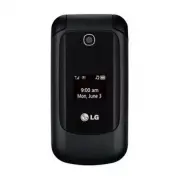
Page 4 - Table of Contents; Phone Overview; Using Phone Menus
2 Table of Contents Phone Overview 6 Menus Overview 8 Menu Access .......................................... 8 Getting Started with Your Phone 12 The Battery ............................................ 12 Charging the Battery .......................... 13 Battery Charge Level .........................
Page 5 - Recent Calls
Table of Contents 3 3. Inbox...............................................29 4. Outbox ...........................................30 5. Drafts ..............................................31 6. Voicemail........................................32 7. Templates ..........................................
Page 7 - Accessories 58
Page 10 - Menus Overview; Menu Access; Prepaid
8 Menus Overview Menu Access While in standby mode, press the Left Soft Key Menu to access your phone’s menus. There are two methods of accessing menus and submenus: Use the Directional Keys to highlight a menu/option and press to select it. Press the number key on the keypad to activate the cor...
Page 12 - Tools
Menus Overview 10 3. My Visibility 4. My Bluetooth Info Tools 1. Calculator 2. Ez Tip Calculator 3 Stopwatch 4. Unit Converter 1. Area 2. Length 3. Mass 4. Temperature 5. Volume 6. Velocity Settings 1. Sound 1. Ringtones 1. All Calls 2. Caller ID 3. No Caller ID 4. Buy Ringtones 2. Volume 1. Master ...
Page 14 - Getting Started with Your Phone; The Battery; Installing the Battery
12 Getting Started with Your Phone The Battery Note It is important to fully charge the battery before initial use of the phone. The phone comes with a rechargeable battery. The battery charge level is shown at the top right corner of the LCD screen. Installing the Battery 1. Insert your fingertip in...
Page 15 - Charging the Battery; Battery Charge Level; Turning the Phone On
Getting Started with Your Phone 13 compartment to lift the battery out. Charging the Battery 9CTPKPI Use only the charger provided with the phone. Using any charger other than the one included with the phone may damage your phone or battery Notice Please make sure that the 'B' side faces up before i...
Page 16 - Turning the Phone Off; Signal Strength; Screen Icons; Making Calls
Getting Started with Your Phone 14 Turning the Phone Off Press and hold until the screen turns off. Signal Strength Call quality depends on the signal strength in your area. The signal strength is indicated on the screen as the number of bars next to the signal strength icon ; the more bars, the bet...
Page 17 - Receiving Calls
Getting Started with Your Phone 15 Tip To select your method for answering calls, you can change your Answer Options. Menu > Settings > Call Settings > Answer Options . Choose from the following options: Flip Open / SEND Key Only/ Any Key/ Auto with Handsfree Receiving Calls 1. When the pho...
Page 18 - Quick Access to Convenient Features; Mute Function; Quick Volume Adjustments; Call Waiting; Caller ID
Quick Access to Convenient Features 16 Mute Function The Mute function is used during a phone call. To quickly activate Mute, press the Left Soft Key Mute . To cancel, press the Left Soft Key Unmute . Quick Volume Adjustments Quickly adjust the ringer and earpiece volumes by pressing the Volume Up K...
Page 20 - Entering and Editing Information; Text Input; Key Functions
Entering and Editing Information 18 Text Input You can input and edit your Calendar, Contacts, and more. Key Functions Left Soft Key : Press to scroll through the following text input modes: T9Word: T9WORD/T9Word/ T9word Abc: ABC/Abc/abc 123 Symbols Shift Key : Press to change capitalization. T9Word...
Page 21 - Contacts in Your Phone’s Memory; Phone Numbers With Pauses; Storing a Number with Pauses
Contacts in Your Phone’s Memory 19 The Basics of Storing Contacts Entries 1. From standby mode, enter the phone number you want to save (up to 48 digits). 2. Press Save . 3. Select either Add New Contact or Update Existing . Note Use Update Existing to add another phone number to a contact already s...
Page 22 - Searching by Letter
Contacts in Your Phone’s Memory 20 3. Press New Contact . 4. Enter a name (up to 32 characters). 5. Enter the phone number in any of the number labels. 6. While entering the number, press the Right Soft Key Options . 7. Press Wait or Pause . 8. Enter the additional number(s) and press Save . Adding ...
Page 23 - Contact List Options
Contacts in Your Phone’s Memory 21 the contact's name. 3. The matching contacts will be automatically highlighted. Scrolling Through Your Contacts 1. Press the Down Directional Key to display your Contacts alphabetically. 2. Use to scroll through the list. Contact List Options 1. While in standby mo...
Page 24 - From Contacts; From Recent Calls; Speed Dialing
Contacts in Your Phone’s Memory 22 From Contacts 1. While in standby mode, press the Down Directional Key to display your Contacts. 2. Use to highlight the Contact entry, then press View . 3. Use to highlight the phone number. 4. Press to place the call. From Recent Calls 1. Press Menu . 2. Press Re...
Page 26 - Contacts
24 Contacts Contacts The Contacts menu allows you to store names, phone numbers and other information in your phone’s memory. Note When you access your Contacts, the number in parentheses represents the number of entries you have stored (up to 1000). 1. New Contact Allows you to add a new contact to...
Page 28 - Messages
26 Contacts/ Messages 3. Use to highlight the Contact and press . A confirmation message is displayed. Messages The phone can store a total of up to 735 (400 text messages, 100 CMAS messages, 100 multimedia messages, and 100 multimedia message notifications in the Inbox; 15 text messages and 20 multim...
Page 30 - Message Icon Reference; New Picture Message
Messages 28 6. Complete your message and send it. Message Icon Reference Inbox Picture Message New/Unread Text Message Opened/Read Text Message High Priority Message Sent Picture Message Failed Text Message Multiple Failed Text Message Sent Text Message Multiple Sent Text Messages Drafts Draft Text ...
Page 38 - Games; Browser
36 Games/ Browser Games Allows you to use the preloaded games or buy new games. 1. Buy Games 1. Press Menu , , . 2. Search for a game and follow the on-screen steps to download it. OR Select from the following pre-loaded games: Block Breaker 3 Unlimited / Texas Hold’Em Poker 2 Browser The Browser fe...
Page 39 - Scrolling; Fast Scrolling; Soft Keys
Browser 37 Links embedded in content You can act on the options or the links by using the Soft Keys at the bottom of the display screen. Text or numbers You can select the items by moving the cursor and pressing the appropriate Soft Keys. Scrolling Use to scroll through the content if the curren...
Page 40 - Multimedia
38 Multimedia Multimedia View, take, and share your digital pictures right from your wireless phone. 1. Take Photo 1. Press Menu , , . 2. Press to display the toolbar and set camera settings, including Brightness, Resolution, Capture, Zoom or Multishot . Press the Left Soft Key Gallery to view My Im...
Page 43 - Voice Command
41 Voice Command Voice Command Allows you to make phone calls quickly and easily by voice. Your phone recalls the number from your Contacts and then dials it. This menu also includes features that are useful for those who are driving or blind. It delivers time information by voice and allows you to ...
Page 46 - My Schedule
44 My Schedule My Schedule 1. Alarm Clock Allows you to set up to five alarms. At the alarm time, any set alarm will sound the tone of your choice, and an alarm message will be displayed on the LCD screen. 1. Press Menu , , . 2. Use to highlight the alarm you wish to set, then press to select it. 3. ...
Page 47 - My Schedule/ Bluetooth; Bluetooth
45 My Schedule/ Bluetooth 5. Once you have entered all the necessary information, press Save . 3. Notepad Allows you to add, read, edit, and erase notes to yourself. 1. Press Menu , , . 2. Press the Left Soft Key New to write a new note. 3. Type the note, then press Save . A confirmation message disp...
Page 51 - Settings
49 Settings Settings 1. Sound Options to customize your phone’s sounds. 1.1 Ringtones Allows you to assign ringtones for incoming calls. 1. Press Menu , , , . 2. Select All Calls / Caller ID/ No Caller ID/ Buy Ringtones . 3. Highlight My Sounds / Default / Buy Ringtones and press to open the desired...
Page 55 - Name Match for Dialing
Settings 53 Options for Dial Font Style Digital / Blackboard / Sketchbook / Sky/ Basic Options for Dial Font Size Normal / Large 2.7 Word Prediction Allows you to activate word prediction, a function that uses your past text entries to predict what your next word will be. 1. Press Menu , , , . 2. Us...
Page 56 - Camera Restriction
Settings 54 Lock The phone is locked until it is unlocked again. When locked, you can receive incoming calls and make only emergency calls. On Power Up The phone is locked when it is turned on. 3.2 Camera Restriction Allows you to block Camera use. 1. Press Menu , , . 2. Enter the four-digit lock co...
Page 60 - Accessories
58 Accessories There are a variety of accessories available for your mobile phone. Consult your local dealer for availability. Optional items are sold separately. Battery Charger The battery charger allows you to charge your phone battery. Battery Standard battery is available.
Page 61 - Index
59 Index A Add Airtime 23 Airplane Mode 55 Alarm Clock 44 Alert Type 50 All Calls 35 All Messages 33 Announce Alert 43 Answer Options 55 B Backlight 51 Battery Charge Level 13 Best Match 43 Bluetooth 45 Browser 36 Buy Games 36 C Calculator 47 Calendar 44 Caller ID 16 Call <Name> or <Number&...














