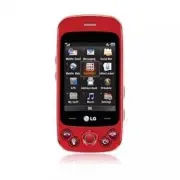
LG GW370 - Manuals
User Manual LG GW370
Summary
LIMITED WARRANTY STATEMENT 1. WHAT THIS WARRANTY COVERS : LG offers you a limited warranty that the enclosed subscriber unit and its enclosed accessories will be free from defects in material and workmanship, according to the following terms and conditions: 1. The limited warranty for the product ex...
9. Products operated outside published maximum ratings. 10. Products used or obtained in a rental program. 11. Consumables (such as fuses). 3. WHAT LG WILL DO: LG will, at its sole option, either repair, replace or refund the purchase price of any unit that does not conform to this limited warranty....
2 Your Phone . . . . . . . . . . . . . . . . . . . . . . . . . . . . 6 Phone Components . . . . . . . . . . . . . . . . . . . . . . . . . . . . 6Rear View . . . . . . . . . . . . . . . . . . . . . . . . . . . . . . . . . . . . 7Slide Open View . . . . . . . . . . . . . . . . . . . . . . . . . . . . ...
6 Phone Components 2 7 3 5 9 1 8 4 11 12 13 14 6 10 1. Charger/USB Port 2. Earpiece: Lets you hear the caller and automated prompts. 3. Main LCD: Displays phone status icons, menu items, web items, web information, pictures and more in full color. 4. SEND key: Press this key in standby mode to quick...
7 Your Phone 10. Headset/Headphones Port 11. Side volume keys • When on the Standby screen: Allow you to set the Ringtone volume. Hold the Down volume key for 3 seconds to toggle the Vibration Mode On and Off. • During a call: Allow you to change the Earpiece volume. • When playing music: Allow you ...
8 Your Phone Slide Open View Mobile Email IM Text Msg Mobile Web Caps Press to change between Upper Case and Lower Case. Fn Press to input symbols and numbers with Qwerty key pad. Space Press to create a space between words. Sym Press to open the menu with Symbol entry options. Del Deletes digits an...
9 Installing the SIM Card and Battery 1. Remove the battery cover Use firm pressure to slide the cover downwards and unlock the battery cover from the phone. The battery cover should slide and lift off easily. 2. Remove the battery Hold the bottom edge of the battery and using your fingernail, lift ...
10 3. Install the SIM card Slide the SIM card into the SIM card holder. Make sure that the gold contact area on the card is facing downward. To remove the SIM card, pull it gently in the opposite direction. 4. Install the battery Insert the top of the battery first into the top edge of the battery c...
11 Getting Started Charging your phone Lift the charger port cover on the top side of your LG GW370. Insert the charger connector to the phone (‘B’ side of the connector has to be facing up when connecting to the phone) and then plug into the wall socket. Your LG GW370 will need to be charged until ...
13 Getting Started On-Screen Icons The table below describes various display indicators or icons that appear on the phone’s display screen. ICON/ INDICATOR DESCRIPTION ICON/ INDICATOR DESCRIPTION Multitasking 3G available Network signal strength (number of bars will vary) Bluetooth is On Data is act...
14 Making a Call 1. Make sure your phone is powered on. 2. Press and enter a phone number using the touch pad or slide open the qwerty pad and enter a phone number using the qwerty keys. To edit a number on the display screen, simply press the key to erase one digit at a time. ] Press the key to era...
15 General Functions Answering a Call When you receive a call, the phone displays an icon on the screen and rings and/or vibrates. If the caller can be identified, the caller’s phone number (or name if stored in your Address Book) is displayed. 1. Press the [SEND] key or the left soft key to answer ...
16 General Functions Vibration Mode (Quick) Vibration Mode can be activated by touching and holding from the dial pad. You can also set Vibration Mode by pressing and holding down side volume key as well. The phone will display ‘Vibrating Mode On’. If you would like to turn Vibration mode Off, touch...
17 General Functions ABC Mode Use the Qwerty keys to enter your text. 1. Press key labeled with the required letter. 2. To insert a space, press . To delete letters, press . Press and hold down to erase the entire text entry. 123 Mode (Numbers Mode) Using the 123 mode allows you to enter numbers usi...
18 General Functions Qwerty Keypad Text input mode using the Qwerty Keypad When you are required to enter text, for example when writing a message, the keypad will default to ABC mode. If you are entering a number, for example in the dial screen, the keypad number keys will default to 123 entry mode...
19 AT&T Address Book (AAB) AT&T Address Book (AAB) is a service that synchronizes your Address Book information with the AAB server. This backs up your contact information so that you can restore is at any time. You can access AT&T Address Book easily through your phone’s Address Book me...
20 In-Call Menu During a Call Your phone provides a number of control functions that you can use during a call. To access these functions during a call, press the Left soft key Options . Making a Second Call You can select a number you wish to dial from the Address Book, to make a second call. Press...
21 In-Call Menu Using the Speakerphone You can use the integrated Speakerphone during a call by pressing the key. The Speakerphone function is automatically deactivated when you end the call. n Warning Due to increased volume levels, do not place the phone near your ear while the speakerphone is ena...
24 Conference Calls The conference service provides you with the ability to have a simultaneous conversation with more than one caller. The conference call feature can be used only if your network service provider supports this feature. A conference call can only be set up when you have one call act...
25 In-Call Menu Place the Conference Call on Hold To place a conference call on hold, press the [SEND] key. Adding Calls to the Conference Call To add a call to an existing conference call, press the left soft key Options , and then select the Join Calls sub menu from the Conference Call option. Pri...
26 1. Mobile Email (see page 30) 2. Messaging (see page 31) 2.1 Create Message2.2 Inbox2.3 Drafts2.4 Outbox2.5 IM2.6 Voice Mail2.7 Message Settings 3. Social Net (see page 44) 4. Mobile Web (see page 45) 5. AppCenter (see page 46) 6. Online Locker (see page 48) 7. AT&T GPS (see page 49) 8. Addre...
30 Mobile Email allows you to access your Yahoo! Mail, AOL Mail, AIM Mail, Windows Live Hotmail, AT&T Mail, Gmail and Other provider’s accounts on your phone. So, now you can quickly and easily check your email while you are away from your computer. Open Mobile Email: 1. From the Standby screen,...
31 This menu includes functions related to SMS (Short Message Service), MMS (Multimedia Message Service), voice mail as well as the network’s service messages. Create Message In the Standby screen, press the Right soft key Menu , select Messaging and then Create Message . Editing a message When prep...
33 Messaging - Caller Groups: Shows Contacts in the saved Groups. - Recent Messages: Choose a contact from recent messages. - Recent Calls: Choose a contact from recent calls. - Delivery Options: To set the options for Delivery Receipt, Request Read Receipt, Add Cc, and Add Bcc. - Edit Message: Retu...
34 Messaging ] Copy to Phone/Copy to SIM: To copy to Phone or SIM depending on where the text message is stored. ] Move To SIM/Move to Phone: To move the message to the SIM card or to the phone. ] Message Details: To view information about received messages; message Type, Subject, Sender’s address, ...
35 Messaging ] Select Multiple: Allows you to select multiple messages from the list. ] Message Details: Allows you to view the information on the message. IM The Instant Messaging feature can be used with the communities of AIM, Windows Live and Yahoo! Messenger. For Instant Messaging users, a vali...
36 Messaging Offline Conversations This is where you can view offline conversations. Settings/Preferences ] Set Sound: Allows you to turn IM sounds On / Off . ] Network: You may check your Network Profiles or Server Address information. IM Information This displays the Instant Messaging Client Infor...
38 Messaging ] Refresh Contact List: This refreshes the current information on the contacts within the list. ] Block List: Displays the list of all blocked Contacts. ] Saved Conversations: This is where you can view saved conversations. ] Settings: • Display Name: Allows you to set your name as it w...
39 Messaging ] Settings: • Display Name: Allows you to set your name as it will be displayed to others. • My Status: Allows you to set your status to Available, Busy or Invisible. • Offline Contacts: Allows you to choose how to display your Offline contacts. • Set Sound: Allows you to turn the sound...
40 Messaging ] Settings: • Display Name • My Status • Offline Contacts • Set Sound • Auto Sign In ] Text Entry Mode: Sets the text input mode such as abc, Abc, ABC, and 123. ] Text Entry Mode Settings: This feature allows you to access the T9 Dictionary, Text Entry Language, word correction, and Nex...
41 Messaging Message Settings To access and configure your Message Settings, go to Menu > Messaging > Message Settings . Message Alert Allows you to set the Sounds and Alert Type. Save To Allows you to choose whether to save messages to the SIM Card or the Phone. Signature This feature allows ...
42 Messaging ] Message Center Number: Allows you to set the Message Center Number. It is recommended that you use the default number on your phone. ] Email Gateway: Allows you to set the Email Gateway. It is recommended that you use the default Gateway on your phone. ] Subject: Allows you to choose ...
43 Messaging ] Message Center: The details for the Multimedia gateway are pre-loaded onto your handset and should not be changed. Voicemail Number This menu allows you to set the Voice Mail center number if this feature is supported by AT&T. Please check with AT&T for details of their servic...
44 To access AT&T Social Net from the Standby screen, select Menu and then Social Net . Your AT&T mobile phone now keeps you connected to Facebook, MySpace and Twitter, plus the latest in news, sports, and entertainment. See new messages, posts, and status updates as soon as they happen, and...
45 Mobile Web is one of the services provided by AT&T and it gives you access to the web using your wireless phone. n Note Check the availability of services, pricing, and tariffs with your network operator and/or the service provider whose service you wish to use. Service providers will also gi...
46 AppCenter To launch AppCenter from the Standby screen, select Menu and then AppCenter . Ringtones This menu option connects to AT&T’s ringtone download site. It allows users to download various ringtones by connecting to the Internet. n Note Additional charges may incur when downloading ringt...
47 Videos This menu option connects to AT&T’s video download site. This allows users to download the various videos by connecting to the Internet. n Note Additional charges may incur when downloading applications. Contact AT&T for additional information. Color Graphics This menu option conne...
48 Online Locker is a destination to which you can save your pictures and videos. By accessing Online Locker, you open the AT&T Mobile Share application that accesses the saved Online Locker items. From the Online Locker, you can send your files to your favorite web sites, such as Facebook, MySp...
51 Contact List This menu allows you to save and manage contact address information. The Contact List’s functions allow you to add a new address or search saved contact addresses by name. New Contact This menu allows you to add a new contact to the Contact List. You can enter contact address informa...
52 SIM Management This menu allows you to copy Contact information saved on your SIM card to your phone. If a name is duplicated during the copying operation, the entry will be displayed twice in the Address Book. You can copy the entry from the SIM card to the phone memory. You can copy the entry f...
53 Unleash the power of YELLOWPAGES.COM local search on your mobile phone. Find a business, get maps and directions, and save your favorites: our mobile app gives you what you need, whenever and wherever you need it. ] Search for local businesses. ] View ratings and call businesses. ] Save businesse...
54 Audio ] Shop Tones: This menu option connects to AT&T’s ringtone download site. ] Ringback Tones: This menu option shows the list of options related with AT&T’s Ringback tones. ] Record Voice: You can record your own audio by pressing the Record soft key. ] Saved audio files are displayed...
55 My Stuff Video ] Shop Videos: This menu option opens the AppCenter location from where you can download new videos. ] Record Video: Takes you to the camcorder function, from where you can record a new video. ] The video files saved on your phone and memory card (if inserted) are displayed. n Note...
56 My Stuff n Note Check the availability of WAP services, pricing, and tariffs with your network operator and/or the service provider whose service you wish to use. Service providers will also give you instructions on how to use their services. Please contact your service provider to open an Intern...
57 My Stuff Tools Voice Command Voice command is the function whereby your phone’s voice recognition engine identifies the voice of the user and carries out the requested commands. When the user operates the voice command function, there are five possible commands, Call <name or number>, Liste...
59 My Stuff - Name Repeat: The phone announces an incoming call by repeating the name or number of the caller repeatedly. Recent Calls This shows recent calls categorized as All/ Missed/Dialed/Received by tab. Alarm Clock The alarm function allows you to set up multiple separate alarms. You can also...
60 My Stuff The following options are available when a Calendar event is selected from the Calendar menu. ] Search: Allows you to search the saved schedule(s). ] Set Holiday: Allows you to set specific dates to display as Holidays on your calendar. ] View All: Allows you to view all saved schedules....
61 My Stuff Tasks This feature allows you to save and manage a task. 1. To add a new To Do item, press the Right soft key New . 2. Input Due Date, Note, Priority and Status information for the new Task. 3. Press the Right soft key Save to save the Task item. The following options are available for s...
62 My Stuff ] Saved Times: You can see the saved recorded times. Tip Calculator This feature allows you to quickly and easily calculate the tip amount based on the total bill as well as the split of the total bill based on the number of people. Unit Converter This function allows you to convert unit...
64 My Stuff Record Video You can record a video clip with your phone. The following options will appear (as icons) on the right side of the screen. ] Album: Allows you to view saved video files. ] Photo: Allows you to switch to Camera Mode in order to take a picture. ] Record: Allows you to begin re...
65 My Stuff Others Tab ] Save to: Allows you to choose the default save location between Phone Memory and Memory Card. ] Hide Icons: Allows you to select from Auto/Manual. ] Voice: Allows you to mute or unmute the voice. ] Recording Tones: Allows you to turn Recording Tones on or off. ] Reset Settin...
66 My Stuff ] Set Default Storage: Allows you to choose the default storage location the recorded audio to the Phone Memory or the Memory Card. ] Cancel: Takes you back to the Camera & Recordings menu. Pressing the Right soft key Gallery takes you to the Audio & Ringtones Gallery. Other File...
67 Music Player ] All Songs: Allows you to view all the songs in your music library. ] Playlists: Allows you to create your own playlists by choosing songs from the All Songs menu list. ] Artists: Shows the list of artists of all the songs in your music library and all the songs pertaining to that a...
69 AT&T Music Purchasing and downloading Music directly to your Device 1. With the slide open, press the Right soft key Menu to open the Main Menu. 2. Press or use the Navigation Keys to select AT&T Music . 3. Select Shop Music . 4. Navigate the Shop Music page to download today’s hottest mu...
70 AT&T Music Transferring Music from the Digital Music Service (such as Napster or eMusic) 1. Using your computer, open your preferred PC music management client. 2. Download the selected song to your library. 3. Make sure the microSD card is inserted properly into the handset. 4. Use the USB a...
72 AT&T Music n Note The PC will automatically assign a drive letter. 6. Explore files in a new window for desired music files. 7. Drag and drop the desired music content from the PC window to the “Storage Card” window. 8. Disconnect the device from the cable. 9. Access the Music Player on the p...
73 AT&T Music 3. Delete a file using delete function on the phone. 4. Delete the files by using the Master Clear option on your Memory Card. n Note Be aware that all of the existing data will be erased on microSD card if you use the Master Clear option. Access the Memory Card function in the Res...
74 Audio & Ringtones There are 5 sound modes: General, Vibrate All, Alarm Only, and Silent All. Preferences can be set in the Audio & Ringtones menu. In addition, pressing and holding the key while on the dialpad in the standby screen switches between Normal Mode and Vibrating Mode. Shop Ton...
75 Settings Keypad Tone ] Sounds: Allows you to select a tone that the phone sounds when a key is pressed on the dialpad screen. Supports 2 keypad tones: Beep and Voice. ] Volume: This menu controls the Keypad Tone sound volume. Multimedia This menu controls the Multimedia sound volume. Call This me...
76 Settings Languages You can change the language for the display text on your phone. This change will also affect the Language Input mode. Set Hotkeys You can change the preferences on the Hotkeys that are currently assigned for your navigation keys (when in Standby mode). Auto Key Lock This allows...
78 Settings Reset Settings This function allows you to restore factory settings. To do this, you need the Security Code. ] Master Reset: Restores the handset settings (e.g.: Audio, Display, Language, Date & Time, Bluetooth Settings) to default values. ] Master Clear: Restores handset settings an...
79 Settings Brightness You can set the brightness of the display screen and the keypad. Backlight Timer Use this to set the duration of the display backlight and keypad & Thumb Pad. Color Schemes You can change the color of the menu, soft key area, title bar area and cursor by changing the Color...
80 Settings The following options are available: ] All Voice Calls: Diverts voice calls unconditionally. ] If Busy: Diverts voice calls when the phone is in use. ] If No Answer: Diverts voice calls which you do not answer. ] If Out of Reach: Diverts voice calls when the phone is switched off or out ...
81 Settings Minute Minder This option allows you to specify whether the phone will beep every minute during a call to keep you informed of the length of the call. Call Waiting The network will notify you of a new incoming call while you have a call in progress. Select Activate to request the network...
82 Settings Send DTMF Tones Select from On/Off. TTY Select from TTY Full/TTY Talk/TTY Hear/TTY Off. Time & Cost You can check Call Duration and Data Counter. Connection Bluetooth ® Your phone has built-in Bluetooth wireless technology, which makes it possible for you to connect your phone wirele...
83 Settings When using each device, see the manual that comes with the device. n Note We recommend that your phone and the Bluetooth device you are communicating with should be no more than 30 feet apart. The connection may be improved if there are no solid objects between your phone and the other B...
84 Settings USB Connection Mode The USB Connection Mode determines how your Phone will communicate with other USB devices when they are connected with a USB cable. You can transfer files from a compatible PC to the memory in your phone using Mass Storage. When you connect the phone to a PC using the...
85 Settings SIM Card This function shows information about the SIM Card’s available memory. Set Default Storage You can set Storage defaults for some of the different media types. When you need to save files from Camera, Download, Bluetooth and Voice Recorder, choose whether you want those files to ...
86 Settings n Note You cannot edit and delete pre-installed accounts. In order to create a new account, please fill in the network information. 1. Account Name: Name associated with new account. 2. Homepage: Homepage URL. 3. Internet Profile: You can choose one from the Internet profiles. n Note Cre...
88 1. Enter URL 3. View Bookmarks 5. Full Screen 7. Page Up 9. Zoom In *. Page Down 2. This Page 4. Info. 6. Normal Screen 8. Recent Pages 0. Search Text #. Zoom Out Voice Command • Mode - speed: with this setting, you no longer receive voice prompts (only tone prompts) from the phone when Voice Com...
91 There are a variety of accessories available for your mobile phone, some of which may be sold separately. You can select these options according to your personal communication requirements. Consult your local dealer for availability. Travel Adapter This adapter allows you to charge the battery. I...
92 Important Information This user guide contains important information on the use and operation of this phone. Please read all the information carefully for optimal performance and to prevent any damage to or misuse of the phone. Any changes or modifications not expressly approved in this user guid...
95 If this equipment does cause harmful interference or television reception, which can be determined by turning the equipment off and on, the user is encouraged to try to correct the interference by one or more of the following measures: ] Reorient or relocate the receiving antenna. ] Increase the ...
96 ] Improper battery use may result in a fire, explosion or other hazard. ] For those host devices that utilize a USB port as a charging source, the host device’s user manual shall include a statement that the phone shall only be connected to products that bear the USB-IF logo or have completed the...
97 TIA Safety Information Provided herein is the complete TIA Safety Information for Wireless Handheld phones. Inclusion of the text covering Pacemakers, Hearing Aids, and Other Medical Devices is required in the owner’s manual for CTIA Certification. Use of the remaining TIA language is encouraged ...
Safety Guidelines 98 Tips on Efficient Operation For your phone to operate most efficiently: ] Do not touch the antenna unnecessarily when the phone is in use. Contact with the antenna affects call quality and may cause the phone to operate at a higher power level than otherwise needed. Driving Chec...
Safety Guidelines 100 Areas with a potentially explosive atmosphere are often, but not always, marked clearly. Potential areas may include: fueling areas (such as gasoline stations); below deck on boats; fuel or chemical transfer or storage facilities; vehicles using liquefied petroleum gas (such as...
Safety Guidelines 101 ] Replace the battery only with another battery that has been qualified with the system per IEEE-Std-1725-2006. Use of an unqualified battery may present a risk of fire, explosion, leakage or other hazard. ] Promptly dispose of used batteries in accordance with local regulation...
Safety Guidelines 102 ] Use of extended backlighting, MEdia Net Browsing, and data connectivity kits affect battery life and talk/standby times. ] The self-protection function of the battery cuts the power of the phone when its operation is in an abnormal state. In this case, remove the battery from...
Safety Guidelines 103 ] When the phone is not used for a long period time, store it in a safe place with the power cord unplugged. ] Using the phone in proximity to receiving equipment (i.e., TV or radio) may cause interference to the phone. ] Do not use the phone if the antenna is damaged. If a dam...
Safety Guidelines 104 but such findings have not been confirmed by additional research. In some cases, other researchers have had difficulty in reproducing those studies, or in determining the reasons for inconsistent results. 2. What is the FDA’s role concerning the safety of wireless phones? Under...
Safety Guidelines 105 The FDA shares regulatory responsibilities for wireless phones with the Federal Communications Commission (FCC). All phones that are sold in the United States must comply with FCC safety guidelines that limit RF exposure. The FCC relies on the FDA and other health agencies for ...
Safety Guidelines 106 animals to RF for up to 22 hours per day. These conditions are not similar to the conditions under which people use wireless phones, so we don’t know with certainty what the results of such studies mean for human health. Three large epidemiology studies have been published sinc...
Safety Guidelines 107 6. What is the FDA doing to find out more about the possible health effects of wireless phone RF? The FDA is working with the U.S. National Toxicology Program and with groups of investigators around the world to ensure that high priority animal studies are conducted to address ...
Safety Guidelines 108 directions for locating the FCC identification number on your phone so you can find your phone’s RF exposure level in the online listing. 8. What has the FDA done to measure the radio frequency energy coming from wireless phones? The Institute of Electrical and Electronic Engin...
Safety Guidelines 109 10. What about children using wireless phones? The scientific evidence does not show a danger to users of wireless phones, including children and teenagers. If you want to take steps to lower exposure to radiofrequency energy (RF), the measures described above would apply to ch...
Safety Guidelines 110 of wireless phones for possible interactions with other medical devices. Should harmful interference be found to occur, the FDA will conduct testing to assess the interference and work to resolve the problem. 12. Where can I find additional information? For additional informati...
116 To help you understand the main technical terms and abbreviations used in this booklet and to take full advantage of the features on your mobile phone, here are a few definitions. Call Reject The ability to restrict incoming calls. Call Forwarding The ability to reroute calls to another number. ...
117 Line Identification Services (Caller ID) Service allowing subscribers to view or block the telephone numbers of callers. Conference Calls Ability to establish a conference call involving up to five additional parties. Roaming Use of your phone when you are outside your home area (for example, wh...
118 Index A Address Book ............................................................51 Answering a Call ......................................................15 Answer Mode ...........................................................80 Audio & Ringtones..............................................
DECLARACIÓN DE GARANTÍA LIMITADA 1. ESTA GARANTÍA CUBRE : LG le ofrece una garantía limitada de que la unidad adjunta para el suscriptor y sus accesorios adjuntos estarán libres de defectos de materiales o mano de obra, según los siguientes términos y condiciones: 1. La garantía limitada del product...
8. Todas las superficies de plástico y todas las demás piezas expuestas externamente que tengan arañazos o daños causados por el uso normal por parte del cliente. 9. Productos que se hayan hecho funcionar fuera de los límites máximos. 10. Productos usados o alquilados. 11. Consumibles (como los fusi...
2 El teléfono . . . . . . . . . . . . . . . . . . . . . . . . . . . . . . . . 6 Componentes del teléfono . . . . . . . . . . . . . . . . . . . . . . . . 6Vista posterior . . . . . . . . . . . . . . . . . . . . . . . . . . . . . . . . . . . 7Vista con la tapa deslizante abierta . . . . . . . . . . . ...
6 Componentes del teléfono 2 7 3 5 9 1 8 4 11 12 13 14 6 10 1. Puerto para el cargador/USB 2. Auricular: Permite escuchar a la persona que llama y también indicaciones automatizadas. 3. Pantalla LCD: Muestra los iconos de estado del teléfono, los elementos de los menús, los elementos web, la informa...
7 El teléfono 10. Puerto para auriculares y audífonos 11. Teclas laterales de volumen • En la pantalla de espera: Permite fijar el volumen del tono de timbre. Mantenga presionada la tecla de volumen inferior por 3 segundos para alternar el Modo vibración entre encendido y apagado. • Durante una llam...
8 El teléfono Vista con la tapa deslizante abierta E-Mail Móvil MI Mensaje de texto Web Móvil Shift Permite alternar entre letras mayúsculas y minúsculas. Fn Permite introducir símbolos y números en el teclado Qwerty. Espacio Permite crear un espacio entre las palabras. Sym Permite abrir el menú de ...
9 Instalación de la tarjeta SIM y la batería 1. Retire la tapa de la batería Use presión firme para deslizar la tapa hacia abajo y desbloquee la tapa de batería del teléfono. La tapa de la batería debe deslizarse y levantarse fácilmente. 2. Retire la batería Sostenga el borde inferior de la batería ...
10 3. Instalación de la tarjeta SIM Deslice la tarjeta SIM hasta colocarla en su ranura. Asegúrese de que el área de contacto dorada de la tarjeta esté orientada hacia abajo. Para retirar la tarjeta SIM, tire suavemente hacia la dirección contraria. 4. Instalación de la batería Inserte primero la pa...
11 Introducción Cargando el teléfono Levante la tapa del puerto para el cargador ubicada en la parte superior del teléfono GW370 de LG. Inserte el conector del cargador en el teléfono (el lado “B” del conector debe orientarse hacia arriba al conectarlo en el teléfono) y luego enchufe el cargador en ...
13 Introducción Iconos en pantalla La tabla debajo describe diversos indicadores o iconos que aparecen en la pantalla de visualización del teléfono. ICONO/ INDICADOR DESCRIPCIÓN ICONO/ INDICADOR DESCRIPCIÓN Multitarea 3G disponible Intensidad de señal de la red (variará el número de barras) Bluetoot...
14 Hacer una llamada 1. Asegúrese de que el teléfono esté encendido. 2. Presione e introduzca un número de teléfono con el teclado táctil o deslice el teclado Qwerty para abrirlo e introduzca un número de teléfono con las teclas qwerty. Para modificar un número que aparece en la pantalla de visualiz...
15 Funciones generales Responder una llamada Al recibir una llamada, el teléfono suena y/o vibra y un icono aparece en la pantalla. Si la persona que llama puede ser identificada, se mostrará el número de teléfono (o el nombre, si almacenado en la Agenda). 1. Presione la tecla [ENVIAR] o la tecla su...
16 Funciones generales Modo vibración (rápido) El Modo vibración puede activarse manteniendo presionada la tecla en el teclado para marcar. Para establecer el Modo vibración, también puede mantener presionada la tecla de volumen lateral hacia abajo. El teléfono mostrará el mensaje “Modo vibración en...
17 Funciones generales Modo ABC Use las teclas Qwerty para introducir texto. 1. Presione la tecla etiquetada con la letra deseada. 2. Para insertar un espacio, presione . Para borrar letras, presione . Mantenga presionada la tecla para borrar todo el texto introducido. Modo 123 (Modo de Números) Usa...
18 Funciones generales Teclado Qwerty Modo de entrada de texto con el teclado Qwerty Cuando tenga que introducir texto (por ejemplo, al escribir un mensaje), de manera predeterminada, el teclado se establecerá en el modo ABC. Cuando está introduciendo un número (por ejemplo, en la pantalla de marcac...
19 AT&T Address Book (AAB) AT&T Address Book (AAB) es un servicio que sincroniza su información de Agenda con el servidor AAB. Esto hace copias de la información de contacto para que usted pueda restaurarlo en cualquier momento. Puede acceder a AT&T Address Book fácilmente a través del m...
20 Menú En llamada Durante una llamada El teléfono brinda varias funciones de control que pueden utilizarse durante una llamada. Para acceder a ellas presione la tecla suave Izquierda Opcions . Hacer una segunda llamada Es posible seleccionar un número de la Agenda y hacer una segunda llamada. Presi...
21 Menú En llamada Usar el altavoz Durante una llamada, puede usar el altavoz integrado si presiona la tecla . La función de altavoz se desactiva automáticamente cuando finaliza la llamada. n Advertencia Debido al aumento en el nivel del volumen, no coloque el teléfono cerca de su oído mientras está...
24 Llamadas en conferencia El servicio de conferencia le brinda la posibilidad de mantener una conversación simultánea con más de una persona. La función de llamada en conferencia puede usarse sólo si su proveedor de servicios de red admite esa función. Sólo se puede establecer una llamada en confer...
26 1. E-Mail Móvil (consulte la página 30) 2. Mensajes (consulte la página 31) 2.1 Crear mensaje2.2 Buzón ent.2.3 Borradores2.4 Buzón de salida2.5 MI2.6 Correo de voz2.7 Config. de mensaje 3. Social Net (consulte la página 44) 4. Web Móvil (consulte la página 45) 5. AppCenter (consulte la página 46)...
31 Este menú incluye funciones relacionadas con los servicios SMS (servicio de mensajes cortos), MMS (servicio de mensajes multimedia), correo de voz y los mensajes de servicio de la red. Crear mensaje En la pantalla de espera, presione la tecla suave Derecha Menú , seleccione Mensajes y elija Crear...
33 Mensajes - Grupos: Muestra los contactos en los grupos guardados. - Mensajes recientes: Permite elegir un contacto de los mensajes recientes. - Llamadas recientes: Permite elegir un contacto de las llamadas recientes. - Opciones de entrega: Permite fijar las opciones Informe de entrega, Solicitar...
34 Mensajes ] Copiar a teléfono/Copiar en SIM: Permite copiar en el teléfono o la tarjeta SIM según la ubicación en la que esté almacenado el mensaje de texto. ] Mover a la tarjeta SIM/Mover al teléfono: Permite mover el mensaje a la tarjeta SIM o al teléfono. ] Detalles del mensaje: Permite ver inf...
35 Mensajes ] Seleccionar varios: Permite seleccionar varios mensajes de la lista. ] Detalles del mensaje: Permite ver la información del mensaje. MI La función de Mensajería Instantánea puede usarse con las comunidades de AIM, Windows Live y Yahoo! Messenger. Los usuarios de Mensajería Instantánea ...
36 Mensajes Conversaciones fuera de línea Permite ver las conversaciones fuera de línea. Configuración ] Fijar sonido: Permite establecer los sonidos de MI en Encender o Apagar . ] Red: Permite consultar los perfiles de red o la información sobre la dirección del servidor. Información de MI Muestra ...
40 Mensajes ] Configuración: • Mostrar nombre • Mi estado • Contactos fuera de línea • Fijar sonido • Inicio de sesión automático ] Modo de entrada de texto: Permite establecer el modo de entrada de texto en abc, Abc, ABC y 123. ] Ajustes de entrada de texto: Esta función le permite acceder al Dicci...
41 Mensajes Confi g. de mensaje Para acceder y configurar los mensajes, vaya a Menú > Mensajes > Config. de mensaje . Alerta de mensajes Permite establecer los tipos de sonidos y alertas. Guardar en Permite elegir si desea guardar en la Tarjeta SIM o el Teléfono. Firma Esta función permite cre...
42 Mensajes ] Número de centro de mensajes: Permite fijar el Número de centro de mensajes. Se recomiende que use el número predeterminado. ] Puerta de enlace de e-mail: Permite fijar la Puerta de enlace de e-mail. Se recomiende que use la Puerta de enlace predeterminada. ] Asunto del mensaje: Permit...
43 Mensajes ] Centro de msjs: Los detalles de la puerta de enlace multimedia ya vienen cargados en el teléfono y no deben modificarse. Número de correo de voz Este menú le permite configurar el número del centro de correo de voz, si AT&T admite esta función. Verifique con AT&T los detalles d...
45 Web Móvil es uno de los servicios proporcionados por AT&T y brinda acceso a la web usando su teléfono inalámbrico. n Nota Compruebe la disponibilidad de servicios, precios y tarifas con su operador de red o con el proveedor de los servicios que desee usar. Los proveedores de servicio también ...
48 Online Locker es un destino al que se puede guardar sus fotos y videos. Al acceder Online Locker, abrirá la aplicación AT&T Mobile Share que accede los artículos guardados en Online Locker. Desde Online Locker, puede enviar sus archivos a sus sitios favoritos, tales como Facebook, MySpace, Be...
52 Administración de la tarjeta SIM Este menú permite copiar al teléfono toda la información de la tarjeta SIM, p. ej. nombre, número del teléfono, etc. Si durante el proceso de copiar hay un nombre duplicado, la entrada se mostrará dos veces en la Agenda. Puede copiar las entradas de la tarjeta SIM...
54 Audio ] Comprar tonos: Esta opción de menú le permite conectarse al sitio de descarga de tonos de timbre de AT&T. ] Answer Tones: Esta opción de menú muestra la lista de opciones relacionada con Answer Tones de AT&T. ] Grabar voz: Permite grabar su propio audio presionando la tecla suave ...
55 Mis cosas Video ] Comprar videos: Esta opción de menú abre la ubicación AppCenter desde donde puede descargar nuevos videos. ] Grabar video: Cambia a la función de cámara de video, desde la cual se puede grabar un nuevo video. ] Los archivos de video guardados en el teléfono y la tarjeta de memor...
56 Mis cosas n Nota Compruebe la disponibilidad de los servicios WAP, precios y tarifas con su operador de red o con el proveedor de servicios que desee usar. Los proveedores de servicio también le darán instrucciones sobre cómo utilizar sus servicios. Favor de consultar con su proveedor de servicio...
57 Mis cosas Herram. Comando de voz El Comando de voz es la función por la que el mecanismo de reconocimiento de voz del teléfono identifica la voz del usuario y ejecuta los comandos solicitados. Cuando el usuario utiliza la función de Comando de voz, existen cinco comandos posibles, Call <Name o...
59 Mis cosas - Repetición de nombre: El teléfono anuncia una llamada entrante al repetir varias veces el nombre o el número de la persona que llama. Llamadas recientes Esta opción muestra las llamadas recientes ordenadas por ficha en las categorías Todas/ Perdidas/Realizadas/Recibidas . Alarma Esta ...
60 Mis cosas Cuando se selecciona un evento de calendario en el menú Calendario, las siguientes opciones están disponibles. ] Buscar: Permite buscar los planes guardados. ] Fijar feriado: Permite establecer fechas específicas y mostrarlas como días festivos en el calendario. ] Ver todos: Permite ver...
61 Mis cosas Tareas Esta función le permite guardar y administrar una tarea. 1. Para agregar una nueva tarea, presione la tecla suave Nuevo . 2. Introduzca información como la fecha límite, las notas correspondientes, la prioridad y el estado de la nueva tarea. 3. Presione la tecla suave Derecha Fin...
62 Mis cosas ] Tiempos guardados: Permite ver los registros de tiempo guardados. Calc. de propinas Esta función permite calcular rápida y fácilmente el monto de una propina según el total de la factura y también dividir el total de la factura entre la cantidad de personas. Conversor de unidad Esta f...
63 Mis cosas Cuando presiona la tecla suave Izquierda Config. , las siguientes opciones están disponibles: Ficha Vista previa ] Brillo: Permite ajustar el brillo. ] Efectos de color: Permite cambiar los efectos de color a Color/Bl. y negr/Sepia/Negativo/Azul. ] Balance de blancos: Permite establecer...
64 Mis cosas Grabar video El teléfono permite grabar un clip de video. Las siguientes opciones aparecen (como iconos) a la derecha de la pantalla. ] Álbum: Permite ver archivos de video guardados. ] Foto: Permite cambiar a modo de cámara para tomar una foto. ] Grabar: Inicia la grabación del video. ...
65 Mis cosas Ficha Otros ] Guardar en: Permite elegir la ubicación de almacenamiento predeterminada entre la memoria del teléfono y la tarjeta de memoria. ] Ocultar iconos: Permite seleccionar entre Auto/Manual. ] Voz: Permite silenciar la voz o anular el silencio. ] Tonos grabación: Permite encende...
66 Mis cosas ] Establecer valores predeterminados de almacenamiento: Permite establecer el almacenamiento predeterminado del audio grabado en la memoria del teléfono o la tarjeta de memoria. ] Cancelar: Vuelve al menú Cámara y grabaciones. Presionando la tecla suave Derecha Galería lo directa a la G...
67 Reproductor de música ] Todas las canciones: Permite ver todas las canciones de la biblioteca de música. ] Listas de reproducción: Permite crear listas de reproducción escogiendo canciones de la lista del menú Todas las canciones. ] Artistas: Muestra la lista de artistas de todas las canciones de...
68 Música AT&T Reproducir música Para escuchar la música que ha transferido a su teléfono, siga estos sencillos y rápidos pasos: Reproducir música con la tapa abierta 1. Presione la tecla suave Derecha Menú para abrir el menú principal. 2. Seleccione Música AT&T . 3. Seleccione Reproductor d...
69 Música AT&T Adquirir y descargar música directamente al teléfono 1. Con la tapa abierta, presione la tecla suave derecha Menú para abrir el menú principal. 2. Presione o use las teclas de navegación para seleccionar Música AT&T . 3. Seleccione Comprar música . 4. Explore la página Comprar...
72 Música AT&T n Nota La computadora le asignará automáticamente una letra de unidad de disco. 6. Examine los archivos en una nueva ventana para encontrar los archivos de música deseados. 7. Arrastre la música deseada desde la ventana de la computadora y colóquela en la ventana de la tarjeta de ...
74 Audio y tonos de timbre Existen 5 modos de sonido: General, Vibrar, Sólo alarma y Silencio. Las preferencias se pueden establecer en el menú Audio y tonos de timbre. Además, se puede mantener presionada la tecla en el teclado táctil de marcación en la pantalla de espera para alternar entre los mo...
75 Config. Tono de teclado ] Sonidos: Permite seleccionar un tono que toca el teléfono cuando una tecla se presiona en la pantalla del teclado táctil. Admite 2 tonos de teclado: Pitido y Voz. ] Volumen: Este menú controla el volumen del tono de teclado. Multimedia Este menú controla el volumen de mu...
76 Config. Idiomas Puede cambiar el idioma para el texto que se visualiza en su teléfono. Este cambio también afectará al modo de Entrada de idioma. Establecer teclas de acceso directo Puede modificar las preferencias sobre las teclas de acceso directo actualmente asignadas a las teclas de navegació...
77 Config. ] Solicitud de código PIN: Cuando se activa la función de solicitud de código PIN, deberá introducir el código PIN cada vez que encienda el teléfono. Por lo tanto, ninguna persona que no tenga el código PIN podrá usar el teléfono sin su consentimiento. Encender: Deberá introducir el códig...
78 Config. Restaurar configuraciones Esta función permite restaurar la configuración de fábrica. Para hacerlo, se necesita ingresar el código de seguridad. ] Reinicio Maestro: Restaura la configuración del teléfono (por ejemplo, las opciones de Audio, Pantalla, Idioma, Fecha y hora, Bluetooth) a los...
79 Config. Brillo Puede configurar el brillo de la pantalla y el teclado. Tiempo de luz de fondo Use esta opción para establecer el tiempo que debe permanecer encendida la luz de fondo de la pantalla, el teclado numérico y el teclado de pulgar. Esquemas de colores Esta opción permite cambiar el colo...
80 Config. Están disponibles las siguientes opciones: ] Todas las llamadas de voz: Desvía las llamadas de voz incondicionalmente. ] Si ocupado: Desvía las llamadas de voz cuando el teléfono está en uso. ] Si no contesta: Desvía las llamadas de voz que usted no responde. ] Si no accesible: Desvía las...
82 Config. Enviar tonos DTMF Seleccione entre Encender o Apagar. TTY Seleccione entre TTY llena, Conversar TTY, Escuchar TTY o TTY apagado. Duración y costo Puede comprobar la duración de llamada y el contador de datos. Conexión Bluetooth El teléfono dispone de tecnología inalámbrica Bluetooth incor...
83 Config. Para usar los aparatos, consulte el manual que viene con cada uno de ellos. n Nota Recomendamos que su teléfono y el aparato Bluetooth con cual se esté comunicando estén no más de 30 pies de separado. La conexión puede mejorarse si no hay objetos sólidos entre su teléfono y el otro aparat...
84 Config. Modo de conexión USB El Modo de conexión USB determina la manera en que el teléfono se comunicará con otros aparatos USB cuando estén conectados por un cable USB. Puede transferir archivos desde una computadora compatible a la memoria de su teléfono con Almacenamiento masivo. Al conectar ...
85 Config. Tarjeta SIM Esta función muestra información sobre la memoria disponible de la tarjeta SIM. Establecer valores predeterminados de almacenamiento Permite establecer valores predeterminados de almacenamiento a diferentes tipos de medios. Cuando necesite guardar archivos de la Cámara, Descar...
86 Config. n Nota No puede editar ni borrar las cuentas preconfiguradas. Si desea crear una cuenta nueva, complete la información de red. 1. Nombre de cuenta: El nombre asociado a la nueva cuenta. 2. Página de inicio: Dirección URL de la página de inicio. 3. Perfil de Internet: Se puede elegir uno e...
88 1. Introduzca URL 3. Ver favoritos 5. Pantalla completa 7. Página arriba 9. Ampliar *. Página abajo 2. Esta página 4. Visión general de la página 6. Pantalla normal 8. Páginas recientes 0. Buscar texto #. Reducir Comando de voz • Modo - Velocidad: Con esta configuración, ya no se reciben indicaci...
90 Antes de llevar el teléfono a reparar o llamar al servicio técnico, revise si alguno de los problemas que presenta el teléfono está descrito en esta sección. P ¿Cómo puedo ver la lista de llamadas marcadas, recibidas y perdidas? R Presione la tecla . P ¿Por qué en ciertas áreas la conexión no es ...
91 Hay diversos accesorios disponibles para su teléfono celular, y es posible que algunos se vendan por separado. Puede seleccionar esas opciones según sus requisitos de comunicación en particular. Consulte con su distribuidor local para conocer la disponibilidad. Adaptador de viaje Este adaptador p...
92 Información importante Esta guía del usuario contiene información importante sobre el uso y el funcionamiento de este teléfono. Lea toda la información con detenimiento para lograr un desempeño óptimo y para evitar cualquier daño o uso incorrecto del teléfono. Cualquier cambio o modificación no a...
95 Si este equipo causa interferencia o recepción de televisión dañina, cual puede ser determinada apagando o encendiendo el equipo, se recomienda que el usuario trate de corregir la interferencia usando uno o más de los pasos siguientes: ] Reorientar o relocar la antena de recibir. ] Aumentar la se...
96 ] Uso impropio puede resultar en fuego, explosión, u otro peligro. ] Para esos aparatos que utilizan un puerto USB como fuente de carga, el usuario del manuario de este aparato debe incluir un anuncio diciendo que el teléfono debe estar conectado a productos que contengan el logo USB-IF o han com...
97 Información de seguridad de TIA Esta sección proporciona la información completa de seguridad de TIA para teléfonos inalámbricos manuales. El manual del propietario debe contener información sobre marcapasos, audífonos y otros dispositivos médicos para la certificación CTIA. Se recomienda el uso ...
Indicaciones de seguridad 98 Sugerencias para el funcionamiento eficiente del teléfono Para que el teléfono funcione de manera más eficiente: ] Al usar el teléfono, no toque la antena sin necesidad. El contacto con la antena afecta la calidad de la llamada y puede hacer que el teléfono funcione en u...
Indicaciones de seguridad 101 ] Reemplace la batería sólo por otra batería calificada con el sistema según la norma IEEE 1725-2006. El uso de una batería no calificada puede presentar peligro de incendio, explosión, escape u otro riesgo. ] Deseche de inmediato las baterías usadas conforme las regula...
Indicaciones de seguridad 102 ] El uso prolongado de la luz de fondo, del navegador MEdia Net y de los kits de conectividad de datos afectan la vida útil de la batería y los tiempos de conversación y espera. ] La función de autoprotección de la batería interrumpe la alimentación del teléfono cuando ...
116 Para ayudarlo a entender los principales términos técnicos y abreviaturas utilizados en este manual y aprovechar al máximo las funciones del teléfono móvil, le presentamos algunas definiciones a continuación. Rechazo de llamada La capacidad de rechazar llamadas entrantes. Desvío de llamadas La c...
117 Servicios de identificación de línea (identificador de llamada) Servicio que permite a los suscriptores ver o bloquear los números telefónicos de las personas que llaman. Llamadas de conferencia Capacidad para establecer una llamada en conferencia que involucra hasta cinco grupos diferentes. Roa...
118 Índice A Actualización de software .............................................89 Alerta de minuto ............................................................81 Audio y tonos de timbre ................................................74 B Bluetooth .................................................
LG Cell Phones Manuals
-
LG A7110
User Manual
-
LG AX5000
User Manual
-
LG C1300
User Manual
-
LG C1300A
User Manual
-
LG C1300I
User Manual
-
LG C1500
User Manual
-
LG C2000
User Manual
-
LG CB630
User Manual
-
LG CE500
User Manual
-
LG CF360
User Manual
-
LG CF360A
User Manual
-
LG CG180
User Manual
-
LG CG225
User Manual
-
LG CG300
User Manual
-
LG CP150
User Manual
-
LG CU320
User Manual
-
LG CU400
User Manual
-
LG CU405
User Manual
-
LG CU500
User Manual
-
LG CU500
Manual














