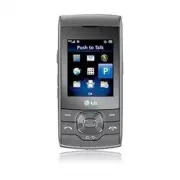
LG GU292 - Manuals
User Manual LG GU292
Summary
LIMITED WARRANTY STATEMENT 1. WHAT THIS WARRANTY COVERS : LG offers you a limited warranty that the enclosed subscriber unit and its enclosed accessories will be free from defects in material and workmanship, according to the following terms and conditions: 1. The limited warranty for the product ex...
2 Table of Contents Your Phone . . . . . . . . . . . . . . . . . . . . . . 6 Phone Components . . . . . . . . . . . . . . . . . . . 6 Rear view . . . . . . . . . . . . . . . . . . . . . . . . . . . 8 Getting Started . . . . . . . . . . . . . . . . . . 10 Installing the SIM card and battery . . . . ....
6 Your Phone Phone Components 1 7 2 345 6 8 Press and hold to access Voice Recorder. Press and hold to activate/deactivate Vibration Mode. 12 11 13 9 10
7 1. Earpiece: Lets you hear the caller during a call. 2. Main LCD: Displays phone status icons, menu items, web items, web information, pictures and more, in full color. 3. Left soft key/Right soft key: Each of these keys perform the functions indicated by the text on the display immediately above ...
8 Rear view Your Phone BATTERY COVER SIM CARD SLOT BATTERY
9 Advice In order to improve antenna sensitivity, please do not cover the antenna area with your hand during a call and when using a Bluetooth® connection. It may degrade speech quality. LG suggests that you hold the handset as shown below. Your Phone
10 Getting Started Installing the SIM card and battery 1. Remove the battery cover Use your right thumb to press on the bottom center of the battery cover, then slide the cover upwards (as depicted below). Then, lift the cover to remove it. 2. Remove the battery Hold the top edge of the phone and us...
11 3. Install the SIM card Slide the SIM card into the SIM card slot (as shown below). Make sure that the gold contact area on the card is facing downwards. To remove the SIM card, pull it gently in the opposite direction. 4. Install the battery Insert the top of the battery first into the top edge ...
12 Charging your phone Unfasten the cover of the Charger/USB port on the left side of your phone. Insert the charger connector to the phone (the ‘LG’ side of the connector has to be facing up when connecting to the phone) and then plug into the wall socket. Your LG GU292 will need to be charged unti...
13 Installing a memory card You can expand the memory available on your phone by using a microSD™ memory card. Tip A memory card is an optional accessory. Locate the microSD™ card slot on the right side of the phone. Then, use your fingernail to gently lift the cover. The cover will remain attached ...
14 On-Screen Icons The table below describes various display indicators or icons that appear on the phone’s display screen. Getting Started ICON/ INDICATOR DESCRIPTION Multitasking Network signal strength (number of bars will vary) No network signal Low Battery New text message New email An alarm is...
15 General Functions Making a Call Make sure your phone is powered on. Enter a phone number, including the area code. To edit a number on the display screen, simply press the key to erase one digit at a time. ► Press and hold the key to erase the entire number. Press the [SEND] key to call the numbe...
16 Ending a Call To end a call, press the [END] key. Making a Call from the Contacts You can store frequently called names and phone numbers in the SIM card as well as in the phone memory known as the Contacts. You can dial a number by simply highlighting a name in the Contacts List and pressing the...
17 Adjusting the Volume Use the side volume keys during a call to adjust the earpiece volume. While in standby mode, you can adjust the Master Volume using the side volume keys. Vibrating Mode (Quick) Vibrating Mode can be activated by pressing and holding down the key. Signal Strength If you are in...
18 T9 Mode The T9 mode allows you to enter words easily with only one keystroke per letter. Each key on the keypad has more than one letter. The T9 mode automatically compares your keystrokes with an internal linguistic dictionary to determine the correct word, thus requiring far fewer keystrokes th...
19 When you are in the T9 predictive text input mode, begin entering a word by pressing keys to . Press one key per letter. ► The word changes as letters are typed - ignore what is displayed on the screen until the word is typed completely. ► If the word is still incorrect after typing completely, p...
20 Key Characters in the Order Displayed Upper Case Lower Case 1 . , ’ @ ? ! - : / 1 . , ’ @ ? ! - : / 1 2 A B C 2 a b c 2 3 D E F 3 d e f 3 4 G H I 4 g h i 4 5 J K L 5 j k l 5 6 M N O 6 m n o 6 7 P Q R S 7 p q r s 7 8 T U V 8 t u v 8 9 W X Y Z 9 w x y z 9 0 Space Key, 0 (Long press) Space Key, 0 (L...
21 Using the Korean Mode Allows you to type in Korean when you set the language to Korean. Keys Characters in the Order Displayed Keys Characters in the Order Displayed General Functions
22 In-Call Menu During a Call Your phone provides a number of control functions that you can use during a call. To access these functions during a call, press the right soft key Options . Making a Second Call You can select a number you wish to dial from the Address Book to make a second call. Press...
23 Muting the Microphone You can mute the microphone during a call by pressing the left soft key Mute . The handset can be unmuted by pressing the left soft key Unmute . When the handset is muted, the caller cannot hear you, but you can still hear the caller. Using the Speakerphone You can use the i...
The maximum number of callers in a conference call is five. Once started, you are in control of the conference call, and only you can add calls to the conference call. Making a Second Call You can make a second call while currently on a call simply by entering the second number with the keypad and p...
25 Menu Tree 1. AT&T GPS (see page 28) 1.1 AT&T Navigator 1.2 Shop GPS 1.3 Where 1.4 AllSport GPS 1.5 Loopt 2. Messaging (see page 30) 2.1 Create Message 2.2 Inbox 2.3 IM 2.4 Mobile Email 2.5 Outbox 2.6 Drafts 2.7 Voicemail 2.8 Message Settings 3. YPmobile (see page 43) 4. Mobile Web (see pa...
30 Messaging This menu includes functions related to SMS (Short Message Service), MMS (Multimedia Message Service), Voicemail as well as the network’s service messages. Create Message From the standby screen, press the left soft key Menu . Press Messaging . Press Create Message . OR You can simply p...
32 • Save to Drafts: Saves the message to Drafts. • Cancel Message: Allows you to exit the text input mode without saving your message. Sending a Message After completing a message, using Insert and/or Options , press Send To to select a recipient. • Enter the recipient(s). For more options, press t...
33 The following options are available in the Inbox and vary depending on the View mode set (Conversation or Standard). ► Add to Address Book: You can save the sender’s phone number in the Contact List. ► Delete: You can delete the selected message. ► Standard view: Switches the Inbox view mode to S...
34 The menu items below might not appear as not all IM communities support the same options. In addition, the menu strings may appear differently. This depends on the selected IM communities. The keywords such as User ID, Login and Contact will be used as general terms in IM menus according to the c...
Messaging 38 ► Minimize: Minimizes the IM window and returns to the standby screen. ► Sign Out: Logs you out from the current session. Note • You can use the Up/Down Navigation Key for scrolling through the conversation. • The maximum number of characters supported by a message is 800 characters, fo...
► Opening an Email: Scroll down and highlight the email subject line you want to open and press Read . When the email is open, press the left soft key Options to Reply, Forward, Delete, Reply to All, or Mark Unread. ► Deleting an Email: Scroll down and highlight the email you want to delete, press t...
Drafts Allows you to view and edit the messages saved as drafts. To access Drafts, from the standby screen, press the left soft key Menu , Messaging , and Drafts . The following options are available for the Drafts folder: ► Select Multiple: Allows you to select multiple messages to delete. ► Messag...
The following options are available: ► Text Templates: Predefined messages that can quickly be sent. Press the right soft key Options to access the following available options: • Send: Allows you to send the selected template via Message. • Delete: Allows you to delete the selected template message....
42 Messaging ► Validity Period: This network service allows you to decide how long your multimedia messages will be stored at the Message Center. ► Send Delivery Receipt: Allows you to send a delivery confirmation notification for a Multimedia Message. ► Send Read Receipt: Allows you to send a messa...
43 YPmobile Unleash the power of YELLOWPAGES.COM local search on your mobile phone. Find a business, get maps and directions, and save your favorites: our mobile app gives you what you need, whenever and wherever you need it. ► Search for local businesses. ► View ratings and call businesses. ► Save ...
44 Mobile Web Mobile Web is one of the services provided by AT&T and it gives you access to all the cool things you can do with your wireless phone. Note Check the availability of services, pricing, and tariffs with your network operator and/or the service provider whose service you wish to use....
45 Push to Talk Welcome to PTT Push to Talk (PTT) from AT&T lets you check whether your family, friends, and co-workers are available to talk before you call. You can reach them individually or all at once via a group call, all in an instant. Read on to hear about all of the features AT&T Pu...
46 My Stuff AT&T Music You can access AT&T Music by pressing the left soft key Menu , My Stuff , and AT&T Music . Music Player ► All Songs: Allows you to view all the songs in your music library. ► Playlists: Allows you to create your own playlists. ► Artists: Shows the list of artists o...
My Stuff 47 Playing Music To listen to music that you have transferred to your phone, follow these quick easy steps: Playing Music with the Slide Open Press the left soft key Menu to open the Main Menu. Press My Stuff and select AT&T Music . Press Music Player to view your options. You can selec...
49 My Stuff Transferring Music from the Digital Music Service (such as eMusic) Using your computer, open your preferred PC music management client. Download the selected song to your library. Make sure the microSD™ card is inserted properly into the handset. Use the USB adapter cable to connect the ...
50 Note If you have a USB hub, connect the handset directly to your computer rather than through the hub. If the target computer does not detect the newly connected handset or provide an MTP Player dialog window on the PC screen, or if the detection does not occur, skip to Changing USB Connection Se...
My Stuff 52 Note Be aware that all of the existing data will be erased on microSD™ card if you use the Master Clear option. Access the Master Clear function in the Settings menu (see page 68). Additional Music Services There may be other AT&T music applications preloaded or available for your ph...
My Stuff 53 Audio To access Audio, from the standby screen, press the left soft key Menu , My Stuff , and Audio . ► Shop Tones: This menu option connects to AT&T’s Ringtones download site. ► Answer Tones: This menu option allows to manage your Answer Tones. ► Record Voice: Allows you to record v...
My Stuff 54 Video To access Video, from the standby screen, press the left soft key Menu , My Stuff , and Video . ► Shop Videos: Connects you to AT&T’s Videos download site. ► The video files saved on your phone and memory card (if inserted) are displayed. Note DRM sometimes restricts some funct...
My Stuff 56 - Medium: Operation of the voice recognition engine is normally affected by user’s voice command and surrounding sound. - Low: Operation of the voice recognition engine is strongly affected by user’s voice command and surrounding sound. • Speakerphone Mode - Automatic On: When this optio...
My Stuff 57 Alarm Options ► Time: Input your desired alarm time by specifying the hour and minutes. You can also choose a predefined amount of time (15 Minutes Later, 30 Minutes Later, 45 Minutes Later, 1 Hour Later, Off). ► Repeat: Select the desired repeat mode (Once, Daily, Mon ~ Fri, Sat ~ Sun, ...
58 My Stuff ► View All: Allows you to view all saved schedules. ► Go to Date: Allows you to jump to a specific date. ► Select Multiple: Allows you to select multiple schedules in the same day to delete or send to another person. ► Cancel: Allows you to cancel the edition of the selected schedule. No...
59 My Stuff Tasks This feature allows you to save and manage a task. To access Tasks, from the standby screen, press the left soft key Menu , My Stuff , Tools , and Tasks . To add a new task item, press the left soft key New . Input the Due Date, Note, Priority, and Status information for the new Ta...
My Stuff 60 To reset the stop watch, press Stop to stop the time, then press the left soft key Reset . ► Saved Times: You can see the saved recorded times. Tip Calculator This feature allows you to quickly and easily calculate the tip amount based on the total bill as well as the split of the total ...
► Select Multiple: Allows you to select multiple files at once to perform various functions. ► Sort By: Allows you to sort the files by Name, Date, and Type. ► Information: Allows you to view information about the selected file or used memory space on your phone or memory card. File Manager This fun...
AT&T Address Book 62 Contact List This menu allows you to save and manage contact address information. The Contact List’s functions allow you to add a new address or search saved contact addresses by name. To access Contact List, from the standby screen, press the left soft key Menu , AT&T A...
AT&T Address Book 64 My Numbers This displays your phone numbers stored in the SIM card. To access My Numbers, from the standby screen, press the left soft key Menu , AT&T Address Book , and My Numbers . About Allows you to view the software version and last update for AT&T Address Book....
65 Settings Audio & Ringtones This menu allows you to configure the audio and ringtone settings for your phone. To access Audio & Ringtones, from the standby screen, press the left soft key Menu , Settings , and Audio & Ringtones . Shop Tones Connects to the AT&T Ringtones download s...
66 Alert Tone ► Sounds: Allows you to select a set of alert tones. Supports 2 alert tone types: Alert Tone 1 and Alert Tone 2. ► Volume: This menu allows you to control your Alert Tone volume. ► Alert Type: You can select to turn Alert Tones to Ring or Silent. Keypad Tone This menu option allows you...
67 Languages Allows you to change the language for the display text on your phone. This change will also affect the Language Input mode. Set Hotkeys Allows you to change the preferences on the Hotkeys that are currently assigned for your navigation keys (when in standby mode). Auto Key Lock This all...
68 ► Fixed Dial Number: This feature allows you to restrict your outgoing calls to selected phone numbers, if supported by your SIM Card. The PIN2 code is required. • FDN On/Off - On: You can only call phone numbers stored in the FDN List. You must enter your PIN2 code. - Off: You can call any numbe...
70 The following options are available: ► All Voice Calls: Diverts voice calls unconditionally. ► If Busy: Diverts voice calls when the phone is in use. ► If No Answer: Diverts voice calls which you do not answer. ► If Out of Reach: Diverts voice calls when the phone is switched off or out of covera...
71 Call Waiting The network will notify you of a new incoming call while you have a call in progress. Select Activate to request the network to activate call waiting, Deactivate to request the network to deactivate call waiting, or View Status to check if the function is active or not. Call Reject T...
72 Bluetooth Your phone has built-in Bluetooth wireless technology, which makes it possible for you to connect your phone wirelessly to other Bluetooth devices such as a hands-free device, PC, PDA, or other phones. The devices registered in your phone can only be connected one at a time (To make a c...
74 Internet Profiles This menu shows the Internet Profiles. You can add, delete, and edit Internet Profiles by pressing the right soft key Options . However, you cannot delete or edit default configurations provided by AT&T. Access Points This menu shows the Access Points. You can register, dele...
75 Application Settings This Menu allows you to configure Application Settings. To access Application Settings, from the standby screen, press the left soft key Menu , Settings , and Application Settings . Messaging For more details, refer to Message Settings on page 40. Browser This menu allows you...
77 Secure Pop-up You can activate or deactivate the pop-up which indicates a secure page. Browser Shortcut If set to On, you can use the browser more quickly and conveniently with the key pad in the phone. If Browser Shortcut is on, the following shortcuts are available: 1. Enter URL 3. Add This Pag...
78 • Call Alert - Ring Only: The phone rings repeatedly during an incoming call. - Ring After Name: The phone announces the name and number of the incoming call, then rings repeatedly. - Name Repeat: The phone announces an incoming call by repeating the name or number of the caller. Software Update ...
There are a variety of accessories available for your mobile phone, some of which may be sold separately. You can select these options according to your personal communication requirements. Consult your local dealer for availability. Travel Adapter This adapter allows you to charge the battery. Batt...
81 For Your Safety Important Information This user guide contains important information on the use and operation of this phone. Please read all the information carefully for optimal performance and to prevent any damage to or misuse of the phone. Any changes or modifications not expressly approved i...
► Do not drop. ► Do not subject this unit to mechanical vibration or shock. ► The coating of the phone may be damaged if covered with wrap or vinyl wrapper. ► Use dry cloth to clean the exterior of the unit. (Do not use solvent such as benzene, thinner or alcohol.) ► Do not subject this unit to exce...
For Your Safety 83 CAUTION Use only the supplied and approved antenna. Use of unauthorized antennas or modifications could impair call quality, damage the phone, void your warranty and/or result in violation of FCC regulations. Do not use the phone with a damaged antenna. If a damaged antenna comes ...
If this equipment does cause harmful interference or television reception, which can be determined by turning the equipment off and on, the user is encouraged to try to correct the interference by one or more of the following measures: ► Reorient or relocate the receiving antenna. ► Increase the sep...
85 Safety Guidelines TIA Safety Information Provided herein is the complete TIA Safety Information for Wireless Handheld phones. Inclusion of the text covering Pacemakers, Hearing Aids, and Other Medical Devices is required in the owner’s manual for CTIA Certification. Use of the remaining TIA langu...
86 Antenna Care Use only the supplied or an approved replacement antenna. Unauthorized antennas, modifications, or attachments could damage the phone and may violate FCC regulations. Phone Operation NORMAL POSITION: Hold the phone as you would any other telephone with the antenna pointed up and over...
87 Pacemakers The Health Industry Manufacturers Association recommends that a minimum separation of 15cm (6 inches) be maintained between a handheld wireless phone and a pacemaker to avoid potential interference with the pacemaker. These recommendations are consistent with the independent research b...
92 ► Do not short-circuit the battery. Metallic articles such as a coin, paperclip or pen in your pocket or bag may short-circuit the + and – terminals of the battery (metal strips on the battery) upon moving. Short-circuit of the terminal may damage the battery and cause an explosion. General Notic...
93 FDA Consumer Update The U.S. Food and Drug Administration Centre for Devices and Radiological Health Consumer Update on Mobile Phones. 1. Do wireless phones pose a health hazard? The available scientific evidence does not show that any health problems are associated with using wireless phones. Th...
95 3. What kinds of phones are the subject of this update? The term ‘wireless phone’ refers here to handheld wireless phones with built-in antennas, often called ‘cell’, ‘mobile’, or ‘PCS’ phones. These types of wireless phones can expose the user to measurable radiofrequency energy (RF) because of ...
96 These conditions are not similar to the conditions under which people use wireless phones, so we don’t know with certainty what the results of such studies mean for human health. Three large epidemiology studies have been published since December 2000. Between them, the studies investigated any p...
97 6. What is the FDA doing to find out more about the possible health effects of wireless phone RF? The FDA is working with the U.S. National Toxicology Program and with groups of investigators around the world to ensure that high priority animal studies are conducted to address important questions...
98 energy from the wireless phone and is set well below levels known to have effects. Manufacturers of wireless phones must report the RF exposure level for each model of phone to the FCC. The FCC website (http://www.fcc.gov/) gives directions for locating the FCC identification number on your phone...
99 level drops off dramatically with distance. For example, you could use a headset and carry the wireless phone away from your body or use a wireless phone connected to a remote antenna. Again, the scientific data do not demonstrate that wireless phones are harmful. But if you are concerned about t...
100 handheld wireless phones and helped develop a voluntary standard sponsored by the Institute of Electrical and Electronic Engineers (IEEE). This standard specifies test methods and performance requirements for hearing aids and wireless phones so that no interference occurs when a person uses a ‘c...
101 10 Driver Safety Tips Your wireless phone gives you the powerful ability to communicate by voice almost anywhere, anytime. An important responsibility accompanies the benefits of wireless phones, one that every user must uphold. When operating a car, driving is your first responsibility. When us...
106 Glossary Call Forwarding The ability to reroute calls to another number. Call Waiting The ability to inform users that they have an incoming call when engaged on another call. GPRS (General Packet Radio Service) GPRS guarantees continuous connection to the Internet for mobile phone and computer ...
107 Line Identification Services (Caller ID) Service allowing subscribers to view or block the telephone numbers of callers. Conference Calls Ability to establish a conference call involving up to five additional parties. Phone Password Security code used to unlock the phone when you have selected t...
108 Index A AT&T GPS ............................................................ 28 About ................................................................... 64 Access Points ....................................................... 74 Adding Music To Your Handset .............................. 4...
INFORME SOBRE LA GARANTIA LIMITADA 1. LO QUE CUBRE ESTA GARANTÍA LG le ofrece una garantía limitada de que la unidad de suscriptor adjunta y sus accesorios incluidos estarán libres de defectos de materiales o mano de obra según los términos y condiciones siguientes: 1. La garantía limitada del produ...
8. Todas las superficies de plástico y todas las demás piezas externas expuestas que se rayen o dañen debido al uso normal por parte del cliente. 9. Productos que hayan sido puestos en funcionamiento por encima de las limitaciones máximas indicadas. 10. Productos utilizados u obtenidos en un program...
2 Contenido El teléfono . . . . . . . . . . . . . . . . . . . . . . . 6 Componentes del teléfono . . . . . . . . . . . . . . 6 Vista posterior . . . . . . . . . . . . . . . . . . . . . . . 8 Introducción . . . . . . . . . . . . . . . . . . . . 10 Instalación de la tarjeta SIM y la batería . 10 Carga...
6 El teléfono Componentes del teléfono 1 7 2 345 6 8 Manténgala oprimida para acceder al Grabador de voz. Manténgala oprimida para encender/apagar el Modo vibración. 12 11 13 9 10
8 Vista posterior El teléfono TAPA DE LA BATERÍA RANURA PARA TARJETA SIM BATERÍA
9 Consejo Para mejorar la sensibilidad de la antena, no cubra el área de la antena con la mano durante una llamada y cuando utiliza una conexión Bluetooth®. Podría deteriorar la calidad de la voz. LG sugiere que sostenga el teléfono tal como se indica en la figura a continuación. El teléfono
10 Introducción Instalación de la tarjeta SIM y la batería 1. Retire la tapa de la batería Use su pulgar derecho para oprimir la parte inferior central de la tapa de la batería. Luego deslice le tapa hacia arriba (como se muestra a continuación). Levante la tapa para retirarla. 2. Extraiga la baterí...
11 3. Intalación de la tarjeta SIM Deslice la tarjeta SIM hasta colocarla en su ranura. Asegúrese de que el área de contactos dorados de la tarjeta esté orientada hacia abajo. Para retirar la tarjeta SIM, tire suavemente hacia la dirección contraria. 4. Instalación de la batería Inserte primero la p...
12 Cargar el teléfono Retire la tapa de la ranura para el cargador que se encuentra en la parte lateral izquierda del teléfono GU292 de LG. Inserte el conector del cargador en el teléfono (el lado “LG” del conector debe orientarse hacia arriba al conectarlo en el teléfono) y luego enchufe el cargado...
13 Instalación de la tarjeta de memoria externa Puede expandir la memoria disponible en el teléfono con una tarjeta de memoria microSD™. Sugerencia La tarjeta de memoria es un accesorio opcional. Ubique la ranura para la tarjeta microSD™ en la parte derecha del teléfono. Luego use su uña para levata...
14 Iconos en pantalla La tabla debajo describe varios indicadores o iconos que aparecen en la pantalla de visualización del teléfono. Introducción ICONO/ INDICADOR DESCRIPCIÓN Multitarea Potencia de la señal de red (varía la cantidad de barras) Sin señal de red Batería baja Nuevo mensaje de texto Nu...
15 Funciones generales Hacer una llamada Asegúrese de que el teléfono esté encendido. Introduzca un número de teléfono, incluyendo el código de área. Para modificar un número que aparece en la pantalla de visualización, simplemente oprima la tecla para borrar los dígitos de a uno por vez. ► Mantenga...
16 Finalizar una llamada Para finalizar una llamada, oprima la tecla [FIN]. Hacer una llamada desde Contactos Es posible guardar nombres de personas y números de teléfono a los que llama con frecuencia en la tarjeta SIM y también en la memoria del teléfono, lo que se conoce como Contactos. Se puede ...
17 Ajuste del volumen Si desea ajustar el volumen de los auriculares durante una llamada, use las teclas de volumen laterales del teléfono. En el modo de inactividad, puede ajustar el volumen del timbre con las teclas laterales de volumen. Modo vibración (Rápido) El Modo vibración se puede activar a...
18 Nota Puede seleccionar un idioma T9 diferente desde el menú Opciones ( Opciones > Ajustes de entrada de texto > Idioma de entrada de texto ). Modo 123 (Modo de números) Introduzca los números oprimiendo la tecla una vez por número. Para cambiar al modo 123 en un campo de entrada de texto, o...
19 ► Si la palabra deseada no figura en la lista de opciones encontradas, oprima la tecla suave derecha Agregar para agregar la palabra. Introduzca toda la palabra antes de editar o borrar lo que está escribiendo. Al final de cada palabra, coloque un espacio oprimiendo la tecla o la tecla de navegac...
20 Tecla Caracteres en orden de aparición Mayúsculas Minúsculas 1 . , ’ @ ? ! - : / 1 . , ’ @ ? ! - : / 1 2 A Á B C 2 a á b c 2 3 D E É F 3 d e é f 3 4 G H I Í 4 g h i í 4 5 J K L 5 j k l 5 6 M N Ñ O Ó 6 m n ñ o ó 6 7 P Q R S 7 p q r s 7 8 T U Ú Ü V 8 t u ú ü v 8 9 W X Y Z 9 w x y z 9 0 Tecla de esp...
21 Uso del modo coreano Permite escribir en coreano cuando establece el idioma a coreano. Tecla Caracteres en orden de aparición Tecla Caracteres en orden de aparición Funciones generales
22 Menú En llamada Durante una llamada El teléfono brinda una cantidad de funciones de control que pueden utilizarse durante una llamada. Para acceder a estas funciones durante una llamada, oprima la tecla suave derecha Opciones . Hacer una segunda llamada Es posible seleccionar un número de la agen...
23 Nota Push to Talk Push to Talk (PTT) de AT&T permite ver si un familiar, amigo o compañero de trabajo está disponible para hablar antes de llamarlo. Puede conectarse con ellos en forma individual o todos juntos de una sola vez a través de una llamada grupal en un instante. Silenciar el micróf...
25 Árbol de menús 1. AT&T GPS (consulte la página 28) 1.1 AT&T Navigator 1.2 Comprar GPS 1.3 Where 1.4 AllSport GPS 1.5 Loopt 2. Mensajería (consulte la página 30) 2.1 Crear mensaje 2.2 Buzón de entrada 2.3 MI 2.4 Correo Elect. Móvil 2.5 Buzón de salida 2.6 Borradores 2.7 Correo de voz 2.8 C...
30 Mensajería Este menú incluye funciones relacionadas con los servicios SMS (servicio de mensajes cortos), MMS (servicio de mensajes multimedia) y Correo de Voz, así como con los mensajes de servicio de la red. Crear mensaje Desde la pantalla de espera, oprima la tecla suave izquierda Menú . Oprima...
33 - Ajustes de entrada de texto: Permite fijar las opciones para Idioma de entrada de texto, Lista de palabras T9 más probables, Predicción de palabras T9 y Diccionario T9. - Cancelar mensaje: Permite cancelar el mensaje. Buzón de entrada Se le alertará cuando reciba un mensaje. Los mensajes nuevos...
34 MI La función de Mensajería Instantánea sólo puede usarse con el apoyo del operador de red o de comunidades como AIM, Windows Live y Yahoo! Messenger. Los usuarios de Mensajería Instantánea necesitarán una ID de usuario y una contraseña válidas para iniciar sesión e intercambiar mensajes, así com...
35 Conversaciones guardadas Le permite ver las conversaciones guardadas. Conversaciones fuera de línea Le permite ver las conversaciones fuera de línea. Configuración/Preferencias ► Fijar sonido: Permite fijar una alerta en Activado/Desactivado para un contacto cuando se registra actividad en su ses...
37 ► Lista de bloqueados: Muestra la lista de todos los Contactos bloqueados. ► Conversaciones guardadas: Le permite ver las conversaciones guardadas. ► Configuración: • Mostrar nombre • Mi estado : Permite establecer su estado para que sus contactos puedan ver si está disponible para charlar. • Con...
Mensajería 38 • Fijar sonido: Permite fijar una alerta en Activado / Desactivado para un contacto cuando se registra actividad en su sesión. • Inicio de sesión automático ► Salir: Finaliza la sesión actual. Opciones de menú disponibles en la pantalla Conversación ► Insertar: Permite insertar Símbolo...
► Para abrir un correo electrónico: Desplácese hasta el asunto del correo electrónico que desea abrir, resáltelo y oprima . Una vez abierto el correo electrónico, oprima la tecla suave izquierda Opciones para Responder, Reenviar, Borrar, Responder a todos, Ver todos los destinatarios o Marcar como n...
Borradores Le permite ver y editar los mensajes guardados como borradores. Para acceder Borradores, desde la pantalla de espera, oprima la tecla suave izquierda Menú , Mensajería y Borradores . Las siguientes opciones son disponibles para la carpeta Borradores: ► Seleccionar varios: Permite seleccio...
Mensajería 42 Mensaje de texto Permite establecer sus preferencias para mensajes de texto. Las siguientes opciones son disponibles: ► Plantillas de texto: Mensajes predefinidos que se pueden enviar rápidamente. Oprima la tecla suave derecha Opciones para acceder a las siguientes opciones: • Enviar: ...
• Renombrar: Permite renombrar el mensaje de plantilla seleccionado. • Borrar todo: Permite borrar todos los mensajes en la carpeta. ► Prioridad: Permite elegir la prioridad del mensaje. ► Asunto del mensaje: Permite encender o apagar el campo Asunto en un mensaje multimedia. ► Per. validez: Este se...
45 Web Móvil Web Móvil es uno de los servicios proporcionados por AT&T y brinda acceso a todas las cosas interesantes que se pueden hacer con el teléfono inalámbrico. Nota Compruebe la disponibilidad de servicios, precios y tarifas con su operador de red o con el proveedor de los servicios que d...
Web Móvil 46 Menús del navegador Puede navegar por Internet usando las teclas del teléfono o el menú del navegador. Uso de las teclas de navegación Al navegar por Internet, el funcionamiento de las teclas de navegación es similar al que presentan en el modo de espera.
47 Push to Talk Bienvenido a PTT Push to Talk (PTT) de AT&T permite ver si un familiar, amigo o compañero de trabajo está disponible para hablar antes de llamarlo. Puede conectarse con ellos en forma individual o todos juntos de una sola vez a través de una llamada grupal en un instante. Lea la ...
48 Mis Cosas Música AT&T Puede acceder Música AT&T oprimiendo la tecla suave izquierda Menú , Mis Cosas y Música AT&T . Reproductor de música ► Todas las canciones: Permite ver todas las canciones de la biblioteca de música. ► Listas de reproducción: Permite crear listas de reproducción....
Mis Cosas 49 Reproducción de música Para escuchar la música que ha transferido a su teléfono, siga estos pasos sencillos y rápidos: Reproducir música con la tapa abierta Oprima la tecla suave izquierda Menú para abrir el menú principal. Oprima Mis Cosas y seleccione Música AT&T . Oprima Reproduc...
51 Mis Cosas Transferir música desde el servicio de música digital (como eMusic) Desde la computadora, abra su cliente de administración de música de computadora preferido. Descargue la canción seleccionada en su biblioteca. Asegúrese de que la tarjeta microSD™ esté insertada correctamente en el tel...
Mis Cosas 54 Borrar archivos de música Cuando transfiere archivos con la función de Sincronización de música y desea eliminarlos del teléfono, debe conectar el teléfono a la computadora y eliminarlos con el mismo método que utilizó para agregar la música la primera vez. Para borrar música del teléfo...
Mis Cosas 55 Video Móvil Video móvil proporciona un acceso veloz y a pedido a clips de video de entretenimiento, noticias, deportes y clima. Póngase al día con los programas más exitosos, los comediantes más divertidos, los titulares más importantes y los resultados deportivos más recientes. Incluso...
Mis Cosas 56 Advertencia Sólo los programas con versión J2ME (Java 2 Micro Edition) funcionan en un teléfono. Sólo los programas con versión J2SE (Java 2 Standard Edition) funcionan en una computadora. Imagen Para acceder Imagen, desde la pantalla de espera, oprima la tecla suave izquierda Menú , Mi...
Mis Cosas 57 ► Las aplicaciones instaladas en el teléfono aparecerán en la lista. Herramientas Comando de voz El Comando de Voz es la función por la que el mecanismo de reconocimiento de voz del teléfono identifica la voz del usuario y ejecuta los comandos solicitados. Cuando el usuario opera la fun...
Mis Cosas 59 • Alerta de llamada - Sólo timbre: El teléfono suena repetidamente durante una llamada entrante. - Timbre después de nombre: El teléfono anuncia el nombre o el número de la llamada entrante y después suena repetidamente. - Repetición de nombre: El teléfono anuncia una llamada entrante r...
60 Mis Cosas Calendario Cuando acceda a este menú, se mostrará un calendario. El cursor rojo cuadrado se utiliza para ubicar un día en particular. La barra inferior del calendario indica las citas guardadas (si hay alguno) para ese día. Esta función permite llevar un registro de las citas. El teléfo...
61 Mis Cosas Bloc de Notas Es posible crear un máximo de 30 notas. Para acceder Bloc de Notas, desde la pantalla de espera, oprima la tecla suave izquierda Menú , Mis Cosas , Herramientas y Bloc de Notas . Oprima la tecla suave izquierda Nuevo para crear una nueva nota. Escriba la nota y oprima Guar...
Mis Cosas 62 Introduzca información de la Fecha límite, Nota, Prioridad y el Estado. Oprima la tecla suave izquierda Guardar para guardar el elemento Tarea. Las siguientes opciones son disponibles en la lista de Tareas: ► Marcar “Finalizada”: Permite cambiar el estado de la tarea seleccionada a Fina...
Para restaurar el cronómetro, oprima la tecla suave izquierda Restaur . ► Tiempos guardados: Permite ver los registros de tiempos guardados. Calc. de Propinas Esta función permite calcular la propina según el total de la factura y también dividir el total de la factura entre la cantidad de personas....
65 AT&T Address Book Lista de Contactos Este menú permite guardar y administrar información sobre las direcciones de los contactos. Las funciones de la Lista de Contactos permiten agregar nuevas direcciones o buscar las direcciones de contactos guardadas por nombre. Para acceder Lista de Contact...
Configuraciones 68 Audio y Timbres Este menú permite configurar los ajustes de Audio y Timbres de su teléfono. Para acceder Audio y Timbres, desde la pantalla de espera, oprima la tecla suave izquierda Menú , Configuraciones y Audio y Timbres . Comprar tonos Permite conectarse sitio de descarga de t...
Configuraciones 69 Tono de teclado Esta opción de menú permite seleccionar un tono que suene en el teléfono cuando se oprima una tecla en el teclado. Puede seleccionar una opción de Pitido o Voz y fijar el volumen. Multimedia Este menú permite controlar el volumen multimedia. Llamada Este menú permi...
70 Fijar Teclas de Atajos Permite modificar las preferencias sobre las teclas de atajos actualmente asignadas a las teclas de navegación (cuando se encuentre en el modo de espera). Bloqueo automático del Teclado Permite establecer el tiempo previo al bloqueo automático de teclas. Fijar Modo de Avión...
71 Configuraciones ► Número de marcación fija: Esta función permite restringir las llamadas realizadas a números seleccionados, si admitido por su tarjeta SIM. El código PIN2 es requerido. • MNF Encendido/Apagado - Encendido: Sólo puede llamar a números de teléfono almacenados en la Lista de MNF. De...
72 • Teléfono - Borra de la memoria del teléfono todas las imágenes, el audio y los videos descargados o creados por el usuario. - Borra la información personal almacenada en la memoria del teléfono (por ejemplo, AT&T Address Book, Mensajes, Tareas, Alarmas, y Citas de Calendario) a los valores ...
73 Configuraciones Esquemas de color Permite cambiar la vista de su teléfono a un esquema Negro o Blanco. Estilos de menú Es posible establecer el estilo del menú principal como vista de Iconos o Lista. Llamada Este menú permite configurar los ajustes de Llamada. Para acceder a Llamada, desde la pan...
74 Nota No se emite alguna alerta que indique que se conectó la llamada. Debe permanecer atento para oír cuando se realiza la conexión de la llamada. Modo de Respuesta Le permite determinar cómo contestar el teléfono. ► Cualquier tecla: Permite responder una llamada entrante al oprimir cualquier tec...
75 Configuraciones ► Lista de llamadas rechazadas: Permite ver la lista de los números que desea rechazar y agregar nuevos números a la lista. Tiene la opción de elegir números de su Lista de Contactos o agregar nuevos números. Enviar Tonos DTMF Seleccione entre Encendido o Apagado . TTY Permite hab...
76 Para acceder a Bluetooth, desde la pantalla de espera, oprima la tecla suave izquierda Menú , Configuraciones , Conexión y Bluetooth . Perfil manos libres El icono aparece cuando se usa el perfil de manos libres entre el aparato de manos libres y el teléfono. Esto le permite llamar con una conexi...
77 Configuraciones Para emparejar con otro aparato Desde la pantalla de espera, oprima la tecla suave izquierda Menú , Configuraciones , Conexión , Bluetooth y Buscar nuevo dispositivo . Si desea detener la búsqueda, oprima la tecla suave izquierda Parar . Se mostrarán todos los aparatos encontrados...
78 Puntos de acceso Este menú muestra los Puntos de acceso. Puede registrar, borrar y editar oprimiendo la tecla suave derecha Opciones . Sin embargo, no es imposible borrar o editar las opciones de configuración predeterminadas que AT&T proporciona. Memoria Este menú permite configurar los ajus...
79 Configuraciones Confi guración de aplicaciones Este menú permite ajustar la Configuración de aplicaciones. Para acceder Configuración de aplicaciones, desde la pantalla de espera, oprima la tecla suave izquierda Menú , Configuraciones y Configuración de aplicaciones . Mensajería Para obtener más d...
80 Nota ► No puede editar ni borrar las cuentas preconfiguradas. ► Si desea crear una cuenta nueva, complete la información de red. 1. Nombre de cuenta: el nombre asociado a la nueva cuenta. 2. Página de inicio: dirección URL de la página de inicio. 3. Perfil de Internet: se puede elegir uno entre l...
81 Configuraciones Configuración de pantalla Puede cambiar la configuración de la pantalla del Navegador (Modo de procesamiento, Zoom, Minimapa). Seguridad Se muestra una lista de certificados disponibles. ► Certificados: Permite ver la lista de certificados y visualizarla en detalle. ► Borrar sesió...
Configuraciones 82 - 4 coincidencias: Se muestran los cuatro nombres que más coinciden para encontrar un nombre en la agenda. • Sensibilidad - Alto: El Comando de Voz del usuario y el sonido del entorno raramente afectan el funcionamiento y el rendimiento del mecanismo de reconocimiento de voz. - Me...
Configuraciones 83 Actualización de software Si existe nuevo software, el servidor de AT&T notifica a los aparatos usando un mensaje de envío automático. Además, el usuario puede comprobar la actualización del software usando el menú “Comprobar actualización”. Si el nuevo software no existe, el ...
Preguntas y respuestas 84 P ¿Cómo puedo ver la lista de llamadas marcadas, recibidas y perdidas? R Oprima la tecla [ENVIAR]. P ¿Por qué en ciertas áreas la conexión no es estable o no se oye bien? R Cuando la recepción de la frecuencia es inestable en un área determinada, la conexión puede ser incon...
86 Accesorios Hay diversos accesorios disponibles para su teléfono celular, y es posible que algunos se vendan por separado. Puede seleccionar esas opciones según sus requisitos de comunicación en particular. Consulte con su distribuidor local para conocer la disponibilidad. Adaptador de viaje Este ...
87 Por su seguridad Información importante Esta guía del usuario contiene información importante acerca del uso y funcionamiento de este teléfono. Lea toda la información con cuidado para obtener un desempeño óptimo y para evitar cualquier daño o mal uso del teléfono. Cualquier cambio o modificación...
Sea cuidadoso al usar su teléfono cerca de otros dispositivos electrónicos. Las emisiones de radiofrecuencia del teléfono celular pueden afectar a equipos electrónicos cercanos que no estén adecuadamente blindados. Debe consultar con los fabricantes de cualquier dispositivo médico personal, como ser...
Por su seguridad 91 Declaración del artículo 15.105 Este equipo ha sido evaluado y se ha comprobado que cumple con los límites para un dispositivo digital clase B, conforme el Artículo 15 de las reglas de la FCC.Estos límites han sido diseñados para brindar una protección razonable contra la interfe...
Por su seguridad 92 Precauciones con el adaptador (cargador) ► El uso del cargador de batería incorrecto podría dañar su teléfono y anular la garantía. ► El adaptador o cargador de batería están diseñados sólo para ser usados en ambientes cerrados. No exponga el adaptador o cargador de baterías a la...
Información de seguridad de TIA Aquí se incluye la información completa de seguridad de la TIA (Asociación de la Industria de las Telecomunicaciones) sobre teléfonos inalámbricos de mano. La inclusión en el manual del usuario del texto referente a Marcapasos, audífonos para sordera y otros dispositi...
94 Cuidado de la antena Utilice solamente la antena incluida o una antena de reemplazo aprobada. Las antenas, modificaciones o accesorios no autorizados pueden dañar el teléfono y violar los reglamentos de la FCC. Funcionamiento del teléfono POSICIÓN NORMAL: Sostenga el teléfono como cualquier otro ...
95 Marcapasos La Asociación de Fabricantes del Sector de la Salud recomienda mantener una distancia de separación de 15 cm (6 pulgadas) como mínimo entre el teléfono inalámbrico portátil y el marcapasos para evitar posibles interferencias con el marcapasos. Estas recomendaciones son coherentes con l...
99 Peligros de explosión, descargas eléctricas e incendio ► No coloque el teléfono en sitios expuestos a exceso de polvo y mantenga la distancia mínima requerida entre el cable de alimentación y las fuentes de calor. ► Desconecte el cable de alimentación antes de limpiar el teléfono, y limpie la cla...
100 ► El uso del teléfono cerca de equipo receptor (como un televisor o radio) puede causar interferencia el teléfono. ► No use el teléfono si la antena está dañada. Si una antena dañada toca la piel, puede causar una ligera quemadura. Comuníquese con un Centro de servicio autorizado LG para que ree...
101 adversos para la salud. Muchos estudios sobre la exposición a RF de bajo nivel no han encontrado ningún efecto biológico. Algunos estudios han sugerido que puede haber algunos efectos biológicos, pero tales conclusiones no se han visto confirmadas por investigaciones adicionales. En algunos caso...
103 3. ¿Qué tipos de teléfonos son sujetos de esta actualización? El término “teléfonos inalámbricos” se refiere a los teléfonos inalámbricos de mano con antenas interconstruidas que a menudo se denominan teléfonos “celulares”, “móviles” o “PCS”. Estos tipos de teléfonos inalámbricos pueden exponer ...
104 Estas condiciones no se asemejan a las condiciones bajo las cuales la gente usa los teléfonos inalámbricos, de modo que no sabemos con certeza qué significan los resultados de dichos estudios para la salud humana. Se han publicado tres grandes estudios epidemiológicos desde diciembre de 2000. Ju...
105 la exposición real a RF durante el uso cotidiano de los teléfonos inalámbricos. Muchos factores afectan esta medición, como el ángulo al que se sostiene el teléfono, o el modelo de teléfono que se usa. 6. ¿Qué está haciendo la FDA para averiguar más acerca de los posibles efectos en la salud de ...
106 7. ¿Cómo puedo averiguar cuánta exposición a energía de radiofrecuencia puedo recibir al usar mi teléfono inalámbrico? Todos los teléfonos vendidos en los EE.UU. deben cumplir con las pautas de la Comisión Federal de Comunicaciones (FCC) que limitan las exposiciones a la energía de radiofrecuenc...
107 medir la tasa a la cual se depositan las RF en la cabeza de los usuarios de teléfonos inalámbricos. El método de prueba usa un modelo de simulación de tejidos de la cabeza humana. Se espera que la metodología de pruebas de SAR estandarizada mejore notablemente la coherencia de las mediciones rea...
108 10. ¿Qué hay del uso de teléfonos inalámbricos por parte de los niños? La evidencia científica no muestra ningún peligro para los usuarios de teléfonos inalámbricos, incluidos los niños y adolescentes. Si desea tomar medidas para reducir la exposición a la energía de radiofrecuencia (RF), las me...
109 si reciben interferencia de los teléfonos inalámbricos de mano y ayudó a desarrollar un estándar voluntario patrocinado por el Instituto de Ingenieros Eléctricos y Electrónicos (IEEE). Este estándar especifica los métodos de prueba y los requisitos de desempeño de los aparatos para la sordera y ...
115 Glosario Desvío de llamadas La capacidad para volver a programar las llamadas a otro número. Llamada en espera La capacidad para informar a los usuarios que tienen una llamada entrante mientras están ocupados con otra llamada. Servicio general de paquetes por radio (GPRS) GPRS garantiza la conex...
Glosario 116 Servicios de identificación de línea (ID de quien llama) Servicio que permite a los suscriptores ver o bloquear números de teléfono que le llaman. Llamadas en conferencia Capacidad de establecer una llamada en conferencia que implique hasta otros cinco participantes. Contraseña del telé...
117 Índice A AT&T GPS ............................................................ 28 Acerca de............................................................. 67 Actualización de software ...................................... 83 Admin. archivos .......................................................
LG Cell Phones Manuals
-
LG A7110
User Manual
-
LG AX5000
User Manual
-
LG C1300
User Manual
-
LG C1300A
User Manual
-
LG C1300I
User Manual
-
LG C1500
User Manual
-
LG C2000
User Manual
-
LG CB630
User Manual
-
LG CE500
User Manual
-
LG CF360
User Manual
-
LG CF360A
User Manual
-
LG CG180
User Manual
-
LG CG225
User Manual
-
LG CG300
User Manual
-
LG CP150
User Manual
-
LG CU320
User Manual
-
LG CU400
User Manual
-
LG CU405
User Manual
-
LG CU500
User Manual
-
LG CU500
Manual














