Page 3 - User Guide; Congratulations on your purchase of the
User Guide Congratulations on your purchase of the advanced and compact phone by LG, designed to operate with the latest digital mobile communication technology. Some of the contents in this manual may differ from your phone depending on the software of the phone or your service provider.
Page 4 - Contents
2 | User Guide Contents For Your Safety ..............3 Getting to know your phone............................. 41 Open view .................... 43 Installing the SIM and battery ..........................44 Memory card .............. 46 Using your touch screen ...........................48 Menu ma...
Page 5 - Safety Information; Violation of the; For Your Safety
3 Safety Information Please read and observe the following information for safe and proper use of your phone and to prevent damage. Violation of the instructions may cause minor or serious damage to the product. Do not disassemble or • open crush, bend or deform, puncture or shred. Do not modify or ...
Page 6 - Replace the battery
4 | User Guide For Your Safety Replace the battery • only with another battery that has been qualified with the system per this standard, IEEE-Std-1725-200x. Use of an unqualified battery may present a risk of fire, explosion, leakage or other hazard. Promptly dispose • of used batteries in accordan...
Page 7 - The charger and; Battery Information; Please read the
5 Charger and Adapter Safety The charger and • adapter are intended for indoor use only.Insert the battery pack • charger vertically into the wall power socket.Unplug the power • cord and charger during lightning storms to avoid electric shock or fire.Use the correct • adapter for your phone when us...
Page 8 - Unplug the power
6 | User Guide For Your Safety Unplug the power • cord prior to cleaning your phone, and clean the power plug pin when it’s dirty. When using the power plug, ensure that it’s firmly connected. If not, it may cause excessive heat or fire. If you put your phone in a pocket or bag without covering the ...
Page 9 - When using the
7 characteristics and cycle life.Do not use or leave • the battery under the blazing sun or in heated car by sunshine. The battery may generate heat, smoke or flame. And also, it might cause the deterioration of battery’s characteristics or cycle life.The battery pack has • protection circuit to avo...
Page 10 - If liquid from the
8 | User Guide For Your Safety If liquid from the • battery rubs against skin or clothing, wash with fresh water. It may cause the skin inflammation. Remove and do not use the battery. Be careful that children do not swallow any parts (such as earphone, connection parts of the phone, etc.). This cou...
Page 11 - General Notice; An emergency call
9 General Notice An emergency call • can be made only within a service area. For an emergency call, make sure that you are within a service area and that the phone is turned on. Do not place items • containing magnetic components such as a credit card, phone card, bank book, or subway ticket near yo...
Page 12 - FCC Part 15 Class B
10 | User Guide For Your Safety important phone numbers. (Ringtones, text messages, voice messages, pictures, and videos could also be deleted.) The manufacturer is not liable for damage due to the loss of data.When you use the • phone in public places, set the ringtone to vibration so you don’t dis...
Page 13 - Reorient or relocate
11 Part 15.105 statement This equipment has been tested and found to comply with the limits for a class B digital device, pursuant to Part 15 of the FCC Rules. These limits are designed to provide reasonable protection against harmful interference in a residential installation. This equipment genera...
Page 14 - FCC RF Exposure; international standards.
12 | User Guide For Your Safety FCC RF Exposure Information WARNING! Read this information before operating the phone. In August 1996, the Federal Communications Commission (FCC) of the United States, with its action in Report and Order FCC 96-326, adopted an updated safety standard for human exposu...
Page 16 - Consumer; Are wireless phones
14 | User Guide For Your Safety Consumer Information About Radio Frequency Emissions Your wireless phone, which contains a radio transmitter and receiver, emits radio frequency energy during use. The following consumer information addresses commonly asked questions about the health effects of wirele...
Page 17 - What does “SAR”
15 conducted around the world and FDA continues to monitor developments in this field. You can access the joint FDA/FCC website at http://www.fda.gov (under “c”in the subject index, select Cell Phones > Research). You can also contact the FDA toll-free at (888) 463-6332 or (888) INFO-FDA. In June...
Page 20 - Can I minimize my RF
18 | User Guide For Your Safety Can I minimize my RF exposure? If you are concerned about RF, there are several simple steps you can take to minimize your RF exposure. You can, of course, reduce your talk time. You can place more distance between your body and the source of the RF, as the exposure l...
Page 24 - TIA Safety; Exposure to Radio
22 | User Guide For Your Safety TIA Safety Information The following is the complete TIA Safety Information for wireless handheld phones. Exposure to Radio Frequency Signal Your wireless handheld portable phone is a low power radio transmitter and receiver. When ON, it receives and sends out Radio F...
Page 26 - Should ALWAYS keep; Hearing Aids
24 | User Guide For Your Safety a handheld wireless phone and a pacemaker to avoid potential interference with the pacemaker. These recommendations are consistent with the independent research by and recommendations of Wireless Technology Research.Persons with pacemakers: Should ALWAYS keep • the ph...
Page 28 - For Vehicles Equipped
26 | User Guide For Your Safety could cause an explosion or fire resulting in bodily injury or even death.Areas with a potentially explosive atmosphere are often, but not always marked clearly. Potential areas may include: fueling areas (such as gasoline stations); below deck on boats; fuel or chemi...
Page 29 - FDA; Do wireless phones pose a; and Drug; Do wireless phones
27 FDA Consumer Update ● Do not immerse your phone inwater, liquid, or expose to highhumidity. If this happens, turn itoff immediately and remove thebattery. Immediately, take it to anLG Authorized Service Center. ● Do not paint your phone. ● The data saved in your phonemight be deleted due to carel...
Page 30 - What is the FDA’s; Support needed
28 | User Guide For Your Safety 2. What is the FDA’s role concerning the safety of wireless phones? Under the law, the FDA does not review the safety of radiation-emitting consumer products such as wireless phones before they can be sold, as it does with new drugs or medical devices. However, the ag...
Page 31 - National Institute for
29 possible effects of wireless phone use on human health. The FDA belongs to an interagency working group of the federal agencies that have responsibility for different aspects of RF safety to ensure coordinated efforts at the federal level. The following agencies belong to this working group: Nati...
Page 34 - needed to decide
32 | User Guide For Your Safety Between them, the studies investigated any possible association between the use of wireless phones and primary brain cancer, glioma, meningioma, or acoustic neuroma, tumors of the brain or salivary gland, leukemia, or other cancers. None of the studies demonstrated th...
Page 36 - How can I find out
34 | User Guide For Your Safety also helped develop a series of public information documents on EMF issues. The FDA and the Cellular Telecommunications & Internet Association (CTIA) have a formal Cooperative Research And Development Agreement (CRADA) to do research on wireless phone safety. The ...
Page 38 - take to reduce my
36 | User Guide For Your Safety “Recommended Practice for Determining the Spatial-Peak Specific Absorption Rate (SAR) in the Human Body Due to Wireless Communications Devices: Experimental Techniques”, sets forth the first consistent test methodology for measuring the rate at which RF is deposited i...
Page 39 - dren using wireless
37 exposure to Radio Frequency (RF) energy. Since time is a key factor in how much exposure a person receives, reducing the amount of time spent using a wireless phone will reduce RF exposure. If you must conduct extended conversations by wireless phone every day, you could place more distance betwe...
Page 40 - What about wireless
38 | User Guide For Your Safety distance between the user and the RF source will reduce RF exposure. Some groups sponsored by other national governments have advised that children be discouraged from using wireless phones at all. For example, the government in the United Kingdom distributed leaflets...
Page 41 - find additional
39 many other groups, was completed in late 2000. This standard will allow manufacturers to ensure that cardiac pacemakers and defibrillators are safe from wireless phone EMI.The FDA has tested hearing aids for interference from handheld wireless phones and helped develop a voluntary standard sponso...
Page 42 - Driving; Give full attention
40 | User Guide For Your Safety International Commission on Non-lonizing Radiation Protection(http://www.icnirp.de)World Health Organization (WHO) International EMF Project(http://www.who.int/emf)National Radiological Protection Board (UK)(http://www.hpa.org.uk/radiation/) Driving Check the laws and...
Page 43 - Getting to know your phone; Earpiece; Putting a heavy object on the
41 Getting to know your phone Lock/ Unlock key Earpiece Call key Dials a phone number and answers incoming calls. Clear key Holding down the Clear Key will activate the Voice Command function. End/ Power key • Rejects a call. • Press once to return to the home screen. • Turns the phone on/off. WARNI...
Page 44 - Charger/USB Cable Port
42 | User Guide Getting to know your phone Charger/USB Cable Port TIP: Before connecting the USB cable, wait until the phone has powered up and has connected on the network. Volume keys• When the screen is idle: press to change the Ringtone volume. • During a call: press to change the earpiece volum...
Page 45 - Open view
43 Open view Battery cover Battery SIM card socket Camera lens Memory card socket
Page 46 - Installing the SIM and battery
44 | User Guide Remove the battery 1 cover and the battery Slide the battery cover up and use the fingertip cutout (above the battery) to pull out the battery. WARNING: Do not remove the battery when the phone is switched on, as this may damage the phone. Install the SIM card 2 Slide the SIM card in...
Page 47 - Install the battery; Charging your phone; NOTE
45 Install the battery 3 Insert the bottom of the battery into the bottom edge of the battery compartment first. Ensure that the battery contacts align with the phone’s terminals. Press the top of the battery down until it clips into place. Charging your phone Gently lift the Charger/USB Cable Port ...
Page 48 - Memory card
46 | User Guide Installing a memory card You can expand the available memory space on your phone by using a memory card. NOTE: A memory card is an optional accessory. Remove the battery 1 cover.Slide the memory 2 card socket cover downwards, until it clicks, and then lift the upper side to expose th...
Page 49 - All files in the; Transferring your
47 Formatting the memory card Your memory card may already be formatted. If it isn’t, you will need to format it before you can start to use it. NOTE: All files in the memory card are deleted when the memory card is formatted. From the Home Screen, 1 touch , touch the Settings tab, and touch More . ...
Page 50 - Touch screen tips; Control the touch; The controls on the; Opening Applications; Using your touch screen
48 | User Guide Touch screen tips To select an item, touch • the center of the icon.Do not press too hard. • The touchscreen is sensitive enough to pick up a light, firm touch.Use the tip of your • finger to touch the option you require. Whenever your • is not in use, the screen will automatically l...
Page 51 - Phone; Menu map; Settings
49 Touch in the home screen to open the main menu. From here you can access your applications, organized in four categories: Phone , Media , Organizer and Settings . Menu map Settings HelpSoundsDisplayBluetoothCallApplicationsPhoneMore Media Music PlayerCameraCamcorderAudio PostcardGames & AppsY...
Page 52 - Your home screen
50 | User Guide From here you can access all menu options, make a quick call and view the status of your phone — as well as many other things. Widget screen Weather Widget screen Weather widget provides weather information.You can check today’s weather information and a 3-day weather forecast for yo...
Page 53 - tasking function; Task; Status Bar Icons
51 Using the Multi - tasking function Press the multitasking hard key to open the (multi-tasking) Task Menu . From here you can view the applications that are running and access them with one touch. Status Bar Icons Icon Description Applications are running in the backgroundNetwork signal strength (...
Page 55 - Calls
53 Making a call From the home screen, 1 touch to open the Dialpad.Key in the number 2 using the keypad. TIP! To enter + for making an international call, press and hold . Press the 3 to initiate the call.To end the call, press 4 the key. TIP! Press the Lock/Unlock key to lock or unlock the touchscr...
Page 56 - Answering and; key to; to reject an
54 | User Guide Calls Answering and rejecting a call When your phone rings, press the key to answer the call.During an incoming call, if the screen is locked, slide the screen up to unlock it. Then, touch Silent . This is useful if you forgot to change your profile to Silent before a meeting. Touch ...
Page 58 - Speed dialing; Calls made in
56 | User Guide Calls Speed dialing You can assign a frequently-called contact to a speed dial number. From the Home Screen, 1 touch . Touch 2 Contacts to open the drop-down list of options. Then, touch Speed Dial . Your voicemail is already 3 set to speed dial 1. You cannot change this Speed Dial. ...
Page 59 - Viewing your call logs; Touch any single; Changing Call; Call; Call Waiting
57 Viewing your call logs From the Home Screen, touch , and then touch . TIP! Touch any single call log entry to view the date, time and duration of the call. Changing Call settings From the Home Screen, 1 touch , touch Call in the Settings tab. From here you can 2 adjust the settings for: Call Wait...
Page 60 - the switch right for
58 | User Guide Calls Auto Redial • - Slide the switch right for ON or left for OFF . Answer Mode • - This allows you to determine how to answer the phone. Minute Minder • - When set to On, the phone will create a tone that sounds every minute, during a call. This makes it easy to keep track of minu...
Page 61 - Scroll down and touch; Contacts
59 Searching for a contact From the Home Screen, 1 touch . Touch 2 . Touch 3 Search Name field and type the name of the contact using the touch keypad. Adding a new contact From the Home Screen, 1 touch , touch Contacts in the Phone tab, and touch Add New . Enter the first and last 2 name.Enter up t...
Page 62 - Creating a group; If you delete; Using your Contacts; application
60 | User Guide Contacts Creating a group From the Home Screen, 1 touch , touch Contacts in the Phone tab.Touch 2 Contacts to open the drop-down list of options. Then, touch Groups . Touch 3 New Group . Enter a name for your 4 new group. You can also assign a ringtone to the group (optional).Touch 5...
Page 63 - Mobile Backup
61 Send All via Bluetooth - Send all of your contacts to another device using Bluetooth. SIM Management - allows you to manage contacts saved on your SIM card. Phonebook Settings - to select your view settings. Delete All - To delete all contacts saved. Mobile Backup Mobile Backup ensures that your ...
Page 64 - Keypad/Keyboard Basics; Messaging
62 | User Guide Messaging Your combines SMS and MMS messages into one intuitive and easy-to-use menu. Sending a message From the Home 1 Screen, touch , touch Messaging in the Phone tab. Then, touch Create Message to begin composing a new message.Touch 2 Insert to add an image, video, sound, or slide...
Page 67 - touch; Message Settings
65 Changing your other settings From the Home Screen, touch , touch Messaging , and touch . Then, touch Message Settings . Voicemail Number - Contact your network operator for more information about the service they provide. Service message - Choose to receive service message option.
Page 68 - Inbox; Email
66 | User Guide Retrieving your emails You can automatically or manually check your account for new emails. To check manually: From the Home Screen, 1 touch , and touch Email in the Phone tab. Touch the account you 2 want to use .Select 3 Retrieve in options in the Inbox menu. Sending an email using...
Page 69 - – If; Changing your email
67 Sentbox - Recently sent messages are placed in this folder. Trash - Deleted messages are temporarily located here for POP3 accounts. If you’re using an IMAP4 account, emails are deleted directly. User created folders – If you’re using an email account that already has additional folders set up, y...
Page 72 - Visual Voicemail; and touch; Voicemail
70 | User Guide Visual Voicemail Visual Voicemail is the process of adding a visual aspect to phone voicemail such as allowing you to view a list of voicemail messages or even read transcripts of these voicemail messages.From the Home Screen, touch and touch Voicemail in the Phone tab. Voicemail
Page 73 - Taking a quick photo; Once you’ve taken; Camera
71 Taking a quick photo Press the 1 key on the right side of the phone.When the camera has 2 focused on your subject, touch the on the right-center of the screen to take a photo. You can also press the key on the side of the phone firmly. TIP! To switch to the camera mode or video mode, slide down t...
Page 75 - Getting to know the viewfinder
73 Getting to know the viewfinder Album -This enables you to access your saved photos from within the camera mode. Simply touch, and your gallery will appear on the screen. Camera modeVideo mode - Slide the icon down to switch to video mode. Settings - Touch this icon to open the settings menu. See ...
Page 76 - Using the advanced; to open; Reset Settings; from; Indoors; Normal shot
74 | User Guide Adjusting the Brightness This option allows you to take a picture of your liking, by allowing you to raise or lower the brightness level. From the viewfinder, 1 touch . Slide the brightness 2 indicator along the bar up or down. Using the advanced settings From the viewfinder, touch t...
Page 78 - all the camera settings.; Viewing your saved
76 | User Guide Camera Reset Settings - Reset all the camera settings. Viewing your saved photos You can access your 1 saved photos saved in the camera. From the viewfinder, touch and your gallery will appear on the screen.
Page 79 - Making a quick video; Rec; After making a video; Video camera
77 Making a quick video Press the camera key 1 on the right side of the phone for a few seconds. TIP! To switch to the camera mode or video mode, slide up/ down the camera or video icon on the right center of the viewfinder. Holding the phone 2 horizontally, point the lens towards the subject of the...
Page 82 - to open all
80 | User Guide Adjusting the Brightness This option allows you to record to your liking, by allowing you to raise or lower the brightness level. From the viewfinder, 1 touch . Slide the brightness 2 indicator along the bar up or down. Using the advanced settings Using the viewfinder, touch to open ...
Page 83 - or to the; Watching your saved
81 Storage • - Choose whether to save your videos to the Handset memory or to the External memory . Voice • - Choose whether or not to record a video with sound. Hide Icons • - Choose whether you want the icons in the viewfinder to hide automatically, or whether you want to hide them manually by (ta...
Page 84 - Yes; Your photos and videos
82 | User Guide Viewing your photos and videos From the Home Screen, 1 touch . Touch 2 Album in the Media tab. Touch the video or 3 photo to open it fully. TIP! Flick left or right to view other photos or videos. TIP! To delete a photo or video, open it and select . Touch Yes to confirm. Using zoom ...
Page 85 - Pictures
83 Capturing an image from a video Open the video you 1 would like to capture an image from.Touch 2 to pause the video on the frame you’d like to convert to an image and touch . From the options menu 3 select . The image will be saved in your Pictures. WARNING: Some functions may not work properly i...
Page 86 - Update Existing
84 | User Guide Touch to increase or decrease the speed of the slideshow. Setting a photo as wallpaper From the Home Screen, 1 touch , touch the Organizer tab and touch Pictures . Touch the photo you 2 would like to set as wallpaper.Touch 3 Use As . Touch 4 Wallpaper . You can Zoom in with 5 . When ...
Page 87 - Adding text to a; No box; Cropping a photo
85 Draw something on your photo freehand. Select the line thickness from the available options, then the color you want to use. Add writing to the picture. Decorate your photo with stamps. Choose from the different stamps and colors and touch your photo where you want to place them. Adding text to a...
Page 88 - Undo
86 | User Guide Adding an effect to a photo From the editing screen, 1 touch . Choose to apply any 2 of the options to the photo: Negative, Black& White, Sepia, Blur, Sharpen, Mosaic, Water Color Oil Painting, Sketch, Emboss, Solarize, Vivid, Grey Negative, Moonlight, Fog, Antique, Glow, Neon, F...
Page 89 - in the; Audio Postcard
87 Audio postcard is a simplified way of sending a MMS with an image in a frame, and one voice recording. You can compose an audio postcard by capturing an image, selecting a frame, and finally adding a voice recording.From the Home Screen, touch , and touch Audio Postcard in the Media tab. Audio Po...
Page 90 - contains; Multimedia
88 | User Guide You can store multimedia files in your phone’s memory so you have easy access to all your pictures, sounds, videos and games. You can also save your files to a memory card. Using a memory card allows you to free up space in your phone’s memory.To access the Multimedia menu, touch and...
Page 91 - Wallpaper; Printing an image
89 Sending a photo From the Home Screen, 1 touch , touch the Organizer tab and touch Pictures . Open the picture you 2 want to send.Touch 3 Send . Choose a destination.If you choose 4 Via Message , your photo will be attached to a message. If you choose Via Bluetooth , your phone will search for a d...
Page 92 - Videos; The; Video; folder; Watching a video
90 | User Guide Videos The Video folder contains the videos you have downloaded or recorded on your phone. Watching a video From the Home Screen, 1 touch , touch the Organizer tab and touch Video . Touch a video to play it. 2 Sending a video clip Follow the previous 1 steps to open a video. Then, to...
Page 93 - Others; Organizer; More; Other Files; Music
91 Others The Other Files folder is used to store files that are not pictures, audio files, videos, games or applications. It is used in the same way as the Documents folder. You may find that when you transfer files from your computer to your phone that they appear in the Other Files folder. From t...
Page 95 - LGSYS
93 Transferring music onto your phone You can transfer music onto your phone via Bluetooth. Make sure both devices 1 have Bluetooth switched on and are paired with one another.Select the music file 2 on the other device and select send via Bluetooth . When the file is sent, 3 you may have to accept ...
Page 96 - Save
94 | User Guide Playing a song From the Home Screen, 1 touch then select Music Player from Media tab. Select one of the 2 folders and touch the song you want to play.Touch 3 to pause the song, touch to skip to the next song, or touch * to go back to the previous song. * When the song has played for ...
Page 97 - YouTubeTM; YouTube; Downloads
95 YouTube™ You can watch videos on YouTube Mobile from your mobile device. You may want to contact your carrier for more information about the availability of data streaming on your mobile device. From the Home Screen, 1 touch then select YouTube from the Media tab. Downloads From the Home Screen, ...
Page 98 - Social network; Social Buzz
96 | User Guide Social network services (SNS) Social Buzz allows you to communicate with your family and friends through your favorite social networking services. From the Home Screen, 1 touch then select Social Buzz from the Phone tab. Social Buzz
Page 99 - * Only applicable to; Adding an item to
97 Adding an event to your calendar From the Home 1 Screen, touch , touch Calendar in the Organizer tab. Touch the date you 2 would like to add an event to.Touch 3 New Event . Touch 4 Category then choose from Appointment or Anniversary . Enter 5 Subject . Check and enter the 6 date and the * time y...
Page 100 - Adding a note; ON
98 | User Guide Organizer Adding a note From the Home Screen, 1 touch , touch Tools in the Organizer tab and touch Notepad . Touch 2 New Note . Type your note, then 3 touch Save . Your note will then 4 appear on the screen in the Notepad application. Setting your alarm From the Home Screen, 1 touch ...
Page 102 - Adding a city to your
100 | User Guide Organizer Adding a city to your World clock From the Home 1 Screen, touch , touch Organizer in the Organizer tab, then touch Tools . Touch 2 World Clock . Enter your city’s name, 3 then touch Save . Touch 4 New City . Touch a city from the 5 list, or touch to select a city using the...
Page 103 - from the Home; Voice Command; Available
101 Voice Command Voice command is the function whereby your phone’s voice recognition engine identifies your voice commands and carries out the requested commands. With the voice command function, there are five possible commands, call <name or number>, Listen to voicemail, missed calls, mess...
Page 104 - Listen Voicemail; for the
102 | User Guide Organizer command menu. - exit: terminate voice command. - next: moves to the next result. Listen Voicemail : Activate Voice Command and say “Listen Voicemail”. You will then be automatically connected to voicemail. Missed Calls : Activate Voice Command and say “Missed Calls”.The ph...
Page 106 - Browser; Accessing the web; The web
104 | User Guide Browser Browser gives you a fast, full-color world of games, music, news, sport, entertainment and loads more, straight to your mobile phone. Wherever you are, you will have access to the internet. Accessing the web From the Home Screen, 1 touch , touch web2go on the Phone tab.To go...
Page 109 - is providing; Google Maps
107 Access to Google Maps You can use Google navigation services from the Organizer tab. Select the Google Maps menu in Google to launch the application.The GPS position your is providing will be processed. This service helps you to get around and to find your way by delivering maps onto your displa...
Page 110 - Sounds; Changing your; Display
108 | User Guide Changing your sound settings From the Home Screen, 1 touch , touch Sounds on the Settings tab.You can choose the 2 option menu from: Browse HiFi Ringers • - Touch to access to Ringtone download site. Browse MegaTones • - Connect to Browse MegaTones page. Volume • - Controls Ringtone...
Page 112 - how you want your
110 | User Guide Settings Touch Calibration - • This menu option will allow you to calibrate your touch screen. Follow the instructions on the screen to complete this task. Changing your connectivity settings Your connectivity settings are typically set up by your network operator, so you can enjoy ...
Page 113 - Network Selection; you select Automatic, the; Search Now; Using memory; Your; Phone Common
111 Network Selection - If you select Automatic, the automatically searches for the network and registers the handset to the network. This is recommended for best service and quality. If you select Manual, all the currently available networks are shown and you can select one of them for registration...
Page 114 - Memory Card; Using flight mode
112 | User Guide Settings Memory Card • - Allows you to check memory used and available on your memory card. Phone Reserved • - Allows you to check reserved memory status for items such as Text Messages, Contacts, and more. SIM Card • - Allows you to check the memory status for your SIM card. Using ...
Page 115 - Check the
113 Sending and receiving your files using Bluetooth™ To send a file: Open the file you want 1 to send, typically this will be a photo, video or music file.Touch 2 Send . Touch 3 Via Bluetooth . If you have already 4 paired the Bluetooth device, select the device from the list of devices. will not a...
Page 116 - Pairing with another; By pairing your
114 | User Guide Settings Changing your Bluetooth settings: From the Home Screen, touch , then touch Bluetooth in the Settings tab. Make your changes to: Bluetooth • - Allows you to turn the Bluetooth functionality on or off. Search New Device • - Allows you to search for another in-range Bluetooth ...
Page 117 - OK; Using a Bluetooth
115 Choose the device 4 you want to pair with and enter matching passcodes, then touch OK . Using a Bluetooth headset Place your headset into 1 pairing mode (see the headset’s User Guide for instructions).From the Home Screen, 2 touch , touch the Settings tab and touch Bluetooth . Touch 3 Search New...
Page 118 - LG Mobile Phone Software Update Program; select; Software Update
116 | User Guide LG Mobile Phone Software Update Program For more information on installing and using this program, please visit http://update.lgmobile.com or http://www.lg.com/common/index.jsp t select country t Support. This feature allows you to update your software to the latest version quickly ...
Page 119 - Data cable; Accessories
117 There are a variety of accessories available for your mobile phone, which may be sold separately. You can select these options according to your personal communication requirements. Consult your local dealer for availability. ( Items described below may be optional .) Battery Data cable Connect ...
Page 120 - Limited Warranty Statement
Limited Warranty Statement 1. WHAT THIS WARRANTY COVERS : LG offers you a limited warranty that the enclosed subscriber unit and its enclosed accessories will be free from defects in material and workman- ship, according to the following terms and conditions: (1) The limited warranty for the product...
Page 122 - Guía del usuario; Felicidades por comprar el teléfono
Guía del usuario Felicidades por comprar el teléfono avanzado y compacto de LG, diseñado para funcionar con la tecnología de comunicación digital móvil más reciente. Parte del contenido de este manual puede ser diferente a su teléfono dependiendo del software del teléfono o del proveedor de servicio...
Page 123 - | Guía del usuario; Contenido
2 | Guía del usuario Contenido Por su seguridad .............. 3 Características del teléfono ............................. 47 Vista posterior..................49 Instalación de la tarjeta SIM y de la batería ........ 50 Tarjeta de memoria ........52 Uso de la pantalla táctil...........................
Page 124 - No cumplir con las; Por su seguridad
3 Información de seguridad Lea y revise la siguiente información para usar el teléfono de manera segura y adecuada, y para evitar daños. No cumplir con las instrucciones puede causar daños menores o graves en el producto. No desarme, abra, • aplaste, doble, deforme, perfore ni ralle el teléfono. No ...
Page 125 - Sólo reemplace la
4 | Guía del usuario Por su seguridad Sólo reemplace la • batería con otra que haya sido certificada con el sistema según este estándar, IEEE-Std-1725-200x. El uso de una batería no calificada puede presentar peligro de incendio, explosión, escape u otro riesgo. Deseche de inmediato • las baterías u...
Page 126 - El cargador y el; Información y cuidado; Lea el manual
5 Seguridad del cargador y del adaptador El cargador y el • adaptador están diseñados sólo para ser usados bajo techo.Inserte el cargador • de la batería de modo vertical en el tomacorriente de la pared.Desconecte el • enchufe de la toma de corriente y el cargador cuando se ilumina porque puede prov...
Page 127 - Desconecte el cable
6 | Guía del usuario Por su seguridad Desconecte el cable • de alimentación antes de limpiar el teléfono y limpie la clavija del conector de alimentación cuando esté sucia. Al usar el conector de alimentación, asegúrese de que esté conectado con firmeza. De lo contrario, podría causar un calentamien...
Page 128 - baterías alejadas
7 32 °F y 113 °F. No cargue la batería fuera del rango de temperaturas recomendado. Si carga fuera del rango recomendado podría recalentar o dañar gravemente la batería. Asimismo, puede deteriorar las características de la batería y el ciclo de vida.No use ni deje la • batería en exposición directa ...
Page 130 - Aviso general; Las llamadas de
9 Aviso general Las llamadas de • emergencia sólo pueden hacerse dentro de un área de servicio. Para hacer una llamada de emergencia, asegúrese de estar dentro de un área de servicio y que el teléfono esté encendido. No coloque cerca • del teléfono artículos que contengan componentes magnéticos como...
Page 131 - Cumplimiento de clase
10 | Guía del usuario Por su seguridad Comuníquese con un Centro de servicio autorizado LG para que reemplacen la antena dañada.Los datos guardados • en el teléfono se pueden borrar al usar de manera incorrecta el teléfono, repararlo o actualizar el software. Por favor respalde sus números de teléfo...
Page 132 - Declaración del artículo
11 no podrán causar interferencias dañinas y (2) este dispositivo y sus accesorios deben aceptar cualquier interferencia que reciban, incluida la que cause un funcionamiento indeseable. Artículo 15.21 Todo cambio o modificación no aprobada expresamente por el fabricante podría anular la autoridad de...
Page 133 - Reorientar o reubicar; Información sobre
12 | Guía del usuario Por su seguridad puede determinarse encendiendo y apagando el equipo), se recomienda al usuario que intente corregir la interferencia tomando una o más de las siguientes medidas: Reorientar o reubicar • la antena receptora.Aumentar la distancia • entre el equipo y el receptor.C...
Page 134 - Antena externa
13 previamente por los organismos de normas tanto de los EE. UU. como internacionales. El diseño de este teléfono cumple con los lineamientos de la FCC y esas normas internacionales. Contacto corporal durante el funcionamiento Este dispositivo fue probado para el uso típico con la parte posterior de...
Page 135 - Precaución; Información para; ¿Son seguros los
14 | Guía del usuario Por su seguridad mantenga una distancia de 20 cm (8 pulgadas) entre el usuario o transeúnte y la antena externa montada sobre el vehículo. Para obtener más información sobre la exposición a la RF, visite el sitio Web de la FCC en www.fcc.gov. Precaución Use solo la antena sumin...
Page 137 - ¿Qué significa “SAR”?
16 | Guía del usuario Por su seguridad FDA llamando al (888) 463-6332 o al (888) INFO-FDA. En junio de 2000, la FDA decidió formar parte de un acuerdo de desarrollo e investigación cooperativa mediante el cual se realizan investigaciones científicas. La FCC emitió su propia publicación en su sitio w...
Page 140 - ¿Puedo minimizar mi
19 bulletins o visite el sitio web de la Asociación de la industria de las telecomunicaciones celulares en http://www.ctia.org/consumer_info/index.cfm/AID/10371. También puede comunicarse con el fabricante del teléfono. ¿Puedo minimizar mi exposición a la RF? Si le preocupa la RF, existen varios pas...
Page 141 - ¿Los teléfonos
20 | Guía del usuario Por su seguridad la cabeza o el cuerpo. El límite de seguridad debe respetarse en ambas configuraciones”. Asimismo, si utiliza el teléfono mientras está en un automóvil, puede usarlo con una antena en la parte exterior del vehículo. Además, debe leer y seguir las instrucciones ...
Page 145 - Cuidado de la antena
24 | Guía del usuario Por su seguridad En agosto de 1996, la Comisión Federal de Comunicaciones (FCC) de los EE. UU. adoptó lineamientos de exposición a RF con niveles de seguridad para teléfonos inalámbricos de mano. Esos lineamientos se corresponden con la norma de seguridad establecida previament...
Page 147 - SIEMPRE deben; Audífonos
26 | Guía del usuario Por su seguridad portátil y el marcapasos para evitar posibles interferencias con el marcapasos. Estas recomendaciones son coherentes con las investigaciones independientes y las recomendaciones de Investigación en tecnología inalámbrica.Las personas con marcapasos: SIEMPRE deb...
Page 149 - Áreas de explosivos
28 | Guía del usuario Por su seguridad Áreas de explosivos Para evitar la interferencia con operaciones de cargas explosivas, APAGUE el teléfono cuando esté en un “área de explosiones” o en áreas con letreros que indiquen: “Apague los radios de dos vías”. Obedezca todos los letreros e instrucciones....
Page 150 - Actualización de; riesgo para la salud
29 le indicaría que apague el motor de su vehículo. Para vehículos equipados con bolsas de aire Una bolsa de aire se infla con gran fuerza. NO coloque objetos, incluido el equipo inalámbrico, ya sea instalado o portátil, en el área que está sobre el airbag o en el área donde se despliega el airbag. ...
Page 151 - ¿Cuál es el papel de
30 | Guía del usuario Por su seguridad pruebas de que los teléfonos inalámbricos sean totalmente seguros. Los teléfonos inalámbricos emiten bajos niveles de energía de radiofrecuencia (RF) en el rango de microondas cuando se usan. También emiten muy bajos niveles de RF cuando están en modo de espera...
Page 152 - Apoyar la necesaria
31 como sí lo hace con los nuevos medicamentos o dispositivos médicos. No obstante, la agencia tiene autoridad para emprender acciones si se demuestra que los teléfonos inalámbricos emiten energía de radiofrecuencia (RF) a un nivel que es peligroso para el usuario. En tal caso, la FDA podría exigir ...
Page 154 - fonos son sujetos de
33 con los lineamientos de seguridad de la FCC que limitan la exposición a la RF. La FCC depende de la FDA y de otras instituciones de salud para las cuestiones de seguridad de los teléfonos inalámbricos.La FCC también regula las estaciones de base de las cuales dependen los teléfonos inalámbricos. ...
Page 155 - resultados de la
34 | Guía del usuario Por su seguridad los lineamientos de seguridad de la FCC que se desarrollaron con indicaciones de la FDA y otras dependencias federales de salud y seguridad. Cuando el teléfono se encuentra a distancias mayores del usuario, la exposición a RF es drásticamente menor, porque la e...
Page 161 - FDA para medir la
40 | Guía del usuario Por su seguridad que tienen algún efecto. Los fabricantes de teléfonos inalámbricos deben informar a la FCC del nivel de exposición a RF de cada modelo de teléfono. El sitio Web de la FCC (http://www.fcc.gov/oet/ rfsafety) ofrece direcciones para ubicar el número de certificaci...
Page 163 - ¿Qué hay del uso
42 | Guía del usuario Por su seguridad reducirá la exposición a RF. Si debe mantener conversaciones prolongadas con teléfonos inalámbricos todos los días, puede aumentar la distancia entre su cuerpo y la fuente de la RF, dado que el nivel de exposición cae drásticamente con la distancia. Por ejemplo...
Page 166 - hallar información
45 dispositivos médicos. Si se determinara que se presenta una interferencia dañina, la FDA realizará las pruebas necesarias para evaluar la interferencia y trabajará para resolver el problema. 12. ¿Dónde puedo hallar información adicional? Para obtener información adicional, por favor consulte los ...
Page 167 - Manejo; Preste toda
46 | Guía del usuario Por su seguridad Manejo Compruebe las leyes y los reglamentos correspondientes al uso de teléfonos inalámbricos en las áreas donde usted maneja y obedézcalos siempre. Además, si usa el teléfono mientras maneja, tenga en cuenta lo siguiente: Preste toda • su atención al manejo, ...
Page 168 - Características del teléfono; Tecla de bloqueo/desbloqueo; inicio presionándola una vez.
47 Características del teléfono Tecla de bloqueo/desbloqueo Auricular Tecla Llamar Marca un número de teléfono y responde las llamadas entrantes. Tecla Borrar Al mantener presionada la tecla Borrar, se activa la función Comando de Voz. Tecla Fin/Encendido • Permite rechazar una llamada. • Permite vo...
Page 169 - Puerto del Cargador/cable de datos USB
48 | Guía del usuario Características del teléfono Puerto del Cargador/cable de datos USB SUGERENCIA: Antes de conectar el cable de datos USB, espere hasta que el teléfono se haya encendido y se haya conectado a la red. Teclas de volumen• Cuando la pantalla está en espera: Presiónelas para cambiar e...
Page 170 - Vista posterior
49 Vista posterior Tapa de la batería Batería Ranura para tarjeta SIM Lente de la cámara Ranura para tarjeta de memoria
Page 171 - Instalación de la tarjeta SIM y de la batería
50 | Guía del usuario Retire la tapa de la 1 batería y la batería Deslice la tapa de la batería hacia arriba y use el espacio provisto (por encima de la batería) para retirar la batería. ADVERTENCIA: No retire la batería cuando el teléfono está encendido porque podría sufrir daños. Instale la tarjet...
Page 172 - Instale la batería; Cargando el teléfono; NOTA
51 Instale la batería 3 Inserte primero la parte inferior de la batería en el borde inferior del compartimiento de la batería. Asegúrese de que los contactos de la batería estén alineados con los terminales del teléfono. Presione la parte superior de la batería hacia abajo hasta que encaje en su lug...
Page 173 - Tarjeta de memoria
52 | Guía del usuario Instalación de la tarjeta de memoria Es posible expandir la memoria del teléfono con una tarjeta de memoria. NOTA: La tarjeta de memoria es un accesorio opcional. Retire la tapa de la 1 batería.Deslice la tapa de la 2 ranura de la tarjeta de memoria hacia abajo, hasta que encaj...
Page 175 - Sugerencias sobre la; Controle la pantalla; Cómo abrir las; Uso de la pantalla táctil
54 | Guía del usuario Sugerencias sobre la pantalla táctil Para seleccionar un • elemento, toque el centro del icono.No presione demasiado • fuerte. La pantalla táctil es tan sensible que detecta los toques delicados y precisos.Utilice la punta del • dedo para tocar la opción que desee. Cuando no us...
Page 176 - Teléfono; Mapa de menús; Configuraciones
55 Toque en la pantalla principal para abrir el menú principal. Desde aquí puede acceder a las aplicaciones, organizadas en cuatro categorías: Teléfono , Multimedia , Organizador y Configuraciones . Mapa de menús Configuraciones AyudaSonidosPantallaBluetoothLlamadaAplicacionesTeléfonoMás Multimedia ...
Page 177 - La pantalla principal
56 | Guía del usuario Desde aquí puede acceder a todas las opciones del menú, hacer llamadas rápidas y ver el estado del teléfono, entre muchas otras cosas. Pantalla de controles El control de meteorología proporciona información sobre el tiempo.Puede ver información sobre el tiempo de hoy y un pron...
Page 178 - Menú de tareas; Iconos de la barra de
57 Uso de la función Multitarea Presione la tecla Multitarea para abrir el Menú de tareas (multitarea). Desde aquí, puede ver las aplicaciones en ejecución y acceder a ellas con un toque. Iconos de la barra de estado Icono Descripción Las aplicaciones se están ejecutando en el fondoPotencia de la se...
Page 180 - SUGERENCIA; Realizar una llamada; Llamadas
59 Realizar una llamada En la pantalla 1 principal, toque para abrir el Marcador.Introduzca el número 2 usando el teclado. SUGERENCIA Para introducir + para hacer una llamada internacional, toque y mantenga presionada la tecla . Presione 3 para iniciar la llamada.Para finalizar la 4 llamada, presion...
Page 181 - Contestar y rechazar
60 | Guía del usuario Llamadas realizará al número predeterminado, si hay más de un número para el contacto. O, puede tocar el nombre y el número del contacto para llamarlo. Contestar y rechazar una llamada Cuando suene el teléfono, presione la tecla para responder la llamada.Si se bloquea la pantal...
Page 182 - Opciones durante la llamada
61 Opciones durante la llamada Altavoz activado : Toque para activar el altavoz. Silencio : Toque para apagar el micrófono y que la persona con quien habla no pueda escucharlo. En espera : Toque para poner una llamada en espera. Toque para finalizar la llamada. Toque para abrir un teclado numérico y...
Page 183 - Marcación Rápida; Contactos; Hacer una segunda; Intercambiar
62 | Guía del usuario Llamadas Marcación Rápida Es posible asignar números de Marcación Rápida a los contactos con los que se comunica con mayor frecuencia. En la pantalla 1 principal, toque .Toque 2 Contactos para abrir la lista desplegable de opciones. Luego toque Lista de Marcación Rápida . El Co...
Page 189 - Copia de Respaldo; En la pantalla
68 | Guía del usuario Contactos Copia de Respaldo Móvil : Para usar la aplicación Copia de Respaldo Móvil. Borrar : Para borrar uno o más contactos. Enviar todos los contactos vía Bluetooth : Envía todos los contactos a otro aparato usando Bluetooth. Administración de la tarjeta SIM : Permite admini...
Page 190 - Mensajeria
69 Mensajeria El teléfono combina mensajes SMS y MMS en un menú intuitivo y fácil de usar. Enviar un mensaje En la pantalla 1 principal, toque , toque Mensajeria en la ficha Teléfono y luego toque Nuevo mensaje para comenzar a redactar un nuevo mensaje.Toque 2 Insertar para agregar una imagen, video...
Page 191 - Modo T9; Borradores
70 | Guía del usuario Aspectos básicos del teclado Toque para activar el modo T9. Esta opción solo está disponible cuando escriba con el teclado. Use la tecla Shift para cambiar la entrada de texto de minúsculas a mayúsculas. Modo T9 El modo T9 utiliza un diccionario integrado para reconocer las pal...
Page 192 - en la ficha
71 Cambiar la configuración de mensajes de texto En la pantalla principal, toque , toque Mensajeria en la ficha Teléfono , toque y, por último, Config. de Mensaje . Toque Mensaje de Texto para acceder a la configuración de: Plantillas de texto : Permite editar y crear plantillas de mensajes de texto...
Page 193 - Cambiar la
72 | Guía del usuario Cambiar la configuración de mensajes multimedia En la pantalla principal, toque , toque Mensajeria en la ficha Teléfono , toque y, por último, toque Config. de Mensaje . Luego, toque Mensaje Multimedia para acceder a la configuración de: Plantilla MMS : Permite crear y editar p...
Page 194 - toque; Número de Correo
73 Cambiar otras opciones de configuración En la pantalla principal, toque , Mensajeria , y, por último, toque Config. de Mensaje . Número de Correo de Voz : Póngase en contacto con el operador de red para obtener más información acerca de los servicios que ofrece. Mensaje de Servicio : Permite eleg...
Page 195 - Correo electrónico
74 | Guía del usuario Recuperar correos electrónicos Es posible revisar si tiene mensajes nuevos en la cuenta de correo electrónico automáticamente o manualmente.Para verificar en forma manual: En la pantalla 1 principal, toque y luego E-mail en la ficha Teléfono . Toque la cuenta que 2 desea utiliz...
Page 199 - revisará
78 | Guía del usuario Correo electrónico Guardar enviados • en : Permite seleccionar dónde desea guardar los correos electrónicos enviados (si el tipo de buzón de correo está establecido en IMAP4). Correo electrónico preferido : Puede seleccionar la cuenta de correo electrónico preferida. Firma : Pe...
Page 200 - y luego; Correo de voz
79 Visual Voicemail Visual Voicemail es el proceso por el cual se agrega un aspecto visual al correo de voz del teléfono, como permitirle ver una lista de mensajes de correo de voz o incluso, leer transcripciones de estos mensajes de correo de voz.En la pantalla principal, toque y luego Correo de vo...
Page 201 - Después de que haya; Cámara
80 | Guía del usuario Tomar una foto rápida Presione la tecla 1 ubicada en el lado derecho del teléfono.Cuando la cámara 2 haya enfocado el objeto deseado, toque la tecla en la parte central derecha de la pantalla para tomar una foto. También puede presionar firmemente la tecla que se encuentra en e...
Page 203 - Uso del visor
82 | Guía del usuario Uso del visor Álbum : Le permite acceder a las fotos guardadas desde el modo de cámara. Simplemente toque esta opción para que aparezca la galería en la pantalla. Modo de cámaraModo de video : Deslice este icono hacia abajo para pasar al modo de video. Configuración : Toque est...
Page 204 - Ajustar el brillo; Deslice el indicador; Opciones de; para ver todas
83 Ajustar el brillo Con esta opción podrá tomar una foto de su gusto, ya que podrá aumentar o reducir el nivel de brillo. En el visor, toque 1 . Deslice el indicador 2 de brillo hacia arriba y abajo de la barra. Opciones de configuración avanzada En el visor, toque para ver todas las opciones de co...
Page 206 - Ver las fotos; Puede acceder a
85 Tonos de obturador : Permite seleccionar uno de los tres sonidos de obturador. Almacenamiento : Permite elegir si desea guardar las fotos en la memoria del teléfono o en la memoria externa. Restaurar Configuraciones : Permite restablecer todas las opciones de configuración de la cámara. Ver las f...
Page 207 - Videocámara
86 | Guía del usuario Grabar un video rápido Presione la 1 tecla de cámara ubicada en el lateral derecho del teléfono por unos segundos. SUGERENCIA Para pasar al modo de cámara o al modo de video, deslice hacia arriba o hacia abajo el icono de cámara o video que se encuentra en la parte central dere...
Page 210 - a su
89 Ajustar el brillo Esta opción le permite realizar una grabación de su gusto, ya que podrá aumentar o reducir el nivel de brillo. En el visor, toque 1 . Deslice el indicador 2 de brillo hacia arriba y abajo de la barra. Opciones de configuración avanzada En el visor, toque para abrir las opciones ...
Page 212 - Ver sus fotos y videos; Utilizar el zoom; Sus fotos y videos
91 Ver sus fotos y videos En la pantalla 1 principal, toque . Toque la ficha 2 Multimedia y luego Álbum . Toque el video o la 3 foto para abrirlos por completo. SUGERENCIA Dé un toquecito hacia la izquierda o la derecha para ver otras fotos o videos. SUGERENCIA Para borrar una foto o un video, ábral...
Page 214 - Organizador
93 Ver las fotos como una presentación de diapositivas El modo Presentación de diapositivas muestra las fotos de la galería una por una. Los videos no pueden verse como presentaciones de diapositivas. En la pantalla 1 principal, toque , toque la ficha Organizador y luego Imágenes . Después toque y s...
Page 217 - Ok; Recortar una foto; Caricatura
96 | Guía del usuario Agregar texto a una foto En la pantalla de 1 edición, toque . Seleccione 2 S/recuadro para agregar texto no encuadrado o elija una de las formas de globos de diálogo y toque Ok . Introduzca el texto 3 con el teclado y toque Guardar . Toque y arrastre el 4 texto para moverlo a d...
Page 218 - Postal con audio
97 La postal con audio es una forma sencilla de enviar un MMS con una imagen enmarcada y una grabación de voz. Puede realizar una postal con audio al capturar una imagen, seleccionar un marco y finalmente agregar una grabación de voz.En la pantalla principal, toque , la ficha Multimedia y luego Post...
Page 227 - Servicios de redes; en la
106 | Guía del usuario Servicios de redes sociales (SNS) Social Buzz le permite comunicarse con su familia y amigos a través de los servicios de sus redes sociales favoritas. En la pantalla 1 principal, toque y luego seleccione Social Buzz en la pestaña Teléfono . Social Buzz
Page 229 - Agregar una nota
108 | Guía del usuario Organizador Agregar una nota En la pantalla 1 principal, toque , la ficha Organizador , Herram. y, por último, Bloc de Notas . Toque 2 Nueva Nota . Escriba la nota y luego 3 toque Guardar . La nota aparecerá 4 en la pantalla de la aplicación Bloc de Notas. Configurar una alarm...
Page 230 - Usar la Calculadora
109 Toque 6 Nota para introducir una nota para la alarma. Toque 7 Intervalo de repetición para establecer el intervalo de repetición.Una vez configurada 8 la alarma, toque Guardar . NOTA: Puede configurar hasta 9 alarmas. SUGERENCIA Deslice el interruptor ON/ OFF para encender o apagar la alarma. Us...
Page 231 - Conversión de
110 | Guía del usuario Organizador Conversión de Unidades En la pantalla 1 principal, toque , la ficha Organizador y luego Herram. . Seleccione 2 Conversor de Unidad . Toque 3 Moneda para seleccionar el tipo de unidad que desea convertir: Moneda , Área , Longitud , Peso , Temperatura , Volumen o Vel...
Page 235 - Mejor coincidencia
114 | Guía del usuario - Normal: La función de Comando de Voz usará indicaciones de voz cuando se necesite la intervención del usuario. • Mejor coincidencia - 1 coincidencia: Se muestra la coincidencia más probable al usar la opción Call (Llamar). - 4 coincidencias: Se muestran los cuatro nombres qu...
Page 236 - Internet
115 Navegador Navegador le ofrece un divertido y colorido mundo de juegos, música, noticias, deportes, entretenimiento y muchísimo más, al que puede acceder directamente desde el teléfono celular. Esté en donde esté, tendrá acceso a Internet. Acceder a la Web En la pantalla 1 principal, toque y toqu...
Page 237 - Guardar; Usar el lector RSS
116 | Guía del usuario Introduzca un 4 nombre para el favorito seguido por la dirección URL en el campo correspondiente.Toque 5 Guardar . Los favoritos aparecerán en la lista de favoritos.Para acceder al 6 favorito, simplemente, toque la miniatura correspondiente. Usar el lector RSS La sigla RSS (Re...
Page 243 - Sincronización
122 | Guía del usuario Configuraciones Cambiar la configuración de conectividad Por lo general, el operador de red establece la configuración de conectividad; por lo tanto, usted puede disfrutar de su nuevo teléfono de inmediato. Para cambiar cualquier configuración, utilice este menú: Toque 1 , a c...
Page 245 - Usar el modo de
124 | Guía del usuario Configuraciones Común (teléf.) • : Permite ver la memoria disponible de su para los tipos diferentes de archivos. Tarjeta de memoria • : Le permite comprobar la memoria usada y disponible en la tarjeta de memoria. Reservada (teléf.) • : Le permite comprobar el estado de memori...
Page 249 - Programa de actualización de software para; select country; Actualización de software
128 | Guía del usuario Programa de actualización de software para teléfonos celulares LG Si desea obtener más información sobre la instalación y el uso de este programa, diríjase a http://update.lgmobile.com o http://www.lg.com/common/index.jsp t select country t Support. Esta función le permite act...
Page 250 - Cable de datos; Accesorios
129 Existen varios accesorios disponibles para el teléfono móvil, que se venden por separado. Puede seleccionar esas opciones según sus requisitos de comunicación en particular. Consulte con su distribuidor local para conocer la disponibilidad. ( Los artículos descritos a continuación pueden ser opc...
Page 251 - Declaración de garantía limitada
Declaración de garantía limitada 1. ESTA GARANTÍA CUBRE: LG le ofrece una garantía limitada de que la unidad adjunta para el su- scriptor y sus accesorios adjuntos estarán libres de defectos de materiales o mano de obra, según los siguientes términos y condiciones: (1) La garantía limitada del produ...
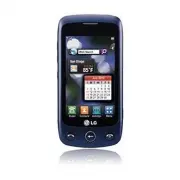


 LG A7110
User Manual
LG A7110
User Manual
 LG AX5000
User Manual
LG AX5000
User Manual
 LG C1300
User Manual
LG C1300
User Manual
 LG C1300A
User Manual
LG C1300A
User Manual
 LG C1300I
User Manual
LG C1300I
User Manual
 LG C1500
User Manual
LG C1500
User Manual
 LG C2000
User Manual
LG C2000
User Manual
 LG CB630
User Manual
LG CB630
User Manual
 LG CE500
User Manual
LG CE500
User Manual
 LG CF360
User Manual
LG CF360
User Manual
 LG CF360A
User Manual
LG CF360A
User Manual
 LG CG180
User Manual
LG CG180
User Manual
 LG CG225
User Manual
LG CG225
User Manual
 LG CG300
User Manual
LG CG300
User Manual
 LG CP150
User Manual
LG CP150
User Manual
 LG CU320
User Manual
LG CU320
User Manual
 LG CU400
User Manual
LG CU400
User Manual
 LG CU405
User Manual
LG CU405
User Manual
 LG CU500
User Manual
LG CU500
User Manual