Page 4 - Contents
2 GS170 | User Guide S Plinph Vior • • • • • F Contents For Your Safety ......................................................... ...3 Getting to know your phone ..................................22 Installing the SIM Card & Charging the Battery .....................................................
Page 5 - Safety Information; For Your Safety
3 Safety Information Please read and observe the following information for safe and proper use of your phone and to prevent damage. Violation of the instructions may cause minor or serious damage to the product. Do not disassemble emble or open crush, bend or deform, puncture or shred. Do not modify...
Page 6 - Charger and Adapter Safety
4 GS170 | User Guide For Your Safety • • • • Charger and Adapter Safety The charger and adapter are intended for indoor use only.Insert the battery pack charger vertically into the wall power socket.Unplug the power cord and charger during lightning storms to avoid electric shock or fi re.Use the cor...
Page 7 - General Notice; se
5 The battery pack has protection circuit to avoid the danger. Do not use near places that can generate static electricity more than 100V which could damage the protection circuit. Damaged protection circuits may generate smoke, rupture or ignite.When using the battery for the fi rst time, if it emit...
Page 8 - Ve
6 GS170 | User Guide For Your Safety Bo Ththcmextiombawhbecobecabethco Ve (OToke/ anex C Uunth Using the phone in proximity to receiving equipment (i.e., TV or radio) may cause interference to the phone.Do not use the phone if the antenna is damaged. If a damaged antenna contacts skin, it may cause ...
Page 9 - Vehicle-Mounted External Antenna
7 Bodily Contact During Operation This device was tested for typical use with the back of the phone kept 0.6 inches (1.5 cm) from the body. To comply with FCC RF exposure requirements, a minimum separa-tion distance of 0.6 inches (1.5 cm) must be maintained between the user’s body and the back of th...
Page 10 - What does “SAR” mean?
8 GS170 | User Guide For Your Safety repeththThwhaninmdeFCWSAporeThAreanSAfi lthgoFoFCfcogTe of scientifi c evidence does not show an as-sociation between exposure to radiofrequency (RF) from cell phones and adverse health outcomes. Still the scientifi c community does recommend conducting additional r...
Page 11 - Can I minimize my RF exposure?; el
9 requirement for safe exposure. The tests are performed in positions and locations (e.g., at the ear and worn on the body) as required by the FCC for each model.The highest SAR value for this model phone when tested for use at the ear is 0.91 W/kg and when worn on the body, as described in this use...
Page 14 - TIA Safety Information; Exposure to Radio Frequency Signal; ICNIRP; Antenna Care
12 GS170 | User Guide For Your Safety Pa ThsosebepathcoanRePe H Sowiinselin • • • • TIA Safety Information The following is the complete TIA Safety Information for wireless handheld phones. Exposure to Radio Frequency Signal Your wireless handheld portable phone is a low power radio transmitter and ...
Page 16 - Aircraft; FDA Consumer Update; Update on Mobile Phones:; Do wireless phones pose a health
14 GS170 | User Guide For Your Safety ThinRtisnoknofansuoccocareth 2 Uthprthorausha caerheth Aircraft FCC regulations prohibit using your phone while in the air. Switch OFF your phone before boarding an aircraft. Blasting Areas To avoid interfering with blasting operations, turn your phone OFF when ...
Page 17 - ry
15 They also emit very low levels of RF when in standby mode. Whereas high levels of RF can produce health effects (by heating tissue), exposure to low level RF that does not produce heating effects causes no known adverse health effects. Many studies of low level RF exposures have not found any bio...
Page 18 - What kinds of phones are the subject of
16 GS170 | User Guide For Your Safety ofmtubecadiofthdacophthhehaBepolemthcathfronoabpear The National Institutes of Health participates in some interagency working group activities, as well.The FDA shares regulatory responsibilities for wireless phones with the Federal Communica-tions Commission (F...
Page 19 - What research is needed to decide; ty
17 of cancer in laboratory animals. However, many of the studies that showed increased tumor development used animals that had been genetically engineered or treated with cancer-causing chemicals so as to be pre-disposed to develop cancer in the absence of RF exposure. Other studies exposed the anim...
Page 20 - What is the FDA doing to fi nd out more
18 GS170 | User Guide For Your Safety pheawedinuph 8 ThEnst(RantioenPrSpBoDthminteofmthdi 6. What is the FDA doing to fi nd out more about the possible health effects of wire-less phone RF? The FDA is working with the U.S. Na-tional Toxicology Program and with groups of investigators around the world...
Page 21 - al
19 phones must report the RF exposure level for each model of phone to the FCC. The FCC website (http://www.fcc.gov/oet/rfsafety) gives directions for locating the FCC identifi cation number on your phone so you can fi nd your phone’s RF exposure level in the online listing. 8. What has the FDA done t...
Page 22 - What about children using wireless
20 GS170 | User Guide For Your Safety a “cTh20Thwiwiincowo 12 FofoFD(hucduPhFeR(hInRa(hWtio(h the scientifi c data does not demonstrate that wireless phones are harmful. But if you are concerned about the RF exposure from these products, you can use measures like those described above to reduce your ...
Page 23 - Where can I fi nd additional; Driving
21 a person uses a “compatible” phone and a “compatible” hearing aid at the same time. This standard was approved by the IEEE in 2000. The FDA continues to monitor the use of wireless phones for possible interactions with other medical devices. Should harmful interference be found to occur, the FDA ...
Page 24 - Getting to know your phone; In
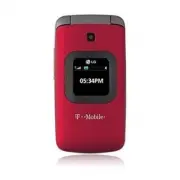
22 GS170 | User Guide Getting to know your phone Volume Key Call key Places and answers (incoming) calls. End/Power key Ends or rejects a call.Returns to the standby screen from any menu. Hold down for 3 seconds to turn the phone on or off. Main screen Message key Press to create a new text message....
Page 25 - Installing the SIM Card and Charging the Battery
23 Installing the SIM Card When you start your cellular service, you are provided with a SIM card that is loaded with your subscription details, any optional services available, and many other features. Important! : The SIM card and its contents can be easily damaged by scratches or bending, so be c...
Page 26 - Menu Map; Downloads
24 GS170 | User Guide Menu Map 2. Call History 2.1. All Calls2.2. Missed Calls 2.3. Received Calls2.4. Dialed Calls2.5. Call Duration 3. web2go 3.1. Home3.2. Enter URL3.3. Bookmarks3.4. Saved pages3.5. Recent pages 3.6. Browser settings 4. Organizer 4.1. Alarm Clock4.2. Calendar 4.3. Tasks 4.4. Note...
Page 27 - Contacts; Answering and rejecting a call; Call History
25 Making a call From the Idle screen, enter the number you wish to dial by using the keypad. To delete a digit press . Press to initiate the call. To end the call, press . TIP! To enter + when making an international call, press and hold . Making a call from your contacts Press the Contacts soft ke...
Page 28 - Searching for a contact; Adding a new contact; Adding a contact to a group
26 GS170 | User Guide Searching for a contact Press the Contacts soft key from the Idle screen. Select Contacts. Use the keypad to enter the name of the contact you want to call. Or scroll through the contacts using the up and down directional keys. Adding a new contact Press the Contacts soft key a...
Page 29 - Messaging; Sending a message; Menu; Entering text
27 o ia Messaging Your GS170 includes functions to send text messages and multimedia messages and as well as the network’s service messages. Sending a message Press the Menu soft key, select Messaging , and choose Create Message . Select Message and a new message editor will open. The message editor...
Page 30 - Message folders
28 GS170 | User Guide Messaging 123 mode This mode allows you to enter numbers. You can also add numbers while remaining in T9 or Abc mode by pressing and holding the desired key. In a text field, press until ‘123’ appears on the top right of your screen. Message folders Press the Menu soft key, sel...
Page 31 - Media; Camera; Taking a photo; Voice recorder; Pictures; Sounds; Sounds
29 Media Press the Menu soft key and select Media to access the following options: Camera Taking a photo Use this option to take pictures. You can also press the Camera key from the Idle screen . Voice recorder Use the Voice recorder function to record voice memos or other sounds. Pictures The Pictu...
Page 32 - Press the Menu soft key and select; Organizer; for the following options:; we
30 GS170 | User Guide Organizer Press the Menu soft key and select Organizer for the following options: Alarm Clock You can set up to 5 alarm clocks to go off at a specified time. Calendar The Calendar allows you to keep track of schedule appointments. A square cursor is located on the current date....
Page 33 - Accessing the Web; Accessing Bookmarks
31 a d d Web2go Accessing the Web web2go(SM) is a portal to the Internet on your phone. You can view your favorite websites, download games, pictures and more. The browser opens to the homepage, by default. You can also manually enter an URL address and access the associated web page (if supported b...
Page 34 - Bluetooth; Changing your BluetoothTM settings; Pairing with another Bluetooth device; On; Fl
32 GS170 | User Guide Bluetooth Changing your Bluetooth™ settings Press the Menu soft key, select Settings , then select Connectivity . Choose Bluetooth . Select Settings . The following options are available : • My Visibility - Choose whether to show or hide your device to other Bluetooth devices. ...
Page 35 - Settings; Profi les; Options; Edit; Edit; Display; Changing your connectivity settings
33 Settings Press the Menu soft key from the Idle screen and select Settings for the following options: Profi les Allows you to select a sound profile for your phone. You can also personalize each profile by highlighting the profile you want to edit and press the Options soft key, then press Edit For...
Page 36 - Phone; Language
34 GS170 | User Guide Settings • Answer mode - Choose whether to answer the phone using Send key, opening the flip, or pressing any key. • BT answer mode - Allows you to set the answer mode for when a Bluetooth device is connected to the phone. • Free call timer - Allows you to set a predetermined n...
Page 37 - Network; ote; Application Settings; Memory Manager
35 / y ne e • Lock If SIM is Changed - This function requires a PIN code to be entered every time a new SIM card is inserted. • Change codes - Allows you to change your PIN code, PIN2 code, and Security Code. Reset settings To reset all the phone’s settings to their factory defaults, use this menu. ...
Page 38 - Software Update; LG Mobile Phone Software Update Program; Us
36 GS170 | User Guide Software Update LG Mobile Phone Software Update Program For more information on installing and using this program, please visit http://update.lgmobile.com. This feature allows you to update your software to the latest version quickly and conveniently over the Internet without n...
Page 39 - Accessories; Items described below may be optional; Travel Adapter
37 Accessories There are a variety of accessories available for your mobile phone; some may be sold separately. You can select these options according to your personal communication requirements. Consult your local dealer for availability. ( Items described below may be optional .) Battery Travel Ad...
Page 40 - Limited Warranty Statement
Limited Warranty Statement 1. WHAT THIS WARRANTY COVERS : LG offers you a limited warranty that the enclosed subscriber unit and its enclosed accessories will be free from defects in material and workmanship, according to the following terms and conditions: (1) The limited warranty for the product e...