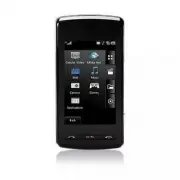
LG CU915 - Manuals
User Manual LG CU915
Summary
1. WHAT THIS WARRANTY COVERS : LG offers you a limited warranty that the enclosed subscriber unit and its enclosed accessories will be free from defects in material and workmanship, according to the following terms and conditions: 1. The limited warranty for the product extends for TWELVE (12) MONTH...
Table of Contents Table of Contents 2 >> Table of Contents Your Phone............................................................................... 8 Part of the phone.................................................................................... 8 Rear view.................................
Your Phone Your Phone 8 >> Your Phone Part of the phone 1 2 3 5 4 6 8 9 7 1. EARPIECE2. MAIN LCD3. SEND KEY - Dials a phone number and answers incoming calls. 4. CLEAR KEY - Deletes a character with each press. - Uses this key to go back to a previ- ous screen. 5. END/POWER KEY - Ends or rejec...
<< 9 Your Phone Rear view SMARTCHIP SOCKET MEMORY CARD SLOT BATTERY CAMERA LENS SELF PORTRAIT MIRROR HEADSET JACK Advice to the customer In order to allow better antenna sensitivity LG suggest that you hold the handset as depicted in the figure below. please do not cover the antenna area with ...
Getting Started Getting Started 10 >> Getting Started Installing the SmartChip When you subscribe to a cellular network, you are provided with a plug-in SmartChip loaded with your subscription details, such as your PIN, any optional services available and many others. n Important! The plug-in ...
<< 11 Getting Started 3. Slide the SmartChip into the SmartChip socket. Make sure that the SmartChip is inserted properly and that the gold contact area on the card is facing downwards. To remove the SmartChip, press down lightly and pull it in the reverse direction. n Note When you need to re...
12 >> Getting Started Charging the Battery Use of unauthorized accessories could damage your phone and void your war- ranty.To use the travel charger provided with your phone: 1. With the battery in position in the phone, connect the lead from the travel charger to the bottom of the phone. Che...
<< 13 Getting Started ] When it is completed, ‘Charge complete’ message is displayed in the same place. If a user cannot see the ‘Charge complete’ message, even if battery icons are show 3 blocks, it means the phone is not charged fully yet. If the battery fails to charge completely: ] After t...
14 >> Getting Started Cautions for touch keys 1. Make sure your hands are clean and dry. 2. You do not need to press hard on the touch keys to make them work. Do not subject the product to severe impact, as this may damage the touch key sensors. 3. Use the tip of your finger to press exactly o...
Display Information << 15 Getting Started Quick keys
16 >> Getting Started The quick keys The quick keys provide easy, one-touch access to your most used functions. Tap to open the full menu which is separated into four sub-menus. Tap each sub-menu’s vertical bar to view further options.Tap to open the menu concerning ATT service, Camera and Gam...
<< 17 Getting Started On-Screen Icons The table below describes various display indicators or icons that appear on the phone’s display screen. ICON/INDICATOR DESCRIPTION Tells you the strength of the network signal. Indicates that you are using GPRS. Shows that you are using a roaming service....
Selecting Functions and Options Selecting Functions and Options << 19 Selecting Functions and Options The touch screen consists of the menus as follow: Call menu My Stuff Menu Multimedia menu Setting menu Dial Address Book Recent Calls Messaging IM Mobile Email Cellular Video MEdia Net AT&...
General Functions General Functions << 21 General Functions Making a Call 1. Make sure your phone is powered on. 2. Tap [ ] in the idle screen and enter a phone number including the area code by tapping the keypad. To edit a number on the display screen, simply tap the key. to erase one digit ...
Making a Call From the Contacts You can store names and phone numbers dialed frequently in the SmartChip as well as in the phone memory known as the Contacts.Tap [ ] and search for the desired numbers by selecting name in the con- tacts and pressing the [SEND] key. Adjusting the Volume During a call...
<< 23 General Functions Entering Text You can enter alphanumeric characters by using the phone’s keypad. For exam- ple, storing names in the Address Book, writing a message, or creating schedul- ing events in the calendar all require entering text.The following text input methods are available...
new letters are added, the word changes to reflect the most likely candidate from the dictionary.Use the Touch keypad keys to enter your text. 1. When you are in the T9 predictive text input mode, start entering a word by tapping keys to . Press one key per letter. ] The word changes as letters are ...
<< 25 General Functions 123 Mode (Numbers Mode) Type numbers using one keystroke per number. To change to 123 mode in a text entry field, tap [Options]-[Text Entry Mode]-[123]. n Note You can select a different T9 language from the menu option. The default set- ting on the phone is T9 disabled...
In-Call Menu In-Call Menu 26 >> In-Call Menu Your phone provides a number of control functions that you can use during a call. During a Call The menu displayed on the handset screen during a call is different from the default main menu displayed when in idle screen, and the options are describ...
<< 27 In-Call Menu Using the Speakerphone You can use the speakerphone during a call by tapping [speakerphone] key located in the middle of the screen next to Mute. The loudspeaker is automati- cally deactivated when you end the call. n Warning Due to higher volume levels, don’t place the phon...
• When moving out of a AT&T 3G service area.• When the network connection is poor. 2. The Video Share Call will be unavailable in the following cases (“Video Share Ready” message will be greyed out). • When trying to make a conference call/second call during a call.• When the voice call is place...
<< 31 In-Call Menu n Note • The speakerphone will be automatically turned on when a Video Share Call begins, and automatically back to the previous mode when a Video Share Call ends. The exception is when a Hands-free device (Bluetooth or stereo headset) is being used. • If a Hands-free device...
Conference Calls The conference service provides you with the ability to have a simultaneous conversation with more than one caller. The conference call feature can be used only if AT&T supports this feature. A conference call can only be set up when you have one call active and one call on hold...
<< 33 In-Call Menu Private Call in a Conference Call To have a private call with one caller from a conference call, tap the [Private Call] from the Conference Call option. When the numbers of the callers are displayed, select the one you wish to speak in private. Ending a Conference Call Curre...
Menu Tree Menu Tree 34 >> Menu Tree When you click the Menu below, you can go to the related menu directly. Call Menu DialAddress Book Contact ListNew ContactFavoritesCaller GroupsSpeed Dial ListCopy All ContactsDelete All ContactsService Dial NumbersMy Business CardView OptionsMy Numbers Rece...
<< 35 Menu Tree MEdia Net MEdia Net HomeBookmarksSaved PagesEnter URLRecent PagesSecurityBrowser Settings AT&T Mall Shop TonesShop GamesShop GraphicsShop MultimediaShop ApplicationsShop Videos AT&T Music Music PlayerShop MusicMusicIDXM RadioMusic VideosThe BuzzCommunityMusic Apps Camer...
36 >> Menu Tree Settings Menu Call Call ForwardingSend My NumberAuto RedialAnswer ModeMinute MinderCall WaitingCall RejectTTYSend DTMF TonesVideo Share Sound Shop RingtonesRingtonesVolumeMessage Alert TonesAlert TypeIncreasing RingtonePower On/Off Tones Display WallpapersBacklight TimerShortCu...
C all Menu To enter Call menu, tap the key in the idle screen.
Call Menu Call Menu 38 >> Call Menu Dial This icon stands for the menu related to Call. If you select this icon, you can make a call, and send a message. You can enter Dialing, Message and Contacts menu directly in standby mode by tapping the corresponding icon.To make and receive calls, make ...
<< 39 Call Menu Address Book Contact List There are two ways to enter Contact List. 1. Tap the [ ] in the idle screen then tap Address Book - Contact List. 2. Tap the [ ] key in the idle screen. This menu allows you to save and manage contact address information. The Contacts’ functions allow ...
40 >> Call Menu Copy All Contacts This menu allows you to copy all of the information from your SmartChip, e.g. name, handset number, etc., to your handset. If a name is duplicated during the copying operation, the information is also duplicated. ] SmartChip to Handset: You can copy the entry ...
<< 41 Call Menu Recent Calls Missed Calls • View the number, if available, and call it or save it in the Address Book.• Enter a new name for the number and save both in the Address Book.• Send a message using this number.• Delete the call from the list. Dialed Calls • View the number, if avail...
42 >> Call Menu Dialed Calls Length of outgoing calls. All Calls Total length of all calls made and incoming calls received since the timer was last reset. Data Counter You can check the Sent, Received or All data volumes and Reset all. Messaging New Message n Note If you select a graphic or a...
<< 43 Call Menu Editing a message Tap [Options], then following options are available for Editing a Message. • Insert ] Symbol: You can insert symbols ranging from sentence notes to emoticons. Select the one you want to insert by tapping. ] Picture: You can select a graphic image by tapping. Y...
44 >> Call Menu • Delivery Options - Validity Period: This network service allows you to set how long your mul- timedia messages will be stored at the message center. - Delivery Receipt: If it is set to Yes in this menu, you can check whether your message is sent successfully. - Reply via Same...
<< 45 Call Menu ] Information: You can view information about received messages; Message type, Subject, Sender's address, Message date & time, Priority, Message size, Attached Files (Only for Multimedia messages). ] Multi Delete: Deletes a number of messages you have selected from the fold...
46 >> Call Menu When the message Send has failed, the following [Options] are available. ] Delete: Deletes the selected message which has failed. ] Edit: Allows you to edit the selected message. ] Error Status: Allows you to see the error status of the failed message (Only for Multimedia messa...
<< 47 Call Menu Templates Text Templates There are 6 predefined messages in the list. You can view and edit the template messages or create new messages.The following [Options] are available. ] Send: Allows you to send the selected template via Message. ] Delete: Allows you to delete the selec...
48 >> Call Menu Message Settings Text Message ] Message Center Number: If you want to send a text message, you can get the address of the SMS center by using this menu. ] Email Gateway: You can send the text message to an Email Address via this gateway. ] Message Subject: You can enter the SMS...
<< 49 Call Menu Voicemail This menu allows you to set the voicemail center number if this feature is sup- ported by AT&T. Please check with AT&T for details of their service in order to configure the handset accordingly. Service Messages You can set the Service option to determine whet...
50 >> Call Menu Saved Conversations This is where a user can view saved conversations. Change Provider: You can change the provider. Settings ] Set Sound: Allows you to set on/off an alert for the Contact when they have activity on their session. ] Default Provider: Allows you to set the defau...
<< 51 Call Menu ] Send Message to...: This offers the ability to send a message to an unknown contact. When selected, a User ID must be typed in prior to start- ing an IM session or conversation. ] Saved Conversations: You may view or delete the stored conversation session. ] Search: This allo...
52 >> Call Menu When cursor is located on a Contact List ] Add Contact: This adds a new contact to the selected contacts’ list; in the meantime this searches for the contact on the basis of E-mail Address, First Name, or Last Name. ] Refresh List: This refreshes the present information on the ...
<< 53 Call Menu Menu options available in the Conversation screen ] Back To Contacts: This brings the screen back to the contacts. ] Insert: You can insert Symbol, Template and emoticons in the conversation screen. ] Block/Unblock Contact: This allows or blocks conversation with the selected C...
54 >> Call Menu ] Log In1. Tap and type your exiting email ID. 2. Tap the Password filed and type your password. n Quick tip • Your password is case sensitive. Tap the keypad to change to lower case or upper case. 3. Tap to highlight the Remember me and tap [Mark] to save your password. 4. Tap...
M ultimedia Menu To enter Multimedia menu, tap the - key.
56 >> Multimedia Menu Cellular Video (CV) CV brings you quick, on-demand access to news, sports, weather and enter- tainment video clips. Catch up on TV’s hottest shows, funniest comedians, biggest headlines and latest sports scores. You can even personalize your homepage for quick access to y...
<< 57 Multimedia Menu MEdia Net Home This connects to the homepage which is defined in the activated account. The default account connects to AT&T’s homepage. Bookmarks This function allows you to store and edit frequently accessed sites. The following [Options] are available. ] View: Disp...
58 >> Multimedia Menu Recent Pages You can manage the list of the Internet pages you visited. Security A list of the available certificates is shown. ] Certificates: You can see the list of certificates and view them in detail. ] Clear Session: Removes the secure session. Browser Settings Acco...
<< 59 Multimedia Menu 4. Proxy Address: Proxy server address. 5. Proxy Port Number: Proxy server’s port number. 6. Security: Select the secure or non-secure mode. 7. Time Out: Values between 10 to 600 seconds. 8. Network Profile: You can choose one from the network profiles. Note you can creat...
60 >> Multimedia Menu Character Encoding Allows you to select the character encoding to visit a foreign website. Select a character set from the following list: 1 Automatic 2 English(ASCII) 3 English(ISO) 4 English(LATIN) 5 Unicode(UCS2 BE) 6 Unicode(UCS2 LE) 7 Unicode(UCS2 Auto) 8 Unicode(UTF...
<< 61 Multimedia Menu AT&T Mall Shop Tones This menu option connects to AT&T’s ringtone download site. n Note Additional charges may incur when downloading ringtones. Contact AT&T for further information. Shop Games This menu option connects to AT&T’s game download site. This a...
62 >> Multimedia Menu n Note Additional charges may incur when downloading applications. Contact AT&T for further information. Shop Videos This menu option connects to AT&T’s video download site. This allows users to download the various videos by connecting to the Internet. AT&T M...
<< 63 Multimedia Menu Adding Music To Your Handset Before You Get Started To transfer music from your PC to your device, you will need the following: • Windows Media Player 10 or above • Windows XP Service Pack 2 • Music on your PC in one of these formats: MP3, .AAC, AAC+ or WMA • A MicroSD ca...
<< 65 Multimedia Menu 9. Drag and drop the desired music content from the PC window to the "Storage Card" window. n Note If you copy music to your SD card's MTP folder whilein UMS mode or delete, modify or move files from theMTP folder, this will not update your Music Player. Please co...
66 >> Multimedia Menu 4. From within the Windows Media Player application, click on the Sync tab. Previously downloaded songs are then listed on the left side of the applica- tion in case that Window Media Player 11 is installed. 5. Choose the destination location for the media files. The VU M...
<< 67 Multimedia Menu 4. From within the Windows Media Player application, click on the Library tab. 5. From the left side of the Library tab, click on All Music. The right side of the page is then populated with all of the songs which the player has previously found. 6. Right click on the son...
68 >> Multimedia Menu A. Follow those steps: Setting [ ] > Setting menu [ ] > More [ ] > Reset Settings > Master Clear > Memory Card. B. Format external memory using Mass Storage.C. Remove external memory from the phone, and insert external memory to the phone and format. 3. If ...
<< 69 Multimedia Menu views via streaming) so the user should have an unlimited MEdia bundle like the MEdia Max 200. n Note Additional charges may incur when downloading ringtone. Contact AT&T for further information. MusicID MusicID is an application which uses the onboard microphone to a...
70 >> Multimedia Menu Music Videos Selecting Music Videos from the AT&T Music sub menu launches a browser which takes you directly into the Music Video section of Cellular Video. From this menu, you will have access to music videos from the latest artist as well as programming from AT&...
<< 71 Multimedia Menu Take Picture Using the camera module built into your phone, you can take pictures of people or events while on the move. Additionally, you can send photos to other people in a picture message. Icon Description Change to Video record mode.Allows you to set the zoom. Sets t...
72 >> Multimedia Menu By tapping this icon [ ], you can set the options below. After you’ve taken your photo Your captured photo will appear on screen. The name of the image runs along the bottom of the screen together with four icons down the right side. Menu Description Quality You can selec...
<< 73 Multimedia Menu Record Video You can record a video clip in this menu by tapping the Camera key in the screen. Icon Description Go to the camera mode.Allows you to send the photo.Delete the photo you have just taken and confirm by tapping Yes. The viewfinder will reappear.Allows you to g...
<< 75 Multimedia Menu Games n Note The JAR file is a compressed format of the Java program and the JAD file is a description file that includes all detailed information. From the network, prior to download, you can view all detailed file descriptions from the JAD file. n Warning Only J2ME (Jav...
M y Stuff Menu To enter My Stuff Menu, tap the - key.
My Stuff Menu My Stuff Menu 78 >> My Stuff Menu Alarm Clock The alarm function allows you to set up multiple separate alarms. You can also set the time, repetition interval and alarm sound.Select your desired alarm setting to configure from the alarm list. If there is no alarm setting, Tab [Ne...
<< 79 My Stuff Menu Pictures ] Shop Graphics: This menu option connects to AT&T’s graphic download site. n Note Additional charges may be incurred when downloading graphics. Contact your AT&T for further information. ] Take Photo: You can take your own photo by tapping the center [OK] ...
80 >> My Stuff Menu Calculator The calculator function allows you to add, subtract, multiply and divide. You can input numbers using the number keys, and input operators using button keys. Calendar When you enter this menu a calendar will be displayed. This function helps to remind you of the ...
82 >> My Stuff Menu • best match - 1 match: when the user tries to find a number from the address book via the call someone function, the most likely match will be displayed - 4 matches: when the user tries to find a name from the address book via the call someone function, the four most likel...
<< 83 My Stuff Menu 3. Tap the center [Save] key to save the Task item. The following [Options] are available in the Task list. ] Status: Allows you to change the status of the selected task as In Progress or Completed. ] Priority: Allows you to selecting [Low/Normal/High] according to the imp...
84 >> My Stuff Menu More Other Files When you receive files of an undefined format (such as .vcs, .vcf, etc.) via E-mail, the files are saved in this folder.The following [Options] are available. ] Delete: You can delete the selected file. ] Rename: You can edit the name of the selected file. ...
S ettings Menu To enter Settings menu, tap the - key.
Settings Menu Settings Menu 86 >> Settings Menu Call Call Forwarding When this network service is activated, you can direct your incoming calls to another number, for example, to your voice mailbox number. For details, contact AT&T. Select one of the divert options, for example, select If ...
<< 87 Settings Menu n Note There will be no alert indicating the call has been connected.You must stay on the line to hear when the call is connected. Answer Mode This allows you to determine how to answer the phone. ] Any Key: You can answer an incoming call by tapping the [Send] or [c] key. ...
88 >> Settings Menu TTY Allows you to attach a TTY device enabling you to communicate with parties also using a TTY device. A phone with TTY support is able to translate typed characters to voice. Voice can also be translated into characters and then displayed on the TTY. TTY mode (Tele Type w...
<< 89 Settings Menu Connecting TTY Equipment and a Terminal1. Connect a TTY cable to the TTY connection on the terminal. (the TTY connection location is the same as a hands-free ear socket) 2. Enter the phone menu and set up the desired TTY mode. (For a TTY mode, see above) 3. After setting a ...
90 >> Settings Menu - Off: Does not automatically start recording video share call images. ] Service - On: This option activates the Video Share Call service. - Off: If this option is selected, the Video Share Call service will be unavailable even in a 3G service area. (If the service is Off ,...
<< 91 Settings Menu Alert Type ] Ringtones: Supports 3 ring alert types. Ring, Ring and Vibration, and Ring after Vibration. ] Message Alert Tones: Supports 6 message alert types. Ring Once, Ring Every 2 Min, Ring Every 15 Min, Ring & Vibrate, Vibrate, Silent. ] Other Alert Tones: You can ...
92 >> Settings Menu ShortCut Menu The shortcut menu provides eight further menu options. You need to set this by tapping - - - [Display] -[ShortCut Menu] to appear in stanyby mode. (Default is off.) Brightness You can set the brightness of display screen. Use this to select whether or not the ...
<< 93 Settings Menu Date&Time Date This allows you to enter the day, month and year. You can change the date format via the Date Format menu option. Time This allows you to enter the current time. You can choose the time format via the Time Format menu option. Auto Update Select On to set ...
94 >> Settings Menu A2DP profile This icon appears when the A2DP profile is used between the stereo headset device and the phone. This allows you to listen to an audio clip. A2DP is the Advanced Audio Distribution Profile, which provides support for streaming either mono or stereo audio using ...
<< 95 Settings Menu Settings This menu allows you to configure the profile for a Bluetooth. ] My Device Visibility 1. Selecting the Show option exposes your phone to other Bluetooth devices. 2. Selecting Hide shows your phone only to already paired devices. ] My Device Name: Allows you to chan...
96 >> Settings Menu PIN Code Request When the PIN code request feature is set to ‘On’, you must enter your PIN each time you switch the phone on. Consequently, any person who does not have your PIN cannot use your phone without your approval. n Note Before setting the PIN code request feature ...
<< 97 Settings Menu You can change the access codes for: Security Code, PIN1, PIN2 n Note PIN: Personal Identification Number. Connection Network Profiles This menu shows the Network Profile. You can register, delete and edit by using the Options Menu. However, you cannot delete or edit defaul...
98 >> Settings Menu ] On: You cannot make (or receive) any calls, including emergency calls, or use other features that require network coverage. ] Off: You can deactivate the flight mode and restart your handset to access the network. Start Up Guide It helps you get to know how this mobile wo...
<< 99 Settings Menu Handset Information This menu is used to view My Numbers, Manufacturer and Model Name information etc. Reset Settings This function allows you to restore factory settings. To do this, you need the security code. Master Reset Restores the settings (e.g.: Audio, Display, Lang...
Accessories Accessories 102 >> Q&A There are a variety of accessories available for your mobile phone. You can select these options according to your personal communication requirements. Consult your local dealer for availability. Travel Adapter This adapter allows you to charge the batter...
<< 103 Accessories Data Cable Kit * When installing, make sure to connect to the PC after your phone and the cable have been connected. Otherwise, your PC may have a problem. n Note • Always use genuine LG accessories. Failure to do this may invalidate your war- ranty. • Accessories may be dif...
For Your Safety For Your Safety 104 >> Accessories Important Information This user guide contains important information on the use and operation of this phone. Please read all the information carefully for optimal performance and to prevent any damage to or misuse of the phone. Any changes or ...
<< 105 For Your Safety Safety Information Read these simple guidelines. Breaking the rules may be dangerous or illegal. Further detailed information is given in this user guide. ] Do not disassemble this unit. Take it to a qualified service technician when repair work is required. ] Keep away ...
106 >> For Your Safety FCC RF Exposure Information WARNING! Read this information before operating the phone. In August 1996, the Federal Communications Commission (FCC) of the United States, with its action in Report and Order FCC 96-326, adopted an updated safety standard for human exposure ...
<< 107 For Your Safety (1) This device and its accessories may not cause harmful interference, and (2) this device and its accessories must accept any interference received, including interference that may cause undesired operation. Cautions for Battery ] Do not disassemble.. ] Do not short-ci...
Safety Guidelines Safety Guidelines 108 >> For Your Safety TIA Safety Information Provided herein is the complete TIA Safety Information for Wireless Handheld phones. Inclusion of the text covering Pacemakers, Hearing Aids, and Other Medical Devices is required in the owner’s manual for CTIA C...
<< 109 Safety Guidelines Antenna Care Use only the supplied or an approved replacement antenna. Unauthorized antennas, modifications, or attachments could damage the phone and may violate FCC regulations. Phone Operation NORMAL POSITION: Hold the phone as you would any other telephone with the...
110 >> Safety Guidelines recommendations are consistent with the independent research by and recommendations of Wireless Technology Research.Persons with pacemakers: ] Should ALWAYS keep the phone more than six inches from their pacemaker when the phone is turned ON; ] Should not carry the pho...
<< 111 Safety Guidelines Posted Facilities Turn your phone OFF in any facility where posted notices so require. Aircraft FCC regulations prohibit using your phone while in the air. Turn your phone OFF before boarding an aircraft. Blasting Areas To avoid interfering with blasting operations, tu...
112 >> Safety Guidelines Safety Information Please read and observe the following information for safe and proper use of your phone and to prevent damage. Also, keep the user guide in an accessible place at all the times after reading it. ] Do not disassemble or open crush, bend or deform, pun...
<< 113 Safety Guidelines Battery Information and Care ] Please dispose of your battery properly or take it to your local wireless carrier for recycling. ] The battery does not need to be fully discharged before recharging. ] Use only LG-approved chargers specific to your phone model since they...
114 >> Safety Guidelines ] Do not short-circuit the battery. Metallic articles such as a coin, paperclip or pen in your pocket or bag may short-circuit the + and – terminals of the battery (metal strips on the battery) upon moving. Short-circuit of the terminal may damage the battery and cause...
<< 115 Safety Guidelines ] Do not turn your phone on or off when putting it in your ear. FDA Consumer Update The U.S. Food and Drug Administration Centre for Devices and Radiological Health Consumer Update on Mobile Phones. 1. Do wireless phones pose a health hazard? The available scientific e...
116 >> Safety Guidelines ] Design wireless phones in a way that minimizes any RF exposure to the user that is not necessary for device function; and ] Cooperate in providing users of wireless phones with the best possible information on possible effects of wireless phone use on human health. T...
<< 117 Safety Guidelines (RF) because of the short distance between the phone and the user’s head. These RF exposures are limited by FCC safety guidelines that were developed with the advice of the FDA and other federal health and safety agencies. When the phone is located at greater distances...
118 >> Safety Guidelines 5. What research is needed to decide whether RF exposure from wireless phones poses a health risk? A combination of laboratory studies and epidemiological studies of people actually using wireless phones would provide some of the data that are needed. Lifetime animal e...
<< 119 Safety Guidelines users. The CRADA will also include a broad assessment of additional research needs in the context of the latest research developments around the world. 7. How can I find out how much radio frequency energy exposure I can get by using my wireless phone? All phones sold ...
120 >> Safety Guidelines whole body or a small part of the body. It is measured in watts/kg (or milliwatts/g) of matter. This measurement is used to determine whether a wireless phone complies with safety guidelines. 9. What steps can I take to reduce my exposure to radiofrequency energy from ...
<< 121 Safety Guidelines 11. What about wireless phone interference with medical equipment? Radio frequency energy (RF) from wireless phones can interact with some electronic devices. For this reason, the FDA helped develop a detailed test method to measure electromagnetic interference (EMI) o...
122 >> Safety Guidelines Driver Safety Tips Your wireless phone gives you the powerful ability to communicate by voice almost anywhere, anytime. An important responsibility accompanies the benefits of wireless phones, one that every user must uphold.When operating a car, driving is your first ...
<< 123 Safety Guidelines 6. Dial sensibly and assess the traffic; if possible, place calls when you are not moving or before pulling into traffic. Try to plan your calls before you begin your trip or attempt to coincide your calls with times you may be stopped at a stop sign, red light or othe...
124 >> Safety Guidelines Consumer Information on SAR (Specific Absorption Rate) This Model Phone Meets the Government’s Requirements for Exposure to Radio Waves. Your wireless phone is a radio transmitter and receiver. It is designed and manufactured not to exceed the emission limits for expos...
Glossary Glossary 126 >> Safety Guidelines To help you understand the main technical terms and abbreviations used in this booklet and take full advantage of the feature on your mobile phone, here are a few definitions. Call Barring Ability to restrict outgoing and incoming calls. Call Divert A...
<< 127 Glossary Line Identification Services (Caller ID) Service allowing subscribers to view or block the telephone numbers of callers. Conference Calls Ability to establish a conference call involving up to five additional parties. Phone Password Security code used to unlock the phone when y...
Index Index 128 >> Glossary A Access Codes .............................................................................................................................................. 13Address Book ................................................................................................
LG Cell Phones Manuals
-

LG A7110
User Manual
-
LG AX5000
User Manual
-
LG C1300
User Manual
-
LG C1300A
User Manual
-
LG C1300I
User Manual
-
LG C1500
User Manual
-
LG C2000
User Manual
-
LG CB630
User Manual
-
LG CE500
User Manual
-
LG CF360
User Manual
-
LG CF360A
User Manual
-
LG CG180
User Manual
-
LG CG225
User Manual
-
LG CG300
User Manual
-
LG CP150
User Manual
-
LG CU320
User Manual
-
LG CU400
User Manual
-
LG CU405
User Manual
-
LG CU500
User Manual
-
LG CU500
Manual













