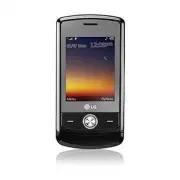
LG CU720 - Manuals
User Manual LG CU720
Summary
1. WHAT THIS WARRANTY COVERS : LG offers you a limited warranty that theenclosed subscriber unit and its enclosedaccessories will be free from defects inmaterial and workmanship, according to thefollowing terms and conditions: 1 . The limited warranty for the product extends for TWELVE (12) MONTHS b...
For Your Safety . . . . . . . . . . . . . . . . . . . . . . . 5Your Phone . . . . . . . . . . . . . . . . . . . . . . . . . 10 Phone Components . . . . . . . . . . . . . . . . . . . . . . . . 10 Your Phone’s Features . . . . . . . . . . . . . . . . . . . . . . 11 Display Information . . . . . . . . ...
5 For Your Safety Important Information This user guide contains important informationon the use and operation of this phone. Pleaseread all the information carefully for optimalperformance and to prevent any damage to ormisuse of the phone. Any changes ormodifications not expressly approved in this...
7 For Your Safety ] Only use the batteries, antennas, andchargers provided by LG. The warranty willnot be applied to products provided by othersuppliers. ] Only authorized personnel should service thephone and its accessories. Faulty installationor service may result in accidents andconsequently inv...
8 For Your Safety CAUTION Use only the supplied and approved antenna.Use of unauthorized antennas or modificationscould impair call quality, damage the phone,void your warranty and/or result in violation ofFCC regulations. Do not use the phone with adamaged antenna. If a damaged antennacomes into co...
10 Your Phone Phone Components • • •• •• 1. Earpiece 2. Left soft key 5. Display screen 3. Send key 4. Alpha numeric keys 6. 5-way joystick or Navigation key 7. Right soft key 9. End /Power key 8. Side keys 12. Clear key 13. Microphone 10. Multi-task key 11. Camera key CU720_Eng_1108 11/8/07 4:18 PM...
11 Your Phone Your Phone’s Features 1. Earpiece 2,7. Left soft key/Right soft key: Each of these keys perform the functions indicated bythe text on the display immediately abovethem. 3. Send key: You can dial a phone number and answer incoming calls. Press this key instandby mode to quickly access t...
12 Your Phone Front view Rear view Side view Advice to the customer In order to allow better antenna sensitivity LGsuggests that you hold the handset asdepicted in the figure below. please do not cover the antenna area withyour hand during a call and using a bluetoothconnection. It may degrade speec...
Display Information 13 Your Phone Icon area Soft key indications Text and graphicarea Area Description First line Displays various icons. Middlelines Display messages, instructionsand any information that youenter, such as number to bedialed. Last line Shows the functions currentlyassigned to the tw...
Your Phone 14 On-Screen Icons The table below describes various displayindicators or icons that appear on the phone’sdisplay screen. Icon Description Indicates the strength of the 3Gnetwork signal. Indicates the strength of the networksignal. Indicates that GPRS service isavailable.Indicates that th...
16 Installing the SmartChip When you subscribe to a cellular network, youare provided with a plug-in SmartChip loadedwith your subscription details, such as yourPIN, any optional services available and manyothers. n Important! The plug-in SmartChip and its contacts can beeasily damaged by scratches ...
17 Getting Started Charging the Battery Use of unauthorized accessories could damageyour phone and void your warranty. To use the travel charger provided with yourphone: 1. With the battery in position in the phone,connect the lead from the travel charger tothe bottom of the phone. Check that thearr...
18 Getting Started Memory card slot The supports the microSD memory card. The memory card can be inserted into theside of the device. You can use this card to save data files such as MP3 songs. n Note Only use memory cards that have been approvedby the manufacturer. Some memory cards mightnot be com...
19 Getting Started Turning Your Phone On andOff 1. Hold down the [END] key until the phone switches on. 2. If the phone asks for a PIN, enter the PINand press the key. The phone searches for your network and afterfinding it goes to the idle screen as illustratedbelow. From the idle screen, you can m...
20 Making a Call 1. Make sure your phone is powered on. 2. Enter a phone number including the areacode. To edit a number on the displayscreen, simply press the key to erase one digit at a time. ] Press and hold the key to erase the entire number. 3. Press the [SEND] key to call the number. 4. When f...
21 Adjusting the Volume During a call, if you want to adjust theearpiece volume, use the side keys of thephone. In idle mode, you can adjust the ring volumeusing the side keys. Answering a Call When you receive a call, the phone rings andthe flashing phone icon appears on the screen.If the caller ca...
22 General Functions T9 Mode This mode allows you to enter words with onlyone keystroke per letter. Each key on thekeypad has more than one letter. The T9 modeautomatically compares your keystrokes withan internal linguistic dictionary to determinethe correct word, thus requiring far fewerkeystrokes...
23 General Functions 2. Enter the whole word before editing ordeleting any keystrokes. 3. Complete each word with a space bypressing the key or the right navigation key. To delete letters, press . Press and hold down to erase the letters continuously. n Notice To exit the text input mode without sav...
24 General Functions Using the Symbol Mode The Symbol Mode enables you to enter varioussymbols or special characters. To enter a symbol, press the [Star] key. Use the navigation keys to select the desiredsymbol and press the [ OK ] key. T9 dictionary The T9 dictionary is a feature that allows theuse...
25 Your phone offers a set of functions that allow you to customize the phone. These functions arearranged in menus and sub-menus, accessed via the two soft keys marked the left soft key and the right soft key. Each menu and sub-menu allows you to view and alter the settings of a particular function...
26 Your phone provides a number of controlfunctions that you can use during a call. Toaccess these functions during a call, press theright soft key [ Options ]. During a Call The menu displayed on the handset screenduring a call is different from the default mainmenu displayed when in idle screen, a...
27 In-Call Menu Using the Speakerphone You can use the integrated Speakerphoneduring a call by pressing the key. The loudspeaker is automatically deactivated whenyou end the call. n Warning Due to higher volume levels, don’t place thephone near your ear while the speakerphone isenabled. Video Share ...
29 In-Call Menu • When moving out of a AT&T 3G service area. • When the network connection is poor. 2. A Video Share Call will be unavailable in thefollowing cases (“Video Share Ready”message will be greyed out). • When trying to make a conference call / second call during a Video Share Call. • ...
30 In-Call Menu will not be able to select from this menuitem.) 2. This screen provides you with three optionsto make a Video Share Call: a. Enter a number directly. b. Select a number from the list of recentvideo sharers (last five numbers). c. Select a number from the contact list. n Note • If the...
31 In-Call Menu Setting Up a Conference Call To set up a conference call, place one call onhold, conference in the second active call bypressing the right soft key and select the JoinCalls sub menu option from the ConferenceCall menu. Activate the Conference Call onHold To activate a conference call...
32 1. Cellular Video (see page 36) 2. Messaging (see page 37) 2.1 New Message 2.2 Inbox 2.3 IM 2.4 Mobile Email 2.5 Drafts 2.6 Outbox 2.7 Sent 2.8 Voicemail 2.9 Templates 2.9.1 Text Templates 2.9.2 Multimedia Templates 2.9.3 Signature 2.0 Message Settings 2.0.1 Text Message 2.0.2 Multimedia Message ...
36 Cellular Video Cellular Video (CV) brings you quick, on-demand access to crystal clear news, sports,weather and entertainment video clips. Catchup on TV’s hottest shows, funniest comedians,biggest headlines and latest sports scores. Youcan even personalize your homepage for quickaccess to your fa...
37 Messaging This menu includes functions related to SMS(Short Message Service), MMS (MultimediaMessage Service), voice mail, as well as thenetwork’s service messages. New Message Menu 2.1 n Note If you select a graphic or an audio file whilewriting a multimedia message, the file loadingtime will ta...
39 Messaging • Set Slide: Sets the Duration, Text color and background color of the selected slide.(Only for Multimedia Message) • Settings (Only for Multimedia Message) - Priority: You can set the priority of the message you choose. - Delivery Receipt: If it is set to Yes in this menu, you can chec...
40 Messaging ] Save Contact Info: You can save the sender's phone number in the Contact List. ] Delete: You can delete the current message. ] Forward: You can forward the selected message to another party. ] Reply All: Allows you to reply to all recipients on the selected message (Only forMultimedia...
41 Messaging n Note Once the User ID and Password are saved, youwill not be required to type them in again duringLogin process. This feature is optional. Saved Conversations This is where a user can view savedconversations. Settings ] Set Sound: Allows you to set on/off an alert for the Contact when...
42 Messaging ] Search: This allows you to search for the contact by Email address or name. ] Settings • My Status: Allows you to set your status to Available, Busy or Invisible. • Set Sound: Allows you to set an alert for the Contact when they have activity ontheir session. • Auto Sign On: You may L...
43 Messaging When cursor is located on aContact ] Add Contact: This adds a new contact to the selected contacts list; in the meantimethis searches for the contact on the basis ofE-mail Address, First Name, or Last Name. ] Delete Contact: This deletes the selected Contact. ] Block/Unblock Contact: Th...
45 Messaging Outbox Menu 2.6 Outbox is a temporary storage place formessages waiting to be sent. When you press the [SEND] key, you can make a call to the number of the recipientnumber of the selected message. If the message is not sent from the Outbox, youwill receive a sound alert along with aMess...
Voicemail Menu 2.8 This menu provides you with a quick way ofaccessing your voice mailbox (if provided byyour network). Before using this feature, you must enter thevoice server number obtained from your serviceprovider. This may already be available; to check thevoicemail, press and hold the key. W...
47 Messaging Signature (Menu 2.9.3) This feature allows you to create your Textsignature. You can use symbols, text templatesand contacts as part of the signature. Message Settings Menu 2.0 Text Message (Menu 2.0.1) ] Message Center Number: If you want to send a text message, you can get theaddress ...
49 Recent Calls You can check the record of missed, received,and dialed calls only if the network supportsCalling Line Identification (CLI) within theservice area. The number and name (if available) aredisplayed together with the date and time ofthe call. You can also view call times. Missed Calls M...
50 All Calls Total length of all calls made and incomingcalls received since the timer was last reset. Data Counter Menu 3.6 You can check the Sent, Received or All datavolumes and Reset data counter. Recent Calls CU720_Eng_1108 11/8/07 4:18 PM Page 50
51 This menu shows how to access the Internetby launching the WAP browser. MEdia Net is one of the services provided byAT&T and it gives you access to all the coolthings you can do with your wireless phone. n Note Check the availability of WAP services, pricingand tariffs with your network opera...
52 ] Connect: Connect to the selected bookmark site. ] New: Add a new bookmark manually. ] Edit: Modify the existing bookmark item. ] Delete: Allows you to erase the selected bookmark. ] Send URL: Allows the bookmark information to be sent via SMS to another person. ] Delete All: Allows you to erase...
53 MEdia Net ] Activate: Select the account among the list of accounts, so it can be used for futureconnection. ] View: Allows you to see the specific account information. ] Edit: Allows you to change the account information. ] Delete: Allows you to delete the account. ] New: Allows you to create a ...
54 MEdia Net n Note A cache is a buffer memory, which is used tostore data temporarily, especially when it isonline. Cookie Settings (Menu 4.7.4) The information or services you have accessedare stored in the cookie. ] Delete Cookies: Remove all cookies. ] Allow Cookies: Set a value to determine whe...
56 AT&T Music Music Player Menu 6.1 ] All Songs: You can view the entire songs in the internal/external memory. ] Playlists: You can create your own playlists by choosing songs from the All Songs menulist. ] Artists: Shows the list of artists of all the songs in internal/external memory, andshow...
• USB data cable *microSD card and USB data cable sold separately; go to att.com/wireless Adding Music to your Handset Music files can be added to your handset byusing one or more of the following methods: • Download music and ringtones over the AT&T network directly to your device by using thes...
B. Transmitted a file by directly inserting external memory on PC. 5. When you have transferred files with MusicSync feature and you want to delete themfrom your phone, you should connect thephone to your PC again with Music Sync todelete them. Even if you have deleted filestransferred with Music Sy...
XM Radio Menu 6.4 Selecting XM Radio from the AT&T Music submenu launches a preinstalled java application. The application allows the user to listen todozens of channels of digital radio on yourmobile phone. Get unlimited access tocommercial-free music, the latest Hip Hop,R&B, Rock, Jazz, Co...
64 My Stuff Games Menu 7.1 Java is a technology developed by SunMicrosystems. Similar to the way you woulddownload the Java Applet using the standardNetscape or MS Internet Explorer browsers,Java MIDIet can be downloaded using a WAPenabled phone. Depending on the serviceprovider, Java based programs...
65 ] Files: You can view the audio files in the list. Pictures Menu 7.4 ] Shop Graphics: This menu option connects to AT&T’s graphic download site. n Note Additional charges may be incurred whendownloading graphics. Contact your serviceprovider for further information. ] Take Photo: You can take...
67 My Stuff - Off: When this option is selected, sound is not loud enough so you can hear in adistant place. Alarm Clock (Menu 7.6.2) The alarm function allows you to set upmultiple separate alarms. You can also set thetime, repetition interval and alarm sound. Select your desired alarm setting to c...
68 My Stuff ] View All: Allows you to view all saved schedules. ] Go to Date: Allows you to jump to a specific date. ] Delete Schedules: Deletes the defined schedules such as Old Schedules, Daily,Weekly, Monthly or All Schedules. ] Cancel: Allows you to exit the options menu. Notepad (Menu 7.6.4) Yo...
69 My Stuff The following [Options] are available in theTask list. ] Status: Allows you to change the status of the selected task as In Progress orCompleted. ] Delete: Deletes the selected task. ] Send Via: Enables the selected task to be sent via Message and Bluetooth. ] Edit: Allows you to edit a ...
70 My Stuff D-Day Counter (Menu 7.6.#) 1. To add a new D-Day Counter item, select theleft soft key [New]. 2. Input the Date and notes when you add anitem. 3. Press the left soft key [Save] to save the item. ] Edit: You can edit the selected item. ] Delete: You can delete the selected item. ] Show at...
71 My Stuff Incandescent / Cloudy / Fluorescent / Nightmode. - Color Effects: Allows you to apply special effects to the picture. Press the left or rightnavigation key to find the tone you want touse from the following options: Color,Sepia, Mono and Negative. - Shutter Tones: Allows you to select a ...
My Stuff 72 ] Quality: Determines the quality of a video clip. ] Primary Storage: You can assign the primary storage to Handset or Memory Card . ] Flash: You can set the flash when you video recording in dark place. ] White Balance: This adjusts the light effect level and you can select from thefoll...
73 My Stuff Other Files Menu 7.8 When you receive files of an undefined format(such as .vcs, .vcf, etc.) via E-mail, the files aresaved in this folder. The following [Options] are available. ] Delete: You can delete the selected file. ] Rename: You can edit the name of the selected file. ] New Folde...
74 Contact List Menu 8.1 This menu allows you to save and managecontact address information. The Contacts’functions allow you to add a new address orsearch saved contact addresses by name. New Contact Menu 8.2 This menu allows you to add a new contactaddress. You can enter contact addressinformation...
75 Delete All Contacts Menu 8.6 You can delete all entries in the SmartChip and the Handset . Press the [END] key to return to standby mode. Service Dial Numbers Menu 8.7 You can view the list of Service DialingNumbers (SDN) assigned by your networkprovider. Such numbers could include theemergency, ...
76 Audio & Ringtones Menu 9.1 There can be 4 sound modes: General, VibrateAll, Silent and Ear Mic. General, Vibrate, andAll Silent modes can be changed from theVolume menu under Ring tone. In addition,pressing and holding the [Star] key on idle screen mode can swap Normal andManner mode. Ear Mic...
77 Display Menu 9.2 Shop Graphics (Menu 9.2.1) Connects to AT&T’s graphic download site. Wallpapers (Menu 9.2.2) You can select the background picture instandby mode. Backlight Timer (Menu 9.2.3) Use this to select whether or not the phoneuses the backlight. Brightness (Menu 9.2.4) You can set t...
78 Settings You can have a conversation via a cordlessBluetooth hands-free phone or browse theInternet, wirelessly connected via a mobilephone. You can also exchange, for example, businesscards, calendar items and pictures. MobiTV or XMRadio is supported through OnlyStereo Bluetooth. Bluetooth A2DP ...
79 Settings To add a new device, press the left soft key[New] 1. Select the [New] key to search the devicethat can be connected and which is withinrange. 2. If you want to stop searching, press the rightsoft key [Cancel]. 3. All of the devices found are displayed in thepop-up menu. Select the desire...
80 Settings Auto Update (Menu 9.4.5) Select On to set the phone to automaticallyupdate the time and date according to thecurrent local time zone. Call Menu 9.5 Call Forwarding (Menu 9.5.1) When this network service is activated, youcan direct your incoming calls to anothernumber, for example, to you...
81 Settings Answer Mode (Menu 9.5.4) This allows you to determine how to answerthe phone. ] Any Key: You can answer an incoming call by pressing any key, except the [END] key. ] Send Key Only: You can only answer an incoming call by pressing the [SEND] key. ] Slide Open: When the phone rings, you ca...
82 Settings TTY (Menu 9.5.8) Allows you to attach a TTY device enabling youto communicate with parties also using a TTYdevice. A phone with TTY support is able to translatetyped characters to voice. Voice can also betranslated into characters and then displayedon the TTY. TTY mode (Tele Type writer)...
83 Settings 2. Enter the phone menu and set up the desiredTTY mode. (For a TTY mode, see below) 3. After setting a TTY mode, check the LCDscreen of the phone for the TTY icon. 4. Connect the TTY equipment to the powersource and turn it on. 5. Make a phone connection to the desirednumber. 6. When a c...
Settings 84 Auto Key Lock (Menu 9.6.1) This menu allows to set the time of AutoKeypad Lock. n Note You cannot make emergency calls under the keylock. Lock Handset (Menu 9.6.2) You can use a security code to avoidunauthorized use of the phone. If you set phone lock to When Power On, thephone will req...
85 Settings Change Codes (Menu 9.6.5) The Change codes feature allows you tochange your current password to a new one.You must enter the current password beforeyou can specify a new one. You can change the access codes for: Security Code, PIN1, PIN2 n Note PIN: Personal Identification Number. Connec...
Settings 86 Check Memory Menu 9.0 Common (Menu 9.0.1) This function shows the status of the usermemory of the handset. Reserved (Menu 9.0.2) This function shows the status of the reservedmemory for the user (Text Message, ContactList, Calendar, Tasks, Memo). SmartChip (Menu 9.0.3) This function show...
89 Accessories There are a variety of accessories available for your mobile phone. You can select these optionsaccording to your personal communication requirements. Consult your local dealer for availability. Travel Adapter This adapter allows you to charge the battery. It supportsstandard U.S. 120...
90 Stereo headset Allows hands-free operation. Includes earpiece and microphone. Data Cable Kit * When installing, make sure to connect to the PC after your phone and the cable have been connected. Otherwise, your PCmay have a problem. n Note • Always use genuine LG accessories. Failure to do this m...
91 TIA Safety Information Provided herein is the complete TIA SafetyInformation for Wireless Handheld phones.Inclusion of the text covering Pacemakers,Hearing Aids, and Other Medical Devices isrequired in the owner’s manual for CTIACertification. Use of the remaining TIAlanguage is encouraged when a...
92 Tips on Efficient Operation For your phone to operate most efficiently: ] Do not touch the antenna unnecessarilywhen the phone is in use. Contact with theantenna affects call quality and may causethe phone to operate at a higher power levelthan otherwise needed. Driving Check the laws and regulat...
95 Safety Guidelines Charger and Adapter Safety ] The charger and adapter are intended forindoor use only. Battery Information and Care ] Please dispose of your battery properly ortake it to your local wireless carrier forrecycling. ] The battery does not need to be fullydischarged before recharging...
96 Safety Guidelines ] Do not short-circuit the battery. Metallicarticles such as a coin, paperclip or pen inyour pocket or bag may short-circuit the +and – terminals of the battery (metal stripson the battery) upon moving. Short-circuit ofthe terminal may damage the battery andcause an explosion. G...
97 Safety Guidelines FDA Consumer Update The U.S. Food and Drug Administration Centrefor Devices and Radiological Health ConsumerUpdate on Mobile Phones. 1. Do wireless phones pose a health hazard? The available scientific evidence does notshow that any health problems areassociated with using wirel...
Safety Guidelines 98 on possible effects of wireless phone useon human health. The FDA belongs to an interagency workinggroup of the federal agencies that haveresponsibility for different aspects of RFsafety to ensure coordinated efforts at thefederal level. The following agencies belongto this work...
99 Safety Guidelines ‘cordless phones,’ which have a base unitconnected to the telephone wiring in ahouse, typically operate at far lower powerlevels, and thus produce RF exposures farbelow the FCC safety limits. 4. What are the results of the research done already? The research done thus far has pr...
Safety Guidelines 100 exists. Epidemiological studies can providedata that is directly applicable to humanpopulations, but 10 or more years follow-upmay be needed to provide answers aboutsome health effects, such as cancer. This isbecause the interval between the time ofexposure to a cancer-causing ...
101 Safety Guidelines Commission (FCC) guidelines that limit radiofrequency(RF) energy exposures. The FCCestablished these guidelines in consultationwith the FDA and the other federal healthand safety agencies. The FCC limit for RFexposure from wireless telephones is set ata Specific Absorption Rate...
Safety Guidelines 102 a wireless phone complies with safetyguidelines. 9. What steps can I take to reduce my exposure to radiofrequency energy frommy wireless phone? If there is a risk from these products - and atthis point we do not know that there is - it isprobably very small. But if you are conc...
103 Safety Guidelines 11. What about wireless phone interference with medical equipment? Radio frequency(RF) energy from wirelessphones can interact with some electronicdevices. For this reason, the FDA helpeddevelop a detailed test method to measureelectromagnetic interference (EMI) ofimplanted car...
Safety Guidelines 104 10 Driver Safety Tips Your wireless phone gives you the powerfulability to communicate by voice almostanywhere, anytime. An important responsibilityaccompanies the benefits of wireless phones,one that every user must uphold. When operating a car, driving is your firstresponsibi...
108 Call Divert Ability to reroute calls to another number. Call Waiting Ability to inform users that they have anincoming call when engaged on another call. GPRS (General Packet RadioService) GPRS guaranties continuous connection to theInternet for mobile phone and computer users.It is based on the...
109 Glossary Roaming Use of your phone when you are outside yourhome area (when traveling for example). SDN (Service Dial Number) Telephone numbers supplied by your networkprovider and giving access to special services,such as voice mail, directory inquiries,customer support and emergency services. ...
110 A Access Codes ............................................................ 19 Address Book ............................................................. 74 Alarm Clock ................................................................ 67 Answer Mode ..................................................
INFORME SOBRE LA GARANTIA LIMITADA 1. LO QUE CUBRE ESTA GARANTÍA LG le ofrece una garantía limitada de que launidad de suscriptor adjunta y sus accesoriosincluidos estarán libres de defectos demateriales o mano de obra según los términos ycondiciones siguientes: 1 . La garantía limitada del producto...
otro tipo que resulten del uso de cualquieraccesorio no aprobado por LG. 8 . Todas las superficies de plástico y todas las demás piezas externas expuestas que serayen o dañen debido al uso normal porparte del cliente. 9 . Productos que hayan sido puestos en funcionamiento por encima de laslimitacion...
Guía del usuario CU720_Es_1108 11/8/07 4:19 PM Page 1
Por su seguridad . . . . . . . . . . . . . . . . . . . . . 5Su teléfono . . . . . . . . . . . . . . . . . . . . . . . . . 11 Componentes del teléfono . . . . . . . . . . . . . . . . . 11 Las características de su teléfono . . . . . . . . . . 12 Información en la pantalla . . . . . . . . . . . . . . ...
5 Por su seguridad Información importante Esta guía del usuario contiene informaciónimportante acerca del uso y funcionamiento deeste teléfono. Lea toda la información concuidado para obtener un desempeño óptimo ypara evitar cualquier daño o mal uso delteléfono. Cualquier cambio o modificación queno...
8 Por su seguridad ] No deje la tarjeta de memoria en lugaresextremadamente calientes. ] No desarme ni modifique la tarjeta dememoria. Información sobre la exposicióna radiofrecuencias de la FCC ¡ADVERTENCIA! Lea esta información antes de hacer funcionar el teléfono. En agosto de 1996, la Comisión f...
los accesorios usados sobre el cuerpo que nopuedan mantener una distancia de separaciónde 1.5 cm(0.6 de pulgada) entre el cuerpo delusuario y la parte posterior del teléfono, y queno hayan sido probados para el funcionamientotípico en el cuerpo no cumplan con los límitesde exposición a RF de la FCC ...
No exponga el adaptador o cargador debaterías a la luz directa del sol, ni lo utilice ensitios con elevada humedad, como por ejemploel baño. Evite daños en su o ído. ] Los daños en su oído pueden ocurrir debidoa la constante exposición a sonidosdemasiado fuertes. Por lo tantorecomendamos que usted n...
11 Su teléfono Componentes del teléfono • • •• •• 1. Audífono 2. Tecla de izquierda 5. Pantalla de visualización 3. Tecla Send 4. Teclas alfanuméricas 6. Joystick de 5 posiciones o Tecla de navegación 7. Tecla suave derecha 9. Tecla End / Energía 8. Teclas laterales 12. Tecla borrar 13. Micrófono 10...
12 Su teléfono Las características de suteléfono 1. Audífono2,7. Tecla de izquierda / Tecla suave derecha: Cada una de estas teclas realiza la función que indica el texto de la pantallainmediatamente sobre ella. 3. Tecla Send: Puede marcar un número telefónico y contestar llamadas entrantes.Oprima e...
13 Su teléfono Vista frontal Vista posterior Vista lateral Pantalla de visualización Audífono Tecla suave derecha Tecla de izquierda Joystick de 5 posicioneso Tecla de navegación Ranura de la tarjeta USIM Pestillo de liberaciónde la batería Cámara Terminales de la batería Antena Consejo para el clie...
14 Su teléfono Información en la pantalla Área de iconos Indicaciones deteclas suaves Área de texto ygráficos Área Descripción Primeralínea Muestra varios iconos. Líneasintermedias Muestran mensajes, instruccionesy cualquier información que ustedintroduzca, como el número quedebe marcarse. Últimalín...
15 Su teléfono Iconos en la pantalla La tabla que aparece abajo describe variosindicadores o iconos visuales que aparecen enla pantalla del teléfono. Icono Descripción Indica la fuerza de la señal de la 3Gred. Indica la fuerza de la señal de la red. Indica que el servicio EDGE estádisponible. La con...
Su teléfono 16 Icono Descripción Indica que se ha activado la conexióna unos audífonos con Bluetooth. Indica que se ha activado la conexióna un manos libres con Bluetooth. Indica que se ha activado la conexióna un dispositivo Bluetooth estéreo. Indica que se ha activado la conexióna un manos libres ...
17 Instalación de la tarjetaSmartChip Al suscribirse a una red celular, se leproporciona una tarjeta SmartChip que seconecta al teléfono y que está cargada con losdetalles de su suscripción, como su PIN,servicios opcionales que tiene disponibles ymuchos otros. n Importante! La tarjeta SmartChip que ...
18 4. Inserte la batería en su compartimientohaciendo que los contactos de metal entrenen contacto en la parte media del teléfono.Oprima hacia abajo la parte superior de labatería hasta que encaje en su sitio.Coloque la tapa de la batería en el teléfonocomo se muestra. Cargar la batería El uso de ac...
19 Para empezar Cuando la batería esté totalmente cargada, lasbarras del icono indicador de la bateríadestellarán encendiéndose y apagándose. Si la batería no se carga completamente: ] Después de encender y apagar el teléfono,intente volver a cargar la batería. ] Después de extraer y volver a instal...
20 Para empezar Para encender y apagar elteléfono 1. Mantenga presionada la tecla hasta que se encienda el teléfono. 2. Si el teléfono pide un NIP, introdúzcalo ypresione la tecla . El teléfono busca su red y, después deencontrarla, pasa a la pantalla inactiva que seilustra abajo. Desde la pantalla ...
21 Para empezar Contraseña de exclusión La función de contraseña de exclusión senecesita cuando se usa la función de Exclusiónde llamadas. Su proveedor de servicio le entregará lacontraseña cuando usted se suscriba a estafunción. CU720_Es_1108 11/8/07 4:19 PM Page 21
22 Hacer una llamada 1. Cerciórese de que el teléfono estéencendido. 2. Introduzca un número telefónico, con todo yel código de área. Para editar un número enla pantalla, si no simplemente oprima latecla para borrar un dígito por vez. ] Mantenga oprimida la tecla para borrar el número entero. 3. Opr...
23 Funciones generales Ajuste del volumen Durante una llamada, si desea ajustar elvolumen del auricular, use las teclas Lateralesque están a un lado del teléfono. En modoinactivo, puede ajustar el volumen del timbrecon las teclas laterales. Contestar una llamada Cuando alguien le llama, el teléfono ...
24 Funciones generales Introducir texto Puede introducir caracteres alfanuméricos conel teclado del teléfono. Por ejemplo, tendrá queintroducir texto par almacenar un nombre en ellibreta de direcciones, escribir mensajes ocalendarizar acontecimientos en el calendario. Tiene los siguientes modos de e...
25 Funciones generales letras, la palabra cambia en función de la teclaque usted haya oprimido. 1. Cuando está en el modo T9 de entradapredictiva de texto, empiece a introduciruna palabra oprimiendo las teclas a . Oprima cada tecla una sola vez para una letra. ] La palabra cambia conforme se escribe...
26 Funciones generales Uso del Modo 123 (de números) El modo 123 le permite introducir números enun mensaje de texto (por ejemplo, un númerotelefónico) más rápidamente. Oprima las teclas correspondientes a losdígitos que necesita antes de cambiarmanualmente de nuevo al modo deintroducción de texto p...
27 Su teléfono ofrece una serie de funciones que permiten personalizar el aparato. Estas funcionesestán dispuestas en los menús y sub-menús, y el usuario puede acceder a ellas utilizando las dosteclas suaves y . Cada elemento del menú y sub-menú le permite observar y modificar la configuración de un...
28 El teléfono le proporciona varias funciones decontrol que puede emplear durante unallamada. Para acceder a estas funcionesdurante una llamada, oprima la tecla suaveizquierda [ Opciones ]. Durante una llamada El menú que aparece en la pantalla delteléfono durante una llamada es distinto delmenú pr...
• Cuando la función de llamada de voz esté desconectada • Cuando salga de un área con cobertura 3G de AT&T • Cuando el estado de la red sea débil 2. La llamada de vídeo compartido no estádisponible en los siguientes casos (el mensaje“Vídeo compartido listo” aparece atenuado). • Cuando intente es...
Cómo realizar una llamada devídeo compartido en el modoCámara y grabación Cuando se encuentra en el modo de cámara ygrabación, podrá realizar una llamada de vídeocompartido a una persona que tenga en sulista de contactos. 1. Pulse la tecla de función derecha [Opciones] en los modos Hacer foto/Grabar...
34 1. Cellular Video (vea la página 38) 2. Mensajería (vea la página 39) 2.1 Mensaje nuevo 2.2 Band. entrada 2.3 IM 2.4 Correo electrónico móvil 2.5 Borradores 2.6 Band. salida 2.7 Enviado 2.8 Correo de voz 2.9 Plantilla 2.9.1 Plantillas de texto 2.9.2 Plantillas de multimedia 2.9.3 Firma 2.0 Config...
39 Mensajería Este menú incluye funciones relacionadas conel SMS (Servicio de mensajes cortos), el MMS(Servicio de mensajes de multimedia) y correode voz, así como los mensajes de servicio de lared. Mensaje nuevo Menú 2.1 n Nota Si selecciona un gráfico o audio al escribir unmensaje multimedia, la d...
44 Mensajería ] Red: Puede establecer configurar sus Perfiles de red de MI o información deDirección del servidor. Compruebe con suproveedor de servicio de red antes de hacercualquier cambio. Información de MI Esto indica la Información del cliente demensajería instantánea, como sería Nombredel clie...
45 Mensajería ] Fin de sesión: Esto comienza el proceso de fin de sesión. Cuando el cursor está situado enuna Conversación ] Finalizar conversación: Esto cierra la conversación seleccionada. Si se seleccionóun contacto desconocido, también se borraese contacto. ] Bloquear / desbloquear contacto: Est...
47 Mensajería ] Modo de entrada de texto: Establece el modo de entrada de texto: abc, Abc, ABC, T9abc, T9 Abc, T9 ABC y 123. ] Configuración del modo de entrada detexto: Selecciona el idioma del modo predictivo T9. n Nota • En la ventana de conversación, puede usar latecla de navegación arriba-abajo...
] Abrir un correo electrónico: Sólo desplácese hacia abajo, resalte el asunto delcorreo electrónico que desea abrir y oprimael joystick. Una vez que se abra el correoelectrónico, seleccione Opciones para responder, reenviar o borrar. ] Borrar un correo electrónico: Sólo desplácese hacia abajo al cor...
49 Mensajería ] Borrar: Borra el mensaje seleccionado que no se pudo enviar. ] Editar: Le permite editar el mensaje seleccionado. ] Información: Le permite ver la información del mensaje. ] Borrar todas: Borra todos los mensajes de la carpeta. ] Cancelar: Le permite salir del menú de opciones. Envia...
Plantilla Menú 2.9 Plantillas de texto (Menú 2.9.1) Hay 6 mensajes predefinidos en la lista. Puedever y editar los mensajes de las plantillas ocrear mensajes nuevos. Están disponibles las [Opciones] siguientes. ] Enviar: Le permite enviar la plantilla seleccionada mediante un mensaje o porcorreo ele...
51 Mensajería ] Puerta enlace email: Puede enviar el mensaje de texto a una dirección de correoelectrónico mediante este menú. ] Asunto del mensaje: Puede introducir el asunto del SMS cuando este menú estáactivado. ] Insertar firma: Puede insertar su propia firma (Menú 2.9.3) hecha por usted. Mensaj...
52 Llam recien. Puede comprobar el registro de llamadasperdidas, recibidas y marcadas sólo si la redadmite la Identificación de línea de llamada(ILL) dentro del área de servicio. El número y nombre (si están disponibles) semuestran junto con la fecha y hora de lallamada. También puede ver los tiempo...
53 Llam. marcadas Duración de las llamadas de salida. Todas llam. La duración de todas las llamadas realizadas yllamadas entrantes recibidas desde la últimavez que se restauró el contador. Contador de datos Menú 3.6 Puede comprobar los volúmenes de datosenviados, recibidos o Tod y reiniciar contador...
54 Puede acceder a varios servicios WAP(Wireless Application Protocol, protocolo deaplicaciones inalámbricas) como la banca,noticias, reportes del tiempo. Estos serviciosestán diseñados especialmente para losteléfonos celulares y los ofrecen losproveedores de servicio WAP. n Nota Compruebe la dispon...
55 n Nota Su teléfono puede tener preinstalados comofavoritos algunos sitios que no están asociadoscon LG. LG no garantiza ni respalda esos sitios.Si elige tener acceso a ellos, debe usar lasmismas precauciones de seguridad y respecto alcontenido que con cualquier otro sitio. ] Ver: Mostrar el títul...
56 MEdia Net Config. explorador Menú 4.7 Cuentas (Menú 4.7.1) Esta función es la información de red usadapara conectarse al navegador. Hay cuentas predefinidas y una de ellas estáconfigurada como predeterminada. Seleccionela cuenta que desea oprimiendo la tecla suaveizquierda. Esto activará la cuent...
57 MEdia Net Almacenamiento primario (Menú 4.7.2) Puede asignar el almacenamiento principal a laTerminal o la Tarjeta de memoria para guardarel audio. Configuración de caché (Menú 4.7.3) Las páginas Web a las que ha accedido estánalmacenadas en la memoria del teléfono. ] Borrar caché: Eliminar todos...
60 Música AT&T Reproductor de música Menú 6.1 ] Todas las canciones: Puede ver todas las canciones almacenadas en la memoriainterna/externa. ] Lista de reproducción: Puede crear su propia lista de reproducción con lascanciones seleccionadas que desee de lalista del menú Todas las canciones. ] Ar...
61 Agregar música al terminal Antes de comenzar Para transferir música de una PC al dispositivo,deberá contar con lo siguiente: • Windows Media Player 10 o superior • Música en la PC en uno de los siguientes formatos: MP3, AAC, AAC+ o WMA • Una tarjeta MicroSD (admite tarjetas de hasta 4 GB) • Un ca...
n Advertencia No desconecte el teléfono mientras latransferencia esté en curso. n Nota Incompatible con iTunes o archivos de iTunes. Arrastrar y colocar música con el teléfono como dispositivo de almacenamiento masivo 1. Inserte una tarjeta de memoria MicroSD. 2. Encienda el teléfono. 3. Conecte el ...
5. Si transfirió archivos con la función desincronización de música y desea eliminarlosdel teléfono, deberá volver a conectar elteléfono a la PC con la misma función. Inclusosi borró archivos transferidos con la función desincronización de música tal como se muestraa continuación, bórrelos nuevament...
67 Música AT&T ] help me out: Información sobre cómo usar esta aplicación java. ] exit: Finaliza la aplicación y sale. XM Radio Menú 6.4 Al seleccionar XM Radio en el submenúMúsica de AT&T, se inicia una aplicación dejava preinstalada. La aplicación permite que el usuario escuchedocenas de c...
Comunidad Menú 6.7 Seleccionar Comunidad en el submenú Músicade AT&T inicia el navegador en una o más delas candentes comunidades de usuarios. Laaplicación permite que el usuario interactúecon sus amigos y la comunidad, además deexaminar sitios de admiradores de intérpretes. Aplic. de música Men...
69 Mis cosas Juegos Menú 7.1 Java es una tecnología desarrollada por SunMicrosystems. De la misma forma en queusted descargaría las Applet de Java con losnavegadores estándar Netscape o InternetExplorer de Microsoft, se pueden descargar losMIDlets de Java con el teléfono habilitadopara WAP. En funci...
70 Audios y tonos de timbre Menú 7.3 ] Comprar tonos de timbre: Esta opción de menú se conecta al sitio de descarga detonos de timbre de AT&T. ] Comprar tonos resp.: Esta opción de menú se conecta al sitio de descarga de tonos derespuesta de AT&T. ] Grabar voz: Puede grabar sus propios clips...
71 Mis cosas Utilidades Menú 7.6 Comando de voz (Menú 7.6.1) n Nota Mantenga presionada la tecla para obtener acceso al menú Comando de voz. Comando de voz es la función por la que elmotor de reconocimiento de voz del teléfonoidentifica la voz del usuario y ejecuta elcomando solicitado. Cuando el us...
72 Mis cosas 5. Time & Date(Fecha y hora): este comando se activa cuando el usuario dice las palabras"Time & Date (Fecha y hora)".El teléfono mostrará la fecha y la hora delmomento. La función de comando de voz tambiéntiene opciones de menú: • Mode(Modo) - Speed(Velocidad): El comand...
73 Mis cosas ] Hora: Especifique a qué hora quiere que suene la alarma utilizando la tecla denavegación. Ingrese no sólo la hora, sinoespecificando también los minutos. Si elformato horario es de 12 horas, tambiéntendrá que seleccionar la opción “am” o“pm” con la tecla suave central segúncorresponda...
74 Mis cosas ] Cancelar: Le permite salir del menú de opciones. Bloc de notas (Menú 7.6.4) Puede crear hasta un máximo de 30memorándums. 1. Seleccione un bloc de memorándums quedesee editar. 2. Oprima la tecla suave izquierda [Nuevo] paracrear un nuevo memorándum. 3. Escriba el memorándum y oprima l...
75 Mis cosas Están disponibles las opciones siguientes enrelación a las tareas: ] Estado: Le permite cambiar el estado de la tarea seleccionada, según esté en curso o yahaya sido realizada. ] Borrar: Sirve para borrar la tarea seleccionada. ] Enviar vía: Le permite enviar la tarea seleccionada en un...
Mis cosas 76 n Nota Para ingresar el separador de decimales, oprimala tecla . Busc. de fechas (Menú 7.6.*) El buscador de fechas muestra la fecha deinicio, la fecha objetivo y el número de díasrestantes. Contador de Día D (Menú 7.6.#) 1. Para agregarle una entrada nueva, oprima latecla suave izquier...
77 Mis cosas ] Almacenamiento primario: Puede asignar el almacenamiento principal a la Terminal ola Tarjeta de memoria para guardar el audio. ] Flash: Puede configurar el flash cuando toma una fotografía en un lugar oscuro. ] Multidisparo: Le permite tomar varias fotos sucesivas en el modo multidisp...
Grabación de película (Menú 7.7.2) Con esta función, puede grabar un clip devideo oprimiendo la tecla de la cámara. Antesde empezar a grabar, oprima la tecla suavederecha [Opciones] para configurar los valoressiguientes. Seleccione el valor deseado yoprima la tecla de confirmación. ] Galería de vide...
Grabar voz (Menú 7.7.3) Con esta función, puede grabar un clip deaudio. El archivo de audio que grabe se almacenaráautomáticamente en el menú de Audio y tonosde timbre (Menú 7.3). La tecla suave derecha [ Opciones ] hará aparecer las opciones siguientes: ] Modo de grabación: Configura el modo de gra...
80 Lista de contactos Menú 8.1 Este menú le permite guardar y administrar lainformación de las direcciones de contacto. Lasfunciones Contactos le permiten agregar unanueva dirección o buscar las direcciones decontactos guardadas por nombre. Nuevo Contacto Menú 8.2 Este menú le permite agregar una nu...
81 ] Terminal a SmartChip: Puede copiar la entrada desde la memoria del teléfono a latarjeta de la chip intelig. (no se copiarántodos los datos). Borrar todos los contactos Menú 8.6 Puede borrar todas las entradas en la memoriade la chip intelig. y el terminal. Oprima la tecla para volver al modo de...
82 Audio y tonos de timbre Menú 9.1 Puede haber 4 modos de sonido. General,Vibrar todo, Silencio y Micrófono de oído. Losmodos General, Vibrar todo y Silencio sepueden cambiar en el menú de Volumen, bajoTono de timbre. Además, mantener oprimida latecla en modo de pantalla inactiva puede alternar los...
83 Tonos de encendido/apagado (Menú 9.1.8) Le permite seleccionar un tono de encendido/apagado. Puede activarlo o desactivarlo. Pantalla Menú 9.2 Comprar gráficos (Menú 9.2.1) Se conecta al sitio de descarga de gráficos deAT&T. Tapices de fondo (Menú 9.2.2) Puede seleccionar la imagen de fondo e...
84 Configurac Bluetooth Menú 9.3 El teléfono cuenta con la tecnologíainalámbrica Bluetooth integrada, la quepermite la conexión de su teléfono de manerainalámbrica con otros dispositivos Bluetooth,tales como los teléfonos manos libres, las PC,las PDA, una pantalla remota u otros teléfonos.Puede mant...
85 Configurac Activar/Desactivar (Menú 9.3.1) Este menú configura el Bluetooth comoactivado o desactivado con la tecla denavegación. Buscar nuevos dispositivo (Menú 9.3.2) Esta función le permite buscar y agregarnuevos dispositivos al mismo tiempo. Dispositivos en par (Menú 9.3.3) Esta función le pe...
86 Configurac Fecha y hora Menú 9.4 Fecha (Menú 9.4.1) Esto le permite introducir el día, mes y año.Puede cambiar el formato de fecha con laopción de menú Formato de fecha. Formato de fecha (Menú 9.4.2) MM/DD/AAAA(Mes/Día/Año) DD/MM/AAAA(Día/Mes/Año) AAAA/MM/DD(Año/Mes/Día) Est. hora (Menú 9.4.3) Le...
87 Configurac Enviar mi número (Menú 9.5.2) Este servicio de red le permite ajustar sunúmero de teléfono para que se muestre Encendido o se oculte Apagado de la persona a la que está llamando. Puedeseleccionar Fijado por la red si prefiere tener distintas configuraciones para distintosproveedores de...
88 Configurac Llam. rechazada (Menú 9.5.7) Este menú le permite activar o desactivar elrechazo de llamadas para todos los números opara un número específico. ] Rechazo llam Act/Des: Esta función le permite rechazar las llamadas entrantesincondicionalmente, desconectándolas.Cuando está configurada la...
Configurac 90 4. TTY Apagada: - Los usuarios normales envían y reciben sin tener equipo TTY. Conexión de un equipo TTY y un terminal 1. Conecte un cable de TTY a la conexión TTYdel terminal. (Conexión TTY situada en elmismo sito que el conector para audífonosde manos libres) 2. Entre al menú del tel...
91 Configurac ] Servicio - Encendido: esta opción activa el servicio de llamada de vídeo compartido. - Apagado: si esta opción está seleccionada, el servicio de llamada devídeo compartido no estará disponibleincluso en áreas con servicio 3G. (Si elservicio está Apagado , tendrá que activarlo y reini...
Configurac 92 Marca. fija (Menú 9.6.4) Le permite restringir sus llamadas salientes anúmeros de teléfono seleccionados, si sutarjeta SmartChip admite esta función. Senecesita el código PIN2. n Nota No todas las tarjetas SmartChip tienen un PIN2.Si su tarjeta SmartChip no lo tiene, no aparecenestas o...
93 Configurac ] Encendido: No puede realizar (ni recibir) llamadas, incluidas las de emergencia, niusar otras funciones que requieran coberturade red ] Apagado: Puede desactivar el modo de vuelo y reiniciar su terminal para acceder ala red. Actualización de software Menú 9.9 Este menú se utiliza par...
Configurac 94 Información de la terminal Menú 9.* Este menú se usa para ver el Mi números,Fabricante y Nombre del modelo la informaciónde versión del software, etc. Restablecer config. Menú 9.# Este función le permite restaurar lasconfiguraciones de fábrica. Para hacer esto,necesitará el código de s...
95 Preguntas y Respuestas Confirme para ver si hay algún problema que pueda haber tenido con su teléfono y que se describaaquí antes de llevarlo a servicio o de llamar a un ingeniero de servicio. P ¿Cómo veo la lista de llamadas salientes,llamadas entrantes y llamadas perdidas? R Oprima la tecla . P...
97 Accesorios Hay diversos accesorios disponibles para su teléfono celular. Puede seleccionar estas opciones enfunción de sus requisitos personales de comunicación. Consulte a su distribuidor local paraconocer cuáles están a su disposición. Adaptador para viajes Este adaptador, le permite cargar la ...
99 Información de seguridad dela TIA Aquí se incluye la información completa deseguridad de la TIA (Asociación de la industriade las telecomunicaciones) sobre teléfonosinalámbricos de mano. La inclusión en elmanual del usuario del texto referente aMarcapasos, audífonos para sordera y otrosdispositiv...
100 Funcionamiento del teléfono POSICIÓN NORMAL: Sostenga el teléfonocomo cualquier otro teléfono con la antenaapuntando hacia arriba por sobre su hombro. Sugerencias para unfuncionamiento más eficiente Para que su teléfono funcione con la máximaeficiencia: ] No toque la antena innecesariamentecuand...
104 Indicaciones de seguridad ] La vida útil de la batería será distinta enfunción de los patrones de uso y lascondiciones medioambientales. ] El uso extendido de la luz de fondo, delmininavegador y de los kits de conectividadde datos afectan la vida útil de la batería ylos tiempos de conversación y...
105 Indicaciones de seguridad ] Hablar por el teléfono durante un período detiempo prolongado puede reducir la calidadde la llamada debido al calor generadodurante la utilización. ] Cuando el teléfono no se use durante muchotiempo, almacénelo en un lugar seguro conel cable de alimentación desconecta...
Indicaciones de seguridad 106 producir efectos en la salud (calentando lostejidos), la exposición a RF de bajo nivel noproduce efectos de calentamiento y nocausa efectos conocidos adversos para lasalud. Muchos estudios sobre la exposicióna RF de bajo nivel no han encontrado ningúnefecto biológico. A...
107 Indicaciones de seguridad información sobre los posibles efectos deluso de los teléfonos inalámbricos sobre lasalud humana. La FDA pertenece a un grupo de trabajointerinstitucional de dependencias federalesque tienen responsabilidad en distintosaspectos de la seguridad de las RF paragarantizar l...
Indicaciones de seguridad 108 antenas interconstruidas, con frecuenciallamados teléfonos ‘celulares’, ‘móviles’ o‘PCS’. Estos tipos de teléfonos inalámbricospueden exponer al usuario a una energía deradiofrecuencia (RF) mensurable debido a lacorta distancia entre el teléfono y la cabezadel usuario. ...
109 Indicaciones de seguridad Se han publicado tres grandes estudiosepidemiológicos desde diciembre de 2000.Juntos, estos estudios investigaron cualquierposible asociación entre el uso de teléfonosinalámbricos y cáncer primario del cerebro,glioma, meningioma o neuroma acústica,tumores cerebrales o d...
Indicaciones de seguridad 110 grupos de investigadores de todo el mundopara asegurarse de que se realicen estudiosde alta prioridad con animales para resolverimportantes preguntas acerca de laexposición a la energía de radiofrecuencia(RF). La FDA ha sido un participante líder delProyecto de campos e...
111 Indicaciones de seguridad Electronic Engineering, IEEE) y el Consejonacional para la protección y medición de laradiación (National Council on RadiationProtection and Measurement). El límite deexposición toma en consideración lacapacidad del cuerpo de eliminar el calor delos tejidos que absorben...
Indicaciones de seguridad 112 Si estos productos presentan un riesgo, cosaque en este momento no sabemos queocurra, es probablemente muy pequeño.Pero si le preocupa evitar incluso los riesgospotenciales, puede dar unos pasos sencillospara reducir al mínimo su exposición a laenergía de radiofrecuenci...
113 Indicaciones de seguridad 11. ¿Qué hay de la interferencia de los teléfonos inalámbricos con el equipomédico? La energía de radiofrecuencia (RF) de losteléfonos inalámbricos puede interactuar conalgunos dispositivos electrónicos. Por estemotivo, la FDA ayudó al desarrollo de unmétodo de prueba d...
119 Exclusión de llamadas Capacidad de restringir llamadas salientes yentrantes. Desvío de llamada Capacidad de redirigir las llamadas a otronúmero. Llamada en espera Capacidad de informar al usuario que tiene unallamada entrante cuando está realizando otrallamada. GPRS (General Packet RadioService,...
121 A Actualización de software ........................................ 93 Alarma......................................................................... 72 Audio y tonos de timbre ........................................... 70 AuthWallet ..............................................................
LG Cell Phones Manuals
-
LG A7110
User Manual
-
LG AX5000
User Manual
-
LG C1300
User Manual
-
LG C1300A
User Manual
-
LG C1300I
User Manual
-
LG C1500
User Manual
-
LG C2000
User Manual
-
LG CB630
User Manual
-
LG CE500
User Manual
-
LG CF360
User Manual
-
LG CF360A
User Manual
-
LG CG180
User Manual
-
LG CG225
User Manual
-
LG CG300
User Manual
-
LG CP150
User Manual
-
LG CU320
User Manual
-
LG CU400
User Manual
-
LG CU405
User Manual
-
LG CU500
User Manual
-
LG CU500
Manual














