Page 2 - Welcome; Do not place your old thermostat in the trash if it
69-2715EF—07 ii Welcome Congratulations on your purchase of a color touchscreen programmable thermostat. When registered to Total Connect Comfort, you can remotely monitor and control the heating and cooling system in your home or business—you can stay connected to your comfort system wherever you g...
Page 3 - Table of contents
1 69-2715EF—07 About your new thermostat Home screen quick reference ...................... 1Business screen quick reference ............... 2 Installation Installing your thermostat ............................. 3Connecting to your Wi-Fi network .......... 10Registering your thermostat online ........
Page 5 - Installing your thermostat
3 69-2715EF—07 Installing your thermostat You might need the following tools to install this thermostat: • No. 2 Phillips screwdriver• Pen• Pencil• Level (optional) • Drill and bits (3/16” for dr y wall, 7/32” for plaster) (optional) • Hammer (optional)• Electrical tape (optional) 1 Switch OFF power...
Page 7 - C Wire Addendum; Wiring; conventional; You must have a C wire.; R and Rc
5 69-2715EF—07 Important! This thermostat requires a C, or common, wire for power. The C, or common, wire brings 24 VAC power to the thermostat. If you are replacing an existing thermostat, it might not have a C wire connected to it. Many older mechanical or battery operated thermostats do not requi...
Page 8 - Wiring (Conventional System
69-2715EF—07 6 Installing your thermostat Wiring (Conventional System continued) c In the image on the right, check the box next to each connection. You will use this checklist in Step 9. d Verify wire is firmly secured by gently pulling on wire. e Repeat steps a–d for all other wires. f Push any ex...
Page 9 - Wiring (Heat Pump System; Alternate wiring key (Conventional System)
7 69-2715EF—07 Installing your thermostat Wiring (Heat Pump System continued) c In the image on the right, check the box next to each connection. You will use this checklist in Step 9. d Verify wire is firmly secured by gently pulling on wire. e Repeat steps a–d for all other wires. Note: If old the...
Page 11 - Next
9 69-2715EF—07 Installing your thermostat 8 Switch heating/cooling system ON. Important! 8a Verify that the C wire is connected at the thermostat and at the heating/cooling system. 8b Make sure the heating/cooling system door is firmly secured. 8c Switch power back ON for your heating/cooling system...
Page 12 - Connecting to your Wi-Fi network
69-2715EF—07 10 Installing your thermostat 9e Select your system type and touch Next . The system type determines other selections for completing initial setup. Use the checklist from Step 6A-d when making selections. 9f Touch Next after making selections on each screen. 9g Touch Done on the last sc...
Page 13 - The Register Online screen remains; Done; If you touch; Done; before you register
11 69-2715EF—07 2b Using the keyboard, touch the characters that spell out your home network password. 2c Touch Done . The thermostat displays “Connecting to your network. Please wait...” then shows a “Connection Successful” screen. 2d Touch OK to display the registration information screen. 2e Note...
Page 14 - Reconnecting your Wi-Fi network; Disconnecting your Wi-Fi network
69-2715EF—07 12 Reconnecting your Wi-Fi network 1 Touch SETTINGS . 2 Select Wi-Fi Setup . 3 Touch the name of the network you want to use. The thermostat may display a password page. 4 To enter a password, touch characters to spell out your home network password, then touch Done . 5 The thermostat d...
Page 15 - Registering your thermostat online; Login or create an account.; Check your email; If you do not receive a response,
13 69-2715EF—07 M31570 M31570 To view and set your thermostat remotely, you must have a Total Connect Comfort account. Use the following steps.1 Open the Total Connect Comfort web site. Go to mytotalconnectcomfort.com View the Thermostat Registration video at honeywellhome.com/wifi-thermostat Regist...
Page 16 - Search for local rebates
69-2715EF—07 14 Registering your thermostat online 3 Register your thermostat. After you are logged in to your Total Connect Comfort account, register your thermostat. 3a Follow the instructions on the screen. After adding your thermostat location, you must enter the thermostat’s unique identifiers:...
Page 17 - Setting the time/date; Setting the fan; On
15 69-2715EF—07 Setting the time/date 1 Touch the current time. The screen displays Set Time/Set Date . 2 Touch Set Time or Set Date . 3 Touch p or q until the proper time/date is displayed. 4 Touch Done to save or Cancel to ignore changes. Note: This thermostat will automatically update for dayligh...
Page 18 - Preset energy-saving schedules; Home; Setting system mode
69-2715EF—07 16 Preset energy-saving schedules This thermostat uses default Energy Saver settings that can reduce your heating/cooling expenses. To customize settings, see next page. Wake 6:00 am 70° 78° 70° 78° Leave 8:00 am 62° 85° 62° 85° Return 6:00 pm 70° 78° 70° 78° Sleep 10:00 pm 62° 82° 62° ...
Page 19 - Adjusting program schedules
17 69-2715EF—07 Adjusting program schedules 1 Touch SETTINGS . 2 Select Create/Edit Schedule . • Touch View/Edit to view the full schedule and make a quick adjustment. • Touch Guide Me to create a schedule by answering simple questions. • Touch I’ll do it myself to manually create a program schedule...
Page 20 - Overriding schedules: home use; Permanent; Overriding schedules: business use; Override
69-2715EF—07 18 Overriding schedules: home use 1 Touch p or q to adjust the temperature (right side of screen) and the Hold Until time. The schedule will resume when the Hold Until time expires. 2 Touch Permanent to keep the same temperature until you change it or resume the program schedule. 3 Touc...
Page 23 - Setting custom events: business use; Setting holiday schedule: business use
21 69-2715EF—07 Setting custom events: business use 6 Select Specific Date or Month/Weekday . • For Specific Date , you are prompted to select the start date, settings, end date, and frequency for the event. • For Month/Weekday , you are prompted to select the month, day of the week, week of the mon...
Page 24 - Setting holiday override: business use; Initiating occupancy mode: business use
69-2715EF—07 22 Setting holiday override: business use This feature lets you customize temperature settings to be maintained from now until a specified date. The thermostat resumes normal scheduling on the date you select.1 Touch SETTINGS . 2 Select Holiday Mode to display temperatures while you are...
Page 26 - Cleaning the thermostat screen; Adjusting security settings
69-2715EF—07 24 Cleaning the thermostat screen When you select the Clean Screen option, the screen is locked so you don’t accidentally change settings while you clean.1 Touch SETTINGS . 2 Select Clean Screen . A prompt asks if you want to clean the screen for 30 seconds. 3 Touch Yes . A countdown ti...
Page 27 - Software updates; will not get automatic updates.; Unregistering your thermostat; Delete My Account; Smart Response Technology; before
25 69-2715EF—07 Software updates The Wi-Fi app periodically issues updates to the software for this thermostat. The updates occur automatically through your Wi-Fi connection. All your settings are saved, so you will not need to make any changes after the update occurs.Updates occur in the early morn...
Page 28 - Automatic; Select; Auto Changeover; on
69-2715EF—07 26 Pre-occupancy purge This business use feature turns on the fan 1 to 3 hours before each “occupied” time period, to provide a comfortable work environment when you arrive. Compressor protection The thermostat keeps the compressor off for a few minutes before restarting, to prevent equ...
Page 29 - Setting advanced preferences
27 69-2715EF—07 Setting advanced preferences You can change options for a number of system functions. Although many options, such as language and temperature indication settings are the same for all setups, others depend on the type of system you have.1 Touch SETTINGS . The thermostat displays a lis...
Page 30 - Changing system setup
69-2715EF—07 28 Setting advanced preferences Advanced Preferences Options (concluded) Screen Title Settings and Options (Options vary depending on setup.) Early Recovery for Heating * Select No to begin recovery on schedule or Yes to ramp up temperature early. Early Recovery for Cooling * Select No ...
Page 31 - Touch the orange Help button on any screen for more information.
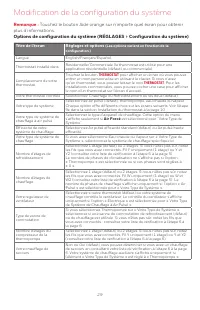
29 69-2715EF—07 Changing system setup System Setup Options (SETTINGS > System Setup) Screen Title Settings and Options (Options vary depending on setup.) Language English/Français/Español. Thermostat installed in Home/Business (Thermostat is used in a residential (default) or commercial setting)....
Page 32 - Frequently asked questions; Q Will my thermostat still work if I lose my Wi-Fi connection?; A Verify that the password entered for the Wi-Fi router is correct.; using my new account.; A Check for the email in your Junk or Deleted folder.; Q Is there a way to extend the signal strength?
69-2715EF—07 30 Frequently asked questions : Q Will my thermostat still work if I lose my Wi-Fi connection? : A Yes, the thermostat will operate your heating and/or cooling system with or without Wi-Fi. : Q How do I find the password to my router? : A Contact the manufacturer of the router or check ...
Page 33 - Getting help and responding to alerts; On screen help; to display instructions for; to redisplay the original; On screen alerts; Touch; on the instruction display,
31 69-2715EF—07 Getting help and responding to alerts Your thermostat offers two types of assistance, if these assistance options do not answer your questions, review the FAQs (page 30) and troubleshooting tips (page 32). On screen help Most displays include an orange Help button.1 Touch Help to dis...
Page 34 - Troubleshooting; Electrical Ratings
69-2715EF—07 32 If you have difficulty with your thermostat, please try the following suggestions. Most problems can be corrected quickly and easily. Display is blank • Check circuit breaker and reset if necessary.• Make sure power switch at heating and cooling system is on.• Make sure furnace door ...
Page 35 - Glossary; Regulatory information
33 69-2715EF—07 Glossary C wire The “C” or common wire brings 24 VAC power to the thermostat from the heating/cooling system. Some mechanical or battery operated thermostats may not have this wire connection. It is necessary for establishing a Wi-Fi connection to your home network. Heat Pump heating...
Page 36 - -year limited warranty
69-2715EF—07 34 1-year limited warranty Resideo warrants this product, excluding battery, to be free from defects in workmanship or materials, under normal use and service, for a period of one (1) year from the date of first purchase by the original purchaser. If at any time during the warranty peri...
Page 39 - Trouver des rabais :; Série intelligente; Guide de; Veuillez lire le mode; Vous trouverez dans la boîte; rapide; Caractéristiques de votre thermostat; Avec votre nouveau thermostat, vous pouvez :; Consulter et régler la température et les programmes.
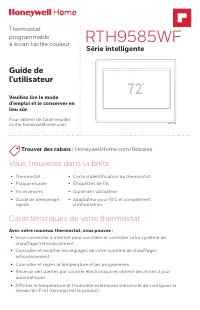
Trouver des rabais : HoneywellHome.com/Rebates RTH9585WF Série intelligente Thermostat programmable à écran tactile couleur Guide de l’utilisateur Veuillez lire le mode d’emploi et le conserver en lieu sûr. Pour obtenir de l’aide veuillez visiter honeywellhome.com M37768 72 Vous trouverez dans la bo...
Page 40 - Bienvenue; AVIS RELATIF AU MERCURE :
69-2715EF—07 ii Bienvenue Nous vous félicitons de votre achat d’un thermostat programmable à écran tactile couleur. Après vous être enregistré auprès du service Total Connect Comfort, vous pouvez surveiller et contrôler à distance le système de chauffage et de refroidissement de votre domicile ou de...
Page 41 - Référence rapide : utilisation résidentielle; À propos du nouveau thermostat; Table des matières; Conditions
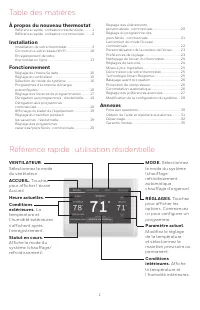
1 69-2715EF—07 Référence rapide : utilisation résidentielle À propos du nouveau thermostat Référence rapide : utilisation résidentielle ............ 1Référence rapide : utilisation commerciale .......... 2 Installation Installation de votre thermostat ................................. 3Connexion à v...
Page 42 - Emplacement du
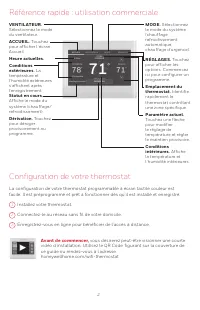
69-2715EF—07 2 Référence rapide : utilisation commerciale Configuration de votre thermostat La configuration de votre thermostat programmable à écran tactile couleur est facile. Il est préprogrammé et prêt à fonctionner dès qu’il est installé et enregistré. Installez votre thermostat. Connectez-le a...
Page 43 - Installation de votre thermostat
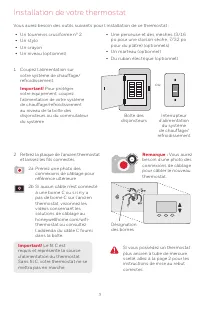
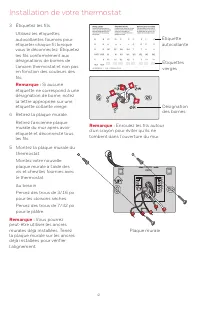
3 69-2715EF—07 Installation de votre thermostat Vous aurez besoin des outils suivants pour l’installation de ce thermostat : • Un tournevis cruciforme n° 2• Un stylo• Un crayon• Un niveau (optionnel) • Une perceuse et des mèches (3/16 po pour une cloison sèche, 7/32 po pour du plâtre) (optionnels) •...
Page 45 - Addenda du câble C; Câblage; conventionnels
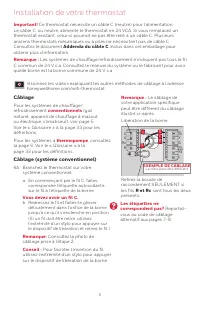
5 69-2715EF—07 Important! Ce thermostat nécessite un câble C (neutre) pour l’alimentation. Le câble C, ou neutre, alimente le thermostat en 24 VCA. Si vous remplacez un thermostat existant, celui-ci pourrait ne pas être relié à un câble C. Plusieurs anciens thermostats mécaniques ou à piles ne néces...
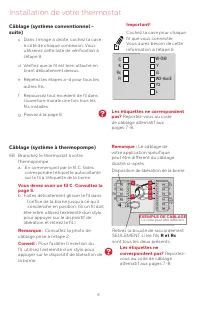
Page 46 - Les étiquettes ne correspondent; Vous devez avoir un fil C. Consultez la; R et Rc
69-2715EF—07 6 Installation de votre thermostat Câblage (système conventionnel - suite) c Dans l’image à droite, cochez la case à côté de chaque connexion. Vous utiliserez cette liste de vérification à l’étape 9. d Vérifiez que le fil est bien attaché en tirant délicatement dessus. e Répétez les éta...
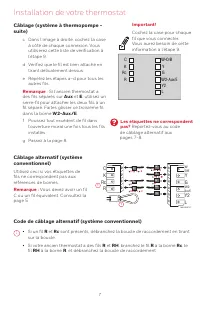
Page 47 - Remarque; Câblage alternatif (système
7 69-2715EF—07 Installation de votre thermostat Câblage (système à thermopompe - suite) c Dans l’image à droite, cochez la case à côté de chaque connexion. Vous utiliserez cette liste de vérification à l’étape 9. d Vérifiez que le fil est bien attaché en tirant délicatement dessus. e Répétez les éta...
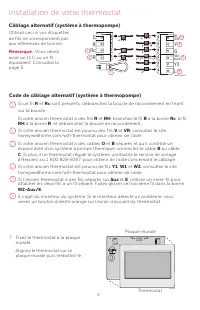
Page 48 - Code de câblage alternatif (système à thermopompe); Câblage alternatif (système à thermopompe)
69-2715EF—07 8 Si un fil R et Rc sont présents, débranchez la boucle de raccordement en tirant sur la boucle. Si votre ancien thermostat a des fils R et RH , branchez le fil R à la borne Rc , le fil RH à la borne R , et débranchez la boucle de raccordement. Si votre ancien thermostat est pourvu des ...
Page 49 - Suivant
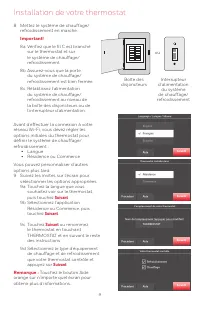
9 69-2715EF—07 Installation de votre thermostat 8 Mettez le système de chauffage/ refroidissement en marche. Important! 8a Vérifiez que le fil C est branché sur le thermostat et sur le système de chauffage/refroidissement. 8b Assurez-vous que la porte du système de chauffage/refroidissement est bien...
Page 50 - Connexion à votre réseau Wi-Fi; Je
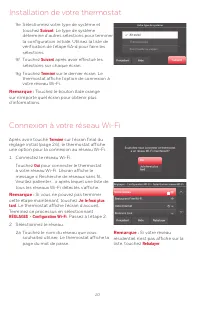
69-2715EF—07 10 Connexion à votre réseau Wi-Fi Après avoir touché Terminé sur l’écran final du réglage initial (page 24), le thermostat affiche une option pour la connexion au réseau Wi-Fi.1 Connectez le réseau Wi-Fi. Touchez Oui pour connecter le thermostat à votre réseau Wi-Fi. L’écran affiche le ...
Page 51 - L’écran Enregistrement; Terminé; Si vous touchez; Terminé
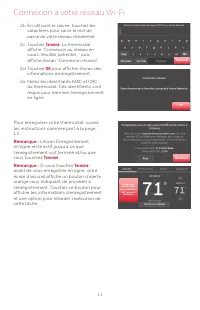
11 69-2715EF—07 Connexion à votre réseau Wi-Fi 2b En utilisant le clavier, touchez les caractères pour saisir le mot de passe de votre réseau résidentiel. 2c Touchez Terminé . Le thermostat affiche “Connexion au réseau en cours. Veuillez patienter...” puis affiche l’écran “Connexion réussie”. 2d Tou...
Page 52 - Reconnexion au réseau Wi-Fi; Déconnexion du réseau Wi-Fi
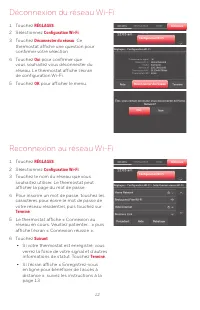
69-2715EF—07 12 Reconnexion au réseau Wi-Fi 1 Touchez RÉGLAGES . 2 Sélectionnez Configuration Wi-Fi . 3 Touchez le nom du réseau que vous souhaitez utiliser. Le thermostat peut afficher la page du mot de passe. 4 Pour inscrire un mot de passe, touchez les caractères pour écrire le mot de passe de vo...
Page 53 - Ouvrez une session ou créez un compte.
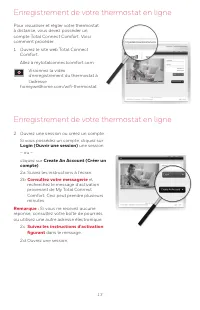
13 69-2715EF—07 M31570 M31570 Pour visualiser et régler votre thermostat à distance, vous devez posséder un compte Total Connect Comfort. Voici comment procéder.1 Ouvrez le site web Total Connect Comfort. Allez à mytotalconnectcomfort.com Visionnez la vidéo d’enregistrement du thermostat à l’adresse...
Page 54 - Enregistrement de votre thermostat en ligne; Recherchez des rabais dans votre région
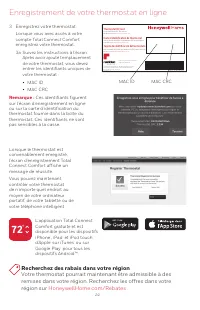
69-2715EF—07 14 Lorsque le thermostat est convenablement enregistré, l’écran d’enregistrement Total Connect Comfort affiche un message de réussite.Vous pouvez maintenant contrôler votre thermostat de n’importe quel endroit au moyen de votre ordinateur portatif, de votre tablette ou de votre téléphon...
Page 55 - Réglage de l’heure/la date; Régler l’heure/Régler la; Réglage du ventilateur
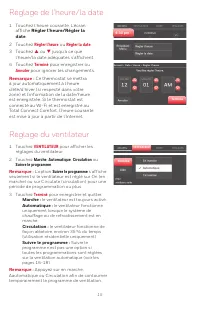
15 69-2715EF—07 Réglage de l’heure/la date 1 Touchez l’heure courante. L’écran affiche Régler l’heure/Régler la date . 2 Touchez Régler l’heure ou Régler la date . 3 Touchez p ou q jusqu’à ce que l’heure/la date adéquates s’affichent. 4 Touchez Terminé pour enregistrer ou Annuler pour ignorer les ch...
Page 56 - Programmes d’économie d’énergie préconfigurés; Réglage du mode du système; Chauffage d’urgence (thermopompes
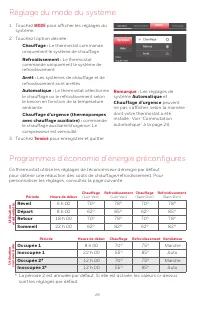
69-2715EF—07 16 Programmes d’économie d’énergie préconfigurés Ce thermostat utilise les réglages de l’économiseur d’énergie par défaut pour obtenir une réduction des coûts de chauffage/refroidissement. Pour personnaliser les réglages, consultez la page suivante. Réveil 6 h 00 70° 78° 70° 78° Départ ...
Page 57 - Réglage des horaires de programmation
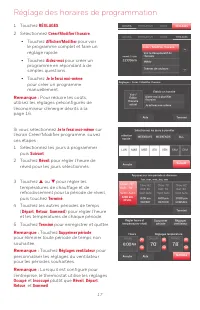
17 69-2715EF—07 Réglage des horaires de programmation 1 Touchez RÉGLAGES . 2 Sélectionnez Créer/Modifier l’horaire . • Touchez Afficher/Modifier pour voir le programme complet et faire un réglage rapide. • Touchez Aidez-moi pour créer un programme en répondant à de simples questions. • Touchez Je le...
Page 58 - Dérogation aux programmes : utilisation résidentielle; Dérogation aux programmes : utilisation commerciale; Dérivation
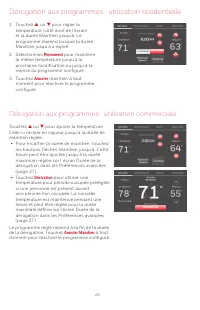
69-2715EF—07 18 Dérogation aux programmes : utilisation résidentielle 1 Touchez p ou q pour régler la température (côté droit de l’écran) et la durée Maintien jusqu’à. Le programme reprend lorsque la durée Maintien jusqu’à a expiré. 2 Sélectionnez Permanent pour maintenir la même température jusqu’à...
Page 59 - Affichage du statut de l’équipement
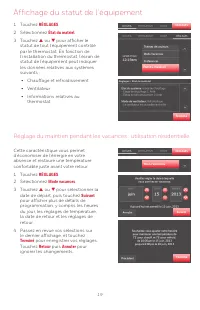
19 69-2715EF—07 Affichage du statut de l’équipement 1 Touchez RÉGLAGES . 2 Sélectionnez État du matriel . 3 Touchez p ou q pour afficher le statut de tout l’équipement contrôlé par le thermostat. En fonction de l’installation du thermostat, l’écran de statut de l’équipement peut indiquer les données...
Page 60 - Réglage des événements personnalisés : utilisation commerciale
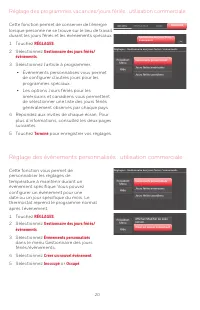
69-2715EF—07 20 Réglage des programmes vacances/jours fériés : utilisation commerciale Cette fonction permet de conserver de l’énergie lorsque personne ne se trouve sur le lieu de travail durant les jours fériés et les événements spéciaux.1 Touchez RÉGLAGES . 2 Sélectionnez Gestionnaire des jours fé...
Page 61 - Réglage du programme des jours fériés : utilisation commerciale
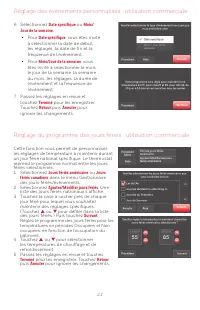
21 69-2715EF—07 Réglage des événements personnalisés : utilisation commerciale 6 Sélectionnez Date spécifique ou Mois/ Jour de la semaine . • Pour Date spécifique , vous êtes invité à sélectionner la date de début, les réglages, la date de fin et la fréquence de l’événement. • Pour Mois/Jour de la s...
Page 62 - Lancement du mode Occupé : utilisation commerciale
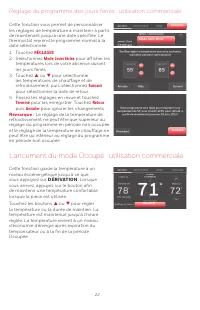
69-2715EF—07 22 Réglage du programme des jours fériés : utilisation commerciale Cette fonction vous permet de personnaliser les réglages de température à maintenir à partir de maintenant jusqu’à une date spécifiée. Le thermostat reprend le programme normal à la date sélectionnée.1 Touchez RÉGLAGES ....
Page 63 - Personnalisation de la couleur de l’écran; Réglages des préférences
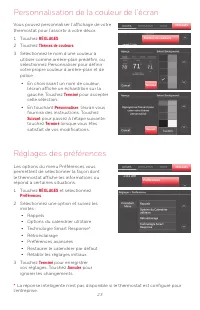
23 69-2715EF—07 Personnalisation de la couleur de l’écran Vous pouvez personnaliser l’affichage de votre thermostat pour l’assortir à votre décor.1 Touchez RÉGLAGES . 2 Touchez Thèmes de couleurs . 3 Sélectionnez le nom d’une couleur à utiliser comme arrière-plan prédéfini, ou sélectionnez Personnal...
Page 64 - Nettoyage de l’écran du thermostat; Réglages de sécurité; Partiellement verrouillé :; Complètement verrouillé :
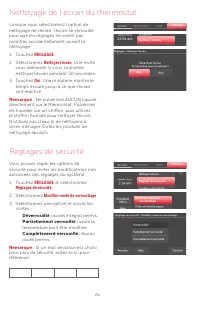
69-2715EF—07 24 Nettoyage de l’écran du thermostat Lorsque vous sélectionnez l’option de nettoyage de l’écran, l’écran se verrouille pour que les réglages ne soient pas modifiés accidentellement durant le nettoyage.1 Touchez RÉGLAGES . 2 Sélectionnez Nettoyer l’écran . Une invite vous demande si vou...
Page 65 - Dans Mon Compte, sélectionnez; Delete My; Technologie Smart Response; Sélectionnez Technologie Select Smart Response dans le menu
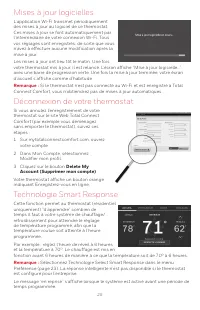
25 69-2715EF—07 Mises à jour logicielles L’application Wi-Fi transmet périodiquement des mises à jour au logiciel de ce thermostat. Ces mises à jour se font automatiquement par l’intermédiaire de votre connexion Wi-Fi. Tous vos réglages sont enregistrés, de sorte que vous n’avez à effectuer aucune m...
Page 66 - Automatique; Sélectionnez; Commutation automatique; sur
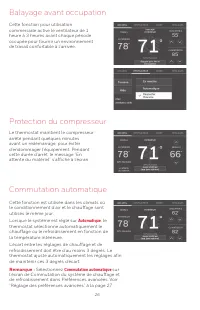
69-2715EF—07 26 Protection du compresseur Le thermostat maintient le compresseur arrêté pendant quelques minutes avant un redémarrage, pour éviter d’endommager l’équipement. Pendant cette durée d’arrêt, le message “En attente du matériel” s’affiche à l’écran. Balayage avant occupation Cette fonction...
Page 67 - Réglage des préférences avancées; Options des préférences avancées
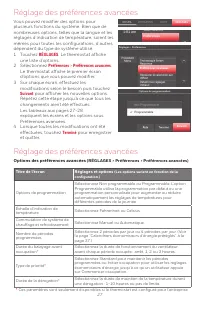
27 69-2715EF—07 Réglage des préférences avancées Vous pouvez modifier des options pour plusieurs fonctions du système. Bien que de nombreuses options, telles que la langue et les réglages d’indication de température, soient les mêmes pour toutes les configurations, d’autres dépendent du type de syst...
Page 68 - Modification de la configuration du système
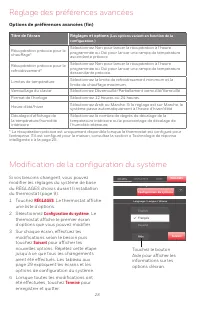
69-2715EF—07 28 Réglage des préférences avancées Options de préférences avancées (fin) Titre de l’écran Réglages et options (Les options varient en fonction de la configuration.) Récupération précoce pour le chauffage * Sélectionnez Non pour lancer la récupération à l’heure programmée ou Oui pour la...
Page 70 - Foire aux questions; R Oui, le thermostat actionnera votre système de chauffage et/ou de; Q Comment puis-je trouver le mot de passe de mon routeur?; pouvez également acheter et installer un répéteur Wi-Fi.
69-2715EF—07 30 Foire aux questions : Q Mon thermostat fonctionnera-t-il toujours si je perds ma connexion Wi-Fi? : R Oui, le thermostat actionnera votre système de chauffage et/ou de refroidissement avec ou sans Wi-Fi. : Q Comment puis-je trouver le mot de passe de mon routeur? : R Contactez le fab...
Page 71 - Aide sur écran; Obtenir de l’aide et répondre aux alertes; Alertes à l’écran
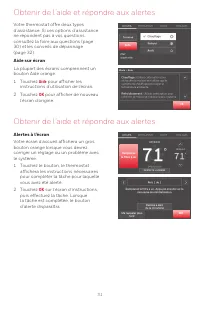
31 69-2715EF—07 Obtenir de l’aide et répondre aux alertes Votre thermostat offre deux types d’assistance. Si ces options d’assistance ne répondent pas à vos questions, consultez la foire aux questions (page 30) et les conseils de dépannage (page 32). Aide sur écran La plupart des écrans comprennent ...
Page 72 - Dépannage
69-2715EF—07 32 En cas de difficultés avec le thermostat, essayez les suggestions suivantes. La plupart des problèmes peuvent être réglés rapidement et facilement. Rien n’apparaît à l’écran • Vérifiez le disjoncteur et réinitialisez-le si nécessaire.• Assurez-vous que l’interrupteur de marche-arrêt ...
Page 73 - Glossaire; Cote électrique
33 69-2715EF—07 Glossaire Fil C Le fil “C”, ou neutre, amène l’alimentation 24 V c.a. au thermostat à partir du système de chauffage/refroidissement. Certains thermostats mécaniques ou à pile peuvent ne pas être dotés de ce fil. Il est nécessaire à l’établissement d’une connexion Wi-Fi à votre résea...
Page 74 - Informations réglementaires
69-2715EF—07 34 Informations réglementaires Déclaration de conformité à la FCC (Partie 15.19) (États- Unis uniquement) Cet appareil est conforme à la partie 15 du règlement de la FCC. Son fonctionnement est soumis aux deux conditions suivantes :1 Ce dispositif ne doit pas causer d’interférences nuis...
Page 75 - Garantie limitée d’un an
35 69-2715EF—07 Garantie limitée d’un an Resideo garantit ce produit, à l’exception des piles, contre tout défaut de pièce ou de main-d’oeuvre, durant une période pour d’un (1) an à partir de la date d’achat par le consommateur d’origine si le produit est utilisé et entretenu convenablement. En cas ...




 Honeywell AT72D1683/Z
User Manual
Honeywell AT72D1683/Z
User Manual
 Honeywell CT30A1005/E1
User Manual
Honeywell CT30A1005/E1
User Manual
 Honeywell CT31A
User Manual
Honeywell CT31A
User Manual
 Honeywell CT31A1003/E1
User Manual
Honeywell CT31A1003/E1
User Manual
 Honeywell CT33A
User Manual
Honeywell CT33A
User Manual
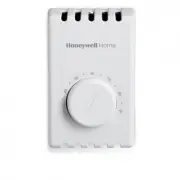 Honeywell CT410A1019/E1
User Manual
Honeywell CT410A1019/E1
User Manual
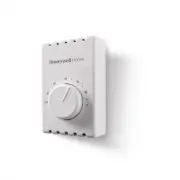 Honeywell CT410B
User Manual
Honeywell CT410B
User Manual
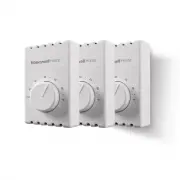 Honeywell CT410B1017/3PK
User Manual
Honeywell CT410B1017/3PK
User Manual
 Honeywell CT410B1017/E1
User Manual
Honeywell CT410B1017/E1
User Manual
 Honeywell CT50K1002
User Manual
Honeywell CT50K1002
User Manual
 Honeywell CT50K1028
User Manual
Honeywell CT50K1028
User Manual
 Honeywell CT51N1007/E1
User Manual
Honeywell CT51N1007/E1
User Manual
 Honeywell CT53K
User Manual
Honeywell CT53K
User Manual
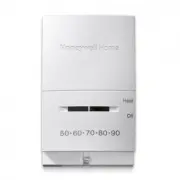 Honeywell CT53K1006/E1
User Manual
Honeywell CT53K1006/E1
User Manual
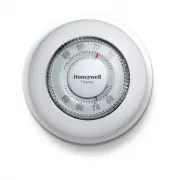 Honeywell CT87K
User Manual
Honeywell CT87K
User Manual