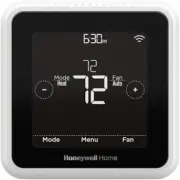
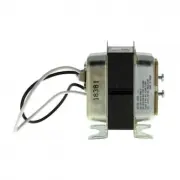
Page 2 - Included in your box:
2 3 Included in your box: Screws and anchors UWP™ Mounting System (UWP) T5 Smart Thermostat Quick Install Guide
Page 3 - Get the most from T5 Smart Thermostat; Multiple programming options that fit your lifestyle:
2 3 Get the most from T5 Smart Thermostat Multiple programming options that fit your lifestyle: 1. Location-Based scheduling – The thermostat uses your smartphone’s location to know when you’re away, and saves you energy. Through geofence technology, it senses your return and helps make you comforta...
Page 5 - Compatibility; • Compatible with most heating, cooling, and heat pump systems
4 5 Compatibility • Compatible with most heating, cooling, and heat pump systems • Required: 24 VAC power (“C” wire) • Does not work with electric baseboard heat (120-240V) • Does not work with millivolt systems • Does not support input (S terminals) for indoor and outdoor sensors • Does not support...
Page 6 - Removing your old thermostat; Check that your system is off
6 7 Removing your old thermostat 2 Check that your system is off Change the temperature on your old thermostat. If you don’t hear the system turn on within 5 minutes, the power is off. Note: If you have a digital thermostat that has a blank display, skip this step. 1 Turn power OFF To protect yourse...
Page 7 - Y R RC
6 7 5 Take a picture of how your wiring looks right now Be sure to include the letters next to the terminals where the wires are inserted. This will be a helpful reference when wiring your thermostat. Tip: If the color of your wires has faded or if 2 terminals have the same wire color, use the wire ...
Page 8 - Required; S and U terminals are not supported with this thermostat.
8 9 7 Record if you have wires in the following terminals Do not include jumpers as a part of your count. The thermostat does not need jumpers. Terminal Wire Color RR h Rc 8 Write down the color of the wires Check mark the wires that are connected to terminals. Next to the check mark, write down the...
Page 9 - Disconnect the wires and remove the old wall plate; Use a screwdriver to release wires from terminals.
8 9 9 Disconnect the wires and remove the old wall plate Use a screwdriver to release wires from terminals. Tip: To prevent wires from falling back into the wall, wrap the wires around a pencil.
Page 10 - Installing your T5 Smart Thermostat
10 Installing your T5 Smart Thermostat T5 Smart Thermostat Screws UWP Mounting System Anchors Wall
Page 14 - 6 Turn your power ON; 5 Attach your thermostat
14 15 16 Turn your power ON Turn on the power at the breaker box or switch that controls the heating/ cooling system. OFF ON ON OFF ON ON 90 o 15 Attach your thermostat Align the thermostat onto the UWP and firmly snap it into place. 17 Return to the thermostat Return to the thermostat. Confirm the ...
Page 15 - Setup with Honeywell Home App; Select to setup with the app
14 15 1 Start Setup with the app Touch START SETUP on thermostat. Setup with Honeywell Home App No Yes Back 2 Select to setup with the app Touch Yes on the USE APP screen. 3 Your thermostat is now ready to be configured using the Honeywell Home app a) Download the “Honeywell Home” app from the App s...
Page 16 - How to use your Honeywell Home App; available products connected by the Honeywell Home app.
16 17 How to use your Honeywell Home App SCHEDULE FAN MODE 72˚ FOLLOWING SCHEDULE 72˚ MY HOME Thermostat Access the menu Set desired temperature Schedule your home comfort Select System mode Auto/Heat/ Cool/Off/EM Heat Select Fan mode Auto/On/Circulate. Interested in more Resideo products? Visit hon...
Page 17 - How to use your T5 Smart Thermostat
16 17 How to use your T5 Smart Thermostat The screen will wake up by touching the center area of displayed temperature. Mode Menu Fan Mode Fan Heat Auto Mode Select system mode Auto/Heat /Cool /Of f/ EM Heat (emergency heat). Menu Contains features: schedule, screen lock, ventilation, Wi-Fi, clean s...
Page 18 - Manual Setup; Navigate and edit setup options
18 19 If your Wi-Fi network is not working, you can alternatively setup your thermostat manually and connect your phone later. 1 Start manual setup Touch START SETUP to begin. Manual Setup Edit No Yes 3 Navigate and edit setup options Use or to navigate through all the setup options. To see a list o...
Page 19 - SETUP WIFI
18 19 4 Finish Setup Touch until you see Finish Setup. Touch Select or touch text area. Manual Setup (cont.) Select No Yes Back No Yes Back 5 Setup Wi-Fi At the end of setup process you will be prompted to SETUP WIFI. If your Wi-Fi is still not working, you have to manually set the time and date. Se...
Page 20 - Equipment Setup Options; Option # Option Name; periods during days, temperature setpoints, or to turn Schedule On/; Conventional Forced Air,; Conventional Forced Air Heat:; High Efficiency Gas,; Note: This option selects the equipment type your thermostat will
20 21 Equipment Setup Options Option # Option Name Option Value (factory default in bold) 120 Schedule Type No Schedule MO-SU = Every day the same MO-FR SA SU = 5-1-1 schedule MO-FR SA-SU = 5-2 schedule Each Day = Every day different Note: You can change default MO-FR, SA-SU schedule here. To edit p...
Page 21 - Compressor
20 21 Option # Option Name Option Value (factory default in bold) 220 Cool Stages/ Compressor Stages (#200=Conv./ #200=HP) 0, 1 , 2 Note: Select how many Cool or Compressor stages of your equipment the thermostat will control. Maximum of 2 Cool/Compressor Stages. 221 Heat Stages/ Aux/E Stages (#200=...
Page 22 - Frequently Asked Questions
22 Frequently Asked Questions Will the T5 Smart thermostat still work if Wi-Fi connection is lost? Yes, the temperature can be adjusted directly at the thermostat. However, some features, including geofencing, are managed only through the Honeywell Home app and will not function while the connection...
Page 23 - Regulatory information
22 23 Regulatory information There is an alert that says Wi-Fi Signal Lost. What does that mean? The Wi-Fi signal to the thermostat has been lost. Wait for the thermostat to reconnect or select a new network within the Honeywell Home app configuration menu. If the thermostat is unable to reconnect, ...
Page 24 - For Warranty information go to
Wi-Fi® is a registered trademark of Wi-Fi Alliance® www.resideo.com © 2022 Resideo Technologies, Inc. All rights reserved.The Honeywell Home trademark is used under license from Honeywell International, Inc. This product is manufactured by Resideo Technologies, Inc. and its affiliates.Tous droits ré...
Page 25 - Guide; Pour plus d’informations, visitez; Lire avant l’installation
Thermostat intelligent T5 Thermostat Programmable Guide d’installation rapide Pour plus d’informations, visitez honeywellhome.com Mode Menu Fan Mode Fan Heat Auto Wake Away Home Sleep Following Schedule RCHT8610WF, RCHT8612WF, RTH8800WF, Lire avant l’installation
Page 26 - Inclus dans cette boîte :
2 3 Inclus dans cette boîte : Vis et ancres Système de montage UWP™ (UWP) Thermostat intelligent T5 Guide d’installation rapide
Page 27 - Tirez le maximum de votre thermostat intelligent T5; Plusieurs options de programmation pour votre style de vie :
2 3 Tirez le maximum de votre thermostat intelligent T5 Plusieurs options de programmation pour votre style de vie : 1. Programmation géodépendante – Le thermostat Il vous permet de réaliser des économies d’énergie en surveillant vous allées et venues en utilisant l’emplacement de votre téléphone in...
Page 28 - Vous aurez besoin des outils suivants :
4 Outils requis : Vous aurez besoin des outils suivants : Dénuder de fils Pince à bec effilé Perceuse et mèche (7/32 po) Téléphone intelligent Pour installer le thermostat et prendre une photo du câblage existant. Application Honeywell Home Pour configurer votre système et connecter votre téléphone ...
Page 29 - Compatibilité; thermopompes; Pour obtenir de l’aide, veuillez contacter :; instructions concernant le recyclage et l’élimination.
4 5 Compatibilité • Compatible avec la plupart des systèmes de chauffage, refroidissement, et à thermopompes • Requis : Alimentation de 24 V c.a. (fil C) • Non compatible avec les chauffages de plinthes électriques (120-240 V) • Non compatible avec les systèmes à millivolts • Ne prend pas en charge ...
Page 30 - Retrait de l’ancien thermostat; Vérifiez que le système est
6 7 Retrait de l’ancien thermostat 2 Vérifiez que le système est hors tension Modifiez la température sur l’ancien thermostat. Si le système ne se met pas en marche dans les 5 minutes qui suivent, l’alimentation vers l’appareil est coupée. Remarque : Si vous avez un thermostat numérique qui a un écr...
Page 32 - Obligatoire; Les bornes S et U ne sont pas prises en charge par ce thermostat.
8 9 7 Notez la présence de fils dans les bornes suivantes N’incluez pas les cavaliers. Le thermostat ne fonctionne pas avec des cavaliers. Borne Couleur de fil RRhRc 8 Notez la couleur des fils Cochez les fils connectés à des bornes. Indiquez la couleur du fil à côté de la coche. Ne comptez pas les ...
Page 33 - Débranchez les fils et retirez l’ancienne plaque murale; Utilisez un tournevis pour dégager les fils des bornes.
8 9 9 Débranchez les fils et retirez l’ancienne plaque murale Utilisez un tournevis pour dégager les fils des bornes. Conseil : Pour éviter que les fils ne tombent derrière le mur, enroulez-les autour d’un crayon.
Page 34 - Installation de votre thermostat intelligent T5
10 Installation de votre thermostat intelligent T5 Thermostat intelligent T5 Vis Système de montage UWP Ancres Mur
Page 35 - l’emplacement des ancres murales.; 0 Regroupez et insérez les fils dans le
10 11 11 Insérez les ancres murales Il est recommandé d’utiliser les ancres murales fournies dans la boîte pour monter le thermostat. Vous pouvez utiliser le système de montage UWP pour marquer l’emplacement des ancres murales. a) Mettez la plaque murale de niveau. b) Marquez l’emplacement des ancre...
Page 36 - 2 Réglez la position du contacteur R et insérez le ou les fils R
12 12 Réglez la position du contacteur R et insérez le ou les fils R Placez le contacteur R en position haute ou basse en fonction des notes de câblage prises lors de l’étape 7. Insérez les fils dans les trous internes des bornes du système UWP. Les languettes resteront abaissées lorsque le fil est ...
Page 39 - START SETUP; Configuration avec l’application Honeywell Home; Sélectionnez l’option de; Touchez; (Configuration avec
14 15 1 Commencez la configuration avec l’application Touchez START SETUP (Commencer la configuration) sur le thermostat. Configuration avec l’application Honeywell Home No Yes Back 2 Sélectionnez l’option de configuration avec l’application Touchez Yes (Oui) sur l’écran USE APP (Configuration avec ...
Page 40 - Utilisation de votre application Honeywell Home; nectés avec l’application Honeywell Home.
16 17 Utilisation de votre application Honeywell Home SCHEDULE FAN MODE 72˚ FOLLOWING SCHEDULE 72˚ MY HOME Thermostat Accéder au menu Régler la température désirée Programmer votre confort Sélectionnez le mode de système Auto/Heat/Cool/ Off/EM Heat (Auto/Chauffage/ Refroidissement/ Arrêt/Chauffage d...
Page 41 - Utilisation de votre thermostat intelligent T5
16 17 Mode Menu Fan Mode Fan Heat Auto Utilisation de votre thermostat intelligent T5 L’écran s’active lorsque la zone centrale de la température af- fichée est touchée. Mode Sélectionnez le mode de système Auto/Heat /Cool / Of f/EM Heat (Auto/Chauf fage/ Refroidissement / Arrêt /Chauf fage d’urgenc...
Page 42 - Configuration manuelle; Pour modifier la valeur d’une option, touchez
18 19 Si le réseau Wi-Fi ne fonctionne pas, il est aussi possible de configurer manuellement le thermo- stat et de le connecter ultérieurement à votre télé- phone. 1 Commencez la configuration manuelle Touchez START SETUP (Commencer la configuration) pour commencer. Configuration manuelle Edit No Ye...
Page 43 - Terminez la configuration; Touchez jusqu’à ce que « Finish Setup »
18 19 4 Terminez la configuration Touchez jusqu’à ce que « Finish Setup » (Terminer la co nfiguration) s’affiche. Touchez Select (Sélectionner) ou touchez la zone de texte. Configuration manuelle (suite) Select No Yes Back No Yes Back 5 Configurez le Wi-Fi À la fin du processus de configuration, une...
Page 44 - Options de configuration de l’équipement
20 21 Options de configuration de l’équipement N° de l’option Nom de l’option Valeur de l’option (réglage d’usine en gras) 120 Type de programme No Schedule (Pas de programme)MO-SU = Every day the same (LUN-DIM = Chaque jour identique)MO-FR SA SU = 5-1-1 schedule (LUN-VEN SAM DIM = Programme 5-1-1) ...
Page 46 - Foire aux questions
22 Foire aux questions Le thermostat intelligent T5 fonctionnera-t-il toujours, même si la connexion au Wi-Fi est perdue? Oui, la température peut être directement ajustée au niveau du thermostat. Cependant, certaines fonctions, dont Geofencing, peuvent uniquement être gérées au moyen de l’applicati...
Page 47 - Informations réglementaires
22 23 Informations réglementaires Un message s’affiche indiquant que le signal Wi-Fi a été perdu. Qu’est-ce que cela veut dire? Le signal Wi-Fi du thermostat a été perdu. Attendez que le thermostat se reconnecte ou sélectionnez un nouveau réseau dans le menu de configuration de l’application Honeywe...
Page 48 - Garantie limitée de 2 ans; Pour obtenir des renseignements à propos de la garantie, visitez
www.resideo.com © 2022 Resideo Technologies, Inc. All rights reserved.The Honeywell Home trademark is used under license from Honeywell International, Inc. This product is manufactured by Resideo Technologies, Inc. and its affiliates.Tous droits réservés. La marque de commerce Honeywell Home est uti...