Page 2 - TABLE OF CONTENTS; Basic thermostat operation
33-00478–04 2 TABLE OF CONTENTS Thermostat Features .......................................................................... page 3Thermostat overview .......................................................................... page 4Resideo app overview ................................................
Page 3 - Thermostat Features; • Schedule Using Sensors; Auto change from heat to cool:
3 33-00478–04 Thermostat Features Flexible scheduling: You can choose to use location-based temperature control (geofence technology), program a set schedule or use a combination of both to make sure your home is always comfortable. • Location-based temperature control: Using geofence technology, th...
Page 4 - Getting the most from the T9 Smart Thermostat; Prioritize Rooms; Keep an eye on your home; Using Your Thermostat
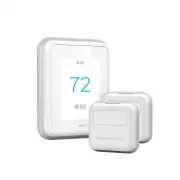
33-00478–04 4 Getting the most from the T9 Smart Thermostat Prioritize Rooms Prioritize a specific room or multiple rooms, or let comfort follow your move using built-in motion detection. Control on the Go Adjust your thermostat from anywhere using your tablet or smartphone. Save Energy With geofenc...
Page 5 - Using the Resideo App; Menu Options
5 33-00478–04 Using the Resideo App Change System Mode Change Fan Setting Set Desired Temperature Set Sensor Priority Change Schedule Type Access Menu OptionsAvailable options shown in screens below Home Screen Menu Options
Page 6 - Main Menu on Thermostat; Main Menu options; Management
33-00478–04 6 Main Menu on Thermostat From Home Screen, press the menu icon at bottom of the display (3 horizontal lines). If this is not shown at home screen, touch screen to wake display first. Main Menu options System mode (Available modes vary depending on how the thermostat was configured) • He...
Page 8 - Selecting system mode
33-00478–04 8 Selecting system mode Touch homescreen to wake the thermostat.Touch the menu icon and then touch “Select Mode.” • Heat : Controls the heating system. • Cool : Controls the cooling system. • Off : Turns the heating and cooling systems off. • Auto : When enabled, the thermostat will auto...
Page 10 - Setting the Fan; Scheduling the Fan
33-00478–04 10 Setting the Fan Note: Fan setting not available for all system types.1. Touch any part of the display to wake the thermostat. 2. Touch the MENU icon at the bottom of the screen. 3. Touch Fan Choose on, auto, or circulate.Touch arrow in upper left to return to previous screen.Auto sett...
Page 11 - Setting the Time/Date; Set date
11 33-00478–04 Setting the Time/Date When the thermostat is linked to the home Wi-Fi router and registered to an account using the Resideo app, the date and time will update automatically.If not using Wi-Fi you can set the time/date as follows:1. Touch any part of the display to wake the thermostat....
Page 12 - Choose; Connect to the Resideo App; Connect
33-00478–04 12 Connect to Wi-Fi 1. Open the Menu 2. Scroll to and select “Wi-Fi” 3. Tap “Choose Network” 4. Select a network 1 2 Wi-Fi 3 Choose Network 4 MCR39088 Connect to the Resideo App 1. Open the Menu 2. Tap “Connect App” 3. Follow the on-screen instructions 1 2 Connect App 3 MCR39089 1. Selec...
Page 13 - Connecting to a Wi-Fi network
13 33-00478–04 Enabling or disabling Wi-Fi and disconnecting and reconnecting to a Wi-Fi network On thermostat Enable Wi-Fi 1. Touch any part of the display to wake the thermostat. 2. Touch the MENU icon at the bottom of the screen. 3. Scroll down and select “Wi-Fi” 4. Verify “Enable” is selected. C...
Page 14 - Setting a schedule on thermostat
33-00478–04 14 Setting a schedule on thermostat Select the menu icon at the bottom of the homescreen display. Then select Schedule. • If you want all days the same, select “grouped days.”• Touch the period you wish to edit (Wake, Away, Home, or sleep). • If you want all days separate, select “Single...
Page 15 - Scheduling through the app
15 33-00478–04 Scheduling through the app Flexible scheduling: You can choose to use location-based temperature control (geofence technology), time-based scheduling, or use a combination of both to make sure your home is always comfortable. • Location-based temperature control : Using geofencing tec...
Page 16 - Geofence; SAVE
33-00478–04 16 Scheduling through the app (continued) 1. Select “Options” to turn schedule off, create a new time-based schedule, or switch to Geofencing. 2. Set priority sensor(s) for each program. When location-based temperature control is used, the thermostat active homescreen display will show ”...
Page 17 - Schedule override on Device
17 33-00478–04 Schedule override on Device With thermostat in heat, cool, auto, or em heat mode, press the up or down arrow to change the setpoint. (if thermostat is in auto mode, you need to press “heat to” or “cool to” first).If scheduling is enabled it will say “Hold until” and show a time at the...
Page 18 - Setting Preferences; Display
33-00478–04 18 Setting Preferences Preference menu options let you select how the thermostat displays information or responds to certain situations.To access the Preferences menu:1. Touch any part of the display to wake the thermostat. 2. Touch the MENU icon at the bottom of the screen. 3. Scroll do...
Page 19 - Lock mode options
19 33-00478–04 Cleaning the Thermostat Screen When you select the Clean Screen option, the screen is locked to prevent accidental changes to the thermostat while you clean the screen.1. Touch any part of the display to wake the thermostat. 2. Touch the MENU icon at the bottom of the screen. 3. Scrol...
Page 20 - Language; English; Advanced Setup
33-00478–04 20 Configuration settings (new installation) NOTE: not all of the settings shown in the charts are shown in the initial installation menu. After saving those you could view all available settings using the revising settings option below)1. After the thermostat has powered up, touch “GET ...
Page 21 - Conventional Forced Air Heat
21 33-00478–04 CSU # Configuration Setup Name Settings Default Notes 1000 Language • English• Francais• Espanol English None Room • Bedroom• Living space• Other No defaulted value In what type of room will this thermostat be installed?These questions are asked for two reasons-1. Other Smart Room Sen...
Page 22 - Yes
33-00478–04 22 ISU # Configuration Setup Name Settings Default Notes 2070 Cool Stages / Compressor stages 0, 1, 2 1 0 setting not available if the wire is detected on Y or system type (ISU 2000) is set to Heat Pump)On initial setup this will not be shown. Instead the thermostat determines the system...
Page 24 - Advanced Features; ADAPTIVE RECOVERY
33-00478–04 24 Advanced Features ADAPTIVE RECOVERY Over time, the T9 thermostat “learns” how long it takes your system to reach your programmed temperature setting.The thermostat turns on the heating/cooling system early and assures that the programmed temperature setting is reached at the programme...
Page 25 - Alerts and notifications; Menu; Notifications; Set the Date
25 33-00478–04 Alerts and notifications 1. The red dot above the Menu icon indicates an active alert or notification. Touch the Menu icon to view active Alerts & Notifications. 2. Touch Notifications to open this menu. 3. Touch the alert message to see more information about the alert. MCR39095 ...
Page 26 - Alerts; Alert Message
33-00478–04 26 Alerts Alert Message Meaning Action SET DATE AND TIME Date and time are required for features such as schedule Touch “Set Date and Time” button below alert message or register thermostat to Resideo account. WIFI MODULE ERROR There is a failure of the Wi-Fi module in the thermostat. Re...
Page 27 - IAQ REMINDERS; To access or adjust the reminder settings
27 33-00478–04 IAQ REMINDERS You can set up IAQ reminders in the thermostat to remind users when filters, pads, UV bulbs, etc. need cleaning or replacement. • Air Filter 1• Humidifier Pad• Dehumidifier• Filter• Ventilator Filter• UV Bulb 1• UV Bulb 2 If you want to disable the alert, go MENU-PREFERE...
Page 28 - Adding a wireless sensor; To Remove a Sensor from the T9 (from thermostat)
33-00478–04 28 Adding a wireless sensor 1. Touch any part of the display to wake the thermostat. 2. Touch the MENU icon at the bottom of the screen. 3. Scroll down and touch “Devices and Sensors”. 4. Touch “Add” 5. Follow the on-screen directions to pair and name your new sensor To Remove a Sensor f...
Page 29 - Smart Room Sensor information; Checking the status of a sensor
29 33-00478–04 Smart Room Sensor information When one or more wireless temperature/humidity/motion sensors have been linked to the thermostat by the installer, you can check the status of the sensor using the following steps. Checking the status of a sensor 1. Touch any part of the display to wake t...
Page 31 - Wi-Fi connection questions; Q: Will the thermostat still work if the Wi-Fi connection is lost?; Resideo account and app questions; Q: Why haven’t I received an account activation email?; Q: Can I set up my thermostat with multiple users?; Q: Why doesn’t a change I made in the app show up on the thermostat?; Software and security questions
31 33-00478–04 Frequently Asked Questions (FAQs) Wi-Fi connection questions Q: Will the thermostat still work if the Wi-Fi connection is lost? A: Yes, you can still manually adjust the temperature at the thermostat. However, some features such as location-based temperature control (geofencing techno...
Page 32 - Other questions; Q: How can I uninstall my T9 Smart thermostat?; Q: How do the wireless indoor sensors detects motion.; Q: What’s the range of detection on the motion sensor?
33-00478–04 32 Other questions Q: How can I uninstall my T9 Smart thermostat? A: If you want to replace your T9 Smart thermostat, or if you’re moving out of your home and leaving the thermostat behind, you’ll first want to clear out the personal settings that are stored on the thermostat. (Even when...
Page 33 - Troubleshooting
33 33-00478–04 Troubleshooting If you have difficulty with your thermostat, please try the following suggestions. Most problems can be corrected quickly and easily. Display is blank • Check circuit breaker and reset if necessary.• Make sure power switch for heating and cooling is on.• Make sure furn...
Page 34 - Specifications; Terminal; Regulatory Information; FCC REGULATIONS
33-00478–04 34 Specifications Temperature Ranges • Heat: 40 °F to 90 °F (4.5 °C to 32.0 °C)• Cool: 50 °F to 99 °F (10.0 °C to 37.0 °C) Operating Ambient Temperature • 32 °F to 120 °F (0 °C to 48.9 °C) Shipping Temperature • -20 °F to 120 °F (-28.9 °C to 48.9 °C) Operating Relative Humidity • 5% to 9...
Page 35 - -year limited warranty
35 33-00478–04 2-year limited warranty Resideo warrants this product, excluding battery, to be free from defects in workmanship or materials, under normal use and service, for a period of two (2) years from the date of first purchase by the original purchaser. If at any time during the warranty peri...