Page 2 - Contents; Unpacking
1 Contents Unpacking . . . . . . . . . . . . . . . . . . . . . . . . . . . . . . . . . . . . 7 Your Phone Phone Layout . . . . . . . . . . . . . . . . . . . . . . . . . . . . . . . . . . . . . 8Display . . . . . . . . . . . . . . . . . . . . . . . . . . . . . . . . . . . . . . . . . 11Backlight . . ...
Page 4 - Health and Safety Information; Quick Safety Guide
Contents (continued...) Health and Safety Information Exposure to Radio Frequency (RF) Signals . . . . . . . . . . . . . . . 106Precautions When Using Batteries . . . . . . . . . . . . . . . . . . . . . 109Operating Environment . . . . . . . . . . . . . . . . . . . . . . . . . . . . . 111Electronics...
Page 6 - Your Phone; Phone Layout; Messages; Keys
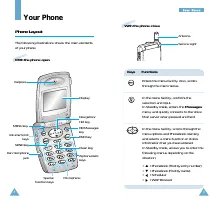
9 Y Y o o u u r r P P h h o o n n e e 8 Your Phone Phone Layout The following illustrations shows the main elementsof your phone. Microphone Special function keys Display Antenna Service Light Clear key MENU key Alphanumerickeys OK/Messageskey Navigation/Hot key SEND key Ear-microphone jack Volume/S...
Page 7 - Display; Signal strength
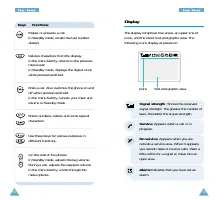
11 Y Y o o u u r r P P h h o o n n e e 10 Y Y o o u u r r P P h h o o n n e e Keys Functions Next ~ Makes or answers a call. In Standby mode , recalls the last number dialled. Deletes characters from the display. In the menu facility , returns to the previous menu level. In Standby mode , displays t...
Page 9 - Getting Started; Installing Battery; To Install the Battery; To Remove the Battery; Charging a Battery
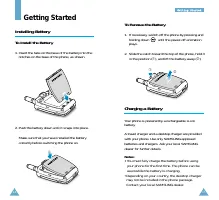
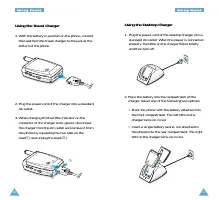
15 G Ge et tt ti in ng g S St ta ar rt te ed d 14 Getting Started Installing Battery To Install the Battery 1. Insert the tabs on the base of the battery into the notches on the base of the phone, as shown. 2. Push the battery down until it snaps into place. Make sure that you have installed the bat...
Page 11 - Switching the Phone On/Off; Auto Lock; Low Battery Indicator
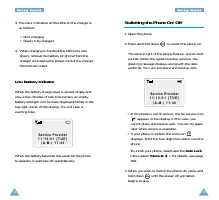
18 G Ge et tt ti in ng g S St ta ar rt te ed d When the battery becomes too weak for the phoneto operate, it switches off automatically. 19 G Ge et tt ti in ng g S St ta ar rt te ed d S e r v i c e P r o v i d e r 1 1 / 1 2 / 0 1 [ T U E ] ( A . M . ) 1 1 : 4 0 Switching the Phone On/Off 1. Open the...
Page 12 - Your Phone’s Modes; Standby Mode
21 G Ge et tt ti in ng g S St ta ar rt te ed d 20 G Ge et tt ti in ng g S St ta ar rt te ed d WARNING! Do not switch on the phone when the mobilephone use is prohibited or when it may causeinterference or danger. Note: As with any other radio-transmitting device,do not touch the antenna unnecessaril...
Page 13 - Ending a Call; Redialling Last Number; Call Functions; Making a Call; Phonebook; Correcting the Number
23 C Ca al ll l F Fu un nc ct ti io on ns s 22 Ending a Call When you want to end your call, briefly press . The call time (length of call) displays with the name(if saved in Phonebook) and number of the call party. If the number is not stored in your Phonebook, yourphone prompts you to save the num...
Page 14 - Speed Dialling from Phonebook
24 C Ca al ll l F Fu un nc ct ti io on ns s 25 C Ca al ll l F Fu un nc ct ti io on ns s Speed Dialling from Phonebook Once you have stored phone numbers in the phonebook memory (000 through 199), you can dial themeasily whenever you want. See page 68 for detailson storing phone numbers. One-Touch Di...
Page 15 - Adjusting the Volume; Answering a Call; Answer Mode
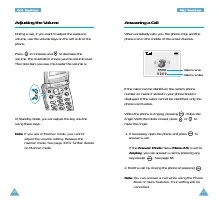
Adjusting the Volume During a call, if you want to adjust the earpiecevolume, use the volume keys on the left side of thephone. Press to increase and to decrease the volume. The illustration shows you the volume level.The more bars you see, the louder the volume is. 27 C Ca al ll l F Fu un nc ct ti ...
Page 16 - Viewing Missed Calls
29 C Ca al ll l F Fu un nc ct ti io on ns s 28 C Ca al ll l F Fu un nc ct ti io on ns s In-Use Menu Options Your phone provides a number of functions that youcan use during a call. You cannot utilise all of thesefunctions at all times. Many of the In-Use MenuOptions are network services. Press durin...
Page 17 - Call Waiting; Failed Calls
31 C Ca al ll l F Fu un nc ct ti io on ns s 30 C Ca al ll l F Fu un nc ct ti io on ns s Call Waiting Call Waiting lets you receive a second call duringconversation. Your phone notifies you of a callwaiting by beeping and displaying “Call Waiting.” Your phone provides the option of turning the CallWa...
Page 18 - Quick Switching to Manner Mode; Call Forwarding
33 C Ca al ll l F Fu un nc ct ti io on ns s 32 C Ca al ll l F Fu un nc ct ti io on ns s Quick Switching to Manner Mode You can quickly switch the phone to Manner mode.In manner mode, all sounds of your phone mute.When a call comes in, the phone vibrates than rings. Press and hold in Standby mode unt...
Page 19 - Entering Text; T9 English; Changing Text Input Mode
35 34 Entering Text While using your phone, you will need to enter textat many times. For example, when storing a name inthe Phonebook, creating your personal greeting orscheduling events in your calendar. You can enteralphanumeric characters into your phone by usingyour phone’s keypad. You are prov...
Page 20 - Smart Punctuations; Upper Case Letters; L E T ‘ S E A T .; T9 English Mode
37 E En nt te er ri in ng g T Te ex xt t If the word that appears in the display is not the wordthat you desire, press one or more times todisplay alternate word choices for the keys you havetyped (For example, ‘of’ and ‘me’ both shares thesequence , .). The phone displays the mostcommonly used choi...
Page 21 - List of characters available:; Including a Number; Clearing Letters and Words
39 E En nt te er ri in ng g T Te ex xt t 38 E En nt te er ri in ng g T Te ex xt t Alpha(ABC) Mode When typing in Alpha(ABC) mode, you should press keylabeled with the required character:-Once for the first character-Twice for the second characterand so on. For example, you press three times quickly ...
Page 22 - Inserting a Space; Scrolling
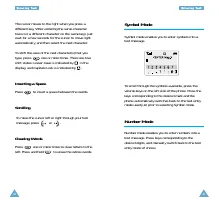
41 E En nt te er ri in ng g T Te ex xt t 40 E En nt te er ri in ng g T Te ex xt t Symbol Mode Symbol mode enables you to enter symbols into atext message. To scroll through the symbols available, press thevolume keys on the left side of the phone. Press thekeys corresponding to the desired mark and ...
Page 23 - SVC LED; Using the Menus; Accessing a Menu Function by Scrolling
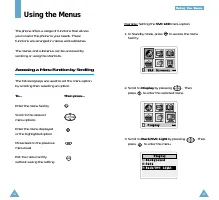
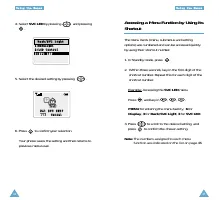
43 U Us si in ng g t th he e M Me en nu us s 42 3. Scroll to Back/SVC Light by pressing . Then, press to enter the menu. 2. Scroll to Display by pressing . Then, press to enter the selected menu. Example: Setting the SVC LED menu option. 1. In Standby mode, press to access the menu facility. 1 1 W W...
Page 25 - List of Menu Functions
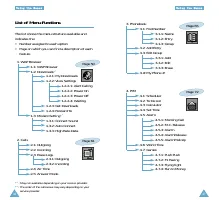
47 U Us si in ng g t th he e M Me en nu us s 46 U Us si in ng g t th he e M Me en nu us s 3. Phonebook 3-1: Find Number 3-1-1: Name3-1-2: Entry3-1-3: Group 3-2: Add Entry3-3: Edit Group 3-3-1: Add3-3-2: Edit3-3-3: Erase 3-#: My Phone # Page 65 4. PIM 4-1: Scheduler4-2: To Do List4-3: Calculator4-4: ...
Page 27 - WAP Browser; WAP Browser; Launching the WAP Browser; WAP Browser; Exiting the WAP Browser
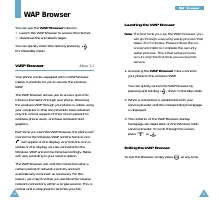
51 W W A A P P B B r r o o w w s s e e r r 50 WAP Browser You can use the WAP Browser menu to: • Launch the WAP browser to access the Internet. • download the animated images. You can quickly enter the menu by pressingfrom Standby mode. WAP Browser Menu 1-1 Your phone comes equipped with a WAP brows...
Page 28 - Using the WAP Browser Soft Keys
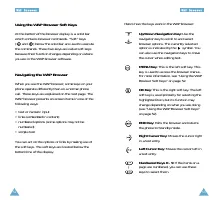
53 W W A A P P B B r r o o w w s s e e r r Here’s how the keys work in the WAP browser: Up/Down Navigation Key: Use the navigation key to scroll to and selectbrowser options. The currently selectedoption is indicated by the symbol. You can also use the navigation keys to movethe cursor when editing ...
Page 29 - Using Bookmarks; To Create a Bookmark; Mark Site; Entering Text in the WAP Browser
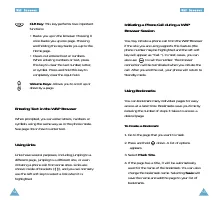
55 W W A A P P B B r r o o w w s s e e r r 54 W W A A P P B B r r o o w w s s e e r r Initiating a Phone Call during a WAPBrowser Session You may initiate a phone call from the WAP Browserif the site you are using supports this feature (thephone number may be highlighted and the left softkey will ap...
Page 30 - Downloads; My Downloads; Finding a Bookmark
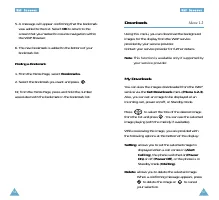
57 W W A A P P B B r r o o w w s s e e r r 56 W W A A P P B B r r o o w w s s e e r r Downloads Menu 1-2 Using this menu, you can download the backgroundimages for the display from the WAP serviceprovided by your service provider.Contact your service provider for further details. Note : This functio...
Page 31 - Modem Setting; Connect Sound; Bell; View Settings; Setting; Get Downloads
59 W W A A P P B B r r o o w w s s e e r r 58 W W A A P P B B r r o o w w s s e e r r Modem Setting Menu 1-3 Your phone is capable of sending or receiving digitaldata and fax call when connected to a computingdevice (laptop, desktop, handheld, palmtop, etc.)running Windows NT, Windows 98 or later. T...
Page 32 - Calls; Outgoing; Auto Connect
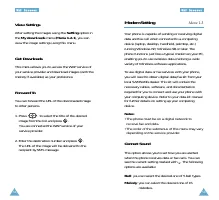
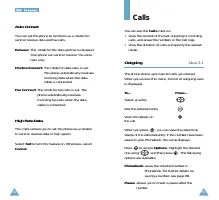
61 60 W W A A P P B B r r o o w w s s e e r r Calls You can use the Calls menu to: • View the records of the last outgoing or incoming calls, and erase the numbers in the Call logs. • View the duration of calls and specify the answer mode. Outgoing Menu 2-1 The phone stores up to last 10 calls you d...
Page 33 - Incoming
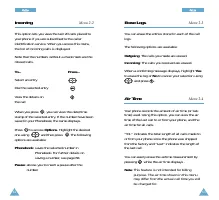
63 C Ca al ll ls s 62 C Ca al ll ls s Erase Logs Menu 2-3 You can erase the entries stored in each of the calllogs. The following options are available: Outgoing : The calls you made are erased. Incoming : The calls you received are erased. When a confirming message displays, highlight Yes to erase ...
Page 34 - SEND; Anykey; Find Number; Finding a Number by its Name; Name
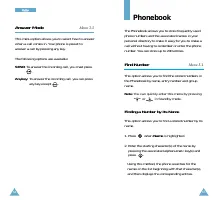
65 64 C Ca al ll ls s Answer Mode Menu 2-5 This menu option allows you to select how to answerwhen a call comes in. Your phone is preset toanswer a call by pressing any key. The following options are available: SEND : To answer the incoming call, you must press . Anykey : To answer the incoming call...
Page 35 - Finding a Number by its Group; Group; Finding a Number by its Entry Number; Entry
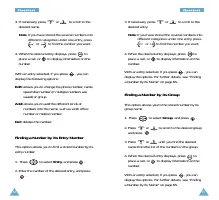
67 P P h h o o n n e e b b o o o o k k 3. If necessary, press or to scroll to the desired entry. Note : If you have stored the several numbers into different categories under one entry, press or to find the number you want. 4. When the desired entry displays, press to place a call, or to display inf...
Page 36 - Adding a Number in an Existing Entry; Add; Add Entry; Creating a New Entry
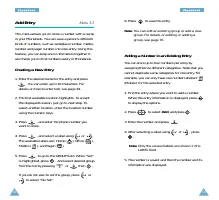
69 P P h h o o n n e e b b o o o o k k 68 P P h h o o n n e e b b o o o o k k 6. Press to save the entry. Note : You can edit an existing group or add a new group. For details on editing or adding agroup, see page 70. Adding a Number in an Existing Entry You can store up to four numbers per entry by...
Page 37 - Editing an Existing Group; Edit; Erasing an Existing Group; Erase; My Phone Number; Storing Phone Numbers at Call End; Edit Group; Adding a New Group
71 P P h h o o n n e e b b o o o o k k 70 P P h h o o n n e e b b o o o o k k 4. Select the ring type for the group from Bell or Melody using and press . 5. Select the desired one of the bell tones or the melody tones using and press . Editing an Existing Group 1. Select Edit using and press . 2. Se...
Page 38 - Creating a New Schedule; PIM; Scheduler; Selecting a Day in Calendar
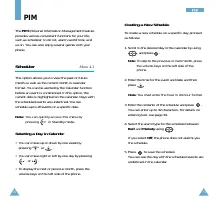
73 P P I I M M 72 Creating a New Schedule To create a new schedule on a specific day, proceedas follows: 1. Scroll to the desired day in the calendar by using , and press . Note : To skip to the previous or next month, press the volume keys on the left side of thephone. 2. Enter the time for the eve...
Page 39 - Adding, Editing and Erasing a To Do Item; Calculator; Creating the To Do List Item
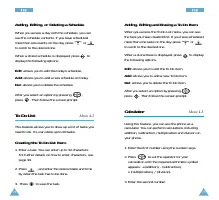
75 P P I I M M 74 P P I I M M Adding, Editing and Erasing a To Do Item When you access the To Do List menu, you can seethe task you have created first. If you have scheduledmore than one tasks on the day, press orto scroll to the desired one. When a stored task is displayed, press to display the fol...
Page 40 - Alarm; Setting a Morning Call; Morning Call; Releasing the morning call; Set Time
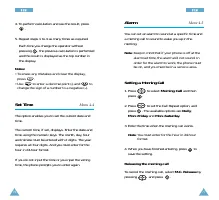
77 P P I I M M 76 P P I I M M Alarm Menu 4-5 You can set an alarm to sound at a specific time anda morning call to sound to wake you up in themorning. Note : Keep in mind that if your phone is off at the alarm set time, the alarm will not sound. Inorder for the alarm to work, the phone mustbe on, an...
Page 41 - World Time; Setting an Alarm; Selecting an Alarm Melody
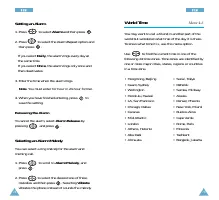
79 P P I I M M 78 P P I I M M World Time Menu 4-6 You may want to call a friend in another part of theworld but wondered what time of the day it is there.To know what time it is, use this menu option. Use to find the current time in one of thefollowing 24 time zones. Time zones are identified byone ...
Page 42 - Games; Inbox
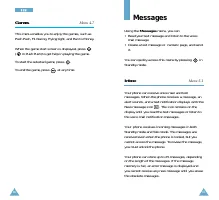
81 80 P P I I M M Games Menu 4-7 This menu enables you to enjoy the games, such asPush Push, F1 Racing, Flying tight, and Run to Money. When the game start screen is displayed, press( in Push Push) to get help in playing the game. To start the selected game, press . To end the game, press at any tim...
Page 43 - Erase All; Yes; Voice Mail
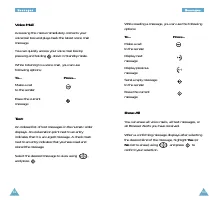
83 M M e e s s s s a a g g e e s s 82 M M e e s s s s a a g g e e s s While reading a message, you can use the followingoptions: To... Press... Make a call to the sender Display next message Display previous message Send a reply messageto the sender Erase the current message Erase All You can erase ...
Page 45 - Outbox; Messaging; Creating and Transmitting a New Message; New Message
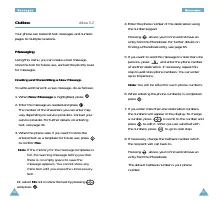
87 M M e e s s s s a a g g e e s s 86 M M e e s s s s a a g g e e s s Outbox Menu 5-2 Your phone can transmit text messages and numericpages to multiple locations. Messaging Using this menu, you can create a text message,store the text for future use, and set the priority levelfor messages. Creating...
Page 46 - Using Message Template
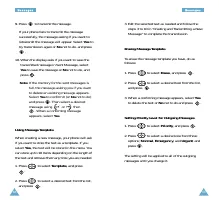
89 M M e e s s s s a a g g e e s s 88 M M e e s s s s a a g g e e s s 9. Press to transmit the message. If your phone fails to transmit the messagesuccessfully, the message asking if you want toretransmit the message will appear. Select Yes to try transmission again or No not to do, and press . 10. ...
Page 47 - Sent Message; Reviewing Sent Messages; Saved Message; Erasing All Messages; Saved; Paging
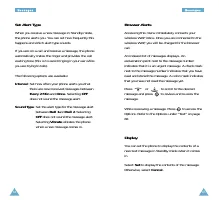
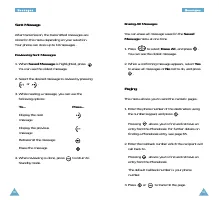
91 M M e e s s s s a a g g e e s s 90 M M e e s s s s a a g g e e s s Sent Message After transmission, the transmitted messages arestored in this menu depending on your selection.Your phone can store up to 10 messages . Reviewing Sent Messages 1. When Saved Message is highlighted, press . You can se...
Page 48 - Delivery Ack; Set; Background; Power On; WallPaper; No LOGO
93 92 M M e e s s s s a a g g e e s s Delivery Ack This option allows you to activate or deactivate thedelivery acknowledgement functions. When thisfunction is inactive, the network informs you whetheryour message has been read or not by the recipient. Select Set to activate this option, or Cancel t...
Page 49 - Text Slide; Date; Backlight
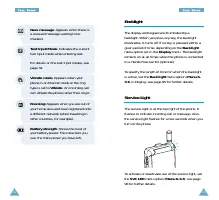
94 D Di is sp pl la ay y 95 D Di is sp pl la ay y If you select Digital Clock , you are provided with the following options: Normal : displays the normal digital clock showing the current date and time. Note : While pressing and holding in Standby mode, you can see normal digitalclock regardless of ...
Page 50 - Sounds; Ring Type
97 D Di is sp pl la ay y 96 D Di is sp pl la ay y Set Backlight : allows you to set the backlight type between Normal and Saving . Select Saving uses the backlight only from 5:00 PM to 8:00 AM.Doing this saves the power of thebattery. LCD Control This option allows you to adjust the contrast of thed...
Page 52 - Set NAM; Security; Restrict
101 S Se ec cu ur ri it ty y 100 Incoming Call : restricts all incoming calls to your phone. Int. Call : restricts all international calls. Incoming Num. : sets whether the phone to display the caller’s number when a callcomes in or not, if available. Select Show to display the caller’s number, or B...
Page 53 - Priority Number; System Selection; Standard; Home Only
102 S Se ec cu ur ri it ty y 103 S Se ec cu ur ri it ty y Priority Number Menu 8-3 This feature allows you to store priority numbers.These numbers can be dialled for emergency calls atany time, even when the phone is locked or when theoutgoing call is restricted. To store a priority number, proceed ...
Page 54 - Initialise; Clear All; Reset Phone
105 S Se ec cu ur ri it ty y 104 S Se ec cu ur ri it ty y Auto Lock Menu 8- This menu allows you to lock the phone. Locking thephone limits all use of your phone. Selecting Set immediately locks your phone and stays locked until you cancel Auto Lock mode. Youcan see the Lock icon in the display. To ...
Page 56 - Precautions When Using Batteries
108 H He ea al lt th h a an nd d S Sa af fe et ty y I In nf fo or rm ma at ti io on n 109 H He ea al lt th h a an nd d S Sa af fe et ty y I In nf fo or rm ma at ti io on n For additional information concerning exposure toradio frequency signals, see the following websites: Federal Communications Com...
Page 57 - Operating Environment; Pacemakers
111 H He ea al lt th h a an nd d S Sa af fe et ty y I In nf fo or rm ma at ti io on n 110 H He ea al lt th h a an nd d S Sa af fe et ty y I In nf fo or rm ma at ti io on n • Extreme temperatures will affect the charging capacity of your battery: it may require cooling orwarming first. • Do not leave...
Page 58 - Hearing Aids; Potentially Explosive Atmospheres
113 H He ea al lt th h a an nd d S Sa af fe et ty y I In nf fo or rm ma at ti io on n 112 H He ea al lt th h a an nd d S Sa af fe et ty y I In nf fo or rm ma at ti io on n Persons with pacemakers: • Should always keep the phone more than 6 inches (15 cm) from their pacemaker when thephone is switche...
Page 59 - To make an emergency call:
115 H He ea al lt th h a an nd d S Sa af fe et ty y I In nf fo or rm ma at ti io on n Vehicles Only qualified personnel should service the phone, orinstall the phone in a vehicle. Faulty installation orservice may be dangerous and may invalidate anywarranty which may apply to the unit. Check regular...
Page 60 - Care and Maintenance
117 H He ea al lt th h a an nd d S Sa af fe et ty y I In nf fo or rm ma at ti io on n 116 H He ea al lt th h a an nd d S Sa af fe et ty y I In nf fo or rm ma at ti io on n Care and Maintenance Your phone is a product of superior design andcraftsmanship and should be treated with care. Thesuggestions...
Page 61 - Glossary
119 G Gl lo os ss sa ar ry y 118 Line Identification - Services allowing subscribers Services (Caller ID to view or block the telephone Display) numbers of callers. Frequency - A measure based on time, as one or more waves per second, in an electricalor light wave information signal. Asignal’s frequ...
Page 62 - SCH-A212 Quick Reference Card; BASIC OPERA
121 SCH-A212 Quick Reference Card BASIC OPERA TION Make a call Phone number + SEND Receive a call SEND or any key except END Adjust speaker (in T alk mode) volume / repeatedly Adjust key (in Standby mode) volume / repeatedly Redial last SEND twice number Scan the last SEND + Navigation / calls and d...
Page 63 - MENU TREE
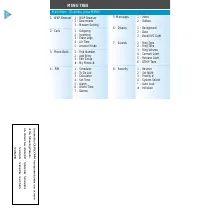
5: Messages 1 : Inbox2 : Outbox 6 : Display 1 : Background2 : Date3 : Back/SVC Light 7 : Sounds 1 : Ring Type2 : Ring Tone3 : Ring Volume 4 : Connect Alert5 : Release Alert6 : DTMF Tone 8 : Security 1 : Restrict2 : Set NAM3 : Priority #4 : System Select* : Auto Lock# : Initialise 122 MENU TREE Main ...