Page 2 - Sprint PCS Service
Sprint PCS Service www.sprintpcs.com Copyright © 2004 Sprint Spectrum L.P. All rights reserved. No reproduction in whole or in part without prior written approval. Sprint, the diamond logo design, and all other Sprint marks referenced herein are trademarks of Sprint Communications Company L.P. All o...
Page 4 - Table of Contents
Table of Contents How to Use This Guide . . . . . . . . . . . . . . . . . . . . . . . . . . . i Getting Advanced Phone and Service Information . . . . ii Getting Started . . . . . . . . . . . . . . . . . . . . . . . . . . . . . . . . . 1 Basics of Your Sprint PCS Phone . . . . . . . . . . . . . . . ...
Page 5 - Sprint PCS Vision
TTY Use With Sprint PCS Service . . . . . . . . . . . . . . . . . . . . . 31 Sending and Receiving Messages . . . . . . . . . . . . . . . 32 Setting Up Your Voicemail . . . . . . . . . . . . . . . . . . . . . . . . . . . 32Retrieving Your Voicemail Messages . . . . . . . . . . . . . . . . . . . 32 A...
Page 7 - How to Use This Guide; Thank you for choosing Sprint PCS Service; Basics of Your Sprint PCS Phone.; Welcome and thank you for choosing Sprint.
i How to Use This Guide Thank you for choosing Sprint PCS Service Sprint has the most complete, all-digital wireless network in the nation. Depend on it. With Sprint PCS Service, we give you what you really want from a wireless service provider – clear calls, easy-to-understand service plans, and se...
Page 8 - ii
ii Getting Advanced Phone and Service Information This guide covers your phone’s basic features and services. To learn how to use all the advanced features of your phone and service, visit www.sprintpcs.com and sign on to your account management page with your Sprint PCS Phone Number and password. T...
Page 9 - Getting Started; Activating and Using Your Sprint PCS Service
1 Getting Started Activating and Using Your Sprint PCS Service
Page 11 - Your Sprint PCS Account Passwords; and to use when; My Account Password is:
3 Getting Started 3 Your Sprint PCS Account Passwords As a Sprint PCS customer, you enjoy unlimited access to your personal account information, your voicemail account, and your Sprint PCS Vision account. To ensure that no one else has access to your information, you will need to create passwords to...
Page 12 - My Sprint PCS Vision Password is:; or call Sprint Customer Service at; Finding your phone’s ESN; key for a
4 If you have a Sprint PCS Vision Phone, you can set up a Sprint PCS Vision Password. This optional password may be used to authorize purchase of premium content and to protect personal information on multi-phone accounts. My Sprint PCS Vision Password is: ___________________ For more information or...
Page 13 - Sprint PCS Clear Pay; Program; • Keep track of your minutes
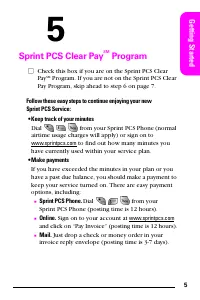
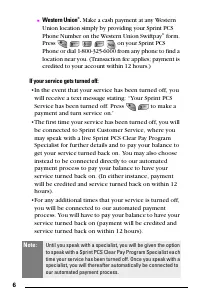
5 Getting Started 5 Sprint PCS Clear Pay SM Program 䡺 Check this box if you are on the Sprint PCS Clear Pay SM Program. If you are not on the Sprint PCS Clear Pay Program, skip ahead to step 6 on page 7. Follow these easy steps to continue enjoying your new Sprint PCS Service: • Keep track of your m...
Page 15 - Sprint PCS Phone Number
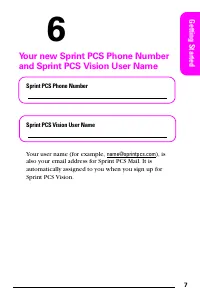
7 Getting Started 6 Your new Sprint PCS Phone Number and Sprint PCS Vision User Name Sprint PCS Phone Number Sprint PCS Vision User Name Your user name (for example, [email protected] ), is also your email address for Sprint PCS Mail. It is automatically assigned to you when you sign up for Sprint P...
Page 16 - View the details of your Sprint PCS Service Plan
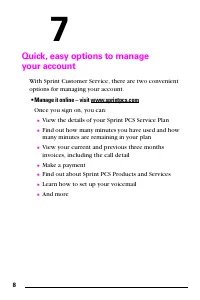
8 7 Quick, easy options to manage your account With Sprint Customer Service, there are two convenient options for managing your account. • Manage it online – visit www.sprintpcs.com Once you sign on, you can: 䡲 View the details of your Sprint PCS Service Plan 䡲 Find out how many minutes you have use...
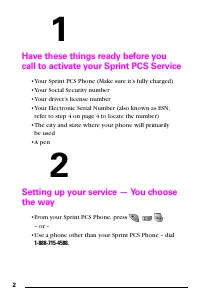
Page 17 - Use your Sprint PCS Phone – press; Access a summary of your service plan
9 Getting Started • Use your Sprint PCS Phone – press Once connected, you can: 䡲 Access a summary of your service plan 䡲 Find out the number of minutes remaining in your plan for the current invoice cycle 䡲 Access information about your most recent invoice 䡲 Find out when your last payment was recei...
Page 19 - Basics of Your Sprint PCS Phone
Page 20 - Your New Sprint PCS Phone
Page 21 - Basics; Your Phone’s Features
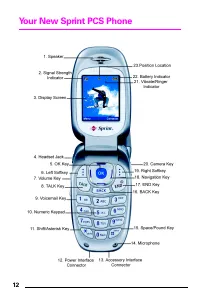
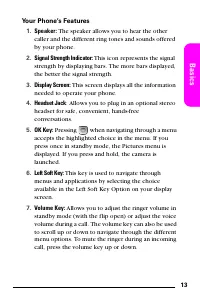
13 Basics Your Phone’s Features 1. Speaker: The speaker allows you to hear the other caller and the different ring tones and sounds offered by your phone. 2. Signal Strength Indicator: This icon represents the signal strength by displaying bars. The more bars displayed, the better the signal strengt...
Page 23 - Right Soft Key
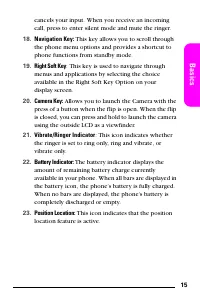
15 Basics cancels your input. When you receive an incoming call, press to enter silent mode and mute the ringer. 18. Navigation Key: This key allows you to scroll through the phone menu options and provides a shortcut to phone functions from standby mode. 19. Right Soft Key : This key is used to nav...
Page 24 - Viewing the Display Screen
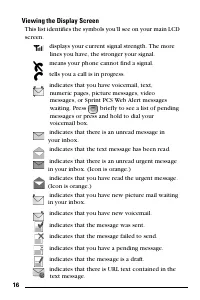
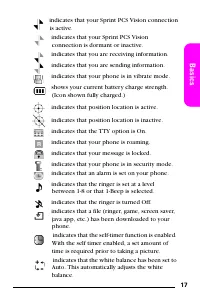
16 Viewing the Display Screen This list identifies the symbols you’ll see on your main LCD screen. displays your current signal strength. The more lines you have, the stronger your signal. means your phone cannot find a signal. tells you a call is in progress. indicates that you have voicemail, text...
Page 27 - Turning Your Phone On and Off; Turning Your Phone On
19 Basics Turning Your Phone On and Off Turning Your Phone On 1. Fully extend the antenna to receive the best reception. 2. Press . (The phone will display “Entering Sprint Service Area,” then it will automatically enter standby mode — the phone’s idle state. At this point, you’re ready to begin mak...
Page 28 - Using the Battery and Charger; Installing and Removing the Battery
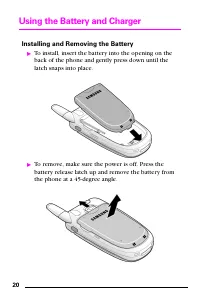
20 Using the Battery and Charger Installing and Removing the Battery 䊳 To install, insert the battery into the opening on the back of the phone and gently press down until the latch snaps into place. 䊳 To remove, make sure the power is off. Press the battery release latch up and remove the battery f...
Page 29 - Charging the Battery; Plug the other end into a standard wall outlet.
21 Basics Charging the Battery To use the travel charger: 1. Insert the end of the travel charger connector into the power interface connector. 2. Plug the other end into a standard wall outlet. When the Travel Charger is used to charge the battery, a red light is displayed when the f lip is closed....
Page 30 - Making and Answering Calls; Making Calls
22 Making and Answering Calls Making Calls 1. Make sure your phone is on. 2. Enter a phone number. (If you make a mistake while dialing, press to erase one digit at a time or press and hold to erase the entire number.) 3. Press to place the call. 4. When you’re finished, close the f lip or press . A...
Page 31 - Entering Text; To enter text using Alpha:; Alpha
23 Basics Entering Text Your Sprint PCS Phone provides four different ways to enter words, letters, punctuation, and numbers whenever you are required to enter text (for example, when entering a Contact entry or when using the phone’s messaging features). They are: 䢇 T9 (English) - Allows you to ent...
Page 32 - Controlling Your Roaming Experience; Setting Your Phone’s Roam Mode
24 Controlling Your Roaming Experience Your phone is dual band/tri mode, which means you can make and receive calls while on the Sprint Nationwide PCS Network and you can also roam on other analog and 1900 and 800 MHz digital networks where we’ve implemented roaming agreements with other carriers. T...
Page 33 - Call Guard; To turn Call Guard on:
25 Basics Call Guard Call Guard reminds you when you are making or receiving a roaming call and requires you to take additional steps before placing or answering roaming calls. These additional steps are not required when you make or receive calls while on the Sprint Nationwide PCS Network, or if yo...
Page 34 - Feature Availability; You can make and receive calls while roaming.
26 Feature Availability 䢇 You can make and receive calls while roaming. 䢇 You will have access to voicemail while roaming. 䢇 Other features which are standard on the Sprint Nationwide PCS Network, such as Call Waiting, Sprint PCS Voice Command, and Sprint PCS Vision are unavailable while roaming.
Page 35 - Using Contacts; Saving Phone Numbers
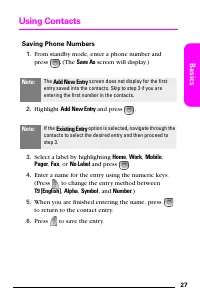
27 Basics Using Contacts Saving Phone Numbers 1. From standby mode, enter a phone number and press . (The Save As screen will display.) 2. Highlight Add New Entry and press . 3. Select a label by highlighting Home , Work , Mobile , Pager , Fax , or No Label and press . 4. Enter a name for the entry ...
Page 36 - Finding Phone Numbers; To find a phone number:; Find
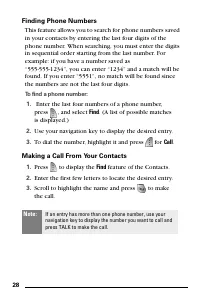
28 Finding Phone Numbers This feature allows you to search for phone numbers saved in your contacts by entering the last four digits of the phone number. When searching, you must enter the digits in sequential order starting from the last number. For example: if you have a number saved as “555-555-1...
Page 37 - Changing Your Phone’s Settings; Airplane Mode; To access airplane mode:
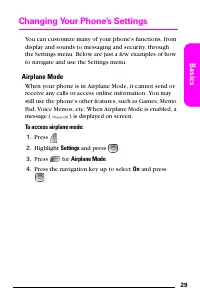
29 Basics Changing Your Phone’s Settings You can customize many of your phone’s functions, from display and sounds to messaging and security, through the Settings menu. Below are just a few examples of how to navigate and use the Settings menu. Airplane Mode When your phone is in Airplane Mode, it c...
Page 38 - Changing the Greeting; To change the greeting:; Adjusting the Ringer and Key Beep Volume
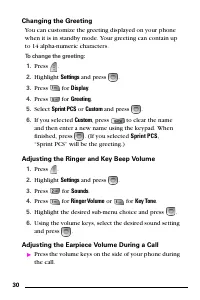
30 Changing the Greeting You can customize the greeting displayed on your phone when it is in standby mode. Your greeting can contain up to 14 alpha-numeric characters. To change the greeting: 1. Press . 2. Highlight Settings and press . 3. Press for Display . 4. Press for Greeting . 5. Select Sprin...
Page 39 - TTY Use With Sprint PCS Service; To turn TTY mode on or off:; Enable TTY
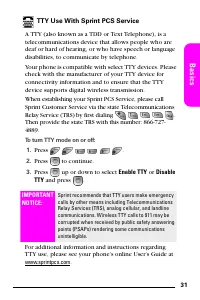
31 Basics TTY Use With Sprint PCS Service A TTY (also known as a TDD or Text Telephone), is a telecommunications device that allows people who are deaf or hard of hearing, or who have speech or language disabilities, to communicate by telephone. Your phone is compatible with select TTY devices. Plea...
Page 40 - Sending and Receiving Messages; Setting Up Your Voicemail
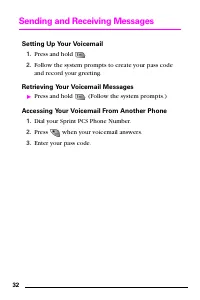
32 Sending and Receiving Messages Setting Up Your Voicemail 1. Press and hold . 2. Follow the system prompts to create your pass code and record your greeting. Retrieving Your Voicemail Messages 䊳 Press and hold . (Follow the system prompts.) Accessing Your Voicemail From Another Phone 1. Dial your ...
Page 41 - Sprint PCS Service Features; Call Waiting; To respond to an incoming call while you’re on a call:; Call Forwarding
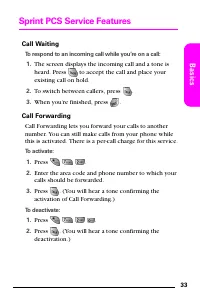
33 Basics Sprint PCS Service Features Call Waiting To respond to an incoming call while you’re on a call: 1. The screen displays the incoming call and a tone is heard. Press to accept the call and place your existing call on hold. 2. To switch between callers, press . 3. When you’re finished, press ...
Page 43 - Getting started with Sprint PCS Voice Command; Setting up your Personal Address Book; Press; Making a call with Sprint PCS Voice Command; Press
35 Basics Sprint PCS Voice Command SM With Sprint PCS Voice Command, you can call a number just by saying a name. Getting started with Sprint PCS Voice Command 䊳 Press to contact Sprint Customer Service, activate the service, and set up your account right from your Sprint PCS Phone. (There is a mont...
Page 44 - Getting Started With Sprint PCS Vision; To launch a Sprint PCS Vision connection:; Web
36 Sprint PCS Vision SM Getting Started With Sprint PCS Vision To access detailed instructions on using Sprint PCS Vision services, visit www.sprintpcs.com and download your phone’s complete User’s Guide. To launch a Sprint PCS Vision connection: 1. Press . 2. Highlight Web and press . (The browser ...
Page 45 - End or exit your browser session by pressing; Sprint PCS Vision Services; Messaging
37 Basics 4. Use your navigation key to scroll around and select from a variety of online services. 5. End or exit your browser session by pressing . Sprint PCS Vision Services With Sprint PCS Vision, you will have access to applications that let you stay in touch with family and friends, have fun, ...
Page 46 - Sprint PCS Vision User Name; Settings
38 Screen Savers Download unique images to use as screen savers or make it easy to tell who’s calling by assigning specific images to numbers in your contacts. Web Experience full-color graphic versions of popular Websites from your Sprint PCS Vision Phone. Accessing Sprint PCS Vision Services Sprin...
Page 47 - Sprint PCS Vision Symbols on Your Screen
39 Basics Sprint PCS Vision Symbols on Your Screen Phone is not currently able to access Sprint PCS Vision service features. Connection is active (data is being transferred). Outgoing calls can be made, but incoming calls go directly to your voicemail.Connection is dormant. Your phone is connected, ...
Page 48 - Your Phone’s Special Features
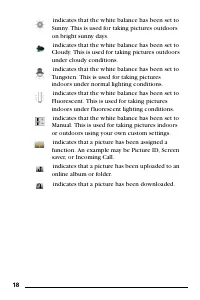
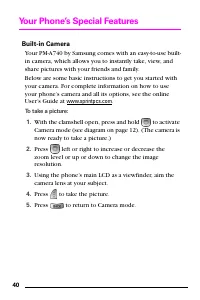
40 Your Phone’s Special Features Built-in Camera Your PM-A740 by Samsung comes with an easy-to-use built-in camera, which allows you to instantly take, view, and share pictures with your friends and family. Below are some basic instructions to get you started with your camera. For complete informati...
Page 49 - To share Sprint PCS Picture Mail:
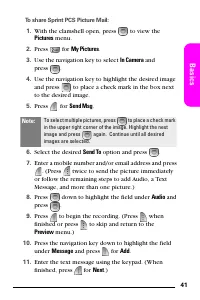
41 Basics To share Sprint PCS Picture Mail: 1. With the clamshell open, press to view the Pictures menu. 2. Press for My Pictures . 3. Use the navigation key to select In Camera and press . 4. Use the navigation key to highlight the desired image and press to place a check mark in the box next to th...
Page 51 - To assign pictures to phone tasks:
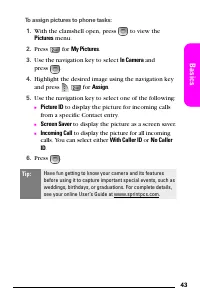
43 Basics To assign pictures to phone tasks: 1. With the clamshell open, press to view the Pictures menu. 2. Press for My Pictures . 3. Use the navigation key to select In Camera and press . 4. Highlight the desired image using the navigation key and press for Assign . 5. Use the navigation key to s...
Page 52 - Additional Features; To set up Abbreviated dialing:
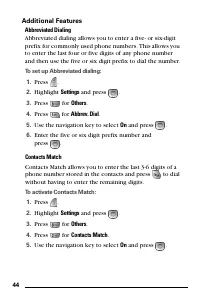
44 Additional Features Abbreviated Dialing Abbreviated dialing allows you to enter a five- or six-digit prefix for commonly used phone numbers. This allows you to enter the last four or five digits of any phone number and then use the five or six digit prefix to dial the number. To set up Abbreviate...
Page 54 - Accessories for Your Phone; Standard Battery; Allows you to use your phone with the optional earpiece.
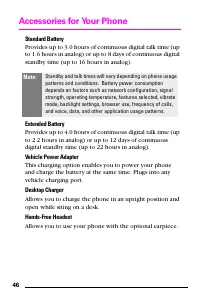
46 Accessories for Your Phone Standard Battery Provides up to 3.0 hours of continuous digital talk time (up to 1.6 hours in analog) or up to 8 days of continuous digital standby time (up to 16 hours in analog). Extended Battery Provides up to 4.0 hours of continuous digital talk time (up to 2.2 hour...
Page 55 - Portable Hands-Free Car Kit; . Next day delivery is offered in
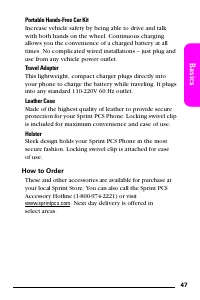
47 Basics Portable Hands-Free Car Kit Increase vehicle safety by being able to drive and talk with both hands on the wheel. Continuous charging allows you the convenience of a charged battery at all times. No complicated wired installations – just plug and use from any vehicle power outlet. Travel A...
Page 57 - Safety and Terms & Conditions
Page 58 - Performance and Safety; Getting the Most Out of Your Reception
50 Performance and Safety Getting the Most Out of Your Reception Keeping Tabs on Signal Strength The quality of each call you make or receive depends on the signal strength in your area. Your phone informs you of the current signal strength by displaying a number of bars next to the signal strength ...
Page 59 - Maintaining Your Phone’s Peak Performance
51 S a fe ty / Te rms & Condi tio ns existing ANSI/IEEE standard and the guidelines published by the National Council of Radiation Protections and Measurements (NCRP). Maintaining Your Phone’s Peak Performance There are several simple guidelines to operating your phone properly and maintaining s...
Page 60 - Following Safety Guidelines
52 䢇 Dial sensibly and assess the traffic; if possible, place calls when stationary or before pulling into traffic. 䢇 Do not engage in stressful or emotional conversations that may divert your attention from the road. 䢇 Dial 911 to report serious emergencies. It’s free from your wireless phone. 䢇 Us...
Page 61 - Turning Off Your Phone Before Flying; Restricting Children’s Access to Your Phone
53 S a fe ty / Te rms & Condi tio ns Turning Off Your Phone Before Flying Turn off your phone before boarding any aircraft. To prevent possible interference with aircraft systems, the U.S. Federal Aviation Administration (FAA) regulations require you to have permission from a crew member to use ...
Page 62 - Disposal of Lithium Ion (LiIon) Batteries
54 Caring for the Battery Protecting Your Battery The guidelines listed below help you get the most out of your battery’s performance. 䢇 Use only Sprint-approved batteries and desktop chargers. These chargers are designed to maximize battery life. Using other batteries or chargers voids your warrant...
Page 63 - FCC Notice
55 S a fe ty / Te rms & Condi tio ns Acknowledging Special Precautions and the FCC Notice FCC Notice This phone may cause TV or radio interference if used in close proximity to receiving equipment. The FCC can require you to stop using the phone if such interference cannot be eliminated. Vehicle...
Page 64 - Specific Absorption Rates (SAR) for Wireless Phones; FCC Radiofrequency Emission
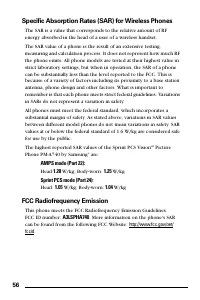
56 Specific Absorption Rates (SAR) for Wireless Phones The SAR is a value that corresponds to the relative amount of RF energy absorbed in the head of a user of a wireless handset. The SAR value of a phone is the result of an extensive testing, measuring and calculation process. It does not represen...
Page 65 - Owner’s Record; User’s Guide Proprietary Notice
57 S a fe ty / Te rms & Condi tio ns Owner’s Record The model number, regulatory number and serial number are located on a nameplate inside the battery compartment. Record the serial number in the space provided below. This will be helpful if you need to contact us about your phone in the future...
Page 66 - Terms and Conditions of Services
58 Terms and Conditions & Warranty Information Terms and Conditions of Services (Effective June 30, 2004) Thanks for choosing Sprint. These terms and conditions are part of your agreement with Sprint for Sprint PCS Services. Please note these terms may not be the most current version. You can ge...
Page 76 - Terms of Picture Mail Service
68 Miscellaneous. You may notify us by calling us at 1-888-211-4PCS, or use that number to get our current address for written notice. We may send you notice to your last known address in our invoicing records, or by calling leaving you a voice message on your wireless device or home phone. Properly...
Page 77 - Picture Mail Password
69 S a fe ty / Te rms & Condi tio ns 2. Membership Fees Picture Mail is available at an additional monthly charge (in addition to any charges you may pay for Sprint PCS Vision services) through Sprint and provides you basic services, such as the ability to store and share pictures taken on selec...
Page 85 - Changes to the Service and Termination of the Service
77 S a fe ty / Te rms & Condi tio ns 12. Changes to the Service and Termination of the Service (a) We may change these Terms from time to time without notice to you. Should you object to any of these Terms or any changes to them, or should you become dissatisfied with the Service in any way, you...
Page 87 - General Provisions
79 S a fe ty / Te rms & Condi tio ns INDIRECT, INCIDENTAL, CONSEQUENTIAL, SPECIAL, EXEMPLARY, AND PUNITIVE DAMAGES (EVEN IF WE HAVE BEEN ADVISED OF THE POSSIBILITY OF SUCH DAMAGES). SUCH LIMITATION OF LIABILITY SHALL APPLY WHETHER THE DAMAGES ARISE FROM USE OR MISUSE OF AND RELIANCE ON THE SITE,...
Page 89 - Manufacturer’s Warranty
81 S a fe ty / Te rms & Condi tio ns Manufacturer’s Warranty STANDARD LIMITED WARRANTY What is Covered and For How Long? SAMSUNG TELECOMMUNICATIONS AMERICA, L.P. ("SAMSUNG") warrants to the original purchaser ("Purchaser") that SAMSUNG's Phones and accessories ("Products"...
Page 94 - Notes
Notes ________________________________________________________ ________________________________________________________ ________________________________________________________ ________________________________________________________ ________________________________________________________ _________...




















 Samsung 2 Manual
 Samsung 3.5" hard disk drives Manual
 Samsung 4 Manual
 Samsung 4 CHANNEL DVR Manual
 Samsung 5 Manual
 Samsung 14F2, 14F3, 14H4, 14H5, 14S1, 14S4, 14V5, 3366, 15K2, 15K5, 15K8, 15K9, 20F3, 20H4, 20H5, 20S1, 20S4, 20S5, 20V5, 5038, 21A3, 21A6, 21A7, 21A8, 21B6, 21D8, 21F3, 21F5, 21H4, 21H5, 21K2, 21K3, 21K5, 21K9, 21S1, 21S4, 21V5 Manual
 Samsung 14F2, 14F3, 14H4, 14H5, 14S1, 14V5, 3366, 15K2, 15K5, 15K8, 15K9, 15K10, 15M16, 17A11, 17K10, 20F3, 20H4, 20H5, 20S1, 20S4, 20S5, 20V5, 5038, 21A3, 21A6, 21A7, 21A8, 21B6, 21D8, 21F3, 21F5, 21H4, 21H5, 21K2, 21K3, 21K5, 21K9, 21K10, 21M16, 21S1, 21S4, 21V Manual
 Samsung 21-1840 Manual
 Samsung 21Z50 Manual