Page 2 - Instructions
《2》 Instructions Insert the USB cable Set up the camera driver Before connecting the camera to a PC, via theUSB cable, you will need to set up the cameradriver. Install the camera driver that is contained inthe Application S/W CD-ROM.(p.89) Take a picture (p.19) Insert the supplied USB cable into th...
Page 3 - Contents; READY
● Getting to know your camera 5 ● About the icons 5 ● Danger 6 ● Warning 6 ● Caution 7 ● An FCC warning 7 ● System chart 8 ● Identification of features 10 ■ Front & Top 10 ■ Back & Bottom 10 ■ Side / 5-function button 11 ■ Mode button 11 ● Instructions on how to use the power source 13 ■ Usi...
Page 4 - SOFTWARE
● Thumbnail/ Enlargement button 47 ● Voice memo / Up button 48 ● Play & Pause/ Down button 49 ● LEFT/ RIGHT/ MENU/ OK button 50 ● LCD button 50 ● Delete button 51 ● Setting up the play back function using the LCD monitor 52 ● Starting the slide show 55 ● Rotating an image 56 ● Resize 57 ● Protec...
Page 5 - Getting to know your camera; About the icons
《5》 Getting to know your camera Thank you for buying a Samsung Digital Camera. ● Prior to using this camera, please read the user manual thoroughly. ● When you require After Sales service, please bring the camera and the cause of the cameramalfunction (such as Batteries, Memory card etc.) to the A/S...
Page 6 - Danger; Warning
《6》 Danger ■ Do not use the flash in close proximity to people or animals. Positioning the flash too close to your subject’s eyes, may cause eyesight damage. ■ When taking photographs, never point the lens of the camera directly into very strong light.This may result in permanent damage to your eyes...
Page 7 - Caution; An FCC warning
《7》 Caution An FCC warning • This device has been tested in accordance with the limits of a class B digital deviceunder item 15 of the FCC rules. These limits are designed to provide protectionagainst harmful interference in commercial installation. This equipment generates,absorbs and can emit radi...
Page 8 - System chart
《8》 System chart Please check that you have the correct contents before using this product. To buy the optionalequipment, contact your nearest Samsung dealer or Samsung service centre. Pouch User manual Product warranty Camera strap Software CD (see p.88) SD memory card (see p.15) DPOF compatible pr...
Page 9 - CAUTION
《9》 System chart USB cable PictBridge compatible printer(see p.63) Computer (see p.95) For Windows • PC with processor better than MMX Pentium 233MHz (XP : Pentium II 300MHz) • Windows 98/ 98SE/ 2000/ ME/ XP • Minimum 32MB RAM (XP : 128MB) • 140MB of available hard-disk space • USB port • CD-ROM dri...
Page 10 - Identification of features
《10》 Identification of features Front & Top Back & Bottom Tripod socket LCD monitor Mode button Play mode button 5-function button LCD button Zoom T button(Digital zoom) Camera status lamp +/-, DELETE button Zoom W button(Thumbnail) Focus ring Flash Strap eyelet Shutter button Power button M...
Page 11 - Mode button
《11》 Identification of features A movie clip can be recorded for as long as the availablerecording time of the memory capacity allows. Image size andtype are listed below.- Image size : 640X480, 320X240 (user selectable)- Movie clip file type : *. AVI(MJPEG) ● Movie clip mode ■ You can select the de...
Page 13 - Instructions on how to use the power source
《13》 Instructions on how to use the power source ■ You can use batteries only to provide the camera with power. ● We recommend using batteries for a digital camera (Within a year from the date ofmanufacture). The batteries are listed below. Non rechargeable batteries : AA type - Alkaline CR-V3 type ...
Page 14 - Connecting to a Power Source
《14》 Connecting to a Power Source 3. To close the battery chamber cover, push it until it clicks. 2. Insert the batteries taking note of the polarity (+ / -). 1. Open the battery chamber cover by pushing in the direction of the arrow. : If the camera does not turn on after you have inserted batterie...
Page 15 - Instructions on how to use the memory card
《15》 Instructions on how to use the memory card ● Be sure to format the memory card (see p.72) if you are using a newly purchased memory forthe first time, if it contains data that the camera cannot recognize, or if it contains imagescaptured with a different camera. ● Turn off the camera power when...
Page 16 - INFORMATION
《16》 Instructions on how to use the memory card ■ The camera can use SD Memory Cards and MMC (Multi Media Card). Mode STILL IMAGE mode MOVIE CLIP mode Quality / Size 2272(P) 2048 1600(M) 1024 640(E) 640 320 SUPER FINE 10 13 17 38 81 - - FINE 20 27 37 78 145 - - NORMAL 33 42 50 113 234 - - 15FPS - - ...
Page 17 - Inserting the memory card; Removing the memory card
《17》 Inserting the memory card 1. Turn the power off using the power button. Open the battery chamber cover and press the memorycard as shown in the image and release. 2. Remove the memory card and close the battery chamber cover. 3. To close, push the battery chamber cover until you hear a click. I...
Page 18 - LCD monitor indicator
《18》 LCD monitor indicator ■ The LCD monitor displays information about the shooting functions and selections. [Image & Full Status] No. Description Icons Page 1 Battery p.14 3 Continuous shot p.40 4 Flash p.26 5 Self-timer p.28 6 Macro 7 Metering p.39 8 Card inserted indicator 9 Camera shake wa...
Page 19 - Starting the recording mode
《19》 LCD monitor indicator 13 ISO p.31 14 Sharpness p.42 15 Image quality p.38 16 Image size 2272, 2048, 1600, 1024, 640 p.37 Number of available shots remaining 20 Remaining time (Movie clip/ Voice recording) 00:01:11/ 00:25:50 18 Voice memo p.25 19 Digital Zoom rate 17 Starting the recording mode ...
Page 22 - Things to watch out for when taking pictures
《22》 Things to watch out for when taking pictures ■ When the Flash Off or Slow synchro mode is selected in a low lighting condition, the camerashake warning indicator ( ) may appear on the LCD monitor. In this case, use a tripod,support the camera on a solid surface or change the flash mode to flash...
Page 23 - Using the camera buttons to adjust the camera
《23》 Using the camera buttons to adjust the camera ■ The RECORDING mode function can be set up by using the camera buttons. ● Used for turning the camera’s power on / off. ● If this camera isn’t operated during the specified time(about60 SEC.), the camera power will be idle(LCD monitor :OFF, Camera ...
Page 25 - Down button
《25》 Voice memo( )/ UP button ■ While the menu is showing, press the UP button to move up the submenu cursor. ■ When the menu is not displayed on the LCD monitor, the UP button operates as the voicememo button. You can add your voice-over to a stored still image. ● Recording a voice memo 1. Select t...
Page 33 - LCD button
《33》 +/- button [ Image & full information ] [ Image & basic information ] [ LCD off ] ■ You can check the recording status in the LCD monitor.Pressing the LCD button in the RECORDING (STILLIMAGE, MOVIE CLIP) mode will change the display asshown below. 2) Setting up the shutter speed and ape...
Page 34 - Using the LCD monitor to adjust the camera settings
《34》 Menu tab Main menu Sub menu Camera working mode Page AUTO PROGRAM NIGHT PORTRAIT LANDSCAPE FIREWORKS 2272X1704(P) 2048X1536 1600X1200(M) 1024X768 640X480(E) 640X480 320X240 S.FINE FINE NORMAL 15FPS 24FPS MULTI SPOT Using the LCD monitor to adjust the camera settings ■ You can use the menu on th...
Page 36 - How to use the menu; Mode
《36》 How to use the menu 3. Use the UP and DOWN buttons to select a sub menu. 4. Select a sub menu, and then the value you set will be saved. Press the MENU button and the menu will disappear. 1. Turn on the camera and press the MENU button. A menu for each camera mode appears. However, there is no ...
Page 37 - Size
《37》 Size ■ You can select the image size appropriate for your application. Mode Icon 2272 2048 1600 1024 640 640 320 Size 2272X1704 2048X1536 1600X1200 1024X768 640X480 640X480 320X240 STILL IMAGE mode MOVIE CLIP mode [ STILL IMAGE mode ] [ MOVIE CLIP mode ] ● The higher the resolution, the lower t...
Page 38 - Quality
《38》 Quality ■ You can select the compression ratio appropriate for your application of the captured images.The higher the compression ratio, the lower the picture quality. Mode Icon 15F 24F Sub menu S.FINE FINE NORMAL 15FPS 24FPS File Format jpeg jpeg jpeg avi avi STILL IMAGE mode MOVIE CLIP mode ●...
Page 39 - Metering
《39》 Metering ■ If you cannot obtain suitable exposure conditions, you can change the metering method totake brighter pictures. [MULTI]( ) : Exposure will be calculated based on an average of the available light in theimage area. However, the calculationwill be biased towards the centre ofthe image ...
Page 40 - Continuous shot; Effect
《40》 Continuous shot ■ By using the camera’s digital processor, it is possible to add special effects to your images. [ PROGRAM mode ] [ MOVIE CLIP mode ] NORMAL : No effect is added to the image.B & W : Converts the image to black and white. SEPIA : Captured images will be stored in a sepia ton...
Page 41 - Photo Frame
《41》 Photo Frame ■ You can add 9 types of frame-like borders to a still image you want to capture. - If you select the [OFF] sub menu in the [P.FRAME] menu or turn on and off the camera in the PROGRAM mode,the selected photo frame will be cancelled. - Available photo frames are as follows: [ PROGRAM...
Page 42 - Sharpness
《42》 Sharpness ■ You can adjust the sharpness of the picture you want totake. You cannot check the sharpness effect on the LCDmonitor before you take a picture, because this function isapplied only when the captured image is stored on thememory. [ PROGRAM mode ] Sub menu Icon Description The edges o...
Page 45 - Starting play mode
《45》 Starting play mode ■ If the memory card is inserted in the camera, all the camera functions apply only to thememory card. ■ If the memory card is not inserted in the camera, all the camera functions apply only to theinternal memory. ■ If you have turned on the camera by pressing the POWER butto...
Page 52 - Setting up the play back function using the LCD monitor
《52》 Setting up the play back function using the LCD monitor ■ PLAY mode functions can be changed by using the LCD monitor. In the PLAY mode,pressing the MENU button displays the menu on the LCD monitor. The menus you can setup in Play mode are as follows. To capture an image after setting up the pl...
Page 55 - Starting the slide show
《55》 Starting the slide show ■ Images can be displayed continuously at pre-set intervals. 1. Press the play mode button and press the menu button.2. Press the LEFT/ RIGHT button and select the [SLIDE] menu tab. ● Setting play interval: Set the slide show play interval. 1. Use the Up/Down buttons to ...
Page 56 - Rotating an image
《56》 Rotating an image ■ You can rotate the stored images by various degrees. 1. Press the play mode button and press the menu button.2. Press the LEFT/ RIGHT button and select the [ROTATE] menu tab. 3. Select a desired sub menu by pressing the UP/ DOWN button. [LEFT 90] : Rotate picture in a counte...
Page 57 - Resize
《57》 Resize ■ Change the resolution (size) of pictures taken. Select [LOGO] to save an image to be thestart-up image. The resized image will have a new file name. 1. Press the play mode button and press the menu button.2. Press the LEFT/ RIGHT button and select the [RESIZE] menu tab. 3. Select a des...
Page 58 - Protecting images
《58》 Protecting images ● Protecting Images 1. Press the play mode button and press the menu button.2. Press the LEFT/ RIGHT button and select the [PROTECT] menu tab. 3. Select a desired sub menu by pressing the UP/ DOWN button and press the OK button. [ONE PIC] : Only an image that is displayed on t...
Page 59 - DPOF
《59》 Deleting all images DPOF ■ Of all the files stored in the memory card, the unprotected files in the DCIM subfolder will bedeleted. Remember that this will permanently delete unprotected images. Important shotsshould be stored on a computer before deletion takes place. The startup image is store...
Page 63 - PictBridge
《63》 PictBridge ※ If you selected [COMPUTER] in Step 5, when you connect the camera to your printer, thecamera status lamp(Green) will illuminate and the connection will not be established. In thiscase, disconnect the USB cable, and then follow the procedure from Step 2 and onward. 2048 ◀ ▶ SETUP IM...
Page 64 - PictBridge: Picture Selection
《64》 PictBridge: Picture Selection ■ Select pictures to print 1. Connect the camera to your printer. The USB menu must be set to [PRINTER] before you connect the camera tothe printer.(See p.63) 2. The [IMAGES] menu will appear.3. Use the UP and DOWN buttons to select the desired submenu value, and t...
Page 66 - PictBridge: Print Setting
《66》 PictBridge: Print Setting ■ AUTO SET 1. Connect the camera to your printer. The USB menu must be set to [PRINTER] before you connect thecamera to the printer.(See p.63) 2. Use the LEFT and RIGHT buttons to select the [AUTO SET] menu tab. 3. Use the UP and DOWN buttons to select the desired subm...
Page 68 - Setup menu
《68》 Setup menu ■ In this mode, you can set up basic settings. You can use the setup menu in all camera modes, except Voice Recording mode. The items indicated by are default settings. ■ The OK button written in this manual means the MENU button. Menu tab Main menu Sub menu Secondary menu Page RESET...
Page 69 - File name
《69》 Setup menu * Menus are subject to change without prior notice. ■ This function allows the user to select the file naming format. ● Assigning File Names 1. In any mode with the exception of Voice Recording mode, press the MENU button. 2. Press the LEFT/ RIGHT button and select the [SETUP] menu t...
Page 71 - Language
《71》 Language ● Setting Language 1. In any mode with the exception of Voice Recording mode, press the MENU button. 2. Press the LEFT/ RIGHT button and select the [SETUP] menu tab. 3. Select the [LANGUAGE] menu by pressing the UP/ DOWN button and press the RIGHT button. 4. Select a desired sub menu b...
Page 72 - Formatting a memory card
《72》 Formatting a memory card ● Formatting a Memory Card 1. In any mode other than Voice Recording mode, press the MENU button. 2. Press the LEFT/ RIGHT button and select the [SETUP] menu tab. 3. Select the [FORMAT] menu by pressing the UP/ DOWN button and press the RIGHT button. 4. Select a desired...
Page 73 - Setting up the Date; Setting up the Time
《73》 Setting up the Date ■ You can change the date that will be displayed on the captured images. ■ You can change the time that will be displayed on the captured images. ● Setting Date 1. In any mode with the exception of Voice Recording mode, press the MENU button. 2. Press the LEFT/ RIGHT button ...
Page 74 - Date type; Imprinting the recording date
《74》 Date type ■ You can change the date type that will be displayed on the captured images. ● Setting up the Date type 1. In any mode with the exception of Voice Recording mode, press the MENU button. 2. Press the LEFT/ RIGHT button and select the [SETUP] menu tab. 3. Select the [DATE TYPE] menu by...
Page 75 - Beep
《75》 Beep ■ You can select an external device to which you want to connect the camera using the USB cable. ● Selecting an External Device 1. In any mode with the exception of Voice Recording mode, press the MENU button. 2. Press the LEFT/ RIGHT button and select the [SETUP] menu tab. 3. Select the [...
Page 76 - Quick view
《76》 Quick view ■ If you enable Quick View before capturing an image, you can view the image you justcaptured on the LCD monitor for the duration set in the [Q.VIEW] setup. Quick view ispossible only with still images. ● Setting Quick View 1. In any mode with the exception of Voice Recording mode, p...
Page 77 - Setting up the MYCAM menu; Start up image
《77》 Setting up the MYCAM menu ■ You can set up a start up image and start up sound. Every camera working mode (with theexception of Voice recording mode) has the MyCAM menu.The items indicated by are default settings. Menu tab Main menu Sub menu Page OFF IMAGE 1 IMAGE 2 USER IMAGE OFF ON S.IMAGE S....
Page 78 - Start up sound
《78》 Start up sound ■ You can select the sound that is activated whenever thecamera is turned on. ● Setting the Startup Sound 1. In any mode with the exception of Voice Recording mode, press the MENU button. 2. Press the LEFT/ RIGHT button and select the [MYCAM] menu tab. 3. Select the [S.BEEP] menu...
Page 79 - Important notes
《79》 Important notes Be sure to observe the following precautions! ■ This unit contains precision electronic components. Do not use or store this unit in thefollowing locations. - Areas exposed to severe changes in temperature and humidity.- Areas exposed to dust and dirt.- Areas exposed to direct s...
Page 81 - Warning indicator
《81》 Warning indicator ■ There are several warnings that may appear on the LCD display CARD ERROR ! ㆍ Memory card error → Turn off the camera power and turn it on again → Insert the memory card again → Insert the memory card and format the memory card (p.72) MEMORY ERROR! ㆍ Internal memory error → T...
Page 82 - Before contacting a service centre
《82》 Warning indicator The camera doesn’t switch on ㆍ There is low battery capacity → Insert fresh batteries ㆍ Batteries are inserted incorrectly with the reverse polarities → Insert the batteries according to the polarity marks (+, -) The camera power ceases whilst in use ㆍ The batteries are exhaus...
Page 85 - Specifications
《85》 Specifications Type 1/2.5" CCD Effective Pixels Approx. 4.0 Mega-pixel Total Pixels Approx. 4.2 Mega-pixel Lens f=5.8mm (35mm film equivalent:35mm) F No. F 3.5 / F7.0 Still Image mode: 1.0X ~ 4.0X Play mode: 1.0X ~ 7.0X (depends on Image size) 1.8" color TFT LCD Type Fixed focus with tw...
Page 87 - Software Notes; System Requirements
《87》 Software Notes Please ensure that you read the instruction manual carefully before use. ㆍ The attached software is a camera driver and image editing software tool for Windows. ㆍ Under no circumstances should all or part of either the software or the user manual bereproduced. ㆍ Copyrights for so...
Page 88 - About the software
《88》 About the software After inserting the CD-ROM provided with this camera into the CD-ROM drive, the followingwindow should automatically run. Before connecting the camera to the PC,you should first install the camera driver. ■ Camera driver : This enables images to transfer between the camera an...
Page 89 - Setting up the application software
《89》 Setting up the application software To use this camera with a PC, install the application software first. After this has been done, thestored images in the camera can be moved to the PC and can be edited by an image editingprogram. You can visit the Samsung web-site through the internet. http:/...
Page 95 - Starting PC mode
《95》 Starting PC mode • If you connect the USB cable to a USB port on your PC and then turn on the power, thecamera will automatically switch to "computer connection mode". • In this mode, you can download stored images to your PC through the USB cable. • The LCD monitor is always turned off...
Page 96 - Starting PC Mode
《96》 Starting PC Mode ■ Downloading stored images You can download the still images stored on the camera to your PC's hard disk and printthem or use a photo editing software to edit them. 1. Connect the camera to your PC with the USB cable. 2. On your computer's desktop display, select [My computer]...
Page 98 - Removing the USB Driver for Windows 98SE
《98》 Removing the USB Driver for Windows 98SE ■ To remove the USB driver, refer to the process shown below. 1. Trace [Start → Settings] and click [Control Panel]. [Click!] 4. Uninstallation is complete. Click the [Finish] button and the window willdisappear. [Click!] 2. Double-click [Add/Remove prog...
Page 99 - Removable Disk
《99》 Removable Disk ■ To use this camera as a Removable Disk, install (p.89) the USB Driver. 1. Before turning the camera power on, connect the camera to the PC with the USB cable. 2. Click [Removable Disk] under [My computer] or [Windows Explorer]. 3. Image files stored in the Removable Disk (DCIM ...
Page 100 - Removing the removable disk
《100》 Removing the removable disk ■ Windows 98SE 1. Check whether the camera and PC are transferring a file. If the camera status lamp blinks, you have to wait until the lamp illuminates. 2. Unplug the USB cable. ■ Windows 2000/ME/XP(The illustrations may be different from the real display in accord...
Page 101 - Using the USB Driver for MAC
《101》 Removing the removable disk 6. A [Unplug or Eject Hardware] window will open. Click the [Close] button and the removable diskwill be removed safely. 7. Unplug the USB cable. [Click!] 1. A USB Driver for MAC is not included with the software CD as MAC OS supports the camera driver. 2. Check the...
Page 103 - Using PhotoImpression
《103》 Using PhotoImpression With PhotoImpression, you can edit or store still images that you downloaded from the camera.This software is only available in Windows version. To start the program, click [Start → Programs → ArcSoft PhotoImpression → PhotoImpression]. The following screen will appear. [...
Page 105 - FAQ
《105》 FAQ [Case 4] The camera is not recognised by your PC. Sometimes, the camera may appear under [Unknown Devices] in DeviceManager. → Install the camera driver correctly.Turn off the camera, remove the USB cable, plug in the USB cable again, andthen turn on the camera. [Case 5] There is an unexpe...




 Samsung Digimax 202 Manual
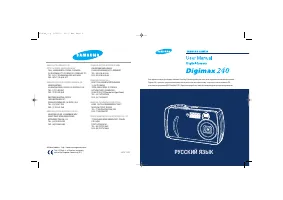 Samsung Digimax 240 Manual
 Samsung Digimax 250 Manual
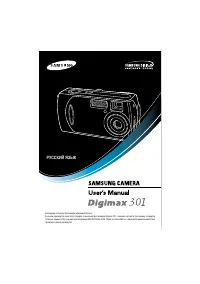 Samsung Digimax 301 Manual
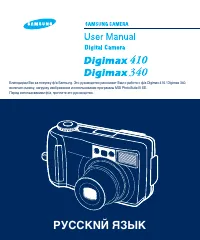 Samsung Digimax 340 Manual
 Samsung Digimax A4 Manual
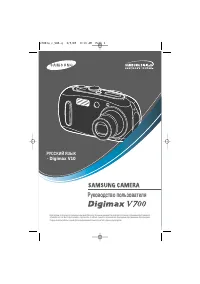 Samsung Digimax V10 Manual
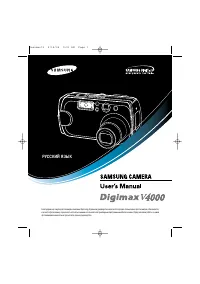 Samsung Digimax V4000 Manual
 Samsung DV50 Manual
 Samsung DV90 Manual
 Samsung DV150F Manual