Page 2 - Instructions
2 Instructions Use this camera in the following order Insert the USB cable Set up the camera driver Before connecting the camera to a PC, via theUSB cable, you will need to set up the cameradriver. Install the camera driver that is contained inthe Application software CD-ROM. (p.87) Take a picture (...
Page 3 - Contents; READY
Getting to know your camera 5 About the icons 5 Danger 6 Warning 6 Caution 7 An FCC warning 7 System chart 8 Identification of features 10 Front & Top 10 Back & Bottom 10 Side / 5-function button 11 Mode switch 11 Connecting to a Power Source 13 Using the AC power adapter (3.3V 2.0A) 13 Usin...
Page 4 - SOFTWARE
4 Contents LCD monitor indicator 46 Using the camera buttons to adjust the camera 47 Thumbnail / Enlargement button 47 Voice memo / Up button 48 Play & Pause / Down button 49 LEFT/ RIGHT/ MENU/ OK button 50 LCD button 50 Delete button 51 Setting up the play back function using the LCD monitor 52...
Page 5 - Getting to know your camera; About the icons
5 Getting to know your camera Thank you for buying a Samsung Digital Camera. Prior to using this camera, please read the user manual thoroughly.When you require After Sales service, please bring the camera and the cause of the cameramalfunction (such as Batteries, Memory card etc.) to the A/S centre...
Page 6 - Danger; Warning
6 Danger Do not attempt to modify this camera in any way. This may result in fire, injury, electric shockor severe damage to you or your camera. Internal inspection, maintenance and repairsshould be carried out by your dealer or Samsung Camera Service Centre.Please do not use this product in close p...
Page 7 - Caution; An FCC warning
7 Caution Leaking, overheating, or burst batteries could result in fire or injury. Use batteries with the correct specification for the camera.Do not short circuit, heat or dispose of batteries in fire.Do not insert the batteries with the reverse polarities. Remove the batteries when not planning to...
Page 8 - System chart
8 System chart Please check that you have the correct contents before using this product. To buy the optionalequipment, contact your nearest Samsung dealer or Samsung service centre. Pouch User manual Product warranty Camera strap Software CD (see p.87) SD memory card (see p.17) DPOF compatible prin...
Page 9 - CAUTION
9 System chart USB cable PictBridge compatible printer(see p.62) Computer (see p.94) For Windows PC with processor better than MMX Pentium 233MHz (XP : Pentium II 300MHz) Windows 98/ 98SE/ 2000/ ME/ XP Minimum 32MB RAM (XP : 128MB) 140MB of available hard-disk space USB port CD-ROM drive 800x600 pix...
Page 10 - Identification of features
Identification of features Front & Top Back & Bottom Power button Self-timer lamp Speaker Lens Microphone Mode switch Shutter button Flash 10 Zoom W button(Thumbnail) LCD button Zoom T button(Digital zoom) 5-functionbutton Tripod socket Play mode button DC input connection port USBconnection...
Page 11 - Mode switch
11 Identification of features Battery chamber cover Memorycard slot Strap eyelet Batterychamber FLASH/ LEFT button MENU/ OK button MACRO/ PLAY&PAUSE/ DOWN button SELF-TIMER/RIGHT button Voice memo/ UP button Side / 5-function button Voice recording mode A movie clip can be recorded for as long a...
Page 13 - Connecting to a Power Source; INFORMATION
13 Connecting to a Power Source There are two ways in which to provide the camera with power. You can use batteries oralternatively, you can use an AC(100 ~ 250V) Adapter (DC 3.3V 2.0A).We recommend using batteries for a digital camera (Within a year from the date ofmanufacture). The batteries are l...
Page 14 - DANGER
14 Connecting to a Power Source Always turn off the power before taking the AC adapter out of the mains supply.As with all mains powered devices, safety is important. Ensure that neither the cameranor adapter comes into contact with water or metallic materials.Please ensure that you use an AC adapte...
Page 15 - Instructions on how to use the memory card
15 Instructions on how to use the memory card Be sure to format the memory card (see p.71) if you are using a newly purchased memory forthe first time, if it contains data that the camera cannot recognise, or if it contains imagescaptured with a different camera.Turn off the camera power whenever th...
Page 17 - Inserting the memory card; Removing the memory card
17 Inserting the memory card 1. Turn off the camera’s power and pull the battery chamber cover in the direction of the arrow to open. 2. Have the front of the memory card facing toward the front of the camera (lens) and the card pins toward the back of thecamera (LCD monitor), and then push the memo...
Page 18 - LCD monitor indicator
18 LCD monitor indicator The LCD monitor displays information about the shooting functions and selections. [ Image & Full Status ] No. Description Icons Page 1 Battery p.14 3 Flash p.28 4 Self-timer p.30 5 Macro p.26 6 Metering p.41 7 Memory in use indicator 8 Auto focus frame 9 Camera shake war...
Page 19 - Starting the recording mode
19 LCD monitor indicator 14 Sharpness p.42 15 Image quality p.40 16 Image size 2272, 2048, 1600, 1024, 640 p.39 Number of available shots remaining 11 Remaining time (Movie clip/ Voice recording) 00:00:17/ 00:25:43 18 Voice memo p.25 19 Optical zoom/ Digital zoom rate 17 Starting the recording mode ...
Page 22 - Things to Watch Out for When Taking Pictures
22 Things to Watch Out for When Taking Pictures Pressing the shutter button down half way Lightly press the shutter button to confirm focus. Press the shutter button all way down totake the picture. [ Lightly press the shutter button ] [ Press the shutter button ] The available recording time may va...
Page 23 - Using the camera buttons to adjust the camera
23 Using the camera buttons to adjust the camera The RECORDING mode function can be set up by using the camera buttons. POWER button Used for turning the camera’s power on / off.To turn on the camera power, press the power button.If there is no operation during the specified time, thecamera’s power ...
Page 27 - Focus lock
27 Macro( ) / Down button (Focusing) Available focusing method, by recording mode ( O : Selectable , X : Not selectable, ∞ : Infinity focus range) Focus lock To focus on the subject positioned outside of the centre, use the focus lock function. Using the Focus Lock 1. Ensure the subject in the centr...
Page 35 - LCD button
35 LCD button You can check the recording status in the LCD monitor.Pressing the LCD button in the RECORDING (STILLIMAGE, MOVIE CLIP) mode will change the display asshown below. [ Image & full information ] [ Image & basic information ] Pressing the LCD button Pressing the LCD button
Page 36 - Using the LCD monitor to adjust the camera settings
36 Using the LCD monitor to adjust the camera settings You can use the menu on the LCD monitor to set up recording functions. In any mode withthe exception of VOICE RECORDING mode, pressing the MENU button displays the menuon the LCD monitor. The menu will not be displayed on the LCD monitor in the ...
Page 37 - How to use the menu
37 Using the LCD monitor to adjust the camera settings Menu tab Main menu Sub menu Camera working mode Page MULTI SPOT NORMAL B & W SEPIA SOFT NORMAL VIVID EFFECT METERING SHARPNESS MYSET p.41 p.41 p.42 p.43 * Menus are subject to change without prior notice. CANCEL MYSET1,2,3 MYSET1,2,3 LOAD SA...
Page 38 - Mode
38 Mode You can select the desired Still Image mode. AUTO : Use this for shooting basic still images. PROGRAM : Selecting the automatic mode will configure the camera with optimal settings.You can still manually configure allfunctions except the aperture value andshutter speed. SCENE : Use the menu ...
Page 39 - Size
39 Size You can select the image size appropriate for your application. Mode Icon 2272 2048 1600 1024 640 640 320 160 Size 2272X1704 2048X1536 1600X1200 1024X768 640X480 640X480 320X240 160X120 STILL IMAGE mode MOVIE CLIP mode [ STILL IMAGE mode ] [ MOVIE CLIP mode ] The higher the resolution, the l...
Page 40 - Quality
40 Quality You can select the compression ratio appropriate for your application of the captured images.The higher the compression ratio, the lower the picture quality. Mode Icon 15F 24F Sub menu S.FINE FINE NORMAL 15FPS 24FPS File Format jpeg jpeg jpeg avi avi STILL IMAGE mode MOVIE CLIP mode S.FIN...
Page 41 - Metering
41 Metering If you cannot obtain suitable exposure conditions, you can change the metering method totake brighter pictures. MULTI ( ) : Exposure will be calculated based on an average of the available light in theimage area. However, the calculationwill be biased towards the centre ofthe image area....
Page 42 - Sharpness
42 Sharpness You can adjust the sharpness of the picture you want to take.You cannot check the sharpness effect on the LCD monitorbefore you take a picture, because this function is appliedonly when the captured image is stored on the memory. [PROGRAM mode] Sub menu Icon Description The edges of the...
Page 44 - Starting play mode
44 Starting play mode If the memory card is inserted in the camera, all the camera functions apply only to thememory card. If the memory card is not inserted in the camera, all the camera functions apply only to theinternal memory. If you have turned on the camera by pressing the POWER button, you c...
Page 52 - Setting up the play back function using the LCD monitor
52 Setting up the play back function using the LCD monitor PLAY mode functions can be changed by using the LCD monitor. In the PLAY mode,pressing the MENU button displays the menu on the LCD monitor. The menus you can setup in Play mode are as follows. To capture an image after setting up the play m...
Page 55 - Starting the slide show
55 Starting the slide show Images can be displayed continuously at pre-set intervals. 1. Press the play mode button and press the menu button.2. Press the LEFT/ RIGHT button and select the [SLIDE] menu tab. Setting play interval : Set the slide show play interval. 1. Use the Up/Down buttons to selec...
Page 56 - Resize
56 Resize Change the resolution (size) of pictures taken. Select [LOGO] to save an image to be thestart-up image. The resized image will have a new file name. 1. Press the play mode button and press the menu button.2. Press the LEFT/ RIGHT button and select the [RESIZE] menu tab. 3. Select a desired...
Page 57 - Protecting images
57 Protecting images This is used to protect specific shots from being accidentally erased (LOCK).It also unprotects images that have been previously protected (UNLOCK). Protecting Images 1. Press the play mode button and press the menu button.2. Press the LEFT/ RIGHT button and select the [PROTECT]...
Page 58 - DPOF
58 Deleting all images Of all the files stored in the memory card, the unprotected files in the DCIM subfolder will bedeleted. Remember that this will permanently delete unprotected images. Important shotsshould be stored on a computer before deletion takes place. The startup image is stored inthe c...
Page 62 - PictBridge
62 PictBridge You can use the USB cable to connect this camera to a printer that supports PictBridge (soldseparately) and print the stored images directly. Movie clips and voice files cannot be printed.You can set up the following settings from the PictBridge menu. IMAGES : Select the pictures to be...
Page 63 - PictBridge : Picture Selection
63 PictBridge : Picture Selection Select pictures to print 1. Connect the camera to your printer. The USB menu must be set to [PRINTER] before youconnect the camera to the printer. (See p.62) 2. The [IMAGES] menu will appear.3. Use the UP and DOWN buttons to select the desired submenu value, and the...
Page 64 - PictBridge : Printing
64 PictBridge : Printing Printing Pictures 1. Connect the camera to your printer. The [USB] menu must be set to [PRINTER] before youconnect the camera to the printer. (See p.62) 2. Use the LEFT and RIGHT buttons to select the [PRINT] menu tab. 3. Use the UP and DOWN buttons to select the desired sub...
Page 65 - PictBridge : Print Setting
65 PictBridge : Print Setting AUTO SET 1. Connect the camera to your printer. The [USB] menu must be set to [PRINTER] before youconnect the camera to the printer. (See p.62) 2. Use the LEFT and RIGHT buttons to select the [AUTO SET] menu tab. 3. Use the UP and DOWN buttons to select the desired subm...
Page 67 - Setup menu
67 Setup menu In this mode, you can set up basic settings. You can use the setup menu in all cameramodes, except Voice Recording mode. The items indicated by are default settings. Menu tab Main menu Sub menu Secondary menu Page RESET - SERIES - PWR SAVE OFF, 1, 3, 5, 10MIN - p.69 ENGLISH P”CCK»… POR...
Page 68 - File name
68 Setup menu Menu tab Main menu Sub menu Secondary menu Page COMPUTER - PRINTER - DARK LCD NORMAL - p.74 BRIGHT - Q.VIEW OFF, 0.5, 1, 3SEC - p.75 NO - YES - USB p.74 p.75 RESET * Menus are subject to change without prior notice. This function allows the user to select the file naming format. Assign...
Page 69 - Auto power off
69 File name Auto power off This function switches the camera off after a set amount of time in order to preventunnecessary battery drainage. Setting Power Off 1. In any mode with the exception of Voice Recording mode, press the MENU button. 2. Press the LEFT/ RIGHT button and select the [SETUP] men...
Page 70 - Language
70 Language There is a choice of languages that can be displayed on the LCD monitor. Even if thebatteries or AC adapter are removed and inserted again, the language setting will bepreserved. Setting Language 1. In any mode with the exception of Voice Recording mode, press the MENU button. 2. Press t...
Page 71 - Formatting a memory card
71 Formatting a memory card This is used for formatting the memory card. If you run [FORMAT] on the memory card, allimages, including the protected images, will be deleted. Be sure to download importantimages to your PC before formatting the memory card. If the memory card is not inserted, the inter...
Page 72 - Setting up the Date/ Time; Date type
72 Setting up the Date/ Time You can change the date and time that will be displayed on the captured images. Setting Date/Time 1. In any mode with the exception of Voice Recording mode, press the MENU button. 2. Press the LEFT/ RIGHT button and select the [SETUP] menu tab. 3. Select the [DATE&TI...
Page 73 - Imprinting the recording date; Sound
73 Imprinting the recording date There is an option to include DATE/TIME on still images. Date Imprinting 1. In any mode with the exception of Voice Recording mode, press the MENU button. 2. Press the LEFT/ RIGHT button and select the [SETUP] menu tab. 3. Select the [IMPRINT] menu by pressing the UP...
Page 74 - LCD brightness
74 Selecting an External Device (USB) You can select an external device to which you want to connect the camera using the USBcable. Selecting an External Device 1. In any mode with the exception of Voice Recording mode, press the MENU button. 2. Press the LEFT/ RIGHT button and select the [SETUP] me...
Page 75 - Quick view
75 Quick view If you enable Quick View before capturing an image, you can view the image you justcaptured on the LCD monitor for the duration set in the [Q.VIEW] setup. Quick view ispossible only with still images. Setting Quick View 1. In any mode with the exception of Voice Recording mode, press t...
Page 76 - Setting up the MYCAM menu; Start up image
76 Setting up the MYCAM menu You can set up a start up image, start up sound and shutter sound. Every camera workingmode (with the exception of Voice recording mode) has the MyCAM menu.The items indicated by are default settings. Menu tab Main menu Sub menu Page OFF IMAGE1 IMAGE2 USER IMAGE OFF SH.S...
Page 77 - Shutter sound; Start up sound
77 Shutter sound You can select the shutter sound. You can select the sound that is activated whenever the camera is turned on. Setting the Startup Sound 1. In any mode with the exception of Voice Recording mode, press the MENU button. 2. Press the LEFT/ RIGHT button and select the [MYCAM] menu tab....
Page 78 - Important notes
78 Important notes Be sure to observe the following precautions! This unit contains precision electronic components. Do not use or store this unit in thefollowing locations. - Areas exposed to severe changes in temperature and humidity.- Areas exposed to dust and dirt.- Areas exposed to direct sunli...
Page 80 - Warning indicator
80 Warning indicator There are several warnings that may appear on the LCD display Warning indicator Causes Remedy - Turn off the camera power and turn it on again- Insert the memory card again- Format the memory card (p.71) - Memory card error - There is insufficient memory capacity to take an imag...
Page 81 - Before contacting a service centre
81 Before contacting a service centre Please check the following Symptom Causes Remedy - Insert fresh batteries- Connect an AC Power Adapter - Insert the batteries according to the polarity marks (+, -) - There is low battery capacity- An AC Power Adapter is not connected - Batteries are inserted in...
Page 84 - Specifications
84 Specifications Type 1/2.7" CCD Effective Pixel Approx. 4.0 Mega-pixel Total Pixel Approx. 4.2 Mega-pixel SHD Lens f = 5.8 ~ 17.4mm (35mm film equivalent : 38 ~ 114mm) F No. F 2.9 ~ F 5.0 Still Image mode : 1.0X ~ 4.0X Play mode : 1.0X ~ 5.0X (depends on image size) LCD Monitor 1.8" colour...
Page 86 - Software Notes; System Requirements
86 Software Notes Please ensure that you read the instruction manual carefully before use. The attached software is a camera driver and image editing software tool for Windows.Under no circumstances should all or part of either the software or the user manual bereproduced.Copyrights for software are...
Page 87 - About the software
87 About the software After inserting the CD-ROM provided with this camera into the CD-ROM drive, the followingwindow should automatically run. Before connecting the camera to the PC,you should first install the camera driver. Figures and images used in this manualare based on the Samsung Digimax A4...
Page 88 - Setting up the application software
88 Setting up the application software To use this camera with a PC, install the application software first. After this has been done, thestored images in the camera can be moved to the PC and can be edited by an image editingprogram. You can visit the Samsung web-site through the internet. http://w...
Page 94 - Starting PC mode
94 Starting PC mode If you connect the USB cable to a USB port on your PC and then turn on the power, thecamera will automatically switch to "computer connection mode".In this mode, you can download stored images to your PC through the USB cable.The LCD monitor is always turned off in PC mod...
Page 95 - Starting PC Mode
95 Starting PC Mode Downloading stored images You can download the still images stored on the camera to your PC's hard disk and printthem or use a photo editing software to edit them. 1. Connect the camera to your PC with the USB cable. 2. On your computer's desktop display, select [My computer] and...
Page 97 - Removing the USB Driver for Windows 98SE
97 Removing the USB Driver for Windows 98SE To remove the USB driver, refer to the process shown below. 1. Trace [Start → Settings] and click [Control Panel]. [Click!] 4. Uninstallation is complete. Click the [Finish] button and the window willdisappear. [Click!] 2. Double-click [Add/Remove programs...
Page 98 - Removable Disk
98 Removable Disk To use this camera as a Removable Disk, install (p.88) the USB Driver. 1. Before turning the camera power on, connect the camera to the PC with the USB cable. 2. Click [Removable Disk] under [My computer] or [Windows Explorer]. 3. Image files stored in the Removable Disk (DCIM → 10...
Page 99 - Removing the removable disk
99 Removing the removable disk Windows 98SE 1. Check whether the camera and PC are transferring a file. If the camera status lamp blinks, you have to wait until the lamp illuminates. 2. Unplug the USB cable. Windows 2000/ME/XP(The illustrations may be different from the real display in accordance wi...
Page 100 - Using the USB Driver for MAC
100 Removing the removable disk 6. A [Unplug or Eject Hardware] window will open. Click the [Close] button and the removable diskwill be removed safely. 7. Unplug the USB cable. [Click!] 1. A USB Driver for MAC is not included with the software CD as MAC OS supports the camera driver. 2. Check the M...
Page 102 - Using PhotoImpression
102 Using PhotoImpression With PhotoImpression, you can edit or store still images that you downloaded from the camera.This software is only available in Windows version. To start the program, click [Start → Programs → ArcSoft PhotoImpression → PhotoImpression]. The following screen will appear. [ C...
Page 104 - FAQ
104 FAQ [Case 4] The camera is not recognised by your PC. Sometimes, the camera may appear under [Unknown Devices] in DeviceManager. → Install the camera driver correctly.Turn off the camera, remove the USB cable, plug in the USB cable again, andthen turn on the camera. [Case 5] There is an unexpect...
Page 107 - MEMO




 Samsung Digimax 201 Manual
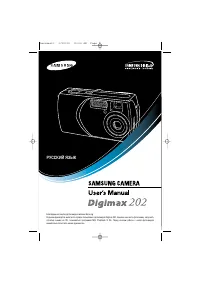 Samsung Digimax 202 Manual
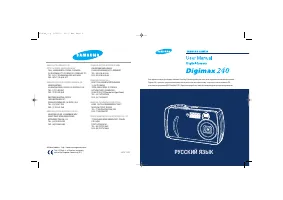 Samsung Digimax 240 Manual
 Samsung Digimax 250 Manual
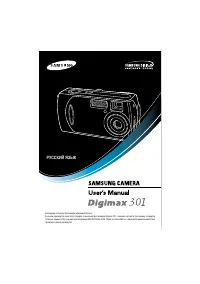 Samsung Digimax 301 Manual
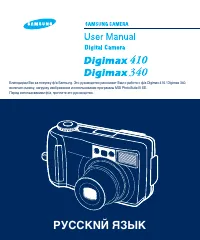 Samsung Digimax 340 Manual
 Samsung Digimax A402 Manual
 Samsung Digimax V10 Manual
 Samsung Digimax V4000 Manual
 Samsung DV50 Manual
 Samsung DV90 Manual