Mikrotik cAP (RBCAP2ND) - User Manual
Mikrotik cAP (RBCAP2ND) Access Point – User Manual, read for free online in PDF format. We hope this helps you resolve any issues you may have. If you have further questions, please contact us through the contact form.

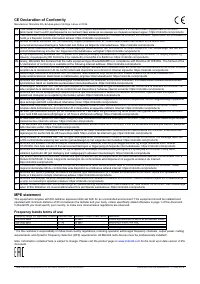
Table of Contents:
- Page 3 – Federal Communication Commission Interference Statement; Reorient or relocate the receiving antenna.; Industry Canada
- Page 4 – Frequency bands terms of use
- Page 5 – 说明书。
cAP
The cAP is a small AP device with one Ethernet port, it supports powering by PoE and optionally can be managed
by the CAPsMAN management server.
Connecting
•
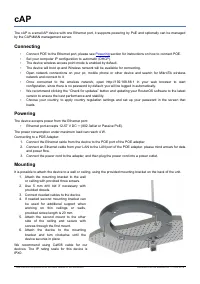
Connect POE to the Ethernet port, please see
section for instructions on how to connect POE.
•
Set your computer IP configuration to
automatic
(DHCP).
•
The device wireless access point mode is enabled by default.
•
The device will boot up and Wireless network will be available for connecting.
•
Open network connections on your pc, mobile phone or other device and search for MikroTik wireless
network and connect to it.
•
Once connected to the wireless network, open http://192.168.88.1 in your web browser to start
configuration, since there is no password by default, you will be logged in automatically.
•
We recommend clicking the “Check for updates” button and updating your RouterOS software to the latest
version to ensure the best performance and stability.
•
Choose your country, to apply country regulation settings and set up your password in the screen that
loads.
Powering
The device accepts power from the Ethernet port:
•
Ethernet port accepts 12-57 V DC
⎓
(802.3af/at or Passive PoE).
The power consumption under maximum load can reach 4 W.
Connecting to a POE Adapter:
1. Connect the Ethernet cable from the device to the POE port of the POE adapter.
2. Connect an Ethernet cable from your LAN to the LAN port of the POE adapter, please mind arrows for data
and power flow.
3. Connect the power cord to the adapter, and then plug the power cord into a power outlet.
Mounting
It is possible to attach the device to a wall or ceiling, using the provided mounting bracket on the back of the unit.
1. Attach the mounting bracket to the wall
or ceiling with provided three screws.
2. Use 5 mm drill bid if necessary with
provided dowels.
3. Connect needed cables to the device.
4. If needed second mounting bracket can
be used for additional support when
working on thin ceilings or walls,
provided screw length is 20 mm.
5. Attach the second mount to the other
side of the ceiling and secure with
screws through the first mount.
6. Attach the device to the mounting
bracket and turn clockwise until the
device secures in place.
We recommend using Cat5/6 cable for our
devices. The IP rating scale for this device is
IPX0.
See mikrotik.com/products for the latest version of this document.
Document #50148 Modified on: 17.JUN.2019
"Loading the manual" means you need to wait until the file loads and becomes available for online reading. Some manuals are very large, and the time they take to appear depends on your internet speed.
Summary
Federal Communication Commission Interference Statement FCC ID:TV7RBCM2NDThis equipment has been tested and found to comply with the limits for a Class B digital device,pursuant to Part 15 of the FCC Rules. These limits are designed to provide reasonable protectionagainst harmful interference in a r...
CE Declaration of Conformity Manufacturer: Mikrotikls SIA, Brivibas gatve 214i Riga, Latvia, LV1039. BG С настоящото Mikrotīkls SIA декларира, че този тип радиосъоръжение RouterBOARD е в съответствие с Директива 2014/53/ЕС. Цялостният текст на ЕС декларацията за съответствие може да се намери на сле...
BG. Инструкция : Свържете адаптера на захранване, за да включите устройството. Отворете 192.168.88.1 в уеб браузър, за да настроите продукта. Повече информация в http://mt.lv/help-bg CS. Návod k použití : Připojte napájecí adaptér k zapnutí přístroje. Otevřete 192.168.88.1 ve webovém prohlížeči pro ...