Mikrotik cAP ac (RBCAPGI-5ACD2ND) - User Manual
A user manual for MikroTik’s cAP wireless access point (WAP) covers essential setup, including network connection, power management via PoE, and initial configuration through its web interface. The guide also addresses hardware features like mounting options, LED indicators, and firmware updates, emphasizing compatibility with RouterOS software. Safety considerations–such as proper placement and RF exposure limits–are included for regulatory compliance in wireless networking.
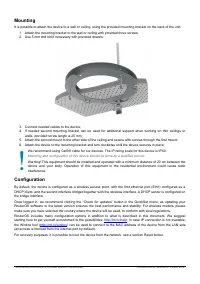
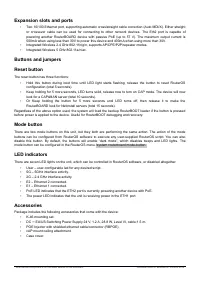
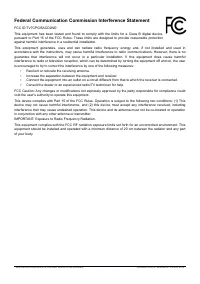

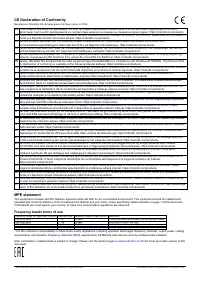
Table of Contents:
- Page 1 – Wireless Access Point Setup and Configuration
- Page 2 – Device Mounting and Software Configuration
- Page 3 – RouterBOARD Hardware Features
- Page 4 – Device Specifications and Mobile Configuration
- Page 5 – FCC Interference Statement
- Page 6 – Radio Device Operational Regulations
- Page 7 – CE Declaration of Conformity
- Page 8 – Device Configuration Access Procedure
cAP ac
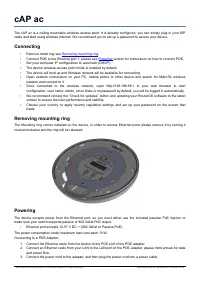
The cAP ac is a ceiling mountable wireless access point. It is already configured, you can simply plug in your ISP
cable and start using wireless Internet. We recommend you to set up a password to secure your device.
Connecting
•
•
Connect POE to the Ethernet port 1, please see
section for instructions on how to connect POE.
•
Set your computer IP configuration to
automatic
(DHCP).
•
The device wireless access point mode is enabled by default.
•
The device will boot up and Wireless network will be available for connecting.
•
Open network connections on your PC, mobile phone or other device and search for MikroTik wireless
network and connect to it.
•
Once connected to the wireless network, open http://192.168.88.1 in your web browser to start
configuration, user name: admin, since there is no password by default, you will be logged in automatically.
•
We recommend clicking the “Check for updates” button and updating your RouterOS software to the latest
version to ensure the best performance and stability.
•
Choose your country, to apply country regulation settings and set up your password on the screen that
loads.
Removing mounting ring
The Mounting ring comes installed on the device, in order to access Ethernet ports please remove it by turning it
counterclockwise and the ring will be released.
Powering
The device accepts power from the Ethernet port, so you must either use the included passive PoE injector or
make sure your switch supports passive or 802.3af/at PoE output.
•
Ethernet port accepts 12-57 V DC
⎓
(802.3af/at or Passive PoE).
The power consumption under maximum load can reach 13 W.
Connecting to a POE Adapter:
1. Connect the Ethernet cable from the device to the POE port of the POE adapter.
2. Connect an Ethernet cable from your LAN to the LAN port of the POE adapter, please mind arrows for data
and power flow.
3. Connect the power cord to the adapter, and then plug the power cord into a power outlet.
See mikrotik.com/products for the latest version of this document.
Document #50187 Modified on: 05.NOV.2019
"Loading the manual" means you need to wait until the file loads and becomes available for online reading. Some manuals are very large, and the time they take to appear depends on your internet speed.
Was this manual helpful?
About this manual
- Brand
- Mikrotik
- Model
- cAP ac (RBCAPGI-5ACD2ND)
- Document type
- User Manual
- Category
- Access Point
- Language(s)
- English
- Pages
- 8
- File size
- 347.3 KB
- Format
Summary
Instructions for setting up the MikroTik cAP ac wireless access point, including network connection, mounting ring removal, powering via PoE, initial web browser configuration, firmware updates, and password settings.
Details on attaching the device using mounting brackets, screw specifications, safety warnings, default wireless access point setup, RouterOS software updates, and LAN access methods via Winbox.
Description of hardware features including Ethernet and wireless ports, reset/mode buttons, LED status indicators, and included accessories such as mounting kits and power supplies.
Ask a question
Related manuals
More Mikrotik Access Points models
Other Mikrotik appliances
 Mikrotik Chateau LTE6 ax (S53UG+5HaxD2HaxD-TC) User Manual
 Mikrotik Cloud Core Router 1036-12G-4S-EM 12xGE User Manual
 Mikrotik Cloud Core Router CCR1036-12G-4S User Manual
 Mikrotik hAP ac (RB962UiGS-5HacT2HnT) User Manual
 Mikrotik hAP ac2 (RBD52G-5HACD2HND-TC) User Manual
 Mikrotik hAP ac lite (RB952UI-5AC2ND) User Manual
 Mikrotik hAP mini (RB931-2ND) User Manual
 Mikrotik hEX 5xGE, 1xUSB, RouterOS L4 (RB750GR3) User Manual
 Mikrotik hEX S 5xGE (1xPoE), 1xSFP User Manual
 Mikrotik mAP lite (RBMAPL-2ND) User Manual
 Mikrotik RBMQS 802.11n, 1xFE (RBMQS) User Manual
 Mikrotik RouterBOARD 1100AHx4 13xGE, 1xSFP User Manual
 Mikrotik RouterBOARD RB951Ui-2HnD User Manual
 Mikrotik RouterBOARD RB4011iGS+5HacQ2HnD-IN User Manual
 Mikrotik SXT LTE6 User Manual