Mikrotik RouterBOARD RB951Ui-2HnD - User Manual
A user manual for the RouterBOARD 951 series wireless access point outlines essential setup procedures, including powering options, initial configurations via web interface, and hardware controls like extension ports and button functions. The document also covers compliance documentation–such as FCC and CE certifications–for regulatory adherence in interference, radiation exposure, and regional frequency usage. Key topics include operational requirements, configuration workflows, and safety standards for wireless deployment.
Table of Contents:
- Page 1 – RouterBOARD 951 Series Setup and Hardware Configuration
- Page 2 – Radio Frequency Compliance and Safety Guidelines
- Page 3 – CE Declaration and Frequency Usage Specifications
- Page 4 – Web Interface Configuration Instructions
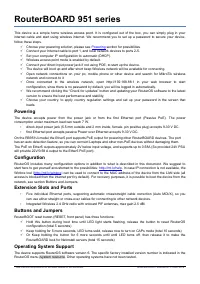
RouterBOARD 951 series
This device is a simple home wireless access point. It is configured out of the box, you can simply plug in your
internet cable and start using wireless internet. We recommend you to set up a password to secure your device,
follow these steps.
Choose your powering solution, please see
Connect your Internet cable to port 1, and local network devices to ports 2-5.
Set your computer IP configuration to
automatic
(DHCP).
Wireless access point mode is enabled by default.
Connect your direct input power jack if not using POE, to start up the device.
The device will boot up and after short beep Wireless network will be available for connecting.
Open network connections on your pc, mobile phone or other device and search for MikroTik wireless
network and connect to it.
Once connected to the wireless network, open http://192.168.88.1 in your web browser to start
configuration, since there is no password by default, you will be logged in automatically.
We recommend clicking the “Check for updates” button and updating your RouterOS software to the latest
version to ensure the best performance and stability,
Choose your country, to apply country regulation settings and set up your password in the screen that
loads.
Powering
The device accepts power from the power jack or from the first Ethernet port (Passive PoE). The power
consumption under maximum load can reach 7 W.
•
direct-input power jack (5.5 mm outside and 2 mm inside, female, pin positive plug) accepts 9-30 V DC.
•
first Ethernet port accepts passive Power over Ethernet accepts 9-30 V DC.
On the RB951Ui model the Ether5 port supports PoE output for powering other RouterBOARD devices. The port
has an auto detection feature, so you can connect Laptops and other non-PoE devices without damaging them.
The PoE on Ether5 outputs approximately 2V below input voltage, and supports up to 0.58A (So provided 24V PSU
will provide 22V/0.58 A output to the Ether5 PoE port).
Configuration
RouterOS includes many configuration options in addition to what is described in this document. We suggest to
start here to get yourself accustomed to the possibilities:
. In case IP connection is not available, the
Winbox tool (
) can be used to connect to the MAC address of the device from the LAN side (all
access is blocked from the internet port by default). For recovery purposes, it is possible to boot the device from the
network, see section Buttons and Jumpers.
Extension Slots and Ports
•
Five individual Ethernet ports, supporting automatic cross/straight cable correction (Auto MDI/X), so you
can use either straight or cross-over cables for connecting to other network devices.
•
Integrated Wireless 2.4 GHz radio with onboard PIF antennas, max gain 2.5 dBi
Buttons and Jumpers
RouterBOOT reset button (RESET, front panel) has three functions:
Hold this button during boot time until LED light starts flashing, release the button to reset RouterOS
configuration (total 5 seconds)
Keep holding for 5 more seconds, LED turns solid, release now to turn on CAPs mode (total 10 seconds)
Or Keep holding the button for 5 more seconds until until LED turns off, then release it to make the
RouterBOARD look for Netinstall servers (total 15 seconds)
Operating System Support
The device supports RouterOS software version 6. The specific factory installed version number is indicated in the
RouterOS menu /system resource. Other operating systems have not been tested.
See mikrotik.com/products for the latest version of this document.
Document #49417 Modified on: 21.MAY.2019
"Loading the manual" means you need to wait until the file loads and becomes available for online reading. Some manuals are very large, and the time they take to appear depends on your internet speed.
Was this manual helpful?
About this manual
- Brand
- Mikrotik
- Model
- RouterBOARD RB951Ui-2HnD
- Document type
- User Manual
- Category
- Router
- Language(s)
- German, English, Spanish, French, Italian, Dutch, Polish, Russian, Swedish
- Pages
- 4
- File size
- 283.1 KB
- Format
Summary
Instructions for powering options, initial setup procedures, configuration via web browser, details on extension ports, button functions, and supported operating systems.
FCC and Industry Canada compliance statements detailing interference regulations, antenna installation requirements, safety guidelines for radio frequency radiation exposure, and associated warnings.
CE Declaration of Conformity with EU Directive 2014/53/EU, MPE statements regarding radiation limits, and a table detailing frequency bands, channels, maximum output power, and usage restrictions.
Ask a question
Related manuals
More Mikrotik Routers models
 Mikrotik Chateau LTE6 ax (S53UG+5HaxD2HaxD-TC) User Manual
 Mikrotik Cloud Core Router 1036-12G-4S-EM 12xGE User Manual
 Mikrotik Cloud Core Router CCR1036-12G-4S User Manual
 Mikrotik hAP ac (RB962UiGS-5HacT2HnT) User Manual
 Mikrotik hAP ac2 (RBD52G-5HACD2HND-TC) User Manual
 Mikrotik hAP ac lite (RB952UI-5AC2ND) User Manual
 Mikrotik hAP mini (RB931-2ND) User Manual
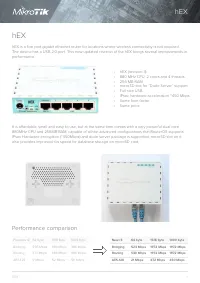 Mikrotik hEX 5xGE, 1xUSB, RouterOS L4 (RB750GR3) User Manual
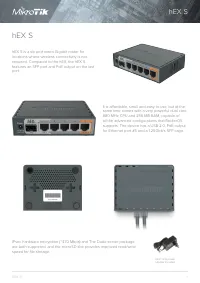 Mikrotik hEX S 5xGE (1xPoE), 1xSFP User Manual
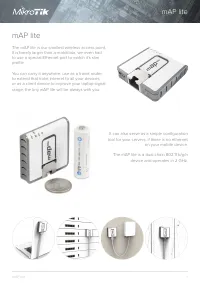 Mikrotik mAP lite (RBMAPL-2ND) User Manual
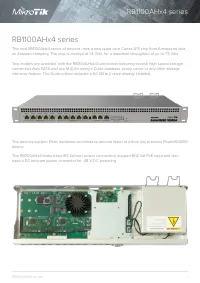 Mikrotik RouterBOARD 1100AHx4 13xGE, 1xSFP User Manual
 Mikrotik RouterBOARD RB4011iGS+5HacQ2HnD-IN User Manual
 Mikrotik SXT LTE6 User Manual