Page 3 - Important Safety Precautions; Violation of the instructions may cause serious injury or death.; Warning
The V 1 Important Safety Precautions Read these simple guidelines. Breaking the rules may be dangerous or illegal. Further detailed information is given in this user guide. Violation of the instructions may cause serious injury or death. ● Never use an unapproved battery since this could damage the ...
Page 4 - Do not use a hand-held phone while driving.
2 The V Important Safety Precautions ● When riding in a car, do not leave your phone or set up the hands-free kit near to the air bag. If wireless equipment is improperly installed and the air bag is activated, you may be seriously injured. ● Do not use a hand-held phone while driving. ● Do not use ...
Page 5 - Do not disassemble the phone.
The V 3 ● Do not place any heavy items on the power cord. Do not allow the power cord to be crimped as it maycause fire or electric shock. ● Do not handle the phone with wet hands while it is being charged. It may cause an electric shock orseriously damage your phone. ● Do not disassemble the phone....
Page 6 - Contents
4 The V Contents Important Safety Precautions . . . . .1 Welcome . . . . . . . . . . . . . . . . . . . . . . . . .7 Important Information . . . . . . . . . . . . .7 FCC RF Exposure Information . . . . . . .9 Phone Overview . . . . . . . . . . . . . . . . .10 The Battery . . . . . . . . . . . . . . ....
Page 9 - Welcome; Important Information; FCC Part 15 Class B Compliance
The V 7 Welcome Thank you for choosing the advanced and compact The V cellular phone, designed to operate with the latest digital mobile communication technology, Code Division Multiple Access (CDMA). Along with the many advanced features of the CDMA system, such as greatly enhanced voice clarity, t...
Page 10 - xRTT system receives twice as many subscribers in the; CDMA; Designator
8 The V Welcome * TSB -74: Protocol between an IS-95A system and ANSI J-STD-008 1xRTT system receives twice as many subscribers in the wireless section as IS-95. Its battery life is twice as long as IS-95. High-speed data transmission is also possible. EV-DO system is optimized for data service and ...
Page 11 - FCC RF Exposure Information; Bodily Contact During Operation
The V 9 FCC RF Exposure Information WARNING! Read this information before operating thephone. In August 1996, the Federal Communications Commission (FCC) of the United States, with its action in Report and Order FCC 96-326, adopted an updated safety standard for human exposure to radio frequency (RF...
Page 12 - Phone Overview
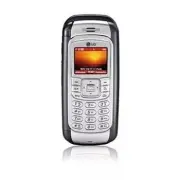
10 The V Phone Overview 1 456 2 3 7 8 9 13 14 12 11 10 1. Earpiece 2. Side Camera Key Use for quick access to Camera function (Press and hold for about 3 seconds to use camera function on the outside/inside display). 3. Side Keys Use to adjust the ringer volume in standby mode and the earpiece volum...
Page 14 - Menus Overview; Shown only on the inner LCD Screen.
G G ET ET I I T T N N OW OW 1. Get Tunes & Tones 1. Get New Ringtones* 2. My Ringtones 3. My Sounds 4. My MP3s 2. Get PIX & FLIX 1. Get V CAST Video* 2. Get New PIX* 3. My PIX 4. My FLIX 5. PIX Place* 6. Take PIX 7. Take FLIX 3. Get Fun & Games* 1. Get New App. 4. Get News & Info* 5....
Page 16 - Getting Started with Your Phone; The Battery; NOTE; Installing the Battery; Battery Charge Level; Fully Discharged
14 The V Getting Started with Your Phone The Battery NOTE It is important to fully charge the battery before initialuse of the phone. The phone comes with a rechargeable battery. Keep the battery charged while not in use in order to maximize talk and standby time. The battery charge level is shown a...
Page 17 - Turning the Phone On and Off; Turning the Phone On; Turning the Phone Off; Signal Strength
The V 15 Turning the Phone On and Off Turning the Phone On 1. Install a charged battery or connect the phone to an external power source such as a cigarette lighter charger or hands-free car kit. 2. Press for a few seconds until the LCD screen lights up. NOTE Like any other radio device, avoid any u...
Page 18 - Screen Icons
16 The V Getting Started with Your Phone Screen Icons When the phone is powered on, the top line of the LCD screen displays icons indicating the status of the phone. Roaming indicator. The phone is outside of the home service area. Location on mode. E911 only mode. New voice mail indicator. Battery ...
Page 19 - Making Calls; Call Failed; Correcting Dialing Mistakes; Receiving Calls
The V 17 Making Calls 1. Make sure the phone is turned on. If not, press for about 3 seconds. 2. Enter the phone number (include the area code if needed). 3. Press . lf the phone is locked, enter the lock code. Call Failed - indicates the call did not go through. 4. Press to end the call. Correcting...
Page 20 - Quick Access to Convenient Features; Manner Mode; Key Guard Mode
18 The V Quick Access to Convenient Features Manner Mode Use Vibrate Mode in public places. When Vibrate Mode is set, is displayed on the screen, the key tones are silent, and the phone is set to vibrate. Vibrate Mode Quick Activation 1. From standby mode press for 3 seconds. (Press for 3 seconds wh...
Page 21 - Volume Quick Adjustment; Call Waiting; Dialing Single Digit Speed Dials (from 1 to 9)
The V 19 Volume Quick Adjustment Use the side keys to adjust the earpiece and master volumes. The upper key increases the volume and the lower key decreases the volume. ● Earpiece volume can be adjusted during a call. NOTE Key beep volume is adjusted through the Menu. NOTE When the flip is open, you...
Page 22 - Entering and Editing Information; Text Input
20 The V Entering and Editing Information Text Input You can input and edit your Banner, Schedule, Contacts, and Messages. Key Functions Left Soft Key : Press to access and scroll through the following text input modes: T9Word / Abc / ABC / 123 / Symbols Shift : Press to change case. T9 text : T9Wor...
Page 23 - Changing Letter Case; Text Input Examples; LG; Using Symbol Text Input
The V 21 Changing Letter Case Using T9 and Abc text input modes you can set the capitalization. Press to access the following: Initial Cap (T9Word / Abc) Only the first letter is capitalized and subsequent letters are lower case. Caps Lock (T9WORD / ABC) All letters are capitalized. Lower Case (T9wo...
Page 24 - Using T9 Mode Text Input
22 The V Entering and Editing Information Using T9 Mode Text Input To type the message “Call the office.” follow these steps: 1. Press Left Soft Key to change to T9Word mode. 2. Press . 3. Press to complete the word and add a space. 4. Press . Call the office. is displayed. Using the NEXT Key Some k...
Page 25 - Contacts Entries; The Basics of Storing Contacts Entries; Save New Contact; Contacts in Your Phone’s Memory
The V 23 Contacts Entries This allows you to have easy access to your most frequently dialed phone numbers. You may store up to 1000 entries with up to 5 phone numbers each. Each entry may be up to 22 characters. Each phone number may be up to 48 digits. The Basics of Storing Contacts Entries 1. Fro...
Page 26 - Options to Customize Your Contacts
24 The V Contacts in Your Phone’s Memory Options to Customize Your Contacts Once the basic phone number and name information is stored in your Contacts, you can edit and/or customize the entries. Adding or Changing the Group Allows you to manage your Contacts entries by organizing them into groups. ...
Page 28 - Editing Contacts Entries
26 The V Contacts in Your Phone’s Memory Adding Speed Dial Allows you to set Speed Dial designations for phone numbers in your Contacts. 1. Press Right Soft Key [Contacts] and use to highlight an entry. 2. Press Left Soft Key [Edit] . 3. Use to highlight the phone number you want to set with a Speed...
Page 29 - Default Numbers; Changing the Default Number
The V 27 2. Use to highlight the Contact entry you want to edit, then press Left Soft Key [Edit] . 3. Use to highlight a Label, then enter the number and press to save. A confirmation message is displayed. Default Numbers The phone number saved when a Contact is created is the Default Number. If mor...
Page 30 - Deleting
28 The V Contacts in Your Phone’s Memory Deleting Deleting a Phone Number from a Contact 1. Press Right Soft Key [Contacts] . 2. Use to highlight the Contact entry, then press Left Soft Key [Edit] . 3. Use to highlight the phone number to be deleted. 4. Press and hold to delete number. 5. Press . A ...
Page 31 - Phone Numbers With Pauses
The V 29 Phone Numbers With Pauses When you call automated systems such as voice mail or credit billing numbers, you often have to enter a series of numbers. Instead of entering these numbers by hand, you can store the numbers in your Contacts separated by special pause characters. There are two dif...
Page 32 - Searching Your Phone’s Memory; Scrolling Through Your Contacts; Making a Call From Your Phone’s Memory; From Contacts
30 The V Contacts in Your Phone’s Memory Searching Your Phone’s Memory The V phone is able to perform a dynamic search of the contents in your phone’s memory. A dynamic search compares entered letters or numbers against the entries in your Contacts. A matching list is displayed in descending order. ...
Page 34 - Using Phone Menus; Menu Access; For example; GET IT NOW; Downloading Applications
32 The V Using Phone Menus Menu Access Press [MENU] or Left Soft Key [Message] to have access to five phone menus. There are two methods of accessing menus and sub-menus: ● Use the navigation key to highlight and select, or ● Press the number key that corresponds to the sub- menu. For example : 1. P...
Page 35 - Access and Options; Shortcut
The V 33 When using applications, an incoming call will automatically pause the application and allow you to answer the call. When you complete your call, you can resume using the application. Access and Options 1. Open the folder and press [MENU] . 2. Open the folder and press 2 times. Shortcut You...
Page 36 - Get New Ringtones
34 The V Using Phone Menus 1. Get Tunes & Tones Personalize your phone with ringtones. A large variety of choices are available to choose from current hits, pop, hip- hop, and more. Access and Options 1. Open the folder and press [MENU] . 2. Open the folder and press 2 times. 3. Press Get Tunes ...
Page 37 - SShhoorrttCCuutt
The V 35 1.3 My Sounds Allows you to select a desired sound or record a new sound. 1. Open the folder and press [MENU] , 2 times, , . 2. Use to highlight sound and press Right Soft Key [Options] . ● Send / To PIX Place / Rename / Move / Lock / Erase All / Sound Info ● Record New : You can record and...
Page 38 - Download Complete
36 The V Using Phone Menus NOTE From standby mode, you can take a picture directly by pressing Camera Key ( ) for about 3 seconds. Also, you can take a video in the Camcorder mode by pressing Camera Key ( ) for about 3 seconds in the Camera mode. V CAST Video brings the world to your mobile phone wi...
Page 41 - Renames the selected FLIX
The V 39 Set As Wallpaper Main Wallpaper / Front Wallpaper Rename Renames the selected FLIX Move Lock/Unlock Lock / Unlock Erase Yes / No Erase All Yes / No Video Info Name / Date / Time / Resolution / File Size NOTE To play Video Messages sent to email, pleasedownload Apple's QuickTime 6.5. Go toww...
Page 45 - Initiating a Phone Call from the Browser; MESSAGING; ShortCut
The V 43 Initiating a Phone Call from the Browser You can make a phone call from the Browser if the site you are using supports the feature (the phone number may be highlighted and Left Soft Key appears as Call ). The browser connection is terminated when you initiate the call. After you end the cal...
Page 46 - New Message Alert; The Basics of Sending a Message
44 The V Using Phone Menus 6. Wireless Sync Email* : Read and send e-mails from your e-mail accounts. 7. Mobile Web Email* 8. Mobile IM* : Instant message your friends with MSN ® Messenger and Yahoo ® Messenger. 9. Chat* : Chat with Internet Messenger users. * Shown only on the inner LCD Screen. TXT...
Page 47 - Symbols; Right Soft Key
The V 45 4. Type your message (text or e-mail). 5. Press [SEND] . A sending screen is displayed. Customizing the Message Using Options 1. Create a new message. 2. Press Right Soft Key [Options] . 3. Select the option(s) to customize. ● Editing Address Symbols (Entry Mode* is available when the flip ...
Page 48 - Using Contacts to Send a Message; PIX
46 The V Using Phone Menus Using Contacts to Send a Message You can designate an entry saved in your Contacts as Address instead of manually entering the destination. 1. Press Left Soft Key , press New Msg . 2. Press Left Soft Key [Add] . 3. Use to highlight Contacts and press . 4. Use to highlight ...
Page 50 - Customizing the Message Using Options
48 The V Using Phone Menus Customizing the Message Using Options 1. Create a new message. 2. Press Right Soft Key [Options] . 3. Select the option(s) to customize. Entry Mode* (When the flip is closed.) Preview Displays the FLIX message as itwould be seen by the recipient. Save As Draft Saves the me...
Page 51 - Reply; Message Icon Reference
The V 49 Options from here: ● Left Soft Key [Erase] . ● Right Soft Key [Options] . Reply Replies to the text or picture with theoriginal message attached. Forward Forwards a received message to otherdestination address(es). Lock/Unlock Locks or unlocks the selected message.Locked messages cannot be ...
Page 53 - Checking Your Voicemail Box
The V 51 address, and numbers from the address included in the draft message into your Contacts. Message Icon Reference Draft TXT Draft PIX/FLIX 5. Voicemail Allows you to view new voice messages recorded in the voicemail box. Once you exceed the storage limit, old messages are overwritten. When you...
Page 54 - CONTACTS; SShhoorrttC
52 The V Using Phone Menus CONTACTS The Contacts Menu allows you to store names, phone numbers, and other information in your phone’s memory. When you access your Contacts, the number in parentheses represents the number of entries you have stored (up to 500). Access and Options 1. Press [MENU] . 2....
Page 55 - Send Message
The V 53 3. Groups Allows you to view your grouped Contacts, add a new group, change the name of a group, or delete a group. 1. Press [MENU] , . 2. Use to highlight a group to view and press . ● Press Left Soft Key [New] to add a new group to the list. ● Use to highlight a group and press Right Soft...
Page 56 - RECENT CALLS
54 The V Using Phone Menus RECENT CALLS The Recent Calls Menu is a list of the last phone numbers or Contact entries for calls you placed, accepted, or missed. It is continually updated as new numbers are added to the beginning of the list and the oldest entries are removed from the bottom of the li...
Page 60 - Match
58 The V Using Phone Menus 2.1.5 Best Match After you say a name or a number, your phone displays the recognition results—the name or number that best matches the one you said—and asks you to confirm. Select the number of results that you want your phone to display. 1. Press [MENU] , 2 times, , , . ...
Page 61 - Once; Play
The V 59 2.3 Alarm Clock* (* Shown only on the inner LCD Screen.) Allows you to set one of 3 alarms. The current time is displayedbelow the alarm time to be set. At the alarm time, Alarm 1 (or 2 or3, as applicable) will be displayed on the LCD screen and thealarm will sound. 1. Press [MENU] , 2 time...
Page 68 - Home Only
66 The V Using Phone Menus 5.2 Network 1. Press [MENU] , 2 times, , . 5.2.1 System Select Allows you to set up the phone producer’s management environment. Leave this setting as the default unless you want to alter system selection as instructed by your service provider. 1. Press [MENU] , 2 times, ,...
Page 69 - Using the miniSD Card
The V 67 5.4 Manage Memory 5.4.1 Save Options 1. Press [MENU] , 2 times, , , . 2. Select PIX / FLIX / Sounds then press . 3. Select Phone Memory / Card Memory then press . 5.4.2 Phone Memory 1. Press [MENU] , 2 times, , , . 2. Select Memory Usage / My PIX / My FLIX / My Sounds then press . 5.4.3 Car...
Page 75 - Connecting TTY Equipment and a Terminal; On
The V 73 1. TTY Full : - Users who cannot talk and hear send and receive a text message through TTY equipment. 2. TTY + TALK : - Users who can talk but cannot hear receive a text message and send voice through TTY equipment. 3. TTY + HEAR : - Users who can hear but cannot talk send a text message an...
Page 78 - For using Bluetooth headset / car kit; My Bluetooth Name
76 The V Using Phone Menus NOTE Devices on the list are sorted in alphabetical order. NOTE If the device has an alias already defined, it will bedisplayed on the list. 4. Enter Passkey then press . NOTE For more information regarding the Passkey, refer tothe device manual. For using Bluetooth headse...
Page 79 - My Bluetooth Info; Transferring sound to Phone; Use Bluetooth
The V 77 4. Press to save and exit. 9.5 My Bluetooth Info Allows you to view the your Bluetooth Name, Power, and Address. 1. Press [MENU] , 2 times, , . Transferring sound to Bluetooth device Transferring sound to Phone In case Bluetooth audio device is connected, Use Bluetooth / Use Phone is displa...
Page 80 - Safety; TIA Safety Information; Exposure to Radio Frequency Signal
78 The V Safety TIA Safety Information The following is the complete TIA Safety Information forwireless handheld phones. Exposure to Radio Frequency Signal Your wireless handheld portable phone is a low power radiotransmitter and receiver. When it is ON, it receives and alsosends out Radio Frequency...
Page 81 - Pacemakers; Persons with pacemakers:; Vehicles
The V 79 The V 79 Electronic Devices Most modern electronic equipment is shielded from RF signals.However, certain electronic equipment may not be shieldedagainst the RF signals from your wireless phone. Pacemakers The Health Industry Manufacturers Association recommendsthat a minimum separation of ...
Page 82 - Blasting Areas; Potentially Explosive Atmosphere; For Vehicles Equipped with an Air Bag; Safety Information; Charger and Adapter Safety; The charger and adapter are intended for indoor use only.; Battery Information and Care; Do not disassemble or short-circuit the battery.; Caution
80 The V Safety Blasting Areas To avoid interfering with blasting operations, turn your phoneOFF when in a “blasting area” or in areas posted: “Turn off two-way radio”. Obey all signs and instructions. Potentially Explosive Atmosphere Turn your phone OFF when in any area with a potentiallyexplosive ...
Page 83 - Use of non-LG OEM accessories voids the warranty.; General Notice
The V 81 ● Replace the battery when it no longer provides acceptableperformance. The battery can be recharged several hundredtimes before replacement. ● Recharge the battery after long periods of non-use tomaximize battery life. ● Battery life will vary due to usage patterns andenvironmental conditi...
Page 84 - WARNING; FDA Consumer Update
82 The V Safety ● WARNING :The power cord on this product will expose you to lead, a chemical known to the State of California to cause [cancer, and] birth defects or other reproductive harm. Wash hands after handling. ● Do not paint your phone. ● The data saved in your phone might be deleted due to...
Page 85 - National Institute for Occupational Safety and Health
The V 83 ● Cooperate in providing users of wireless phones with thebest possible information on possible effects of wirelessphone use on human health. The FDA belongs to an interagency working group of the federalagencies that have responsibility for different aspects of RFsafety to ensure coordinat...
Page 86 - What research is needed to decide whether RF exposure
84 The V Safety These conditions are not similar to the conditions under whichpeople use wireless phones, so we don’t know with certaintywhat the results of such studies mean for human health.Three large epidemiology studies have been published sinceDecember 2000. Between them, the studies investiga...
Page 88 - to reduce your RF exposure from wireless phone use.
86 The V Safety to reduce your RF exposure from wireless phone use. 10. What about children using wireless phones? The scientific evidence does not show a danger to users ofwireless phones, including children and teenagers. If you wantto take steps to lower exposure to Radio Frequency energy (RF),th...
Page 89 - 0 Driver Safety Tips
The V 87 10 Driver Safety Tips Your wireless phone gives you the powerful ability tocommunicate by voice almost anywhere, anytime. An importantresponsibility accompanies the benefits of wireless phones, onethat every user must uphold.When operating a car, driving is your first responsibility. Whenus...
Page 90 - Use your wireless phone to call for help. Your wireless; Consumer Information on SAR
88 The V Safety 8. Use your wireless phone to call for help. Your wireless phone is one of the greatest tools you can own to protectyourself and your family in dangerous situations -- with yourphone at your side, help is only three numbers away. Dial911 or other local emergency number in the case of...
Page 91 - the lower the power output.
The V 89 the lower the power output. Before a phone model is available for sale to the public, it mustbe tested and certified to the FCC that it does not exceed thelimit established by the government-adopted requirement forsafe exposure. The tests are performed in positions andlocations (e.g., at th...
Page 93 - FCC Hearing Aid Compatibility and Volume Control
In the above example, if a hearing aid meets the M2 level rating and the wireless phone meets the M3 level rating, the sum of the two values equal M5. This should provide the hearing aid user with “normal usage” while using their hearing aid with the particular wireless phone. “Normal usage” in this...
Page 94 - Accessories
92 The V Accessories Adapter The adapter allows you to charge thebattery while away from your home oroffice. It supports standard U.S. AC120 Volt60 Hz outlets. It takes 5 hours to charge acompletely discharged standard battery. Battery Two types of battery are available; The standard battery and the...
Page 95 - LIMITED WARRANTY STATEMENT; LG offers you a limited warranty that the enclosed
The V 93 LIMITED WARRANTY STATEMENT 1. WHAT THIS WARRANTY COVERS: LG offers you a limited warranty that the enclosed subscriber unit and its enclosed accessories will be free from defects in material and workmanship, according to the following terms and conditions: (1) The limited warranty for the p...
Page 96 - DO NOT RETURN YOUR PRODUCT TO THE ABOVE
94 The V LIMITED WARRANTY STATEMENT (6) This limited warranty is in lieu of all other warranties, express or implied either in fact or by operations of law, statutory or otherwise, including, but not limited to any implied warranty of marketability or fitness for a particular use. (7) Damage resulti...
Page 97 - Index
The V 95 Index 10 Driver Safety Tips 87 A Accessories 92 Alarm Clock* 59 Alert Sounds 62 All 55 Answer Options 71 Auto Retry 71 Auto Volume 74 B Backlight 64 Banner 63 Bluetooth 74 C Calculator* 60 Calendar* 58 Call Settings* 71 Call Sounds 62 Call Waiting 19 Caller ID 19 Chat* 51 Clock Format* 74 C...
Page 99 - Precaución de Seguridad Importante; esta guía del usuario.; Almacene la batería en un sitio alejado del alcance de los niños.
The V 1 Precaución de Seguridad Importante Lea estas sencillas instrucciones. Romper las reglas puede ser peligroso o ilegal. Se ofrece más información detallada en esta guía del usuario. No seguir las instrucciones puede ocasionar lesiones graves o la muerte. ● No use nunca una batería no aprobada,...
Page 100 - No use un teléfono de mano cuando esté conduciendo.
2 The V Precaución de Seguridad Importante ● Desconecte el enchufe de la toma de corriente y el cargador cuando se ilumina porque puedeprovocar unchoque electrico o peligro de incendio. ● Al ir en automóvil, no deje el teléfono ni instale el kit de manos libres cerca de la bolsa de aire. Si elequipo...
Page 101 - No desarme el teléfono.
The V 3 ● No coloque objetos pesados sobre el cable de corriente. No permita que el cable de corriente sedoble, ya que esto puede ocasionar incendios o descargas eléctricas. ● No manipule el teléfono con las manos húmedas cuando se esté cargando. Puede causar unchoque eléctrico o dañar gravemente el...
Page 102 - Contenido
4 The V Contenido Precaución de Seguridad Importante . .1 Bienvenidos . . . . . . . . . . . . . . . . . . . . . .7 Información Importante . . . . . . . . . . . .7 Información de la FCC sobreexposición a la RF . . . . . . . . . . . . . . . .9 Descripción general del Teléfono . . .10 La batería . . . ...
Page 105 - Bienvenidos; Información Importante; Cumplimiento de Clase B con el artículo 15 de la FCC
The V 7 Bienvenidos Gracias por elegir el avanzado y compacto teléfono celularThe V, diseñado para funcionar con la más recientetecnología de comunicación móvil digital, Acceso múltiplede división de código (CDMA). Junto con las muchasfunciones avanzadas del sistema CDMA, como unaclaridad de voz alt...
Page 106 - Estándar CDMA
8 The V Bienvenidos * TSB -74: Protocolo entre un sistema IS-95A y ANSI J-STD-008 El sistema 1xRTT recibe dos veces más suscriptores en la sección inalámbrica que IS-95. La duración de su batería es del doble de IS-95. También es posible la transmisión de datos a alta velocidad. El sistema EV-DO est...
Page 107 - Información de la FCC sobre exposición a la RF; Contacto corporal durante el funcionamiento
The V 9 Información de la FCC sobre exposición a la RF ¡ADVERTENCIA! Lea esta información antes de hacerfuncionar el teléfono. En agosto de 1996, la Comisión federal de comunicaciones(FCC) de los Estados Unidos, con su acción sobre elInforme y orden FCC 96-326, adoptó un estándar deseguridad actuali...
Page 108 - Descripción general del Teléfono
10 The V Descripción general del Teléfono 1. Audífono 2. Tecla lateral Cámara Úsela para acceder rápidamente a la función de Cámara. (Manténgala oprimida unos 3 segundos para usar la función de cámara con la pantalla externa o interna) 3. Tecla lateral Úselas para ajustar el volumen del timbre y el ...
Page 110 - Se muestra sólo en la pantalla LCD interna.
G G ET ET I I T T N N OW OW 1. Get Tunes & Tones 1. Obtenir Nuevos Timbres*2. Mis Timbres3. Mis Sonidos4. Mis MP3s 2. Get PIX & FLIX 1. Get V CAST Vídeo*2. Obtener Nuevo FOTO*3. Mis FOTOS4. Mis VíDEOS5. PIX Place*6. Tomar FOTO7. Tomar VíDEO 3. Get Fun & Games* 1. Obtenir nueva ap. 4. Get...
Page 112 - Para hacer funcionar su teléfono por primera vez; La batería; NOTA; Instalación de la batería; Nivel de carga de la batería; ¡ADVERTENCIA DE BATERÍA BAJA!
14 The V Para hacer funcionar su teléfono por primera vez La batería NOTA Es importante cargar completamente la bateríaantes de usar el teléfono por primera vez. El teléfono viene con una batería recargable. Conserve cargada la batería cuando no use el teléfono, para mantener al máximo el tiempo de ...
Page 113 - Apagar y encender el teléfono; Encender el teléfono; Apagar el teléfonof; Potencia de la señal
The V 15 Apagar y encender el teléfono Encender el teléfono 1. Instale una batería cargada o conecte el teléfono a una fuente de electricidad externa, como un cargador de encendedor o un kit de automóvil manos libres. 2. Oprima durante unos segundos hasta que la pantalla LCD se encienda. NOTA Como e...
Page 114 - Iconos de pantalla; Cuando el teléfono está encendido, la; Indicador de batería. Indica el nivel de carga de la batería.
16 The V Para hacer funcionar su teléfono por primera vez Iconos de pantalla Cuando el teléfono está encendido, la línea superior de la pantalla LCD muestra iconos que indican el estado del teléfono. Indicador de roaming . El teléfono está fuera del área de servicio de origen. Ubicación Encendido. M...
Page 115 - Para hacer llamadas; Llamada Fallida; Corrección de errores en la marcación; Para recibir llamadas
The V 17 Para hacer llamadas 1. Asegúrese de que el teléfono esté encendido. Si no lo está, oprima durante unos 3 segundos. 2. Introduzca el número de teléfono (incluya el código de área si fuera necesario). 3. Oprima . Si el teléfono está bloqueado, introduzca el código de bloqueo. Llamada Fallida ...
Page 116 - Acceso rápido a funciones de conveniencia; Modo de cortesía; Modo de Seguridad de Teclas
18 The V Acceso rápido a funciones de conveniencia Modo de cortesía Use el modo de cortesía en lugares públicos. Cuando está activado el modo de cortesía, en la pantalla, se silencian los tonos de teclas y el teléfono se configura para vibrar. Activación rápida del modo de cortesía 1. En modo de esp...
Page 117 - Ajuste rápido del volumen; Llamada en espera; Marcado de marcados rápidos de una cifra (de 1 a 9)
The V 19 Ajuste rápido del volumen Use las teclas laterales para ajustar el volumen del auricular y del timbre. La tecla superior aumenta el volumen y la inferior lo disminuye. ● El volumen del auricular se puede ajustar durante una llamada. NOTA El volumen de los tonos de tecla se ajusta mediante e...
Page 118 - Introducir y editar información; Entrada de texto
20 The V Introducir y editar información Entrada de texto Puede introducir y editar su Banderín, Agenda, Contactos y Mensajes. Funciones de las teclas Tecla suave izquierda : Oprima para desplazarse y acceder a los siguientes modos de introducción de texto: Pala. T9 / Abc / ABC / 123 / Símbolos Bloq...
Page 119 - Cambiar a mayúsculas o minúsculas; Ejemplos de entrada de texto; Uso de la entrada de texto Abc (multitoques); Uso de la entrada de texto de símbolos
The V 21 Cambiar a mayúsculas o minúsculas Con los modos de introducción de texto T9 y Abc, puede fijar el uso de mayúsculas. Presione para recorrer los siguientes en orden: Mayúscula inicial (Pala. T9 / Abc) Sólo la primera letra aparece en mayúsculas. Todas lasletras subsiguientes son en minúscula...
Page 120 - Uso del modo de introducción de texto T9
22 The V Introducir y editar información Uso del modo de introducción de texto T9 Para escribir el mensaje "Ball vie office.” siga estos pasos: 1. Oprima la Tecla suave izquierda para cambiar al modo Pala.T9. 2. Oprima . 3. Oprima para completar la palabra y agregar un espacio. 4. Oprima . Se mu...
Page 121 - Entradas de contactos; Contactos en la memoria de su teléfono
The V 23 Entradas de contactos Esto le permite acceder fácilmente a sus números de teléfono más frecuentemente marcados. Puede almacenar hasta 1000 entrada con hasta 5 números de teléfono cada una. Cada entrada puede tener hasta 22 caracteres. Cada número de teléfono puede tener hasta 48 caracteres....
Page 122 - Opciones para personalizar sus contactos; Agregar o cambiar el grupo
24 The V Contactos en la memoria de su teléfono Opciones para personalizar sus contactos Una vez que la información básica de número de teléfono y nombre está almacenada en sus Contactos, puede editar y personalizar las entradas. Agregar o cambiar el grupo Le permite administrar sus entradas de cont...
Page 124 - Agregar entradas de contactos
26 The V Contactos en la memoria de su teléfono Agregar marcado rápido 1. Oprima la tecla suave derecha [Contacto] y use para resaltar una entrada. 2. Oprima la tecla suave izquierda [Editar] . 3. Use para resaltar el número de teléfono que desea configurar con un marcado rápido y oprima la tecla su...
Page 125 - Números predeterminados; Cambio del número predeterminado.
The V 27 Números predeterminados El número de teléfono guardado cuando se crea un contacto es el número predeterminado. Si se guarda más de un número en una entrada de contacto, otro número puede guardarse como número predeterminado. NOTA No se puede borrar el número predeterminado por sí mismo. Sep...
Page 126 - Borrar
28 The V Contactos en la memoria de su teléfono Borrar Borrar un número de teléfono de un contacto 1. Oprima la tecla suave derecha [Contacto] . 2. Use para resaltar la entrada de contacto que desea editar y oprima la tecla suave izquierda [Editar] . 3. Use para resaltar el número de teléfono que va...
Page 127 - Números de teléfono con pausas
The V 29 Números de teléfono con pausas Cuando llama a sistemas automatizados como los números de Correo de voz o de facturación a crédito, con frecuencia tiene que introducir una serie de números. En lugar de introducir estos números a mano, puede almacenarlos en sus contactos, separados por caract...
Page 128 - Búsquedas en la memoria de su teléfono; Desplazarse por sus contactos
30 The V Contactos en la memoria de su teléfono Búsquedas en la memoria de su teléfono El teléfono The V puede realizar una búsqueda dinámica del contenido de la memoria de su teléfono. Una búsqueda dinámica compara las letras o números introducidos contra las entradas en sus Contactos. Se muestra u...
Page 129 - Desde Llamadas recientes
The V 31 Desde Llamadas recientes 1. Oprima [MENÚ] . 2. Oprima para seleccionar LLAMAS. RECNTES . 3. Use para seleccionar el tipo de llamada reciente y oprima [Todas] . Ausente / Recibidas / Marcadas / Todas /Ver Temporizador 4. Use para resaltar el número de teléfono. 5. Oprima para terminar la lla...
Page 130 - Uso de los menús del teléfono; Acceso al menú; Descarga de aplicaciones
32 The V Uso de los menús del teléfono Acceso al menú Presione [Menú] o la Tecla suave izquierda [Mensaje] para tener acceso a nueve menús del teléfono. Hay dos métodos para llegar a los menús y submenús: ● Use la tecla de navegación para resaltar y seleccionar, o bien ● Presione la tecla de número ...
Page 131 - Acceso y opciones; Atajo
The V 33 NOTA En caso de EVDO, se interrumpirá la descargacuando haya una llamada entrante. Al usar las aplicaciones, las llamadas entrantes pausarán automáticamente la aplicación y le permitirán contestar la llamada. Cuando termine la llamada, puede seguir usando la aplicación. Acceso y opciones 1....
Page 132 - Obtenir Nuevos Timbres
34 The V Uso de los menús del teléfono 1. Get Tunes & Tones Personalize su teléfono con tonos de timbre individuales. Hay una gran variedad de opciones a su alcance, desde los éxitos de hoy, pop, hip-hop y màs. Acceso y opciones 1. Abra la carpeta y oprima [MENÚ] . 2. Abra la carpeta y oprima 2 ...
Page 133 - AAttaajjoo
The V 35 1.3 Mis Sonidos Le permite seleccionar un sonido que desee, o grabar un nuevo sonido. 1. Abra la carpeta y oprima [MENÚ] , 2 tiempos, , . 2. Oprima para resaltar la sonido y oprima Tecla suave derecha [Opciones] . ● Enviar / A PIX Place / Renombrar / Mover / Bloq / Borrar Todo / Sonido Info...
Page 134 - ¿Reproducir el video ahora?
36 The V Uso de los menús del teléfono NOTA Puede tomar una fotografía directamente desde el modo de espera oprimiendo la tecla de cámara ( )durante unos 3 segundos. Igualmente, puede tomar un video en la videograbadora en modo de cámara oprimiendo la tecla de cámara y( ) durante unos 3 segundos. V ...
Page 137 - Papel Tapiz Principal
The V 39 A Sitio Fotos Acceso al álbum en línea, el lugar delas fotografías. Fijar Como Papel Tapiz Principal / Papel Tapiz Delantero Cambiar Nombre Cambiar el nombre de la Vídeoseleccionada MoverBloq / Desbloq Bloq / Desbloq Borrar Sí / No Borrar Todo Sí / No Info Vídeo Nombre / Fecha / Hora / Reso...
Page 141 - Borrado del texto o número introducido; MENSAJERÍA; Acceso ddirecto
The V 43 Borrado del texto o número introducido Al introducir texto o números, oprima para borrar el último número, letra o símbolo. Mantenga oprimido para borrar completamente el campo de entrada. Iniciar una llamada de teléfono desde el Navegador Puede hacer una llamada de teléfono desde el Navega...
Page 142 - Alerta de nuevo mensaje; Aspectos básicos del envío de un mensaje de texto
44 The V Uso de los menús del teléfono 6. Wireless Sync Email* : Lea y envíe correos electrónicos desde sus cuentas. 7. Mobile Web Email* 8. Mobile IM* : Envíe mensajes instantáneos a sus amigos conMSN ® Messenger y Yahoo ® Messenger. 9. Chatear * : Chatee con usuarios de Internet Messenger. * Se mu...
Page 143 - Símbolos
The V 45 3. Oprima . NOTA Para enviar un mensaje de localizador, oprima [ENV] . 4. Escriba su mensaje (de texto o de correo electrónico). 5. Oprima [ENV] . Aparece una pantalla de envío. Personalización del mensaje con Opciones 1. Crear un mensaje nuevo. 2. Oprima la tecla suave derecha [Opciones] ....
Page 146 - Personalización del mensaje con Opciones; Avance; Normal; Eliminar Vídeo; Advertencia de memoria insuficiente
48 The V Uso de los menús del teléfono Personalización del mensaje con Opciones 1. Crear un mensaje nuevo. 2. Oprima la tecla suave derecha [Opciones] . 3. Seleccione las opciones que desea personalizar. Modo Anotac* (Con la tapa abierta.) Avance Muestra el mensaje VíDEO como lovería el destinatario...
Page 147 - Ver su bandeja de entrada; Contestar; Referencia de iconos de mensaje
The V 49 Ver su bandeja de entrada 1. Oprima [MENÚ] , , . 2. Al ver un mensaje con icono TTS, puede escuchar el mensaje con la tecla Espacio. Opciones desde aquí: ● la tecla suave izquierda [Borrar] . ● la tecla suave derecha [Opciones] . Contestar Responde al SMS con el mensaje originaladjunto. Tra...
Page 148 - Transferir
50 The V Uso de los menús del teléfono pantalla, el teléfono le informará cuando esta función esté disponible. 1. En el caso de mensajes de texto, oprima la tecla suave izquierda para ver mensajes, seleccione Bandeja de entrada y oprima . 2. Seleccione un mensaje y oprima . 3. Una vez que vea el ico...
Page 149 - Añad A Contac; Revisión de su buzón de correo de voz
The V 51 mensajes bloqueados no pueden borrarse con lasfunciones Borrar borradores y Borrar todos. Añad A Contac Almacena en sus contactos el número de devoluciónde llamada, la dirección de correo electrónico y losnúmeros de la dirección del mensaje recibido. Referencia de iconos de mensaje Texto de...
Page 150 - CONTACTOS
52 The V Uso de los menús del teléfono CONTACTOS El Menú de contactos le permite almacenar nombres, números de teléfono y otros datos en la memoria de su teléfono. Al entrar a sus Contactos, el número en paréntesis representa el número de entradas que ha almacenado (hasta 500). Acceso y opciones 1. ...
Page 157 - Una Vez
The V 59 2. Use para resaltar el día programado. Mover el cursor a la izquierdu. Mover el cursor a la derecha. Mover el semana hacia atrás. Mover el semana hacia adelante. 3. Oprima la Tecla suave izquierda [Agregar] . 4. Introduzca la información de su calendario incluyendo: ● Asunto ● Fijar Fecha ...
Page 158 - Escu
60 The V Uso de los menús del teléfono ● Oprima . 5. Configurar el tono de timbre. ● Oprima la tecla suave izquierda [Fijar] . ● Use para seleccionar un tono de timbre u oprima para descargar un nuevo tono de timbre. NOTA Cuando esté resaltado un tono de timbre, oprima la tecla suaveizquierda [ Escu...
Page 160 - Se muestra sólo en la pantalla LCD interna.); Sonidos
62 The V Uso de los menús del teléfono NOTA No tome una fotografía de tamaño completo de unatarjeta de nombre a la distancia (la distancia óptima es de7 a 8 cm). Tome las fotos con suficientes luz para lasensibilidad de la cámara NOTA Puede comprobar y editar losdatos almacenados encontactos. NOTA P...
Page 165 - Sólo Base
The V 67 5.2.1 Selec Sistema Le permite seleccionar un proveedor celular preferido. Este ajuste se ha prestablecido de fábrica y sólo debe cambiarse después de consultar con su proveedor de servicio. 1. Oprima [MENÚ] , 2 tiempos, , , . 2. Seleccione Sólo Base / Automático A / Automático B y oprima ....
Page 166 - Administrar Memoria
68 The V Uso de los menús del teléfono 5.4 Administrar Memoria 5.4.1 Excepto Opciones 1. Oprima [MENÚ] , 2 tiempos, , , . 2. Seleccione FOTOS / VíDEOS / Sonidos y oprima . 3. Seleccione Memoria Del Teléfono / Memoria De la Tarjeta y oprima . 5.4.2 Memoria Del Teléfono 1. Oprima [MENÚ] , 2 tiempos, ,...
Page 169 - Al Encender El Téléfono; Sí
The V 71 Bloq. El teléfono siempre está. Al estar bloqueado,puede recibir llamadas entrantes o hacersólo llamadas de emergencia. Al Encender El Téléfono El teléfono está bloqueado alencenderse. 5.6.2 Emergencia #s Le permite introducir 3 números de emergencia. Podrá llamar a estos números de emergen...
Page 171 - Modo de TTY (maquina de escribir distancia)
The V 73 Modo de TTY (maquina de escribir distancia) Los modos de TTY son los siguientes: TTY Llena Para la transmisión a personas con problemas de audición o habla de mensajes de texto, recepción de mensajes de texto Se requiere de un operador Para las personascon problemas de audición con voz tran...
Page 172 - Conexión de un equipo TTY y un terminal; Encendido
74 The V Using Phone Menus 1. TTY Llena : - Los usuarios que no pueden hablar ni oír envían y reciben mensajes de texto por medio de un equipo de TTY. 2. TTY + Charla: - Los usuarios que pueden hablar pero no oír reciben un mensaje de texto y envían voz por medio de un equipo de TTY. 3. TTY + Oir: -...
Page 173 - Volumen Automático
The V 75 6.5 Privacidad Le permite configurar la función de privacidad de voz para las llamadas CDMA como Mejorada o Estándar. CDMA ofrece una privacidad de voz inherente. Pregunte sobre su disponibilidad con su proveedor de servicios. 1. Oprima [MENÚ] , 2 tiempos, , . 2. Seleccione Mejorado / Norma...
Page 174 - USB
76 The V Uso de los menús del teléfono 8. Conexión PC* ( * Se muestra sólo en la pantalla LCD interna.) Le permite seleccionar el puerto de datos. 1. Oprima [MENÚ] , 2 tiempos, . 2. Seleccione USB / RS-232C(COM Port) / Bluetooth / Cerrada y oprima . 9. Bluetooth El The V es compatible con dispositiv...
Page 175 - Para emparejar un nuevo dispositivo Bluetooth; Para usar audífonos o kit de automóvil Bluetooth
The V 77 "Emparejamiento", su teléfono y el dispositivo pueden conectarse de inmediato. Para emparejar un nuevo dispositivo Bluetooth 1. Oprima [MENÚ] , 2 tiempos , , . Configure el dispositivo deseado para emparejamiento. NOTA Para emparejar un dispositivo Bluetooth con elterminal, se confi...
Page 176 - Encendida; Ocultado; Mi Nombre De Bluetooth
78 The V Using Phone Menus 3. Cuando se oprime la tecla suave izquierda, el dispositivo seleccionado está conectado (o desconectado, según corresponda). NOTA Algunos kits de manos libres Bluetooth para autotienen una clase de dispositivo distinta. Paraconectar (o desconectar) estos dispositivos, opr...
Page 177 - Transferencia de sonido al dispositivo Bluetooth; Transferencia de sonido al teléfono; Usar Bluetooth
The V 79 Transferencia de sonido al dispositivo Bluetooth Transferencia de sonido al teléfono En caso de que esté conectado un dispositivo de audio Bluetooth, se muestra Usar Bluetooth/ Usar Teléfono en el menú de opciones en estado de llamada. ● Usar Bluetooth Usar sonido de Bluetooth proviene ahor...
Page 178 - Seguridad; Información de seguridad de la TIA; Exposición a las señales de radiofrecuencia
80 The V Seguridad Información de seguridad de la TIA Lo que sigue es la Información completa de seguridad de la TIA(Asociación de la industria de las telecomunicaciones) sobreteléfonos inalámbricos de mano. Exposición a las señales de radiofrecuencia Su teléfono celular de mano inalámbrico es un tr...
Page 179 - Marcapasos; Las personas con marcapasos:; Vehículos
The V 81 The V 81 Dispositivos Electrónicos La mayoría del equipo electrónico moderno está blindado contra lasseñales de RF. Sin embargo, algunos equipos electrónicos pueden noestar blindados contra las señales de RF de su teléfono inalámbrico. Marcapasos La Asociación de fabricantes de la industria...
Page 180 - Áreas de explosivos; Atmósfera potencialmente explosiva; Para vehículos equipados con bolsas de aire; Información de seguridad; Seguridad del cargador y del adaptador; No desarme la batería ni le provoque un corto circuito.
82 The V Seguridad Áreas de explosivos Para evitar la interferencia en zonas donde se realicen explosiones,apague el teléfono cuando esté en estos sitios o en áreas con letrerosque indiquen: “apague los radios de dos vías”. Obedezca todos losletreros e instrucciones. Atmósfera potencialmente explosi...
Page 181 - Peligros de explosión, descargas eléctricas e incendio; No desarme ni aplaste la batería. Podría ocasionar un incendio.; Aviso general
The V 83 ● Reemplace la batería cuando ya no tenga un desempeño aceptable.La batería puede recargarse varios cientos de veces antes denecesitar ser reemplazada. ● Cargue la batería después de períodos prolongados sin usar elteléfono para maximizar la vida útil de la misma. ● La vida útil de la bater...
Page 182 - El cable de alimentación de este producto lo; Lávese las manos después; No pinte el teléfono.
84 The V Seguridad ● ¡Advertencia! : El cable de alimentación de este producto lo expondrá al plomo, una sustancia química que el Estado deCalifornia ha determinado que causa [cáncer, y] defectoscongénitos o otros daños reproductores. Lávese las manos después de manipularlo. ● No pinte el teléfono. ...
Page 187 - 0 Consejos de Seguridad para
The V 89 12 ¿Dónde puedo hallar información adicional? Para obtener información adicional, por favor consulte los recursossiguientes: Página Web de la FDA sobre teléfonos inalámbricos (http://www.fda.gov/cdrh/phones/index.html) Programa de seguridad de RF de la Comisión Federal de Comunicaciones(FCC...
Page 189 - Información al consumidor sobre la SAR
The V 91 Información al consumidor sobre la SAR (Tasa de absorción específica, Specific Absorption Rate) Este modelo de teléfono cumple con los requisitos gubernamentales de exposición a las ondas de radio. Su teléfono inalámbrico es un transmisor y receptor de radio. Está diseñado y fabricado para ...
Page 191 - Compatibilidad y control de volumen según la FCC
The V 93 En el ejemplo antes señalado, si un aparato para sordera cumple con la clasificación de nivel M2 y el teléfono inalámbrico cumple la clasificación de nivel M3, la suma de los dos valores es igual a M5. Esto debería proporcionar al usuario del aparato para sordera un "uno normal” al usar...
Page 192 - Accessorios; Este elegante Cargador móvil compacto le
94 The V Accessorios Cargador de viajero El adaptador de CA le permiteactivar su teléfono con. Voltaje de entrada: 100-240VCA 50-60Hz Voltaje de salida: 5.0V, 1000mA Batería Hay dos baterías disponibles. Labatería estándar y la extendida. Cargador para el automóvil El cargador para el automóvil lepe...
Page 193 - DECLARACIÓN DE GARANTÍA LIMITADA
The V 95 DECLARACIÓN DE GARANTÍA LIMITADA 1. LO QUE CUBRE ESTA GARANTIA: LG le ofrece una garantia limitada de que la unidad de suscriptoradjunta y sus accesorios incluidos estaran libres de defectos demateriales o mano de obra segun los terminos y condiciones siguientes: (1) La garantia limitada de...
Page 194 - CÓMO OBTENER SERVICIO POR LA GARANTÍA:
96 The V DECLARACIÓN DE GARANTÍA LIMITADA (8) Todas las superficies de plastico y todas las demas piezas externas expuestas que se rayen o danen debido al uso normal por parte delcliente. (9) Productos que hayan sido puestos en funcionamiento por encima de las limitaciones maximas indicadas. (10) Pr...
Page 195 - Índice
The V 97 Índice 10 Consejos de Seguridad para Conductores 89 A Acceso al menú 32 Acceso rápido a funciones de conveniencia 18 Accessorios 94 Actualización de la FDA para los consumidores 82 Administrar Memoria 68 Agregar entradas de contactos 26 Ajuste rápido del volumen 19 Alarma De Reloj* 59 Alert...