Honeywell RTH6580WF - Installation Manual
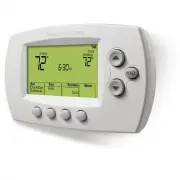
A user manual for the Honeywell Wi-Fi Thermostat 9000 covers essential setup and operation, including wireless connectivity, time/date configuration, system mode selection, and programmable schedules. The guide emphasizes troubleshooting common issues like display errors or network disconnections while highlighting safety considerations, such as preventing compressor damage in cold environments. It also provides quick-reference visual aids for key functions.

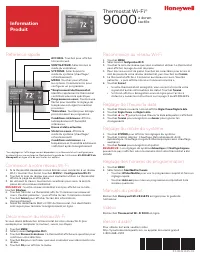

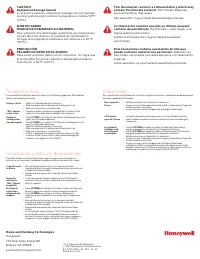
Table of Contents:
- Page 1 – Quick Reference for Thermostat Adjustments and Connectivity
- Page 2 – Wi-Fi Network and System Configuration Guidance
- Page 3 – Product Information and Resource Access
- Page 4 – Safety Warnings and Troubleshooting Procedures
Product
Information
Product Manuals
Search online for
Honeywell 69-2814EFS
for the User Guide.
Videos
Search online for
Wi-Fi Thermostat 9000
.
Need Help?
For assistance please visit http://yourhome.honeywell.com, or call toll-
free: 1-800-468-1502.
Connecting to your Wi-Fi network
1. If thermostat is asking if you want to connect to a Wi-Fi network,
touch
Yes
. If thermostat is not asking if you want to connect to a Wi-Fi
network, Touch
MENU
>
Wi-Fi Setup
.
2. Touch the name of the network you want to use. The thermostat
displays a password page.
3. Using the keyboard, touch the characters that spell out your home
network password.
NOTE:
If your home network is not shown on the list, touch
Rescan
.
4. Touch
Done
. The thermostat displays “Connecting to your network.
Please wait...” then shows a “Connection Successful” screen.
5. Touch
Next
to display the registration information screen.
6. Note your Thermostat MAC and Thermostat CRC. You need these
numbers to complete online registration.
Setting the time/date
1. Touch the current time. The screen displays
Set Time/Set Date
.
2. Touch
Set Time
or
Set Date
.
3. Touch
p
or
q
until the proper time/date is displayed.
4. Touch
Done
to save or
Cancel
to ignore changes.
Adjusting program schedules
1. Touch
MENU
.
2. Select
Create/Edit Schedule
.
• Touch
View/Edit
to view the full schedule and make a quick
adjustment.
• Touch
Guide Me
to create a schedule by answering simple questions.
Disconnecting your Wi-Fi network
If you need to disconnect the thermostat from your Wi-Fi network (for
example, you’re replacing your router), follow these steps:
1. Touch
MENU
.
2. Select
Wi-Fi Setup
.
3. Touch
Disconnect from Network
. The thermostat will display a question to
confirm your selection.
4. Touch
Yes
to confirm that you want to disconnect from the network.
5. Touch
OK
to display the menu.
Wi-Fi® Thermostat
9000
color
touchscreen
Setting system mode
1. Touch
SYSTEM
to display system settings.
2. Touch desired option: Heat, Cool, Off, Automatic, Emergency Heat
(heat pumps with aux. heat).
3. Touch
Done
to save and exit.
NOTE:
The
Automatic
and
Emergency Heat
system settings may not appear,
depending on how your thermostat was installed.
Reconnecting your Wi-Fi network
1. Touch
MENU
.
2. Select
Wi-Fi Setup
.
3. Touch the name of the network you want to use. The thermostat may
display a password page.
4. To enter a password, touch characters to spell out your home network
password, then touch
Done
.
5. The thermostat displays “Connecting to your network. Please wait...”
then a “Connection Successful” screen.
6. Touch
Next
.
• If your thermostat is registered, you will see your signal strength
and other status information. Touch
Done
.
• If the screen displays “Register Online for Remote Access,” follow
instructions on page 3 in 69-2814EFS.
33-00311EFS-01
Quick reference
HOME.
Touch to display Home
screen.
FAN.
Select fan mode.
SYSTEM.
Select system mode
(heat/cool).
MENU.
Touch to display options.
Start here to set a program schedule.
*Thermostat location.
Quickly
identify which thermostat is in
control of a specific area.
Current schedule.
Touch an arrow
to change temperature setting and
set a temporary hold.
*Override.
Touch to temporarily
override the program schedule.
Indoor conditions.
Shows indoor
temperature and humidity.
Current date and time.
Current status.
Shows system mode
(heat/cool).
Outdoor conditions.
Outdoor
temperature and humidity appear
after registration.
*Settings and display will vary depending on whether thermostat is set for
residential or business. Search online for
Honeywell 69-2814EFS
for the User
Guide to see all options.
"Loading the manual" means you need to wait until the file loads and becomes available for online reading. Some manuals are very large, and the time they take to appear depends on your internet speed.
Was this manual helpful?
About this manual
- Brand
- Honeywell
- Model
- RTH6580WF
- Document type
- Installation Manual
- Category
- Thermostat
- Language(s)
- English, Spanish, French
- Pages
- 4
- File size
- 479.9 KB
- Format
Other Manuals for Honeywell RTH6580WF
Summary
Step-by-step instructions for connecting, reconnecting, disconnecting, and adjusting thermostat settings, including Wi-Fi network configuration, time/date setup, system modes, and program schedule adjustments.
Guidance for connecting, reconnecting, and configuring the Wi-Fi network, setting time and date, adjusting system modes, programming schedules, and disconnecting from Wi-Fi, including visual instructions.
Guide detailing how to reference key functions, reconnect to a Wi-Fi network, configure time and date, set system mode, adjust program schedules, and access user manuals and videos.
Ask a question
Related manuals
Popular Honeywell Thermostats


More Honeywell Thermostats models
 Honeywell RTH2410B User Manual
 Honeywell RTH2510B User Manual
 Honeywell RTH4110U2000-2PK/E User Manual
 Honeywell RTH5160 User Manual
 Honeywell RTH6360 User Manual
 Honeywell RTH6360D1002 User Manual
 Honeywell RTH6580WF1001 Installation Manual
 Honeywell RTH7560E User Manual
 Honeywell RTH7600D User Manual
 Honeywell RTH8560D User Manual
 Honeywell RTH8560D1002 User Manual
 Honeywell RTH8800WF2022 User Manual
 Honeywell RTH9585WF Installation Manual
 Honeywell RTH9585WF1004/W User Manual