Page 2 - Table of Contents; Chapter 1: Safety Information; Enabling Subtitle Languages on Digital TV; Chapter 5: Other Information
2 Table of Contents Chapter 1: Safety Information Precautions ...............................................................3 Warning ...................................................................3Product ....................................................................3Power and Plug ........
Page 3 - Precautions; yourself. Refer all servicing to qualified personnel.
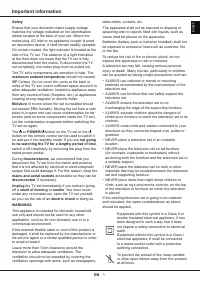
3 Chapter 1 Safety Information Precautions Read all of the instructions before operating the set. Keep these instructions well for future use. Warning A television set may fall, causing serious personal injury or death. Many injuries, particularly to children, can be avoided by taking simple precaut...
Page 4 - Initial Setup; The first time you switch the set on, the; Welcome; step, you can perform the setup later from the settings menu.; TV Button; Power button; • Press to move the highlight to the next function selection
4 Chapter 2 Connections and Setup Initial Setup The first time you switch the set on, the Welcome wizard appears, which guides you through the initial setup process. Follow the on-screen instructions to finish the initial setup process such as selecting the language, pairing your remote, connecting ...
Page 5 - Connections and Setup; Sockets; available on all models.; AV IN adapter socket; Excessive sound pressure from earphones and
5 Connections and Setup Sockets Note: The location and names of the sockets on the TV may vary according to TV model, and not all sockets are .......... available on all models. HDMI, HDMI(SERVICE) or HDMI(eARC/ARC) socket (input) The HDMI (High-Definition Multimedia Interface) socket can be used to...
Page 6 - Remote Control Functions; Circular; OK; To confirm an entry or selection.; How to Use the Remote Control; button, you must finish pairing the remote with the TV first.
6 Remote Control Functions Most of your television's functions are available via the menus that appear on the screen. The remote control(s) supplied with your set can be used to navigate through the menus and to configure all the general settings. Notes: 1.Figures and illustrations in this operation...
Page 8 - Connecting to a Wireless Network; Network Connection; Connecting to a wired Network; Ethernet port; to configure the TV.; Please follow below steps to enter the; ress; and press
8 Connecting to a Wireless Network To connect to a wireless network 1. Ensure you have: • A router broadcasting a high-speed wireless signal• A high-speed internet connection 2. Use the Network & Internet menu to configure the TV. Network Connection Your TV will require an internet connection to...
Page 9 - Switching On; Insert two AAA batteries in the remote control.; connecting an external aerial or other equipment fitted.; Switching Off; To switch off the TV set, unplug the mains socket from the mains
9 Connections and Setup Switching On Follow the instructions on this page on how to switch on your TV set and the remote control before going on to following pages describing how to use the channel set-up procedure. 1. Insert two AAA batteries in the remote control. Precautions on using batteries: -...
Page 10 - Configure the network settings before using Google; UI layout of TCL Channel will vary according
10 Chapter 3 Basic TV Operations Accessing Channels Using the Up/Down buttons: press the Up/Down buttons on the remote control to scroll through the channels. Using the OK button: press the OK button to display the freeview bar and press Left/Right and OK to enter. Using the P+/P- buttons: press the...
Page 11 - Basic TV Operations; Using; mode than turning this function off, but it will also; Quick start; Setting
11 Basic TV Operations Using Quick Start Function It enables you to turn on your TV faster from standby mode than turning this function off, but it will also increase standby power consumption. 1. Press on the remote control, select (Settings) > System > Power and energy > Quick start and p...
Page 12 - Using Teletext; Teletext pages in different languages. This function; Network Wake Up; Channel Type; Using Subtitles; Subtitle; Turning On/Off Subtitles
12 Chapter 4 Using More of Your TV 2. Select the Subtitle option and press OK to toggle between on and off. 3. Press to return to the previous menu. Enabling Subtitle Languages on Digital TV Channels1. Press on the remote control, select (Settings) > Channels & Inputs > Channels > Subti...
Page 13 - Using More of Your TV; sure; Press to return to the previous menu; standby mode when you turn off the TV with the TV; Using EPG; Program guide filter for digital TV programs.; Bluetooth Function; Press on the remote control
13 Using More of Your TV sure: 1. Your TV is connected to an effective wireless home network. 2. The desired controller, such as a smartphone, is connected to the same network as your TV. 3. An app which supports network waking up function, such as YouTube, has been installed into the controller. 4....
Page 14 - To access the blue button or; on the remote control; the channel or source.; MagiConnect; and; Freeview; USB drive to the TV first. For the first time, you should; PVR; you use the function, connect a USB drive to the TV first.
14 Using More of Your TV Down/Left/Right to adjust the recording duration. 4. Press OK or to stop recording manually, the recorded file will be saved. In normal operation, the recording will stop automatically when the recording duration expires. Note: To access the blue button or , you need to pres...
Page 15 - Netflix; Netflix provides on-demand movies and TV shows; Reset Shop; press; Enter 1234 or the PIN according to the on-screen; Password in Parental Controls; The default password is 1234. You can change it to a
15 Using More of Your TV SBS On Demand, 7+, 9Now and 10 Play. All in one place, all for free. Netflix Settings Netflix provides on-demand movies and TV shows delivered via the Internet. Netflix is available in certain countries.Unlimited membership is required. More information can be found at www.n...
Page 16 - TV models can disregard them.
16 Chapter 5 Other Information Problems & Solutions Note: Problems & solutions 1 to 2 are for the TV models which have network functions, so users of non-connected TV models can disregard them. formats, which are not compatible with your TV. 6. Video stops playing midway. - Mistakes may occu...
Page 17 - Other Information; Troubleshooting; Check if the fuse or circuit breaker is working.
17 Other Information Troubleshooting Most problems you encounter with your TV can be corrected by consulting the following troubleshooting list. No picture, no sound 1. Check if the fuse or circuit breaker is working. 2. Plug another electrical device into the outlet to make sure it is working or tu...
Page 18 - Legal Statement; information on specific device information and content
18 Other Information Legal Statement [Legal Statement] of TCL - manufacturer of this TV setDue to the various capabilities of products featuring the SmartTV - Services, as well as limitations in the available content, certain features, applications, and services may not be available on all devices o...
Page 19 - TCL Electronics Australia Pty Ltd.; Like us on Facebook; The Bluetooth
TCL Electronics Australia Pty Ltd. ABN 83 111 032 896 Telephone: 1300 738 149 [email protected] www.tcl.com/au Like us on Facebook The terms HDMI, HDMI High-Definition Multimedia Interface, HDMI trade dress and the HDMI Logos are trademarks or registered trademarks of HDMI Licensing Administrator, I...