Page 2 - Table of Contents; Chapter 1: Safety Information; Turning on/off Subtitles; Chapter 5: Other Information
2 Table of Contents Chapter 1: Safety Information Precautions ...............................................................3 Warning ...................................................................3Product ....................................................................3Power and Plug ........
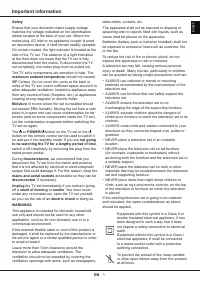
Page 3 - Precautions; yourself. Refer all servicing to qualified personnel.
3 Chapter 1 Safety Information Precautions Read all of the instructions before operating the set. Keep these instructions well for future use. Warning A television set may fall, causing serious personal injury or death. Many injuries, particularly to children, can be avoided by taking simple precaut...
Page 4 - Initial Setup; Roku doesn’t charge for activation support—beware; TV Buttons; The location of the buttons on the TV may vary according to TV model.
4 Chapter 2 Connections and Setup Initial Setup The first time you switch the set on, the Let’s get started screen appears, which guides you through the initial setup process. Follow the on-screen instructions to finish the initial setup process such as selecting the language, connecting to the netw...
Page 5 - Connections and Setup; Sockets; available on all models.; AV IN adapter socket; Excessive sound pressure from earphones and
5 Connections and Setup Sockets Note: The location and names of the sockets on the TV may vary according to TV model, and not all sockets are .......... available on all models. HDMI, HDMI (SERVICE) or HDMI (eARC/ARC) socket (input) The HDMI (High-Definition Multimedia Interface) socket can be used ...
Page 6 - Remote Control Functions; Installing Batteries; Toggle the Electronic Programme Guide on or off (only; OK; Confirm an entry or selection; Colour buttons; Enter apps or operate specific TV function.; Numeric buttons; Toggle Subtitle on or off.; Notes
6 Connections and Setup Remote Control Functions Most of your television’s functions are available via the menus that appear on the screen. The remote control(s) supplied with your set can be used to navigate through the menus and to configure all the general settings. Notes: 1.Figures and illustrat...
Page 7 - Connecting to a Wireless Network; menu; Connecting to a wired Network; on the back of the TV; Ethernet port; on the back of the TV.; Network; menu; Please follow below steps to enter the; Settings
7 Connecting to a Wireless Network To connect to a wireless network 1. Ensure you have: • A router broadcasting a high-speed wireless signal• A high-speed internet connection 2. Use the Network menu to configure the TV. Network Connection Your TV will require an internet connection to operate all fu...
Page 8 - Switching On; - Do not expose batteries to excessive heat such as sunshine, fire or; ANTENNA IN; connecting an external aerial or other equipment fitted.; Switching Off; To switch off the TV set, unplug the mains socket from the mains
8 Connections and Setup Switching On Follow the instructions on this page on how to switch on your TV set and the remote control before going on to following pages describing how to use the channel set-up procedure. 1. Insert two AAA batteries in the remote control. Precautions on using batteries: -...
Page 9 - Configure the network settings to get the most
9 Chapter 3 Basic TV Operations Accessing Channels Using the numeric buttons: press the corresponding numeric buttons on the remote control to access broadcast channels. Using the / buttons: press the / buttons on the remote control to scroll through the channels. Watching Connected Devices Press on...
Page 10 - HbbTV; offered by certain broadcasters and available only on; Scanning for broadcast channels; Note; Using Subtitles; One
10 Chapter 4 Using More of Your TV Using One-touch play Enables other devices to automatically switch the TV to use it as the active source/input when playback starts. Press OK to turn it on to enable this function. Using System standby Enables all CEC devices to automatically go to the standby mode...
Page 11 - Using More of Your TV; turn it off to disable it.; Freeview; Software updates; Reset to factory default settings; Your TV is fitted with USB connectors that enable you
11 Using More of Your TV 1. Press on the remote control, select Settings > TV inputs > Live TV > HbbTV and press OK to enter. 2. Select the Enable ‘ HbbTV’ option, and press OK to turn it off to disable it. Freeview Never miss a thing with freeview!Find out what’s on now, next or over the n...
Page 12 - TV models can disregard them.
12 Chapter 5 Other Information Problems & Solutions Note: Problems & solutions 1 to 2 are for the TV models which have network functions, so users of non-connected TV models can disregard them. formats, which are not compatible with your TV. 6. Video stops playing midway. - Mistakes may occu...
Page 13 - Other Information; Troubleshooting; flutters or drifts. This is usually caused by interference
13 Other Information Troubleshooting Most problems you encounter with your TV can be corrected by consulting the following troubleshooting list. No picture, no sound 1. Check if the fuse or circuit breaker is working. 2. Plug another electrical device into the outlet to make sure it is working or tu...
Page 14 - Legal Statement; of satisfactory quality, fitness for a particular purpose, of
14 Other Information Legal Statement [Legal Statement] of TCL - manufacturer of this TV setThe use of products featuring the SmartTV – Services may be limited as to available content, certain features, applications, and services may not be available on all devices or in all territories. Some service...
Page 15 - TCL Electronics Australia Pty Ltd.; Like us on Facebook; and logos herein are the property of their respective owners.
TCL Electronics Australia Pty Ltd. ABN 83 111 032 896 Telephone: 1300 738 149 [email protected] www.tcl.com/au Like us on Facebook The terms HDMI, HDMI High-Definition Multimedia Interface, HDMI trade dress and the HDMI Logos are trademarks or registered trademarks of HDMI Licensing Administrator, I...