Page 2 - Operating Instructions; AV Center; Car audio and car goods internet store Winauto
©2011 Sony Corporation Operating Instructions 4-263-230- 13 (1) XAV-722 GB AV Center Car audio and car goods internet store Winauto winauto.ua
Page 3 - Warning; CAUTION; until the display
2 Warning To prevent fire or shock hazard, do not expose the unit to rain or moisture.To avoid electrical shock, do not open the cabinet. Refer servicing to qualified personnel only. CAUTION The use of optical instruments with this product will increase eye hazard. As the laser beam used in this CD/...
Page 5 - Table of Contents; Getting Started
4 Table of Contents Notes on safety . . . . . . . . . . . . . . . . . . . . . . . . . . 7 Notes on installation . . . . . . . . . . . . . . . . . . . . . . 7 Copyrights . . . . . . . . . . . . . . . . . . . . . . . . . . . . . 8 Playable discs and symbols used in these Operating Instructions . . . ....
Page 6 - continue to next page
5 iPod Operations Playing an iPod . . . . . . . . . . . . . . . . . . . . . . . . 29 Setting the play mode . . . . . . . . . . . . . . . . . . . 29 Repeat and shuffle play . . . . . . . . . . . . . . . . . . 30 Operating an iPod directly — Passenger control . . . . . . . . . . . . . . . . . . . . 30...
Page 7 - Additional Information; Support site
6 Additional Information Precautions . . . . . . . . . . . . . . . . . . . . . . . . . . . . 47 Notes on LCD panel . . . . . . . . . . . . . . . . . . 47Notes on discs . . . . . . . . . . . . . . . . . . . . . . . 48Playback order of MP3/WMA/AAC/JPEG/Xvid/MPEG-4 files . . . . . . . . . . . . . . . ....
Page 8 - Preventing an accident
7 Notes on safety • Comply with your local traffic rules, laws and regulations. • While driving – Do not watch or operate the unit, as it may lead to distraction and cause an accident. Park your car in a safe place to watch or operate the unit. – Do not use the setup feature or any other function wh...
Page 9 - Copyrights; symbol are trademarks of Dolby Laboratories.
8 Copyrights Microsoft, Windows, Windows Vista and Windows Media and logos are trademarks or registered trademarks of Microsoft Corporation in the United States and/or other countries. “DVD VIDEO,” “DVD-R,” “DVD-RW,” “DVD+R,” and “DVD+RW” are trademarks. ZAPPIN is a trademark of Sony Corporation. 12...
Page 10 - Playable discs and symbols used in these Operating Instructions; Disc symbol in manual
9 Playable discs and symbols used in these Operating Instructions This unit can play various video/audio discs.The following chart helps you to check if a disc is supported by this unit, as well as what functions are available for a given disc type. *1 Audio files can also be stored. *2 Video/image ...
Page 11 - Location and function of controls; Main unit; Disc slot; Press to open the source list.
10 Location and function of controls Main unit For details, see the pages listed below. A Disc slot (located behind the front panel) page 17 B VOL (Volume) –/+ * buttons C Receptor for the remote commander D Display/touch panel E Reset button page 14 F TOP button Press to open the source list. G SOU...
Page 12 - Screen displays; “Source List” key; “Top” key; Touch to open the source list.; Clock; Touch to close the menu.; Source select keys
11 Screen displays A “Source List” key Touch to open the source list. B “Top” key Touch to open the source list. C Clock page 42, 45 D (Close) key Touch to close the menu. E “ATT” (Attenuate) key * Touch to attenuate the sound. To cancel, touch again. F (Setting) key Touch to open the setting menu. ...
Page 13 - RM-X170 Remote Commander; • The remote commander can be used to operate; OFF button; Press to delete an entered number.; qd
12 RM-X170 Remote Commander • The remote commander can be used to operate the audio controls. For menu operations, use the touch panel. • For details, see the pages listed below.• Remove the insulation film before use (page 14). A OFF button Press to exit the source/stop the source.Press and hold to...
Page 15 - Resetting the unit; Performing initial settings; The setting is complete.
14 Getting Started Resetting the unit Before operating the unit for the first time, or after replacing the car battery or changing the connections, you must reset the unit.Press the reset button (page 10) with a pointed object, such as a ballpoint pen. Note Pressing the reset button will erase the c...
Page 16 - Radio; Listening to the radio; Reception controls
15 Radio Listening to the radio 1 Touch “Source List,” then “Tuner.” The radio reception display appears, and the preset list is displayed automatically. 2 Touch “Band.” The band list appears. 3 Touch the desired band (“FM1,” “FM2,” “FM3,” “AM1,” or “AM2”). Touch “Band” again to close the band list....
Page 17 - Reception indications; status; Storing and receiving stations; Caution; Storing automatically — BTM; The station is stored.; Receiving stored stations; RDS; Overview; Display items; Program service name; RDS services; PTY
16 Reception indications A Current source icon* 1 B Band name, preset number* 2 , frequency/ status C Volume level* 3 D Setting status (EQ7, RBE) *1 Appears only when the controls are displayed. *2 Appears only when a preset station is received. *3 When ATT is activated, appears. Storing and receivi...
Page 18 - Selecting PTY; Type of programs; Setting CT; Discs; Playing discs; The front panel opens automatically.; If the DVD menu appears; to move the cursor, then; If the disc contains JPEG files; The slide show starts automatically.; To stop playback; Press and hold; To eject the disc
17 Selecting PTY 1 During FM reception, touch “PTY List.” The PTY list appears if the station is transmitting PTY data.To scroll the list, touch v / V . 2 Touch the desired program type. The unit searches for a station broadcasting the selected program type. To close the PTY list, touch “PTY List.” ...
Page 19 - Playback controls; touch
18 Playback controls Touch the display if the playback controls are not displayed. ATT Top Play Menu SHUF DVD Control Source List 1 4 5 2 3 6 Common to all discs/formats ATT Top Play Menu SHUF DVD Control Source List 7 ATT Top Play Menu SHUF PBC Panel Source List 8 ATT Album Top Play Menu SHUF List ...
Page 20 - Playback indications; qa
19 *1 The speed depends on the format or the recording method. *2 Availability depends on the disc. *3 When the 4-digit input prompt appears, input the language code (page 56) for the desired language. Note If the disc contains multiple file types, only the selected file type (audio/video/image) can...
Page 21 - Playing without PBC functions; The visual setting menu appears.; Touch; Configuring audio settings
20 Using PBC (playback control) functions The PBC menu interactively assists with operations while a PBC-compatible VCD is played. 1 Start playing a PBC-compatible VCD. The PBC menu appears. 2 Touch “PBC Panel.” The menu control panel appears. 3 Touch the number keys to select the desired item, then...
Page 22 - Changing the audio channel; Touch the “Adjust” box to set to “ON.”; To close the play menu, touch “Play Menu.”; Activating parental control; The password setting display appears.; Deactivating parental control
21 Changing the audio channel When playing a VCD/CD/MP3/WMA/AAC/Xvid/MPEG-4, you can listen to both the right and left channel, only the right channel, or only the left channel via both the right and left speakers.The options are indicated below. “2-Ch” : Standard stereo sound (default) “L-Ch” : Lef...
Page 23 - Repeat and shuffle play; Options
22 Changing the area and its movie rating level The restriction levels can be set based on the area and its movie ratings. 1 While no source is selected, touch “Source List,” then . 2 Touch “Visual.” The visual setting menu appears. 3 Touch v / V to scroll, then touch “DVD Parental Area.” When paren...
Page 24 - Direct search play
23 The shuffle options and switching order of each disc/format are indicated below. *1 Available only when playing a version 1.0/1.1 VCD, or a version 2.0 VCD without PBC functions. *2 Excluding a DVD-R/DVD-R DL/DVD-RW in VR mode. Direct search play You can directly locate a desired point by specify...
Page 25 - USB Device Operations; Playing from a USB device; “Drive”
24 USB Device Operations For details on the compatibility of your USB device, visit the support site. • MSC (Mass Storage Class) and MTP (Media Transfer Protocol) type USB devices compliant with the USB standard can be used. • Compatible codecs are MP3 (.mp3), WMA (.wma), AAC (.m4a), JPEG (.jpg), Xv...
Page 26 - The Installation Wizard runs automatically.
25 Enjoying music according to your mood — SensMe™ Sony’s unique “SensMe™ channels” and “SensMe™ mood” features automatically group tracks by channel or mood, and allow you to enjoy music intuitively. Before using the SensMe™ function The following is the basic procedure required to enjoy the SensMe...
Page 27 - The analysis and transfer of tracks starts.; The channel list appears.; Touch the desired channel.
26 Registering a USB device using “SensMe™ Setup” USB device registration is required to enable the SensMe™ function on the unit. If registration is not performed along with the installation procedure, follow the steps below. 1 Start “SensMe™ Setup” on your computer. 2 Connect a USB device to your c...
Page 28 - Channel list; Recommended, Shuffle All
27 Channel list x Recommended, Shuffle All x Basic channels Plays tracks according to the music type. x In-car channels Plays tracks that are suitable while driving. “SensMe™ channels” playback controls and indications A To display the control keys: “Source List,” “ATT,” “Top.” (page 18) B To scroll...
Page 29 - Touch the desired point on the map.; Do this; Touch “Mood”
28 Playing tracks in mood maps — SensMe™ mood “SensMe™ mood” distributes tracks as dots on a two-axis mood map, based on the characteristics of the individual tracks. By touching the point on the map according to your mood, a circle appears around the touched point, and the tracks inside the circle ...
Page 30 - iPod Operations; Playing an iPod; Reduce the volume on this unit.; , then playback starts from the item; Adjust the volume on this unit.; To disconnect the iPod; Setting the play mode; You can set one of the following play modes.; For audio playback; Touch “MUSIC” or “VIDEO.”
29 iPod Operations For details on the compatibility of your iPod, see “About iPod” on page 49 or visit the support site. In these Operating Instructions, “iPod” is used as a general reference for the iPod functions on the iPod and iPhone, unless otherwise specified by the text or illustrations. Play...
Page 31 - Deactivating the passenger control
30 Repeat and shuffle play 1 During playback, touch “Play Menu,” then the “Repeat” or “Shuffle” box repeatedly until the desired option appears. Repeat or shuffle play starts. To close the play menu, touch “Play Menu.” The repeat options are as follows: The shuffle options are as follows: * Differs ...
Page 32 - Useful Functions; To move to the upper level, touch; Touch the desired item.; Selecting a file type; Playback of the selected file starts.
31 Useful Functions Listing up tracks/images/video files — List Selecting a track/image/video file You can list up albums/folders/tracks/images/video files, and select a desired one to play.This function is convenient especially for the disc in MP3/WMA/AAC/JPEG/Xvid/MPEG-4 format or USB device conta...
Page 33 - Using Gesture Command; Sound Adjustment; Touch the desired equalizer curve.
32 Using Gesture Command You can perform frequently-used operations by drawing the following command stroke on the reception/playback display. To view the instructions on Gesture Command Touch when it is displayed in the top right corner of the display. Sound Adjustment Selecting the sound quality —...
Page 36 - Adjusting the speaker volume; Monitor Adjustment; Adjusting the monitor angle
35 Adjusting the speaker volume You can adjust the volume level of each connected speaker.The adjustable speakers are “Front R” (Front Right), “Front L” (Front Left), “Surround L” (Rear Left), “Surround R” (Rear Right) and “Subwoofer*.” * Adjustable only when a subwoofer is connected and “Subwoofer”...
Page 37 - Setting the background screen; Customizing the picture
36 Setting the background screen You can select the screen theme, visualizer and picture brightness for the background screen according to your preference. 1 Touch “Source List,” then . 2 Touch “Screen.” The screen setting menu appears. 3 Touch “Screen Select.” The options appear. 4 Select the scree...
Page 38 - Selecting the aspect ratio; Settings; Basic setting operation
37 Selecting the aspect ratio You can change the screen aspect ratio.The options are indicated below. 1 During video/image playback, touch “Source List,” then . 2 Touch “Screen.” The screen setting menu appears. 3 Touch “Aspect.” The options appear. 4 Touch the desired option. To return to the previ...
Page 39 - General settings; Русский
38 General settings Touch c “General” c the desired item c the desired option. For details on this procedure, see “Basic setting operation” on page 37. For details, see the pages listed below. “ z ” indicates the default setting. Item Option Purpose Unit status Security Control (page 45) – – Any sta...
Page 41 - Sound settings; Listening Position; CSO
40 Sound settings Touch c “Sound” c the desired item c the desired option. For details on this procedure, see “Basic setting operation” on page 37. For details, see the pages listed below. “ z ” indicates the default setting. Item Option Purpose Unit status EQ7 (page 32) OFF ( z ) To cancel the equa...
Page 43 - Screen settings; Screen Select
42 Screen settings Touch c “Screen” c the desired item c the desired option. For details on this procedure, see “Basic setting operation” on page 37. For details, see the pages listed below. “ z ” indicates the default setting. * This setting is available only when the parking brake is set. Item Opt...
Page 44 - DVD and other playback settings
43 DVD and other playback settings Touch c “Visual” c the desired item c the desired option. For details on this procedure, see “Basic setting operation” on page 37. For details, see the pages listed below. “ z ” indicates the default setting. Item Option Purpose Unit status DVD Menu Language – To c...
Page 46 - Setting the security code; Activating the security function; The security code setting display appears.; Deactivating the security function; Setting the clock; Touch “Source List,” then; The setting display appears.; Set the hour and minute.
45 Setting the security code This unit has a security function to discourage theft. Enter a 4-digit number as your security code.Once the security function is activated, you need to enter the security code to turn on the unit after re-installing the unit in another car or charging the battery. Activ...
Page 47 - Adjusting the volume level; Reduce the volume on the unit.; The AUX playback display appears.; Setting the type of device; Rear view camera
46 Using Optional Equipment Auxiliary audio/video equipment You can connect up to 2 optional devices, such as a portable media player, game console, etc., to the AUX1 IN and AUX2 IN terminals on the unit. Selecting an auxiliary device 1 Touch “Source List,” then “AUX.” The AUX playback display appea...
Page 48 - Rear view camera settings; Displaying marker lines; bB; Precautions; Moisture condensation; Notes on LCD panel
47 Rear view camera settings You can display setting items on the picture from the rear view camera to assist operation. This setting is available only when:– “Camera Input” is set to “ON” (page 39).– the parking brake is applied. 1 Touch “Source List,” then . The general setting menu appears. If no...
Page 49 - Notes on discs; Discs that this unit CANNOT play; Notes on DATA CDs and DATA DVDs
48 Notes on discs • Do not expose discs to direct sunlight or heat sources such as hot air ducts, nor leave it in a car parked in direct sunlight. • Before playing, wipe the discs with a cleaning cloth from the center out. Do not use solvents such as benzine, thinner, commercially available cleaners...
Page 50 - About MP3 files; About WMA files; About AAC files; About iPod
49 About MP3 files • MP3, which stands for MPEG-1 Audio Layer-3, is a music file compression format standard. It compresses audio CD data to approximately 1/10 of its original size. • ID3 tag versions 1.0, 1.1, 2.2, 2.3 and 2.4 apply to MP3 only. ID3 tag is 15/30 characters (1.0 and 1.1), or 63/126 ...
Page 51 - Maintenance; Fuse replacement; Removing the unit; Slide the unit out of the mounting.; WARNING
50 Maintenance Replacing the lithium battery of the remote commander Under normal conditions, the battery will last approximately 1 year. (The service life may be shorter, depending on the conditions of use.)When the battery becomes weak, the range of the remote commander becomes shorter. Replace th...
Page 52 - Specifications; FM; AM; Computer
51 Specifications Monitor section Display type: Wide LCD color monitor Dimensions: 7.0 in System: TFT active matrix Number of pixels: 1,152,000 pixels (800 × 3 (RGB) × 480) Color system: PAL/NTSC/SECAM/PAL-M automatic select Tuner section FM Tuning range: 87.5 – 108.0 MHz Antenna (aerial) terminal: ...
Page 53 - Troubleshooting
52 OS Windows XP, Windows Vista, Windows 7For details on compatible editions or Service Packs, visit the following support site: http://www.sony-asia.com/section/supporthttp://www.sony-asia.com/caraudio/ Monitor High color (16-bit) or more, 800 × 600 pixels or more Other Internet connection Notes • ...
Page 57 - Language code/area code list; Language code list
56 Language code/area code list Language code list The language spellings conform to the ISO 639: 1988 (E/F) standard. Area code list Code Language Code Language Code Language Code Language 1027 Afar 1028 Abkhazian 1032 Afrikaans 1039 Amharic 1044 Arabic 1045 Assamese 1051 Aymara 1052 Azerbaijani 10...
Page 58 - Index
57 Index A AAC 9, 49Angle (Angle) 19Area code 56Audio channel (Stereo) 21Audio DRC (Audio DRC) 43Audio format (Audio) 20Auto Off (Auto OFF) 38Auxiliary equipment 46Auxiliary level (Level) 46Auxiliary settings (AUX1 Input, AUX2 Input) 39, 46 B Background screen (Screen Select) 36Balance (Balance/Fade...
Page 61 - Sony Corporation
Sony Corporation Printed in Thailand http://www.sony.net/ Car audio and car goods internet store Winauto winauto.ua


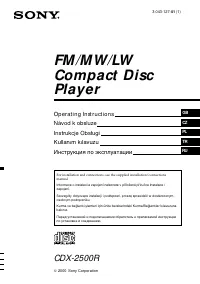 Sony CDX-2500R
User Manual
Sony CDX-2500R
User Manual
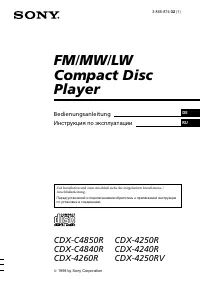 Sony CDX-4240R
Manual
Sony CDX-4240R
Manual
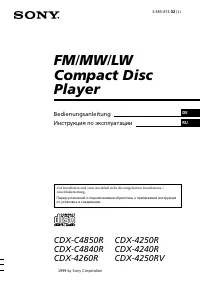 Sony CDX-4260R
Manual
Sony CDX-4260R
Manual
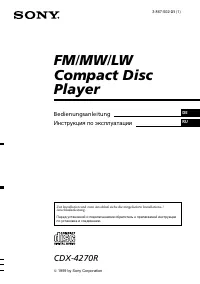 Sony CDX-4270R
Manual
Sony CDX-4270R
Manual
 Sony CDX-C7850R
Manual
Sony CDX-C7850R
Manual
 Sony CDX-CA650(V)(X)
User Manual
Sony CDX-CA650(V)(X)
User Manual
 Sony CDX-CA680X
Manual
Sony CDX-CA680X
Manual
 Sony CDX-CA750(X)
User Manual
Sony CDX-CA750(X)
User Manual
 Sony CDX-F5550EE
User Manual
Sony CDX-F5550EE
User Manual
 Sony CDX-F5700
Manual
Sony CDX-F5700
Manual
 Sony CDX-G1200U
Manual
Sony CDX-G1200U
Manual
 Sony CDX-G3200UV
User Manual
Sony CDX-G3200UV
User Manual
 Sony CDX-GT217
User Manual
Sony CDX-GT217
User Manual