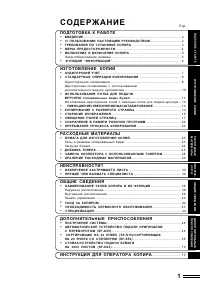
Page 3 - CONTENTS; GETTING STARTED; SUPPLIES AND
1 CONTENTS 1 GETTING STARTED INTRODUCTION 3 CAUTIONS 4 MAIN FEATURES 5 PART NAMES 6 OPERATION PANEL 7 COPIER INSTALLATION 8 CAUTIONS ON HANDLING 9 LOADING COPY PAPER 10 2 MAKING COPIES NORMAL COPYING 12 – Setting a large original 14 EXPOSURE ADJUSTMENT/PHOTO COPYING 14 REDUCTION/ENLARGEMENT/ZOOM 15 ...
Page 5 - INTRODUCTION
3 1 Getting started GETTING STARTED This chapter provides basic information for using the copier. INTRODUCTION This copier has been designed to provide intuitive operating ease while requiring a minimumamount of space. To get full use of all copier features, be sure to familiarize yourself with this...
Page 6 - CAUTIONS; SAFETY PRECAUTIONS
4 1 Getting started CAUTIONS Follow the cautions below when using this copier. ● The fusing area is hot. Exercise care in this area when removing misfedpaper. ● Do not look directly at the light source. Doing so may damage your eyes. ● Do not switch the copier rapidly on and off. After turning the c...
Page 7 - MAIN FEATURES
5 1 Getting started MAIN FEATURES High-speed laser copying ● Since warm-up time is zero, copying can be star ted immediately after the power switch isturned on. ● First-copy time is only 9.6 seconds (normal mode). ● Copying speed is 15 copies/min., which adapts to business use, allowing improvemento...
Page 8 - PART NAMES
6 1 Getting started PART NAMES 1-B Toner cartridge lock release lever Toner cartridge Transfer charger Paper feed roller Fusing unit release lever Charger cleaner Original table Operation panel Paper tray Front cover Side cover open button Original cover Side cover Power cord socket Power switch Han...
Page 9 - OPERATION PANEL
7 1 Getting started OPERATION PANEL E x p o s u r e m o d e s e l e c t o r k e y a n dindicatorsUse to sequentially select the exposurem o d e s : AU TO, M A N UA L o r P H OTO.Selected mode is shown by a lit indicator.(p. 14)Light and dark keys and exposureindicatorsUse to adjust the MANUAL or PHO...
Page 10 - COPIER INSTALLATION; Do not install your copier in areas that are:
8 1 Getting started COPIER INSTALLATION Improper installation may damage the copier. Please note the following during initial installationand whenever the copier is moved. If the copier is moved from a cool place to a warm place, condensation mayform inside the copier. Operation in this condition wi...
Page 11 - CAUTIONS ON HANDLING
9 1 Getting started 8"(20 cm) 8"(20 cm) 4" (10 cm) 4" (10 cm) COPIER INSTALLATION Be sure to allow the required spacearound the machine for servicing andproper ventilation. A small amount of ozone is produced within the copier during operation. The emissionlevel is insufficient to ca...
Page 12 - LOADING COPY PAPER
10 1 Getting started LOADING COPY PAPER Raise the handle of the paper tray and pull the paper tray out until it stops. Adjust the paper guides on the paper tray to the copy paper width and length.Squeeze the lever of paper guide and slide the guide to match with the width of the paper.Move paper gui...
Page 14 - MAKING COPIES; NORMAL COPYING
12 2 Making copies MAKING COPIES This chapter describes basic copying functions and some other copying functions using thebypass tray. NORMAL COPYING Ensure that paper of the desired size is set in the paper tray. See page 10, LOADINGCOPY PAPER. When copying onto paper larger than 8-1/2" x 11...
Page 16 - Setting a large original; EXPOSURE ADJUSTMENT/PHOTO COPYING
14 2 Making copies Press the print ( ) key. ● To display the number of copies made in a continuous run, press the leftcopy quantity key. ● To stop copying in the middle of a run, press the clear ( ) key. Copying will stop and the number in the display will be reset to “0”. Setting a large original T...
Page 21 - SPECIAL FUNCTIONS; DESCRIPTION OF SPECIAL FUNCTIONS
19 3 Special functions SPECIAL FUNCTIONS This chapter describes the special functions of this copier. Use these functions as needed. DESCRIPTION OF SPECIAL FUNCTIONS Toner save mode (page 19) Reduces toner consumption by approximately 10%. Power save modes (page 20) The copier has two power save mod...
Page 22 - Setting the power save modes and auto clear time
20 3 Special functions TONER SAVE MODE Press and hold down the exposure mode selector key for approximately 5 seconds.The manual ( ) indicator will go out and the photo ( ) indicator will begin to blink. The exposure indicator marked “5” will light up, indicating the standard toner mode isactive. To...
Page 23 - DISPLAYING TOTAL NUMBER OF COPIES
21 3 Special functions USER PROGRAMS Press the print ( ) key. The entered program number will be steadily lit and the currently selected parameter number for the program will blink on the right side of thedisplay. Select the desired parameter using the right copy quantity ( ) key. The entered parame...
Page 24 - SUPPLIES AND USER MAINTENANCE; TONER CARTRIDGE REPLACEMENT
22 4 Supplies and user maintenance SUPPLIES AND USER MAINTENANCE This chapter describes how to replace the toner cartridge. TONER CARTRIDGE REPLACEMENT When the toner cartridge replacement required ( ) indicator lights up, replacement of the toner cartridge will be needed soon. Obtain a new cartridg...
Page 26 - Toner cartridge life; USER MAINTENANCE; Cabinet
24 4 Supplies and user maintenance Toner cartridge life To find out the approximate quantity of toner remaining, follow the procedure below. Press and hold down the light ( ) and dark ( ) keys simultaneously for more than 5 seconds until all the alarm indicators ( , , and ) blink and “– –” appears i...
Page 27 - Transfer charger; When copier is not in use
25 4 Supplies and user maintenance USER MAINTENANCE Transfer charger If copies star t becoming streaky or blotchy, the transfer charger may be dirty. Clean the chargerusing the following procedure. Turn the power switch off. Ensure that the bypass tray is open and then open the side cover while pres...
Page 28 - MISFEED REMOVAL
26 5 Copier trouble? COPIER TROUBLE? This chapter describes misfeed removal and troubleshooting. MISFEED REMOVAL When the misfeed ( ) indicator blinks or blinks in the display, the copier will stop because of a misfeed.If a misfeed occurs when using the SPF, a number may appear in the display after ...
Page 29 - A Misfeed in the paper feed area; B Misfeed in the fusing area
27 5 Copier trouble? MISFEED REMOVAL A Misfeed in the paper feed area Gently remove the misfed paper from the paper feed area as shown in the illustration.When blinks in the display and the misfed paper is not seen from the paper feed area, pull out the paper tray and remove the misfed paper. If the...
Page 30 - C Misfeed in the transport area
28 5 Copier trouble? MISFEED REMOVAL Gently remove the misfed paper from under the fusing unit as shown in the illustration.If the paper cannot be removed, proceed to “C Misfeed in the transport area”. The fusing unit is hot. Do not touch the fusing unit when removing misfedpaper. Doing so may cause...
Page 31 - DEVELOPER REQUIRED
29 5 Copier trouble? Push gently on both sides of the front cover to open the cover. Rotate the feeding roller in the direction of the arrow and gently remove the misfedpaper from the exit area. F e e d i n g r o l l e r Raise the fusing unit release lever, close the front cover and then close the s...
Page 32 - TROUBLESHOOTING
30 5 Copier trouble? TROUBLESHOOTING If any problem occurs, check the list below before contacting the SHARP service center. See page: - 12 - - 13 19 19 32 15 24 15 Solution Copier does not operate. Blank copies Copier plugged in? Problem Possible cause Plug the copier into a grounded outlet. Power ...
Page 33 - STATUS INDICATORS
31 5 Copier trouble? STATUS INDICATORS When the following indicators light up or blink on the operation panel or the following alphanumericcodes appear in the display, solve the problem immediately referring to both the table below andthe relevant page. Steadily lit Steadily lit Blinking Blinking Bl...
Page 34 - AUTOMATIC EXPOSURE ADJUSTMENT
32 5 Copier trouble? AUTOMATIC EXPOSURE ADJUSTMENT The automatic exposure level can be adjusted to suit your copying needs. Press the exposure mode selector key to select the photo ( ) mode. Press and hold down the exposure mode selector key for approximately 5 seconds.The photo ( ) indicator will g...
Page 35 - APPENDIX; SPECIFICATIONS
33 6 Appendix APPENDIX SPECIFICATIONS Type Digital laser copier, desk-top type Copy system Dry, electrostatic transfer Originals Sheets, bound documents Original size Max. 10" x 14" Copy sizes 3-1/2" x 5-1/2" to 8-1/2" x 14"(Feed copy paper lengthwise only.)Image loss: Max. 5...
Page 36 - SUPPLIES; Types and sizes of copy paper
34 6 Appendix SPECIFICATIONS Optional equipment Single pass feeder (AR-SP3) 250-sheet paper feed unit (AR-DE9)Facsimile expansion kit (AR-FX3)GDI expansion kit (AR-PG1)PCL expansion kit (AR-PB9) First-copy time may differ depending on operating conditions, such as power-supply voltageand room temper...
Page 38 - OPTIONAL EQUIPMENT; SYSTEM CONFIGURATION
36 7 Optional equipment OPTIONAL EQUIPMENT SYSTEM CONFIGURATION A number of options are available for the copier which allow you to configure a copier system tomeet your particular needs. The options include the following. Single pass feeder (AR-SP3) 250-sheet paper feed unit (AR-DE9) Facsimile expa...
Page 39 - Part names
37 7 Optional equipment SINGLE PASS FEEDER (AR-SP3) The single pass feeder (SPF) holds up to 30 originals for automatic feeding. Part names Document feeder tray Feeding roller cover Original guides SPF exit area Specifications Acceptable originals Weight: 14 to 23 lbs.Size: 5-1/2" x 8-1/2" t...
Page 40 - Stream feeding mode; Misfeed in the SPF
38 7 Optional equipment ● Before feeding originals in the document feeder tray, be sure to remove anystaples or paper clips from them. ● Before placing curled or wavy originals into the document feeding tray, besure to flatten them. If not, original misfeeds may result. ● The SPF ( ) indicator on th...
Page 42 - Loading copy paper
40 7 Optional equipment 250-SHEET PAPER FEED UNIT (AR-DE9) The paper feed unit provide the convenience of increased paper capacity for the copier and agreater choice of paper sizes readily available for copying. Part names Side cover Tray Loading copy paper The method of loading copy paper for the p...
Page 43 - Specifications
41 7 Optional equipment Close the lower side cover. Close the side cover by pressing the round projections near the side cover open button.The misfeed ( ) indicator will go out and the ready ( ) indicator will light up. Specifications Copy paper size 5-1/2" x 8-1/2" to 8-1/2" x 14" P...
Page 44 - INDEX
INDEX 2250-sheet paper feed unit (AR-DE9)– loading copy paper . . . . . . . . . . . . . . 40– misfeed removal . . . . . . . . . . . . . . . . 40– par t names . . . . . . . . . . . . . . . . . . . . 40– specifications . . . . . . . . . . . . . . . . . . . 41 AAuto clear . . . . . . . . . . . . . . . ...
Page 46 - MATERIAL SAFETY DATA SHEET; Product Identification; Hazardous Identification (Emergency Overview)
Date Issued:Nov. 1, 2000 MATERIAL SAFETY DATA SHEET MSDS No. F-01001 Section 1. Product Identification Product: AR-152NT/T/FT/ST (Black Toner) Section 2. Supplier’s Name and Address Sharp Corporation22-22 Nagaike-cho, Abeno-ku, Osaka, JapanLocal suppliers are listed below. Please contact the nearest...
Page 50 - MEMO
Page 51 - NOTICE
This device complies with Part 15 of the FCC rules. Operation is subject to the following two conditions: (1) This device may not cause harmful interference, and (2) this device must accept any interference received, including interference that may cause undesired operation. WARNING:FCC Regulations ...
Page 52 - SHARP ELECTRONICS CORPORATION
PRINTED IN CHINA 2000M KS TINSE0461QSZZ AR-151 SHARP ELECTRONICS CORPORATION Sharp Plaza, Mahwah, New Jersey 07430-2135. www.sharp-usa.com SHARP CORPORATION