Page 2 - Health and safety information
1 Keep your camera away from small children and pets. Keep your camera and all accessories out of the reach of small children and animals. Small parts may cause choking or serious injury if swallowed. Moving parts and accessories may present physical dangers as well. Do not expose the camera to dire...
Page 4 - Keep cards with magnetic strips away from the camera case.; Information stored on the card may be damaged or erased.; Check that the camera is operating properly before use.
3 Health and safety information Exercise caution when you connect cables or adapters and install batteries and memory cards. If you force the connectors, improperly connect cables, or improperly install batteries and memory cards, you can damage ports, connectors, and accessories. Keep cards with ma...
Page 5 - Copyright information; Mac is a registered trademark of the Apple Corporation.; Outline of the User Manual; Basic functions; Learn how to set the options in Shooting mode.; Settings; Refer to options to configure your camera’s settings.; Appendixes
4 Copyright information • Microsoft Windows and the Windows logo are registered trademarks of the Microsoft Corporation. • Mac is a registered trademark of the Apple Corporation. • microSD™ and microSDHC™ are registered trademarks of the SD Association. • Trademarks and trade names used in this manu...
Page 6 - Indicators used in this manual; Shooting mode icons; mode may not support functions for all scenes.; Icons used in this manual; Additional information; Shutter; Page number of related information; Photo Size; Annotation
5 Indicators used in this manual Shooting mode Indicator Smart Auto S Program p Live Panorama N Picture in Picture d Scene s Movie v Shooting mode icons These icons appear in the text when a function is available in a mode. See the example below. Note: The s mode may not support functions for all sc...
Page 7 - Subject; Expressions used in this manual
6 Pressing the shutter • Half-press [ Shutter ]: press the shutter halfway down • Press [ Shutter ]: press the shutter all the way down Half-press [ Shutter ] Press [ Shutter ] Subject, background, and composition • Subject : the main object in a scene, such as a person, animal, or still life • Back...
Page 8 - Basic troubleshooting
7 Basic troubleshooting Learn to solve common problems by setting shooting options. The subject’s eyes appear red. Red eye occurs when the subject's eyes reflect light from the camera flash. • Set the flash option to Red-eye or Red-eye Fix . (p. 52) • If the photo has already been captured, select Red-...
Page 9 - Quick reference; Capturing photos of people
8 Quick reference Capturing photos of people • d mode f 38 • s mode > Beauty Shot f 41 • s mode > Intelligent Portrait f 42 • Red-eye/Red-eye Fix (to prevent or correct red-eye) f 52 • Face Detection f 58 • Self-Portrait f 59 Capturing photos at night or in the dark • s mode > Night, Sunset...
Page 10 - Contents; Extended functions
9 Contents Extended functions .......................................................... 32 Using the Smart Auto mode ........................................ 33 Using the Program mode ............................................ 35 Using the Live Panorama mode .................................. 36 ...
Page 14 - Unpacking; Optional accessories
Basic functions 13 Unpacking The following items are included in your product box. Camera AC adapter/USB cable Rechargeable battery Strap Quick Start Guide Optional accessories Camera case A/V cable Battery charger Memory card/ Memory card adapter • The illustrations may differ slightly from the ite...
Page 15 - Accepts USB cable and A/V cable; Camera layout; Insert a memory card and battery
Basic functions 14 USB and A/V port Accepts USB cable and A/V cable Camera layout Before you start, familiarize yourself with your camera’s parts and their functions. Battery chamber cover Insert a memory card and battery Tripod mount Speaker Shutter button AF-assist light/Timer lamp Flash Lens Micr...
Page 16 - Status lamp; Blinking; : When the camera is; Steady; Zoom button; In Shooting mode; Display
Basic functions 15 Camera layout Status lamp • Blinking : When the camera is saving a photo or video, being read by a computer or printer, when the image is out of focus, or there is a problem charging the battery • Steady : When the camera is connected to a computer, charging the battery, or when t...
Page 18 - Inserting the battery and memory card; Removing the battery and memory card
Basic functions 17 Inserting the battery and memory card Learn how to insert the battery and an optional memory card into the camera. Removing the battery and memory card Memory card Push the card gently until it disengages from the camera, and then pull it out of the slot. Rechargeable battery Batt...
Page 19 - Charging the battery and turning on your camera; Turning on your camera; POWER; Turning on your camera in Playback mode; ]. The camera turns on and immediately accesses; Charging the battery; Red light on
Basic functions 18 Charging the battery and turning on your camera Turning on your camera Press [ POWER ] to turn your camera on or off. • The initial setup screen appears when you turn on the camera for the first time. (p. 19) Turning on your camera in Playback mode Press [ P ]. The camera turns on ...
Page 20 - Performing the initial setup; Language
Basic functions 19 Performing the initial setup When you turn on your camera for the first time, the initial setup screen appears. Follow the steps below to configure the camera’s basic settings. 4 Press [ F / t ] to select a time zone, and then press [ o ]. • To set daylight-savings time, press [ D ]...
Page 21 - The screen may differ depending on the language selected.; Date Type
Basic functions 20 Performing the initial setup 5 Press [ D / c ] to select Date/Time Set , and then press [ t ] or [ o ]. Back Set Time Zone Date/Time Set Date Type English London YYYY MM DD • The screen may differ depending on the language selected. 6 Press [ F / t ] to select an item. 7 Press [ D...
Page 22 - Learning icons; Shooting information
Basic functions 21 3 Shooting options (left) Icon Description Actively moving subject Shooting mode Aperture value and shutter speed Long time shutter EV (Exposure Value) White balance Face tone Face retouch ISO sensitivity Smart filter Image adjust (constrast, sharpness, and saturation) Sound Alive ...
Page 23 - Selecting options or menus; Going back to the previous menu; Select an option or a menu.
Basic functions 22 Selecting options or menus To select an option or a menu, press [ m ] or [ f ]. Going back to the previous menu Press [ m ] again to go back to the previous menu. Half-press [ Shutter ] to return to Shooting mode. Using [MENU] To select options, press [ m ], and then press [ D / c...
Page 24 - White Balance; Select
Basic functions 23 Selecting options or menus 5 Press [ D / c ] to select White Balance , and then press [ t ] or [ o ]. Photo Size Quality EV ISO White Balance Smart Filter Face Detection Exit Back 6 Press [ F / t ] to select a White Balance option. Back Move Daylight 7 Press [ o ] to save your set...
Page 25 - You can access shooting options by pressing [
Basic functions 24 Selecting options or menus Using [Fn] You can access shooting options by pressing [ f ], but some options are not available. For example, to select a White Balance option in Program mode: 1 In Shooting mode, press [ M ]. 2 Select p . 3 Press [ f ]. Photo Size Exit Move 4 Press [ D...
Page 26 - Setting the display and sound; Setting the sound; Beep Sound; Setting the display type
Basic functions 25 Setting the display and sound Learn how to change the basic display information and sound settings. Setting the sound Turn the sound your camera emits when you perform functions. 1 In Shooting or Playback mode, press [ m ]. 2 Select O Beep Sound . 3 Select an option. Option Desc...
Page 27 - Capturing photos; Learn how to capture photos easily and quickly in Smart Auto mode.; A green frame means the subject is in focus.; Yes
Basic functions 26 Capturing photos Learn how to capture photos easily and quickly in Smart Auto mode. 4 Half-press [ Shutter ] to focus. • A green frame means the subject is in focus. • A red frame means the subject is out of focus. 5 Press [ Shutter ] to capture a photo. 6 Press [ P ] to view the ...
Page 28 - Zooming
Basic functions 27 Capturing photos Digital zoom The Digital zoom is supported by default in Shooting mode. If you zoom in on a subject in Shooting mode and the zoom indicator is in the digital range, your camera is using the Digital zoom. By using both the 5X Optical zoom and 5X Digital zoom, you c...
Page 29 - Optical range; Setting Intelli zoom; Intelli Zoom; Off
Basic functions 28 Capturing photos Intelli zoom If the zoom indicator is in the Intelli range, your camera is using the Intelli zoom. Photo resolution varies according to the zoom rate if you use the Intelli zoom. By using both the Optical zoom and Intelli zoom, you can zoom in up to 10 times. Opti...
Page 30 - Reduce camera shake digitally in Shooting mode.; DIS
Basic functions 29 Capturing photos Reducing camera shake (DIS) Reduce camera shake digitally in Shooting mode. S Before correction S After correction 1 In Shooting mode, press [ m ]. 2 Select a DIS . 3 Select an option. Icon Description Off : DIS is deactivated. On : DIS is activated. p s • DIS m...
Page 31 - Holding your camera correctly; Tips for getting a clearer photo
Basic functions 30 Holding your camera correctly Ensure nothing is blocking the lens, flash, or microphone. Half-pressing the shutter button Half-press [ Shutter ] and adjust the focus. The camera adjusts the focus and exposure automatically. The camera sets the aperture value and shutter speed autom...
Page 32 - Preventing your subject from being out of focus; Using the focus lock
Basic functions 31 Preventing your subject from being out of focus It may be difficult to get your subject in focus when: - there is little contrast between the subject and background (for example, when your subject is wearing clothing that is similar in color to the background) - the light source be...
Page 34 - Using the Smart Auto mode
Extended functions 33 Using the Smart Auto mode In Smart Auto mode, your camera automatically chooses the appropriate camera settings based on the type of scene it detects. The Smart Auto mode is helpful if you are not familiar with the camera settings for various scenes. Icon Description Portraits ...
Page 36 - Using the Program mode
Extended functions 35 Using the Program mode In Program mode, you can set most options, except the shutter speed and aperture value, which the camera sets automatically. 1 In Shooting mode, press [ M ]. 2 Select p . 3 Set the desired options. • For a list of options, refer to "Shooting options&#...
Page 37 - Using the Live Panorama mode; ] pressed, slowly move the camera in the; Shooting example
Extended functions 36 Using the Live Panorama mode In Live Panorama mode, you can capture a wide panoramic scene in a single photo. Capture and combine a series of photos to create a panoramic image. 5 With [ Shutter ] pressed, slowly move the camera in the direction that will let it capture the res...
Page 39 - to capture and insert a photo.; ], so that you can determine whether or not the; to capture the photo.; Background; a desired photo. You cannot select a video file or a; ] to set the photo as a background image.
Extended functions 38 Using the Picture-in-Picture mode In the Picture-in-Picture mode, you can capture or select a full-sized background photo, and then insert a smaller photo into the foreground. 6 Press [ o ], and then press [ D / c / F / t ] to change the insertion size. 7 Press [ o ] to save th...
Page 40 - Using the Scene mode; Capture still-life scenes and landscapes.
Extended functions 39 Using the Scene mode In Scene mode, you can capture a photo with options that are preset for a specific scene. Option Description Landscape Capture still-life scenes and landscapes. Text Clearly capture text from printed or electronic documents. Sunset Capture scenes at sunset, ...
Page 41 - Using the Magic Frame mode; Magic Frame; Frame
Extended functions 40 Using the Scene mode 6 Align your subject in the frame, and then half-press [ Shutter ] to focus. 7 Press [ Shutter ] to capture the photo. In Magic Frame mode, the resolution is automatically set to . Using the Magic Frame mode In Magic Frame mode, you can apply various frame ...
Page 42 - Using the Beauty Shot mode; Beauty Shot; Face Tone; Face Retouch
Extended functions 41 Using the Scene mode Using the Beauty Shot mode In Beauty Shot mode, you can capture a portrait with options to hide facial imperfections. 1 In Shooting mode, press [ M ]. 2 Select s Beauty Shot . 3 Press [ m ]. 4 Select a Face Tone . 5 Select an option. • For example, incr...
Page 43 - Using the Intelligent Portrait mode; Intelligent Portrait
Extended functions 42 Using the Scene mode Using the Intelligent Portrait mode In Intelligent Portrait mode, you can extract and save close-up portraits of an individual subject in a scene. Once the camera detects a face from the scene, it automatically enlarges it and crops the image around the fac...
Page 44 - Using the Funny Face mode; Funny Face; The camera detects faces with the face detection function.; Funny Effect; You can review the face with the effect applied on the display.; Distortion Level; Adjust the distortion level.
Extended functions 43 Using the Scene mode Using the Funny Face mode In Funny Face mode, you can distort your subject’s face with funny effects. 1 In Shooting mode, press [ M ]. 2 Select s Funny Face . 3 Aim the camera at the subject's face. • The camera detects faces with the face detection funct...
Page 45 - If you select; AUTO; , the aperture value or shutter speed will be; Using the Night mode; Night; Select the aperture value or shutter speed.
Extended functions 44 Using the Scene mode 6 Select an option. • If you select AUTO , the aperture value or shutter speed will be adjusted automatically. 7 Align your subject in the frame, and then half-press [ Shutter ] to focus. 8 Press [ Shutter ] to capture the photo. • Use a tripod to prevent b...
Page 46 - Using the Movie mode; Sound Alive; Select a Sound Alive option.; Sound Alive On; : Turn on the Sound Alive function to; Sound Alive Off; The camera can record the zoom noise.; Mute; Frame Rate
Extended functions 45 Using the Movie mode In Movie mode, you can record HD videos of up to 20 minutes in length. The camera saves recorded videos as MJPEG files. • Some memory cards may not support high definition recording. If your card does not, set a lower resolution. • Memory cards with slow writ...
Page 47 - Pause recording
Extended functions 46 Using the Movie mode 9 Set desired options. • For a list of options, refer to "Shooting options". (p. 48) 10 Press [ Shutter ] to start recording. 11 Press [ Shutter ] again to stop recording. Pause recording The camera allows you to temporarily pause a video while reco...
Page 48 - Using the Smart Scene Detection mode; Smart Scene Detection; Align your subject in the frame.; Landscapes
Extended functions 47 Using the Movie mode Using the Smart Scene Detection mode In Smart Scene Detection mode, your camera automatically chooses the appropriate camera settings based on the scene it has detected. 1 In Shooting mode, press [ M ]. 2 Select v . 3 Press [ m ]. 4 Select v Smart Scene D...
Page 49 - Shooting options
Selecting a resolution and quality ………… 49 Selecting a resolution …………………… 49 Selecting an image quality ………………… 50 Using the timer ……………………………… 51 Shooting in the dark ……………………… 52 Preventing red-eye ……………………… 52 Using the flash …………………………… 52 Adjusting the ISO sensitivity ……………… 54 Changing the cam...
Page 50 - Selecting a resolution and quality; Learn how to change the image resolution and quality settings.; Setting the video resolution; Movie Size; Selecting a resolution; Setting the photo resolution; or play back on an HDTV.
Shooting options 49 Selecting a resolution and quality Learn how to change the image resolution and quality settings. Icon Description 1984 X 1488 : Print on A5 paper. 1920 X 1080 : Print on A5 paper in panorama ratio (16:9) or play back on an HDTV. 1024 X 768 : Attach to an email. Setting the video...
Page 51 - Selecting an image quality; Setting the photo quality; Quality; Super Fine; Setting the video quality
Shooting options 50 Selecting a resolution and quality Selecting an image quality Set the photo and video quality settings. Higher image quality settings will result in larger file sizes. Setting the photo quality The camera compresses and saves the photos you capture in the JPEG format. 1 In Shootin...
Page 52 - Using the timer; Learn how to set the timer to delay shooting.; : Capture one photo after a 10-second delay
Shooting options 51 Using the timer Learn how to set the timer to delay shooting. S p d s v 3 Press [ Shutter ] to start the timer. • The AF-assist light/timer lamp blinks. The camera will automatically capture a photo after the specified time has elapsed. • Press [ Shutter ] or [ t ] to cancel the t...
Page 53 - Shooting in the dark; Using the flash
Shooting options 52 Shooting in the dark Learn how to capture photos at night or in low light conditions. Using the flash Use the flash when you capture photos in the dark or when you need more light in your photos. 1 In Shooting mode, press [ F ]. Auto 2 Select an option. Icon Description Off : • The...
Page 54 - Slow Sync
Shooting options 53 Shooting in the dark Icon Description Red-eye : • The flash will fire twice when the subject or background is dark to reduce the red-eye effect. • There is an interval between the 2 bursts of the flash. Do not move until the flash fires a second time. Auto : The flash will fire automati...
Page 55 - Adjusting the ISO sensitivity; ISO
Shooting options 54 Shooting in the dark Adjusting the ISO sensitivity The ISO sensitivity is the measure of a film’s sensitivity to light as defined by the International Organization for Standardization (ISO). The higher ISO sensitivity you select, the more sensitive to light your camera becomes. Use...
Page 56 - Changing the camera’s focus; Using auto focus; Using macro
Shooting options 55 Changing the camera’s focus Learn how to adjust the camera’s focus to suit the subject and the shooting conditions. Using auto focus To capture sharp photos, select the appropriate focus option according to your distance from the subject. 1 In Shooting mode, press [ c ]. Normal (...
Page 57 - your subject is in focus.; : Focus on a subject farther than 80 cm; Macro; : Focus on a subject that is 5-80 cm from the; Auto Macro; It is set automatically in some shooting modes.; Using tracking auto focus; Focus Area
Shooting options 56 Changing the camera’s focus 3 Focus on the subject you want to track, and then press [ o ]. • A focus frame appears on the subject and follows the subject as you move the camera. • The white frame means that your camera is tracking the subject. • When you half-press [ Shutter ], ...
Page 58 - Adjusting the focus area; Center AF; : Focus on the center of the frame (suitable; Multi AF; : Focus on one or more of 9 possible areas.; Tracking AF
Shooting options 57 Changing the camera’s focus Adjusting the focus area You can get clearer photos by selecting an appropriate focus area according to your subject's location in the scene. 1 In Shooting mode, press [ m ]. 2 Select a Focus Area . 3 Select an option. Icon Description Center AF : Fo...
Page 59 - Using Face Detection; to detect closed eyes or; Smile Shot; to capture a smiling face. You can also use; Smart Face Recognition; to register faces and prioritize the focus on them.; Detecting faces; Face Detection
Shooting options 58 Using Face Detection If you use Face Detection options, your camera can automatically detect a human face. When you focus on a human face, the camera adjusts the exposure automatically. Use Blink Detection to detect closed eyes or Smile Shot to capture a smiling face. You can als...
Page 60 - Capturing a self portrait shot; Compose your shot with the lens facing you.; Capturing a smile shot
Shooting options 59 Using Face Detection Capturing a self portrait shot Capture photos of yourself. The camera sets the focus distance to close-up, and then emits a beep when ready. 1 In Shooting mode, press [ m ]. 2 Select a Face Detection Self-Portrait . 3 Compose your shot with the lens facin...
Page 61 - Using Smart Face Recognition; : Faces that you have registered as favorites.; Detecting eye blinking
Shooting options 60 Using Face Detection Using Smart Face Recognition The camera automatically registers faces that you frequently photograph. The Smart Face Recognition feature will automatically prioritize the focus on those faces and on favorite faces. The Smart Face Recognition feature is availa...
Page 62 - Registering faces as your favorites (My Star); Smart FR Edit
Shooting options 61 Using Face Detection Registering faces as your favorites (My Star) You can register your favorite faces to prioritize the focus and exposure on those faces. This feature is available only when you use a memory card. 1 In Shooting mode, press [ m ]. 2 Select a Smart FR Edit My...
Page 63 - Your favorite faces are indicated with a
Shooting options 62 Using Face Detection Viewing your favorite faces 1 In Shooting mode, press [ m ]. 2 Select a Smart FR Edit Face List . • To change the ranking of your favorite faces, press [ f ], and then select Edit Ranking . (p. 74) • To delete a favorite face, press [ f ], and then select...
Page 64 - Adjusting brightness and color; Select a value to adjust the exposure.; The photo will be brighter as the exposure value increases.; EV
Shooting options 63 Adjusting brightness and color Learn how to adjust the brightness and color for better image quality. 3 Select a value to adjust the exposure. • The photo will be brighter as the exposure value increases. • When you adjust the exposure value, the icon will appear as shown below. ...
Page 65 - Without ACB; ACB
Shooting options 64 Adjusting brightness and color 3 Select an option. Icon Description Off : ACB is off. On : ACB is on. • The ACB feature is always on in Smart Auto mode. • The ACB feature is not available when you set Burst options or Smart Filter options. Compensating for backlighting (ACB) When...
Page 66 - Spot; Suitable for a subject with backlighting.; Changing the metering option; Metering; Multi; Suitable for general photos.
Shooting options 65 Adjusting brightness and color Icon Description Spot : • Your camera measures only the light intensity at the very center of the frame. • If a subject is not in the center of the frame, your photo may be improperly exposed. • Suitable for a subject with backlighting. Center-weigh...
Page 67 - Selecting a White Balance setting; Auto WB
Shooting options 66 Adjusting brightness and color Selecting a White Balance setting The color of your photo depends on the type and quality of the light source. If you want the color of your photo to be realistic, select a White Balance setting that is appropriate for the lighting conditions, such ...
Page 68 - Scroll to; New white balance value is set.
Shooting options 67 Adjusting brightness and color Defining your own White Balance You can customize the White Balance by capturing a photo of a white surface, such as a piece of paper, under the lighting conditions in which you intend to capture a photo. The White Balance feature will help you to ma...
Page 69 - Using burst modes; the camera captures; Drive; While you are pressing [
Shooting options 68 Using burst modes It can be difficult to capture photos of fast-moving subjects or capture natural facial expressions and gestures of your subjects in photos. Also, it can be difficult to adjust the exposure correctly and select a proper light source. In these cases, select one of ...
Page 70 - Applying effects/Adjusting images; Applying Smart Filter effects; Smart Filter
Shooting options 69 Applying effects/Adjusting images Available filters while capturing a photo Icon Description Normal : No effect Miniature : Apply a tilt-shift effect to make the subject appear in miniature. Vignetting : Apply the retro-looking colors, high contrast, and strong vignette effect of ...
Page 71 - : Create a vivid look with sharp contrast
Shooting options 70 Applying effects/Adjusting images Available filters while recording a video Icon Description Normal : No effect Palette Effect 1 : Create a vivid look with sharp contrast and strong color. Palette Effect 2 : Make scenes clean and clear. Palette Effect 3 : Apply a soft brown tone. ...
Page 72 - Adjusting images
Shooting options 71 Applying effects/Adjusting images Adjusting images Adjust the sharpness, saturation, or contrast of your photos. 1 In Shooting mode, press [ m ]. 2 Select a Image Adjust . 3 Select an option. • Contrast • Sharpness • Saturation -2 -1 0 +1 +2 -2 -1 0 +1 +2 -2 -1 0 +1 +2 Image Ad...
Page 74 - Viewing photos or videos in Playback mode; Photo file information; Starting Playback mode
Playback/Editing 73 Viewing photos or videos in Playback mode Learn how to play back photos or videos and how to manage files. Photo file information Memory in use File Information Icon Description Print order has been set (DPOF) Protected file Photo includes a registered face (Available only when you ...
Page 75 - Select a face from the list, and then press [; Video file information; Video file
Playback/Editing 74 Viewing photos or videos in Playback mode Ranking your favorite faces You can rank your favorite faces. The favorite face feature is available only when you insert a memory card into the camera. 1 In Playback mode, press [ m ]. 2 Select u Face List Edit Edit Ranking . 3 Selec...
Page 76 - Zoom; View files by the file type.; View files by the date they were saved.; View files by the dominant color of the image.; View files by the day of the week they were saved.; Deleting favorite faces
Playback/Editing 75 Viewing photos or videos in Playback mode Viewing files by category in Smart Album View files by category, such as date, face, or file type. 1 In Playback mode, rotate [ Zoom ] to the left. 2 Press [ m ]. 3 Select a category. Type Date Color Week Face Back Set Option Description Typ...
Page 77 - Scan thumbnails of files.; ] to the left to view; ] to the right to return to the previous
Playback/Editing 76 Viewing photos or videos in Playback mode Viewing files as thumbnails Scan thumbnails of files. In Playback mode, rotate [ Zoom ] to the left to view thumbnails (3 at a time). Rotate [ Zoom ] to the left once or twice more to display more thumbnails (9 or 20 at a time). Rotate [ Zo...
Page 78 - Protect your files from accidental deletion.; Protect; To protect all files, select; All; Protected file icon; Deleting files; Select files to delete in Playback mode.; Deleting a single file; You can select one file, and then delete it.
Playback/Editing 77 Viewing photos or videos in Playback mode Protecting files Protect your files from accidental deletion. 1 In Playback mode, press [ m ]. 2 Select u Protect Select . • To protect all files, select All Lock . 3 Scroll to the file you want to protect, and then press [ o ]. • Press...
Page 79 - Deleting all files; You can select all files, and then delete them at once.; All unprotected files are deleted.; Copying files to a memory card; Copy files from the internal memory to a memory card.; Deleting multiple files; You can select multiple files, and then delete them at once.; When the pop-up message appears, select; Delete
Playback/Editing 78 Viewing photos or videos in Playback mode Deleting all files You can select all files, and then delete them at once. 1 In Playback mode, press [ m ]. 2 Select u Delete All . 3 When the pop-up message appears, select Yes . • All unprotected files are deleted. Copying files to a me...
Page 80 - Viewing photos; Enlarge part of a photo or view photos as a slide show.; Enlarging a photo; ] to the right to enlarge; Enlarged area
Playback/Editing 79 Viewing photos or videos in Playback mode To Description Move the enlarged area Press [ D / c / F / t ]. Trim the enlarged photo Press [ o ], and then select Yes . (The trimmed photo will be saved as a new file. The original photo is retained in its original form.) When you view p...
Page 81 - Viewing panoramic photos
Playback/Editing 80 Viewing photos or videos in Playback mode Playing a slide show Apply effects and audio to a slide show of your photos. The slide show function does not work for videos. 1 In Playback mode, press [ m ]. 2 Select C . 3 Select a slide show effect option. • Skip to step 4 to start a ...
Page 82 - Set background audio.; Start; Playing a video
Playback/Editing 81 Viewing photos or videos in Playback mode * Default Option Description Music Set background audio. Effect • Set a scene change effect between photos. ( Off *, Calm , Shine , Relax , Lively , Sweet ) • Select Off to cancel effects. • When you use the Effect option, the interval be...
Page 84 - Editing a photo; Learn how to edit photos.; Rotating a photo; Rotate; Resizing photos; Resize; Start Image; to save the photo as a start image.
Playback/Editing 83 Editing a photo Learn how to edit photos. • The camera will save edited photos as new files. • When you edit photos, the camera will automatically convert them to a lower resolution. Photos that you rotate or resize manually are not automatically converted to a lower resolution. •...
Page 85 - Creating a close-up portrait; Extract the face of an individual subject from an existing photo.; to crop the photo around the detected face.; cropped portraits are saved with consecutive file names.; Apply special effects to your photos.; Normal; : Apply a tilt-shift effect to make the subject
Playback/Editing 84 Editing a photo Creating a close-up portrait Extract the face of an individual subject from an existing photo. 1 In Playback mode, select a photo, and then press [ m ]. 2 Select e Intelligent Portrait . 3 Select Save to crop the photo around the detected face. • 2 cropped portr...
Page 86 - Adjusting your photos; contrast, and strong vignette effect of Lomo cameras.
Playback/Editing 85 Editing a photo Adjusting your photos Learn how to correct red-eye, adjust the skin tone, and adjust the brightness, contrast, or saturation. If the center of a photo is dark, you can adjust it to be brighter. The camera will save an edited photo as a new file, but may convert it ...
Page 87 - Retouching faces; Adjusting brightness, contrast, or saturation; Select an adjusting option.; Brightness
Playback/Editing 86 Editing a photo Removing red-eye 1 In Playback mode, select a photo, and then press [ m ]. 2 Select e Image Adjust Red-eye Fix . 3 Press [ o ] to save your settings. Retouching faces 1 In Playback mode, select a photo, and then press [ m ]. 2 Select e Image Adjust Face Re...
Page 89 - Print photos as thumbnails to check all the photos at once.; DPOF
Playback/Editing 88 Editing a photo Printing photos as thumbnails Print photos as thumbnails to check all the photos at once. 1 In Playback mode, press [ m ]. 2 Select u DPOF Index . 3 When the pop-up message appears, select Yes . • You can take the memory card to a print shop that supports DPOF...
Page 90 - Viewing files on a TV; View photos or play videos using the camera buttons.; Video Out; Turn off your camera and TV.
Playback/Editing 89 Viewing files on a TV Play back photos or videos by connecting your camera to a TV with the A/V cable. 6 Turn on your TV, and then select the A/V video source with the TV remote control. 7 Turn on your camera. • The camera automatically enters into Playback mode when you connect i...
Page 91 - Transferring files to your Windows computer; Requirements
Playback/Editing 90 Transferring files to your Windows computer Transfer files to your Windows computer, edit them with Intelli-studio, and upload them to the web. • The requirements are recommendation only. Intelli-studio may not work properly even when the computer meets the requirements, depending ...
Page 92 - Transferring files with Intelli-studio; PC Software
Playback/Editing 91 Transferring files to your Windows computer Transferring files with Intelli-studio You can download Intelli-studio from the linked webpage and install it on your computer. When you connect the camera to a computer with Intelli-studio installed, the program will launch automatically...
Page 93 - Help
Playback/Editing 92 Transferring files to your Windows computer Using Intelli-studio Intelli-studio allows you to play back and edit files. For details, select Help Help from the program toolbar. • You can update the firmware of your camera by selecting Web Support Upgrade firmware for the connected...
Page 95 - Disconnecting the camera (for Windows XP); The computer recognizes the camera automatically.; My Computer
Playback/Editing 94 Transferring files to your Windows computer Disconnecting the camera (for Windows XP) With Windows Vista and Windows 7, the methods for disconnecting the camera are similar. 1 Verify that the status lamp is not blinking. • The status lamp blinks when transferring files. Wait until ...
Page 96 - Transferring files to your Mac computer; Drag or save files to your computer.
Playback/Editing 95 Transferring files to your Mac computer When you connect the camera to a Macintosh computer, the computer will automatically recognize the device. You can transfer files directly from the camera to the computer without installing any programs. Mac OS 10.4 or later is supported. 3 T...
Page 97 - Printing photos with a PictBridge photo printer; Configuring print settings; USB
Playback/Editing 96 Printing photos with a PictBridge photo printer Print photos with a PictBridge-compatible printer by connecting your camera directly to the printer. Configuring print settings Press [ m ] to configure print settings. Images Size Layout Type Quality One Photo Auto Auto Auto Auto Exi...
Page 98 - Settings menu; Accessing the settings menu ........................... 98
Settings menu ………………………………………… 98 Accessing the settings menu ……………………… 98 Sound ……………………………………………… 99 Display ……………………………………………… 99 Settings ……………………………………………… 100 Settings Refer to options to configure your camera’s settings.
Page 99 - Learn to configure your camera's settings.; Accessing the settings menu; Sound; Set various camera sounds and the volume.; Customize the settings for the camera
Settings 98 Settings menu Learn to configure your camera's settings. 3 Select an item. Exit Back Volume Start Sound Shutter Sound Beep Sound AF Sound Medium Off 1 1 On 4 Select an option. Back Set Volume Start Sound Shutter Sound Beep Sound AF Sound Off Low Medium High 5 Press [ m ] to return to the ...
Page 100 - : Display a default image stored in the
Settings 99 Settings menu Sound * Default Item Description Volume Set the volume of all sounds. ( Off , Low , Medium *, High ) Start Sound Set the sound the camera emits when you turn on your camera. ( Off *, 1 , 2 , 3 ) Shutter Sound Set the sound the camera emits when you press the shutter button....
Page 101 - Set a language for the display text.
Settings 100 Settings menu * Default Item Description Display Brightness Adjust the brightness of the screen. ( Auto *, Dark , Normal , Bright ) Normal is fixed in Playback mode even if you have selected Auto . Quick View Set whether or not to review a captured image before returning to the Shooting ...
Page 102 - Specify how to name files.; Reset; : Set the file number to start from 0001; Series
Settings 101 Settings menu * Default Item Description File No. Specify how to name files. • Reset : Set the file number to start from 0001 when you insert a new memory card, format a memory card, or delete all files. • Series *: Set the file number to resume from the previous file number when you insert ...
Page 105 - Error messages; When the following error messages appear, try these remedies.; Insert a charged battery or recharge the battery.; Format your memory card.
Appendixes 104 Error messages When the following error messages appear, try these remedies. Error message Suggested remedies File Error Delete the damaged file or contact a service center. File system not supported. Your camera does not support the FAT file structure of the inserted memory card. Forma...
Page 106 - Camera maintenance; Camera body; Cleaning your camera; Camera lens and display
Appendixes 105 Camera maintenance Camera body Wipe gently with a soft, dry cloth. • Never use benzene, thinners, or alcohol to clean the device. These solutions can damage the camera or cause it to malfunction. • Do not press on the lens cover or use a blower brush on the lens cover. Cleaning your c...
Page 107 - Turn off the camera when not using it.; Using or storing the camera; Inappropriate places to use or store the camera; Do not store the camera where there are mothballs.; Using on beaches or shores
Appendixes 106 Camera maintenance Storing for extended period of time • When you store the camera for an extended period, place it in a sealed container with an absorbent material, such as silica gel. • Remove the batteries from your camera when storing it for an extended period. Installed batteries...
Page 108 - About memory cards; Supported memory cards
Appendixes 107 Camera maintenance • Paint or metal on the outside of the camera may cause allergies, itchy skin, eczema, or swelling for people with sensitive skin. If you experience any of these symptoms, stop using the camera immediately and consult a doctor. • Do not insert foreign objects into a...
Page 109 - Photos; Videos
Appendixes 108 Camera maintenance Memory card capacity The memory capacity may differ depending on shooting scenes or shooting conditions. These capacities are based on a 1 GB microSD card: Photos Size Super Fine Fine Normal 106 210 308 122 238 349 142 280 412 168 328 477 325 617 873 531 970 1,358 8...
Page 110 - Cautions when using memory cards
Appendixes 109 Camera maintenance • Prevent memory cards from making contact with liquids, dirt, or foreign substances. If dirty, wipe the memory card clean with a soft cloth before you insert the memory card into your camera. • Do not allow liquids, dirt, or foreign substances to come in contact wi...
Page 111 - Fill in; Set the flash option to; Record videos at; About the battery; Battery specifications; Approximately 160 min
Appendixes 110 Camera maintenance Battery life Average shooting time/Number of photos Test conditions (when the battery is fully charged) Photos Approximately 140 min/Approximately 280 photos The battery life was measured under the following conditions: in p mode, in darkness, resolution, Fine quali...
Page 112 - Low Battery; Notes about using the battery
Appendixes 111 Camera maintenance Cautions about using the battery Protect batteries, chargers, and memory cards from damage Prevent batteries from making contact with metal objects, as this can create a connection between the + and – terminals of your battery and lead to temporary or permanent batt...
Page 113 - Use only the provided USB cable.
Appendixes 112 Camera maintenance • If you reconnect the power cable when the battery is fully charged, the status lamp turns on for approximately 30 minutes. • Using the flash or recording videos depletes the battery quickly. Charge the battery until the red status lamp turns off. • If the status la...
Page 114 - Do not place the battery in a microwave oven.; Disposal guidelines; Dispose of the battery with care.; Guidelines for charging the battery
Appendixes 113 Camera maintenance Personal injury or death can occur if the battery is handled carelessly or improperly. For your safety, follow these instructions for proper battery handling: • The battery can ignite or explode if not handled properly. If you notice any deformities, cracks, or othe...
Page 115 - Before contacting a service center; Format the memory card.; Remove the battery and insert it again.; The flash option may be set to; You cannot use the flash in some modes.; Ensure that the battery is inserted.
Appendixes 114 Before contacting a service center If you are having trouble with your camera, try these troubleshooting procedures before you contact a service center. If you have attempted the suggested remedy and are still having problems with your device, contact your local dealer or service cent...
Page 116 - Remove the battery, and then insert it again.; Your photo is overexposed.; Your photo is underexposed.
Appendixes 115 Before contacting a service center Situation Suggested remedies The flash fires unexpectedly The flash may fire due to static electricity. The camera is not malfunctioning. The date and time are incorrect Set the date and time in the display settings. (p. 100) The display or buttons do no...
Page 117 - End Intelli-studio and restart the program.; is set to; On
Appendixes 116 Before contacting a service center Situation Suggested remedies The TV does not display your photos • Make sure that the camera is correctly connected to the TV with the A/V cable. • Make sure that your memory card contains photos. Your computer does not recognize your camera • Make s...
Page 118 - Camera specifications
Appendixes 117 Camera specifications Focusing Type TTL auto focus (Multi AF, Center AF, Face Detection AF, Tracking AF, Smart Face Recognition AF) Range Wide (W) Tele (T) Normal (AF) 80 cm-infinity 250 cm-infinity Macro 5-80 cm 100-250 cm Auto Macro 5 cm-infinity 100 cm-infinity Shutter speed • Smart Aut...
Page 122 - Glossary; Composition
Appendixes 121 Glossary Composition Composition in photography means arranging objects in a photo. Usually, abiding by the rule of thirds leads to a good composition. DIS (Digital Image Stabilization) This feature compensates in real-time for shaking and vibrating while shooting. There can be a cert...
Page 124 - A video format which is compressed as a JPEG image.
Appendixes 123 Glossary Noise Misinterpreted pixels in a digital image that may appear as misplaced or random, bright pixels. Noise usually occurs when photos are shot with a high sensitivity or when a sensitivity is automatically set in a dark place. Optical zoom This is a general zoom which can en...
Page 125 - Shutter speed
Appendixes 124 Glossary Shutter speed Shutter speed refers to the amount of time it takes to open and close the shutter, and it is an important factor in the brightness of a photo, as it controls the amount of light which passes through the aperture before it reaches the image sensor. A fast shutter...
Page 126 - Correct disposal of batteries in this product
Appendixes 125 Correct Disposal of This Product (Waste Electrical & Electronic Equipment) (Applicable in the European Union and other European countries with separate collection systems) This marking on the product, accessories or literature indicates that the product and its electronic accessor...
Page 127 - FCC notice; that to which the receiver is connected.; Declaration of Conformity; Trade Name
Appendixes 126 FCC notice • NOTE: This equipment has been tested and found to comply with the limits for a Class B digital device, pursuant to part 15 of the FCC Rules. These limits are designed to provide reasonable protection against harmful interference in a residential installation. This equipme...
Page 128 - Index
Appendixes 127 Index A AF-assist light Location 14Settings 102 AF Lamp 102 AF Sound 99 Auto Contrast Balance (ACB) Playback mode 85Shooting mode 64 Auto Exposure Bracket (AEB) 68 A/V port 14 B Battery Caution 111Charging 18Inserting 17 Beauty Shot mode 41 Blink Detection 60 Brightness Playback mode ...


 Samsung Digimax 200
Manual
Samsung Digimax 200
Manual
 Samsung GX-20
Manual
Samsung GX-20
Manual
 Samsung i100
Manual
Samsung i100
Manual
 Samsung i8
Manual
Samsung i8
Manual
 Samsung i85
Manual
Samsung i85
Manual
 Samsung L310W
Manual
Samsung L310W
Manual
 Samsung NX11
User Manual
Samsung NX11
User Manual
 Samsung NX200
User Manual
Samsung NX200
User Manual
 Samsung SPF-71EW
User Manual
Samsung SPF-71EW
User Manual
 Samsung SPF-86H
Manual
Samsung SPF-86H
Manual
 Samsung ST75
User Manual
Samsung ST75
User Manual
 Samsung WB350F
Manual
Samsung WB350F
Manual
 Samsung WB351F
Manual
Samsung WB351F
Manual
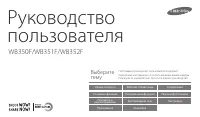 Samsung WB352F
Manual
Samsung WB352F
Manual
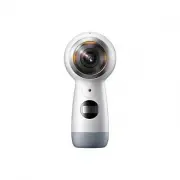 Samsung Gear 360 (2017)
User Manual
Samsung Gear 360 (2017)
User Manual
 Samsung SM-C200
User Manual
Samsung SM-C200
User Manual
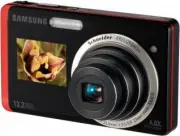 Samsung ST500
Manual
Samsung ST500
Manual
 Samsung WB152F
Manual
Samsung WB152F
Manual
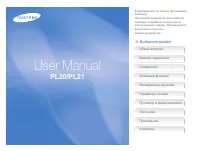 Samsung PL21
Manual
Samsung PL21
Manual