Page 2 - Intellectual Property; Openwave
Intellectual Property All Intellectual Property, as defined below, owned by or which is otherwise the property of Samsung or its respective suppliers relating to the SAMSUNG Phone, including but not limited to, accessories, parts, or software relating thereto (the “Phone System”), is proprietary to ...
Page 3 - Disclaimer of Warranties Exclusion of Liability
Disclaimer of Warranties; Exclusion of Liability EXCEPT AS SET FORTH IN THE EXPRESS WARRANTY CONTAINED ON THEWARRANTY PAGE ENCLOSED WITH THE PRODUCT, THE PURCHASER TAKESTHE PRODUCT "AS IS", AND SAMSUNG MAKES NO EXPRESS OR IMPLIEDWARRANTY OF ANY KIND WHATSOEVER WITH RESPECT TO THE PRODUCT,INC...
Page 4 - Table of Contents
Table of Contents Getting Started.............................................................................. 1 Closed View of Phone . . . . . . . . . . . . . . . . . . . . . . . . . . . . . . . . . . . . . . 1Front View of Your Phone . . . . . . . . . . . . . . . . . . . . . . . . . . . . . . . ....
Page 10 - Getting Started; Closed View of Phone
1 G e t t i n g S t a r t e d Getting Started Closed View of Phone
Page 11 - Get; Front View of Your Phone
G e tt i n g S t a r te d 2 Get ting Started Front View of Your Phone
Page 12 - Key Functions; Signal Strength Indicator:
3 G e t t i n g S t a r t e d Key Functions 1. Speaker: The speaker allows you to hear the other caller and the different ring tones and sounds offered by your phone. 2. Signal Strength Indicator: This icon represents the signal strength by displaying bars. The more bars displayed, the better the si...
Page 13 - Power Interface Connector:
G e tt i n g S t a r te d 4 Get ting Started 8. Volume Key: Allows you to adjust the ringer volume in standby mode (with the flip open) or adjust the voice volume during a call. The volume key can also be used to scroll up or down to navigate through the different menu options. To mute the ringer du...
Page 14 - Signal Type Indicator:
5 G e t t i n g S t a r t e d 17. BACK Key: Deletes characters from the display when you are in text entry mode. When in a menu, press to return to the previous menu. 18. END Key: This key can be used in several different ways. • During a call, press to end the call. • When you receive an incoming c...
Page 15 - Viewing the Display Screen
G e tt i n g S t a r te d 6 Get ting Started the phone’s battery is fully charged. When no bars are displayed, the phone’s battery is completely discharged or empty. 25. Position Location: This icon indicates that the position location feature is active. Viewing the Display Screen Your phone’s inter...
Page 18 - Tip; Features of Your Phone
9 G e t t i n g S t a r t e d indicates that a picture has been assigned a function. An example may be Picture ID, Screensaver, or Incoming Call. indicates that a picture has been uploaded to an online album or folder. indicates that a picture Has been downloaded from the web. Tip : Display indicato...
Page 19 - Turning Your Phone On and Off
G e tt i n g S t a r te d 1 0 Get ting Started • Voice Signal/Voice Command. • English or French Language Menus. Turning Your Phone On and Off To turn your phone on: • Press to turn your phone on. Once your phone is On, it displays “Looking for Service” which indicates that your phone is searching f...
Page 20 - Using Your Phone’s Battery and Charger; Battery Capacity; Note; Installing the Battery; To install the LiIon battery:
1 1 G e tt i n g S t a r te d Using Your Phone’s Battery and Charger Battery Capacity Your phone is equipped with a Lithium Ion (LiIon) battery. It allows you to recharge your battery before it is fully drained. The battery provides approximately 3 hours of continuous digital talk time or approximat...
Page 21 - Removing the Battery; To remove your battery:
G e tt i n g S t a r te d 1 2 Get ting Started Removing the Battery To remove your battery: 1. Make sure the power is off so that you don’t lose any stored numbers or messages. 2. Push the battery release latch up completely. 3. Using the side tabs, pull the top of the battery away from the phone an...
Page 22 - Charging the Battery; indicates that the battery is full. If the battery
1 3 G e tt i n g S t a r te d Charging the Battery Your phone’s LiIon battery is rechargeable and should be charged as soon as possible so you can begin using your phone.Keeping track of your battery’s charge is important. If your battery level becomes too low, your phone automatically turns off and...
Page 23 - Using the Desktop Charger; To use the desktop charger with your phone:
G e tt i n g S t a r te d 1 4 Get ting Started Using the Desktop Charger To use the desktop charger with your phone: • Plug the outlet from the desktop charger in the wall. Place your phone into the desktop charger, making sure that it fits securely. If properly connected, you should see the chargin...
Page 24 - Phone Basics; Displaying Your Phone Number; Menu; List; Making and Answering Calls; Making Calls
1 5 P h o n e B a s i c s Phone Basics Displaying Your Phone Number Just in case you forget your phone number, your phone can remind you.To display your phone number: • Press the left softkey for Menu , followed by to display your phone number . Note: To access the phone’s main Menu , press the left...
Page 25 - Answering Calls
P h o n e B a s i c s 1 6 Phone Basics 1. Make sure your phone is on. 2. Enter a phone number. (If you make a mistake while dialing, press to erase one digit at a time. Press and hold to erase the entire number.) 3. Press to call. 4. Press or close the phone when you are finished. Tip : To redial yo...
Page 26 - Ending a Call; Missed Call Notification; Warning
1 7 P h o n e B a s i c s If the incoming call is from a number stored in your Contacts, the Contacts entry’s name is displayed. The caller’s phone number may also be displayed, if available.The following options are also available to handle an incoming call: • Press or the volume key to quiet the r...
Page 27 - Options
P h o n e B a s i c s 1 8 Phone Basics disabling airplane mode. For more details, see ‘Airplane Mode” on page 119. In-Call Options Select actions by pressing the right softkey for Options during a call. A list of options is displayed that allows you to perform different actions during the course of ...
Page 28 - Saving a Phone Number
1 9 P h o n e B a s i c s are displayed. Press the left softkey to Save the new number in your Contacts. (See “Saving a Phone Number” below for more information.) Note : The End-of-Call options are not displayed for calls identified as Unknown ID or Restricted number. Saving a Phone Number Your phon...
Page 29 - Finding a Phone Number; Dialing and Saving Phone Numbers With Pauses; Hard Pause
P h o n e B a s i c s 2 0 Phone Basics Finding a Phone Number This feature allows you to search for phone numbers saved in your address book by entering 1-4 digits of the last four digits saved. When searching, you must enter the digits in sequential order starting from the last digit. For example; ...
Page 30 - Abbreviated Dialing
2 1 P h o n e B a s i c s 2. Press the right softkey for Options and select Hard pause or 2-sec pause . Hard pauses are displayed as a “ P ” and 2-second pauses as a “ T ”. 3. Enter additional numbers. 4. Press to dial the number. — or—Press the right softkey for Options and select Save to save the ...
Page 31 - Dialing From Contacts; Contacts
P h o n e B a s i c s 2 2 Phone Basics 2. Press the right softkey for Options , followed by for Abbrev. Dial . Dialing From Contacts To dial directly from a Contacts entry: 1. Press the right softkey for Contacts . 2. Scroll left or right to search by Name , Entry , or Group . 3. Highlight the desir...
Page 32 - Press the first digit.; Entering Text; Selecting a Character Input Mode
2 3 P h o n e B a s i c s To use One-Touch Dialing for Speed Dial locations 1-9: • Press and hold the appropriate key for approximately two seconds. (The display confirms that the number has been dialed when it shows “Calling...”.) To use Two-Touch Dialing for Speed Dial locations 10-99: 1. Press th...
Page 33 - Entering Characters Using T9 Text Input
P h o n e B a s i c s 2 4 Phone Basics enter text (for example, when adding a Contacts entry or when sending text messages).To change the character input mode: 1. When you display a screen where you can enter text, Press the right softkey for Options . 2. Select a character input mode: • T9 (English...
Page 34 - Entering Characters by Tapping the Keypad
2 5 P h o n e B a s i c s Entering Characters by Tapping the Keypad To enter characters by tapping the keypad, select the Alpha mode (see “Selecting a Character Input Mode” on page 23). Press the corresponding key repeatedly until the desired character appears. When the icon is shown, the first lett...
Page 35 - Entering Numbers and Symbols; Number; Using Voicemail; Setting Up Your Voicemail; Voicemail Notification
P h o n e B a s i c s 2 6 Phone Basics Entering Numbers and Symbols To enter numbers: • Select the Number mode and press the appropriate key. (See “Selecting a Character Input Mode” on page 23.) To enter symbols:Select the Symbol mode. (See “Selecting a Character Input Mode” on page 23.) To enter a ...
Page 36 - New Voicemail Message Alerts; Important; Retrieving Your Voicemail Messages
2 7 P h o n e B a s i c s • By sounding the assigned ringer type. • By the LED blinking red. • By displaying at the top of your screen. New Voicemail Message Alerts When you receive a new voice message, your phone alerts you and prompts you to call your voicemail. To call your voicemail: • Press and...
Page 37 - Clearing the Message Icon; Using Caller ID
P h o n e B a s i c s 2 8 Phone Basics • Press and hold . Follow the system prompts. Using the Menu Keys on Your Phone to Access Your Messages 1. Press the left softkey for Menu . 2. Press for Messaging . 3. Press for Voicemail . 4. Press to call the voicemail server. Note : You may be charged for a...
Page 38 - Responding to Call Waiting
2 9 P h o n e B a s i c s 1. Press . 2. Enter the number you want to call. 3. Press . To permanently block your number, call the Customer Service department of your network service provider. Note : If you have not subscribed to Caller ID, and the back light is set to turn off after a period of time,...
Page 39 - Making a Three-Way Call; Enter a number you wish to call and press; for
P h o n e B a s i c s 3 0 Phone Basics before placing your call. Call Waiting is automatically reactivated once you end the call. Making a Three-Way Call With Three-Way Calling, you can talk to two people at the same time. When using this feature, the normal airtime rates will be charged for each of...
Page 40 - TTY Use With Handset; Enable TTY; IMPORTANT 911 Emergency Calling:
3 1 P h o n e B a s i c s TTY Use With Handset A TTY (also known as a TDD or Text Telephone), is a telecommunications device that allows people who are deaf or hard of hearing, or who have speech or language disabilities, to communicate by telephone.Your phone is compatible with select TTY devices. ...
Page 41 - Roaming; Understanding Roaming; Recognizing Icons on the Display Screen; Roaming on Other Digital Networks
R o a m i n g 3 2 Roaming Roaming Understanding Roaming Recognizing Icons on the Display Screen Your phone’s display screen always lets you know when you’re off the network. The following chart indicates what you’ll see depending on where you’re using your phone. Note : You will pay a higher per-min...
Page 42 - Setting Your Phone’s System
3 3 R o a m i n g • Some features which are standard on the network, such as call waiting, web browser, and direct international dialing, are unavailable. • Though callers can leave voicemail messages while you are roaming, you will not receive notification until you return to the network. While roa...
Page 43 - Set NAM
R o a m i n g 3 4 Roaming • Automatic: This setting seeks service. When service is unavailable, the phone searches for an alternate system. • Home Only: This setting allows you to access the home network only and prevents roaming on other networks. • Digital Only: This setting allows you to access d...
Page 44 - Navigating Through Menus; Menu Styles; List Style; Settings
3 5 N a v i g a t i n g T h ro u g h M e n u s Navigating Through Menus Menu Styles Your phone can display the various features and options in one of two different menu styles, 3x3 and List . By default, your handset is set to the List menu style. Note : Key commands for the first menu level in the ...
Page 45 - Navigat; Changing the Phone’s Menu Style; Backing Up Within a Menu
N a v i g a t i n g T h r o u g h M e n u s 3 6 Navigat ing 3x3 Style 3x3 style displays the first level menu choices with graphical icons arranged in a grid pattern. In other menu levels, choices are arranged in a vertical list, similar to List style. • To navigate through a first level menu, simpl...
Page 46 - To return to standby mode:; Viewing the Menus; Menu Diagram
3 7 N a v i g a t i n g T h r o u g h M e n u s To return to standby mode: • Press . Viewing the Menus Menu Diagram The following list outlines your phone’s menu structure in List mode: 1: Call History 1: Missed Calls2: Outgoing Calls3: Incoming Calls4: All Recent5: Erase History 1: Missed Calls2: O...
Page 53 - Call; Viewing History; Call History; Call History Options
C a l l H i s to r y 4 4 Call History Call History Viewing History You’ll find the Call History feature very helpful. It is a list of the last 20 phone numbers (or Contacts entries) for calls you missed, made, or accepted. Call History makes redialing a number fast and easy. It is continually update...
Page 54 - Making a Call From Call History
4 5 C a l l H i s t o r y Press the right softkey for Options to select one of the following options for this entry: • Send Msg to send a text or picture message to this phone number. • Save to create a new Contact for this phone number. • Prepend to add a prefix before dialing this phone number. • ...
Page 55 - Saving a Phone Number From Call History
C a l l H i s to r y 4 6 Call History Saving a Phone Number From Call History Your phone can store up to 500 Contacts entries. Each contact entry can store up to a total of six phone numbers, and each entry’s name can contain up to 20 characters. To save a phone number from Call History: 1. Press th...
Page 56 - Erasing Call History
4 7 C a l l H i s t o r y 3. Select Missed Calls , Outgoing Calls , Incoming Calls , or All Recent . 4. Highlight the entry you want to prepend and press . 5. Press the right softkey for Options , and select Prepend . 6. Use the keypad to enter the desired numbers. 7. Press or the left softkey to Ca...
Page 57 - Using Contacts; Adding a New Contact
U s i n g C o n t a c t s 4 8 Using Contacts Using Contacts Adding a New Contact Your phone can store up to 500 Contact numbers. Each contact entry can store up to a total of six phone numbers, and each entry’s name can contain up to 20 characters. To add a new entry: 1. Enter a new phone number and...
Page 58 - Editing a Contacts Entry’s Phone Number
4 9 U s i n g C o n t a c t s 4. Press the navigation key left or right to search by Name , Entry , or Group . 5. Once the desired option is highlighted, press the navigation key down. 6. Enter the first few letters, entry # or scroll down to select the group to locate the desired entry. 7. Scroll t...
Page 59 - Selecting a Ringer Type for an Entry
U s i n g C o n t a c t s 5 0 Using Contacts 3. Press for Find . 4. Select the desired entry and press . 5. Press the right softkey , followed by to Edit the entry. 6. Select the phone number (home, work, etc.) to be edited, and press the right softkey to Edit the entry. 7. Press and hold to erase t...
Page 60 - Secret Contacts Entries
5 1 U s i n g C o n t a c t s 9. Press the navigation key to the left or right to highlight and listen to the desired Ringer and press to save. 10. Press the left softkey for Done . Secret Contacts Entries You can hide an entry’s phone number(s) and require your lock code to edit the entry by making...
Page 61 - Changing the Group Name
U s i n g C o n t a c t s 5 2 Using Contacts 6. Press the left softkey for Done . Tip : If you can’t recall your lock code, try using the last four digits of your Phone Number, your year of birth, or try 0000. If none of these work, call Customer Service at the number listed on the back of the User ...
Page 62 - Messaging; Erasing Text Messages
5 3 M e s s a g i n g Messaging Now you can exchange text and multimedia messages right from your phone and stay connected without saying a word. Within the Messaging menu you can also view the number of voicemail messages you have waiting for you. For more information on using your phone’s voicemai...
Page 63 - Text Messaging; Using Text Messaging
M e s s a g i n g 5 4 Messaging Old to delete all read messages, or Erase All to delete all messages in your Inbox and press . • for Erase Multiple . Scroll through your list of messages and press to check or uncheck messages you want to erase. When you are finished, press the left softkey for Erase...
Page 65 - Message Setup Options
M e s s a g i n g 5 6 Messaging Note : The last preset message used automatically moves to the top of the list when you send a new message. Message Setup Options There are several options associated with text messaging. The Message Setup menu allows you to customize the options to fit your preferenc...
Page 66 - Notifications; Priority
5 7 M e s s a g i n g • Voice Mail # : Allows you to configure the voicemail number. To access the Settings menu: 1. Press the left softkey for Menu . 2. Press for Messaging . 3. Press for Settings . Notifications The Notifications options allow you to select whether a message in a popup window appe...
Page 67 - Call Back Number; Sending Options; Preset Messages
M e s s a g i n g 5 8 Messaging 2. Press for Priority . 3. Select Normal or Urgent using the navigation key and press to select. Call Back Number This option allows you to enter a call back number that is automatically attached to your outgoing messages. To access the call back number option: 1. In ...
Page 68 - Edit Signature; Message Alerts; Alert Volume
5 9 M e s s a g i n g Note : When you send a message using Preset Messages, the last message selected automatically displays as the first choice when sending a new message. Edit Signature The Edit Signature menu allows you to create a signature of up to 32 characters that is automatically appended t...
Page 69 - Alert Type
M e s s a g i n g 6 0 Messaging Alert Type This allows you to select the ringer type for voicemail, text messaging, and web alerts. Any ringer saved in the phone can be used as the default ringer. Ringers that are downloaded can also be assigned. To set the ringer type: 1. In the Settings menu, pres...
Page 70 - Alert on Call; Save in Outbox
6 1 M e s s a g i n g To set the message reminder option: 1. In the Settings menu, press for Message Alerts . 2. Press for Reminder . 3. Press the navigation key up or down to select the desired duration and press to select. Alert on Call This allows you to configure whether your phone displays an a...
Page 71 - Alert Setup; Picture Mail; Sending Picture Messages from your Phone
M e s s a g i n g 6 2 Messaging Alert Setup This option allows you to automatically connect to the web when new web alerts are received. If this option is turned Off, you are required to connect before the message can be viewed. To turn this option On or Off: 1. In the Settings menu, press for Alert...
Page 73 - Phone Camera; Taking Pictures; Shortcut
P h o n e C a m e r a 6 4 Phone Camer a Phone Camera Taking Pictures Taking pictures with your phone’s built-in camera is as simple as choosing a subject, pointing the lens, and pressing a button. You can activate camera mode and take pictures whether the phone is open or closed.To take a picture wi...
Page 74 - Upload
6 5 P h o n e C a me r a • Upload - to upload the picture to your online folder, see "Uploading a picture to the Picture Messaging Web Site" on page 72. • Assign - to assign the picture to Picture ID, Screen Saver or incoming call, see "Display Settings" on page 106. • Erase - to era...
Page 75 - Camera Options
P h o n e C a m e r a 6 6 Phone Camer a Camera Options : There are several settings associated with the full-color digital camera. These settings allow you to customize how the camera operates when taking pictures. To set a camera option: 1. Start the camera. For more information, see "Taking Pi...
Page 77 - Setting the Self-timer
P h o n e C a m e r a 6 8 Phone Camer a • Low (160*120) : The low setting allows you to take average quality images. You can save the most images in memory using this setting. Tip : While in Capture mode, the zoom feature is available using the navigation keys. Quality : The quality allows you to se...
Page 78 - Cancel; Picture Messaging; In Camera
6 9 P h o n e C a me r a 5. Get ready for the picture. When the timer is down to 5 seconds, beep sounds are made. At 3 seconds, the timer icon turns red. To cancel the Self Timer after it has started: • Press the right softkey to Cancel . Note : While the Self-timer is active, all keys are disabled ...
Page 80 - Saved to Phone; Online Albums; Creating an Online Album
7 1 P h o n e C a me r a 2. Press for Pictures . 3. Press for My Pictures . 4. Using the navigation keys, select In Camera and press . Saved to Phone When pictures are downloaded from the web or sent from another user, they are stored in the Saved to Phone folder. Web access is not required to view ...
Page 81 - Uploading a picture to the Picture Messaging Web Site
P h o n e C a m e r a 7 2 Phone Camer a 3. Press for Online Albums . 4. Using the navigation keys, select Upload Picture and press . 5. Please wait while the system creates your account. Tip : Write down your Picture Messaging password in a secure place. Once you have received confirmation that your...
Page 82 - To view Online Albums
7 3 P h o n e C a me r a 8. Using the navigation keys, select either Upload Selection or Upload All and press . 9. Using the navigation keys, select either My Uploads or Other Album as your picture destination and press . To view Online Albums 1. Press the left softkey for Menu . 2. Press for Pictur...
Page 83 - Account Info
P h o n e C a m e r a 7 4 Phone Camer a To access your Online Albums options from your phone: 1. Display the album list in the Online Picture/Video account. 2. Use your navigation key to select an album (or Inbox). 3. Press the right softkey for Options . 4. To select an option, highlight it and pre...
Page 84 - Web Services; The Wireless Web; Launching the Browser; Yes
7 5 W e b S e rv i c e s Web Services The Wireless Web Your phone comes equipped with Wireless Web access through your browser. You can view specially designed version of popular sites which includes sports, weather, news, stock quotes etc. ... as well as downloadable ringtones, screen savers and ga...
Page 85 - Web Guard
W e b S e r v i c e s 7 6 Web Services If you had a previous web connection, the last page you visited will be displayed when you launch your browser. When this occurs, you may not see the "Connecting as..." message when you launch the session. Though the browser is open, you are not current...
Page 86 - Web Connection Status and Indicators; Softkeys; Press the navigation key up and down to scroll line by line or
7 7 W e b S e rv i c e s Web Connection Status and Indicators Your phone's display lets you know the current status of your web connection through indicators which appear at the top of the screen. The following symbols are used: Your web connection is active (data is being transferred). Incoming voi...
Page 87 - Navigating Between Web Pages; OK
W e b S e r v i c e s 7 8 Web Services press the volume buttons on the side of the phone to scroll one page at a time. Navigating Between Web Pages Once you've learned how to use softkeys and scroll, you can start navigating Web sites. • Select on-screen items by using the navigation key to highligh...
Page 88 - Using the Menu to Navigate
7 9 W e b S e rv i c e s Using the Menu to Navigate By pressing the Menu softkey, you can navigate between web pages. • Press the Menu softkey and select one of the following options: 1. Home to return to the Bell home page 2. Forward one web page (if you have not returned back from a previous web p...
Page 89 - Games; Downloading Games; Playing Games
W e b S e r v i c e s 8 0 Web Services Downloading Games, Ringers, Screen Savers and Applications With your new web enabled phone, you have access to a variety of services such as downloadable Games, Ringers, and Screen Savers. While each type of download involves a different file type, the basic me...
Page 90 - Ringers; Downloading Ringers
8 1 W e b S e rv i c e s 2. Press for Downloads . 3. Highlight Games and press . 4. Select the game you wish to play. 5. Follow the on-screen instructions to play the game. When you are finished, select Exit (or Quit ) or press . Ringers Downloading Ringers To download an available ringer to your ph...
Page 91 - Assigning Downloaded Ringers
W e b S e r v i c e s 8 2 Web Services Assigning Downloaded Ringers Downloaded ringers may be assigned directly from the Downloads menu and are also available through the Settings menu. To assign a downloaded ringer through the Settings menu, see "Selecting Ringer Types for Voice Calls" on p...
Page 92 - Screen Savers; Downloading Screen Savers; Assigning Downloaded Screen Savers
8 3 W e b S e rv i c e s Screen Savers Downloading Screen Savers To download an available Screen Saver to your phone: 1. Press the left softkey for Menu . 2. Press for Downloads . 3. Highlight Screen Savers and press . 4. Highlight Get New and press . The browser will launch and take you to the Scre...
Page 93 - Applications; Downloading Applications
W e b S e r v i c e s 8 4 Web Services • If you wish to see the screen saver, highlight the desired screen saver and press to view. When you are finished, press to return to the Screen Savers menu. 4. Press the right softkey, followed by for Set as . 5. Press for Screen Saver . 6. Press to exit. Not...
Page 94 - Voice Services; Activating Voice Recognition; Press the navigation key left or press and hold
8 5 V o i c e S e r v i c e s Voice Services Activating Voice Recognition Voice recognition allows you to say commands to perform common functions supported by your phone. There is no voice training required to use the voice recognition feature. You simply say the pre-designated command displayed on...
Page 95 - ice S; Using Voice Dial; Voice Dial
V o i c e S e r v i c e s 8 6 V o ice S e rvices Using Voice Dial Voice Dial allows you to dial any valid 7, 10 or 11 digit North American phone number by speaking the number naturally, without pausing between the digits. It also allows you to dial by pronouncing a name stored in your Contacts.Tips ...
Page 96 - . (You can also select the correct number; Enabling/Disabling Choice Lists; Press the left softkey
8 7 V o i c e S e r v i c e s 4. If the phone asks you, "Did You Say," followed by the correct number, say Yes . (You can also select the correct number from those displayed on the screen by pressing on the correct number. The phone will then dial the number.) 5. If the phone asks you, "...
Page 97 - Using Name Lookup
V o i c e S e r v i c e s 8 8 V o ice S e rvices 2. Press for Settings . 3. Press for Voice Service . 4. Press for Settings . 5. Press for Choice Lists . 6. Press for Name Dialing , for Digit Dialing or for Contacts . 7. Press the navigation key up or down to select Automatic , Always On or Always O...
Page 98 - Status; Customizing Voice Dial; Adapting Voice Dial
8 9 V o i c e S e r v i c e s To retrieve your phone's status information: 1. Press and hold to activate voice recognition. (The phone prompts you to say a voice command.) 2. Wait for the beep and say Status . Your phone’s current status information is displayed. Customizing Voice Dial Adapting Voic...
Page 100 - Resetting Voice Dial Adaptation; Changing Voice Dial Sensitivity
9 1 V o i c e S e r v i c e s Note : It is recommended that you perform the complete adaptation of Voice Dial at least once to achieve the maximum benefit of this feature. If a partial adaptation is performed, you can always return later and resume the process from the half way point. Resetting Voic...
Page 101 - Changing Voice Dial Prompts
V o i c e S e r v i c e s 9 2 V o ice S e rvices 6. Press the navigation key up or down to select Reject More or Reject Less and press . • If you select Reject More , your phone will require a more exact sound match and if you select Reject Less , your phone will require a less exact sound match. Ch...
Page 102 - Managing Voice Memos; Recording Voice Memos
9 3 V o i c e S e r v i c e s 3. Press for Settings . 4. Press for Voice Launch . 5. Press the navigation key up or down to select Talk Only or Talk and Flip and press . Managing Voice Memos You can use your phone to record brief memos to remind you of important events, phone numbers, or other items...
Page 103 - Reviewing and Erasing Memos
V o i c e S e r v i c e s 9 4 V o ice S e rvices 2. Press for Voice Memo . (As it is recording, the phone displays a countdown timer that shows how many seconds are left for recording.) • Press the right softkey to Pause the memo. (When a memo is paused, press the right softkey again to Resume recor...
Page 105 - Tools; Scheduler; Adding an Event to the Scheduler
T o o l s 9 6 Tools Tools Scheduler Your Scheduler helps organize your time and reminds you of important events. You can schedule events for either the current day, or a specific calendar date. Adding an Event to the Scheduler To add an event to today’s schedule: 1. Press the left softkey for Menu ....
Page 107 - Event Alerts
T o o l s 9 8 Tools Event Alerts There are several ways your phone alerts you of scheduled events: • By playing the assigned ringer type. • By illuminating the backlight. • By flashing the LED. To select the ringer: 1. Press the left softkey for Menu . 2. Press for Settings . 3. Press for Sounds . 4...
Page 108 - Erasing a Single Event for a Day
9 9 T o o l s Erasing a Single Event for a Day To delete an individual event: 1. View the day that you wish to erase the event for. See "Viewing Events" on page 98 for more details. 2. Press the right softkey for Options . 3. Press to Erase . 4. Highlight Yes using the navigation key and pre...
Page 109 - World Time
T o o l s 1 0 0 Tools World Time World Time displays what time it is in twenty-four different time zones around the world together with one or more major cities, states, regions, or countries in a time zone.To access world time: 1. Press the left softkey for Menu . 2. Press for Tools . 3. Press for ...
Page 110 - Task List
1 0 1 T o o l s 7. Press the navigation key down once to select the desired ringer. (Cycle through the ringers by pressing the navigation key left or right.) 8. Press the navigation key down once to select the alarm frequency. 9. Press the navigation key left or right and select one of the following...
Page 111 - Memo Pad
T o o l s 1 0 2 Tools 6. Press the navigation keys left or right to select a Low or High priority. 7. Press the left softkey to Save . To view a task: 1. Press the left softkey for Menu . 2. Press for Tools . 3. Press for Task List . 4. Use the navigation keys to scroll to the desired task and press...
Page 113 - Calculator
T o o l s 1 0 4 Tools Calculator Your phone comes with a built-in calculator. To use the calculator: 1. Press the left softkey for Menu . 2. Press for Tools . 3. Press for Calculator 4. Enter a number with the keypad. (Use to insert a decimal point and/or to make the number negative or positive.) 5....
Page 115 - Phone Settings; Display Settings; Changing the Screen Saver
P h o n e S e t ti n g s 1 0 6 Phone Settings Phone Settings Display Settings Changing the Screen Saver Your new phone offers options for what you see on the display screen when in standby mode.To change the display images: 1. Press the left softkey for Menu. 2. Press for Settings . 3. Press for Dis...
Page 117 - Changing the Text Greeting
P h o n e S e t ti n g s 1 0 8 Phone Settings 3. Press for Display . 4. Press for Incoming Call . 5. Press for With Caller ID or for No Caller ID . 6. Press for No Image , for Downloads, or for My Pictures . • If you selected Downloads , use the navigation keys to select the desired image and press ...
Page 118 - Changing the Backlight Time Length; Changing the LCD Contrast
1 0 9 P h o n e S e t ti n g s Changing the Backlight Time Length The backlight setting lets you select how long the display screen and keypad are backlit after any key press is made.To change the backlight setting: 1. Press the left softkey for Menu . 2. Press for Settings . 3. Press for Display . ...
Page 119 - Turning the Service Light On or Off
P h o n e S e t ti n g s 1 1 0 Phone Settings 3. Press for Display . 4. Press for LCD Contrast . 5. Press for Main LCD or for External LCD 6. Using the navigation keys, increase or decrease the contrast level setting and press . Turning the Service Light On or Off To turn the service light on or off...
Page 120 - Changing the Color of your Dialing Font; Sound Settings; Adjusting the Phone’s Volume Settings
1 1 1 P h o n e S e t ti n g s Changing the Color of your Dialing Font You can adjust the color of your dialing font so that it appears in color or monochromatic.To change the dialing font color: 1. Press the left softkey for Menu . 2. Press for Settings . 3. Press for Display . 4. Press for Dialing...
Page 121 - Ringer Types
P h o n e S e t ti n g s 1 1 2 Phone Settings 2. Press for Settings . 3. Press for Sounds . 4. Press for Ringer Volume . 5. Press for Calls , for Messages , or for Alarms . 6. Press the navigation key left or right until the desired volume level is selected and press to save and exit. Tip : You can ...
Page 122 - Selecting Ringer Types for Voice Calls
1 1 3 P h o n e S e t ti n g s Selecting Ringer Types for Voice Calls Your phone provides a variety of ringer options that allow you to customize your ring and volume settings. These options allow you to identify incoming calls by the ring.To select a ringer type for voice calls: 1. Press the left s...
Page 123 - Selecting Ringer Types for Scheduled Alerts
P h o n e S e t ti n g s 1 1 4 Phone Settings 7. Press the navigation button left or right to select Single Tones , Ring Tones , Melodies , or Downloaded ringers. 8. Press the navigation button down and then left or right to select the desired Ringer. 9. Press to save and exit. Selecting Ringer Type...
Page 124 - Selecting a Key Tone; Key Tone Volume
1 1 5 P h o n e S e t ti n g s 5. Select Normal or Distinctive and press to save and exit. Selecting a Key Tone Your phone offers a number of options for selecting the audible tones accompanying a key press.There are three different tones available: • Normal - Normal key beeps are heard when a butto...
Page 125 - Selecting Tone Length
P h o n e S e t ti n g s 1 1 6 Phone Settings 4. Press for Key Tone . 5. Press for Tone Level . 6. Press the navigation key right to increase or left to decrease the volume. 6. Press to save and exit. Selecting Tone Length Your phone offers a number of options for changing the tone duration of a key...
Page 127 - Application Volume; Silence All
P h o n e S e t ti n g s 1 1 8 Phone Settings Application Volume This setting allows you to control the default volume and vibrate settings in downloaded applications on your phone. When the application is opened, the default setting is enabled and you can adjust the volume setting by using the volu...
Page 128 - Location Settings; Airplane Mode
1 1 9 P h o n e S e t ti n g s volume level. Location Settings Your phone is equipped with a Location feature for use in connection with location-based services that may be available in the future. The Location feature allows the network to detect your position. Turning Location off will hide your l...
Page 129 - Phone Setup Options
P h o n e S e t ti n g s 1 2 0 Phone Settings prohibited. When your phone is in Airplane Mode, it cannot send or receive any calls or access online information. All incoming calls will be sent directly to your voicemail box.To set your phone to Airplane Mode: 1. Press the left softkey for Menu. 2. P...
Page 130 - Call Answer Mode
1 2 1 P h o n e S e t ti n g s 4. Press for Up Key , for Down Key , for Left Key , or for Right Key . 5. Press the navigation key up or down to select one of the following functions: 6. Press to save and exit. Call Answer Mode To set the actions required to answer an incoming call: 1. Press the left...
Page 131 - Display Language
P h o n e S e t ti n g s 1 2 2 Phone Settings 4. Press for Auto Answer . 5. Press the navigation key up or down to select Yes or No . 6. Press to save and exit. Display Language Your phone can display text in English or French. Language selection changes all menus and voice message settings. 1. Pres...
Page 132 - Phone Security; Accessing the Security Menu; Using Your Phone’s Lock Feature; Locking Your Phone; Lock Phone
1 2 3 P h o n e S e c u r i t y Phone Security Accessing the Security Menu All of your phone’s security settings are available through the Security menu. You must enter your lock code to view the Security menu.To access the Security menu: 1. Press the left softkey for Menu. 2. Press for Settings . 3...
Page 133 - Phone Securit; Unlocking Your Phone; Change Lock; Calling in Lock Mode; Allow all
P h o n e S e c u r i t y 1 2 4 Phone Securit y Unlocking Your Phone To unlock your phone: 1. Press the left softkey for Menu. 2. Enter your lock code. Changing the Lock Code To change your lock code: 1. From the Security menu, press for Change Lock . 2. Enter your new lock code and press . Your new...
Page 134 - Contacts Only; Using Special Numbers; Save
1 2 5 P h o n e S e c u r i t y • Contacts Only - Allows you to call only the numbers saved in the Contacts. You can receive incoming calls from anyone. • Special# Only - Allows you to call only the three numbers stored in the Special# section in the Security menu. You can receive incoming calls fro...
Page 135 - Erasing the Contacts
P h o n e S e c u r i t y 1 2 6 Phone Securit y Erasing the Contacts To erase all the names and phone numbers in your Contacts: 1. From the Security menu, press for Erase . 2. Press for Erase Contacts . 3. Using the navigation key, select Yes and press . 4. Using the navigation key, select Yes again...
Page 136 - Resetting Your Phone; Reset Phone
1 2 7 P h o n e S e c u r i t y Resetting Your Phone Resetting the phone restores all the factory defaults, including the ringer types and display settings. The Contacts, Call History, Scheduler, and Messaging are not affected.To reset your phone: 1. From the Security menu, press for Reset Phone . 2...
Page 137 - Safety; Getting the Most Out of Your Reception; Keeping Tabs on Signal Strength
S a f e t y 1 2 8 Safety Safety Getting the Most Out of Your Reception Keeping Tabs on Signal Strength The quality of each call you make or receive depends on the signal strength in your area. Your phone informs you of the current signal strength by displaying a number of bars next to the signal str...
Page 138 - Maintaining Your Phone’s Peak Performance; Don’t use the phone if the antenna is damaged.
1 2 9 S a f e t y reviewing the available body of research. In 1993, the Federal Communications Commission (FCC) adopted this updated standard in a regulation. In August 1996, the FCC adopted hybrid standard consisting of the existing ANSI/IEEE standard and the guidelines published by the National C...
Page 139 - Using Your Phone While Driving
S a f e t y 1 3 0 Safety Using Your Phone While Driving Talking on your phone while driving (or operating the phone without a hands-free device) is prohibited in some jurisdictions. Laws vary as to specific restrictions. Remember that safety always comes first.When using your phone in the car: • Get...
Page 140 - Using Your Phone Near Other Electronic Devices; Turning Off Your Phone Before Flying
1 3 1 S a f e t y Using Your Phone Near Other Electronic Devices Most modern electronic equipment is shielded from radio frequency (RF) signals. However, RF signals from wireless phones may affect inadequately shielded electronic equipment.RF signals may affect improperly installed or inadequately s...
Page 141 - Restricting Children’s Access to your Phone; Caring for the Battery; Protecting Your Battery
S a f e t y 1 3 2 Safety your phone or its accessories could generate sparks. Sparks could cause an explosion or a fire resulting in bodily injury or even death. These areas are often, but not always, clearly marked. These areas include: • Fueling areas such as gas stations. • Below deck on boats. •...
Page 142 - Disposal of Lithium Ion (LiIon) Batteries; Special Note
1 3 3 S a f e t y • In order to avoid damage, charge the battery only in temperatures that range from 32º F to 113º F (0º C to 45º C). • Don’t use the battery charger in direct sunlight or in high humidity areas, such as the bathroom. • Never dispose of the battery by incineration. • Keep the metal ...
Page 143 - Cautions; Information to User; Reorient / relocate the receiving antenna.
S a f e t y 1 3 4 Safety Acknowledging Special Precautions and Industry Canada Notice Cautions Any changes or modifications to your phone not expressly approved in this document could void your warranty for this equipment, and void your authority to operate this equipment. Only use approved batterie...
Page 144 - Specific Absorption Rates (SAR) for Wireless Phones
1 3 5 S a f e t y Specific Absorption Rates (SAR) for Wireless Phones The SAR is a value that corresponds to the relative amount of RF energy absorbed in the head of a user of a wireless handset.The SAR value of a phone is the result of an extensive testing, measuring and calculation process. It doe...
Page 145 - Owner’s Record
S a f e t y 1 3 6 Safety Owner’s Record The model number, regulatory number and serial number are located on a nameplate inside the battery compartment. Record the serial number in the space provided below. This will be helpful if you need to contact us about your phone in the future.Model: SPH- a74...
Page 146 - Manufacturer’s Warranty; STANDARD LIMITED WARRANTY
1 3 7 M a n u fa c t u r e r’ s W a rr a n t y Manufacturer’s Warranty STANDARD LIMITED WARRANTY What is Covered and For How Long? SAMSUNG Electronics Canada Inc. ("SAMSUNG") warrants to the original purchaser ("Purchaser") that SAMSUNG's phones and accessories ("Products") a...
Page 149 - Index
I n d e x 1 4 0 Index A Abbreviated Dialing 21Activating Voice Recognition 85Air Time 47Airplane Mode 119Alarm Clock 100Alert Notification 116Auto-Answer 121 B Backlight 109Battery Capacity 11 Charging 13 Disposal 133 Installing 11 Removing 12 C Calculator 104Call History 44 Erasing 47 Making a Call...
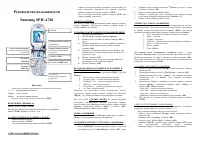
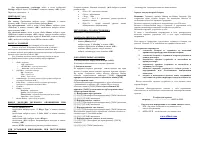


 Samsung A740
User Manual
Samsung A740
User Manual
 Samsung A840
User Manual
Samsung A840
User Manual
 Samsung A930
User Manual
Samsung A930
User Manual
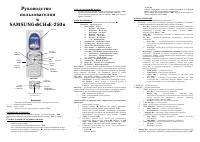 Samsung SCH E250
User Manual
Samsung SCH E250
User Manual
 Samsung SCH i830
User Manual
Samsung SCH i830
User Manual
 Samsung SCH N391
User Manual
Samsung SCH N391
User Manual
 Samsung SCH-A101
User Manual
Samsung SCH-A101
User Manual
 Samsung SCH-A212
User Manual
Samsung SCH-A212
User Manual
 Samsung SCH-A302
User Manual
Samsung SCH-A302
User Manual
 Samsung SCH-X969
User Manual
Samsung SCH-X969
User Manual
 Samsung SPH A860
User Manual
Samsung SPH A860
User Manual
 Samsung SPH i700
User Manual
Samsung SPH i700
User Manual
 Samsung A920
Manual
Samsung A920
Manual
 Samsung 830
Manual
Samsung 830
Manual