Page 2 - overview; FEATURES; back
2_ overview overview FEATURES This DVR (Digital Video Recorder) employs MPEG-4 video encoding for 8 or 16 channels of camera input and G.723 audio encoding for 4 channels, and supports simultaneous hard disc recording and playback.And also it supports network connectivity, providing remote monitorin...
Page 3 - English; OVER; IMPORTANT SAFETY INSTRUCTIONS
English _3 OVER VIEW IMPORTANT SAFETY INSTRUCTIONS Read these operating instructions carefully before using the unit. Follow all the safety instructions listed below. Keep these operating instructions handy for future reference. Read these instructions. Keep these instructions. Heed all warnings. ...
Page 4 - BEFORE START; Warning; Battery; Connect the power cord into a grounded oulet.; System Shutdown; OK; Operating Temperature; CALIFORNIA USA ONLY
4_ overview overview BEFORE START This user’s manual provides Information for using DVR such as brief introduction, part names, functions, connection to other equipment, menu setup, and the like.You have to keep in mind the following notices: SEC retains the copyright on this manual.This manual cann...
Page 5 - Standards Approvals
English _5 OVER VIEW Standards Approvals This equipment has been tested and found to comply with the limits for a Class A digital device, pursuant to part 15 of the FCC Rules. These limits are designed to provide reasonable protection against harmful interference when the equipment is operated in ...
Page 6 - CONTENTS; OVERVIEW
6_ overview overview CONTENTS OVERVIEW 2 2 Features 3 Important Safety Instructions 4 Before Start 6 Contents 8 Part Names and Functions (Front) 10 Part Names and Functions (Rear) 12 Remote Control INSTALLATION 14 14 Checking the Installation Environment 15 Rack Installation 15 HDD Addition CONNECTI...
Page 7 - WEB VIEWER
English _7 OVER VIEW WEB VIEWER 70 70 Introducing Web Viewer 71 Connecting Web Viewer 73 Using Live Viewer 79 Using Search Viewer 83 Viewer Setup 93 About BACKUP VIEWER 94 94 SEC Backup Viewer APPENDIX 96 96 Product Specification 99 Product Overview 100 Default Setting 103 Troubleshooting
Page 11 - VGA Video Signal Output Port.
English _11 OVER VIEW Part Names Functions VIDEO OUT Composite Video Signal Output Port (BNC type connector). AUDIO OUT Audio Signal Output Port (RCA jack). VGA VGA Video Signal Output Port. AUDIO IN Audio input signal port (RCA Jack). USB USB connector port. SPOT A live screen output port, separa...
Page 12 - REMOTE CONTROL; Available after switching to DVR mode by pressing the [; DVR; Using the numeric buttons; Press each button between 1 to 9.
12_ overview overview REMOTE CONTROL DVR Available after switching to DVR mode by pressing the [ DVR ] button on the remote control. Using the numeric buttons CHANNEL 1–9 Press each button between 1 to 9. CHANNEL 10 Press the [ +10 ] button fi rst, then press the 0 button again within 3 seconds. CHA...
Page 13 - Available after switching to Monitor mode by pressing the [; MONITOR; Using the Numeric buttons; Press any button among 1 to 9.; Changing the Remote Control ID; Remote Devices
English _13 OVER VIEW MONITOR Available after switching to Monitor mode by pressing the [ MONITOR ] button on the remote control. Using the Numeric buttons CHANNEL 1–9 Press any button among 1 to 9. Changing the Remote Control ID Press the ID button of the remote control and check the ID displayed...
Page 14 - installation; Please be noticed with the followings before you use the product.; CHECKING THE INSTALLATION ENVIRONMENT; not achieved due to uneven mechanical loading.
14_ installation installation Please be noticed with the followings before you use the product. Do not use the product outdoor. Do not spill water or liquid in the connection part of the product.Do not impose the system to excessive shock or force.Do not pull out the power plug forcefully.Do not dis...
Page 15 - INST; RACK INSTALLATION; Fix the screws not to be loosened by vibrations.; HDD ADDITION; Cases might cause damage to HDD or recorded data; Cautions when adding a HDD; Please check the HDD compatibility before adding a HDD.
English _15 INST ALLA TION RACK INSTALLATION Loosen the screws on both sides (4 screws on each side) and install the Bracket-Rack as shown in the fi gure, and then fasten the screws on both sides (4 screws on each side). Fix the screws not to be loosened by vibrations. HDD ADDITION You can install...
Page 16 - Adding a HDD
16_ installation installation Adding a HDD Make sure to unplug the power cord from the wall outlet before proceeding with the installation. Number of HDDs to install : SHR-6082/6162/6164 : Default 1 HDD + Up to 4 HDDs added SHR-6080/6160/6163 : Default 1 HDD + Up to 5 HDDs added By factory default, ...
Page 17 - on
English _17 INST ALLA TION When the installation of additional HDDs is done, insert the lower and upper brackets into the DVR and fi x them with the provided screws. When the installation of additional HDDs is done, connect the power cable and connect the HDD signal cables (SATA Cable) to connecto...
Page 19 - CONNECTING WITH OTHER DEVICE; connecting with other device; The following fi gures are based on Model SHR-6164.; CONNECTING THE NETWORK
English _19 CONNECTING WITH OTHER DEVICE connecting with other device The following fi gures are based on Model SHR-6164. CONNECTING THE VIDEO, AUDIO, AND MONITOR CONNECTING THE NETWORK Connecting to Internet through Ethernet (10/100/1000BaseT) M VIDEO IN AUDIO IN SPOT AC 100-240V~IN RS-485 / AL...
Page 20 - Connecting to Internet through ADSL; CONNECTING THE USB; The USB type HDD must be set as Master.; CONNECTING POS DEVICE; Connection setup for the RS-232C port is available in “
20_ connecting with other device connecting with other device Connecting to Internet through ADSL CONNECTING THE USB There are two USB ports at the front and one at the back of the product. You can connect a USB HDD, USB CD/DVD player, USB memory or mouse to the USB port. If a USB HDD is connected t...
Page 21 - CONNECTING THE ALARM INPUT/OUTPUT; The Alarm In/Out port at the back is composed of the following.; ALARM OUT
English _21 CONNECTING WITH OTHER DEVICE CONNECTING THE ALARM INPUT/OUTPUT The Alarm In/Out port at the back is composed of the following. Alarm In/Out Port on 6080/6082 Alarm In/Out Port on 6160/6162/6163/6164 ALARM IN 1 ~ 8 (SHR-6080/6082) : Alarm Input Port ALARM IN 1 ~ 16 (SHR-6160/6162/6163/6...
Page 22 - CONNECTING THE RS-485 DEVICE; Connect the RS-485 device through the back port.
22_ connecting with other device connecting with other device CONNECTING THE RS-485 DEVICE Connect the RS-485 device through the back port. For example, you can connect and control the PTZ camera which supports the RS-485 communication. Transfer Type : You may select either Half Duplex or Full Duple...
Page 23 - LIVE; live; GETTING STARTED; Starting the system; For the permission management, refer to “
English _23 LIVE live GETTING STARTED Starting the system Connect the power cable of the DVR to the wall outlet. Press the Power button on the front panel. You will see the initialization screen.The initialization process will last about 1 minute in the order of icons appeared.If a new HDD is inst...
Page 24 - ] button on the remote control or; Locking All Buttons; This will restrict access to all buttons available in the DVR.
24_ live live Login To access a DVR or restricted menu, you should have logged in to the DVR. In live mode, right-click any area of the screen.You will see the context sensitive menu as in the right fi gure. Click < Login >. The login dialog appears.You can also see the login dialog to access ...
Page 25 - LIVE SCREEN CONFIGURATION; Icons on the Live Screen
English _25 LIVE LIVE SCREEN CONFIGURATION Icons on the Live Screen You can check the status or operation of the DVR with the icons on the live screen. Name Description Current Date, Time Displays the current time and date. Login Information When you are logged in, the “ LOG ON ” icon will be disp...
Page 26 - Error Information; Fan Information; > window will appear and; Live Screen Menu; Split Mode Menu
26_ live live Error Information If you turn on the system in the condition that the internal HDD is not connected or an error occurs, the “HDD FAIL” icon ( ) will be displayed on the top left corner. In this case, make sure you contact the service center for assistance as this may cause a failure of...
Page 27 - Single Mode Menu
English _27 LIVE Menu Description Scene Mode Refer to “ Live Mode ”. (Page 29) Spot Out Refer to “ Spot Out ”. (Page 31) Audio On/Off Refer to “ Audio ON/OFF ”. (Page 32) Freeze Refer to “ Freeze ”. (Page 32) Stop Alarm Stops the alarm output and the event monitoring. Refer to “ Event Monitoring ”...
Page 28 - View the Launcher Menu; Show Launcher; If no input is entered for 10 seconds, the menu will disappear.
28_ live live View the Launcher Menu You can use the Launcher menu appearing on the bottom of the live screen to access it. In Live mode, right-click to display the context menu and select < Show Launcher >. Move the cursor to the bottom and click a desired item in the Launcher menu. If no inp...
Page 29 - LIVE MODE; Switching the screen mode; MODE; Switching the split mode; Auto Sequence; Setting the Device
English _29 LIVE LIVE MODE SHR-6160/6162/6163/6164 display Live images from 16 channels in a total of 8 layout of split screens. Switching the screen mode To switch the split mode, select a screen mode in the launcher menu, or right-click to select a screen mode in the context menu.Press the [ MOD...
Page 30 - Manual Switching; If pressing the right [; Channel Setting; You can display the channel in a desired area of a split screen.
30_ live live Manual Switching Press the left/right button on the front panel or the remote control, or click the arrow < ◄ / ► > key to move to the next split mode. If pressing the right [ ► ] button in 9-split mode: 9-split (CH 1~9) mode 9-split (CH 10~16) mode Auto Sequence If pressing the ...
Page 31 - Switching to Single Mode; Remote Control; SPOT OUT; Selecting a Spot Out mode
English _31 LIVE Switching to Single Mode In a split mode, select and double-click a desired channel to switch to its Single mode.Press the number corresponding to a desired channel on the front panel or the remote control to switch to its Single mode.Refer to “ Remote Control > Using the numer...
Page 32 - ZOOM; In the enlarged image, use the direction buttons (; AUDIO ON/OFF in Single mode; Only the channel where <; FREEZE
32_ live live ZOOM This is available only in Single Live mode. In Single mode, select a desired area and use the Zoom function to enlarge it twice. Select < ZOOM > in the right-click menu. Press the [ ZOOM ] button on the front panel or the remote control, or simply click < > in the laun...
Page 33 - EVENT MONITORING; Monitor; Event Display
English _33 LIVE EVENT MONITORING This will display the channel in sync with a specifi c event (Sensor/Motion/Video Loss) if it occurs.In “ Monitor > Event Display ”, set the event monitoring to ON/OFF and specify the event display time. (Page 47) If multiple events occur simultaneously, the sc...
Page 34 - using the DVR; SYSTEM SETUP
34_ using the DVR using the DVR You can setup the system properties, devices, and options for recording, event, backup and network. SYSTEM SETUP You can setup Date/Time/Language, Permission, System Properties and Log. Date/Time/Language You can check and setup the current Date/Time and time related ...
Page 35 - USING THE DVR; > only to make every; Using the Calendar
English _35 ● USING THE DVR - Time Server: Enter an IP or URL address of the time server. - Last Sync Time: Displays the most recent synchronization time from the selected time server. - Activate as Server: Set to < Use > to allow the DVR to act as a Time Server for other DVRs. DST : Set up Da...
Page 36 - Setting the Administrator; By default, initial ID and password are set to “; Using Virtual Keyboard; Caps Lock
36_ using the DVR using the DVR Permission Management You can set permissions of each user over the DVR's specifi c function and settings. Setting the Administrator You can set and change Administrator’s ID and password.The administrator can use and set all menu items and functions. Using the mouse ...
Page 37 - Setting the Group; Setting the User; Refer to “
English _37 ● USING THE DVR Setting the Group You can create a user group, and setup permissions of a user group.You can register a user for each group in < User >. Using the mouse may help easy setup. Use the up/down buttons ( ▲▼ ) in < System > window to move to < Permission Managem...
Page 38 - Setting Permissions; Use direction buttons (; Checking the System Information
38_ using the DVR using the DVR Setting Permissions You can set restricted access for all general users.Items with restrictions will require logging in for use. Using the mouse may help easy setup. Use the up/down buttons ( ▲▼ ) in < System > window to move to < Permission Management >, ...
Page 39 - Updating the Software
English _39 ● USING THE DVR Updating the Software Connect a device storing the software to be updated.(It may take about 10 seconds to recognize the device.) Upgradeable devices include USB memory, CD/DVD and network device. To update the network, the current DVR should have been connected to the ne...
Page 40 - Include Network Settings; Log Information
40_ using the DVR using the DVR Settings You can copy and import the DVR settings by using a storage media. Using the mouse may help easy setup. Use the up/down buttons ( ▲▼ ) in < System > window to move to < System Management >, and press [ ENTER ] button. Select < Settings >. A ...
Page 41 - Use the four direction buttons (
English _41 ● USING THE DVR Event Log Event log shows recorded events on alarms, motion detections and video loss.It also shows the log and its timestamp. Using the mouse may help easy setup. Use the up/down buttons ( ▲▼ ) in < System > window to move to < Log Information >, and press [ ...
Page 42 - SETTING THE DEVICE; Setting the Camera
42_ using the DVR using the DVR SETTING THE DEVICE You can setup Camera, Storage Device, Remote Device, POS Device and Monitor. Camera Setting the Camera You can set Video, Audio, Channel Name and Dwell Time of a Camera. Using the mouse may help easy setup. Press the [ MENU ] button on the remote co...
Page 43 - > to initialize settings back to the default 50.; Setting the PTZ; A window of PTZ settings appears.
English _43 ● USING THE DVR Screen Setup : The video appeared on the screen may vary depending on the channel’s camera, confi gure the DVR display to your preferences.Select a channel and adjust the < (Brightness) >, < (Contrast) >, and < (Color) > of the selected channel. Press th...
Page 44 - Confi rming Devices; HDD Map
44_ using the DVR using the DVR Storage Device You can check information on storage devices. Confi rming Devices You can check storage devices and their free space, usage as well as status.Devices available are HDD, and USB devices (memory, HDD, CD/DVD).Refer to “ Product Specifi cations > Backup...
Page 45 - Check
English _45 ● USING THE DVR Select < Format > on the bottom of the screen. Press < OK > on the “ Manage ” confi rmation window will start formatting the selected device. When the formatting is done, press < OK >. HDD Alarm You can set alarm settings for HDD defects such as Check Al...
Page 46 - POS Devices
46_ using the DVR using the DVR Remote Devices You can set the RS-485 communication for use of PTZ Camera and system keyboard with the DVR. Using the mouse may help easy setup. Use the up/down buttons ( ▲▼ ) in < Device > window to move to < Remote Device >, and press [ ENTER ] button. U...
Page 47 - When the POS Device setup is done, press <; Setting the Monitor
English _47 ● USING THE DVR CH : Select the camera to be synchronized to the POS device. If selected a channel input fi eld, “ Sync Channel Setup ” window appears. One POS device and be synchronized up to 16 cameras (channels), and a channel can not be synchronized to multiple POS devices. Channels ...
Page 48 - You will move to the <; Setting the Spot Out
48_ using the DVR using the DVR Screen Setup Some monitors many not display information (camera name, icon, time information, etc.) about the DVR, depending on the condition. Then, you can change the display position of the data. In the < Device > window, press the up/down ( ▲▼ ) button to mov...
Page 49 - Setting the Screen Mode; You can confi gure the Live screen and Split Screens.
English _49 ● USING THE DVR Setting the Screen Mode You can confi gure the Live screen and Split Screens. Using the mouse may help easy setup. Use the up/down buttons ( ▲▼ ) in < Device > window to move to < Monitor >, and press [ ENTER ] button. Select < Mode >. Use direction butt...
Page 50 - SETTING THE RECORDING
50_ using the DVR using the DVR SETTING THE RECORDING You can setup scheduled recording, event recording and other recording related settings. Recording Schedule Make your reservation on a date and time to schedule the recording on specifi ed time. Using the mouse may help easy setup. Press the [ ME...
Page 51 - Recording Color Tags; Setting Standard Recording Properties
English _51 ● USING THE DVR Recording Color Tags Color Function Description White No Recording No schedule / event recording Orange Continuous Scheduled recording only Blue Event Event recording only Green Both(Cont&Evnt) Both scheduled / event recordings Each press of a selected cell will cycle...
Page 52 - Setting Event Recording Properties; Resolution
52_ using the DVR using the DVR Setting Event Recording Properties You can set each channel’s resolution, quality and IPS for event recordings. Using the mouse may help easy setup. Use the up/down buttons ( ▲▼ ) in < Record > window to move to < REC Quality & Resolution >, and press ...
Page 53 - SETTING THE EVENT; Preset setup can be done in PTZ mode.
English _53 ● USING THE DVR Disk End Mode : If selected < Overwrite >, recording will continue despite the HDD full while overwriting the oldest.If selected < Stop >, the recording will stop when the HDD is full. Disk End Beep : If selected < Stop >, the button is activated. If you...
Page 54 - Motion Detection; Setting the Motion Detection Area; Select
54_ using the DVR using the DVR Alarm : Sets the alarm output method. For further information on alarm output, refer to “ HDD Alarm > Alarm ”. (Page 45) Duration : Sets the duration of alarm signal and alarm sound. When the sensor detection setup is done, press < OK >. Motion Detection You ...
Page 55 - Video Loss Detection
English _55 ● USING THE DVR Video Loss Detection You can set the alarm to be generated on a camera disconnection, which causes a video loss. Using the mouse may help easy setup. Use the up/down buttons ( ▲▼ ) in < Event > window to move to < Video Loss Detection >, and press [ ENTER ] bu...
Page 56 - BACKUP; Setting the Backup
56_ using the DVR using the DVR BACKUP You can check the backup device and set the backup schedule by channel or by time.The product only supports external HDD of USB memory/DVD and USB type. (Page 98) Setting the Backup You can backup the desired data to a connected device. Using the mouse may help...
Page 57 - If no available device is recognized for backup, <; NETWORK CONFIGURATION; Setting the Connection
English _57 ● USING THE DVR When the backup setup is done, press < OK >. If no available device is recognized for backup, < OK > button is not activated. The application may slow down during the backup. You can switch to the menu screen during the backup in operation, but playback of dat...
Page 58 - Dynamic IP; Setting the Protocol
58_ using the DVR using the DVR IP, Gateway, Subnet Mask, and DNS - For < Static IP > : You can directly input IP address, Gateway, Subnet Mask and DNS. - For < Dynamic IP > : IP address, Gateway, and Subnet Mask are set automatically. - For < ADSL > : IP address, Gateway, and Subn...
Page 59 - You can set the DDNS site for a remote user’s network connection.; Use virtual keyboard to enter user inputs.; Connecting and Setting the Network; When no router is used; Consult your network manager for IP, Gateway and Subnet Mask.
English _59 ● USING THE DVR DDNS You can set the DDNS site for a remote user’s network connection. Using the mouse may help easy setup. Use the up/down buttons ( ▲▼ ) in < Network > window to move to < DDNS >, and press [ ENTER ] button. Use virtual keyboard to enter user inputs. Refer t...
Page 60 - When a router is used; enter “
60_ using the DVR using the DVR When a router is used To avoid IP address confl ict with the DVR's static IP, check followings: Setting the DVR with a static IP - Internet connection : You can connect the DVR to a router which is connected to an ADSL/Cable modem or a router in a Local Area Network (...
Page 61 - DDNS Setting; > menu of the connected DVR to the following:; The Live Transfer window appears.
English _61 ● USING THE DVR DDNS Setting DDNS is a short form of Dynamic Domain Naming System.DNS (Domain Name System) is a service that routes a domain name consisting of user friendly characters (ex: www.google.com) to an IP address consisting of numbers (64.233.189.104).DDNS (Dynamic DNS) is a se...
Page 62 - SMTP Setting; Event Setting
62_ using the DVR using the DVR Mailing Service You can send an e-mail to a DVR-registered user at a specifi c time interval, or if an event occurs. SMTP Setting Sets the SMTP mail server. Using the mouse may help easy setup. In the < Network > setting window, press the up/down ( ▲▼ ) button t...
Page 63 - Group Setting; Recipient Setting
English _63 ● USING THE DVR Group Setting You can set the group to whom the e-mail is sent, and specify the permission for each group.You can add recipients for each group in the < Recipient > menu item. The recipient is set separately from the DVR user group. Using the mouse may help easy set...
Page 64 - CONTROLLING A PTZ DEVICE; PTZ Device; Getting started with PTZ; Using the PTZ camera; PTZ Control; > icon on the bottom right corner turns; PTZ Control; ” mode to display the; PTZ Control; ) on the remote control or the front panel
64_ using the DVR using the DVR CONTROLLING A PTZ DEVICE The DVR enables you to adjust the settings of a PTZ camera as well as an ordinary one to your preference. PTZ Device The PTZ device can be activated only if a channel in connection with the PTZ camera is selected. Getting started with PTZ The ...
Page 65 - Preset Setting; The virtual keyboard for inputting the preset will appear.; The preset will be saved as a name that you entered.; Camera Setting; Check the protocol ID of the camera.; SAMSUNG PROTOCOL
English _65 ● USING THE DVR Preset Setting A preset is a set of specifi c target points of a PTZ camera, and up to 20 presets per a camera can be stored. Using the mouse may help easy setup. In PTZ Control mode, use the direction buttons to adjust the camera in a desired direction. Select the < S...
Page 66 - SEARCH; If you have not checked “
66_ search & play search & play SEARCH You can perform the search for recorded data by the time or by the search criteria such as an event.You can access the < Search > menu directly in Live mode. In Live mode, right-click any area of the screen.The Live menu appears. Select < Searc...
Page 67 - Event Search
English _67 ● SEARCH & PLA Y Zoom Out : The map enlarges in detail.It will switch in the sequence of 24 hours-4 hours -1 hour -5 minutes.Zoom In : The map will switch in the reverse order of the detailed mode above.It will switch in the sequence of 5 minutes-1 hour -4 hours -24 hours. Double-cli...
Page 68 - Motion Search; If you set the motion area to <
68_ search & play search & play POS Search You can search for data in the POS device that is connected to the DVR. You can use the mouse to select the related items. Select < POS Search > in the < Search > menu. Use direction buttons ( ▲▼◄ ► ) to set the search criteria and press...
Page 69 - PLAYBACK; Play; Search; Play; Play
English _69 ● SEARCH & PLA Y PLAYBACK Play You can play data stored in the HDD and backup a desired portion of the data. Using the mouse may help easy setup. In Live mode, click < Play > in the right-click menu or < > in the launcher menu, or press the Play button on the remote contr...
Page 70 - web viewer; INTRODUCING WEB VIEWER; PRODUCT FEATURES; Remote access from a standard browser; SYSTEM REQUIREMENTS; Intel Pentium 4.2 GHz
70_ web viewer web viewer INTRODUCING WEB VIEWER What is Web Viewer? Web Viewer allows remote access to your DVRs. You have access to live video, archived video, PTZ control (if confi gured), etc. PRODUCT FEATURES Remote access from a standard browser Supports PTZ camera controlsSupports 1, 4, 8, 16...
Page 71 - CONNECTING WEB VIEWER; Install ActiveX Control...
English _71 WEB VIEWER CONNECTING WEB VIEWER Open your web browser and type the IP address or URL of DVR into the URL address box. The basic URL of the DVR is as following in case of MAC address: 00-00-F0-ab-cd-ef : nabcdef.websamsung.net 00-16-6c-ab-cd-ef : mabcdef.websamsung.net 00-68-36-ab-cd-e...
Page 72 - Install; You may have “; Windows Security Alert; ” that attempts to; Unblock
72_ web viewer web viewer Click < Install >. You may have “ Windows Security Alert ” that attempts to block this with the Windows Firewall. In that case, click < Unblock > to start Web Viewer. Installation is complete. Now you can see the main screen of Live Viewer. 5. 6. 7.
Page 73 - USING LIVE VIEWER
English _73 WEB VIEWER USING LIVE VIEWER The Live Viewer screen consists of following : This displays the IP address and the model name of the connected DVR. These menus consist of < LIVE >, < SEARCH >, < SETUP >, < ABOUT >. These buttons are used for the screen split and f...
Page 74 - OSD INFORMATION DISPLAY; If you have set PTZ cameras for the DVR, “
74_ web viewer web viewer OSD INFORMATION DISPLAY The channel number, video size, and IP address of the connected DVR are displayed. The current date and time of the DVR are displayed. Alarm icon appears when alarm is issued. It disappears when pressed the [ ALARM ] button of the DVR. Motion icon ap...
Page 75 - CONNECTED DVR; This displays the IP address and the status of the connecting DVR.; CHANGING THE LIVE SCREEN MODE; SEQUENCE; : When this button is clicked, screens are switched at a; PREVIOUS; In SINGLE MODE, the channel numbers are switched in reverse order.
English _75 WEB VIEWER CONNECTED DVR This displays the IP address and the status of the connecting DVR. Connection failure message No Response : Appears when the DVR does not respond. Collision : Appears when Admin mode is already in use or simultaneous access to the same DVR from another PC. Acce...
Page 76 - NEXT; If 16-channel DVR is connected, clicking “; SAVING THE LIVE SCREEN ON THE PC; CAPTURE; : Saves the current screen into a BMP or JPEG; PRINT; : Prints out the selected screen out of the currently
76_ web viewer web viewer NEXT : When this button is clicked, the next screen appears. In SINGLE MODE, the channel numbers are sequentially switched from 1 to 16.In QUAD MODE, the screens are changed like 1st 4 channels (1~4) 2nd 4 channels (5~8) 3rd 4 channels (9~12) 4th 4 channels (13~16). In NINE...
Page 77 - : Saves the current image on the screen and; CHANGING THE LIVE SCREEN CHANNEL; Click the direction buttons to control the camera.
English _77 WEB VIEWER RECORD : Saves the current image on the screen and saves it as a avi video fi le. To record it, it is required at least 1GB of available space. The default saving path is “C:\Program Files\Samsung\Dvr Web Viewer\VideoClip\Live”. To change the saving path, click < SAVE PAT...
Page 78 - MENU; You can save presets up to 20.; AUTOPAN; Each function of PTZ is same to that of the DVR.
78_ web viewer web viewer MENU : Appears the camera menu screen. PRESET : Moves the lens direction to a preset direction. If you click a preset, the camera moves to the selected preset's position. You can delete the selected preset or all presets. You can save a new preset number and name. You can s...
Page 79 - USING SEARCH VIEWER
English _79 WEB VIEWER USING SEARCH VIEWER The Search Viewer screen consists of following: This displays the IP address and the model name of the connected DVR. These menus consist of < LIVE >, < SEARCH >, < SETUP >, < ABOUT >. These buttons are used for the screen split an...
Page 80 - You can change the split mode by clicking each number icon.; SINGLE MODE
80_ web viewer web viewer SPLIT-SCREEN You can change the split mode by clicking each number icon. Click < > button. The screen displays the selected camera connected to the DVR in “ SINGLE MODE ”. Click < > button. The screen displays the selected camera connected to the DVR in “ QUAD M...
Page 81 - : Prints the playback screen that is now being; RECORD; : If you select a channel and click this button
English _81 WEB VIEWER SAVING THE LIVE SCREEN ON THE PC CAPTURE : Saves the current screen into a BMP or JPEG fi le. The default saving path is “C:\Program Files\Samsung\Dvr Web Viewer\SnapShot\Search”. To change the saving path, click < SAVE PATH ( )> button and then select the path you wan...
Page 82 - SEARCHING THE RECORDED VIDEO IN THE CALENDAR; Today; SEARCHING THE RECORDED VIDEO IN THE TIMELINE; Each time line represents 1 hour.
82_ web viewer web viewer SEARCHING THE RECORDED VIDEO IN THE CALENDAR If the video data has been recorded on a date, the date is distinguished in green. If you click the date, the recorded video information is displayed in the time line. When you click < Today >, it is changed to today’s date...
Page 83 - CONTROLLING PLAYBACK; VIEWER SETUP
English _83 WEB VIEWER CONTROLLING PLAYBACK Fast Backward : Reverse-plays faster(2x). Reverse Play : Performs Reverse Play. Play : Performs playback. Fast Forward : Plays faster(2x). Go to First : Moves the beginning time of recorded video in the time line. Step Backward : Performs one step revers...
Page 84 - You can change the admin ID or the password.
84_ web viewer web viewer Time Synchronization Setup Set the time synchronization. Display Date Format : Set the date type. Time : Select a time format to display on the screen. DST (Daylight Saving Time) DST is displayed an hour ahead of the standard time of the time zone. Language Select a preferr...
Page 85 - You can add, change or remove a user or users.
English _85 WEB VIEWER Group Users are classifi ed into groups and the permission can be set according to the group. First of all, add a group. User You can add, change or remove a user or users. Setup You can set the user permission. System Management For more information, refer to < System Ma...
Page 86 - For more information, refer to “; You can check and change the settings of the storage device.
86_ web viewer web viewer Device You can check a list of devices that are connected to the DVR and confi gure the necessary settings.Click < Device > in the menu screen. For more information, refer to “ SETTING THE DEVICE ”. (Page 42) Camera Camera You can confi gure the settings of the camera...
Page 87 - You cannot set to use the POS device remotely.
English _87 WEB VIEWER HDD Alarm You can set the alarm output channel and the alarm duration for an error. Remote Device You can see a list of remote devices including PTZ cameras and system keyboards that are connected to the RS-485 port of the DVR and confi gure the necessary settings. POS Devic...
Page 88 - Event Display Time; > if an event occurs from the; You can switch between live mode and play mode.; Setting the Recording; confi rmation window.
88_ web viewer web viewer Spot Out The registered user can view the event screen for the duration set in < Event Display Time > if an event occurs from the appropriate channel. Mode You can switch between live mode and play mode. Record For more information, refer to < Setting the Recording...
Page 89 - You can set the Disk End Mode.; Setting the Event
English _89 WEB VIEWER Event Record Duration You can set the start and end times of recording that will be activated if an event occurs. REC Quality & Resolution Standard/Event You can set the resolution, frame rate and recording quality for each channel. Record Option You can set the Disk End...
Page 90 - Motion Area; Set the target motion detection area; You can set the alarm output time if a video loss occurs.
90_ web viewer web viewer Motion Detection You can set the motion detection mode and the sensitivity as well as the alarm output type and the duration. Motion Area Set the target motion detection area Video Loss Detection You can set the alarm output time if a video loss occurs. Alarm Schedule You c...
Page 91 - Network Confi guration; You can set the network connection route.; You can confi gure the protocol related settings.; You can check the DDNS settings.; A remote user can set the images of the DVR.
English _91 WEB VIEWER Network For more information, refer to < Network Confi guration >. (Page 57) Connection A remote user can access the DVR via the network to check the current mode and the IP address. Connection You can set the network connection route. Protocol You can confi gure the p...
Page 92 - You can add a user or users who will receive the mail.
92_ web viewer web viewer Mailing Service You can specify the SMTP server that sends a mail if an event occurs and set the recipient group and users. SMTP You can set the server that sends mails and specify if you use the authentication process. Event You can set the event interval and specify which...
Page 93 - ABOUT
English _93 WEB VIEWER ABOUT Click < ABOUT >. Displays the model name of connected DVR and the version of Web Viewer.
Page 94 - backup viewer; SEC BACKUP VIEWER; You can play a fi le that is backed up in the format of SEC.; Recommended System Requirements; OS : Windows XP professional, Windows Vista
94_ backup viewer backup viewer SEC BACKUP VIEWER You can play a fi le that is backed up in the format of SEC. Backup in the format of SEC will involve in generating two fi les: one for the backup data and one for the viewer. If you run the backup fi le viewer, the backup data fi le will be automati...
Page 95 - BACKUP VIEWER; You can adjust the volume level from 0 to 100.
English _95 BACKUP VIEWER Name Description Audio / A toggle button. Each time you press this button, the audio output will toggle between activated and deactivated. You can adjust the volume level from 0 to 100. Screen Printout Saves the current screen as an image fi le. Supported fi le formats in...
Page 96 - appendix; PRODUCT SPECIFICATION; Item
96_ appendix appendix PRODUCT SPECIFICATION Item Details Note Operating System Embedded OS Broadcast Format NTSC/PAL System Input Voltage AC 100~240V Power Consumption SHR-6xxx : 55W Video Video In Composite 16(8) Channel- 1.0Vp-p- 75 Ω Hi Z Termination BNC TypeLoop Through Out 16(8) Channel- Auto T...
Page 97 - APPENDIX
English _97 APPENDIX Item Details Note Record Compression Method Video : MPEG4Audio : G.723 Resolution & Quality Resolution Spec. (Quality) Max Recording Rate CIF(S)352X240(NTSC)/352X288(PAL) Level8 (high)~ Level1 (low) 240(120)ips(NTSC)/200(100)ips(PAL) Half D1(M)704x240(NTSC)/704x288(PAL) Le...
Page 99 - PRODUCT OVERVIEW
Page 100 - DEFAULT SETTING; This returns the factory default settings.; ] on the front panel for 6 seconds to reset the settings.; Category
100_ appendix appendix DEFAULT SETTING This returns the factory default settings. The settings are made as follows; Use System/Load Factory Default in MENUIn Live mode, press and hold down [ MODE ] and then [ PTZ ] on the front panel for 6 seconds to reset the settings. The default settings are base...
Page 103 - TROUBLESHOOTING
English _103 APPENDIX TROUBLESHOOTING Symptom Countermeasures The system does not turn on and the indicator on the front panel does not work at all. x Check if the power supply system is properly connected. x Check the system for the input voltage from the power source. x If the problem persists e...
Page 104 - Symptom
104_ appendix appendix Symptom Countermeasures A message of “Need to reset date/time.” Is displayed on the screen. y This message is displayed if there occurs a problem with the time setting of the internal clock or an error in the clock itself. Contact the retailer or the service center for more in...


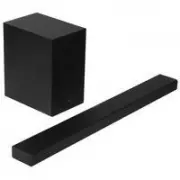 Samsung HW-A650
User Manual
Samsung HW-A650
User Manual
 Samsung HW-B450
User Manual
Samsung HW-B450
User Manual
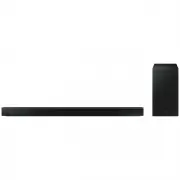 Samsung HW-B650-XY
User Manual
Samsung HW-B650-XY
User Manual
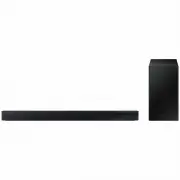 Samsung HW-C450-XY
User Manual
Samsung HW-C450-XY
User Manual
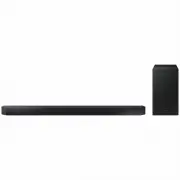 Samsung HW-Q600C-XY
User Manual
Samsung HW-Q600C-XY
User Manual
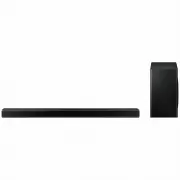 Samsung HW-Q700AXY
User Manual
Samsung HW-Q700AXY
User Manual
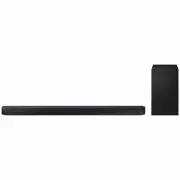 Samsung HW-Q700C-XY
User Manual
Samsung HW-Q700C-XY
User Manual
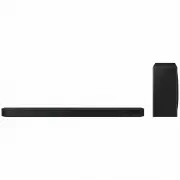 Samsung HW-Q800C-XY
User Manual
Samsung HW-Q800C-XY
User Manual
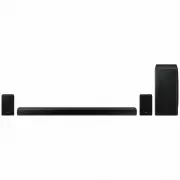 Samsung HW-Q870AXY
User Manual
Samsung HW-Q870AXY
User Manual
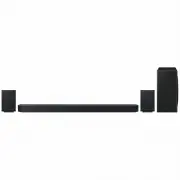 Samsung HW-Q930C-XY
User Manual
Samsung HW-Q930C-XY
User Manual
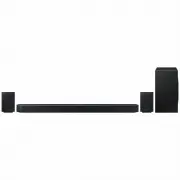 Samsung HW-Q990C-XY
User Manual
Samsung HW-Q990C-XY
User Manual
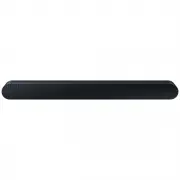 Samsung HW-S60B-XY
User Manual
Samsung HW-S60B-XY
User Manual
 Samsung HW-S61
User Manual
Samsung HW-S61
User Manual
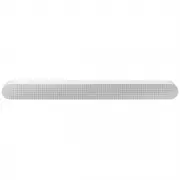 Samsung HW-S61B-XY
User Manual
Samsung HW-S61B-XY
User Manual
 Samsung HW-S800B-XY
User Manual
Samsung HW-S800B-XY
User Manual
 Samsung HW-S801B-XY
User Manual
Samsung HW-S801B-XY
User Manual
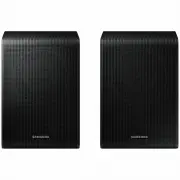 Samsung SWA-9200SXY
User Manual
Samsung SWA-9200SXY
User Manual
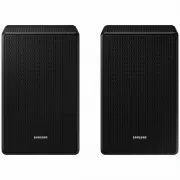 Samsung SWA-9500SXY
User Manual
Samsung SWA-9500SXY
User Manual
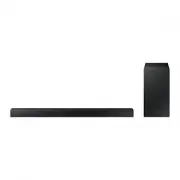 Samsung HW-A430
User Manual
Samsung HW-A430
User Manual
 Samsung HW-A440
User Manual
Samsung HW-A440
User Manual