Page 2 - key features of your DVR; WHAT’S INCLUDED WITH YOUR DVR
key features of your DVR Your purchased digital video recorder (DVR) compresses a 4-channel camera input into an MPEG4 video; also, it provides the functions that record to the HDD in real-time and play the content by compressing the 4-channel audio input with G.723. Also through the network, it tra...
Page 3 - safety regulations
safety regulations Please be sure to keep the following in mind for the right use of the product to prevent proprietary risk or damage. Do not use multiple plugs at once. This may cause abnormal heat generation or fire Do not put a vase, flowerpot, cup, cosmetics, medicine, or vessel with water ...
Page 4 - before start; WARNING; Battery; Operating Temperature; STANDARDS APPROVALS
before start This user’s manual provides Information for using DVR such as brief introduction, part names, functions, connection to other equipment, menu setup, and the like. You have to keep in mind the following notices: SEC retains the copyright on this manual. This manual cannot be copied wi...
Page 5 - contents
contents _01 contents 03 Controls on the DVR 07 Real panel jacks 08 Remote control 10 Checking installation environment 11 Connecting video, audio, and monitor 12 Connecting the network 13 Connecting the alarm input 14 Connecting the alarm output 15 Connecting the RS-485 device 15 Connecting the USB...
Page 7 - CONTROLS ON THE DVR; introducing your real time DVR
01 IN TR O D U C IN g Y O U R R eA L T Im e D VR introducing your real time DVR _03 CONTROLS ON THE DVR introducing your real time DVR SHR-6040 SHR-6042 3 1 17 2 16 15 14 13 10 12 4 5 6 7 8 9 3 1 17 2 16 15 14 13 10 12 11 4 5 6 7 8 9 SHR-6042_Eng.indb 3 2009-06-05 오전 11:23:25
Page 9 - Name
01 IN TR O D U C IN g Y O U R R eA L T Im e D VR introducing your real time DVR _05 No. Name Function 10 ALARM LED If an event (like a motion or alarm) occurs, the ALARM LED is lighted on. HDD LED This LED indicates whether the HDD is normally accessed. When accessing the HDD, this LED repeatedly bl...
Page 11 - REAL PANEL jACKS
01 IN TR O D U C IN g Y O U R R eA L T Im e D VR introducing your real time DVR _07 REAL PANEL jACKS 1 DC-IN This is the connector for a 12V power socket. 2 ALARm/RS485 ALARM IN 1~4: This is the port for an alarm input. ALARM OUT 1~2: This is the port for an alarm output. RS485: This is the port for...
Page 12 - 8_ introducing your real time DVR; Using the NUMERIC Buttons; REmOTE CONTROL
08_ introducing your real time DVR R e CORD St ar ts o r e nd s th e re co rd in g. OP e N/CLOS e U se d to o pe n an d cl os e th e D VD -R W tr ay . 0~9 Se le ct s a sin gl e ch an ne l w hi le in liv e m od e. U se d fo r i np ut tin g nu m er ic v al ue s. R e C LOCK Th is bu tto n is no t u se ...
Page 13 - Le
01 IN TR O D U C IN g Y O U R R eA L T Im e D VR introducing your real time DVR _09 FR (fast rewind) FR (f as t r ev er se ): U se d fo r q ui ck ba ck w ar d se ar ch w hi le in p la y. (-x 2, -x 4, -x 8, -x 16 , - x3 2) STOP En ds p la yin g. FF (fast forward) U se d fo r q ui ck fo rw ar d se ar ...
Page 14 - installation; CHECKING INSTALLATION; Figure 1; Figure 2
10_ installation installation You should pay attention to the following before you use the product. Do not use it outdoor. Do not place water or liquid near the connection part or the product. Do not impose excessive shock or force. Do not pull out the power cord unreasonably. Do not disas...
Page 15 - connecting with other devices; Caution
03 C O N N eC TIN g W IT H O TH eR D eV IC eS connecting with other devices _ 11 connecting with other devices CONNECTING VIDEO, AUDIO, AND mONITOR Caution Depending on whether or not the power cable is grounded, there could be high voltage electricity flowing through the video cables connected to...
Page 16 - 2_ connecting with other devices; CONNECTING THE NETWORK; Connecting to Internet through ADSL; INTeRNeT
12_ connecting with other devices CONNECTING THE NETWORK Connecting to Internet through Ethernet (10/100BaseT) Connecting to Internet through ADSL INTeRNeT Hub/Switcher Hub/Switcher Windows NET-i INTeRNeT Hub/Switcher Windows NET-i Phone(ADSL) Line ADSL MODEM RJ45 Ethernet Cable(Direct Cable) RJ45 E...
Page 17 - CONNECTING THE ALARm INPUT
03 C O N N eC TIN g W IT H O TH eR D eV IC eS connecting with other devices _ 13 CONNECTING THE ALARm INPUT Connect one wire of the signal cable (2 wires) of various sensors (such as IR sensor, hot-wire detector and magnetic sensor) to the GROUND port and connect the remaining signal wire to the des...
Page 18 - 4_ connecting with other devices; CONNECTING THE ALARm OUTPUT
14_ connecting with other devices CONNECTING THE ALARm OUTPUT Connect one wire of the signal cable (2 wires) of an external device (such as siren-lamp, amplified siren and external relay) to the GROUND port and connect the remaining signal wire to the desired ALARM output port number. Such as siren-...
Page 19 - CONNECTING THE RS-485 DEVICE; CONNECTING THE USB
03 C O N N eC TIN g W IT H O TH eR D eV IC eS connecting with other devices _ 15 CONNECTING THE RS-485 DEVICE Caution Please check that the RS-485 device is supported by the SHR-6040/6042 product. And, a caution shall be made when connecting to the RS-485 jack since it has the polarity (+ and –). ...
Page 20 - live; OPERATING THE SYSTEm; Live screen icons; Recording
16_ live live OPERATING THE SYSTEm Turn on the power and the following Samsung logo appears. Perform the initialization job to operate the system after the logo screen has appeared. The live video appears if the initialization process is normally completed. It may take about 40 to 60 seconds u...
Page 21 - IV
04 L IV e live _ 17 : Record Lock Icon It indicates that the record lock is activated. This icon appears when you are recording video images while the record lock is set. To cancel the recording, enter the preset password. : PTZ Icon The channel that the PTZ function has been set shows the PTZ icon....
Page 22 - Selecting live screen mode; SETTING THE AUDIO ON/Off; Freeze function
18_ live Selecting live screen mode Each mode can be selected by using the mODe button and CH1 to CH4 buttons. The following figure shows the diagram of changing modes. The starting mode is the 4 split screen mode. Modes except for the full screen can be sequentially selected by using the mODe b...
Page 23 - Zoom function; EVENT mONITORING
04 L IV e live _ 19 Zoom function The Zoom function doubles the size of the selected area but it is active only in the full screen mode. The zoom setup area appears when the ZOOm button is pressed in the full screen mode. You can adjust the location of the zoom setup area by using the Direction ( ...
Page 24 - menu setup; BEfORE USE
20_ menu setup menu setup BEfORE USE Selection The yellow cursor shows the current selection window. As for the directional operation, move the cursor on the menu that you want to change by using the direction ( ) buttons on the front panel of the system. It enters the sub window if you press...
Page 31 - CAmERA
05 m eN U S eT U P menu setup _ 27 HDD Format When initializing the HDD, move the cursor to the corresponding HDD and press the enter ( ) button. Then, the (Format) icon is activated. If you press “ Format ”, the HDD format window appears. You can select “ OK ” to initialize the HDD. HDD eNDStop...
Page 33 - mONITORING; Live Mode
05 m eN U S eT U P menu setup _ 29 The selected channel appears within the PIP zone on the right. The adjustment can be made from ‘0’ to ‘255’ using the or button. If you press “ Apply All ”, the values for the last updated channel are copied to entire channels. If you press “ Default ”, the val...
Page 34 - Spot Mode; event Duration
30_ menu setup Spot Mode When you have two monitors, the Spot Out channel can be used for monitoring a specific channel on a dedicated monitor. event Duration Sets whether or not to run the Event Monitoring function for the Spot-out channel. It can be set to any of Off, 30 seconds, and CONTINUE. O...
Page 39 - NETWORK
05 m eN U S eT U P menu setup _ 35 mODeL SIZe SONY 512MB, 1GB, 2GB TRANSCEND 128MB, 2GB, 4GB SAMSUNG 1GB, 2GB AxxEN 1GB SANDISK 256MB Dadam 640MB LG xTICK 1GB AxIAN 256MB Camera Sets the camera channel for backup. Format It Supports USB-format functions. The backup file can be played on PC, bu...
Page 40 - Web Viewer Port Settings
36_ menu setup Site IP Sets the IP address for the main system to be connected to the network. If the connection mode is set to STATIC-IP, the user needs to enter the IP address directly. Subnet mask Sets the subnet mask address for the main system. gateway Sets the gateway address for the mai...
Page 45 - PTz CAmERA CONTROL; PTZ camera control
PTZ camera control _ 41 06 P TZ C A m eR A C O N TR O L PTz CAmERA CONTROL mODE In order to enter into the PTZ device control mode, the PTZ device setup values must be properly set. If PTZ has been set from the menu, the PTZ icon ( ) is displayed on the corresponding channel of the screen. A blue ba...
Page 46 - 2_ PTZ camera control; PTz DEVICE mENU SETUP
42_ PTZ camera control ZOOm The PTZ camera can perform the enlargement/ reduction function by using the TeLe/WIDe button on the front panel in the PTZ device control mode. PTz DEVICE mENU SETUP In order to enter the PTZ device menu setup mode, first select the channel set with PTZ by pressing the ...
Page 47 - PRESET NAmE SETTINGS
PTZ camera control _ 43 06 P TZ C A m eR A C O N TR O L Top Bottom Left Right TeLe Zoom in Zoom out You can escape from the PTZ position manipulation mode if you switch to the “ Cursor mode ” by pressing “ P/T mode ”. Enter a PRESET number to remember the current location of PTZ into the PRE...
Page 48 - RECORD SCHEDULE; EVENT RECORDING; Alarm Detection; recording
44_ recording REC(NORmAL RECORDING) All video image from the channels never recorded will be recorded by pressing the REC button. At this time, the REC LED lights and the record icon appears on the screen. The HDD LED on the front panel blinks while data are saved on the HDD. If the job (such as t...
Page 49 - USER LOGIN; search and play
search and play _ 45 08 S eA R C H A N D P LA Y USER LOGIN Press the SeARCH button in order to enter the search screen. In order to perform a search, the user with a relevant search right has to be logged on. You may log on as a relevant user by entering the user ID and password. (When this product ...
Page 52 - appendix; Net I; Net I Setup tool
48_ appendix appendix Net I Net I Setup tool The Setup Tool screen consists of four separate areas:1. meNU area: You can see and perform the Setup-related functions.2. TOOLBAR area: You can directly perform any of Live Viewer and Search Viewer applications by clicking the icon. Click the icon with t...
Page 54 - Net I Live Viewer
50_ appendix It is set on the phygical view tree. You can see and modify the registered device. To modify the registered device 1. Select View > Physical , or click the second icon tab on the VIEW TREE area. 2. Select the device you want to modify and click modify . 3. Modify the values for items...
Page 55 - Using layouts
appendix _ 51 09 A PP eN D IX 2. TOOLBAR area: You can directly execute several functions or applications. When listed from left to right, the tools are Connect/ Disconnect, Search Viewer, Setup Tool, Save Snapshot, Print Snapshot, Add a Bookmark, Remove the Selected Tile, Start Recording on All Til...
Page 57 - Before use; SYSTEm
appendix _ 53 09 A PP eN D IX Before use Setup menu buttons By pressing buttons, you can select between each menu. The main categories : System, Camera, Search mode, Record mode, Event Recording mode, Network Storage/Cancel of Changed Information OK : Close the windows and saves, any changed i...
Page 59 - Camera Settings
appendix _ 55 09 A PP eN D IX CAmERA Camera Settings The Camera tab contains camera enable/disable and video source brightness, contrast, and color options. This tab also contains camera security options. Select a camera you wish to configure from the server list located on the right side of the scr...
Page 60 - mONITORING mODE; Live mode; RECORDING mODE; Recording Settings
56_ appendix mONITORING mODE Live mode This tab is used to configure the necessary information for Live Mode. 1. event monitoring Duration: Completely disable event monitoring or configure the event monitoring duration. 2. Text Display: Enable/disable various text display options, including date, ti...
Page 61 - EVENT RECORDING mODE; event Recording Settings
appendix _ 57 09 A PP eN D IX 3. Recording Schedule Display: Allows the user to schedule various recording modes for individual cameras. Select a desired recording mode and drag using the mouse to designate the timeframe. 4. Recording mode: Displays various recording modes that are available. Select...
Page 63 - Network Settings
appendix _ 59 09 A PP eN D IX NETWORK Network Settings Network settings tab contains various network settings your DVR requires for its remote control, video streaming, and communication functions. 1. IP Configuration: Displays various network configuration information. IP configuration also include...
Page 64 - Image Transmission Settings; SDB VIEWER; Running SDB Viewer
60_ appendix Image Transmission Settings This tab contains video transmission settings (frame rate, resolution, picture quality). 1. Reset: Resets all settings to their default values. 2. Frame Rate: Used to adjust the frame rate of individual cameras. 3. Picture Quality: Used to configure the pictu...
Page 65 - Main Window of SDB Viewer
appendix _ 61 09 A PP eN D IX Main Window of SDB Viewer 1 Scrolling Camera Buttons : This function allows you to scroll up or down the button for the camera to be searched. 2 Camera : Select the number of the camera to be searched. Once you click the number, the colors of the button and camera numbe...
Page 67 - SfX PLAYER; SFX Player Execution; WEB VIEWER; INTRODUCING Web Viewer; PRODUCT FEATURES
appendix _ 63 09 A PP eN D IX SfX PLAYER SFX Player Execution This feature moves SFx backup files to the designated SFx storage folder after the system is connected to your PC. The SFx format files are named with the ‘.exe’ extension as shown below. Double-click an execution file (.exe file) and the...
Page 68 - SYSTEM REQUIREMENTS; OS; CONNECTING WEB VIEWER
64_ appendix SYSTEM REQUIREMENTS The following lists the minimum suggested hardware and operating system requirements needed to run the Web Viewer. OS Windows xP ProfessionalWindows 2000Windows Vista Home Basic / Premium Web Browser Internet Explorer 6.0.2900.2180 or higher CPU Intel Pentium 4 with ...
Page 70 - USING Live Viewer; OSD INFORMATION DISPLAY
66_ appendix USING Live Viewer 13 4 6 7 5 8 9 2 The Live Viewer screen consists of following : 1 This displays the IP address and the model name of the connected DVR. 2 These menus consist of LIVE , SEARCH , SETUP, ABOUT . 3 These buttons are used for the screen split and full screen mode. 4 This di...
Page 71 - FULL SCREEN MODE; CONNECTED DVR
appendix _ 67 09 A PP eN D IX 6 It displays whether the PTZ controls are active. If you have set PTZ cameras for the DVR, “PTZ” is displayed on the screen. Select a PTZ camera channel and use the PTz button for camera control. SPLIT-SCREEN You can change the split mode by clicking each number icon. ...
Page 73 - USING PTZ CAMERA
appendix _ 69 09 A PP eN D IX • To record it, it is required at least 1GB of avail- able space. • The default saving path is “C:\Program Files\ Samsung\Dvr Web Viewer\VideoClip\Live”. To change the saving path, click “SAVE PATH” button( ) and then select the path you want. For Windows Vista, the sav...
Page 75 - USING Search Viewer
appendix _ 71 09 A PP eN D IX The Search Viewer screen consists of following: 1 This displays the IP address and the model name of the connected DVR. 2 These menus consist of LIVE , SEARCH , SETUP , ABOUT . 3 These buttons are used for the screen split and full screen mode. 4 This displays the IP ad...
Page 78 - CONTROLLING PLAYBACK
74_ appendix SEARCHING THE RECORDED VIDEO IN THE TIMELINE It displays the recorded video data status on the DVR after a date is selected. The normal mode displays the time ranging from 0 to 24 Hours while the extension mode displays the time every 2 hours. [Normal Mode] • If you click button, it cha...
Page 81 - SPECIfICATIONS; Category
appendix _ 77 09 A PP eN D IX SPECIfICATIONS Category SHR-6040 SHR-6042 OS Embedded Linux (Version : 2.6.0) Compression Method Video MPEG-4 ASP Audio G.723 Video Input Composite 4 channel(1Vp-p, 750hm) Output CVBS 1 Port, VGA(1280x1024) 1 Port, SPOT 1 Port, Loop Through Out 4 channel Audio 4 Channel...
Page 82 - OUTLINE DRAWINGS
78_ appendix OUTLINE DRAWINGS 215 21 35 2 10. 5 215 88 88 10. 5 SHR-6042_Eng.indb 78 2009-06-05 오전 11:24:00
Page 83 - PROBLem
appendix _ 79 09 A PP eN D IX TROUBLESHOOTINGS(fAQ) PROBLem SOLUTION Can’t turn ON the power of system Check if the computer’s power cables are all connected properly. Check the input voltage. If you can’t find any wrong connection, but you still can’t turn on the power, you have to consult se...
Page 85 - GNU GENERAL PUBLIC LICENSE; OPEN SOURCE LICENSE REPORT ON THE PRODUCT
appendix _ 81 09 A PP eN D IX GNU GENERAL PUBLIC LICENSE Version 2, June 1991 Copyright (C) 1989, 1991 Free Software Foundation, Inc. 51 Franklin Street, Fifth Floor, Boston, MA 02110-1301, USA Everyone is permitted to copy and distribute verbatim copies of this license document, but changing it is ...
Page 87 - NO WARRANTY
appendix _ 83 09 A PP eN D IX otherwise to copy, modify, sublicense or distribute the Program is void, and will automatically terminate your rights under this License. However, parties who have received copies, or rights, from you under this License will not have their licenses terminated so long as...
Page 88 - Preamble
84_ appendix REPAIR OR CORRECTION. 12. IN NO EVENT UNLESS REQUIRED BY APPLICABLE LAW OR AGREED TO IN WRITING WILL ANY COPYRIGHT HOLDER, OR ANY OTHER PARTY WHO MAY MODIFY AND/OR REDISTRIBUTE THE PROGRAM AS PERMITTED ABOVE, BE LIABLE TO YOU FOR DAMAGES, INCLUDING ANY GENERAL, SPECIAL, INCIDENTAL OR CO...
Page 89 - TeRmS AND CONDITIONS FOR
appendix _ 85 09 A PP eN D IX and change free software to make sure the software is free for all its users.This license, the Lesser General Public License, applies to some specially designated software packages--typically libraries--of the Free Software Foundation and other authors who decide to use...
Page 94 - OpenSSL LICENSE
90_ appendix OpenSSL LICENSE * Copyright (c) 1998-2006 The OpenSSL Project. All rights reserved. * Redistribution and use in source and binary forms, with or without * modification, are permitted provided that the following conditions * are met: * 1. Redistributions of source code must retain the ab...


 Samsung HW-A650
User Manual
Samsung HW-A650
User Manual
 Samsung HW-B450
User Manual
Samsung HW-B450
User Manual
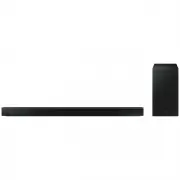 Samsung HW-B650-XY
User Manual
Samsung HW-B650-XY
User Manual
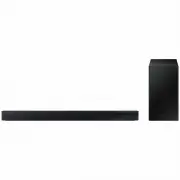 Samsung HW-C450-XY
User Manual
Samsung HW-C450-XY
User Manual
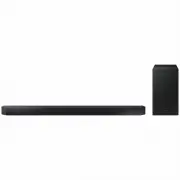 Samsung HW-Q600C-XY
User Manual
Samsung HW-Q600C-XY
User Manual
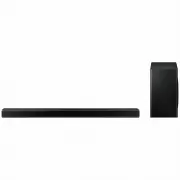 Samsung HW-Q700AXY
User Manual
Samsung HW-Q700AXY
User Manual
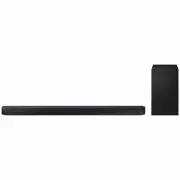 Samsung HW-Q700C-XY
User Manual
Samsung HW-Q700C-XY
User Manual
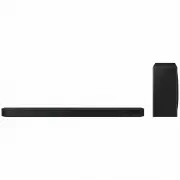 Samsung HW-Q800C-XY
User Manual
Samsung HW-Q800C-XY
User Manual
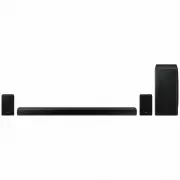 Samsung HW-Q870AXY
User Manual
Samsung HW-Q870AXY
User Manual
 Samsung HW-Q930C-XY
User Manual
Samsung HW-Q930C-XY
User Manual
 Samsung HW-Q990C-XY
User Manual
Samsung HW-Q990C-XY
User Manual
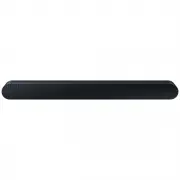 Samsung HW-S60B-XY
User Manual
Samsung HW-S60B-XY
User Manual
 Samsung HW-S61
User Manual
Samsung HW-S61
User Manual
 Samsung HW-S61B-XY
User Manual
Samsung HW-S61B-XY
User Manual
 Samsung HW-S800B-XY
User Manual
Samsung HW-S800B-XY
User Manual
 Samsung HW-S801B-XY
User Manual
Samsung HW-S801B-XY
User Manual
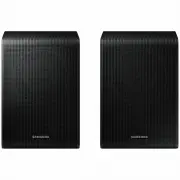 Samsung SWA-9200SXY
User Manual
Samsung SWA-9200SXY
User Manual
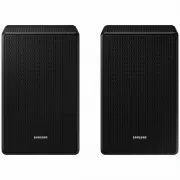 Samsung SWA-9500SXY
User Manual
Samsung SWA-9500SXY
User Manual
 Samsung HW-A430
User Manual
Samsung HW-A430
User Manual
 Samsung HW-A440
User Manual
Samsung HW-A440
User Manual