Page 2 - key features of your DVR; WHAT’S INCLUDED WITH YOUR DVR
key features of your DVR The Digital Video Recorder (DVR) compresses the acquired images of 8/16 video channels from camerasusing MPEG-4 technologies, and compresses the 4 channel audio inputs into ADPCM audio fi le to recordthem on the hard disk or retrieve them from the hard disk simultaneously. I...
Page 3 - safety regulations
safety regulations Please be sure to keep the following in mind for the right use of the product to prevent proprietary risk or damage. Do not use multiple plugs at once. This may cause abnormal heat generation or fire Do not put a vase, flowerpot, cup, cosmetics, medicine, or vessel with water ...
Page 4 - before start; WARNING; Battery; System Shutdown; Operating Temperature; STANDARDS APPROVALS
before start This user’s manual provides Information for using DVR such as brief introduction, part names, functions, connection to other equipment, menu setup, and the like.You have to keep in mind the following notices: SEC retains the copyright on this manual. This manual cannot be copied without...
Page 5 - contents; continued next page
contents _01 INTRODUCING YOUR 8/16 CHANNEL DVR 03 INSTALLATION 08 CONNECTING WITH OTHER DEVICES 14 LIVE 17 MENU SETUP 22 BACKUP PTZ CAMERA CONTROL 38 RECORDING 41 03 Controls on the DVR 05 Rear panel jacks 06 Remote control 08 Checking installation environment 08 Hdd addition 14 Connecting video, au...
Page 7 - CONTROLS ON THE DVR; Introducing your 8/16 Channel DVR
01 INTRODUCING introducing _03 CONTROLS ON THE DVR Introducing your 8/16 Channel DVR 7 6 9 5 1 3 4 5160 2 7 6 9 5 1 3 4 5080 2 7 9 8 6 1 2 4 3 5 5082 7 6 8 9 5 1 3 4 5162 2 SHR-5162_Eng.indb 3 2007-8-2 14:45:42
Page 9 - REAR PANEL JACKS
01 INTRODUCING introducing _05 REAR PANEL JACKS 5080/5082 REAR 5160/5162 REAR 1 VIDEO OUT Composite video output port (BNC type connector) 2 AUDIO OUT Audio output port (RCA jack) 3 VGA a VGA video output port 4 S-VIDEO S-VIDEO video output port 5 NETWORK Network connection port 6 AUDIO IN Audio inp...
Page 10 - REMOTE CONTROL; Using the NUMERIC Buttons
06 _ introducing REMOTE CONTROL RECORD Starts or ends the recording. OPEN/CLOSE Used to open and close the DVD-RW tray (SHR-5162, SHR-5082 only). 0~9 Selects a single channel while in live mode. Used for inputting numeric values. REC LOCK Locks the record function. AUDIO Toggles Audio On and Off. BA...
Page 12 - installation; CHECKING INSTALLATION
Figure 1 One Year: 24HR X 365 DAY =8,760 HR Temperature Unit: ºC Life (Unit: HOURS) Figure 2 0 _ installation installation You should pay attention to the following before you use the product. Do not use it outdoor. Do not place water or liquid near the connection part or the product. Do not i...
Page 13 - Setting the jumper
02 INST ALLA TION installation _ 09 CAUTION [Checking HDD Data] Please, pay attention to Following information to minimize the chance of losing HDD data. Remember that you should protect HDD from any impact or misuse as this may cause damaged. The Manufacturer is not responsible for missing data...
Page 18 - CONNECTING THE NETWORK; connecting with other devices; The illustrations are described based on SHR-5162.
CONNECTING THE NETWORK Connecting to Internet through Ethernet (10/100BaseT) 14 _ connecting connecting with other devices The illustrations are described based on SHR-5162. CONNECTING VIDEO, AUDIO, AND MONITOR SHR-5162_Eng.indb 14 2007-8-2 14:47:10
Page 19 - Connecting to Internet through ADSL; CONNECTING THE USB; CONNECTING THE ALARM
03 CONNECTING connecting _ 15 Connecting to Internet through ADSL CONNECTING THE USB 1. There are two USB connecting ports on the front and rear panels of the product. 2. USB Hard Disk, USB CD/DVD, and USB Memory can be connected through any of those ports. 3. If the USB HDD is connected to the syst...
Page 21 - live; OPERATING THE SYSTEM; Live screen icons
CAM 01 CAM 01 04 LIVE live _ 17 live OPERATING THE SYSTEM Turn on the power and the following Samsung logo appears. Upon completion of initializing procedure, the live screen appears with a beep sound. (It takes about one minute until a live screen comes up.) If a new HDD is installed, the initial...
Page 22 - Live screen modes
18 _ live : PTZ icon This icon appears when setting the PTZ device and it changes to yellow when operating the PTZ. : Audio icon This icon represents the ON/OFF status of audio and it changes to yellow when the audio is set to ON. It does not appear in Video mode or when the audio is disabled. : Sen...
Page 23 - Selecting live screen mode
04 LIVE live _ 19 Full Screen (Single) mode: Displays the selected channel in full screen. 4, 6, 7, 8, and 9 Split mode: Displays 4, 6, 7, 8, 9 channels in each split screen. You can select channel numbers on your own using the MODE button on the front panel or remote control. In 4-channel and 9...
Page 24 - FREEZING AND ZOOMING; Freeze function; EVENT MONITORING
20 _ live Audio On/Off setting in 4, 6, 7, 8, and 9-split modes and PIP mode As in 16-split mode, when pressing the ENTER button in 4, 6, 7, 8, and 9-split modes and PIP mode, the selection cursor appears for you to select a channel. After selecting a channel, you can set the Audio to On or Off usin...
Page 26 - menu setup; BEFORE USE
MENU MENU SETUP System Camera Monitoring Record Mode Event Record Schedule Backup Network Date/Time/LanguagePasswordLoad Factory DefaultSystem LogEvent LogSystem Information and SetupStorage SetupExport/Import the ConfigurationRemote Control Device Move/Control Select Exit Enter ID and Password OK C...
Page 27 - Password
Admin PasswordNew Password Confirm Password Lock On Record Lock Off User PasswordUser Setup User1 New Password Confirm User Authority Setup Search Backup PTZ Shutdown OK Cancel Password All Key Lock On Automatic Time Synchronization Off Time Server(IP) 203.248.240...
Page 28 - Load Factory Default; System Log
First Prev Next Last Exit No. Event Log List Date/Time 4 Video Loss CH[2] 2007-08-01 10:00:29 3 Video Loss CH[1] 2007-08-01 10:00:29 2 Video Loss CH[2] 2007-08-01 10:00:29 1 Video Loss CH[1] 2007-08-01 10:00:29 Event Log MENU MENU SETUP System Camera Monitoring Record Mode Event Record Schedule Back...
Page 29 - System Information and Setup
Device InformationDevice No Used/Total Erase Usage ATA 1 0.00/235.66G Internal USB Memory 1 0.00/494.98M Backup Cancel Storage Setup OK Disk End Mode OverWrite Disk End Beep Off Alarm Setup HDD Location Map Exit No. Model Capacity Status 1 ST3250823ACE 250.05G Good 2 ST3160212ACE 160.04G Good 3 DVD ...
Page 30 - Export/Import the Configuration
Export the Configurations to USB MemoryMode Export File Name 07011000 Include N/W Settings Cancel Export/Import the Configuration Apply Device None Cancel Remote Control Device OK Remocon On ID:00 ID Baudrate Parity Date Stop Duplex 000 9600 None 8 1 Half Duplex 26 _ menu setup CAUTION When the Disk...
Page 31 - CAMERA; Camera Configuration
MENU MENU SETUP System Camera Monitoring Record Mode Event Record Schedule Backup Network Camera ConfigurationPTZ DeviceScreen Setup Move/Control Select Exit Cancel OK 9-16 Camera Config Cam Video Audio Title Auto Seq 1 On Off CAM 01 5sec 2 On Off CAM 02 5sec 3 On Off CAM 03 5sec 4 On Off CAM 04 5se...
Page 32 - PTZ Device; Screen Setup; MONITORING
Cancel OK 9-16 PTZ Device Cam ID Protocol Baudrate Parity Data Stop 1 000 n None 9600 None 8 1 2 001 None 9600 None 8 1 3 002 None 9600 None 8 1 4 003 None 9600 None 8 1 5 004 None 9600 None 8 1 6 005 None 9600 None 8 1 7 006 None 9600 None 8 1 8 007 None 9600 None 8 1 Half Duplex Serial Mode : Exit...
Page 33 - RECORD MODE; Record Quality & Auto Deletion
MENU Cancel OK Record Quality & Auto Deletion Cam Normal Event Cam Normal Event 1 Level4 Level4 9 Level4 Level4 2 Level4 Level4 10 Level4 Level4 3 Level4 Level4 11 Level4 Level4 4 Level4 Level4 12 Level4 Level4 5 Level4 Level4 13 Level4 Level4 6 Level4 Level4 14 Level4 Level4 7 Level4 Level4 15 ...
Page 35 - EVENT RECORD MODE; Motion Detection Setup
05 MENU SETUP menu setup _ 31 EVENT RECORD MODE The detailed list for event mode settings is as follows: Alarm Detection Setup Sensor State - Off: Sensor does not operate. - N.O (Normal Open): Sensor remains open all the time. But if it gets closed, an alarm is issued. (A Contact) - N.C (Normal Cl...
Page 36 - SCHEDULE; Record Schedule
32 _ menu setup Sensitivity This is used to set the sensitivity for motion detection. Available values are Low, Medium, and Very High. Alarm-Out It is used to set the Alarm-Out location when any alarm occurs. Currently 4 Alarm Outs are available. Select an alarm-out to synchronize with the curre...
Page 37 - NETWORK; IP Settings
05 MENU SETUP menu setup _ 33 Alarm Out Schedule You can schedule the automatic output for alarms. The scheduling is enabled by selecting alarms, days and time blocks. The default setting is Event Driven. For each alarm or beep, you can activate or deactivate alarming. In case of Event Driven , the ...
Page 39 - Transfer Picture Settings
If you set up the public DDNS (dyndns. com, no-ip.com, or changeip.com), it will take approximately 30 to 60 seconds to get the IP address for the host name (URL) to be updated in the DNS. To connect this product to an IP router, you have to designate a port for this product in the setup menu of...
Page 40 - CONFIGURING NETWORK; In case of TCP transfer protocol
36 _ menu setup CONFIGURING NETWORK Port configuration for connecting Smart Viewer To set the TCP port for DVR registration into Smart Viewer, the value should be the same as that of this product. To use the IP router, you must forward the activated ports. - For TCP, set the assigned 4 ports in ...
Page 41 - To configure the related settings; backup
backup _ 37 06 BACKUP If there is a predefined device connected, the window displays the device information like the free space and such. You can also use the BACKUP button on the front of your DVR. To configure the related settings 1. Set the start date and time using the Direction buttons and the ...
Page 42 - BASIC PTZ OPERATIONS; PTZ camera control
38 _ PTZ camera control PTZ CAMERA CONTROL MODE You have to check that proper PTZ camera settings are allocated for PTZ device setup in the Camera menu. In case of SHR-5082/5080, only 8 channels are displayed. When the PTZ configuration is complete, the PTZ sign ( PTZ ) appears on the live screen. ...
Page 43 - PRESET SETUP; To set a preset; CAMERA MENU SETUP
PTZ camera control _ 39 07 PTZ camera contr ol PAN Use the LEFT/RIGHT buttons on the front panel or remote control in PTZ Camera Control Mode to control the camera horizontally. TILT Use the UP/DOWN buttons on the front panel or remote control in PTZ Camera Control Mode to control the camera ver...
Page 45 - RECORD SCHEDULE; EVENT RECORDING; recording
recording _ 39 08 RECORDING REC (NORMAL RECORDING) Pressing the RECORD button starts recording as set in the Record Mode. Then the REC LED lights and the Recording icon appears on the screen. While recording on HDD is in progress, the HDD LED blinks. During recording, you can stop it by pressing the...
Page 46 - To perform a calendar search; EVENT SEARCH; search and play
search & play _ 43 42 _ search & play 09 SEARCH & PLA Y search & play _ 43 42 _ search & play 09 SEARCH & PLA Y BEFORE USE When you press the SEARCH button, the Search window appears after user validation checkup. Available menus are like the following: Calendar: Searches t...
Page 47 - To perform an event search; DATE TIME SEARCH; To perform a date/time search; GO TO FIRST SEARCH; To perform this function
search & play _ 43 42 _ search & play 09 SEARCH & PLA Y search & play _ 43 42 _ search & play 09 SEARCH & PLA Y To perform an event search 1. Use the UP/DOWN direction buttons to place the cursor to the wanted channel and press the ENTER button. Then the recorded events are d...
Page 48 - GO TO LAST SEARCH; BACKUP SEARCH; PLAYBACK
search & play _ 45 44 _ search & play 09 SEARCH & PLA Y search & play _ 45 44 _ search & play 09 SEARCH & PLA Y GO TO LAST SEARCH In case of SHR-5082/5080, only 8 channels are displayed. To perform this function 1. Use the UP/DOWN direction buttons to place the cursor to the ...
Page 50 - Smart Viewer
INTRODUCTION Smart Viewer is a program to be installed on your PC. Using this program, you can monitor the video and audio data through the network environment without accessing the site where the product is installed. MAIN FEATURES MPEG-4 Video Compression: It provides good video quality. G.711...
Page 51 - Smart Viewer PROGRAM
10 SMAR T VIEWER 5. After reading the license agreement, click Yes to proceed to next step. 6. Set the destination folder to install the Smart Viewer program and click Next . 7. The installation process proceeds with setup file installation and system setup. 8. When installation is complete, click F...
Page 53 - DVR Setup
Smart Viewer _49 10 SMAR T VIEWER 1. These buttons enable you to select setup items for DVR Setup, Viewer Setup, Site Setup, and S/W Version. 2. In this box, you can set the details on each setup item. 3. Using this button, you can exit from the current window. 4. You can use buttons for saving the ...
Page 59 - Viewer Setup
Smart Viewer _55 10 SMART VIEWER - Web Viewer Port Setting You can configure the port number for Web Viewer. Viewer Setup Click Viewer Setup for configuring the Smart Viewer related settings. This Viewer Setup consists of 5 different items: Video Recording, File Converting, Sequence Time, OSD Displa...
Page 60 - Site Setup
56 _ Smart Viewer Auto Connection You can set if Smart Viewer is automatically connected to the selected DVR or site when starting the program. If you check Auto Connection Enable , available DVRs and sites are displayed in the pull-down list. After selecting one from the list, Smart Viewer connec...
Page 63 - MONITORING MODE; Connection Failure Cases
Smart Viewer _59 10 SMAR T VIEWER If a DVR is not connected to Smart Viewer, it is displayed in gray and “Not Connected” appears in the Status column. For software upgrade, click the following button to open the DVR firmware file. After selecting a firmware file, click Open and select Upgrade . Th...
Page 64 - Connection Screen; Mode Conversion Button
60 _ Smart Viewer If the network password of a DVR differs from the connection password set in Smart Viewer, a login message appears to let you input the correct password manually. 2. Duplicate Admin user connection When the DVR that you want to connect to has been already occupied by an Admin user ...
Page 65 - Event Log Display Window
Smart Viewer _61 10 SMAR T VIEWER 3. When audio signal is available, the audio mark appears. 4. It displays whether the PTZ controls are active. 5. The current channel alarm status is displayed. 6. The name and IP address of the connected DVR are displayed. Clicking the speaker icon changes the au...
Page 66 - Monitoring State Display
62 _ Smart Viewer Camera Connection Indication Window The window displays the connection state of DVR and the connected cameras. Yellow: When Smart Viewer is successfully connected to a DVR. When the camera is connected for monitoring. Black: When Smart Viewer cannot be connected to a DVR. Blu...
Page 67 - NEXT Button; Video Recording Button
Smart Viewer _63 10 SMAR T VIEWER NEXT Button When this button is clicked, next screen follows. In Single Mode, the channel numbers are sequentially switched from 1 to 16. In Quad (4-split) Mode, the screens are changed like 1st 4 channels (1,2,3,4) --> 2nd 4 channels (5,6,7,8) --> 3rd 4 chann...
Page 69 - Self Menu Setup of PTZ device
Smart Viewer _65 10 SMAR T VIEWER The preset function is supported by all cameras. You can set up to 20 presets. But an active directory (AD) protocol camera can have 7 presets. The names of 2 , 3 , and 4 may vary depending on the camera vendor. And those functions may not be supported by some produ...
Page 70 - SEARCH MODE
66 _ Smart Viewer 1. The screen shows the playback channels. 2. Click this to move to the Search mode for searching and playing the video files recorded. 3. Click this to move to the Remote mode for playing back the recorded DVR video images remotely. 4. Click this to move to the Local mode for play...
Page 71 - Remote Mode
Smart Viewer _67 10 SMAR T VIEWER Remote Mode This mode transfers the video data recorded on DVR through the network for playback. Up to 4 channels are allowed for simultaneous search and playback. The video data is played at the position where the time bar is located. When clicking this button, it ...
Page 74 - INTRODUCING Web Viewer; PRODUCT FEATURES; SYSTEM REQUIREMENTS; Web Viewer
70 _ Web Viewer INTRODUCING Web Viewer WHAT IS Web Viewer? Web Viewer allows remote access to your DVRs. You have access to live video, archived video, PTZ control (if configured), etc. PRODUCT FEATURES Remote access from a standard browser Supports PTZ camera controls Supports 1, 4, 8, 16 cam...
Page 75 - CONNECTING Web Viewer
Web Viewer _71 11 WEB VIEWER CONNECTING Web Viewer 1. O p e n y o u r w e b b ro w s e r a n d t y p e t h e I P address or URL of DVR into the URL address box. The basic URL of the DVR is as following in case of MAC address : 00-00-F0-ab-cd-ef : nabcdef.websamsung.net 00-16-6c-ab-cd-ef : mabcde...
Page 76 - USING Live Viewer; OSD INFORMATION DISPLAY
72 _ Web Viewer USING Live Viewer 13 4 6 7 5 8 9 2 The Live Viewer screen consists of following : 1 This displays the IP address and the model name of the connected DVR. 2 These menus consist of LIVE , SEARCH , SETUP, ABOUT . 3 These buttons are used for the screen split and full screen mode. 4 This...
Page 77 - FULL SCREEN MODE
Web Viewer _73 11 WEB VIEWER 6 It displays whether the PTZ controls are active. If you have set PTZ cameras for the DVR, “PTZ” is displayed on the screen. Select a PTZ camera channel and use the PTZ button for camera control. SPLIT-SCREEN You can change the split mode by clicking each number icon. S...
Page 79 - USING PTZ CAMERA
Web Viewer _75 11 WEB VIEWER • RECORD : Saves the current image on the screen and saves it as a avi video file. • To record it, it is required at least 1GB of available space. • The default saving path is “C:\Program Files\Samsung\Dvr Web Viewer\VideoClip\Live”. To change the saving path, click “SAV...
Page 81 - USING Search Viewer
Web Viewer _77 11 WEB VIEWER The Search Viewer screen consists of following: 1 This displays the IP address and the model name of the connected DVR. 2 These menus consist of LIVE , SEARCH , SETUP , ABOUT . 3 These buttons are used for the screen split and full screen mode. 4 This displays the IP add...
Page 82 - CONNECTED DVR
78 _ Web Viewer • Click button. T h e s c r e e n d i s p l a y s t h e s e l e c t e d c a m e r a connected to the DVR in “ SINGLE MODE ”. • Click button. T h e s c r e e n d i s p l a y s t h e s e l e c t e d c a m e r a connected to the DVR in “ QUAD MODE ”. • Only SINGLE and QUAD MODE are avai...
Page 84 - CONTROLLING PLAYBACK
80 _ Web Viewer SEARCHING THE RECORDED VIDEO IN THE TIMELINE It displays the recorded video data status on the DVR after a date is selected. The normal mode displays the time ranging from 0 to 24 Hours while the extension mode displays the time every 2 hours. [Normal Mode] • If you click button, it ...
Page 85 - ABOUT
Web Viewer _81 11 WEB VIEWER Click “ABOUT”. Displays the model name of connected DVR and the version of Web Viewer. ABOUT SHR-5162_Eng.indb 81 2007-8-2 14:48:47
Page 86 - appendix; PRODUCT SPECIFICATION; Specs
82 _ appendix appendix PRODUCT SPECIFICATION Specs Details Notes Operating System Embedded OS Broadcasting NTSC / PAL System Input Voltage AC 100 ~ 230V (PAL) AC 110 ~ 220V (NTSC) Power Usage 60W Video Video Input Composite 16(8) Channel - 1.0Vp-p - 75 Ω Hi Z Termination BNC Type Loop Through Out 16...
Page 89 - OUTLINE DRAWINGS
12 APPENDIX appendix _ 85 OUTLINE DRAWINGS 5080 Outline Drawings SHR-5162_Eng.indb 85 2007-8-2 14:48:51
Page 93 - FACTORY DEFAULT; Classification; System
12 APPENDIX appendix _ 89 FACTORY DEFAULT This returns the factory default settings.The settings are made as follows; Use System/Load Factory Default in MENU In Live mode, press and hold down MODE and then PTZ on the front panel for 6 seconds to reset the settings. Classification Detailed Items ...
Page 99 - OPEN SOURCE LICENSE REPORT ON THE PRODUCT; GNU GENERAL PUBLIC LICENSE
12 APPENDIX appendix _ 95 OPEN SOURCE LICENSE REPORT ON THE PRODUCT This product uses software provided under the name of GPL and LGPL. You can receive the following GPL and LGPL source codes by email request to www.sec.co.kr. GPL Software Kernel, Busybox, Sysvinit, dvd+rw-tools, cdrtools, dosfsto...
Page 101 - NO WARRANTY
12 APPENDIX appendix _ 97 otherwise to copy, modify, sublicense or distribute the Program is void, and will automatically terminate your rights under this License. However, parties who have received copies, or rights, from you under this License will not have their licenses terminated so long as suc...
Page 102 - Preamble
98 _ appendix REPAIR OR CORRECTION. 12. IN NO EVENT UNLESS REQUIRED BY APPLICABLE LAW OR AGREED TO IN WRITING WILL ANY COPYRIGHT HOLDER, OR ANY OTHER PARTY WHO MAY MODIFY AND/OR REDISTRIBUTE THE PROGRAM AS PERMITTED ABOVE, BE LIABLE TO YOU FOR DAMAGES, INCLUDING ANY GENERAL, SPECIAL, INCIDENTAL OR C...
Page 108 - OpenSSL LICENSE
104 _ appendix OpenSSL LICENSE * Copyright (c) 1998-2006 The OpenSSL Project. All rights reserved. * Redistribution and use in source and binary forms, with or without * modification, are permitted provided that the following conditions * are met: * 1. Redistributions of source code must retain the ...


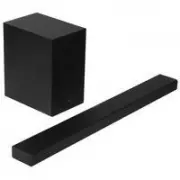 Samsung HW-A650
User Manual
Samsung HW-A650
User Manual
 Samsung HW-B450
User Manual
Samsung HW-B450
User Manual
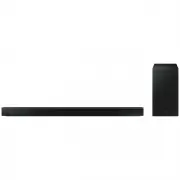 Samsung HW-B650-XY
User Manual
Samsung HW-B650-XY
User Manual
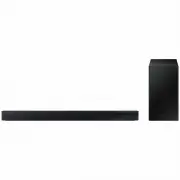 Samsung HW-C450-XY
User Manual
Samsung HW-C450-XY
User Manual
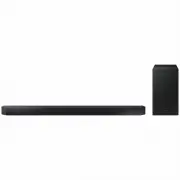 Samsung HW-Q600C-XY
User Manual
Samsung HW-Q600C-XY
User Manual
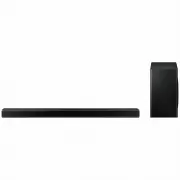 Samsung HW-Q700AXY
User Manual
Samsung HW-Q700AXY
User Manual
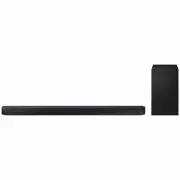 Samsung HW-Q700C-XY
User Manual
Samsung HW-Q700C-XY
User Manual
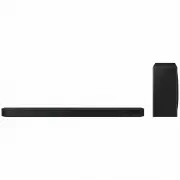 Samsung HW-Q800C-XY
User Manual
Samsung HW-Q800C-XY
User Manual
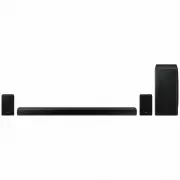 Samsung HW-Q870AXY
User Manual
Samsung HW-Q870AXY
User Manual
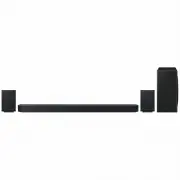 Samsung HW-Q930C-XY
User Manual
Samsung HW-Q930C-XY
User Manual
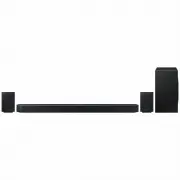 Samsung HW-Q990C-XY
User Manual
Samsung HW-Q990C-XY
User Manual
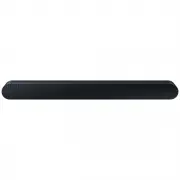 Samsung HW-S60B-XY
User Manual
Samsung HW-S60B-XY
User Manual
 Samsung HW-S61
User Manual
Samsung HW-S61
User Manual
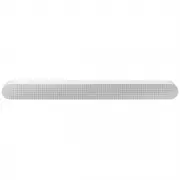 Samsung HW-S61B-XY
User Manual
Samsung HW-S61B-XY
User Manual
 Samsung HW-S800B-XY
User Manual
Samsung HW-S800B-XY
User Manual
 Samsung HW-S801B-XY
User Manual
Samsung HW-S801B-XY
User Manual
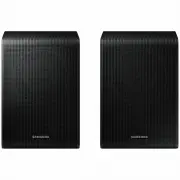 Samsung SWA-9200SXY
User Manual
Samsung SWA-9200SXY
User Manual
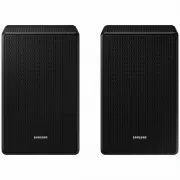 Samsung SWA-9500SXY
User Manual
Samsung SWA-9500SXY
User Manual
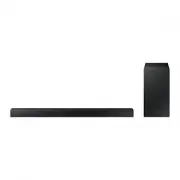 Samsung HW-A430
User Manual
Samsung HW-A430
User Manual
 Samsung HW-A440
User Manual
Samsung HW-A440
User Manual