Page 2 - Safety Regulations
ii Please be sure to keep the following in mind for the right use of the product to pre-vent proprietary risk or damage. ■ Do not use multiple plugs at once. ● This may cause abnormal heat generation or fire ■ Do not put a vase, flowerpot, cup, cosmetics, medicine, or vesselwith water around you. ● ...
Page 3 - WARNING; Before we start; Standards Approvals; Note
iii WARNING [Battery] As wrong exchange of the battery in SHR-4081N/P may cause explosion, you shalluse the certified battery for SHR-4081N/P. The battery specification is as follows. -Normal Voltage: 3V-Normal Capacity: 220mAh-Continuous Standard Load: 0.2mA-Operating Temperature: -30 ~ +60 ˚C [Sys...
Page 4 - Contents
iv Safety Regulations Before we start Standards Approvals Chapter 1 Overview 1. Introduction 2. Features 3. Part Names and Functions Chapter 2 Installation 1. Installation Environment Setup 2. Checking Product & Accessories 3. Additional HDD Installation Chapter 3 Connecting with Other Equipment...
Page 5 - Chapter 5 Menu Setup; Chapter 6 PTZ Device Control; Chapter 7 Recording
v Chapter 5 Menu Setup Before Use 1. System 2. Camera 3. Monitoring 4. Record Mode 5. Event Record Mode 6. Record Schedule 7. Backup 8. Network 9. Network Setup Chapter 6 PTZ Device Control 1. PTZ device Control Mode 2. Basic Operation of PAN, TILT, & ZOOM 3. PRESET Setup 4. Camera Menu Setup 5....
Page 8 - Introduction
1 Introduction 1-1 The Digital Video Recorder(DVR) compresses the camera input data from 8 channels into a MPEG4 video file and the voice input data into a G.726 audio filerespectively to record them in the Hard Disk or retrieve them from the Hard Disksimultaneously.In addition, it transmits the vid...
Page 9 - Features
2 Features 1-2 ■ 8 CH Composite Input Connectors ■ NTSC/PAL Video Source Compatible ■ Able to record the CIF size (NTSC : 352 x 240 / PAL : 352 x 288) video image at the speed of 240ips(NTSC) / 300ips(PAL) ■ 8 CH Loop Through Video Connectors ■ Hard Disk Overwrite Mode ■ Large quantity HDD backup fu...
Page 10 - Part Names and Functions
SHR-4081N/P USER’S MANUAL 3 Part Names and Functions 1-3 Function Channel Button Power LED Network LED Backup LED HDD Access LED Split Screen Selection Button Mode Selection Button REC Button Display Mode Search Audio Setup Button Displays power on/off condition. Displays both network connection and...
Page 14 - Installation Environment Setup
1 Installation Environment Setup 2-1 Do not play DVR on the carpet or other soft material to prevent clogging of the airventilator. To play DVR on the cabinet or rack, be sure to check the ventilation condi-tion. You shall pay attention to the following before you use the product. 1. Do not use it o...
Page 15 - Checking Product & Accessories
2 Checking Product & Accessories 2-2 Upon delivery of a product, you shall unwrap the product and put it on the even floor or where you want to use it. Then you shall check if the following items are in it. ■ Main Body ■ User’s Manual ■ One Power Cord ■ Two Brackets - Brackets are used to attach...
Page 16 - Additional HDD Installation
SHR-4081N/P USER’S MANUAL 3 Additional HDD Installation 2-3 You may add up to 3 more HDDs to the product. However, since the product contains has many parts which may incur electric shock, accident, or product breakdown and improper installation or setup may disturb HDD recognition or normal product...
Page 20 - Attention
SHR-4081N/P USER’S MANUAL 2-7 8. Check the connector, wiring, and cable fixing condition inside the product and close the cover. 9. Tighten cover-fixing screws. (5 points on both sides and 1 point in the back side) ✻ You can apply 2 HDDs to each BRACKET-HDD as shown in the figure. Attention Attentio...
Page 26 - Connecting Network
3-2 2 Connecting Network ● Connecting to Internet through Ethernet(10/100BaseT) ● Connecting Internet through ADSL
Page 29 - Connecting USB Device; Caution
SHR-4081N/P USER’S MANUAL 3-5 4 Connecting USB Device 1. A total of 2 USB connecting terminals are placed in front of and behind SHR4081N/P each.2. Connect USB HDD, USB CD/DVD, and USB Memory through the ports in front and behind SHR-4081N/P respectively. 3. Only one USB device can be assigned to ea...
Page 30 - Connecting Alarm Input/Output
5 Connecting Alarm Input/Output 3-6 The Alarm IN/OUT port in the back of SHR-4081N/P is composed of the followingelements. ● ALARM IN/OUT Connection Name Function - ALARM IN1- ALARM IN2- ALARM IN3- ALARM IN4- ALARM IN5- ALARM IN6- ALARM IN7 1 - ALARM IN8 On receiving an ALARM RESET signal, the 2 - A...
Page 32 - Connecting RS-485 Device
6 Connecting RS-485 Device 3-8 ● Connect RS-485 Device through the back port of SHR-4081N/P. ● You can install and control the PTZ device supporting RS-485 communication. ● You can adopt either Half Duplex or Full Duplex method for the connection. ● Baud Rate covers 600, 1200, 2400, 4800, 9600, 1920...
Page 34 - System Motion
1 System Motion 4-1 SHR-4081N/P USER’S MANUAL ● Turn the power on and the following LOGO screen pops up. ● After the LOGO screen appears, the button in front of SHR-4081N/P blinks 6 timesto initialize the system for operation. ● Upon completion of normal initialization, the Live screen appears accom...
Page 35 - Live screen Mode; Definition of Live Screen Icon
2 Live screen Mode 4-2 Definition of Live Screen Icon The Live screen icons of SHR-4081N/P display the current setup and function status of each screen. PTZ N CAM_01 CAM_01 V.Loss : Recording Icon Each icon represents Normal / Panic / Event(Alarm+Motion) / Schedule Recording. : Recording Video Size ...
Page 36 - Definition of Live Screen Mode
SHR-4081N/P USER’S MANUAL 4-3 Definition of Live Screen Mode SHR-4081N/P receives 8 live images and displays them in the following 8 modes. ● Full Screen(Single) Mode: Displays the selected channel in a full screen. Then, the channel LED concernedwill be turned on. ● 4,6,7,8 Split Mode: Displays 4, ...
Page 37 - Selecting Live Screen Mode
4-4 Selecting Live Screen Mode Each mode may be selected by [MODE Button] and [CH1 ~ CH8 Button] The following figure shows Live Mode of SHR-4081N/P after converted. ● The default is 9 Split Screen Mode. ● The 4 Split Screen mode default is [4Split 1] for [CH1 ~ CH4], [4Split 2] for [CH5 ~ CH8], [4S...
Page 38 - Live Channel Selection and Audio On/Off Setup; Selecting Audio On/Off from the Full Screen mode
3 Live Channel Selection and Audio On/Off Setup SHR-4081N/P USER’S MANUAL 4-5 In other split modes than Full Screen Mode, 9 Split Mode, and Screen change Mode,you may choose a channel to be displayed in each split area on your own. Meanwhile,the channel whose MENU is set to Audio On can set up Audio...
Page 39 - Freeze and Zoom; Freeze Function
4-6 4 Freeze and Zoom Freeze Function Freeze pauses the video image in Live Screen, only available in Live Mode. You can setup Freeze On/Off with [FREEZE] button and [FREEZE LED] is turned on or off depending on the Freeze On/Off setup condition. Zoom Function Zoom enlarges the selected area twice, ...
Page 40 - Event Monitoring
5 Event Monitoring Event Monitoring displays the channel synchronized with a specific event(Sensor/Motion/Video Loss) on the screen when it occurs. Event Monitoring On/Offand Event Duration setup is available in [Menu] ➝ [Monitoring]. If you set the Event Monitoring interval to 5 seconds and an even...
Page 44 - System
1 System 5-2 ● System Menu has the following items in detail. ● Date Press the “Enter” button and the ¦ or button to move to Y/M/D. Use the or button to change the date. Press the “Enter” button to come out of the mode. ● Time Press the “Enter” button and the ¦ or button to move to H/M/S. Us...
Page 46 - Password
5-4 Password ● The Default Password is 4321. ● New Password This is used to change the system password inside SHR-4081N/P. You areallowed to create a password up to 8 digits. Press the “Enter” button and then achannel button from 0 ~ 9 on your left to finish input. If you press the “Enter” button af...
Page 48 - Event Log
5-6 ● System Log List Event Log ● Checks the record regarding Event like Alarm / Motion / Video Loss ● This displays the contents of a log regarding Event its execution date/time. ● First : Returns to the first page. ● Prev : Back to the previous page. ● Next : Forwards to the next page. ● Last : Mo...
Page 49 - System Information and Setup
SHR-4081N/P USER’S MANUAL 5-7 System Information and Setup ● Software Version : Displays the current version. Setup is not available. ● Broadcast Format : Displays the current Format(NTSC/PAL). Setup is not available. ● Mac Address : 6 Byte hardware address. Setup is not available. ● Delete device D...
Page 50 - HDD Setup
5-8 HDD Setup ● HDD Information Displays the number, quantity, and status of ATA, IEEE1394, and USB. Setup is not available.Status : Internal HDD, External HDD, Backup HDD ● External HDD setup 1. Backup/External You are able to determine the usage of IEEE1394 and USB.Not Defined ➝ When the connected...
Page 51 - HDD Mode Setup
SHR-4081N/P USER’S MANUAL 5-9 ● USB Device SetupYou can set up USB Memory/USB CD(DVD).If you want to stop using the USB device, you are recommended to press"Disconnect" first before you pull out the device from the main body. HDD Mode Setup ● Repeat recording of HDD Stop : Stops recording wh...
Page 52 - Remote control Device
5-10 Remote control Device ● MENU for Samsung Integrated Remote Control(SSC-2000) Remote Control Device ID Baudrate Device Samsung System Keybord Parity Date Stop Duplex 03 4800 None 8 1 Half Duplex ● Device A Remote Control Device, being connected to the RS485 port. ● ID Unique ID of SHR-4081N/PThi...
Page 53 - System Shutdown
SHR-4081N/P USER’S MANUAL 5-11 System Shutdown ● Terminates the work in action safely and turns the power off. Press “OK” in the confirmation window and plug out when you see “Safe to PowerOff”. Remote Control Device Caution Caution [System Shutdown]Power-off without terminating the system in the Sy...
Page 54 - Camera; Camera Configuration
5-12 2 Camera ● The detailed Camera Menu items are as follows. ● VideoOn : Camera images from a selected channel appear.Off : Camera images from a selected channel disappear. Covert1 : Displays other information than the image information on the selected channel.Covert2 : Hides all the information o...
Page 56 - PTZ Device
5-14 PTZ Device ● ID PTZ device ID from 0 to 255 ● Protocol A protocol supported by PTZ device The following protocols are now being supported. Samsung/ Vicon/ Panasonic/ AD/ Philips/ Erna/ PelcoD/ PelcoP/Vcltp/ Diamond/ Kalatel ● Baudrate Baudrate supported by PTZ device , 600/ 1200/ 2400/ 4800/ 96...
Page 57 - Screen Setup
Screen Setup SHR-4081N/P USER’S MANUAL 5-15 ● This is a window to adjust Brightness/Contrast/Color for the camera image of each channel. Put the cursor on the channel that you want to adjust and set up Brightness/Contrast/Color. Once selected, the channel appear in the PIP area on the right. Press t...
Page 58 - Monitoring
5-16 3 Monitoring ● Event Monitoring You are able to set to Off/3sec/5sec/10sec/20sec/30sec/Continuous. ① Off : Event Monitoring does not operate to turn to the screen where an event occurs. ➁ 3sec/ 5sec/ 10sec/ 20sec/ 30sec : For the period, the screen is seen before the next screen appears. ➂ Cont...
Page 60 - Record Mode
5-18 4 Record Mode If you press the front “REC” button, the mode to be recorded will be determined. ☛ For Event Recording Mode value setup, refer to 5-19. Event Record Mode Setup Menu. ● Mode On : Pressing the REC button starts recording the current channel.Off : Even pressing the REC button does no...
Page 61 - Event Record Mode; Evnet Record Mode
5 Event Record Mode ● The detailed items of Event Record Menu are as follows. Evnet Record Mode Determines a mode to be recorded when an event occurs. ● V. Size (Video Size ) Determines the size of a screen to be recorded. Full D1 : 720 x 480(NTSC) / 720 x 576(PAL) ➝ Large(L) Half D1 : 720 x 240(NTS...
Page 63 - Alarm Detection Setup
Alarm Detection Setup ● Sensor State Off : Sensor does not operate. ① N.O(Normal Open) Sensor : Sensor remains open all the time and if closed, an alarm will be issued. (A Contact) ➁ N.C(Normal Close) Sensor : Sensor remains closed all the time and if open, an alarm will be issued. ( B Contact) ● Ca...
Page 64 - Motion Detection Setup
5-22 Motion Detection Setup ● M.D State Off : Motion Detection does not operate On : Motion Detection starts operation. ● Area Select the Motion Detection zone. It is composed of 45x40(NTSC) / 45x48(PAL) sized Block. You are forbidden to determine 4 block rows(Up/Down/Left/Right) to allow them to be...
Page 65 - Video Loss Detection Setup
● Sensitivity Determines Motion sensing sensitivity. Sensitivity grade consists of Low ➝ Medium ➝ Very High in the ascending order. ● Alarm-Out Selects Alarm-Out scope when Motion occurs. At this moment, this supports 5 Alarm Outs. Choose an alarm-out that you want to synchronize with the current mo...
Page 66 - Record Schedule
5-24 6 Record Schedule You may select a time when recording starts automatically.Setup by the weekday or time. The default is set to “None”. ● Pressing “CH > “ copies the value of Channel 1 to all the channels. ● The horizontal axis numbered from 0 to 23 represents the time value.The vertical axi...
Page 68 - Backup; HDD Backup Setup
5-26 7 Backup ● In the presence of the device, the free space and backup device will bedisplayed. ● Select the backup date and time and the camera number, then press "Start". ● Whenever you change the start date/time, the end date/time, the free space isupdated and displayed. ● In case that ...
Page 69 - USB Device Backup Setup
SHR-4081N/P USER’S MANUAL 5-27 USB Device Backup Setup Caution Caution [In the Backup process]Press "Cancel" to return to the upper menu but the process continues nevertheless.Press "Stop" to suspend backupBackup may retard the normal set speed. ● In the presence of the device, the f...
Page 70 - Network; IP Setup
8 Network 5-28 ● Connection Mode Designates the kind of the network connected to the main body of SHR-4081N/P.Static IP : When the main body is connected to the network with Static IP.Dynamic IP : When the main body is connected to the network with Dynamic IP supplied by DHCP. ADSL(PPPoE) : When the...
Page 72 - Transfer Protocol Settings
5-30 Note Note If you want to connect IP Router with the main body of SHR-4081N/P, you shall designate a port for SHR-4081N/P in the IP Router setup menu.The SHR-4081N/P main body uses 4 ports for TCP communication and further 160UDP ports when the procotol type is set to UDP. In addition, if you wa...
Page 73 - Callback Settings
SHR-4081N/P USER’S MANUAL 5-31 Callback Settings ● Callback delivers a callback message to the IP where SmartViewer is already running whenan event corresponding to Alarm, Motion Detection, or Video Loss occurs from the set. ● On/Off : Off is the default and On is optional. ● IP Address : IP setup i...
Page 74 - Network Setup; Port setup for SmartViewer connection.
9 Network Setup 5-32 Port setup for SmartViewer connection. ● The port value shall be the same as the Port(TCP/IP) value of the set to register DVR(Setup ➝ Site Setup) with SmartViewer. ● When you use an IP router, you shall forward the activated port by the currentsetting value. - In case of TCP/IP...
Page 76 - PTZ device Control Mode
1 PTZ device Control Mode 6-1 ● Select a proper PTZ Device Configuration value in MENU to enter PTZ Control Mode. ● Selected in MENU, the symbol( ) of PTZ is displayed on the channel in thescreen. ● If you press the Enter( ) button among direction keys in front of Split Screen,a blue bar will appear...
Page 79 - PRESET Setup
3 PRESET Setup 6-4 ● Records a certain position of PTZ device. ● Memorizes up to 20 PTZ device positions at the moment. ● Press the SET button in front of SHR-4081N/P in Single Screen PTZ deviceControl Mode to set up Preset. ● After PRESET setup, press ENTER. PTZ TELE WIDE VIEW PRESET Note Note For ...
Page 81 - Camera Menu Setup
4 Camera Menu Setup 6-6 ● Camera Menu is a menu supplied by PTZ device itself. This Menu sets up severalconditions of PTZ device. ● Press the SET button in front of SHR-4081N/P in Single Screen PTZ deviceControl Mode to select Camera Menu. ● Press the SET button in front of SHR-4081N/P to return to ...
Page 82 - Preset View
SHR-4081N/P USER’S MANUAL 5 Preset View 6-7 ● Preset setup allows your movement to a certain saved position of PTZ device. ● Press the VIEW button in front of SHR-4081N/P in Single Screen PTZ deviceControl Mode to select Preset. ● Control the cursor until it reaches a Preset position number that you...
Page 83 - Other View
6 Other View 6-8 ● Press the VIEW button in front of SHR-4081N/P in Single Screen PTZ deviceControl Mode to supply PTZ device. This is a very special function. ● After you select a function, press Enter. Then the function will be checked andstart running. ● If you select other function while this fu...
Page 88 - arning
4 Event Recording 7-4 ● Alarm Detection Setup Sensor State in Event Record Alarm of MENU shall be set to N.O (Normal Open)or N.C (Normal Close) ● Motion Detection Setup M.D State in Event Record Motion Detection of MENU shall be set to On. ● Video Loss Detection Image Loss State in Event Record Imag...
Page 89 - Chapter 8
Page 91 - Calendar Search
1 Calendar Search 8-2 ● Be sure to designate both the channel and the date first. Then press [Start] buttonto initiate search. ● Uses a calendar to search video files at the preset time. Four channels as a maximum are in the range of search. ● Press [Enter] ¦ ,and to choose 4 channels as a maximum...
Page 92 - Event Search
SHR-4081N/P USER’S MANUAL 8-3 ● Searches Normal Recording, Panic Recording, Sched.(Schedule) Recording,Alarm Recording, Motion Recording, and Image Loss Recording by the time. ● You shall select a channel to search to see the Event information of the channel. ● On the basis of the Event information ...
Page 94 - Go to First Search
SHR-4081N/P USER’S MANUAL 8-5 ● Searches the oldest one among recorded video files. Up to 4 channels can besearched at once. ● , , Press [Enter] to select a channel and the box on the right of the channel will be checked. ● Press [Start] to start searching and press [Cancel] to return to the pre...
Page 95 - Go to Last Search
5 Go to Last Search 8-6 ● Searches the latest one among recorded video files. Up to 4 channels can besearched at once. ● , , Press [Enter] to select a channel and the box on the right of the channel will be checked. ● Press [Start] to start searching and press [Cancel] to return to the previous ...
Page 96 - Play
Note Note - Pressing the PLAY button( ) does not affect play as far as the user stays in MENU. Be sure to escape from MENU to start play. ● Press the STOP button( ) to stop play. If you press the Playback/PAUSEbutton( ), recording will resume from the point where the previous recordingstops. When th...
Page 103 - Backup Search; Backup search menu
2 Backup Search 9-4 1. Backup search menu 1-1. External HDD Search ● If you select an external HDD, you may search the data by using Date, Event,Origin, or Late. Refer to p8.2~p8.5 for this purpose.
Page 105 - Smart Viewer
Page 107 - Feature
2 Feature 10-2 ● Thanks to the transmission of video data compressed by the MPEG-4 VideoCompression method, this plays video images of good quality. ● Thanks to the G.726 Voice Compression method, this supplies voice data of goodquality. Use of armored MIC improves the quality of remote voice. ● Tha...
Page 112 - Smart Viewer Program Execution
SHR-4081N/P USER’S MANUAL 5 Smart Viewer Program Execution 10-7 ● Double-click the Smart Viewer icon in the background screen to run the program.
Page 113 - Smart Viewer Initial Screen
6 Smart Viewer Initial Screen 10-8 ● Screen Description ! Pressing this button enters Search Mode in which you can search and play the video data recorded both in Monitoring Mode for real-time video data monitoring and in SHR-4081N/P. @ This button terminates or minimizes the program. # It displays ...
Page 114 - Monitoring Mode; Connection Failure Cases
SHR-4081N/P USER’S MANUAL 7 Monitoring Mode 10-9 ● DVR(SHR-4081N/P)/SITE Connection- Select the name of DVR(SHR-4081N/P) or site for connection and click the connection button. Connection Failure Cases 1. Password Certification Failure - In case of discord between the Network password set to SHR-408...
Page 128 - Search Mode
SHR-4081N/P USER’S MANUAL 10-23 8 Search Mode ● The initial screen of search mode - The search mode is divided into the remote mode to search and play the SHR-4081N/P video and the local mode to play .dvr file saved in the directorydesignated by your PC. ! To change to the search mode for the remote...
Page 135 - SETUP MODE
9 SETUP MODE 10-30 ● Description of Initial Screen ! This button is used to select items for DVR Setup, Viewer Setup, Site Setup, and S/W Version setup. @ Shows what the selected Setup item can set up in detail. # This button terminates the Setup window. $ This button saves the information revised i...
Page 137 - DVR Setup
10-32 DVR Setup - Click the [DVR Setup] button for DVR Setup.- You can change the setup items of SHR-4081N/P Menu, being connected with Smart Viewer remotely. - DVR Setup is composed of 5 items, System, Camera/Audio, Monitoring, Recording, and Network. Note Note DVR Setup is for only ADMIN. ! Among ...
Page 149 - Viewer Setup
10-44 Note Note - SHR-4081N/P uses 4 PORTs for TCP connection.- A PORT number is flexible and 4 numbers in a row will be changed in all. (554,555,556,557 ➝ 558,559,560,561) - You shall allocate the above ports for SHR-4081N/P if you want to compose a network by IP Router. Viewer Setup - Click the [V...
Page 152 - Site Setup
SHR-4081N/P USER’S MANUAL 10-47 Site Setup - Click the [Site Setup] button for Site Setup. - Site Setup sets up the information on DVR(SHR-4081N/P) or Site that you want to contact by Smart Viewer. - Smart Viewer allows you to contact DVR(SHR-4081N/P) or Site registered here. 1 3 5 2 4 ! User regist...
Page 164 - Backup Viewer
Page 168 - Backup Viewer Installation
4 Backup Viewer Installation 11-4 ● Put the Smart Viewer Program CD in CD-ROM and open the "Backup Viewer"folder in the CD. ● Run the “Setup.exe" file.
Page 172 - Executing Backup Viewer Program
5 Executing Backup Viewer Program 11-8 ● Double-click the Backup Viewer 1.0 icon in the background screen to execute theprogram.
Page 173 - Initial Screen of Backup Viewer
SHR-4081N/P USER’S MANUAL 6 Initial Screen of Backup Viewer 11-9 ● Description ! Terminates or minimizes the program. @ Displays the current date, weekday, and time. # Selects a device(External HDD, USB Memory, or CD/DVD) for connection. $ Displays the image in play. % Selects the “Year/Month/Date” ...
Page 174 - Using Backup Viewer
7 Using Backup Viewer 11-10 ● Connecting Connecting means you may access and search the video data recorded inExternal HDD, USB Memory, or CD/DVD installed in your PC. Select a device thatyou wish to connect and click the Connecting button. ● Connecting Screen ● Display of Time - Displays the date, ...
Page 181 - Appendix
Page 182 - Product Specification
1 Product Specification 12-1 SHR-4081N/P USER’S MANUAL Item Specification Remark CPU 32bit RISC CPU SDRAM : 128MByte Flash : 16 MByte Operation System Embedded OS Broadcasting NTSC System Input Voltage AC 110-220V(NTSC) / 100-230V(PAL) Power Comsumption 85 Watt Max Composite 8 Channel - 1.0Vp-p - 75...
Page 185 - HDD Specifications
2 HDD Specifications 12-4 ● Internal ATA HDD/IEEE1394/USB HDD I/F External HDD Maker RPM Capactity Interface Model No 120 GB SV1203N 160 GB SV1604N 120 GB 4R120LO Maxtor 160 GB 4R160LO 250 GB 5A250JO Western 120 GB WD1200LB Digital 160 GB WD1600LB CD-R CD-RW CD-R CD-RWDVD+R DVD-R DVD+RW ❉ DVD-RW is ...
Page 186 - Outline Drawing
Page 187 - Factory Default
4 Factory Default 12-6 This restores the Network information and preset values in SHR-4081N/P to the original state at the time of factory shipment. Factory Default will be done if you; - Use System / Load Factory Default in MENU or, - If you hold on to the Mode button in Live Mode and keep pressing...
Page 189 - Frame Specification
12-8 5 SHR-4081N/P Smart Viewer Play Frame Specification FRAME Viewer Screen VIDEO SIZE RATE Split Mode Half D1(N) CIF (C) Nine-split 1 frame/sec 15 frame/sec Quad 15 frame/sec 15 frame/sec Single 15 frame/sec 15 frame/sec Half D1(N) CIF (C) Nine-split 10 frame/sec 10 frame/sec Quad 10 frame/sec 10 ...


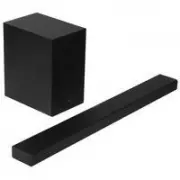 Samsung HW-A650
User Manual
Samsung HW-A650
User Manual
 Samsung HW-B450
User Manual
Samsung HW-B450
User Manual
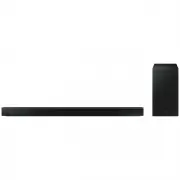 Samsung HW-B650-XY
User Manual
Samsung HW-B650-XY
User Manual
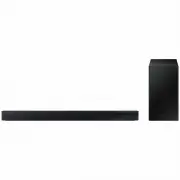 Samsung HW-C450-XY
User Manual
Samsung HW-C450-XY
User Manual
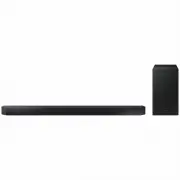 Samsung HW-Q600C-XY
User Manual
Samsung HW-Q600C-XY
User Manual
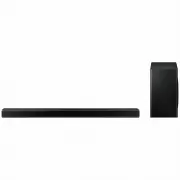 Samsung HW-Q700AXY
User Manual
Samsung HW-Q700AXY
User Manual
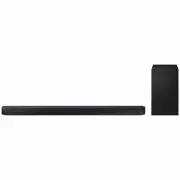 Samsung HW-Q700C-XY
User Manual
Samsung HW-Q700C-XY
User Manual
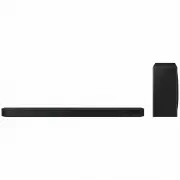 Samsung HW-Q800C-XY
User Manual
Samsung HW-Q800C-XY
User Manual
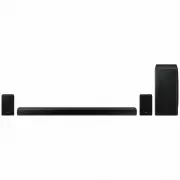 Samsung HW-Q870AXY
User Manual
Samsung HW-Q870AXY
User Manual
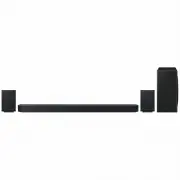 Samsung HW-Q930C-XY
User Manual
Samsung HW-Q930C-XY
User Manual
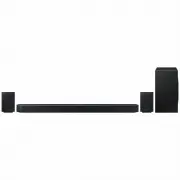 Samsung HW-Q990C-XY
User Manual
Samsung HW-Q990C-XY
User Manual
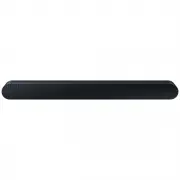 Samsung HW-S60B-XY
User Manual
Samsung HW-S60B-XY
User Manual
 Samsung HW-S61
User Manual
Samsung HW-S61
User Manual
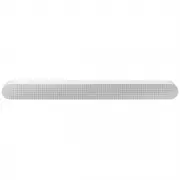 Samsung HW-S61B-XY
User Manual
Samsung HW-S61B-XY
User Manual
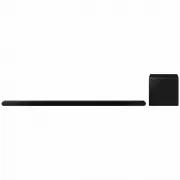 Samsung HW-S800B-XY
User Manual
Samsung HW-S800B-XY
User Manual
 Samsung HW-S801B-XY
User Manual
Samsung HW-S801B-XY
User Manual
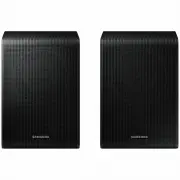 Samsung SWA-9200SXY
User Manual
Samsung SWA-9200SXY
User Manual
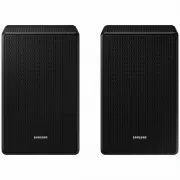 Samsung SWA-9500SXY
User Manual
Samsung SWA-9500SXY
User Manual
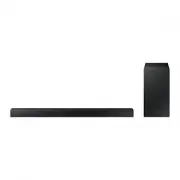 Samsung HW-A430
User Manual
Samsung HW-A430
User Manual
 Samsung HW-A440
User Manual
Samsung HW-A440
User Manual