Page 2 - Safety Regulations
English SHR-2040/2041/2042 USER’S MANUAL ii Please be sure to keep the following in mind for the right use of the product to pre-vent proprietary risk or damage. ■ Do not use multiple plugs at once. ● This may cause abnormal heat generation or fire ■ Do not put a vase, flowerpot, cup, cosmetics, med...
Page 3 - WARNING; Before we start; Standards Approvals; Note
English iii WARNING [Battery] As wrong exchange of the battery in SHR-2040/2041/2042 may cause explosion, you shall usethe certified battery for SHR-2040/2041/2042. The battery specification is as follows. -Normal Voltage : 3V-Normal Capacity : 170mAh-Continuous Standard Load : 0.2mA-Operating Tempe...
Page 4 - Contents
English iv Safety Regulations Before we start Standards Approvals Chapter 1 Overview 1. Introduction 2. Features 3. Part Names and Functions Chapter 2 Installation 1. Installation Environment Setup 2. Checking Product & Accessory 3. HDD Addition Chapter 3 Connecting with other device 1. Connecti...
Page 5 - Chapter 5 Menu Setup; Chapter 6 PTZ Camera Control; Chapter 7 Recording; Chapter 8 Search and Play
English v Chapter 5 Menu Setup Before Use 1. System 2. Camera 3. Monitoring 4. Recording Mode 5. Event Record Mode 6. Record Schedule 7. Backup 8. Network 9. Network Setup Chapter 6 PTZ Camera Control 1. PTZ Camera Control Mode 2. Basic Operation of PAN, TILT, & ZOOM 3. Preset Setup 4. Camera Me...
Page 6 - Chapter 9 Smart Viewer
English vi Chapter 9 Smart Viewer 1. Introduction 2. Feature 3. PC Specification(Recommendation) 4. Smart Viewer Installation 5. Smart Viewer Program Execution 6. Smart Viewer Initial Screen 7. Monitoring Mode 8. Search Mode 9. Setup Mode Appendix 1. Product Specification 2. Outline Drawings 3. Fact...
Page 8 - Introduction
1 Introduction 1-1 The Digital Video Recorder(DVR) compresses the 4 channel of camera input data into theMPEG4 video file and the 4 channel of voice input data into the ADPCM audio file in the realtime to record them in the Hard Disk or retrieve them from the Hard Disk simultaneously.In addition, it...
Page 9 - Features
2 Features 1-2 ■ 4 CH Composite Input Connectors ■ NTSC / PAL Video Source Compatible ( NTSC : SHR-2040 / SHR-2041 / SHR2042, SHR-2040N / SHR-2041N / SHR-2042N PAL : SHR-2040P / SHR-2041P / SHR2042P ) ■ Able to record the CIF sized (NTSC-352 x 240 / PAL-352 x 288) video at the speed of 120 ips(NTSC)...
Page 10 - Part Names and Functions
English No. Name Function SHR-2040/2041/2042 USER’S MANUAL 3 Part Names and Functions 1-3 Power LED HDD Access LED Displays Normal Access to HDD. Upon Access to HDD, LED repeats on and off. Mode Selection Button Search Audio Setup Button Displays power on/off condition. 1 2 3 5 Network LED Displays ...
Page 14 - Caution
English SHR-2040/2041/2042 USER’S MANUAL 1-7 Caution Caution Do not play DVR on the carpet or other soft material to prevent clogging of the air ventilator.To play DVR on the cabinet or rack, be sure to check the ventilation condition. No. Name Function Composite Video Signal Input Port (BNC Style C...
Page 18 - Installation Environment Setup
1 Installation Environment Setup 2-1 Do not play DVR on the carpet or other soft material to prevent clogging of the air ventilator.To play DVR on the cabinet or rack, be sure to check the ventilation condition. You should pay attention to the following before you use the product. 1. Do not use it o...
Page 20 - Checking Product & Accessory
SHR-2040/2041/2042 USER’S MANUAL 2-3 English 2 Checking Product & Accessory Upon delivery of a product, you shall unwrap the product and put it on the even floor or whereyou want to use it. Then you shall check if the following items are in it. ■ Main Body ■ User’s Manual ■ One Power Cord ■ Two ...
Page 21 - HDD Addition
2-4 English 3 HDD Addition SHR-2040 HDD ADDITION The user can add 1 HDD to this product. However, there are many factors that can cause elec-trical shock, accidents, and malfunctioning of the device inside of the product. When the userdoes not correctly install or apply the proper settings, the devi...
Page 38 - Connecting the Video, Audio, and Monitor
English 1 Connecting the Video, Audio, and Monitor 3-1 SHR-2040/2041/2042 USER’S MANUAL [SHR-2040] SHR-2040/2041/2042-ENG-1 6/21/07 4:53 PM Page 3-1
Page 40 - Connecting the Network
English SHR-2040/2041/2042 USER’S MANUAL 3-3 2 Connecting the Network ● Connecting to Internet through Ethernet(10/100BaseT) ● Connecting to Internet through ADSL [SHR-2040] [SHR-2040] SHR-2040/2041/2042-ENG-1 6/21/07 4:53 PM Page 3-3
Page 42 - Connecting the USB
English 1. There are two USB connecting ports on the front and back of SHR-2040/2041/2042. 2. USB Hard Disk, USB CD/DVD, and USB Memory are connected through the front and back ports of SHR-2040/2041/2042. 3. Only one USB device can be connected with each USB connecting port. 4. If the USB HDD is co...
Page 43 - Connecting the Alarm Input/Output
English 3-6 4 Connecting the Alarm Input/Output The Alarm IN/OUT port in the back of SHR-2040/2041/2042 is composed of the followingelements. ● ALARM IN/OUT Connection Name Function - ALARM IN1 1 - ALARM IN2- ALARM IN3- ALARM IN4 2 - ALARM RESET IN 3 - ALARM OUT1 - ALARM OUT2 ALARM Input Port ALARM ...
Page 45 - Connecting the RS-485 Device
English 3-8 5 Connecting the RS-485 Device ● Connect the RS-485 Device through the back port of SHR- SHR-2040/2041/2042. ● You can install and control the PTZ camera supporting the RS-485 communication. ● You can adopt either Half Duplex or Full Duplex method for the connection. ● Baud Rate supports...
Page 48 - System Operation
English 1 System Operation 4-1 SHR-2040/2041/2042 USER’S MANUAL ● Turn the power on and the following LOGO pops up on the screen. ● After the LOGO appears, all of LED in the front flickers 6 times to initialize the system foroperation. ● Upon completion of normal initialization, the Live screen appe...
Page 49 - Live Screen Mode; Definition of Live Screen Icon
2 Live Screen Mode 4-2 Definition of Live Screen Icon The Live screen icons display the current setup and function status of each screen. English CAM_01 CAM_01 V.Loss : Recording Icon Each icon represents Normal / Event (Alarm + Motion) / Schedule Recording. : Recording Video Size Icon Each icon rep...
Page 50 - Definition of Live Screen Mode
English SHR-2040/2041/2042 USER’S MANUAL 4-3 Definition of Live Screen Mode The system receives 3 live images and displays them in the following 3 modes. ● 4 Split Mode: Four channels are split in the screen separately.You are able to choose a channel as you want to in each split mode. ● PIP(Picture...
Page 51 - Selecting Live Screen Mode
English 4-4 Selecting Live Screen Mode Each mode may be selected by [MODE Button] and [CH1 ~ CH4 Button]. The following figure shows Live Mode after converted. ● The default setup is 4 Split Screen Mode. ● You are able to choose other modes than Full Screen Mode by the [MODE] button insequence. When...
Page 52 - Live Channel Selection and Audio On/Off Setup; Audio On/Off Setup in the Full Screen
English 3 Live Channel Selection and Audio On/Off Setup In other split modes than Full Screen Mode and Auto Sequence Mode, you can choose a channelto be displayed in each split area on your own. In addition, the channel being set to Audio On canbe set to Audio On/Off in all Live Modes. Audio On/Off ...
Page 53 - Freeze and Zoom; Freeze Function
English 4-6 4 Freeze and Zoom Freeze Function Freeze function pauses the video image in the Live Screen, it is only available in the Live Mode.You can set freeze to on or off with the [FREEZE] button. Zoom Function Zoom function enlarges the selected area to double size, and it is only available in ...
Page 54 - Event Monitoring
English 5 Event Monitoring Event monitoring displays the channel synchronized with a event on the screen when a special event (Sensor/Motion/Video Loss) occurs. Event monitoring On/Off and event duration setup is available in [Menu] ➝ [Monitoring] mode. If you set the event monitoring interval to 5 ...
Page 59 - System
1 System 5-2 ● System Menu has the following items in detail. English ● DatePress the “Enter” key and the ¦ , key to move to Y/M/D. Use the , key to change the date. Press the “Enter” key to come out of the mode. ● TimePress the “Enter” key and the ¦ , key to move to H/M/S. Use the , key...
Page 61 - Password
English 5-4 Password ● The Default Password is 4321. ● New PasswordThis is used to change the system password inside SHR-2160/2162/2080/2082.You are allowed to create a password up to 8 digits. Press the “Enter” key and achannel button from 1~9,10(operates as 0) at the left. Press the “Enter” key af...
Page 62 - Load Factory Default
English SHR-2040/2041/2042 USER’S MANUAL 5-5 Load Factory Default ● It used to initialize all the menu setup values. The recorded data will not be deleted.Press “OK” in the confirmation window to start initializing. System Log ● System Log is used to check the important record by an administrator. ●...
Page 63 - Event Log
English 5-6 Event Log ● It used to check the record regarding Event like Alarm / Motion / Video Loss. ● It displays the contents of a log regarding event and its execution date / time. ● First : Returns to the first Log page. ● Prev : Back to the previous Log page. ● Next : Forwards to the next Log ...
Page 64 - System Information and Setup; Storage Setup
English SHR-2040/2041/2042 USER’S MANUAL 5-7 System Information and Setup This setup window provides the following setting items: ● Software Version: Displays the current software version. The value cannot be changed. ● Broadcast Format: Displays the current broadcast format (NTSC/PAL). The valuecan...
Page 66 - Export/Import the Configuration
English SHR-2040/2041/2042 USER’S MANUAL 5-9 Export/Import the Configuration This menu is used to export or import the DVR-related settings to/from the USB memory. The related settings are as the following: ● Mode: You can select any of Import and Export. ● File Name or File Open: The file naming is...
Page 67 - Remote control Device
English 5-10 Remote control Device ● MENU for the use of Samsung system keyboard Device Samsung System Keyboard Cancel Remote Control Device OK ID Baudrate Parity Date Stop Duplex 000 9600 None 8 1 Half Duplex ● Device A Remote Control Device, being connected to the RS485 port. ● ID This is a privat...
Page 68 - System Shutdown
English SHR-2040/2041/2042 USER’S MANUAL 5-11 System Shutdown ● Terminates the work in action safely and turns the power off. Press “OK” in the confirmationwindow and plug out when you see “Safe to Power Off”. Caution Caution [System Shutdown]Power-off without terminating the system in the System Sh...
Page 69 - Camera
English 5-12 2 Camera ● The detailed Camera Menu items are as follows. ● VideoOn : Camera images from a selected channel appear.Off : Camera images from a selected channel disappear. Covert1 : Displays the information except for the Video information of selected channel. Covert2 : Does not display t...
Page 71 - PTZ Device
English 5-14 PTZ Device ● ID It is an ID for PTZ Camera and available to set from 0 to 255. ● Protocol It is supported by the PTZ device. The following protocols are now being supported. Samsung / Vic. / Pan. / AD / Phi. / Ern. / Pel-D / Pel-P / Vcl. / Dia. / Kal. /Tech. ● Baurate Baurate is support...
Page 72 - Screen Setup
English Screen Setup SHR-2040/2041/2042 USER’S MANUAL 5-15 ● It is a window to set Brightness/Contrast/Color for the camera image of each channel. Put the cursor on the channel that you want to adjust and set Brightness/Contrast/Color. Once selected, the channel appears in the right PIP area. Use th...
Page 75 - Recording Mode; Record Mode
English 5-18 4 Recording Mode Record Mode ● Details for Record Mode Menu are as follows. If you press the front “REC” button, the mode value to be recorded will be set. ☛ For the setup of Event Recording Mode value, refer to 5-20. Event RecordingMode Setup Menu. ● Mode On : The current channel is re...
Page 76 - Record Video size Mode
English SHR-2040/2041/2042 USER’S MANUAL 5-19 ● Video size It sets the video to be recorded. Half D1 : (NTSC) 720x240(N) ➝ Normal (PAL) 720x288(N) ➝ Normal CIF : (NTSC) 352x240(C) ➝ CIF (PAL) 352x288(C) ➝ CIF ● Auto Deletion If you click the [off] button, you can select from on/off. Select “On” to m...
Page 77 - Event Record Mode
English 5-20 5 Event Record Mode ● The detailed items of Event Record Menu are as follows. Event Record Mode setup ● Event Record Mode setup Sets a mode to be recorded when an event occurs. ● V. Size (Video Size ) Sets the size of a screen to be recorded.Half D1 : (NTSC) 720x240(N) ➝ Normal (PAL) 72...
Page 79 - Alarm Detection Setup
English 5-22 Alarm Detection Setup ● Off : Sensor does not operate. ① N.O(Normal Open) Sensor : Sensor remains open all the time and if closed, an alarm will be issued. (A Contact) ➁ N.C(Normal Close) Sensor : Sensor remains closed all the time and if open, an alarm will be issued. (B Contact) ● Cam...
Page 80 - Motion Detection Setup
English SHR-2040/2041/2042 USER’S MANUAL 5-23 Motion Detection Setup ● Motion Detection Mode Off : Motion Detection does not operate On : Motion Detection operates. ● Area Selects the Motion Detection area. It is composed of 45x40(NTSC)/45x48(PAL) sized Block. It is impossible to set 4 block rows(Up...
Page 81 - Video Loss Detection Setup
English 5-24 ● Sensitivity Sets the sensitivity of motion detection. Sensitivity: 1(L), 2, 3, 4, 5, 6, 7, 8, 9, 10(H). ● Alarm-Out Sets the Alarm-Out when Motion occurs. 5 Alarm Outs are supported. Select an alarm-out that you want to synchronize with the current motion channel. Multi-selection is p...
Page 82 - Record Schedule
English SHR-2040/2041/2042 USER’S MANUAL 5-25 6 Record Schedule This setup selects a time to record automatically.Selection by the day or by the time is available.The default value is set to “Event Record”. ● Press “CH >” copies the value of Channel 1 to all the channels. ● The horizontal axis nu...
Page 84 - Backup
English SHR-2040/2041/2042 USER’S MANUAL 5-27 7 Backup ● If there is a device, the free space and the backup device is displayed. ● Select a date, time, and camera No. to backup, and press “Start”. ● When you change Start Date/Time or End Date/Time, free space keeps updated in the Free Space zone. B...
Page 85 - Network; IP Setup
English 5-28 8 Network ● Connection Mode Designates the kind of the network connected to the main body of SHR-2040/2041/2042.Static IP : When the main body is connected to the network with Static IP. Dynamic IP : When the main body is connected to the network with Dynamic IP supplied by DHCP. ADSL(P...
Page 87 - Transfer Protocol Settings
English 5-30 Transfer Protocol Settings ● You may select either TCP or UDP for the protocol type.If you select ADSL from the IP setup page, only TCP is available.While TCP is selected, Audio transmission is not available. ● The available Port(TCP) ranges from 554 to 998 and the port number will be c...
Page 88 - Callback Settings
English SHR-2040/2041/2042 USER’S MANUAL 5-31 Callback Settings ● The Callback function is used to forward a callback message to the IP where SmartVieweris in action in case Alarm, Motion Detection, or Video Loss event occurs. ● On/Off : Off is default but you may choose On. ● IP Address : IP settin...
Page 89 - Network Setup; Port Setup for SmartViewer Connection; In the event of TCP Setup from Transfer Protocol Setup Page
English 5-32 9 Network Setup Port Setup for SmartViewer Connection ● The Port value for DVR registration of SmartViewer (Setup ➝ Site Setup) shall be as same as that of the set (TCP). ● If you want to use the IP Router, you shall forward the activated Port depending on thecurrent setting value. - If...
Page 92 - PTZ Camera Control Mode
1 PTZ Camera Control Mode 6-1 ● Select a proper PTZ camera Configuration value in MENU to enter PTZ Control Mode. English ● Selected in MENU, the PTZ symbol( ) is displayed on the channel in the screen. ● If you press the Enter( ) button among direction keys in front of Split Screen, a bluebar will ...
Page 95 - Preset Setup
3 Preset Setup 6-4 ● Records a certain position of PTZ Camera. ● Memorizes up to 20 PTZ Camera positions at the moment. English ● Press the Preset button in front of SHR-2040/2041/2042 in Single Screen PTZ CameraControl Mode to set up Preset. ● After Preset setup, press ENTER. PTZ TELE WIDE VIEW PRE...
Page 97 - Camera Menu Setup
4 Camera Menu Setup 6-6 ● Camera Menu is a menu supplied by PTZ Camera itself. This Menu sets up several conditions of PTZ Camera. English ● Press the Preset button in front of SHR-2040/2041/2042 in Single Screen PTZ CameraControl Mode to select Camera Menu. ● Press the “Preset” button in front of S...
Page 98 - Preset View
SHR-2040/2041/2042 USER’S MANUAL 5 Preset View 6-7 ● Preset setup allows your movement to a certain saved position of PTZ Camera. ● Press the VIEW button in front of SHR-2040/2041/2042 in Single ScreenPTZ Camera Control Mode to select Preset. English ● Control the cursor until it reaches a preset po...
Page 99 - Other View
● After you select a function, press Enter. Then the function will be checked and start running. ● If you select other function during the operation, the previous function willbe unchecked and the current function will be checked. ● If you put P/T/Z/ during the operation or enter the Preset Setup or...
Page 102 - arning
1 REC (Normal Recording) 7-1 ● Pressing REC the button starts recording as set in the record mode. Then, REC LEDlights on and a recording icon appears on the screen. During the recording in HDD,the front HDD LED blinks. ● During the normal recording, you can stop it by pressing the REC button.If the...
Page 103 - Schedule Recording
2 Schedule Recording 7-2 ● While “Record Schedule” or “Schedule/Event recording” is selected in the Record Schedulemenu, Schedule Recording automatically starts. Otherwise, Schedule Recording remainsinactivated. During the Schedule Recording, Recording Icon appears on the screen. During the recordin...
Page 104 - Event Recording
English SHR-2040/2041/2042 USER’S MANUAL 3 Event Recording 7-3 ● Alarm Detection Sensor operation mode in Alarm of Event Record menu shall be set to N.O (Normal Open)or N.C (Normal Close). ● Motion Detection Motion detection in the Event Recording menu shall be set to On. ● Video Loss Detection Vide...
Page 107 - Calendar Search
English 1 Calendar Search 8-2 ● Be sure to select both the channel and the date to search. And press the [OK] button tosearch for the desired time. ● Use a calendar to search the video file of desired time. Four channels in maximum are inthe range of search. ● Select the channel up to 4 by the use o...
Page 108 - Event Search
English SHR-2040/2041/2042 USER’S MANUAL 8-3 ● Searches Normal Recording, Schedule Recording, Alarm Recording, Motion Recording, andV.Loss(Video Loss) Recording by the time. ● You shall select a channel to search to see the event information of the channel. ● On the basis of event information for ea...
Page 110 - Go to First Search
English SHR-2040/2041/2042 USER’S MANUAL 8-5 ● Searches the oldest one among recorded video files. Up to 4 channels can be searched atonce. ● After you select a channel with the , , [Enter] button, the checkbox on the right of the selected channel number will be checked. ● Press the [Start] butt...
Page 111 - Go to Last Search
English 5 Go to Last Search 8-6 ● Searches the latest one among recorded video files. Up to 4 channels can be searched atonce. ● After you select a channel with the , ,[Enter] button, the checkbox on the right of the selected channel number will be checked. ● Press the [Start] button want to sta...
Page 113 - Playback
English 7 Playback 8-8 Note Note Pressing the PLAY button( ) does not affect the playback as far as the user stays in theMENU. Be sure to exit from the MENU to start the playback. ● Press the STOP button( ) to stop the playback. If you press the Playback/PAUSE button( ) once more, the recording will...
Page 119 - Feature
English 2 Feature 9-2 ● Thanks to the transmission of video data compressed by the MPEG-4 VideoCompression method, it can play the video images of good quality. ● Thanks to the G.726 Voice Compression method, it supplies the voice data ofgood quality. Use of armored MIC improves the quality of remot...
Page 121 - Smart Viewer Installation
● Run the “Setup.exe” file. 4 Smart Viewer Installation 9-4 Smart Viewer Installation ● Put a Smart Viewer Program CD in CD-ROM and open the “Smart Viewer” folder in the CD. English SHR-2040/2041/2042-ENG-2 6/21/07 4:16 PM Page 9-4
Page 124 - Smart Viewer Program Execution
English SHR-2040/2041/2042 USER’S MANUAL 5 Smart Viewer Program Execution 9-7 ● Double-click the Smart Viewer icon in the background screen to run the program. SHR-2040/2041/2042-ENG-2 6/21/07 4:16 PM Page 9-7
Page 125 - Smart Viewer Initial Screen
6 Smart Viewer Initial Screen 9-8 ● Screen Description English ! This is the button to enter the Search mode in which you can search and play remote the video file recorded in SHR-2040/2041/2042 and enter the Monitoring mode for real-time video monitoring. @ This button terminates or minimizes the p...
Page 126 - Monitoring Mode; Connection Failure Cases
SHR-2040/2041/2042 USER’S MANUAL 7 Monitoring Mode 9-9 ● DVR(SHR-2040/2041/2042) / SITE Connection- Select the name of DVR(SHR-2040/2041/2042) or site for connection and click the connection button. English Connection Failure Cases 1. Password Certification Failure - In case of discord between the N...
Page 140 - Search Mode
English SHR-2040/2041/2042 USER’S MANUAL 8 Search Mode 9-23 ● The initial screen of search mode - The search mode is divided into the remote mode to search and play the SHR-2040/2041/2042 video and the local mode to play .dvr file saved in thedirectory designated by your PC. ! To change to the searc...
Page 147 - Setup Mode
9 Setup Mode 9-30 ● Initial Screen English ! Button to select items for DVR Setup, Viewer Setup, Site Setup, and S/W Version setup. @ It shows what the selected Setup item can set up in detail. # button to terminate the setup window. $ Button to save the information revised in the setup window, rema...
Page 149 - DVR Setup
English 9-32 DVR Setup - Click the [DVR Setup] button for DVR Setup.- You can change remotely the setup items of SHR-2040/2041/2042 Menu, being connected with Smart Viewer. - DVR Setup is composed of 5 items; System, Camera/Audio, Monitoring, Recording, and Network. Note Note - You are authorized wi...
Page 162 - Viewer Setup
English SHR-2040/2041/2042 USER’S MANUAL 9-45 Note Note - SHR-2040/2041/2042 uses 4 ports for TCP connection.- The PORT number is flexible and 4 consecutive numbers are grouped for the change ( 554,555,556,557 ➝ 558,559,560,561 ) - If you use the IP Router for network composition, you should allocat...
Page 165 - Site Setup
English 9-48 Site Setup - Click the [Site Setup] button for Site Setup. - The information of DVR(SHR-2040/2041/2042) or Site that you want to connect by Smart Viewer is set in the Site Setup. - Smart Viewer allows you to connect with DVR(SHR-2040/2041/2042) or Site registered only here. 1 3 5 2 4 ! ...
Page 179 - Appendix
Appendix SHR-2040/2041/2042-ENG-2 6/21/07 4:16 PM Page 9-62
Page 180 - Product Specification
English 1 Product Specification 10-1 SHR-2040/2041/2042 USER’S MANUAL Item Details Remarks OS Embedded OS Broadcasting NTSC/PAL System Input Voltage 2040-DC 12V, AC 110-220(NTSC), AC 100-230(PAL) 2041/2042 - AC 110-220(NTSC) AC 100-230(PAL) Power Consumption 2040 : 30Watt, 2041 : 60Watt, 2042 : 51Wa...
Page 183 - Outline Drawings
10-4 English 2 Outline Drawings [SHR-2040] [SHR-2041] SHR-2040/2041/2042-ENG-2 6/21/07 4:17 PM Page 10-4
Page 185 - Factory Default
10-6 English 3 Factory Default This restores the Network information and preset values in SHR-2040/2041/2042 to the original state at the time of factory shipment. Factory Default will be done as follows; - Use System / Load Factory Default in MENU or, - If you hold on to the Mode button in Live Mod...
Page 188 - Frame Specification for the Playback
SHR-2040/2041/2042 USER’S MANUAL 10-9 English 4 SHR-2040/2041/2042 Smart Viewer Frame Specification for the Playback FRAME Viewer Screen VIDEO SIZE RATE Split Mode Half D1(N) CIF (C) Nine-split 1 frame/sec 15 frame/sec Fore-split 15 frame/sec 15 frame/sec Single 15 frame/sec 15 frame/sec Half D1(N) ...


 Samsung HW-A650
User Manual
Samsung HW-A650
User Manual
 Samsung HW-B450
User Manual
Samsung HW-B450
User Manual
 Samsung HW-B650-XY
User Manual
Samsung HW-B650-XY
User Manual
 Samsung HW-C450-XY
User Manual
Samsung HW-C450-XY
User Manual
 Samsung HW-Q600C-XY
User Manual
Samsung HW-Q600C-XY
User Manual
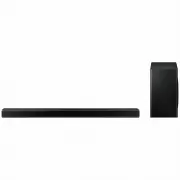 Samsung HW-Q700AXY
User Manual
Samsung HW-Q700AXY
User Manual
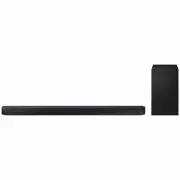 Samsung HW-Q700C-XY
User Manual
Samsung HW-Q700C-XY
User Manual
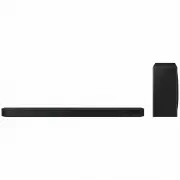 Samsung HW-Q800C-XY
User Manual
Samsung HW-Q800C-XY
User Manual
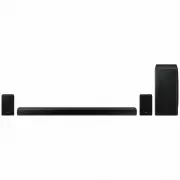 Samsung HW-Q870AXY
User Manual
Samsung HW-Q870AXY
User Manual
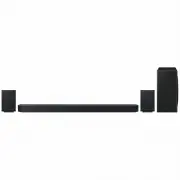 Samsung HW-Q930C-XY
User Manual
Samsung HW-Q930C-XY
User Manual
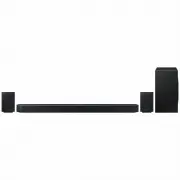 Samsung HW-Q990C-XY
User Manual
Samsung HW-Q990C-XY
User Manual
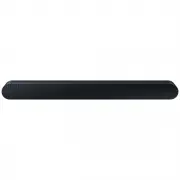 Samsung HW-S60B-XY
User Manual
Samsung HW-S60B-XY
User Manual
 Samsung HW-S61
User Manual
Samsung HW-S61
User Manual
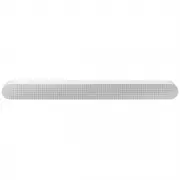 Samsung HW-S61B-XY
User Manual
Samsung HW-S61B-XY
User Manual
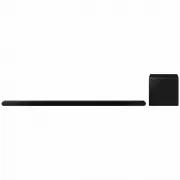 Samsung HW-S800B-XY
User Manual
Samsung HW-S800B-XY
User Manual
 Samsung HW-S801B-XY
User Manual
Samsung HW-S801B-XY
User Manual
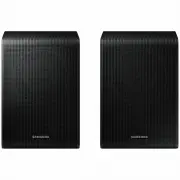 Samsung SWA-9200SXY
User Manual
Samsung SWA-9200SXY
User Manual
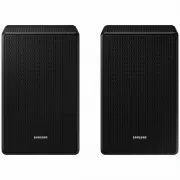 Samsung SWA-9500SXY
User Manual
Samsung SWA-9500SXY
User Manual
 Samsung HW-A430
User Manual
Samsung HW-A430
User Manual
 Samsung HW-A440
User Manual
Samsung HW-A440
User Manual